
Notification Component
How to configure the Notification component in Ilevia Manager to send push notifications to app users when a component state changes.
Introduction
This component allows you to receive notifications directly from the Ilevia application. It is particularly useful for alarms and for being informed about the status of a system (sensors, actuators, temperatures, etc.).
Use cases
The Notification component can be used with motion sensors: when a sensor changes state, the notification appears.
When a window is closed, the component displays a notification to all selected users.
Component properties
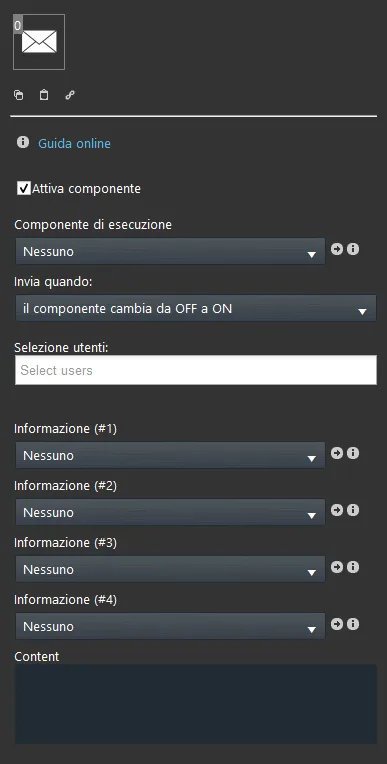
The component title and icon can be changed as needed. See the guide “Common properties”.
GUI
This component was created through the Graphic UI gateway; for more information see the chapter “Gateway / Protocols”.
Enable component: checkbox that defines whether the function is enabled or disabled in the system.
Execution component: the following can be used as execution component: Option list, Info, a Colored info, a Text info, a Slider, a Switch, a Lock or a Button;
Send when:
– State change from Off to On: the notification is sent only when the execution component switches to On;
– State change from On to Off: the notification is sent only when the execution component switches to Off;
– On every change: the notification is sent every time the execution component state changes;
User selection: list of users to whom the notification will be sent. Selection is made by typing the names of the project users in the empty field.
Additional information can be added to the notification content (up to 4):
Information (#1): the following components can be added as information in the notification content: Option list, Info, Colored info, Text info, Slider, Switch, Lock or Adjustable value;
Information (#2): accepts the same components as Information (#1);
Information (#3): accepts the same components as Information (#1);
Information (#4): accepts the same components as Information (#1).
Content: notification text that will be sent when changes occur.
The information set above must be added to the notification content using the “#” symbol followed by the information number.
Important note
The notification is received only by smartphones (iOS, Android), tablets (iOS, Android) and Android-based touchscreens.
How to receive notifications even when the app is closed
If the app is not running in the background, notifications cannot be received while you are not using it. To receive them even when the app is not in use, check the following.
Troubleshooting in Ilevia Remote Plus:
Make sure the “Enable notification” checkbox is enabled in the account settings in Ilevia Remote Plus.
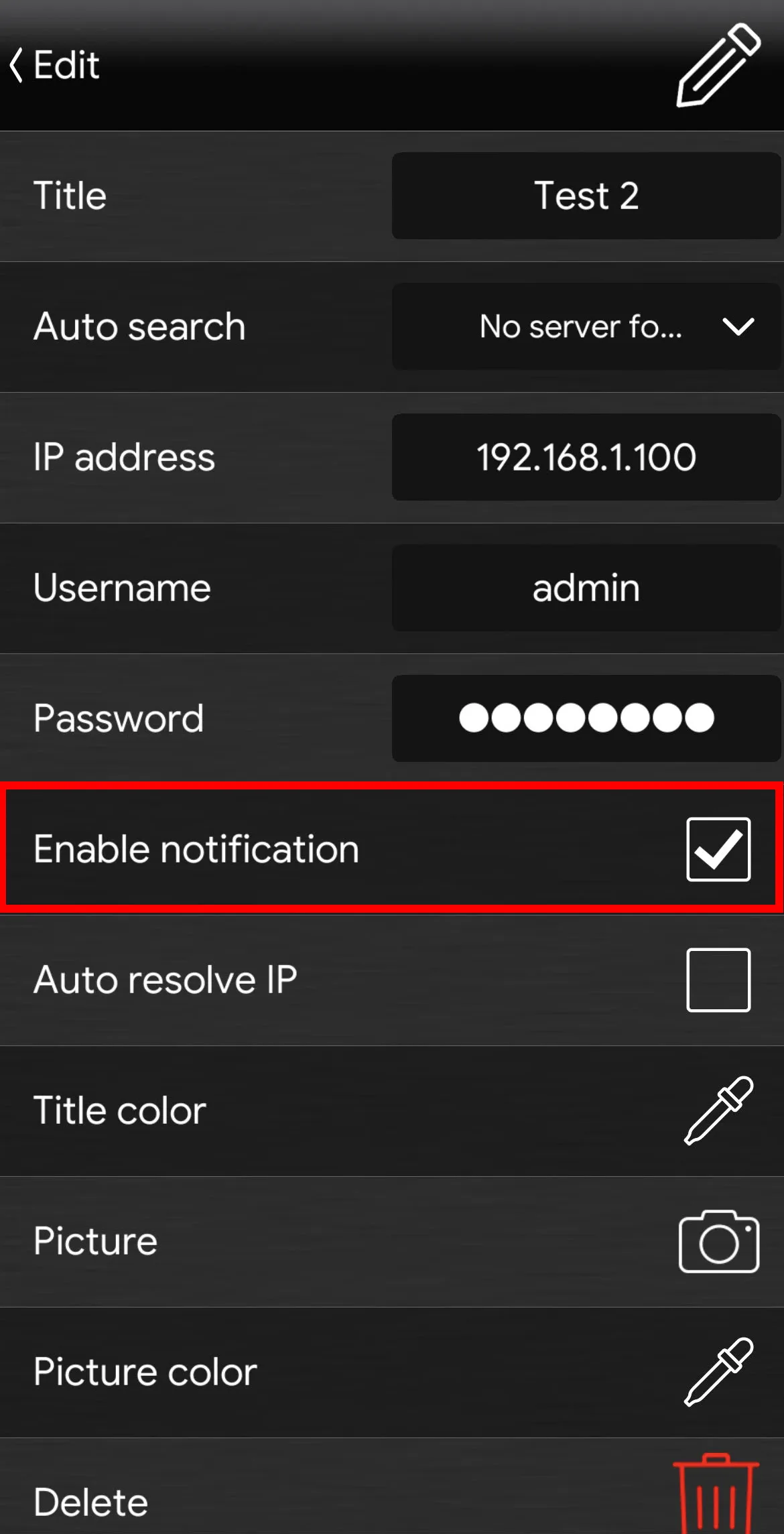
Warning: to receive notifications, you must be logged into the account in the application.
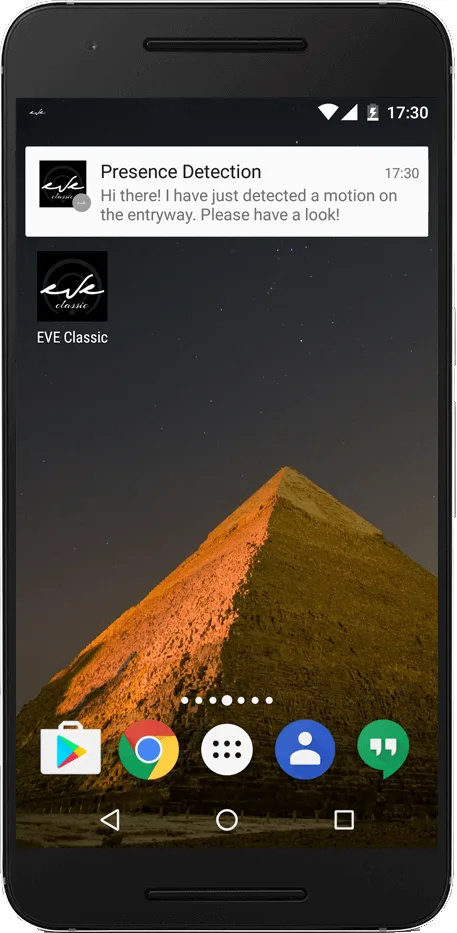
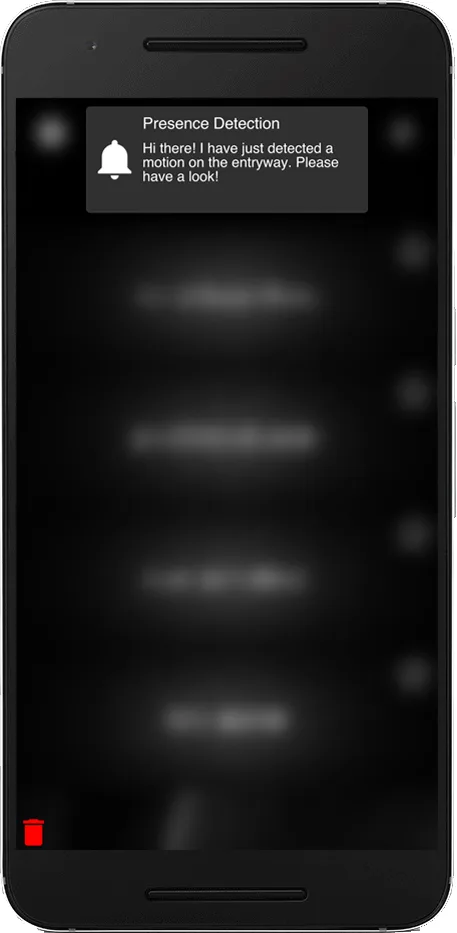
Ilevia notifications on your phone
Help
The Notification configuration can be done easily with the component’s drag-and-drop function. When setting components in the component parameters, you can use the drop-down menu, or drag them from the “My components” area to the selection field.
Reminder before continuing:
Download and install the Ilevia Logic plugin to enable plugins (link);
After uploading the .eve project to the server, wait a couple of minutes for the logic functions to activate.
Click the link to download the demo project and try it.