
The Flow editor
The Flow editor sections: toolbar, flow tabs, Operators, Components and Properties windows, Logs window, window layout, language and user menu.
This page describes the Flow editor sections. To open it see Flow Logic; to work on flows see Create, save and load flows.
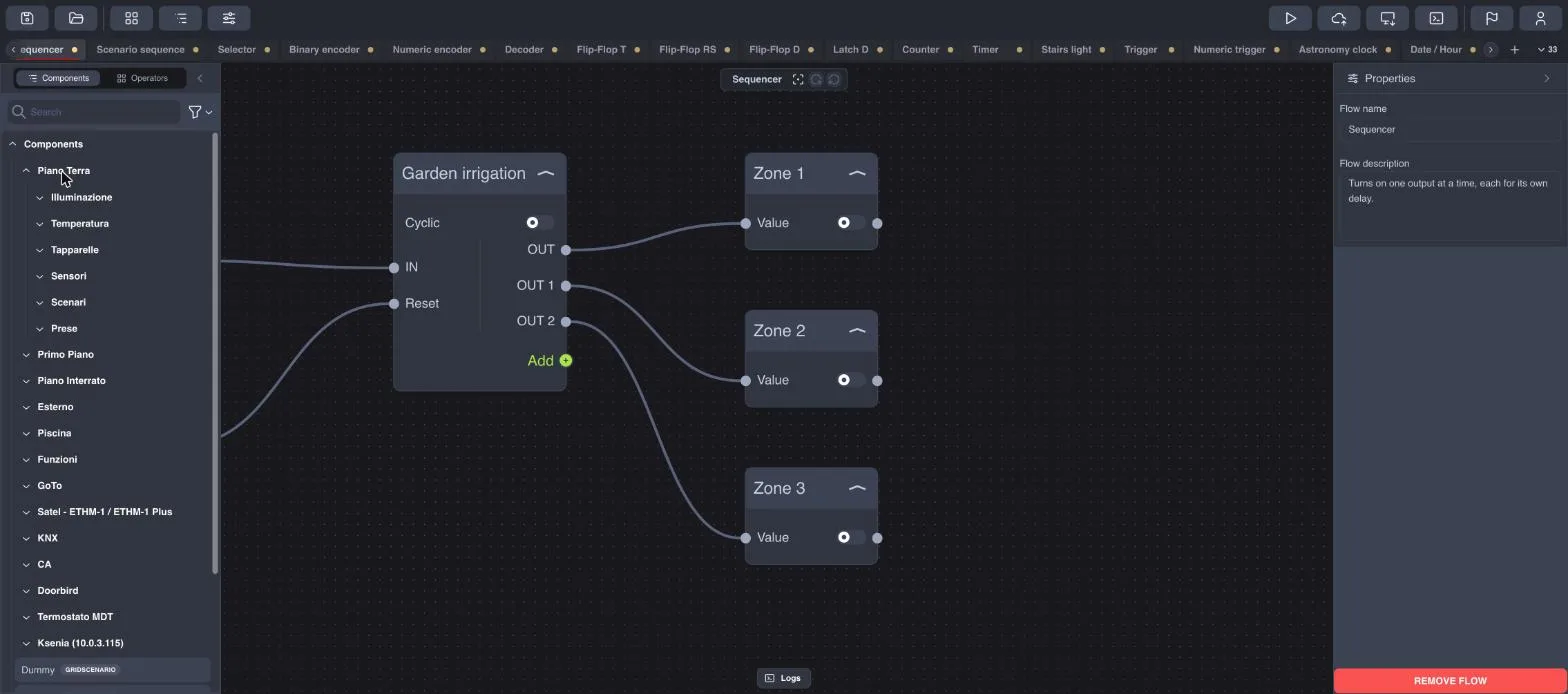
The toolbar
At the top left there are the commands for files and for showing or hiding windows:
Icon | Command | Function |
|---|---|---|
Disk | Save As | Saves all open flows in a |
Folder | Open File | Opens a previously saved |
Grid | Operators | Shows or hides the Operators window (the logic nodes). |
List | Components | Shows or hides the plant components window. |
Sliders | Properties | Shows or hides the properties window. |
At the top right there are the commands that communicate with the server and the settings:
Icon | Command | Function |
|---|---|---|
Play | Start simulation | Starts or stops flow execution; when flows are running, node values update in real time. |
Cloud with arrow | Upload | Sends the flows to the server, which saves and runs them. |
Monitor with arrow | Download | Downloads the flows present on the server into the editor. |
Terminal | Logs | Opens the server messages window. |
Flag | Language | Editor language: English or Italiano. |
Person | User menu | User data, tab position, layout, logout. |
The flow tabs
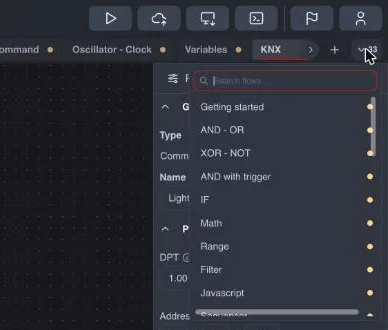
Below the toolbar there is a tab for each flow. A dot next to the name indicates changes not yet uploaded to the server. The + button creates a new flow; the arrows scroll the tabs when they do not all fit; the button with the number (for example 33) opens the list of all flows with a search box.
Above the work area there is the flow name with three commands: center view (fit all nodes), undo and redo.
The Operators window
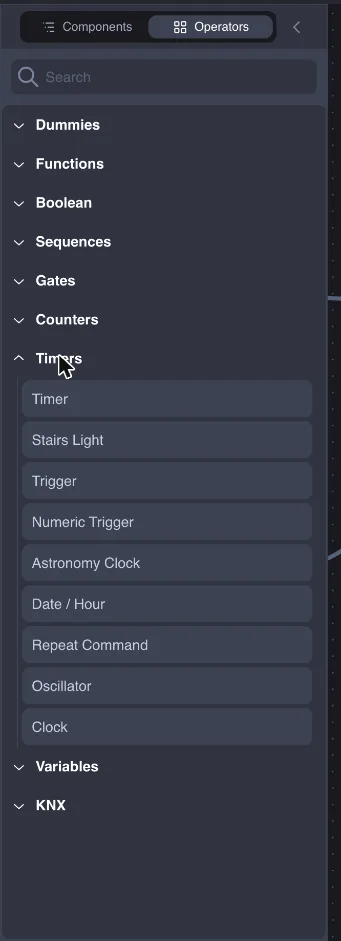
Contains all logic nodes, divided by category. To add a node to the flow, double-click its entry or drag it onto the sheet. The Search box filters the list by name.
Category | Nodes | Guide |
|---|---|---|
Dummies | Switch, Lock, Slider, Dimmer, Info, Dropdown, Seeker, Changeable Value, Setpoint, Shutter, White Light, RGB Light, Scenario, User Scenario | |
Functions | IF, Math, Range, Filter, Javascript | |
Boolean | AND, OR, XOR, NOT | |
Sequences | Sequencer, Scenario | |
Gates | Selector, Numeric Encoder, Binary Encoder, Decoder, Flip-Flop T, Flip-Flop RS, Flip-Flop D, Latch D | |
Counters | Counter | |
Timers | Timer, Stairs Light, Trigger, Numeric Trigger, Astronomy Clock, Date/Hour, Repeat Command, Oscillator, Clock | |
Variables | Boolean, Number, String, Color | |
KNX | Feedback, Command |
The Components window
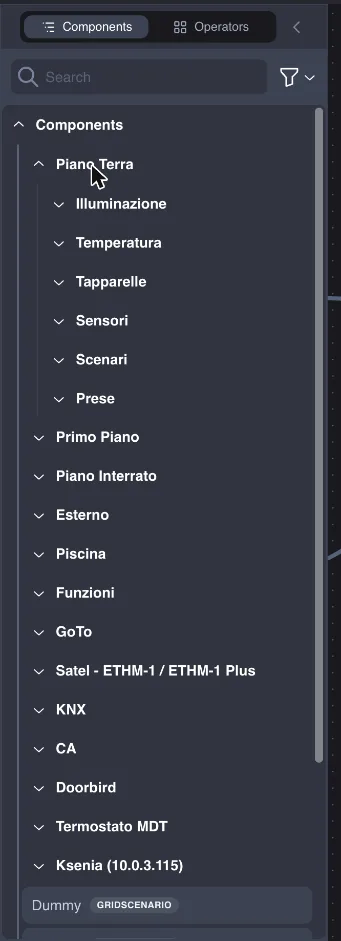
Shows the components of the project loaded on the server, with the same groups and subgroups as Ilevia Manager. Drag a component onto the sheet to use it in the flow. The Search box searches by name and the button with the funnel filters by type. See Components and Dummy.
The Properties window
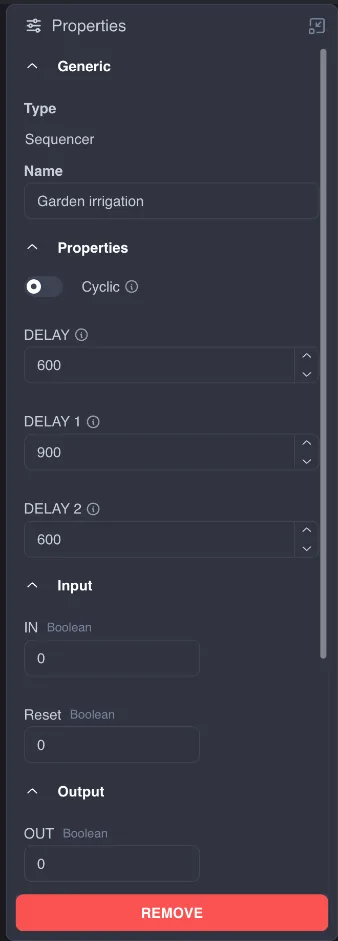
With no nodes selected it shows the flow name and description and the REMOVE FLOW button, which deletes the flow. With a node selected it shows:
Generic: the node type and its name, which you can change;
Properties: the node parameters (delays, conditions, scripts…), each with the ⓘ icon that shows an explanation;
Input and Output: the inputs and outputs with their type and current value;
Information: a Notes field for your notes;
the REMOVE button, which deletes the node.
Input and output values can only be changed while flows are running: when flows are stopped, the fields are read-only.
The Logs window
Shows the messages that the server sends to the editor: upload confirmations, errors, warnings. Each line shows date and time, the affected flow (clickable) and the message type. The Filter text box searches in the text, the funnel filters by type, CLEAR LOGS clears the list.

The user menu
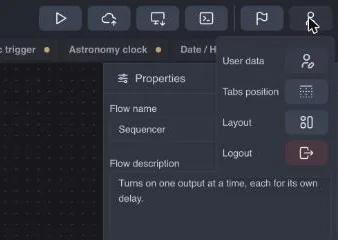
User data: the plant and the user the editor is connected to.
Tabs position: position of the flow tabs.
Layout: window arrangement. Default uses floating windows, Stacked stacks them on one side, Drawers opens them as drawers at the edges of the screen (left for Components and Operators, right for Properties, bottom for Logs).
Lock windows: locks the window position (in the Default layout).
Logout: closes the session. To sign in again, use Open flow from Ilevia Manager.
Moving around the work area
Move the view: drag an empty area of the sheet.
Zoom: mouse wheel or pinch gesture on the trackpad.
Select a node: click the node; the border turns red and the Properties window shows its parameters.
Move a node: drag it from the title bar.
Collapse a node: the ︿ arrow to the right of the title reduces it to the header only.
Undo: the undo and redo buttons next to the flow name.