
ChatGPT: control your system with the ILEVIA plugin
How to install the official ILEVIA plugin in ChatGPT, connect it to your system using the serial number and access key or the QR code, and control lights, shutters, thermostats, scenarios and energy in natural language.
The ILEVIA plugin for ChatGPT, published by Ilevia srl in the ChatGPT plugin directory, lets you control the system by typing (or speaking) in natural language: “turn off all the lights and lower the shutters,” “how much energy did the panels produce this week?,” “every Saturday at 8:00 turn on garden irrigation.”
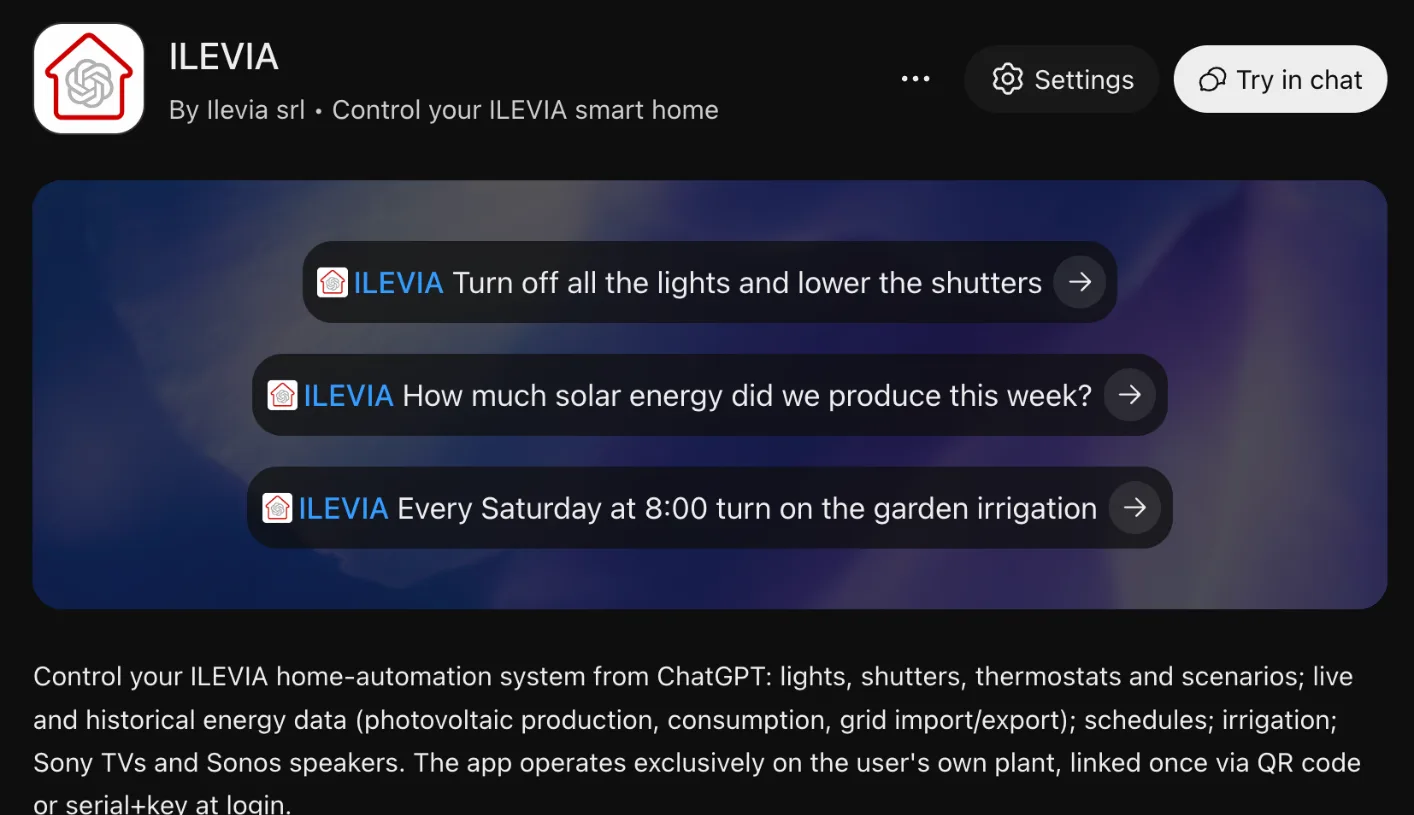
What you can do
Area | Examples |
|---|---|
Lights, shutters, thermostats | Turn on or off, raise or lower, change the temperature |
Scenes | Activate a system scene |
Energy | Real-time and historical data: photovoltaic production, consumption, energy drawn from and fed into the grid |
Schedules | Create or modify a schedule, for example a recurring switch-on |
Irrigation | Start or schedule irrigation |
Multimedia | Sony TV and Sonos speakers |
The plugin works only on your system: it is connected once, at first access, with the system serial number and access key or with the QR code.
What you need
A ChatGPT account.
An ILEVIA server connected to the internet, with the project already loaded.
The system serial number and the access key, or the system QR code. You can find them in the ILEVIA server configuration, or ask your installer for them.
The available commands are those in the project: the plugin sees the components configured in ilevia Manager with their names, so clear names (“Living room light”, “Kitchen shutter”) make requests easier.
Install the plugin
In ChatGPT, open Plugins (from the side menu) and search for ILEVIA.
Open the plugin card, developed by Ilevia srl, and add it.
At the first request, or from Settings, ChatGPT asks you to connect your ILEVIA account: press Continue to ILEVIA.
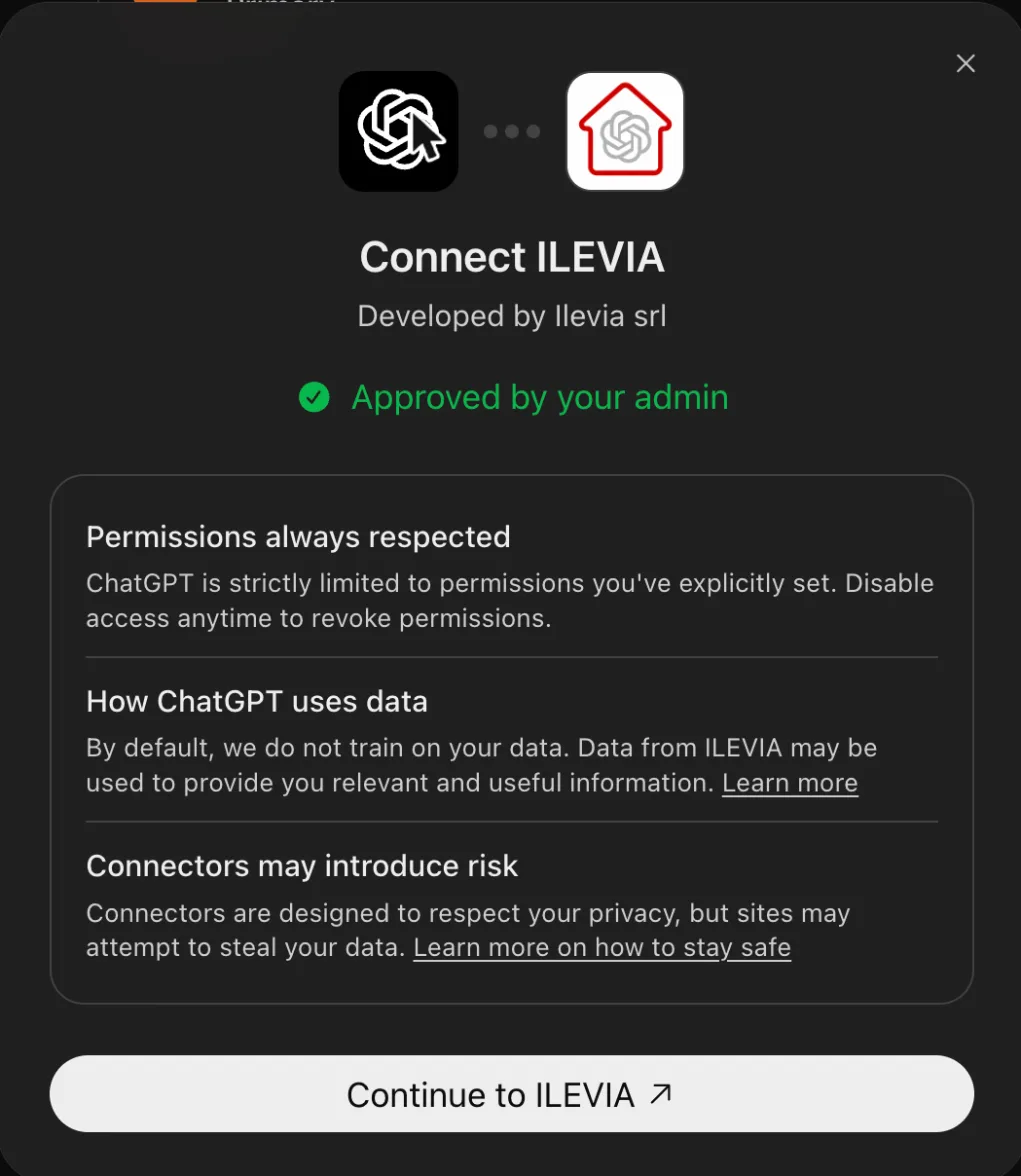
Connect the system
The ILEVIA login page opens (Connect your system to ChatGPT). You can connect in three ways:
enter the System serial number and Access key and press Connect;
press Scan plant QR code and scan the system QR code with the camera;
press Upload QR image and upload an image of the QR code.
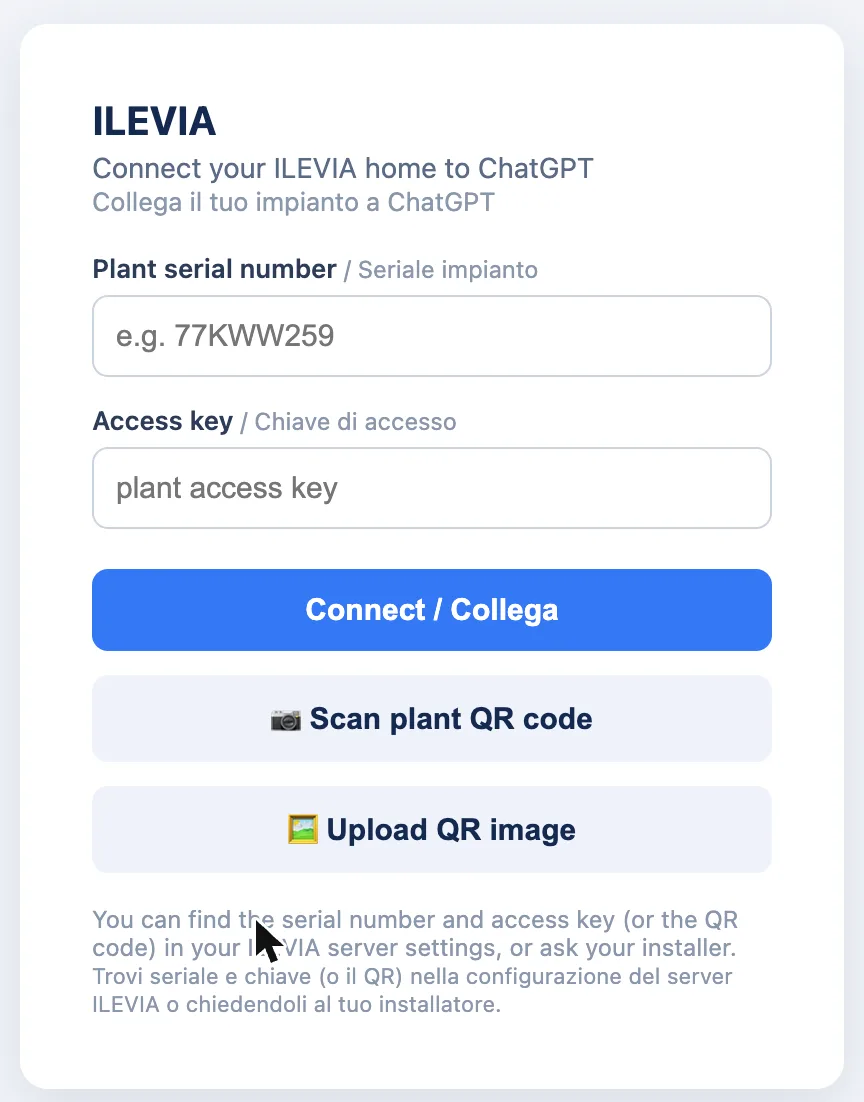
When finished, you return to ChatGPT with the plugin connected. The connection remains active: you do not need to repeat it in every conversation.
The serial number and access key (or the QR code) give access to the system: do not share them and do not write them in conversations. Enter them only on the ILEVIA login page.
Using the plugin in conversations
Write your request in natural language, in the language you prefer. To make sure ChatGPT uses the plugin, select it before writing or mention ILEVIA in the request. Some examples:
“Turn off all the lights and lower the shutters.”
“What is the temperature in the bedroom? Set it to 20 degrees.”
“How much solar energy have we produced this week? And how much have we fed into the grid?”
“Every Saturday at 8:00 turn on the garden irrigation.”
“Activate the Cinema scene.”
“Which lights are on now?”
If a request is ambiguous (for example, there are multiple lights with similar names), ChatGPT may ask you to specify which component you mean.
Multiple systems, disconnect and uninstall
In ChatGPT open Settings > Plugins > ILEVIA:
Connect another account connects a second system;
from the ⋯ menu next to the connected account you can disconnect it;
Uninstall removes the plugin from ChatGPT.
Privacy
When the plugin is connected, ChatGPT may share with ILEVIA the parts of the conversation needed to answer the request. Data use is governed by the ILEVIA terms and privacy policy, available from the plugin card, and by your ChatGPT account data settings.
See also Voice control for Alexa, Google Home and Siri.