
Samsung monitors (MDC / Sync Master)
How to control Samsung professional monitors with the MDC protocol from the ILEVIA server: Samsung Sync Master wizard and created components.
Samsung professional monitors and digital signage displays are controlled over the network using the MDC protocol (Multiple Display Control). The Samsung Sync Master component creates the main monitor commands through a wizard. For Samsung home smart TVs, see Smart TV LG, Sony, Samsung e Apple TV; for the overview, see Multimedia devices.
Before you start
On the monitor, enable MDC control over the network and assign it a fixed IP address.
Add the monitor
Step 1. In the Components tab, open the Multimedia category in the Components Library and drag Samsung Sync Master into My components.
Step 2. Complete the wizard:
Name: gateway and group name (default Samsung MDC Sync Master);
IP address: monitor IP address;
Port: MDC port (default 1515).
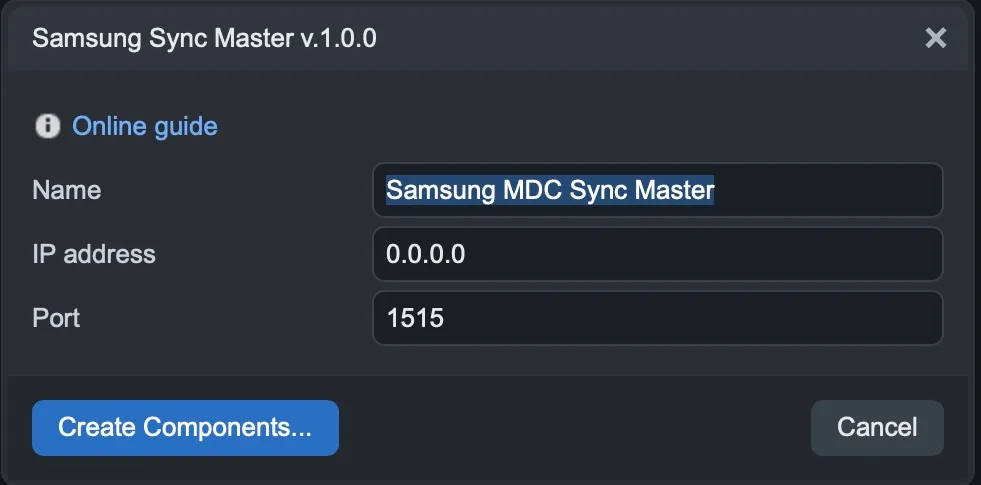
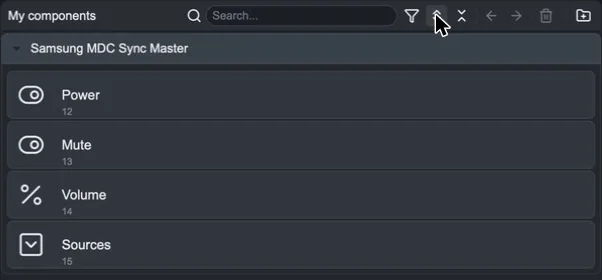
Step 3. Click Create Components…. The gateway and group are created with four components:
Power: on/off;
Mute: mute;
Volume: volume as a percentage;
Sources: input source.
Step 4. Add the components to the user interface and upload the project with Project > Upload to server. For multiple monitors, repeat the procedure for each one.