
Matter
How to use Matter with the ILEVIA server: import Matter devices into the project (integration mode) and publish ILEVIA components to Apple Home, Google Home, Alexa, and SmartThings (bridge mode).
Matter is the open standard for the connected home, supported by Apple, Google, Amazon, Samsung, and many manufacturers. The ILEVIA server uses it in two directions, both configured from a single Matter gateway in ilevia Manager:
Mode | What it does | Example |
|---|---|---|
Integration mode (integration) | Brings Matter devices from other manufacturers into the ILEVIA project, where they become standard components. | A Matter socket or dimmer controlled from the ILEVIA Control app and used in scenes. |
Bridge mode (bridge) | Publishes ILEVIA project components (KNX, Modbus, etc.) as Matter devices. | The KNX lights and shutters in the system that appear in Apple Home, Google Home, Alexa, or SmartThings. |
Before you begin
Matter functions are handled by the Matter plugin on the ILEVIA server: Create Components and Get QR work only with ilevia Manager connected to the server.
The server and Matter devices, or the server and ecosystem hubs (Apple TV, HomePod, Google Nest, Echo…), must be on the same local network.
Add the Matter gateway
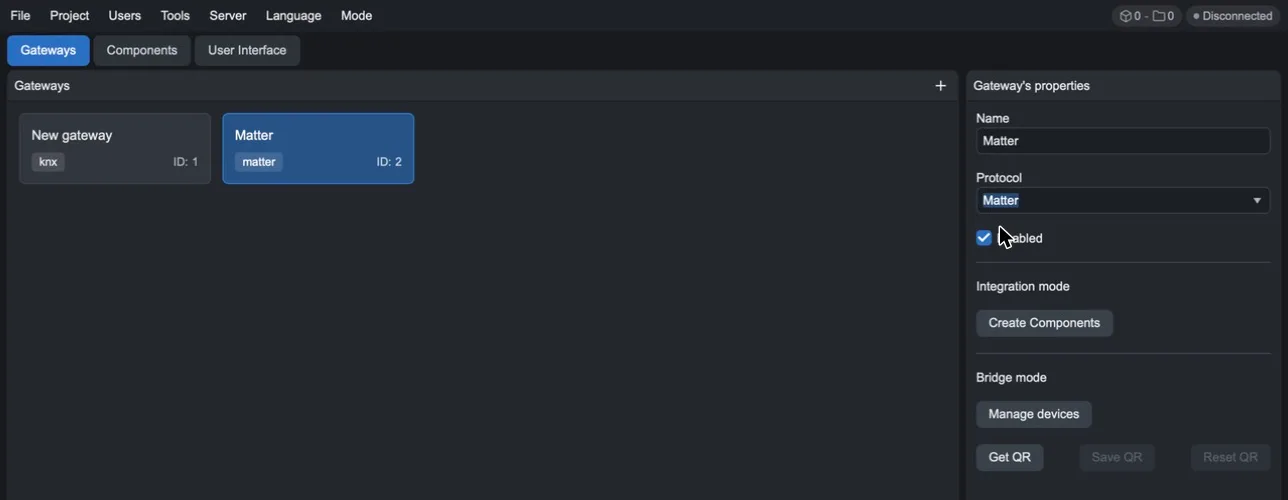
Step 1. In ilevia Manager, open the Gateways tab and press + to add a gateway.
Step 2. Give the gateway a name (for example Matter) and under Protocol select Matter. The properties show the two sections Integration mode and Bridge mode.
Integration mode: import Matter devices
In this mode, the ILEVIA server acts as a Matter controller: it reads the devices associated with its Matter plugin and creates the corresponding components in the project.
Commission the Matter devices to the Matter plugin on the ILEVIA server.
In ilevia Manager, connected to the server, select the Matter gateway and press Create Components. The device components are created in My components, linked to the gateway.
When you add new devices, repeat the scan: press Create Components again or, in the Gateways tab, right-click the gateway and choose Refresh components.
Add the components to the user interface and upload the project with Project > Upload to server.
If No response from Matter plugin appears after about 20 seconds, check that the server is reachable and that at least one device is commissioned to the plugin.
Bridge mode: publish the system to Apple, Google, Amazon
In this mode, the ILEVIA server presents itself to the ecosystems as a Matter bridge: a single device containing all the devices you choose to publish.
Define rooms and devices
Step 1. Select the Matter gateway and press Manage devices. The Matter window opens.
Step 2. Press Add room and name the room in Device name (for example Living room).
Step 3. Drag the device type from the Devices column into the room. Available types: Awning, Blinds, Closet, Curtain, Door, Fan, Garage Door, Gate, Light, Lock, Outlet, Scene, Shutter, Smoke Detector, Switch, Thermostat, Valve, and Window.
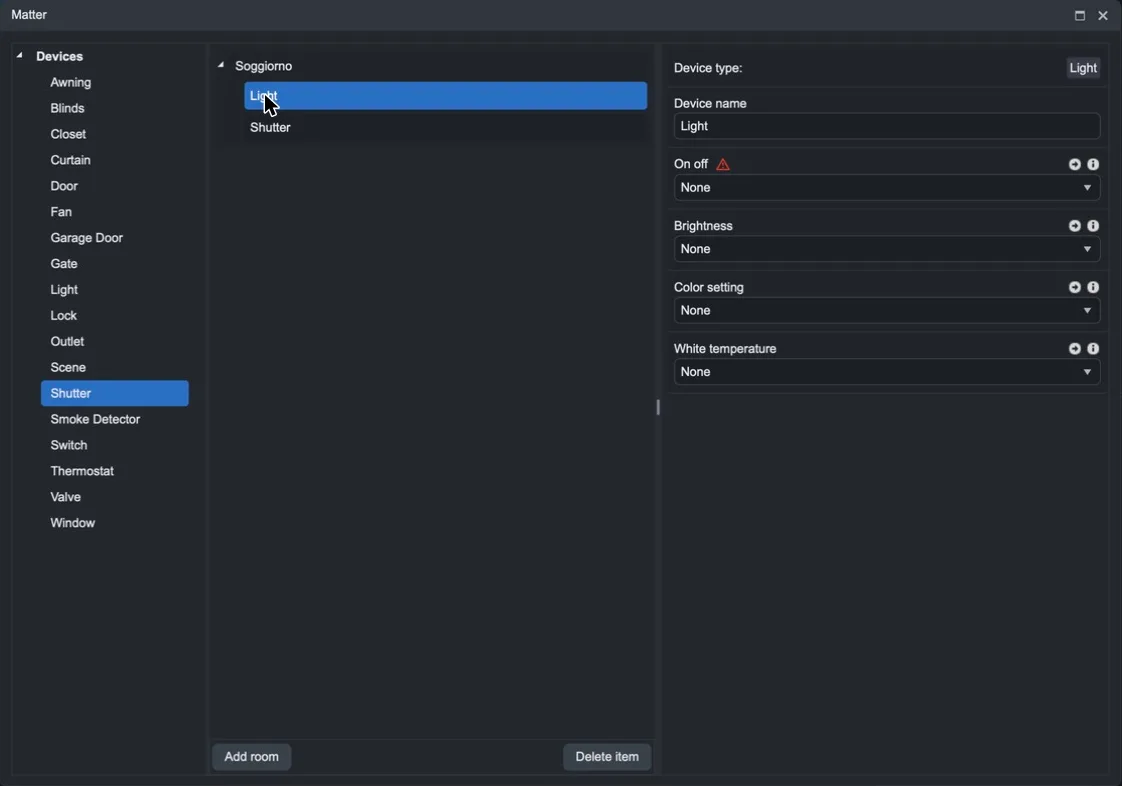
Step 4. Select the device, give it the name that will appear in the ecosystem app, and link the project components to its fields. Required fields are marked with a red triangle until they are linked. For example, a Light requires On off and can also use Brightness, Color setting, and White temperature.
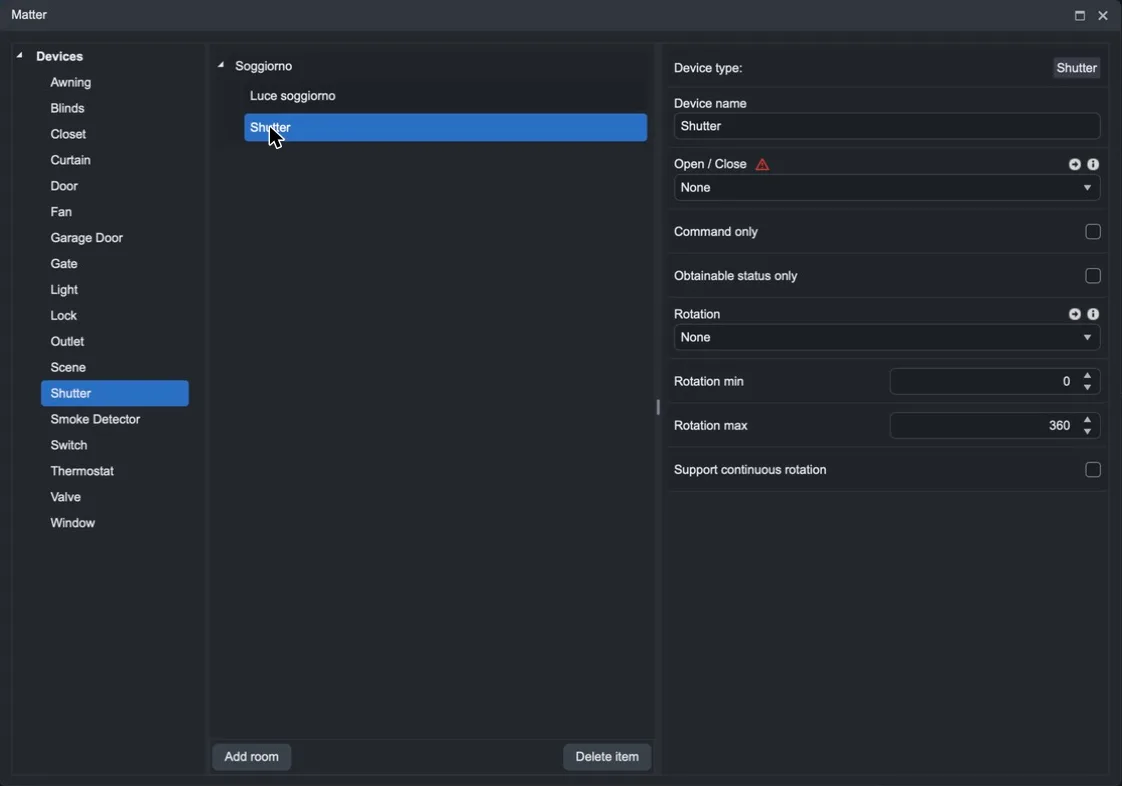
A Shutter requires Open / Close and has options such as Command only (command only, no status), Obtainable status only (status only), and blade Rotation with its limits.
Use Delete item to remove a room or a device.
Pairing the bridge with the ecosystem
Step 1. Upload the project to the server with Project > Upload to server and stay connected.
Step 2. In the gateway properties, press Get QR. The server returns the Matter QR code and the numeric commissioning code.
Step 3. In the ecosystem app (Apple Home, Google Home, Alexa, SmartThings…), choose to add a Matter device and scan the QR code, or enter the code. The bridge appears with all devices defined in the rooms.
Save QR saves the QR code image, useful to hand over to the customer.
Reset QR regenerates the bridge identity: existing pairings must be redone.
Changes made in Manage devices reach ecosystems already paired after the project is uploaded to the server.
Troubleshooting
Apple Home finds the bridge but does not complete pairing. If there are multiple Apple hubs at home (Apple TV and HomePod), open the Home app, tap the home name > Home Settings > Hubs & Bridges and disable automatic selection by choosing a single hub, then try again.
A device remains in error in the ecosystem app. Check in Manage devices that all required fields of the device are linked to a component.