
Legrand/BTicino gateway parameters
Configure BTicino/Legrand on X1 Plus: OpenWebNet interfaces, network parameters and components for lighting, automation and temperature control, with Manager screenshots.
The BTicino/Legrand gateway connects X1 Plus to an SCS system over IP network and OpenWebNet. The gateway manages the connection; each component identifies the function and the SCS address to be controlled.
Required devices
An OpenWebNet-compatible system interface reachable on the network from X1 Plus is required. The devices listed for integration include MH200, MH202, F451, F454, F459 and MyHOME Server1. Check the functions available on the interface in use.
Have the interface IP address, port and any password available, as well as the addresses of the devices on the SCS system.
Prepare the system data
The connection follows this path: X1 Plus → IP network → BTicino/Legrand interface → SCS bus → devices. The network interface and the SCS device have different addresses and must be configured in their respective fields.
Identify the installed OpenWebNet interface and its connection data: IP, port and any password.
For each function to integrate, note the family, SCS interface, address and device function.
Configure a gateway for the connection to the interface and associate the relevant components with that gateway.
The password in the Password field is the one set on the BTicino interface, including MyHOME Server1 when used in the system. Use the data from the existing configuration.
Gateway properties
Open Gateways and create or select the BTicino/Legrand gateway suitable for the system interface.
Assign a recognizable Name and leave Enabled active.
Enter the IP address of the BTicino interface, the port and any required password.
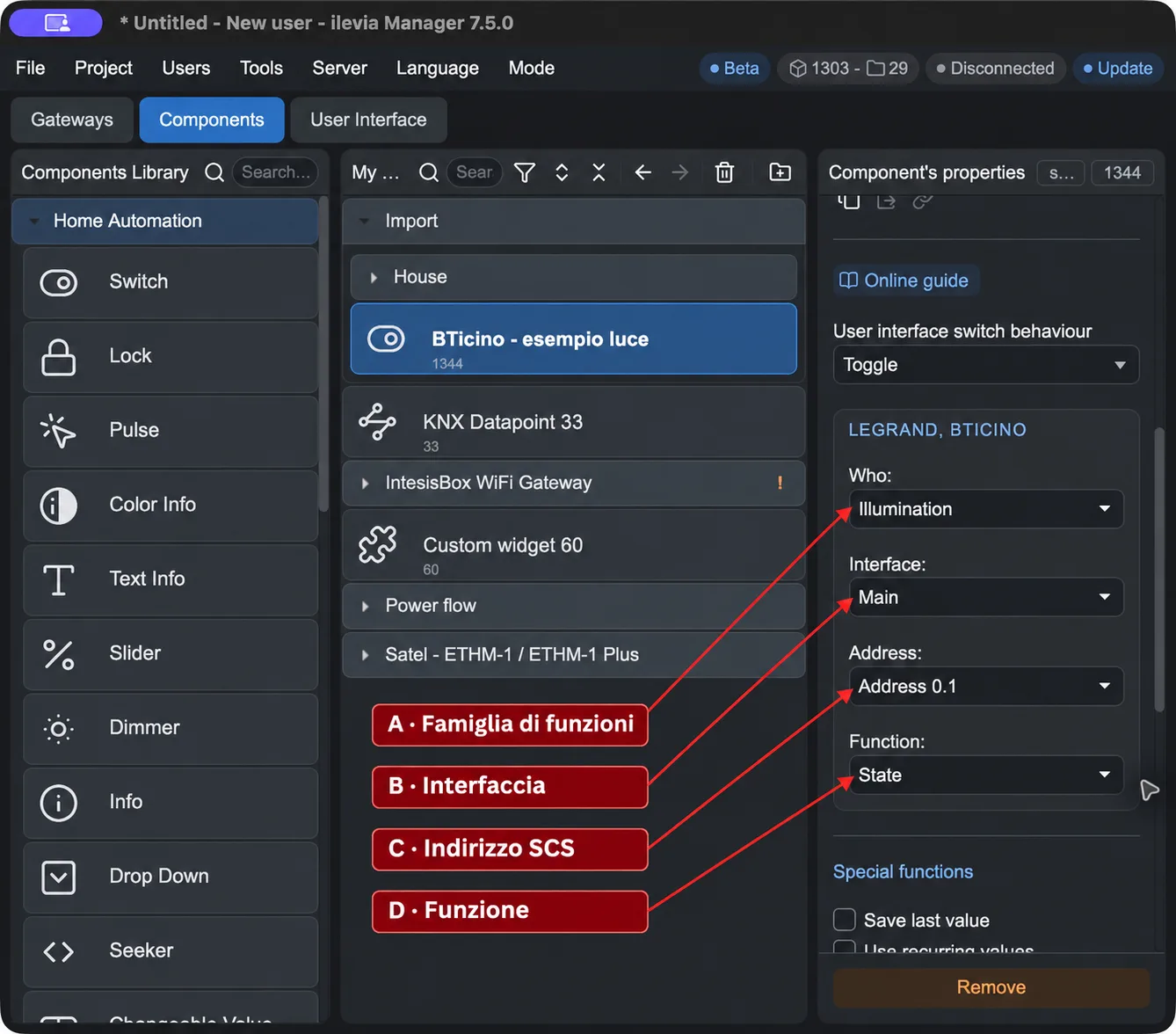
The connection parameters are on the left, and the component parameters with A–D arrows are on the right. The screens show example values. Click the images to enlarge them.
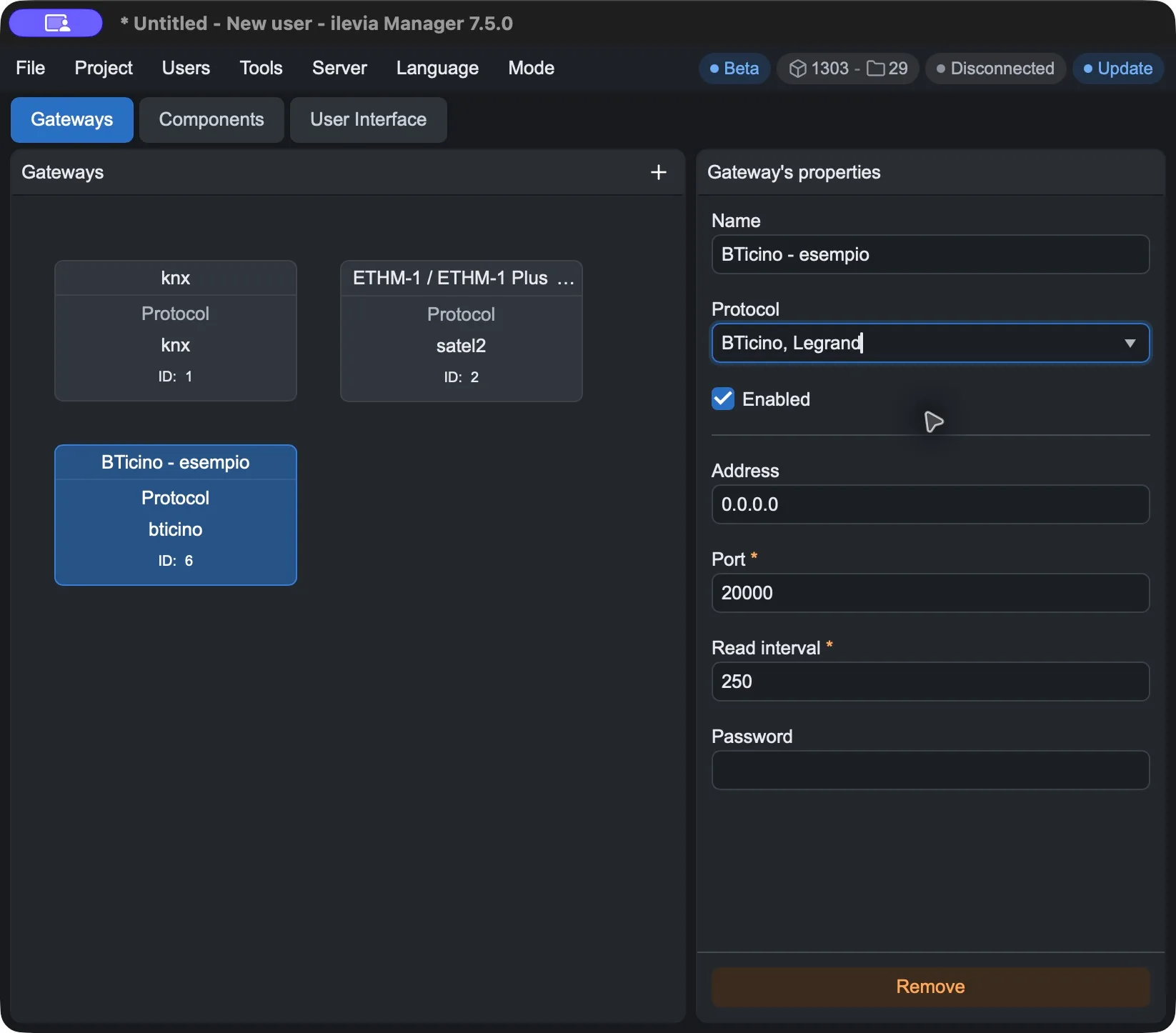
Field | How to fill it in |
|---|---|
Name | Gateway name in the project. |
Protocol | Select the BTicino/Legrand gateway for the interface to integrate. The screen shows the BTicino, Legrand entry. |
Enabled | Enable or disable communication through the gateway. |
Address | IP address of the BTicino/Legrand interface reachable from X1 Plus. Replace the initial value 0.0.0.0 with the real one. |
Port | TCP port of the interface. The default value in Manager is 20000: use the one defined by the interface configuration. |
Read interval | Interval between readings, in milliseconds. The default value in Manager is 250 ms. |
Password | Password required by the BTicino/Legrand interface for the connection. It is separate from the Ilevia account credentials. |
For create and remove commands, see Adding and removing a gateway.
Component parameters
Open Components and select the component suitable for the function, for example Switch for a light.
In the Gateway field, link the configured BTicino/Legrand gateway.
Scroll to the LEGRAND, BTICINO section and set Who, Interface, Address and Function according to the system.
Field | Meaning |
|---|---|
A · Who | Device function family: lighting, automation or temperature control, as indicated in the original guide. In the Switch example, the field shows Illumination. The available choices depend on the component type. |
B · Interface | SCS system interface to which the device belongs. Main indicates the main interface in the example; select a different interface only if it matches the system configuration. |
C · Address | Address of the device or SCS function, selected from the list. In the example it is Address 0.1. This is not an IP address. |
D · Function | Function to assign to the component. In the example State represents the light status function. The choice must match the device and the component type. |
Choose the family and function
Family from the original guide | Function to identify in the system |
|---|---|
Lighting | The light or lighting point to control, with the corresponding SCS address and required function. |
Automation | The automation to control, with its interface, SCS address and expected function. |
Temperature control | The heating system function to integrate, with the address and parameter corresponding to the device configuration. |
Choose the component type according to the function to be implemented. Manager provides the available Who and Function options for that component: the Switch screen illustrates lighting and is not a complete list of system functions.
Fill in the parameters in the order Who → Interface → Address → Function, making sure they all refer to the same device and the same function. Main and Address 0.1 are the values shown in the example, not values to apply automatically to every component.
Example: a light on the SCS system
The screen shows Switch with Who = Illumination, Interface = Main, Address = Address 0.1 and Function = State. Use these values only if they match the light configuration in your system.
The two Address fields have different purposes. In the gateway, enter the IP of the BTicino interface; in the component, choose the SCS address of the light. A valid IP allows you to reach the interface, but it does not by itself identify the output to control.
Apply the changes and check the result
Save the project with File → Save.
Upload the project to X1 Plus with Project → Upload to apply the changes. Repeat the upload whenever you want to apply new changes to the server.
Check both the command and the light status update in the control interface.
Issue | What to check |
|---|---|
No device responds | Enabled, IP address, port, password, and the accessibility of the interface from X1 Plus. |
A component does not respond | Associated gateway, Who, Interface, Address, and Function. |
A different light responds | SCS address and interface selected in the component. |
The command works, but the status is not updated | Selected function, match with the device, and status updates provided by the interface. |