
Sonos
How to integrate Sonos speakers with the ILEVIA server: widgets in the ILEVIA Control app and commands from KNX buttons using the KNX Commands Wizard procedure.
Sonos speakers integrate with the Sonos component, which is used in two ways:
in the ILEVIA Control app, with the Virtual gateway: the component becomes a widget for selecting the speaker, starting and stopping music, adjusting the volume, and viewing the currently playing track;
from KNX buttons and devices, with a KNX gateway: the KNX Commands Wizard procedure links each speaker function to KNX group addresses.
For WiiM players see WiiM; for the overall overview see Multimedia devices.
Before you start
The Sonos speakers and the ILEVIA server must be on the same local network.
Install the Logic module: the server is what communicates with the speakers.
The KNX Commands Wizard procedure reads the speaker list from the server: it requires ilevia Manager connected to the server.
Adding the component
Step 1. In the Components tab, open the Multimedia category in the Components Library and drag Sonos into My components.
Step 2. In House name, enter the name of the Sonos system (the house configured in the Sonos app).
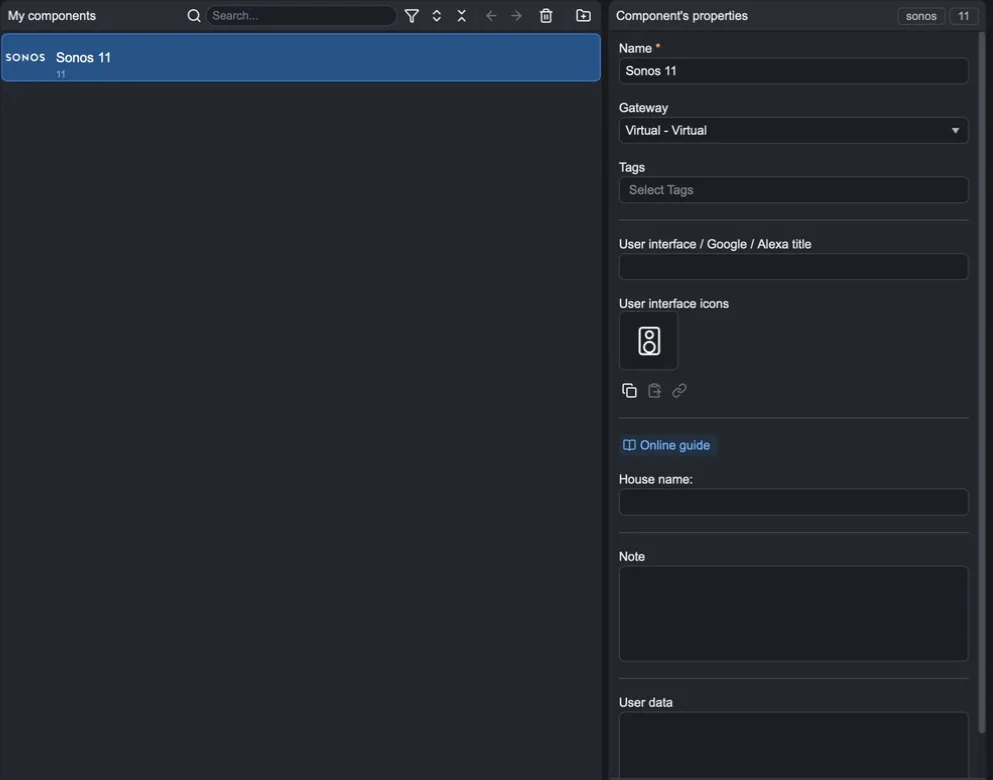
Step 3. Add the component to the user interface and upload the project with Project > Upload to server: the Sonos widget appears in the app.
Controlling Sonos from KNX
If the project includes a KNX gateway, you can control the speakers from KNX buttons, scenes, and supervisors:
connect ilevia Manager to the server;
in the Sonos component properties, select the KNX gateway as Gateway: the KNX section appears with the KNX Commands Wizard button;
press KNX Commands Wizard: the server searches the network for Sonos speakers and lists them;
for each speaker and function, assign the command group address (Write) and the status address (Feedback);
save and upload the project to the server.
The available functions are:
Function | Use |
|---|---|
Play / Stop | Start or stop playback. |
Next Track | Skip to the next track. |
Volume Percentage | Set the volume as a percentage. |
Volume Move / Volume Step | Increase or decrease the volume; with Volume Variation choose how much at each step. |
Max Volume | Limit the maximum volume. |
Mute | Turn mute on or off. |
Shuffle / Repeat | Shuffle playback and repeat. |
Song Title, Song Artist, Song Album | Track title, artist, and album, to be shown on a KNX display or supervisor. |