INIM Prime control panels
How to connect an INIM Prime control panel to the ILEVIA server: INIM component parameters in ilevia Manager, configuration import and connection status.
The INIM Electronics component connects the ILEVIA server to an INIM Prime control panel through its network APIs. After the project is loaded for the first time, the Import parameters button reads the panel configuration and creates the area, zone and output components. For the overall overview, see Alarm systems.
Before you start
The INIM Prime control panel must be reachable over the network from the ILEVIA server.
Generate an API Key on the panel for access from external systems.
Parameter import requires ilevia Manager to be connected to the server.
The INIM component
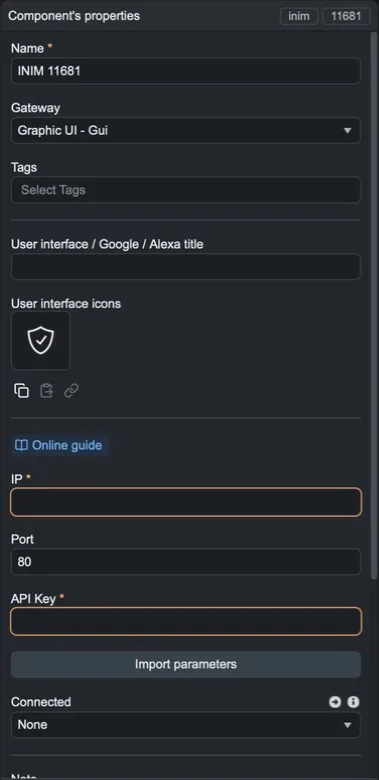
Property | Meaning |
|---|---|
IP | IP address of the INIM Prime control panel (required). |
Port | HTTP port of the panel (default 80). |
API Key | Key generated by the panel (required). |
Import parameters | Reads the panel configuration and creates the corresponding components. |
Connected | A Switch component that shows in real time whether the server is connected to the panel. |
Step-by-step configuration
Step 1. Open ilevia Manager and connect to the server.
Step 2. In the Components tab, open the Surveillance / Security category in the Components Library (or search for inim) and drag INIM Electronics into My components.
Step 3. Add a Switch component (Virtual gateway) and connect it to the Connected field of the INIM component.
Step 4. Fill in IP, Port and API Key, then upload the project to the server with Project > Upload to server.
Step 5. With ilevia Manager still connected to the server, select the INIM component and press Import parameters. The components representing the panel configuration are created.
Step 6. Add the components to the user interface and upload the project to the server again.
Result
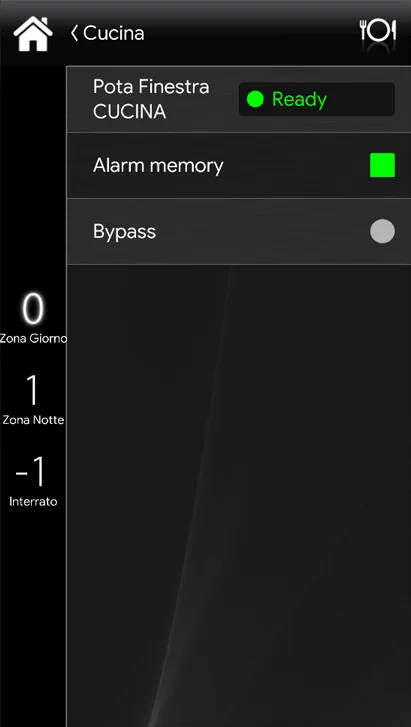
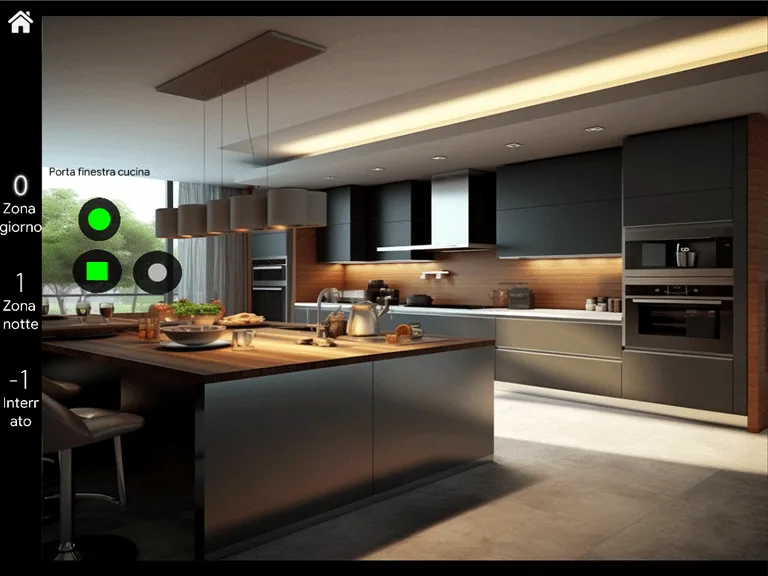
An example of INIM components in the classic interface and in the map-based interface of the ILEVIA Control app: