
Google Home
Connect the Ilevia system to Google Home and Google Assistant with the Ilevia Smart Home skill, add new devices and supported voice commands.
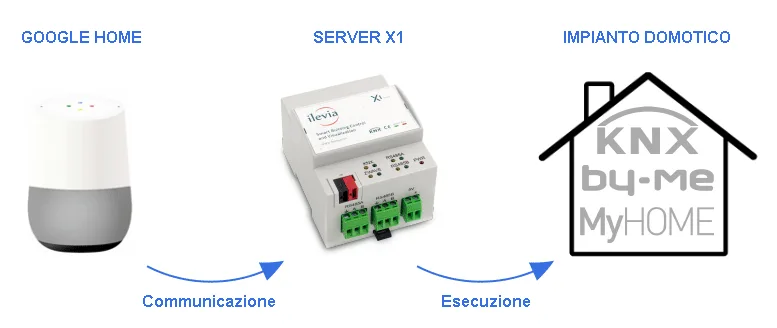
With the Ilevia Smart Home skill, control the devices configured in Voice Control Manager with Google Home and Google Assistant, with KNX, Vimar By-me, BTicino MyHome, Z-Wave systems and the other protocols managed by Ilevia. A Google speaker is not required: Google Assistant on a smartphone or tablet is enough.
Before you start
Configure the devices in Voice Control Manager and upload the project to the server.
Have the QR code or the voice control ID available, found in the component properties.
Install the Google Home app and use the same Google account in Google Home, Google Assistant and on all Google devices.
Connect the Ilevia Smart Home skill
Open the Google Home app. If this is your first time, tap Create home, give the home a name and confirm.
Tap + Add device.
Choose Works with Google.
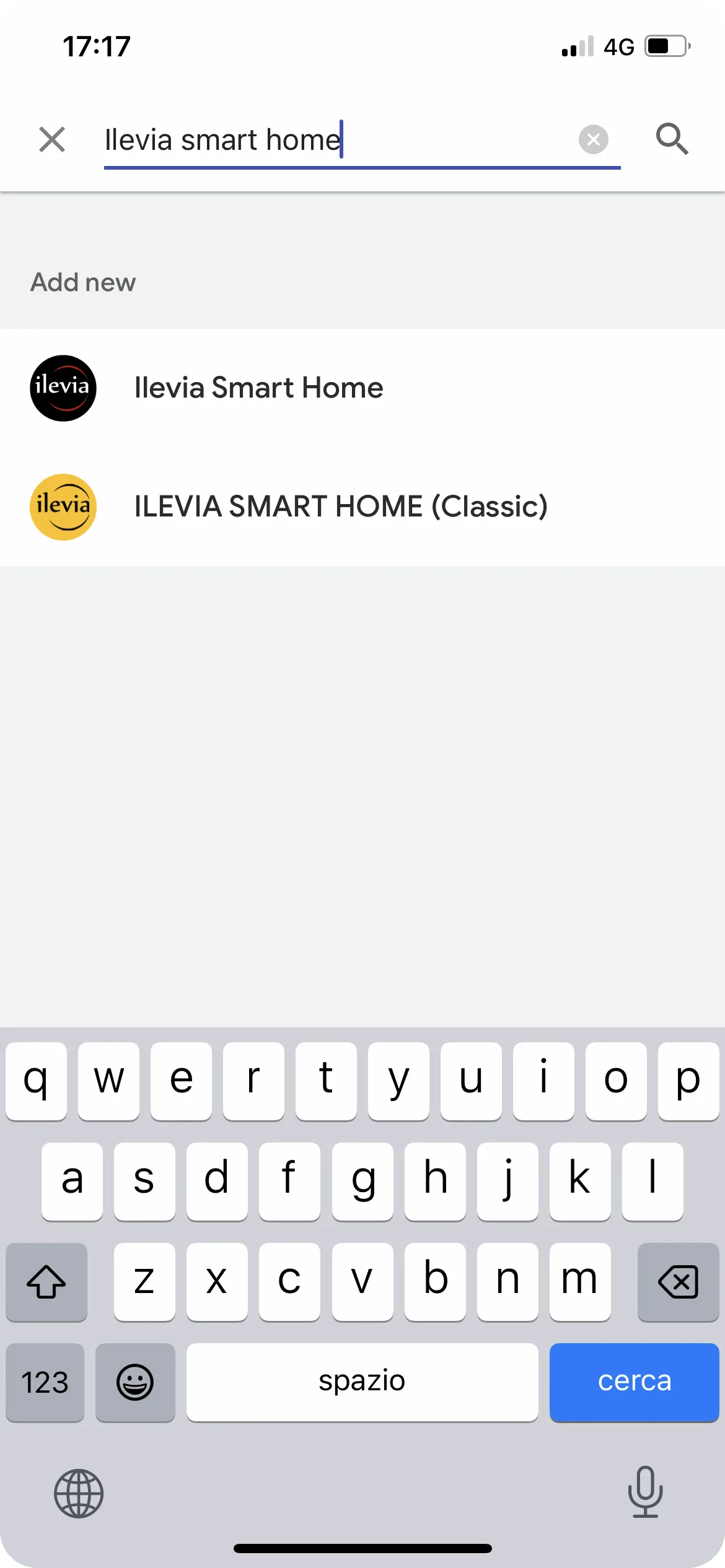
Tap the search icon and look for Ilevia Smart Home. Do not use the skill with «(classic)» in the name: it is only for the old procedure.
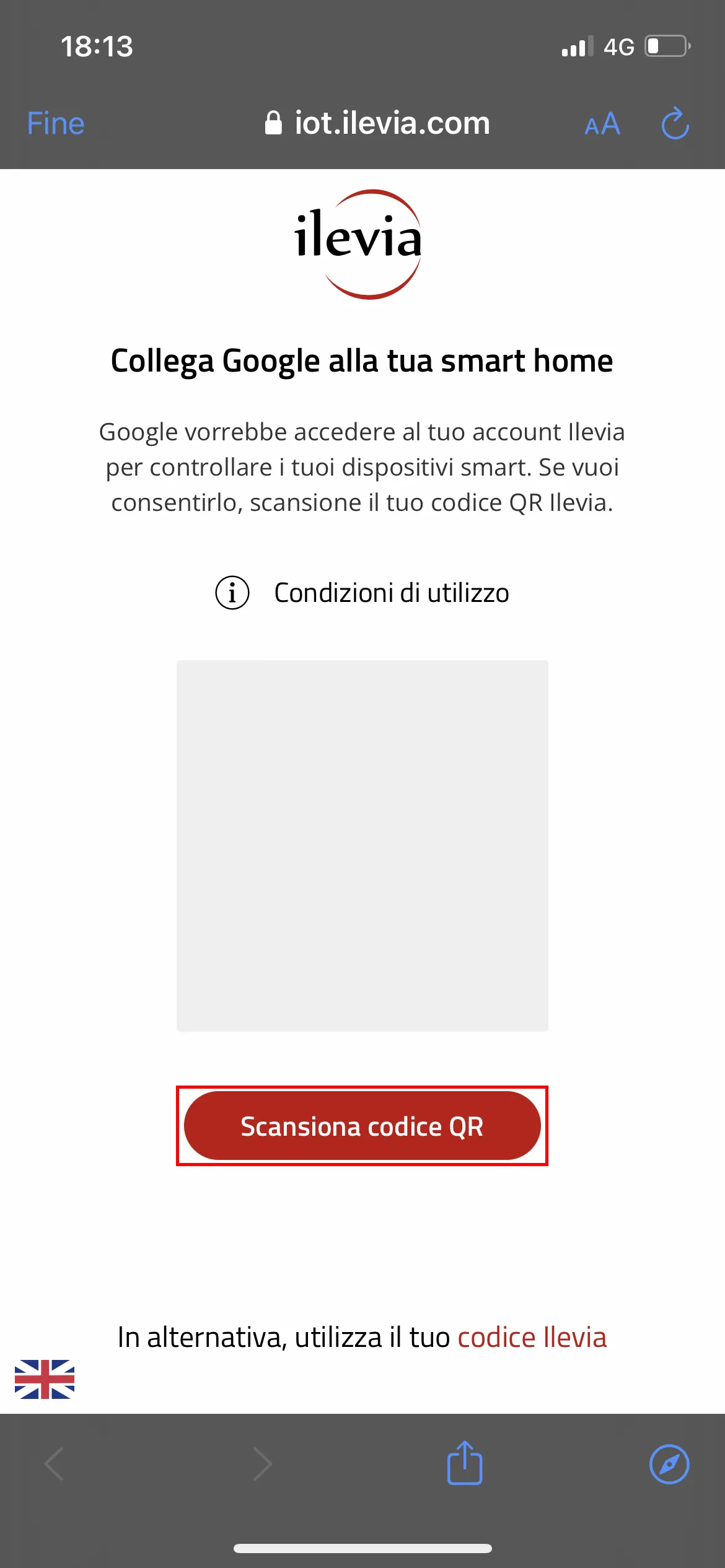
Tap Scan QR code, allow camera access and frame the Voice Control Manager QR code. Alternatively, enter the voice control ID.
Tap Link to authorize Google to access your devices.
When finished, Google downloads the Voice Control Manager configuration and you will find the devices in the Devices section of the app.
Add new devices
If you add devices in Voice Control Manager, upload the project to the server and then:
In the Google Home app, open Devices and tap + Add.
Choose Works with Google and then Search for new devices.
Scan the QR code again (or enter the voice control ID) and tap Link.
You can also say «Ok Google, sync devices».
Voice commands
Say «Ok Google» or «Hey Google» and then one of the following commands, using the names of the devices and rooms in Voice Control Manager.
Device | Command examples |
|---|---|
Lights | «Turn on / Turn off living room light» · «Set living room light to 50%» · «Raise / Lower living room light» · «Set living room light to green» · «Turn on / Turn off living room» (all the lights in the room) · «Turn off all lights» |
Scenes | «Activate dinner» |
Switches and sockets | «Turn on / Turn off kitchen socket» |
Valves | «Open / Close irrigation valve» |
Shutters, blinds, curtains | «Open / Close kitchen shutter» · «Set kitchen shutter to 50%» |
Locks | «Lock / Unlock entrance door» |
Thermostats | «Set living room thermostat to 22 degrees» · «Set living room thermostat to heating» · «What is the temperature in the living room?» · «I’m hot / I’m cold» |
If Google does not find a device, check in Voice Control Manager that all parameters with the red triangle are connected and that the project has been uploaded to the server.