
LG, Sony and Samsung smart TVs and Apple TV
How to connect LG, Sony and Samsung smart TVs and Apple TV to the ILEVIA server: wizard parameters in ilevia Manager and automatic component creation.
ilevia Manager has dedicated integration for LG, Sony and Samsung smart TVs and for Apple TV. In all cases, a wizard creates the gateway and the server reads the available commands from the device, automatically creating the components: power on, volume, channels, sources, navigation and so on. For an overview, see Multimedia devices.
Before you start
The TV must be on the same network as the ILEVIA server. Assign it a fixed IP address or a DHCP reservation in the router.
Install the Logic module: the server logic is what communicates with the TV.
The wizards work only with ilevia Manager connected to the server. Without a connection, the message A server connection is required to use this component! appears
Common procedure
In ilevia Manager, connect to the server.
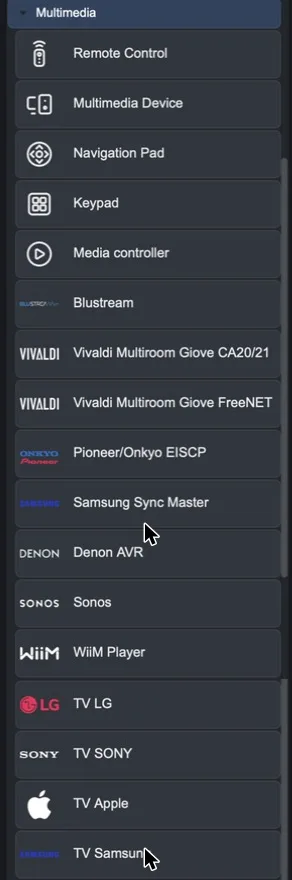
In the Components tab, open the Multimedia category in the Components Library and drag the TV component into My components: LG TV, SONY TV, Samsung TV or Apple TV.
Fill in the wizard fields (see below) and confirm.
The TV gateway is created (Gateways tab) and, after a few moments, the components appear in My components.
Add the components to the user interface and upload the project with Project > Upload to server.
LG TV
Field | Meaning |
|---|---|
IP | TV IP address. |
MAC | TV MAC address, used to power it on from the network (Wake-on-LAN). |
Press Create Gateway…. On the first connection, the TV may ask you to authorize control: confirm on the TV.
If the gateway already exists, you can regenerate the components with the Create Components button on the gateway.
Sony TV
Field | Meaning |
|---|---|
IP | TV IP address. |
MAC | TV MAC address, for power-on from the network. |
Passkey | The pre-shared key (Pre-Shared Key) set on the TV. |
On the TV, enable remote control via IP: in the network settings, under IP Control, set authentication with a pre-shared key and choose the key you will enter in Passkey.
Samsung TV
Field | Meaning |
|---|---|
IP | TV IP address. |
Port | Control port (default 8002). |
Name | Name the server uses to identify itself to the TV. |
On the first connection, the TV displays an authorization request: accept it with the remote control.
Apple TV
Field | Meaning |
|---|---|
IP | Apple TV IP address. |
Port | Control port (default 49152). |
Name | Apple TV name. |
Result in the app
An example of LG TV components in the ILEVIA Control app, in the classic interface and in the map interface:
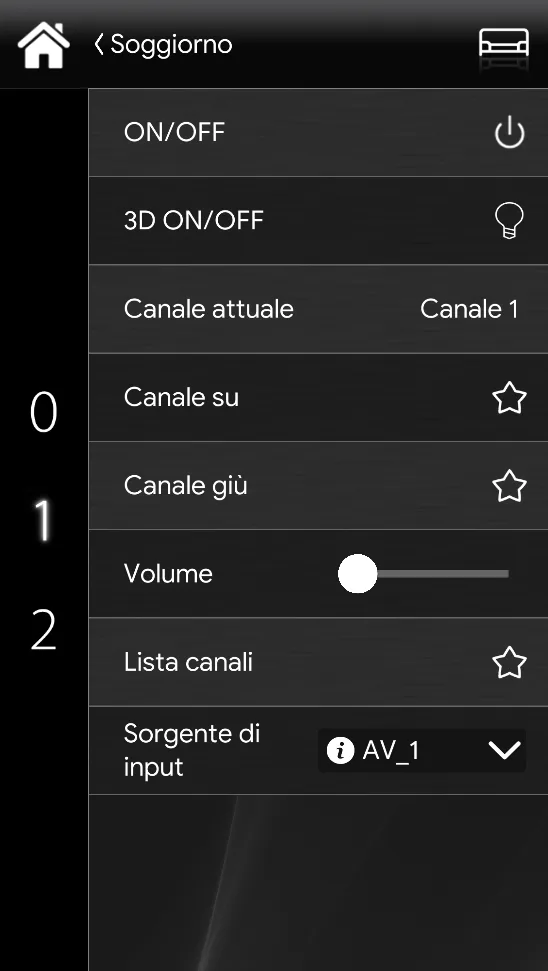
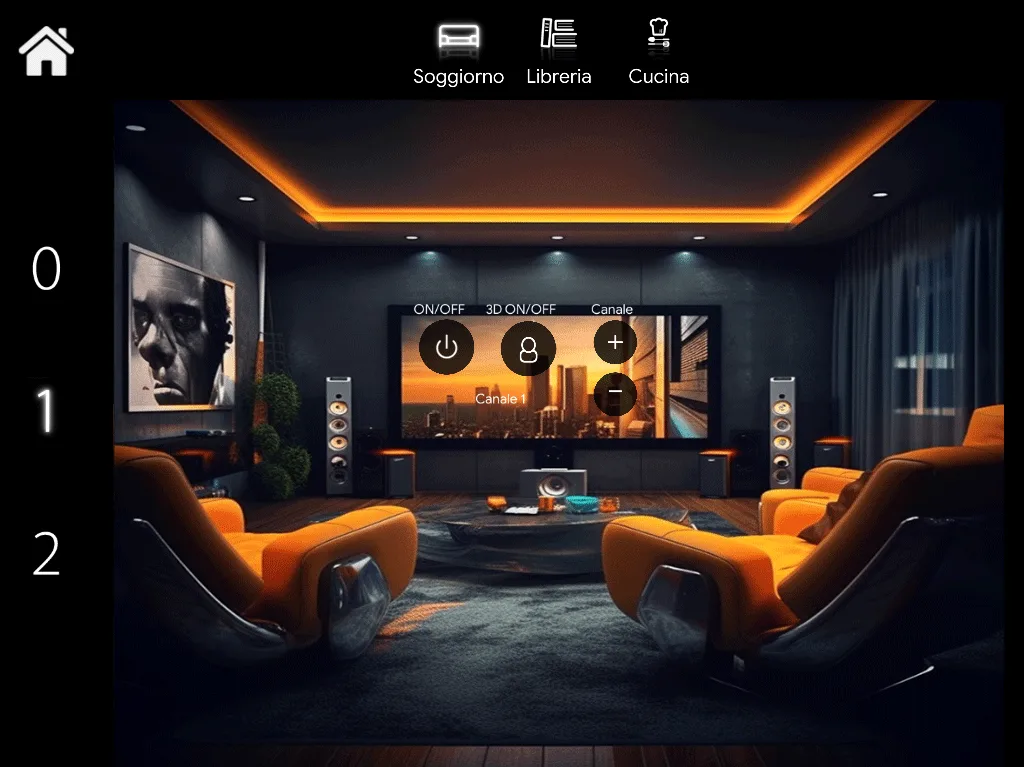
For TVs without dedicated integration, you can use the virtual remote control with infrared commands.