
Virtual remote control and multimedia devices
The generic Remote Control, Multimedia Device, Navigation Pad and Keypad components in ilevia Manager: how to build a remote control in the app for any device, operated by scenarios.
Not all devices have a dedicated integration. To control a decoder, player or TV from the ILEVIA Control app via infrared, KNX or any other protocol, ilevia Manager provides generic components that draw a remote control in the app: arrows, OK button, function keys and numeric keypad. Each key is a Scenario that you decide what it does. For the overall picture, see Multimedia devices.
The components
You can find them in the Multimedia category of the Components Library:
Component | What it creates |
|---|---|
Remote Control | A remote control that groups multiple multimedia devices (for example TV, decoder and soundbar) and lets you switch between them. |
Multimedia Device | A single device with its command page: Navigation pad, Keypad and List view. |
Navigation Pad | The navigation pad: Up, Down, Left, Right, OK and the function keys F1–F4. |
Keypad | The keypad with numbered keys (Button 1, Button 2…). |
A multimedia device
Drag Multimedia Device into My components: the Multimedia device group is created with the main component and, below it, the Navigation pad, Keypad and List view groups. Each key is a ready-made Scenario component, named after the key.
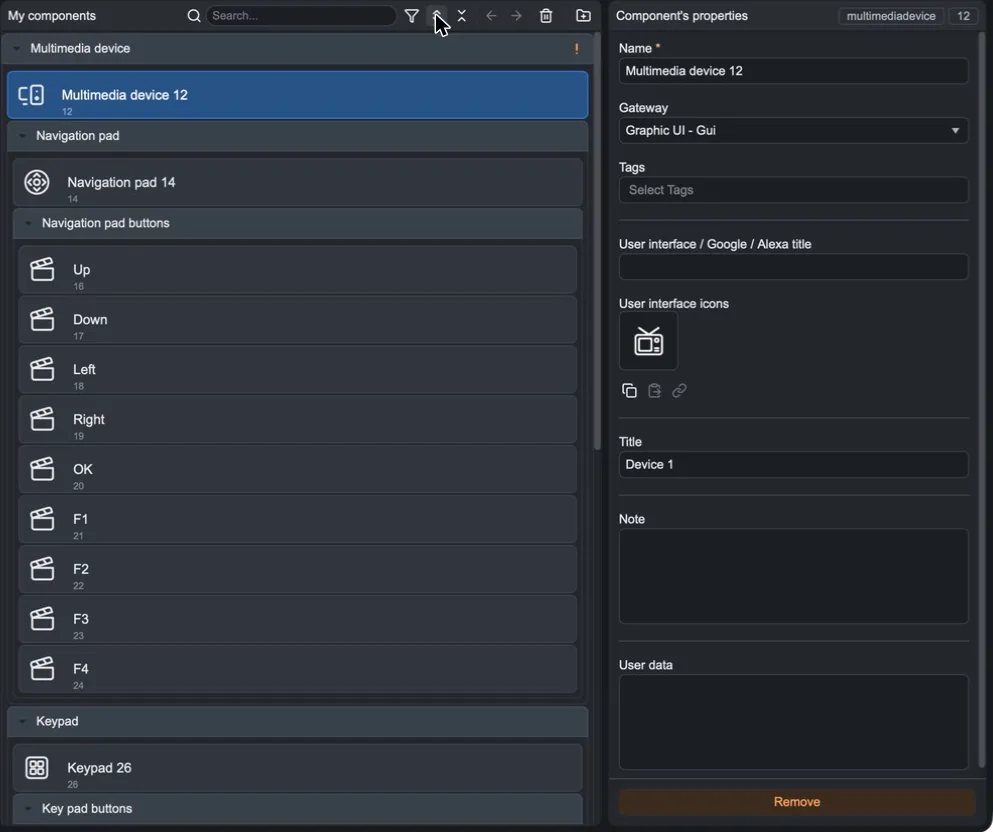
To make the keys work:
open each scenario (for example Up) and add the actions to perform: an infrared command, a KNX telegram, an HTTP request…;
in the Multimedia device component, set the Title you want to see in the app (for example Sky decoder);
delete the key scenarios you do not need.
In the properties of the Navigation pad you can also set the Repeat time (1/10 second), that is, how often to repeat the command when the key is held down (useful for volume).
A remote control for multiple devices
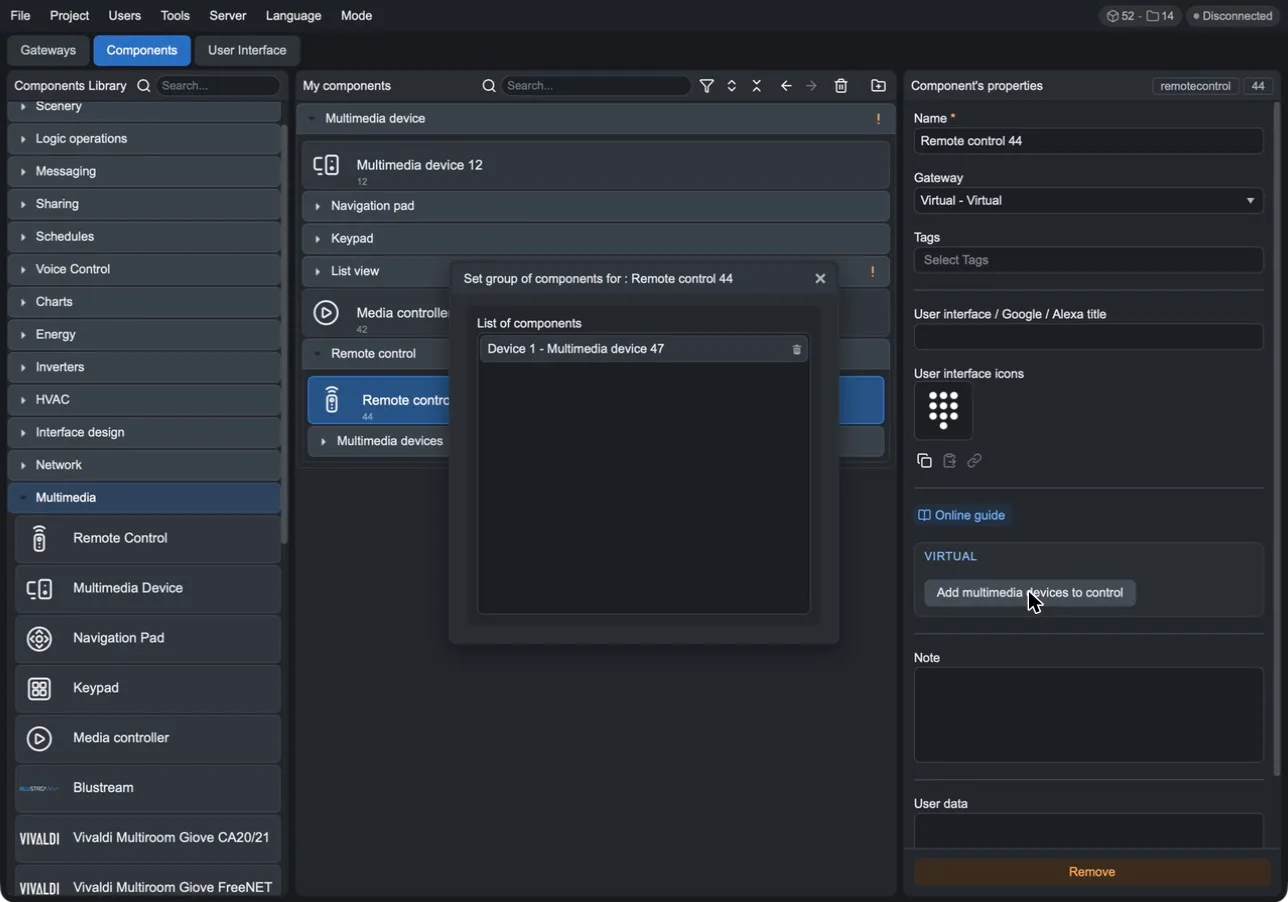
Drag Remote Control into My components: the Remote control group is created with the remote control and, under Multimedia devices, a first device (Device 1) complete with pad and keypad.
To add other devices, create additional Multimedia Device and press Add multimedia devices to control in the Remote control properties: in the List of components window, list the devices that the remote control must operate. In the app, the user selects the device and always uses the same remote control.
Complete
Add the Remote control or Multimedia device to the user interface and upload the project to the server with Project > Upload to server.