
Overview of ilevia Manager
The parts of ilevia Manager on one page: window, status indicators, Gateways, Components and User Interface tabs, and all the File, Project, Users, Tools, Server, Language and Mode menu items.
ilevia Manager is the program you use to prepare an Ilevia system project and upload it to the server. This page describes its parts: the window, the three work tabs, and the menus. The screenshots refer to ilevia Manager 7.5.2 with the interface in English.
The window
Title bar: project name, user and Manager version. An asterisk (*) before the name indicates unsaved changes.
Menu bar: File, Project, Users, Tools, Server, Language and Mode, described below.
Top-right indicators: the number of components and groups in the project, and the server connection status (Disconnected when Manager is not connected to any server).
Work tabs: Gateways, Components and User Interface.
The three tabs
Tab | Purpose |
|---|---|
Gateways | The connections to the systems: protocol, addresses and communication parameters. |
Components | The project objects (lights, shutters, sensors, scenarios, logic, etc.) and their parameters. |
User Interface | The pages, menus and commands that each user sees in the ILEVIA Control app. |
For the gateway and component concepts and for the common properties of all components, see Components and gateways.
Gateways
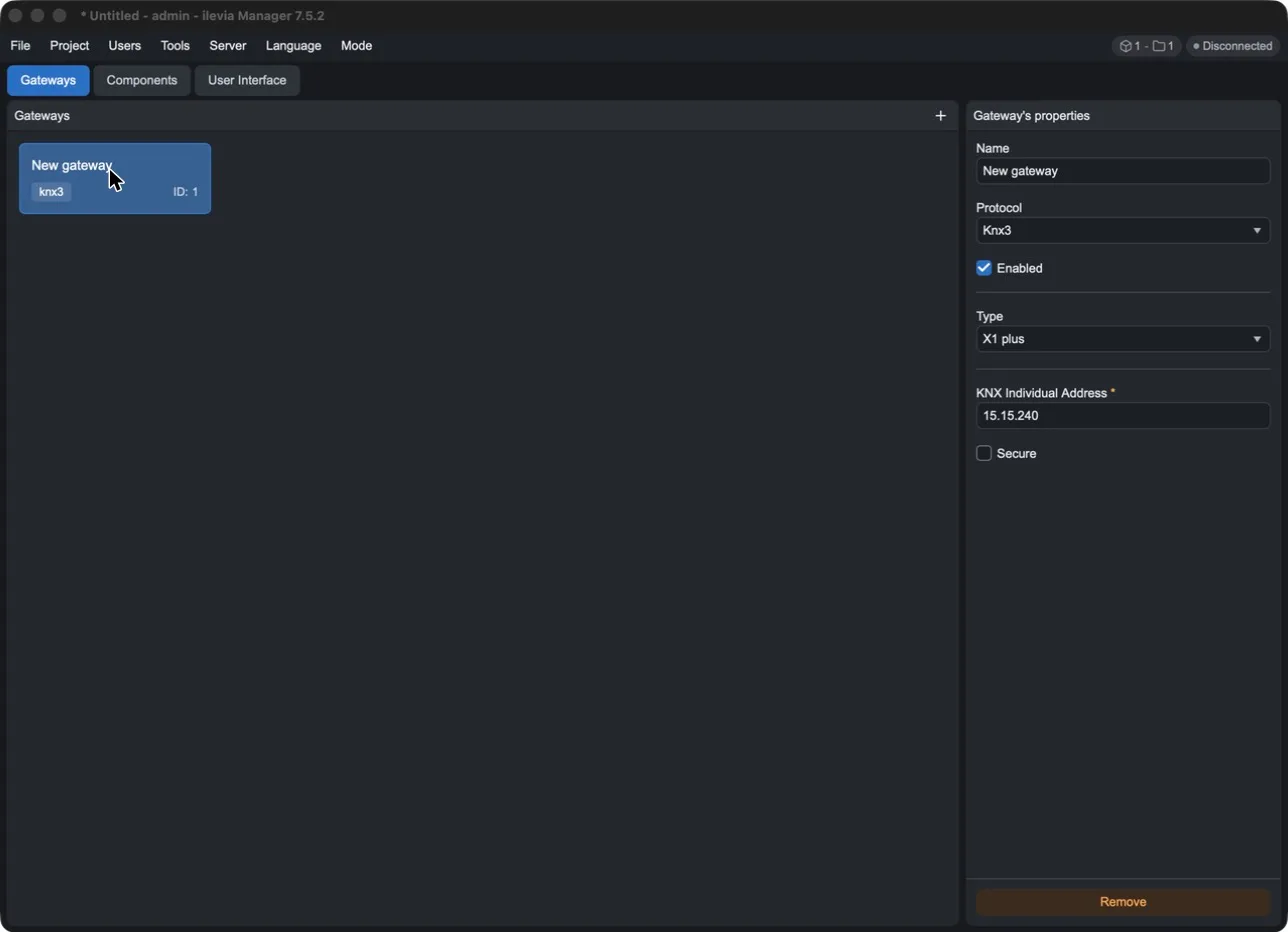
On the left is the list of project gateways (the + adds one); on the right are the properties of the selected gateway: Name, Protocol, Enabled and the protocol parameters.
Components
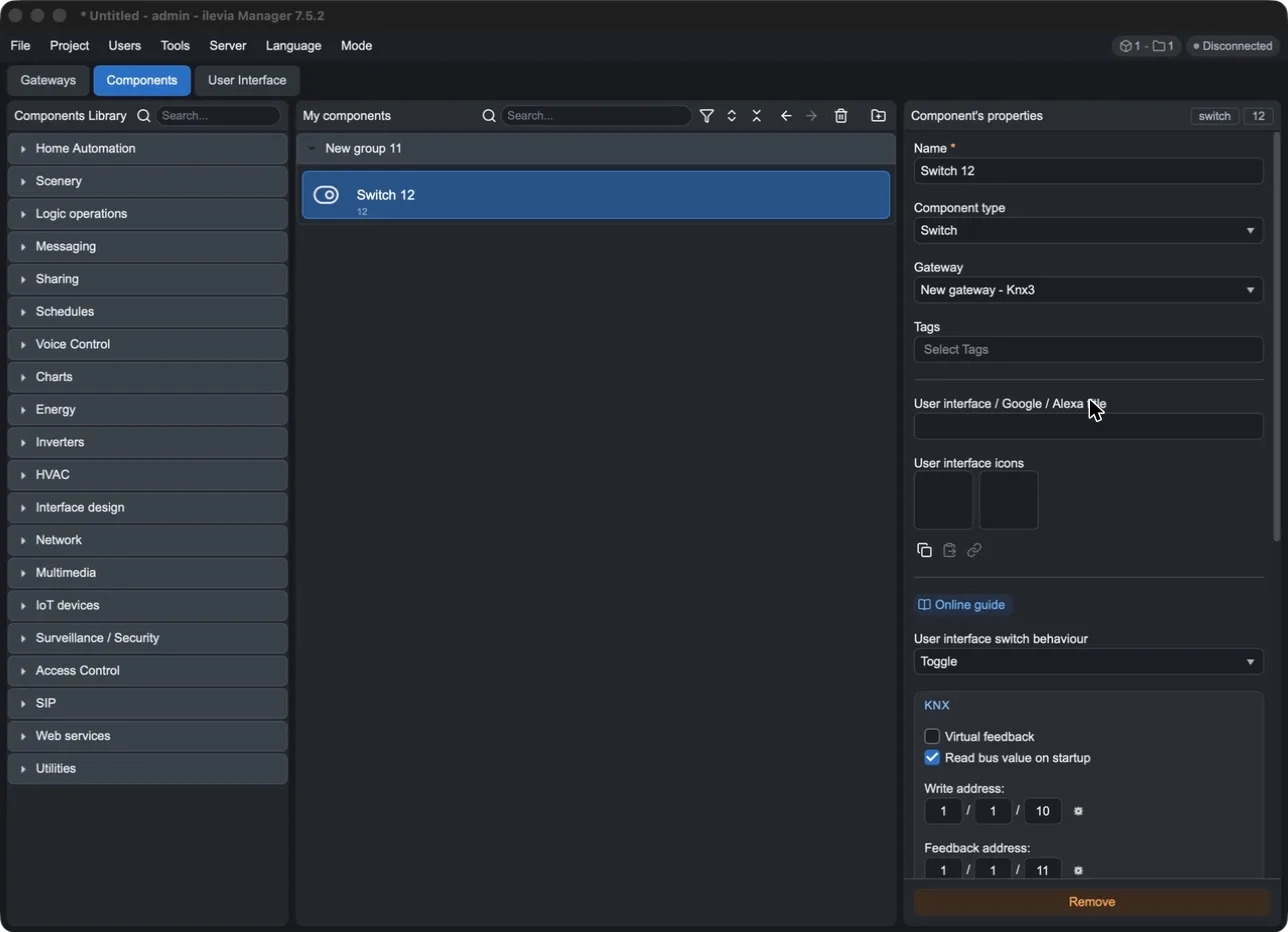
Three columns: the Components Library with all component types divided by category, My components with the project components organized in groups, and Component's properties with the parameters of the selected component. To add a component, drag it from the library into My components.
User Interface
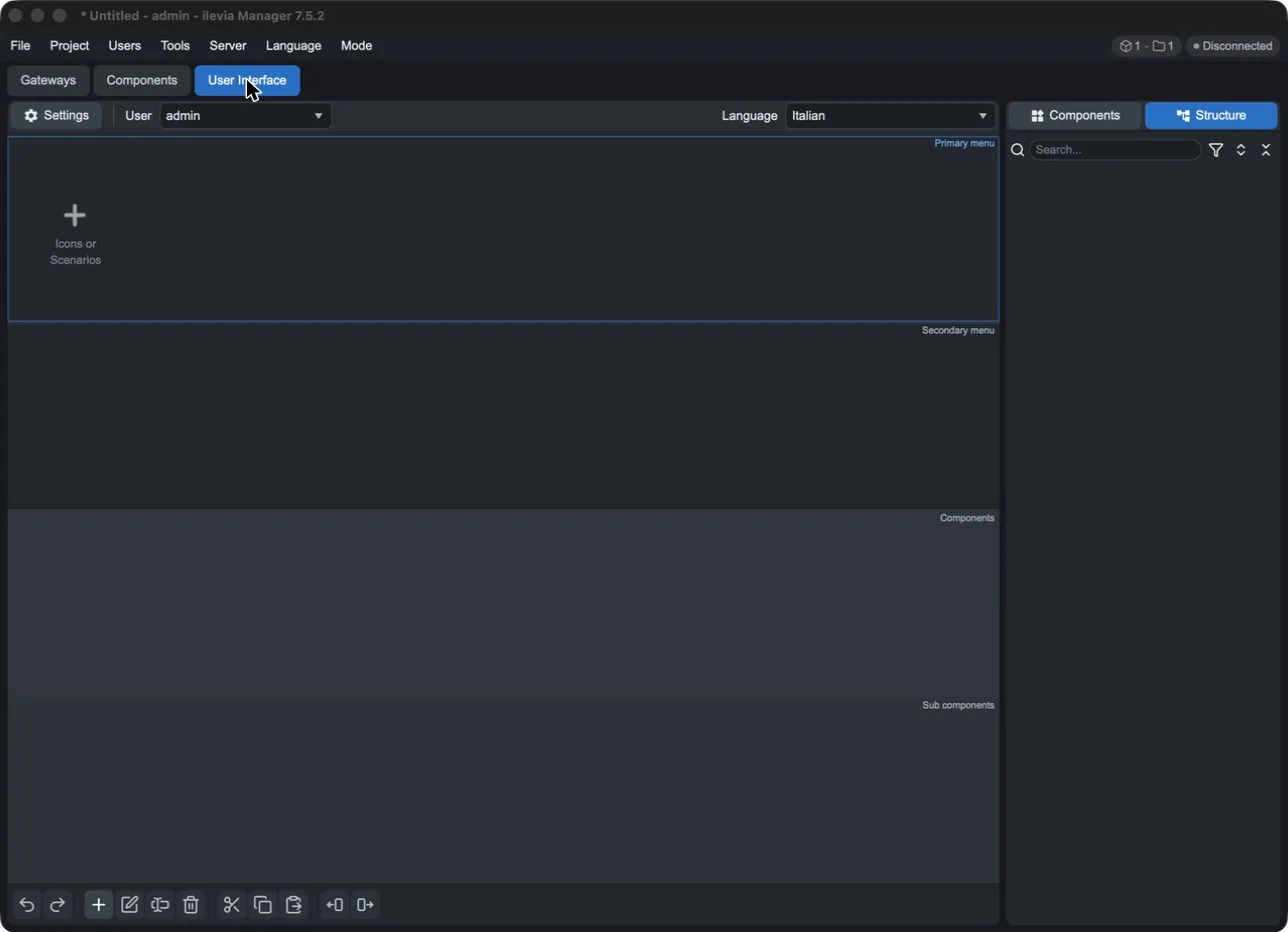
At the top, choose the user and the language to work on; Settings opens the interface settings. The central area shows the interface levels: Primary menu, Secondary menu, Components and Sub components. On the right, the Components panel lists the components to be inserted and Structure shows the interface tree. The bottom bar contains undo and redo, add, edit, delete, cut, copy, paste and the buttons to move items.
The menus
File
Item | Function |
|---|---|
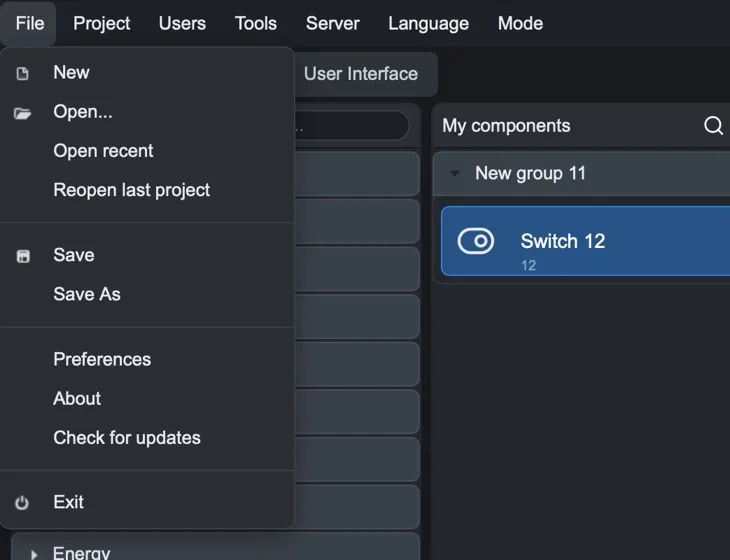
New | Creates a new project. |
Open… | Opens a project saved on the computer. |
Open recent | Lists recently opened projects. |
Reopen last project | Reopens the last project used. |
Save / Save As | Saves the project on the computer, or a copy with another name. |
Preferences | Manager settings, including the auto-save interval and folder. |
About | Manager version and project ID. |
Check for updates | Checks whether a newer version of Manager is available. |
Exit | Closes Manager. |
Project
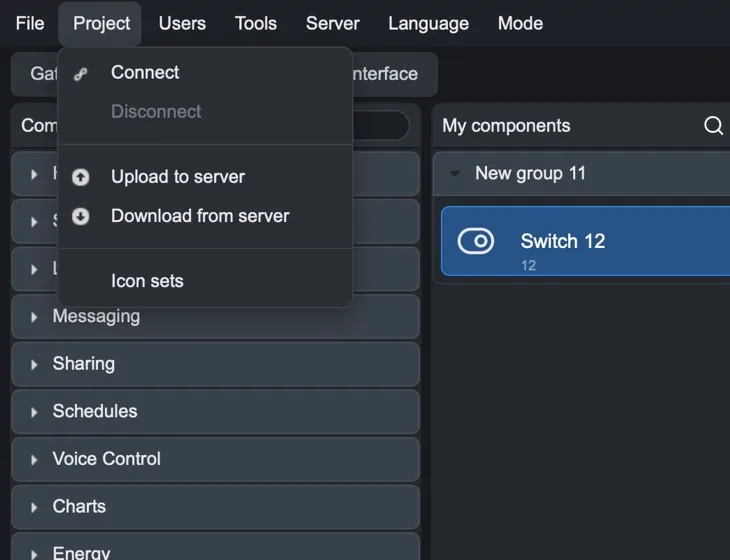
Item | Function |
|---|---|
Connect | Opens the connection window: server address and port, credentials, recent connections and server search on the local network. |
Disconnect | Closes the connection to the server. |
Upload to server | Sends the open project to the connected server. |
Download from server | Downloads the project on the server into Manager. |
Icon sets | Manages the project's custom icon sets. |
The file saved on the computer and the project on the server are two separate copies. Before downloading from the server, save the local work; before uploading, make sure you are connected to the correct server.
Users
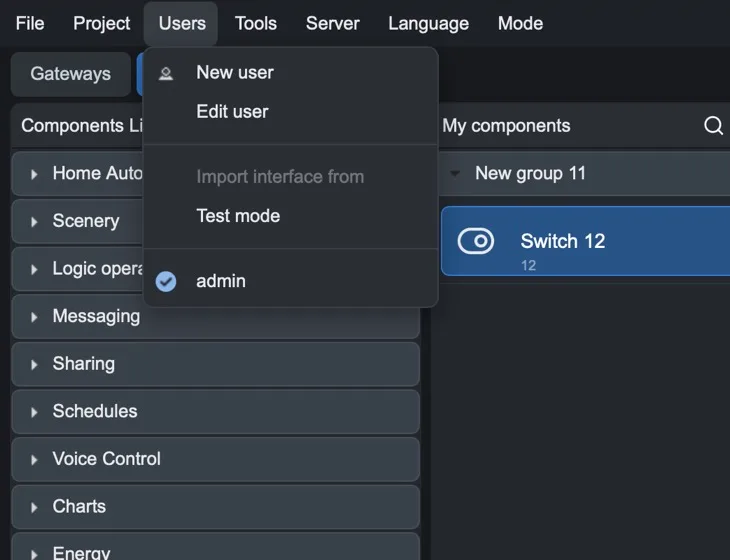
Item | Function |
|---|---|
New user | Adds a user to the project, with their own interface. |
Edit user | Edits the selected user (name, password, interface type…). |
Import interface from | Copies the interface from another user. Available when the project has more than one user. |
Test mode | Enables test mode and generates a QR code to try the project from the app. |
User list | At the bottom of the menu: the user with the check mark is the one you are working on. |
Tools
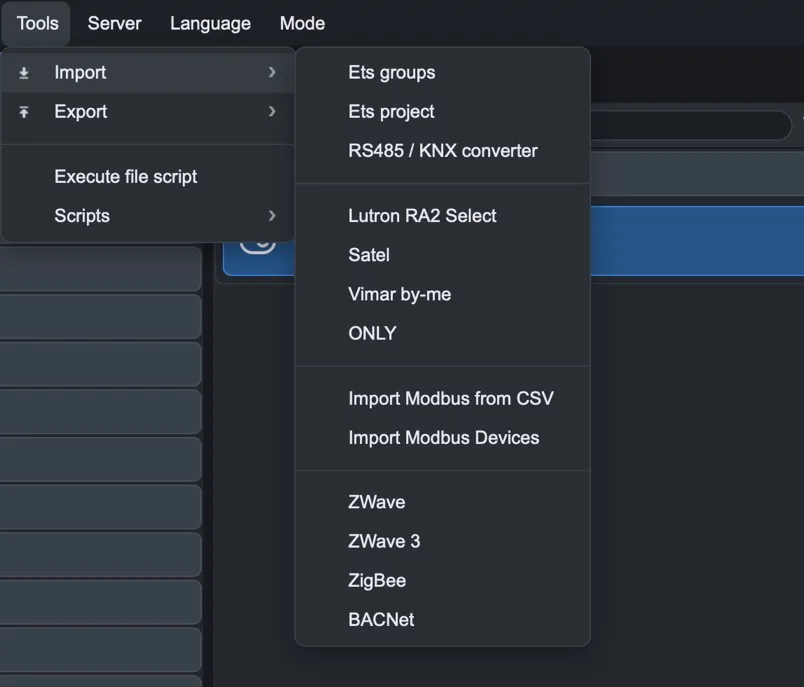
Item | Function |
|---|---|
Import | Imports components from other systems: ETS groups and projects, RS485/KNX converter, Lutron RA2 Select, Satel, Vimar By-me, ONLY, Modbus (from CSV or from devices), Z-Wave, ZigBee and BACnet. |
Export | Exports the MQTT configuration (Export MQTT, Export MQTT 2). |
Execute file script | Runs a script saved on the computer. |
Scripts | Ready-made scripts that modify the project (see below). |
The scripts in the Scripts submenu:
Script | Function |
|---|---|
Change variable for all components in the group | Changes the same parameter in all components in a group. |
Change gateway for components in a group | Assigns another gateway to all components in a group. |
Clean memory params of unused gateway | Removes parameters for gateways no longer used from the components. |
By-Me to Knx | Converts Vimar By-me components into KNX components. |
Convert Voice Control | Converts the old voice control configuration to Voice Control Manager. |
Export / Import Virtual Feedback KNX Groups | Exports or imports the virtual feedback settings of KNX groups. |
Export KNX components to txt | Exports the list of KNX components to a text file. |
Setup ZWave network, Setup UPnP | Guided procedures for the Z-Wave network and for UPnP. |
Make HTML | Generates an HTML page from the project. |
For import from ETS, see Import from ETS.
Server
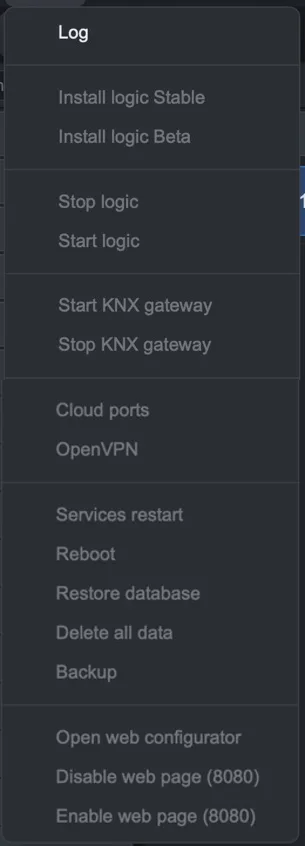
These commands act on the connected server: when Manager is disconnected, they are disabled (greyed out).
Item | Function |
|---|---|
Log | Displays the server log. |
Install logic Stable / Beta | Installs the logic module on the server, stable or beta version. |
Stop logic / Start logic | Stops or starts the logic module. |
Start / Stop KNX gateway | Starts or stops the server's KNX gateway mode. |
Cloud ports | Settings for the ports used by the cloud connection. |
OpenVPN | Configures the server VPN connection. |
Services restart | Restarts the server services. |
Reboot | Restarts the server. |
Restore database | Restores the server database. |
Delete all data | Deletes all data from the server. |
Backup | Creates or restores a backup of the project on the server. |
Open web configurator | Opens the server configuration web page. |
Disable / Enable web page (8080) | Disables or enables the server web page on port 8080. |
Reboot, Restore database and Delete all data interrupt system operation or delete data. Make sure you perform a Backup first.
Language
Selects the language of the Manager interface (Italian, English, Dutch, German, French and many others). It does not change the language of the ILEVIA Control app, which is set in the User Interface tab.
Mode
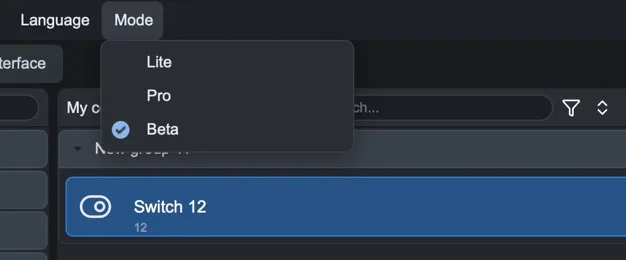
Item | Function |
|---|---|
Lite | Shows only the components available with the server Lite license. |
Pro | Shows the components of the Pro license. |
Beta | Also shows preview features, before the official release. |
The active mode is marked with a checkmark.