
Switch Component with Knx3 Gateway
All parameters of the Ilevia Manager Switch component connected to a Knx3 gateway: write and feedback addresses, periodic send and read, virtual feedback, inversion, and special functions.
The Switch component controls a KNX on/off output (light, socket, relay) and displays its status. With a Knx3 gateway it uses DPT 1.001 (0 = Off, 1 = On). This page explains all the parameters available in the component properties.
First create the Knx3 gateway in the Gateways tab: see KNX Gateway: supported parameters and datatypes (DPT).
Add the Switch
Open the Components tab.
In the Components Library, open Home Automation and drag Switch into My components.
In the properties, under Gateway, select the Knx3 gateway (it appears in the list as name - Knx3).
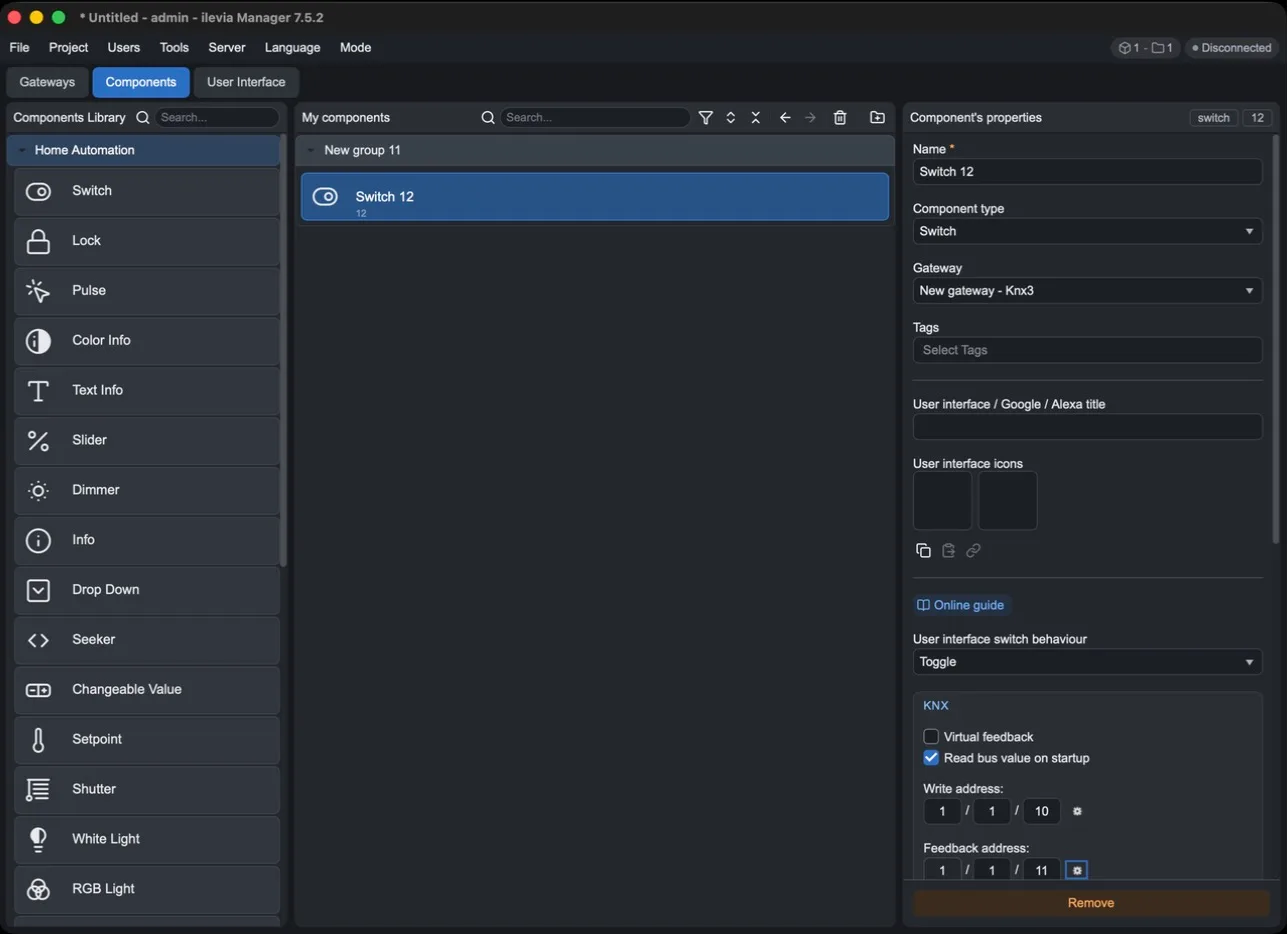
General parameters
Parameter | Meaning |
|---|---|
Name | Component name in the project (required). |
Component type | Converts the Switch into another compatible type: Lock, Pulse, Color info, Text info, or RGB light. |
Gateway | The gateway that communicates with the bus: for KNX, select the Knx3 gateway. |
Tags | Labels used to group and filter components in the project. |
User interface / Google / Alexa title | Name shown in the ILEVIA Control app and used by voice assistants. |
User interface icons | The two interface icons: left for the Off state, right for the On state. The buttons below copy and paste the icons between components. |
Online guide | Opens the component online guide. |
User interface switch behaviour | What the button sends in the app: Toggle inverts the state at every press; Send always on always sends 1; Send always off always sends 0 (useful, for example, for an “all off” button). |
KNX parameters
This section appears when the gateway is Knx3.
Parameter | Initial value | Meaning |
|---|---|---|
Virtual feedback | Disabled | The component updates its own status immediately when it sends a command, without waiting for confirmation from the bus. Enable it when the actuator has no status object. |
Read bus value on startup | Enabled | At startup, the server requests the current value from the bus, so the status in the app is correct immediately. |
Write address | empty | Group address where the server sends the command (0 or 1) when you press the Switch. It corresponds to the actuator Switching object in ETS. |
Feedback address | empty | Group address from which the server reads the status. It corresponds to the actuator Status object. |
Invert value | Disabled | Inverts 0 and 1 between the bus and the component: on the bus, 1 becomes Off and 0 becomes On. Useful, for example, with normally closed relays. |
Update Server | — | Immediately sends the component KNX parameters to the connected server, without loading the entire project. |
Group addresses have three levels: main (0–15), middle (0–7), and sub (0–255), for example 1/1/10. Enter one number per field: the cursor moves to the next field automatically.
Periodic send and read
Next to each address there is a small gear button that opens an additional setting:
Send Interval (s), on the write address: if enabled, the server resends the current value every N seconds. Useful with actuators that have a fail-safe function and expect a cyclic telegram.
Read Interval (s), on the feedback address: if enabled, the server reads the value from the bus every N seconds. Useful when the actuator does not send its status automatically when it changes.
The initial value is 30 seconds, disabled. Decimal values are also accepted.
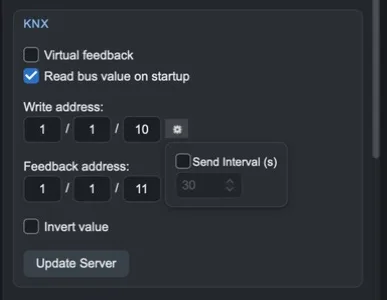
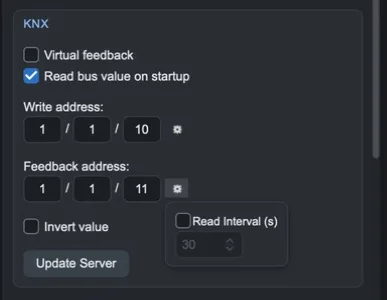
Do not use very short intervals on many components: each send or read is a telegram on the KNX bus.
Special functions and links
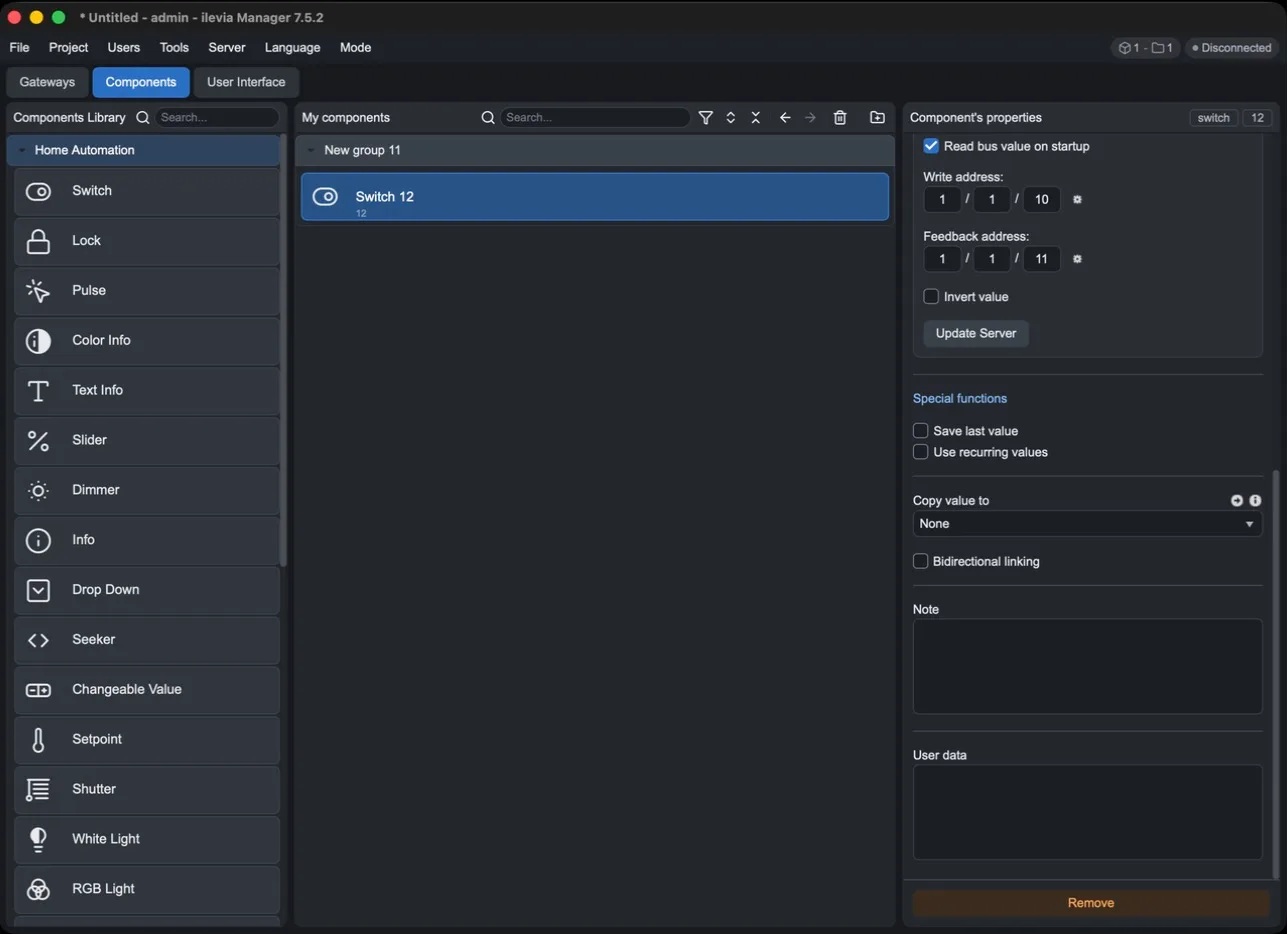
Parameter | Meaning |
|---|---|
Save last value | The server stores the last value and restores it after a restart. |
Use recurring values | The server also processes values identical to the previous one, instead of ignoring them. Useful when a repeated value must still trigger scenarios or logic. |
Copy value to | When the Switch changes value, the value is copied to the selected component (Switch, Lock, Info, Slider, Shutter, scenarios…). The arrow selects that component in the project. |
Bidirectional linking | The link works both ways: when the other component changes, the value is also copied to the Switch. |
Note | Free notes for the person configuring the system. They do not appear in the app. |
User data | Free field for custom component data. |
Remove | Deletes the component from the project. |
Example: light with KNX actuator
Actuator with Switching object on address 1/1/10 and Status object on address 1/1/11:
Gateway: the Knx3 gateway.
Write address: 1/1/10.
Feedback address: 1/1/11.
Read bus value on startup: enabled. Virtual feedback: disabled, because the status comes from the actuator.
Upload the project to the server and test the command from the ILEVIA Control app.
If the actuator has no status object, leave the Feedback address empty and enable Virtual feedback.