Info
How to configure the Info component in the Ilevia Manager home automation configuration software.
Introduction
It represents a generic information item: any value in the system can be read and monitored through this component.
Use cases
The Info component can be used to monitor home consumption in real time.
The Info component can be used to display data from Shelly devices.
Component properties
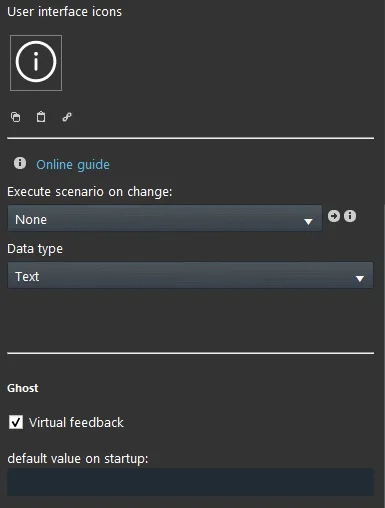
Select tag:
Here are some examples:
Current date: when added to the user interface, it shows the current date;
Current date / time: when added to the user interface, it shows the current date and time;
Current time: when added to the user interface, it shows the current time;
Show on recorder web page: refer to the Recorder component to see its function.
Free disk space: shows the remaining free space on the X1 server MicroSD.
Title in the user interface: text field that lets you add a title to the component;
Data type: a drop-down menu that defines the data type (temperature, voltage, etc.). We recommend always using this function because, if it is not used, the correct unit of measure will not be displayed in the interface.
Enable logging: selecting this checkbox logs the Info component at every value change (for example, temperature changes during the day).
Refer to the Recorder component if you want to define a logging interval.
KNX
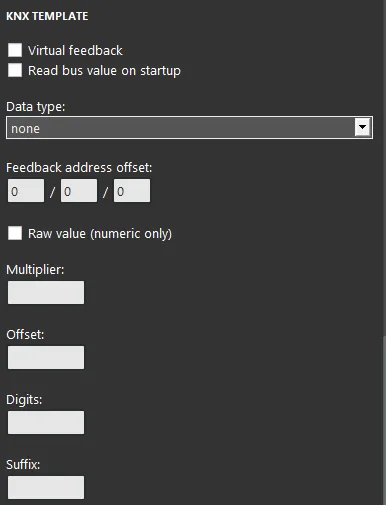
This example component was created using the KNX gateway.
You can refer to the chapter “Gateway / Protocols” for further information.
Virtual Feedback: Refer to the “KNX protocol” guide;
Read bus value on startup: Refer to the “KNX protocol” guide;
Data type: represents the data type for KNX;
Feedback address: the feedback address of the KNX device that provides the data;
Raw Value: provides the DPT type without suffix;
Multiplicator: allows conversion between different units;
Decimals: number of decimal places;
Suffix: a suffix for the DPT type. Do not add it if the data will be displayed on a chart.
There are three display modes: “CLASSIC”, “MODAL”, and “HIDDEN”. Click the link to learn more about the display mode.
Classic Display
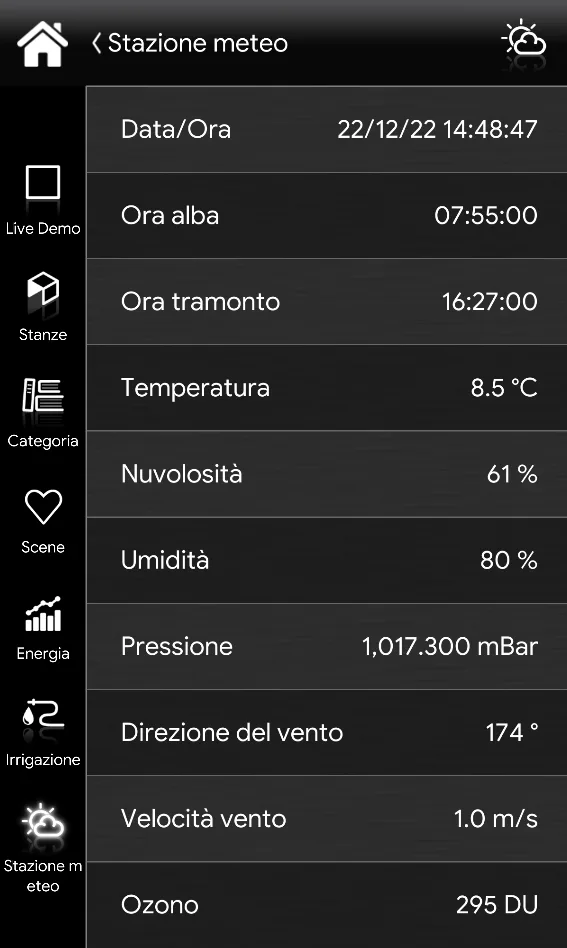
Here is the final result of the component in Ilevia Control ( Classic style).
The information inside the component is displayed as text next to the title.
Temperature, humidity, time, etc. ⇒ Info mask
Map Display
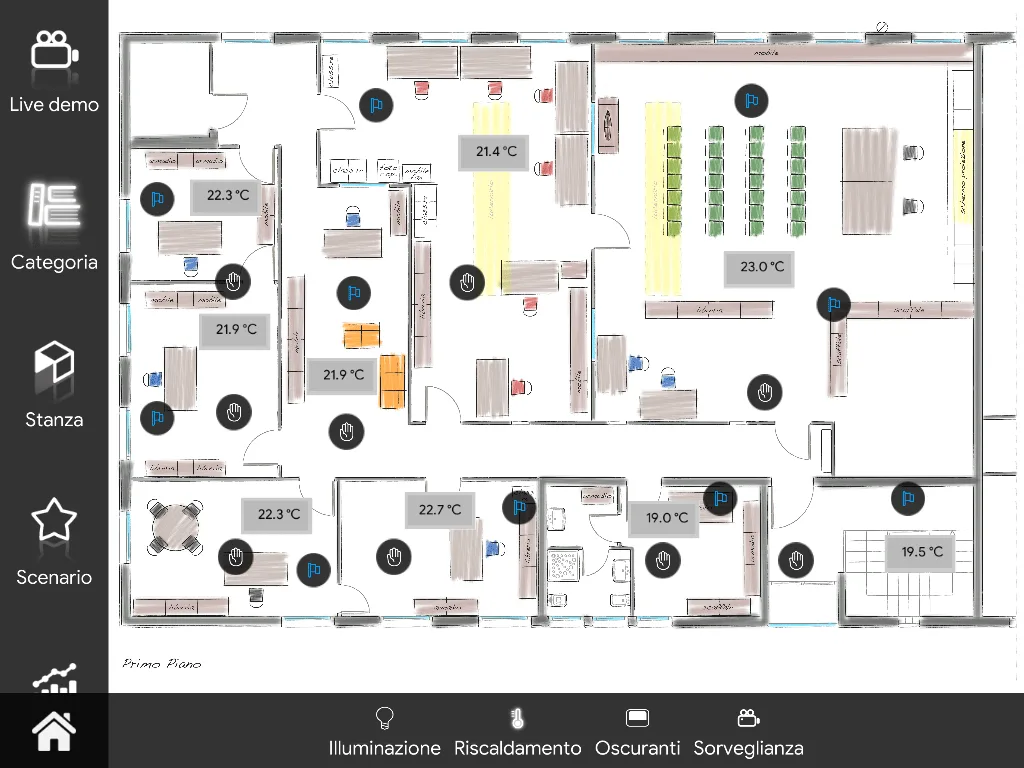
Here is the result of the component in Ilevia Control ( Map style).
With text-only display mode you can immediately see the data of the Info component.
You can change the size of the Info component data according to your needs.