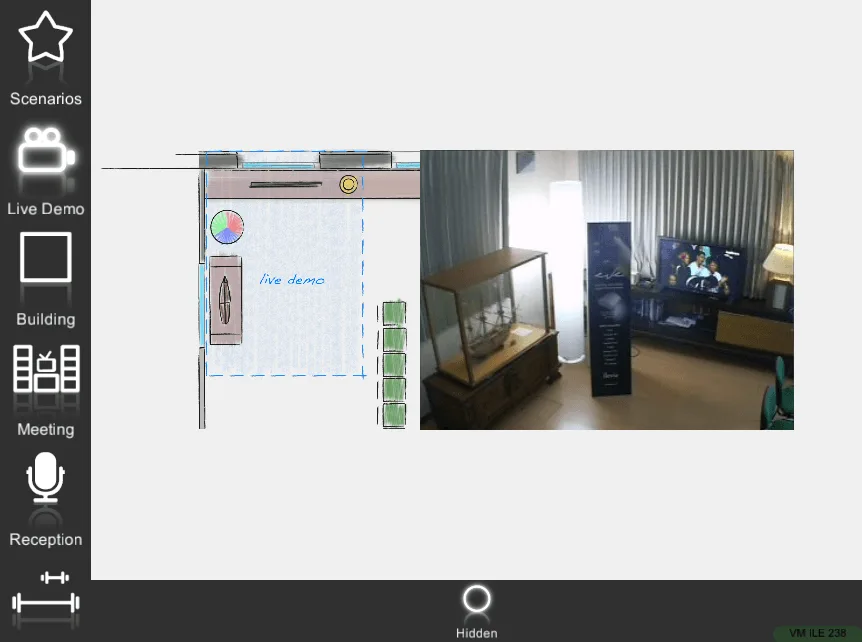
Component display modes
The component display modes (Classic, Text only, Images only, Modal, Hidden) in the Ilevia Control Maps interface.
Display modes in the Maps interface
Ilevia Control, with the Maps layout, allows you to interact with project components in different ways.
The choice of how to interact with system commands is found in the Ilevia Manager configuration software, in the user interface creation area.
In general, the default display mode for all components is Classic (text only for text components and images only for those with images), but the system also has other display modes.
Classic
Text only
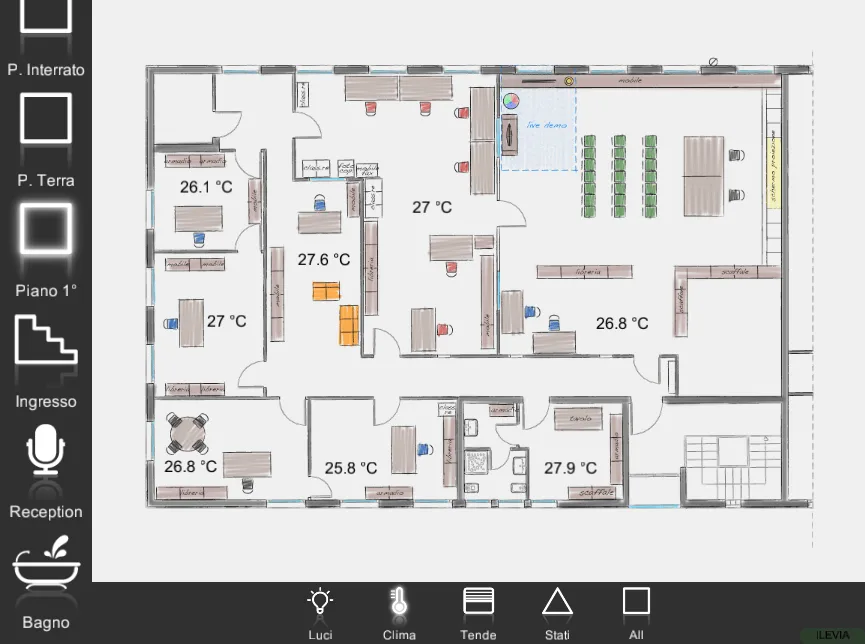
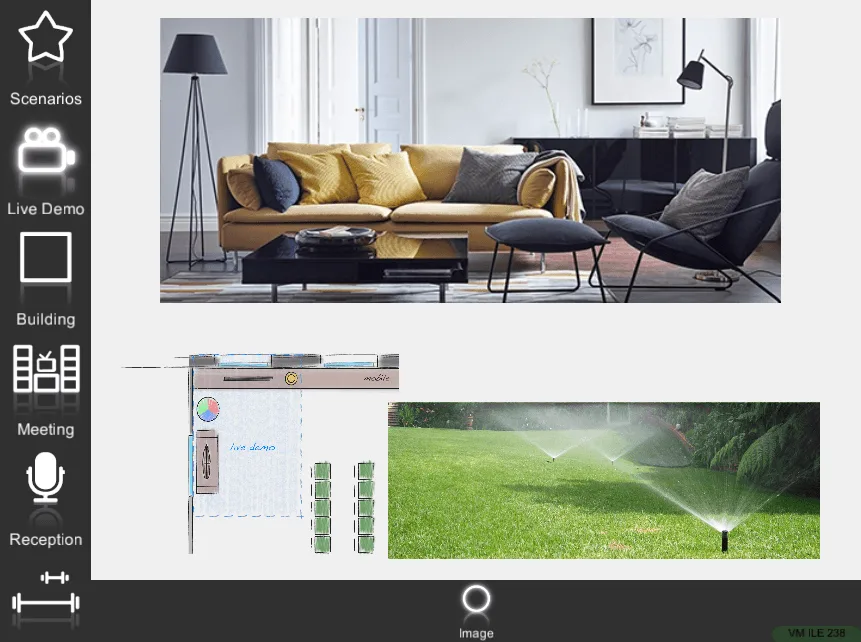
Images only
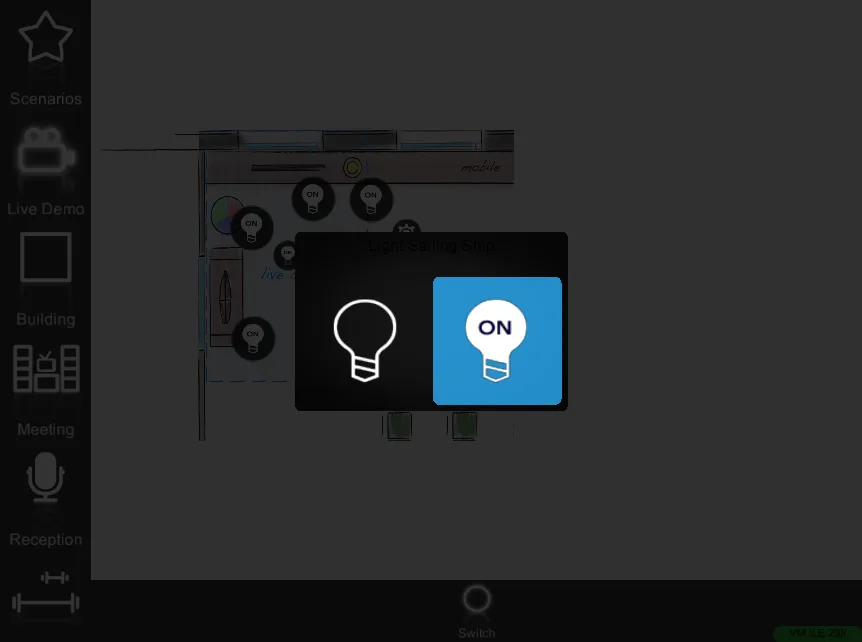
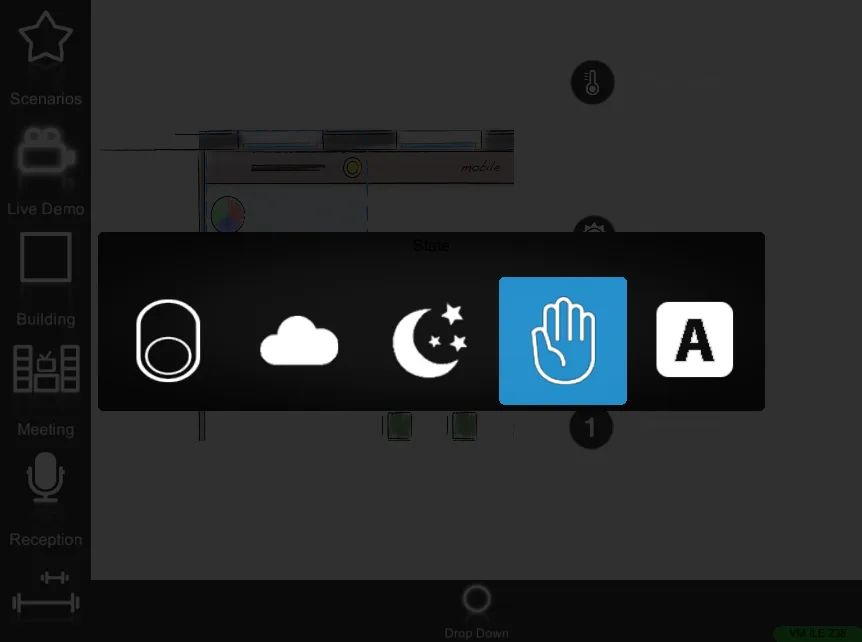
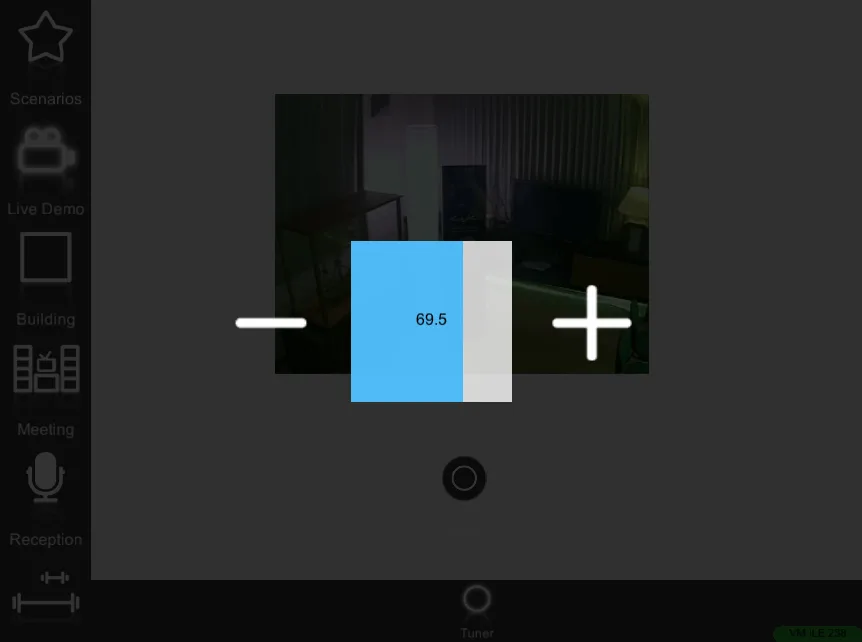
This display mode does not overhaul the user interface, but highlights the action to prevent accidental operations due to user distraction.
This display mode does not overhaul the user interface, but highlights the action to prevent accidental operations due to user distraction.
In fact, no other action is performed until you decide how the component should react. Below are some examples of this alternative display mode.
Switch
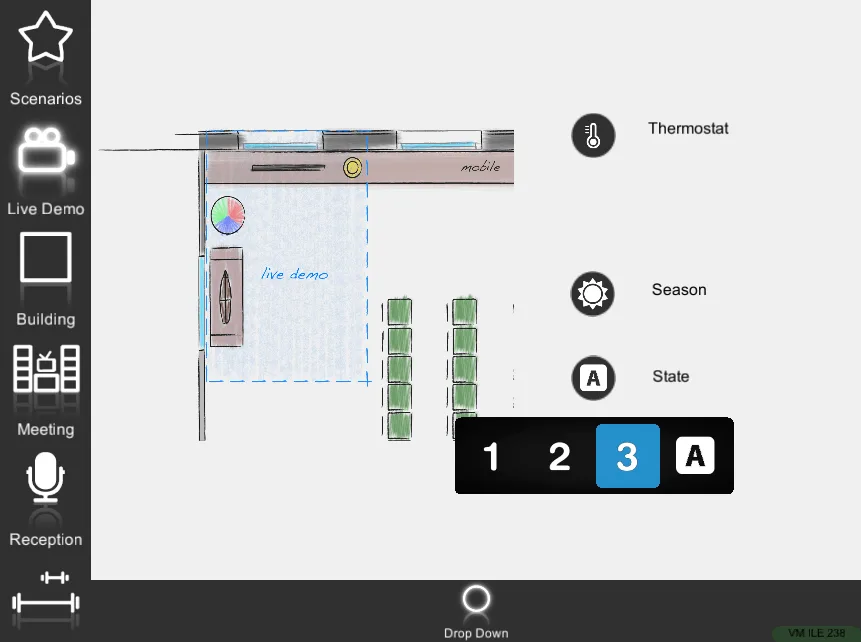
Drop-down menu
Adjustable value
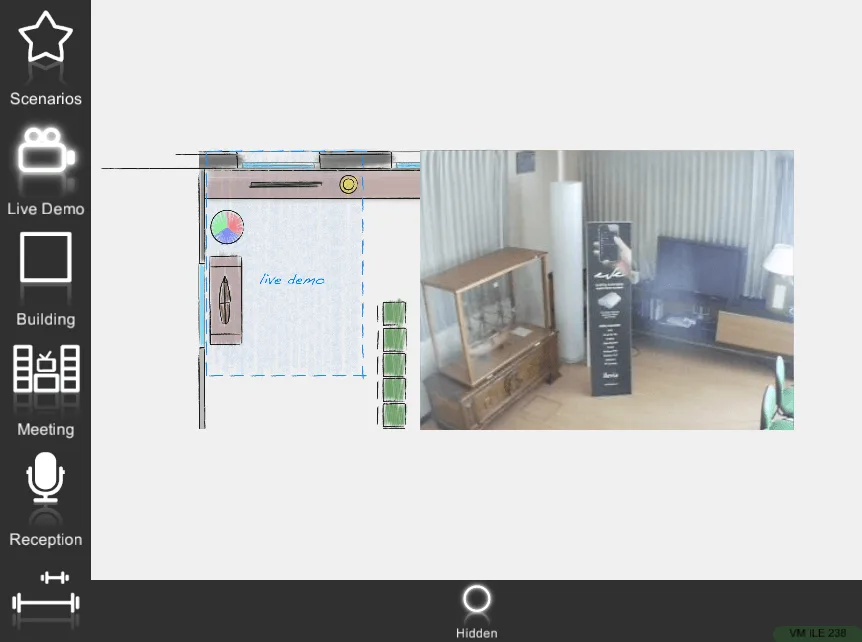
This display mode changes the user interface: any component can be hidden while still remaining within the interface.
This display mode will introduce changes within the user interface: any component can be hidden while still being within the user interface.
It is very useful if the user needs to interact directly with the image and not with the component (for example with an IP camera). You can add specific components with the hidden display mode above the corresponding object in the image. The user will not see the component icon, but by clicking on the object they will see the status change.
Before
After