
Lock
How to configure the Lock component (secure switch), which requires a password to change state, in Ilevia Manager and Ilevia Control.
Introduction
The Lock component (also called Secure Switch) is similar to the Switch component, but a security code must be entered to change the state.
Use cases
With the Lock component you can add extra security to the front door by assigning it a password.
You can use the Lock component to protect IP cameras from being viewed by unauthorized people.
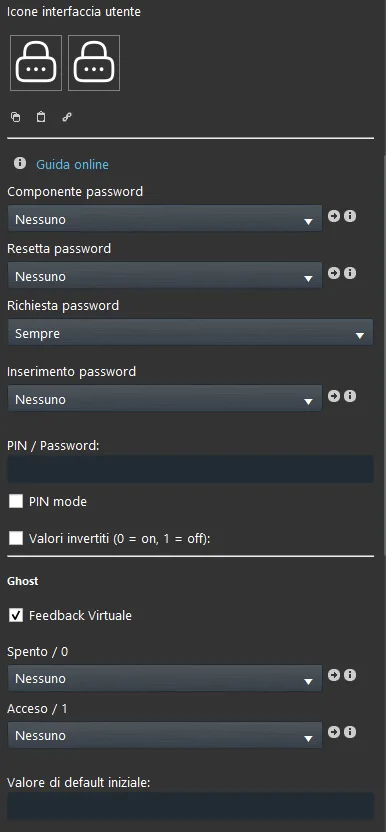
Component properties
Password component: In this field, we recommend using the Info component. Remember to enable the Remember last value checkbox in the component properties;
Reset Password: Through the Button component, the user can reset the password in the app;
Password request: You can choose from the following options:
“Always”: the password will be required both when unlocking and when locking.
“On activation”: the password will be required only during the activation phase.
“On deactivation”: the password will be required only during the deactivation phase.
Password entry: Allows the user to enter the password. We recommend using the “Text input” component and enabling the “Password mode (MD5)” checkbox, which encrypts the entered password;
Password: Enter your personal password here;
Inverse value: The component is unlocked when the value is 0 and locked when it is 1.
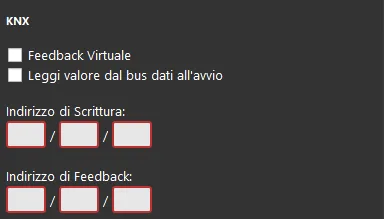
KNX
This component has been configured with the KNX gateway.
You can refer to the “Gateway / protocols” guide for more information.
Virtual feedback: See the “KNX protocol” guide;
Read data bus value at startup: See the “KNX protocol” guide;
Write / Feedback address: See the “KNX protocol” guide;
Three different display modes: “CLASSIC”, “MODAL” and “HIDDEN”. Click the link to learn more about the display mode.
Classic display
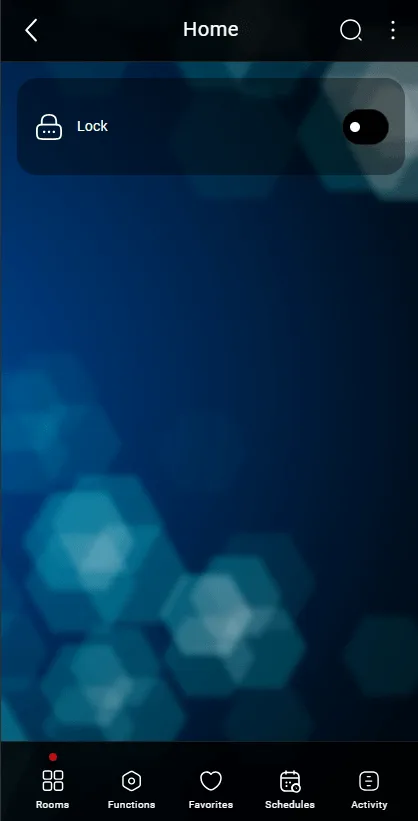
Here is the result of the component in Ilevia Control (Classic style).
The Lock is shown with an icon that lights up when it is unlocked.
Doors, safes, etc. ⇒ Lock mask

Off state – Locked (Editable icon)

On state – Unlocked (Editable icon)
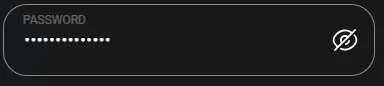
Password entry field
Map display
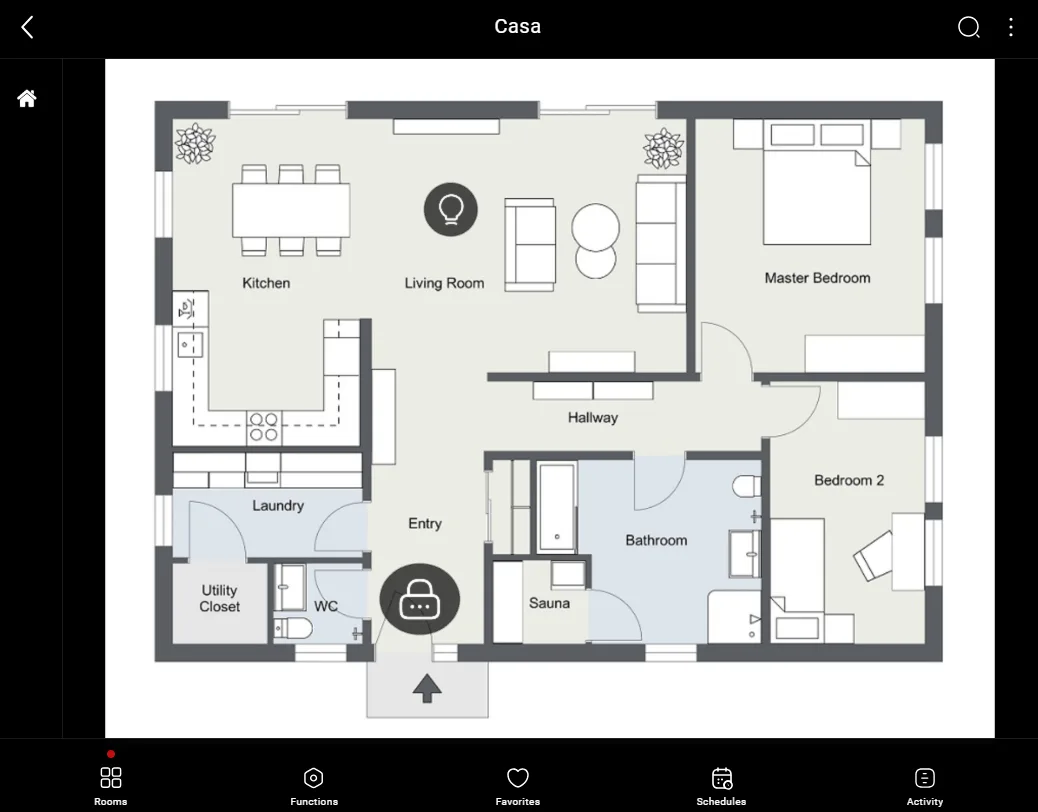
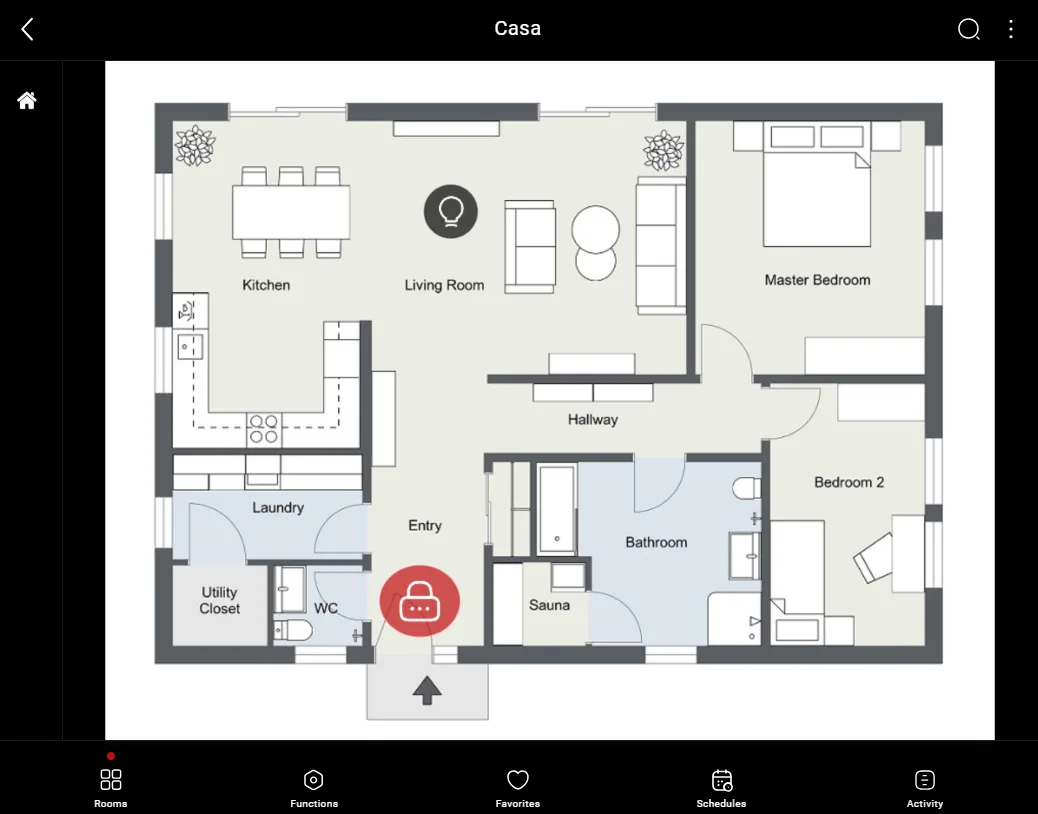
This is just one possible result of the component in Ilevia Control (Map style).
The icon can be customized according to your needs, from the symbol to the color and size.
In this case, we see the default icon:
Doors, safes, etc. ⇒ Lock icon

Off state – locked (Editable icon)

On state – Unlocked (Editable icon)
Password entry field
Try the component
See the following guide for more information about configuring the Lock component.