Common properties of components
List of the common properties for all components in Ilevia Manager and how to modify, copy, and link icons.
Introduction
Each component has different parameters depending on the protocol it is associated with; however, some properties are common to all components. This is the case for the component register area, which shows the basic information used to identify it in the project.
Other configuration parameters determine the component’s behavior within the project, regardless of its category. Below is the list of properties common to components in Ilevia Manager.
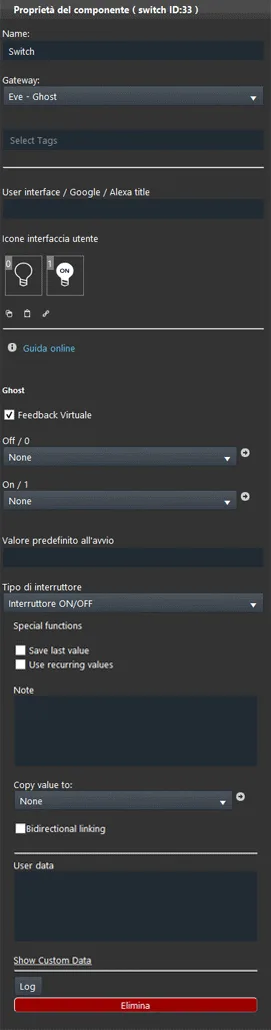
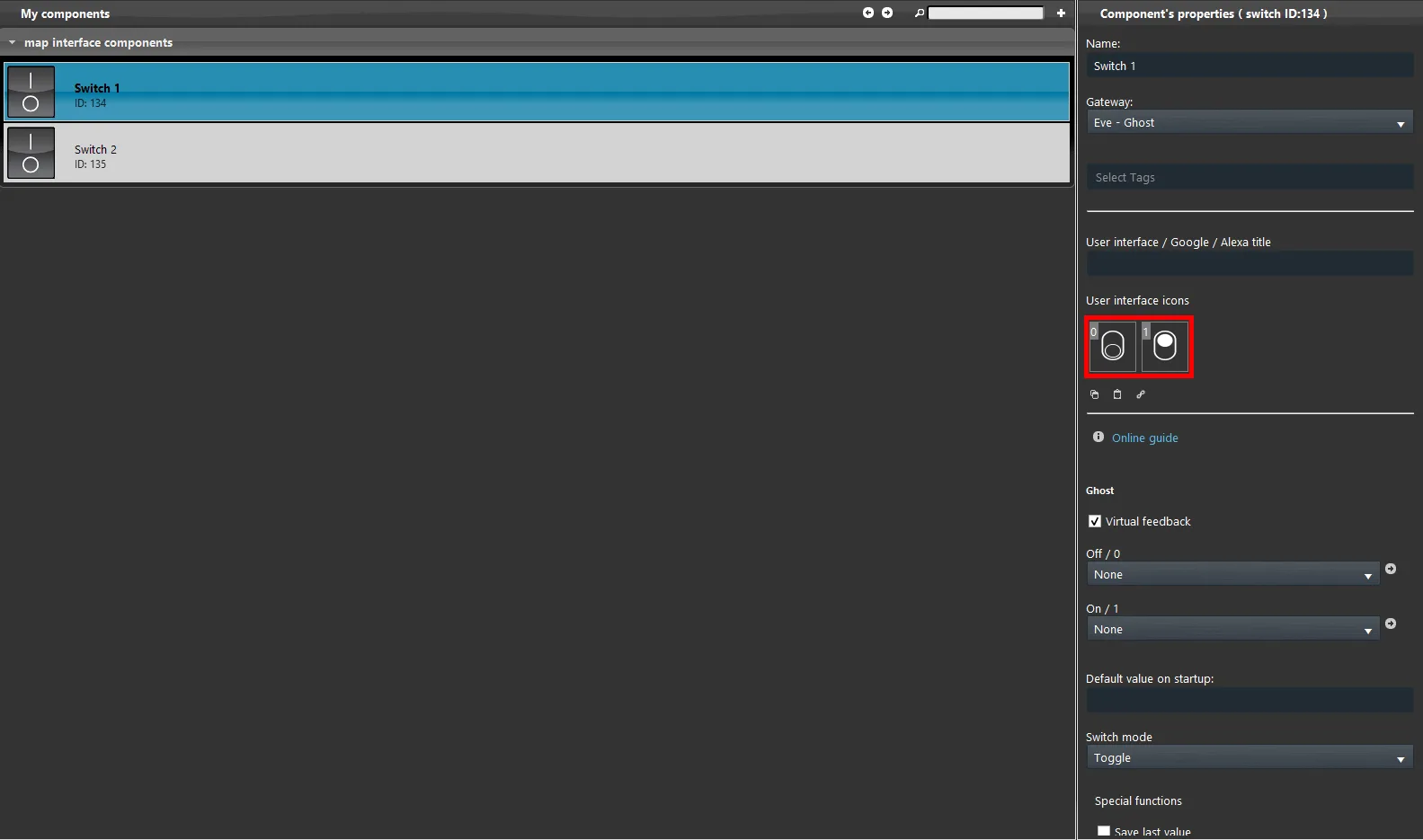
Common properties
Name: customizable field where the installer can assign the component name.
Type: non-editable field showing the category of the selected component.
ID: non-editable field showing the unique ID of the selected component.
Gateway: the drop-down menu shows all the project gateways. The field depends on the component configuration.
Show Custom Data: option intended for developers, not required for system integrators.
Save last value: check box. Ilevia stores the last value of the component so that, in the event of a blackout, the device status is set to the value before the event.
Use recurring values: this check box allows all telegrams on the BUS to be retained; if selected, only changed telegrams will be considered.
User visibility: this option makes the component visible and editable by other users with special permissions (component management).
Select Tags: a tag is a useful option for better describing components. Thanks to tags, software modules can filter components to perform their function.
Linked to: allows synchronization of two components, even with different protocols, making it possible to use the system as a gateway between protocols.
Bidirectional linking: enabling this option activates bidirectional data flow, meaning continuous synchronization of data between two components. If it is not enabled, data is sent to the linked component only in one direction.
User interface title: title of the component shown in the user interface, freely editable.
User interface icons: icon of the component shown in the user interface, freely editable.
Note: text field available for additional administrator-side information.
Icons
Ilevia Manager allows you to customize each icon according to the customer’s preferences, both in the “Components” section and, later, in the “Interface” section.
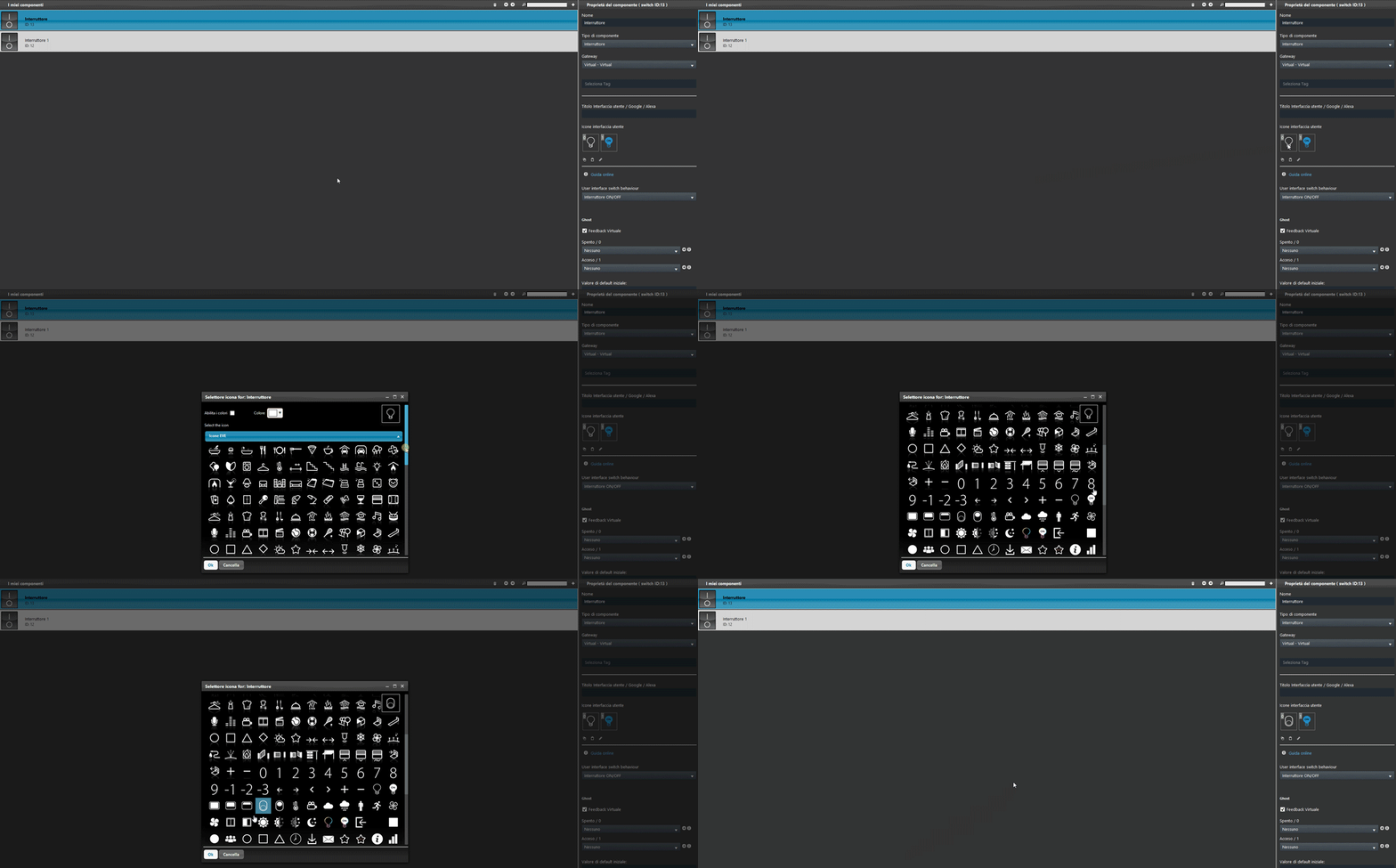
Any change made in the “Components” section is updated at the same time in the “Interface” section and vice versa. To modify a component icon, right-click it: the icon editor will open, where you can make your changes. (For more information about the icon editor, see the “User interface” guide).
The installer can structure the project with the default icons and modify them later quickly, thanks to the software copy, paste, and link functions in the “Components” section. These functions avoid having to define the icons immediately, which are not necessary for project progress.
Copy / paste
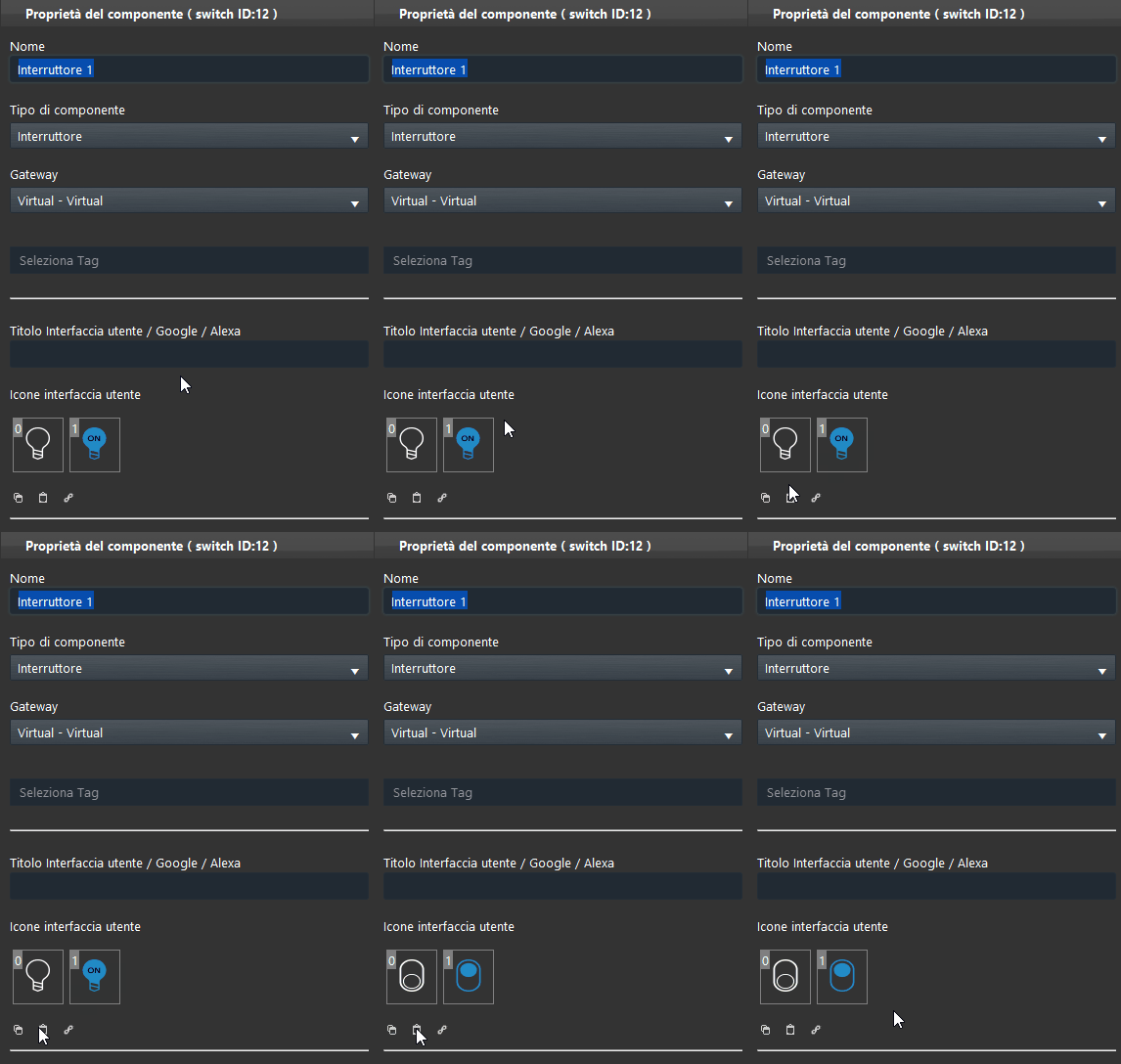
If, based on specific agreements with the customer, some icons must be modified, you can copy and paste the selected icons using the copy/paste commands under the component icon box. This reduces working time, because you do not need to open the icon editor for each component.
Step 1
Step 2
Copy
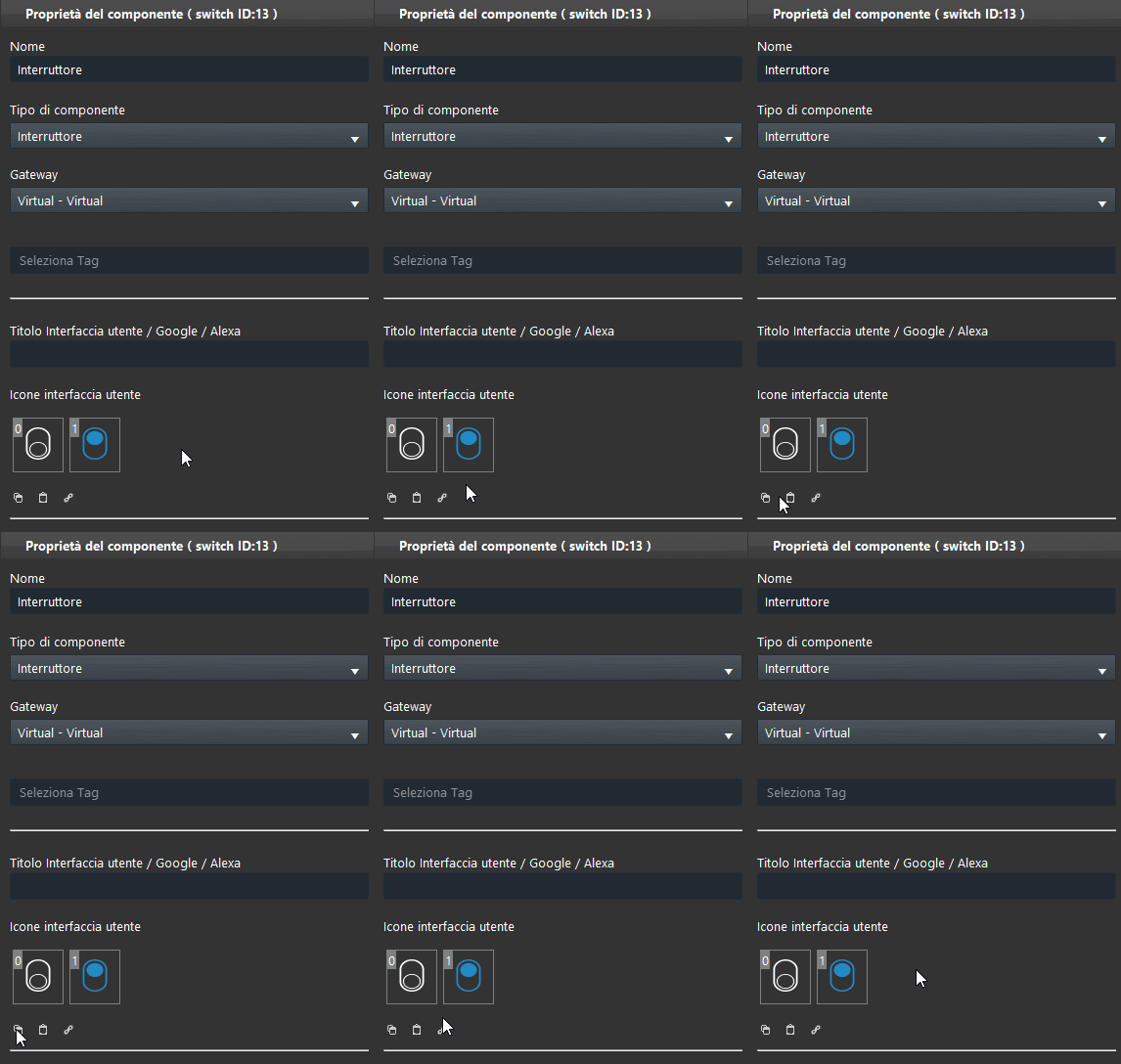
Paste
Copy / paste with link
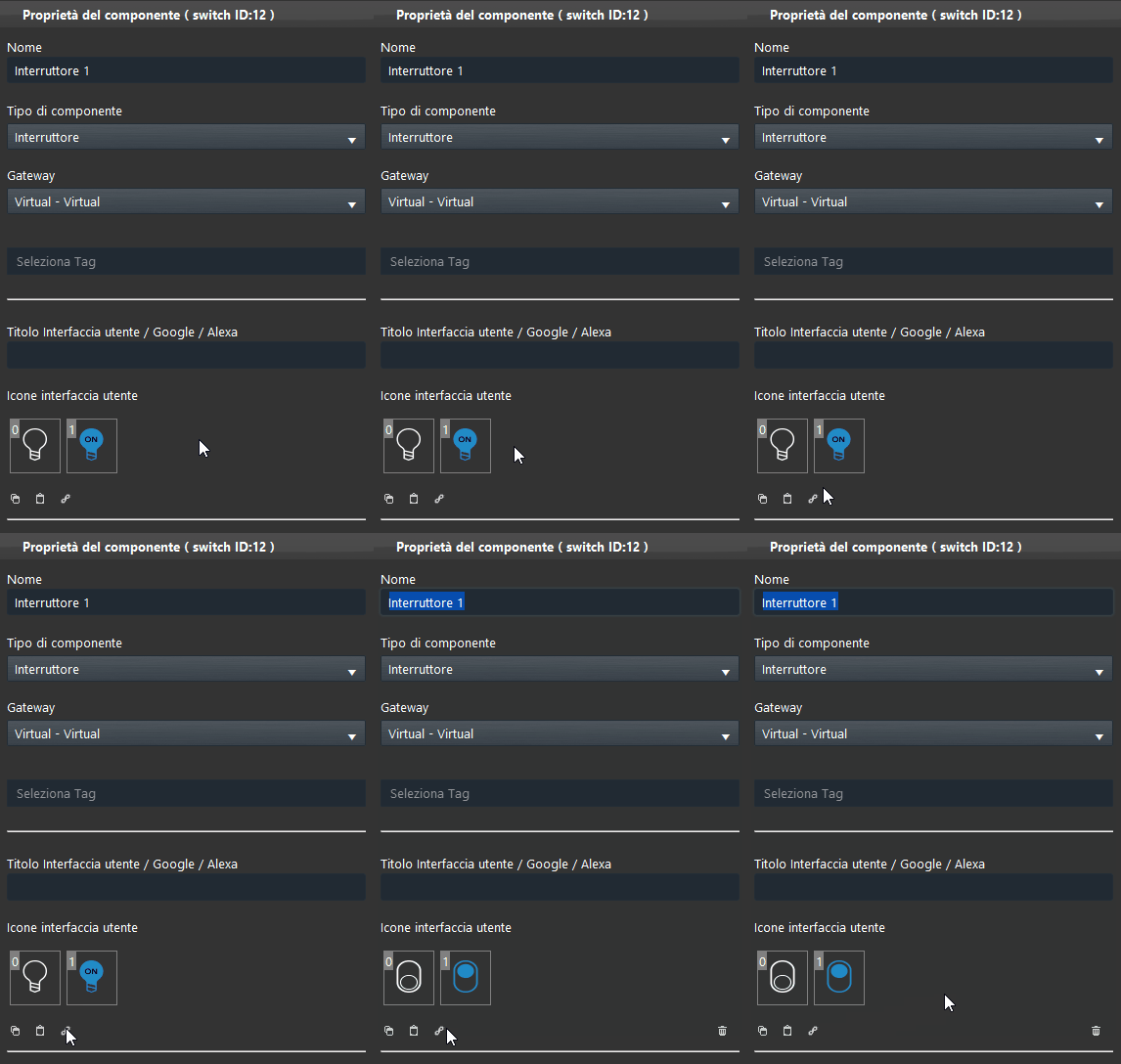
Using the same logic, you can create a link between icons of different components. Modify the icon and copy it, then select the other components that must have the same icon and click the link icon. In this way, when you change the icon of the “source” component, the icons of all linked components will also change, with automatic updates in the “Components” section and in the Ilevia Remote Plus interface.
Step 1
Step 2
Copy
Paste + Link
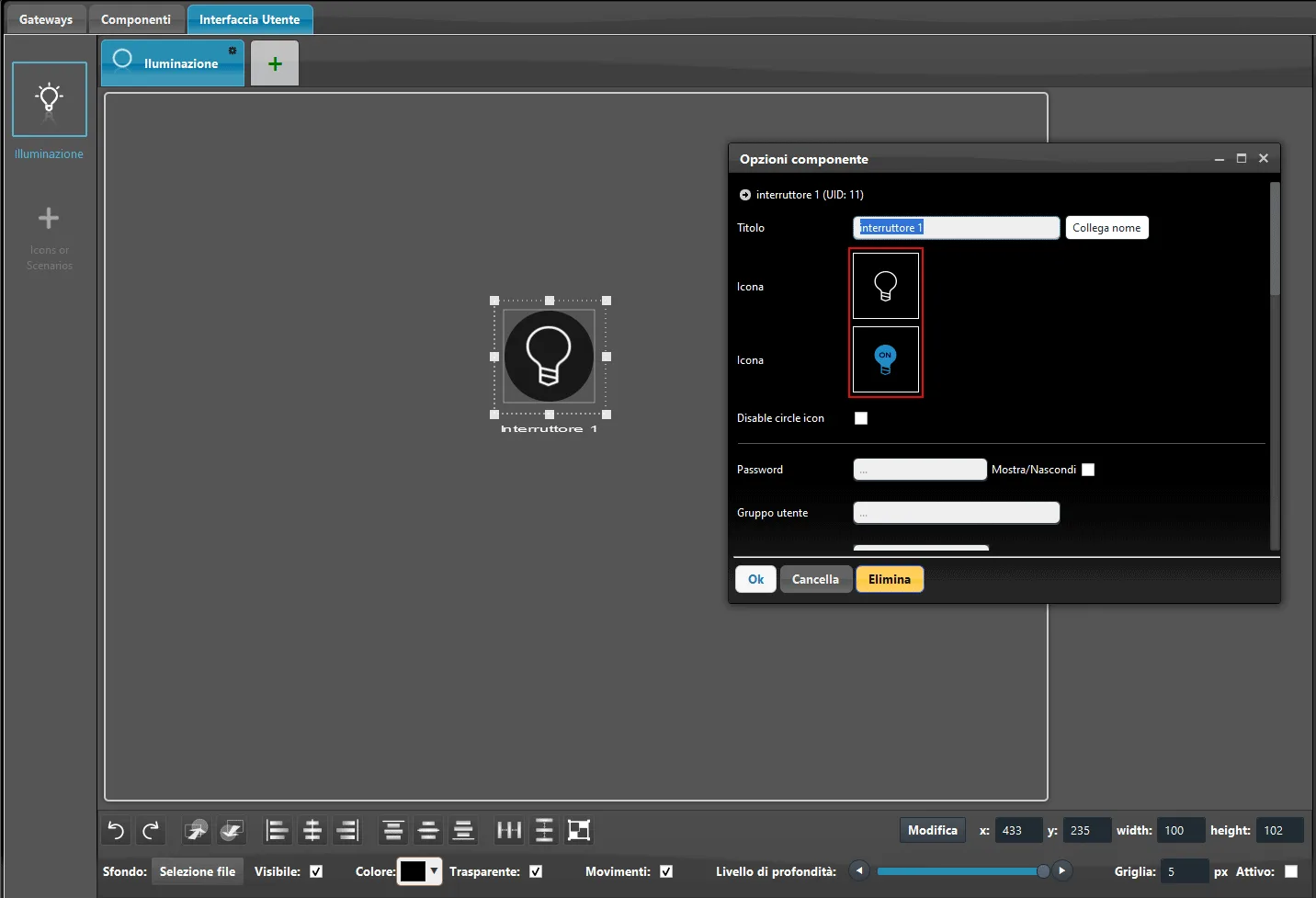
Icon editor: this customization will only affect the user interface section and will not affect the icons in the My Components section.
Icon display within the User interface.
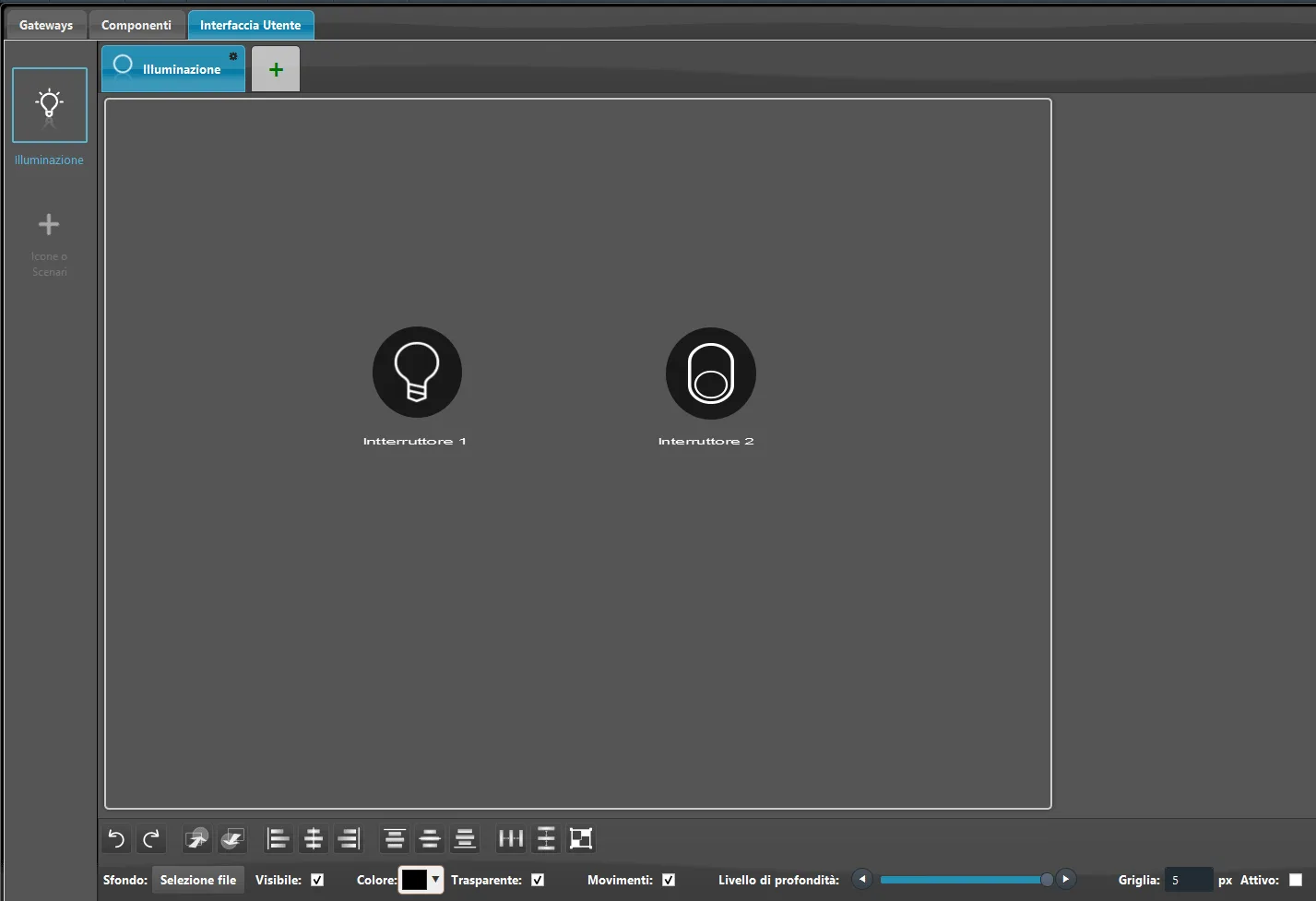
The icons in the “My components” section will remain the same as those set before you modified them in the User interface.