
User interface: classic and map-based editor
How the Ilevia Manager user interface editor works (classic and map-based), component placement, and keyboard shortcuts.
Introduction
The end user can choose between two different user interfaces (Classic and Map-based). Ilevia Manager sets the classic interface as the default for every new project user. However, this setting can be changed from user management by changing the “user interface style”: the user interface section automatically adapts to the user's settings.
If the customer requires both interfaces, you must create 2 separate users and assign a different style to each one (see the “User organization” guide).
Creating both the Classic and Map-based interfaces relies on drag and drop: select the icon or component and drag it into the corresponding area of the interface. There are no dedicated buttons for creating the interfaces.
Interface Creation
Let's now see how to create the classic interface and the map-based one:
– Classic Interface: a streamlined interface designed for mobile devices.
– Map-based Interface: fully customizable.
Overview
After defining the interface style the end user will use, go to the specific interface section for the selected user. Both interfaces, classic and map-based, are divided into two areas:
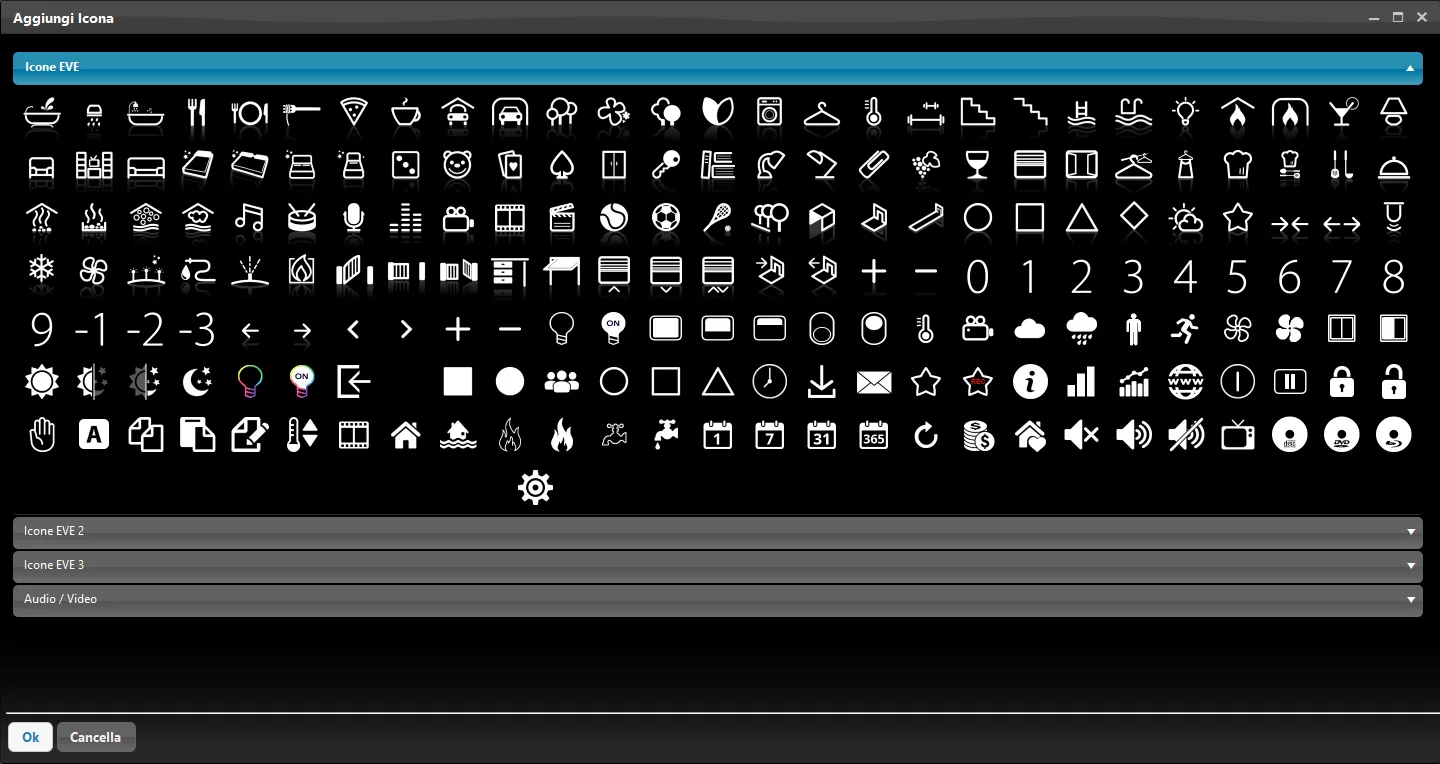
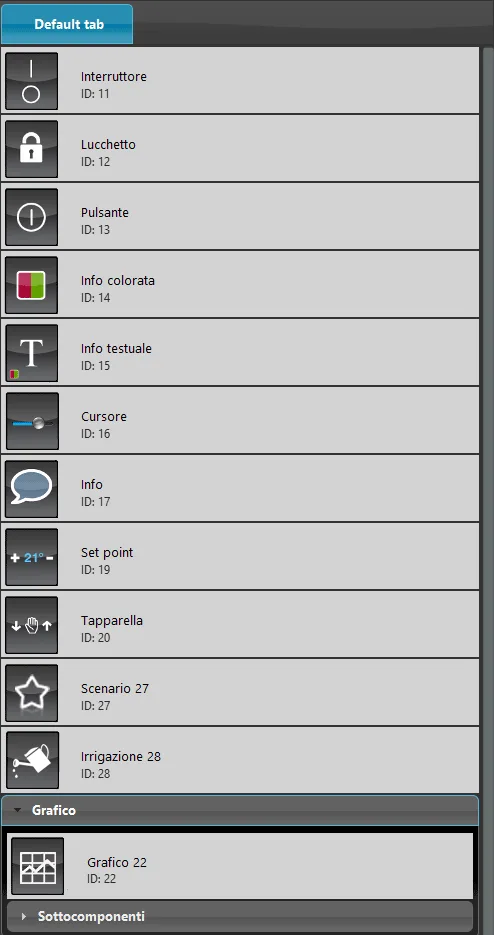
1. Icons Area / My Components (right area): it is divided into two sections:
The Icons section contains all the icons available for interface customization;
The Components section contains all the project components (see the “component library” guide).
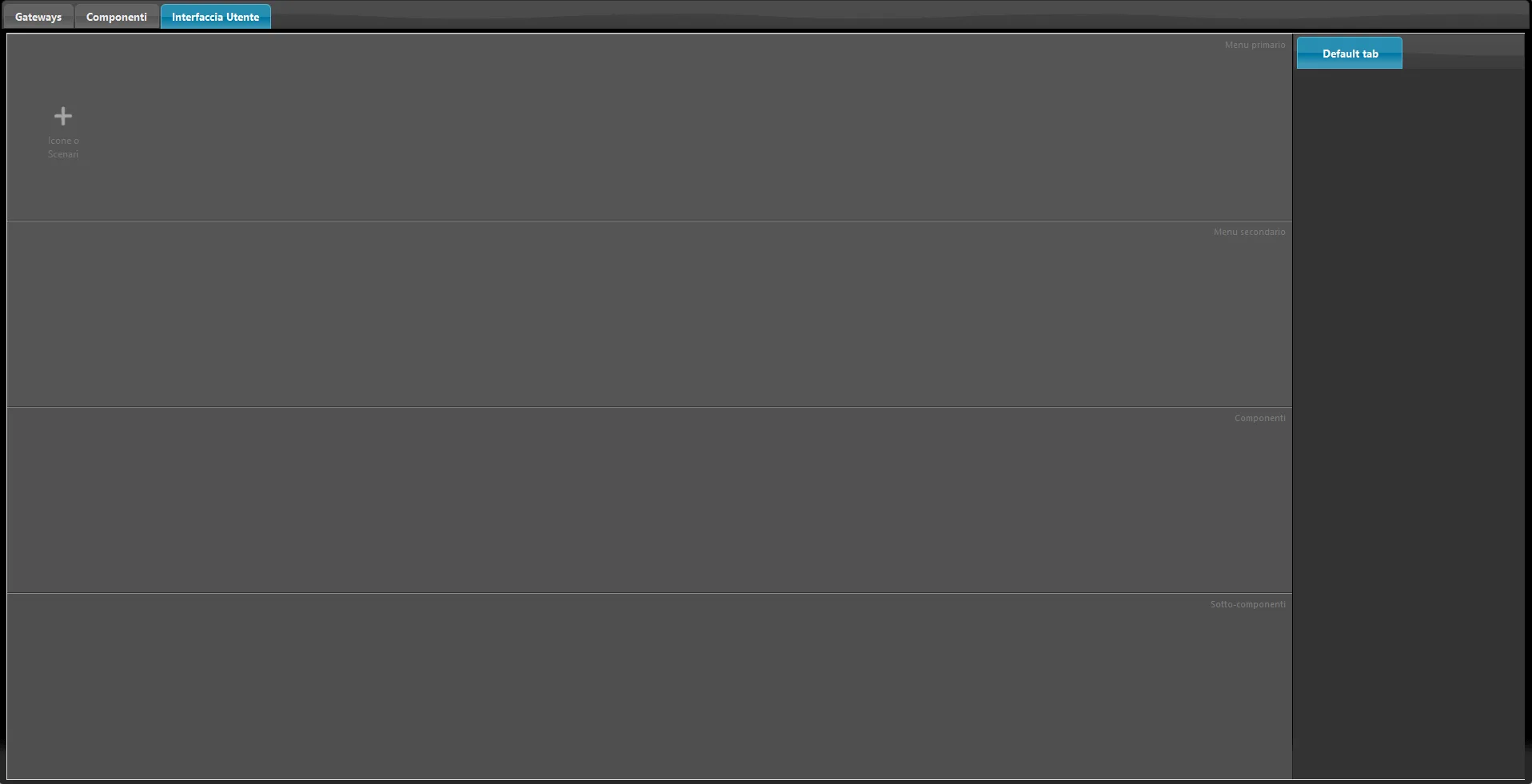
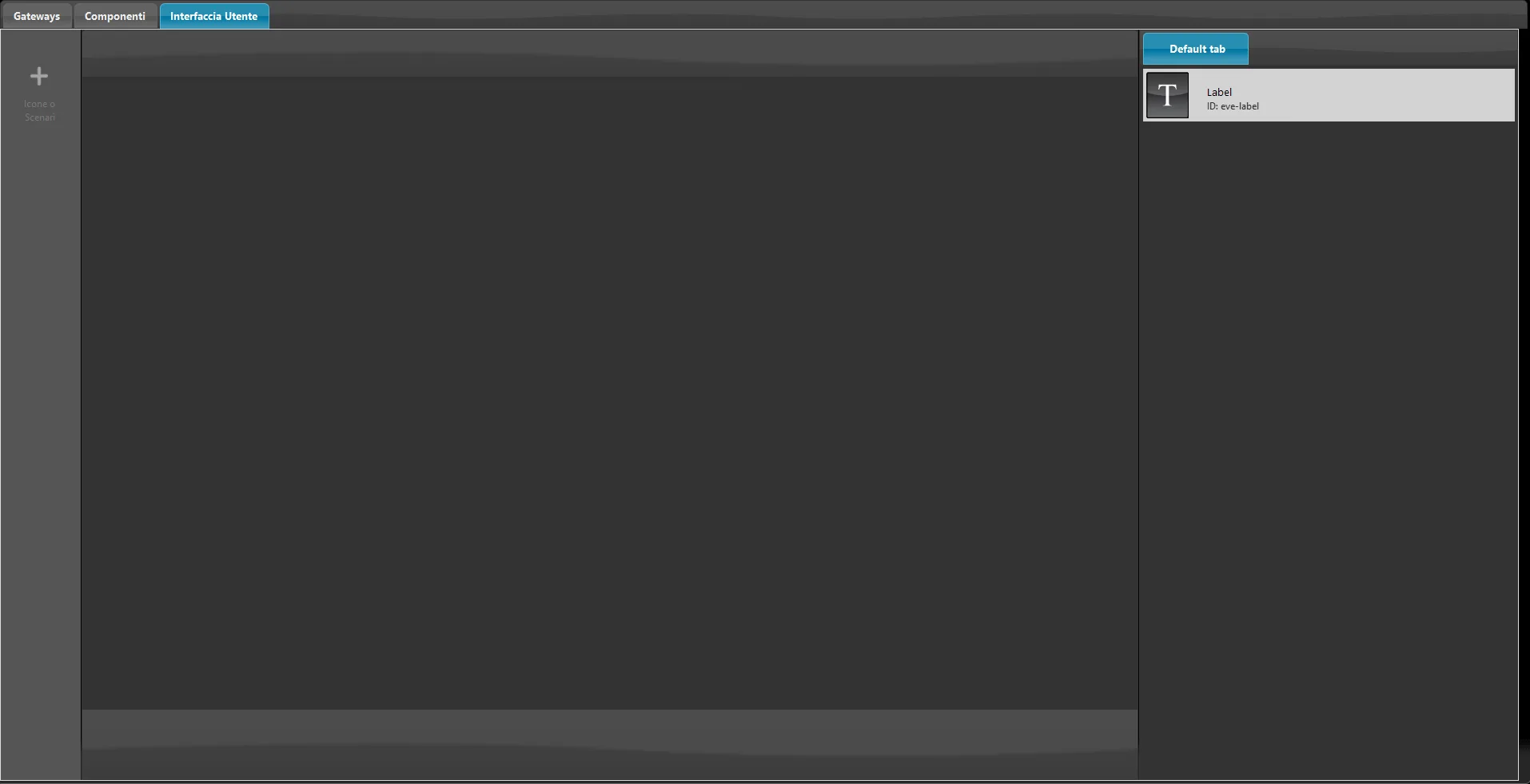
2. Interface Area (left area): this is the area where the user interface is configured.
Its appearance changes depending on the selected style.
Classic User Interface Editor
Map-based User Interface Editor
What's new in the editor from version 5.9.7.0
Ilevia Manager version 5.9.7.0 introduced a major update to both user interfaces, for broader and faster customization.
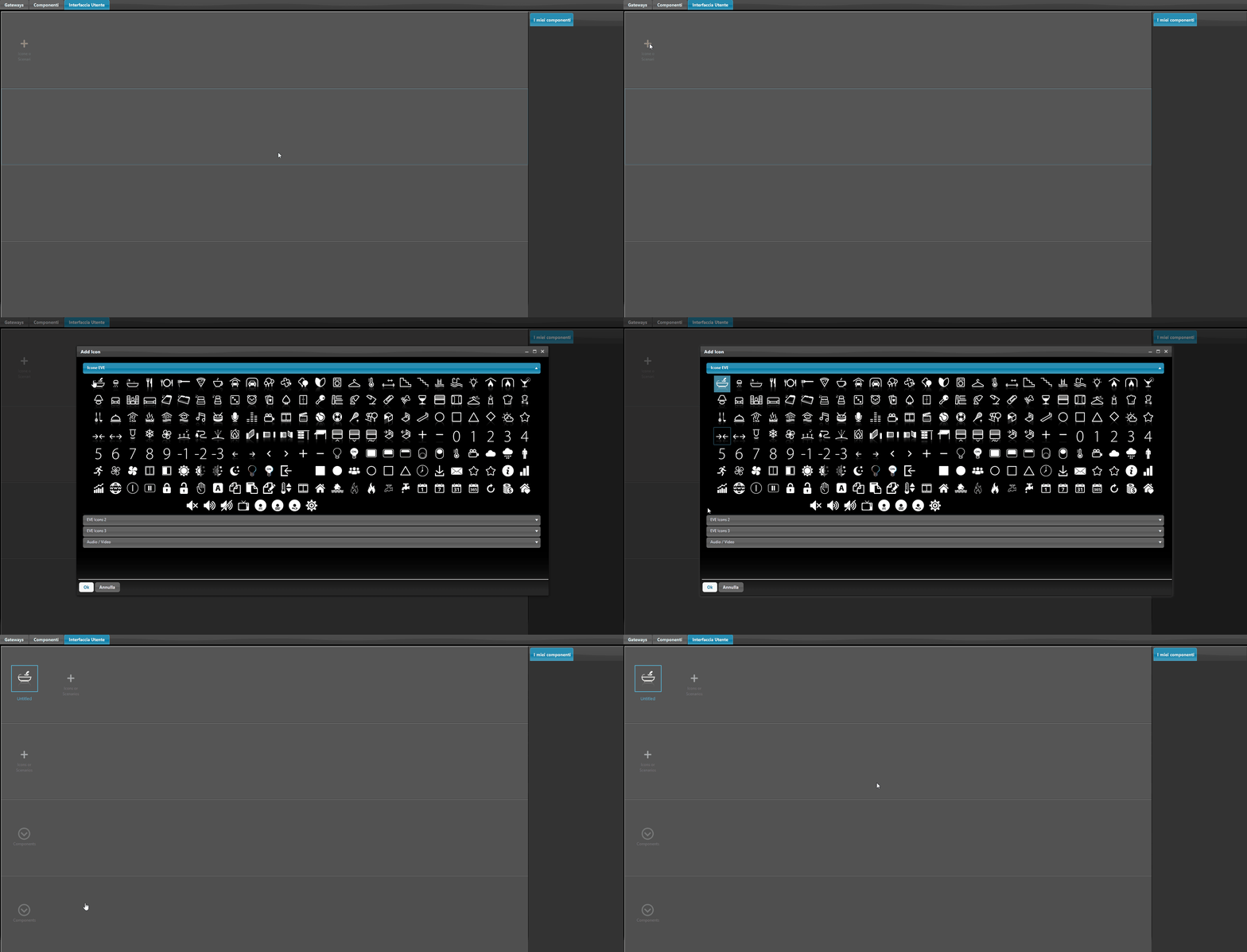
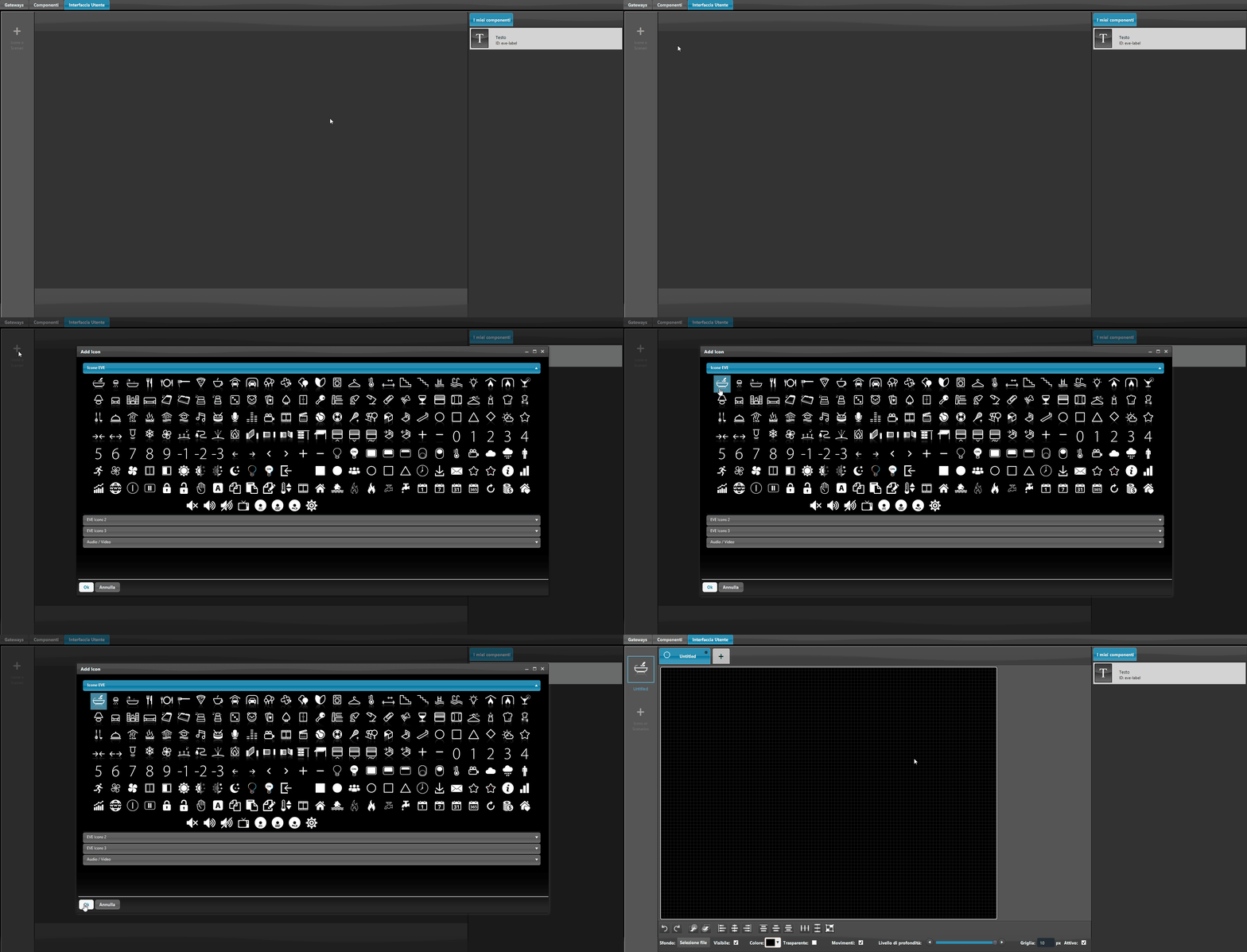
Menu icon selection
In the previous method, to add icons in the user interface editor, you had to drag the icon from the Icons menu to the editing area. In the new editor, the menu icon is added directly from within the editor.
Classic User Interface Editor
Map-based User Interface Editor
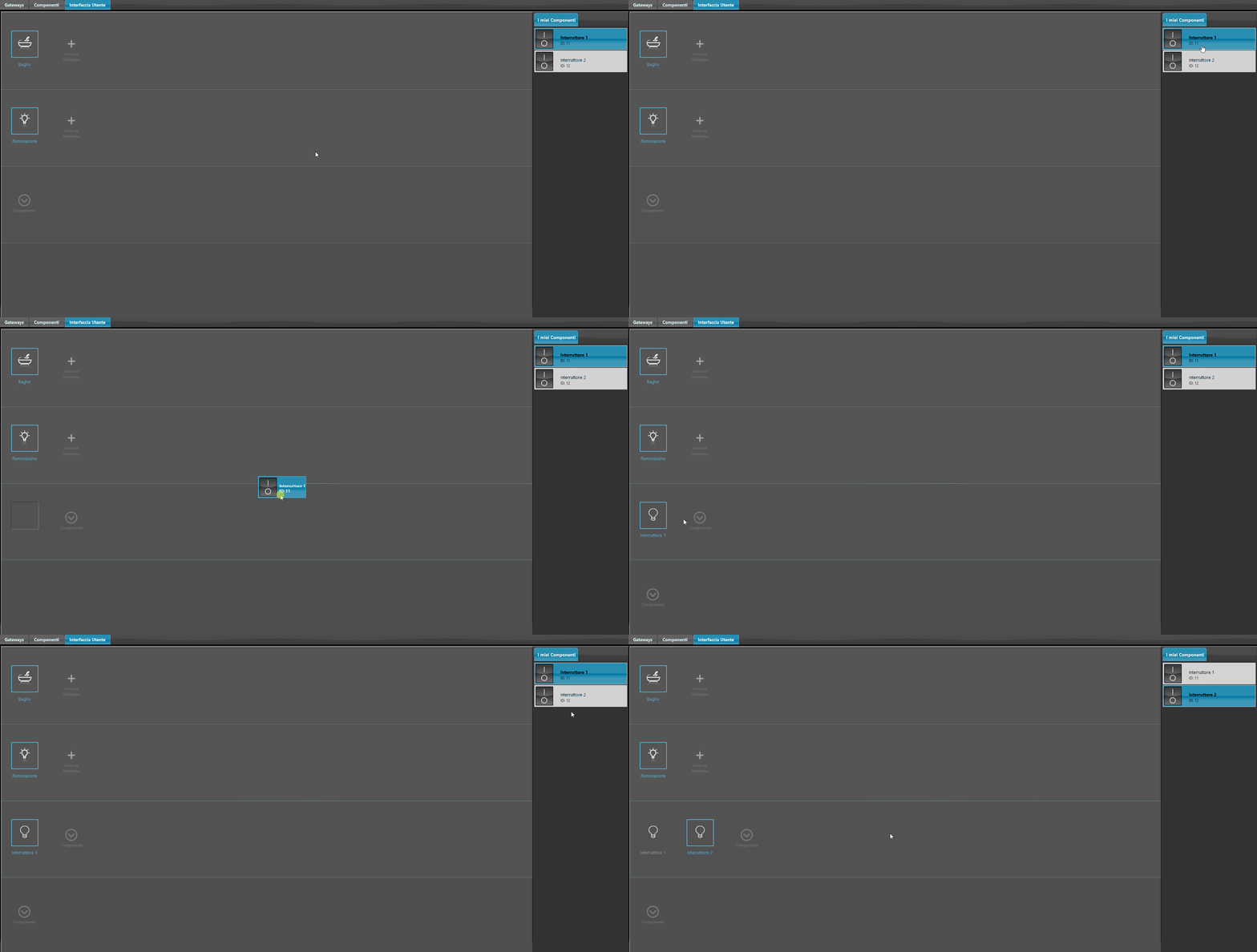
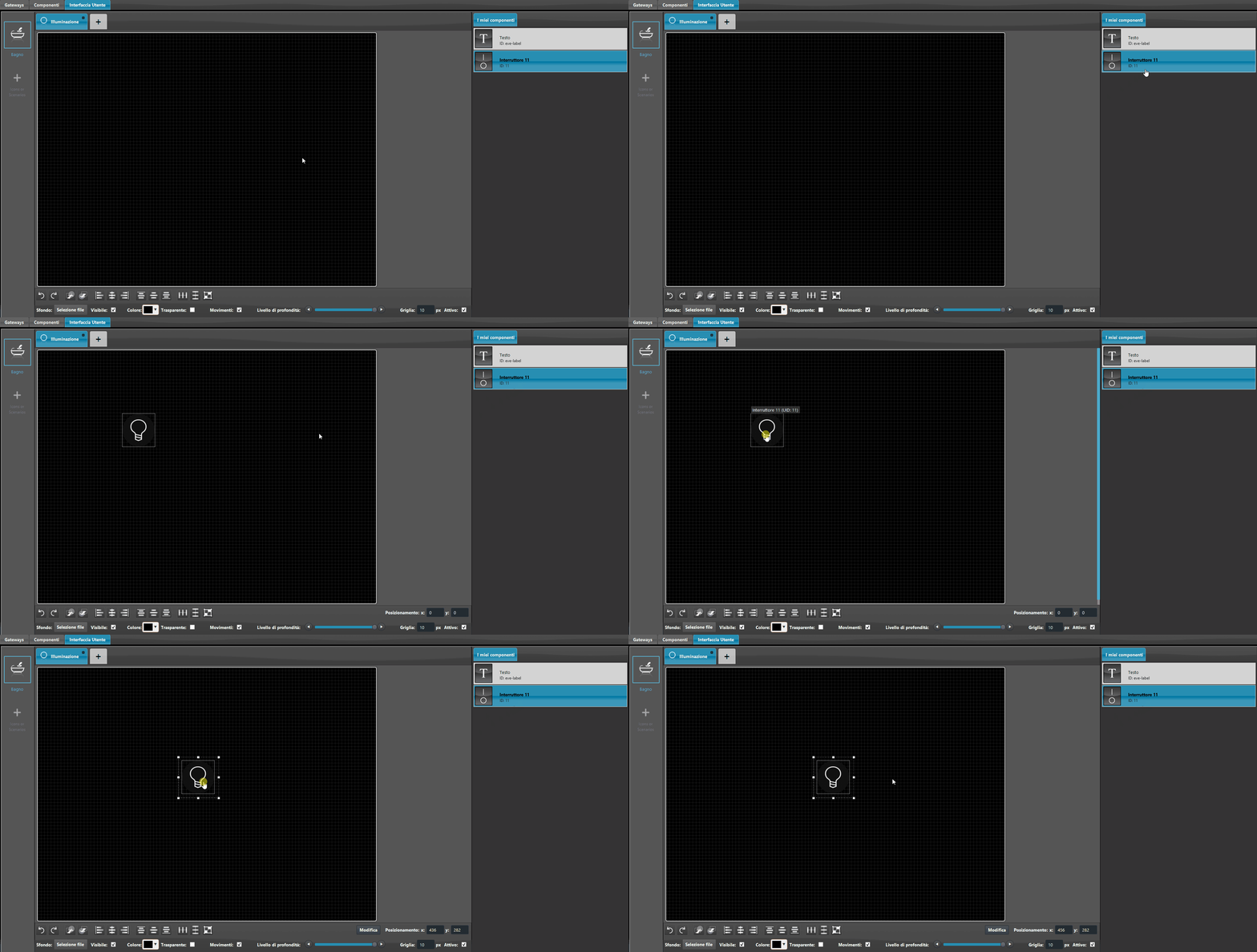
Component placement
Now you can also insert components into the user interface by double-clicking the desired component, without dragging it from the My Components menu on the right side of the screen.
Note: component placement requires at least one main menu in the interface.
Classic User Interface Editor
Map-based User Interface Editor
Keyboard shortcuts
Keyboard shortcuts make interface editing faster and easier. Here is the list of available shortcuts.
Combination | Command |
CTRL + C | With this shortcut, after selecting an element in the interface, it will be copied. |
CTRL + V | With this shortcut, after copying an element, it will be pasted. |
CTRL + X | With this shortcut, the selected component will be cut, with the option to paste it later. |
CTRL + Z | With this shortcut, you can undo the last change made within the interface editor. |
CTRL + Y | With this shortcut, you can redo the last change made within the interface editor. |
CTRL + E | With this shortcut, you can access the properties of the selected component. |