Favorites Component
How to use the Favorites component to create a custom list of components to control from the same screen in Ilevia Control.
Introduction
The Favorites component allows the user to save certain components in a custom list, so they can interact with them without having to search for them in the user interface.
Use cases
The user wants to create a custom list of favorite components;
The user wants to add all thermostats to change the temperature of multiple set points from the same screen;
The user wants to group all scenarios that open or close shutters and switch all lights on or off.
Component properties
This component is used exclusively through the user interface.
See the common properties guide for more information on the common features of components.
Classic view
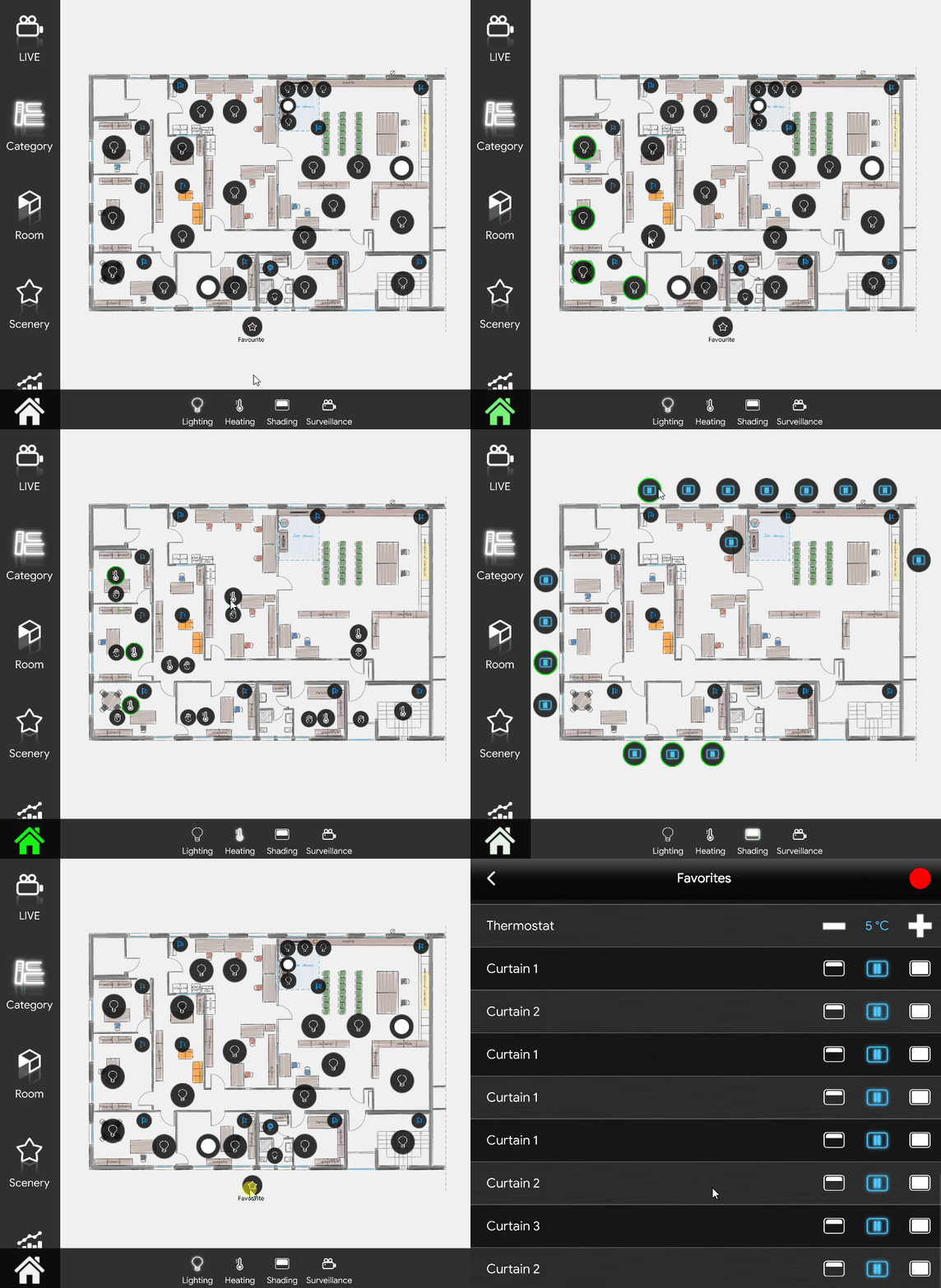
Insert the Favorites component in the user interface and upload the project to the server. To register components in the list:
Step 1: press and hold the icon of the Favorites component: a new window opens.
Step 2: to select components from the user interface, click/tap the red icon at the top right of the screen. Registration starts when the home icon begins blinking green.
Step 3: navigate through the user interface and select the components to add to the Favorites component list. The selectable components are: Switch, Safe switch, Button, Slider, Set point, Adjustable value, Option list, Browse, Shutter, RGB light, Scenario, Web page and Browser.
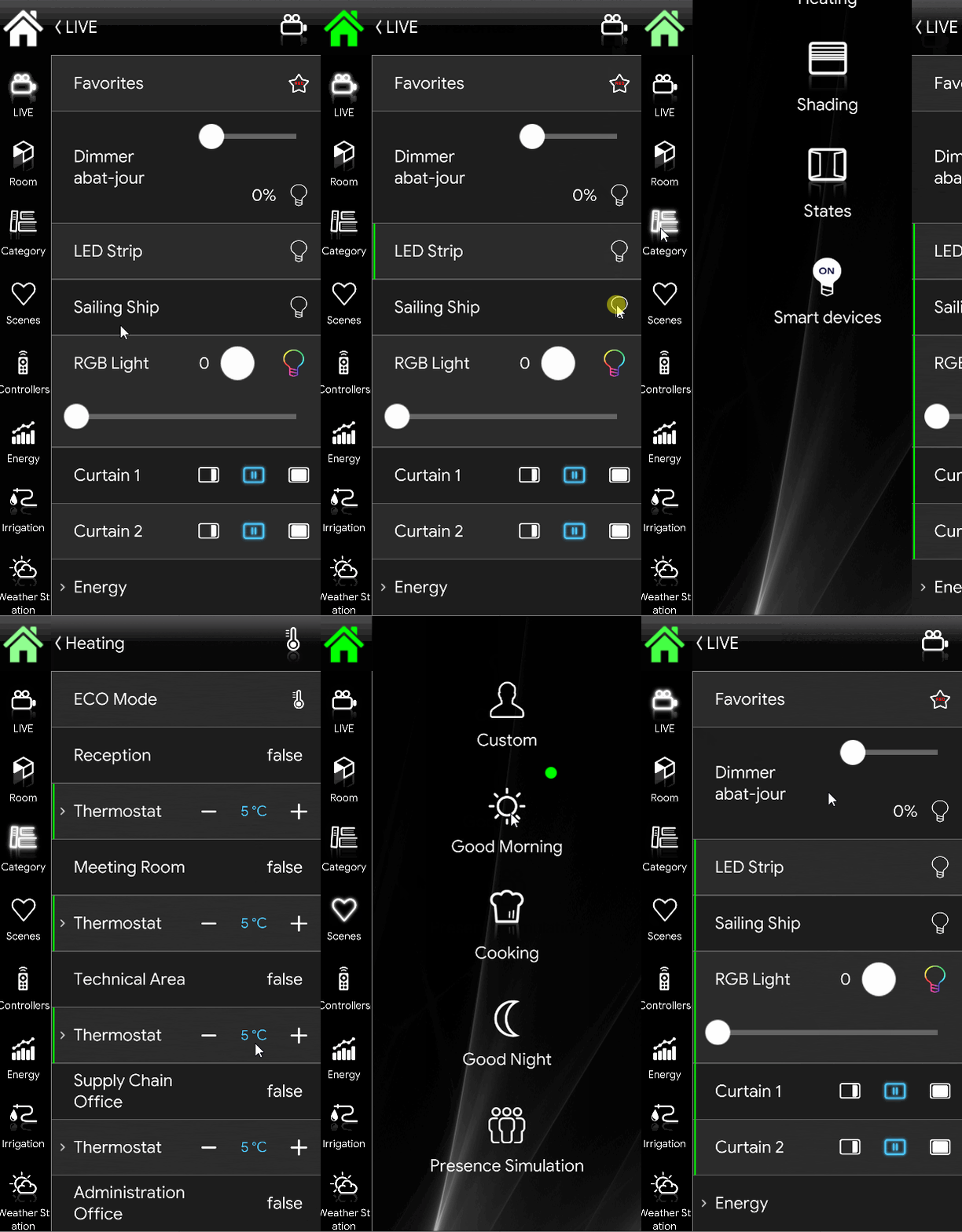
Step 4: once all desired components have been selected, to stop registration press and hold (or click) the home icon at the top left. Registration ends when the icon stops blinking.
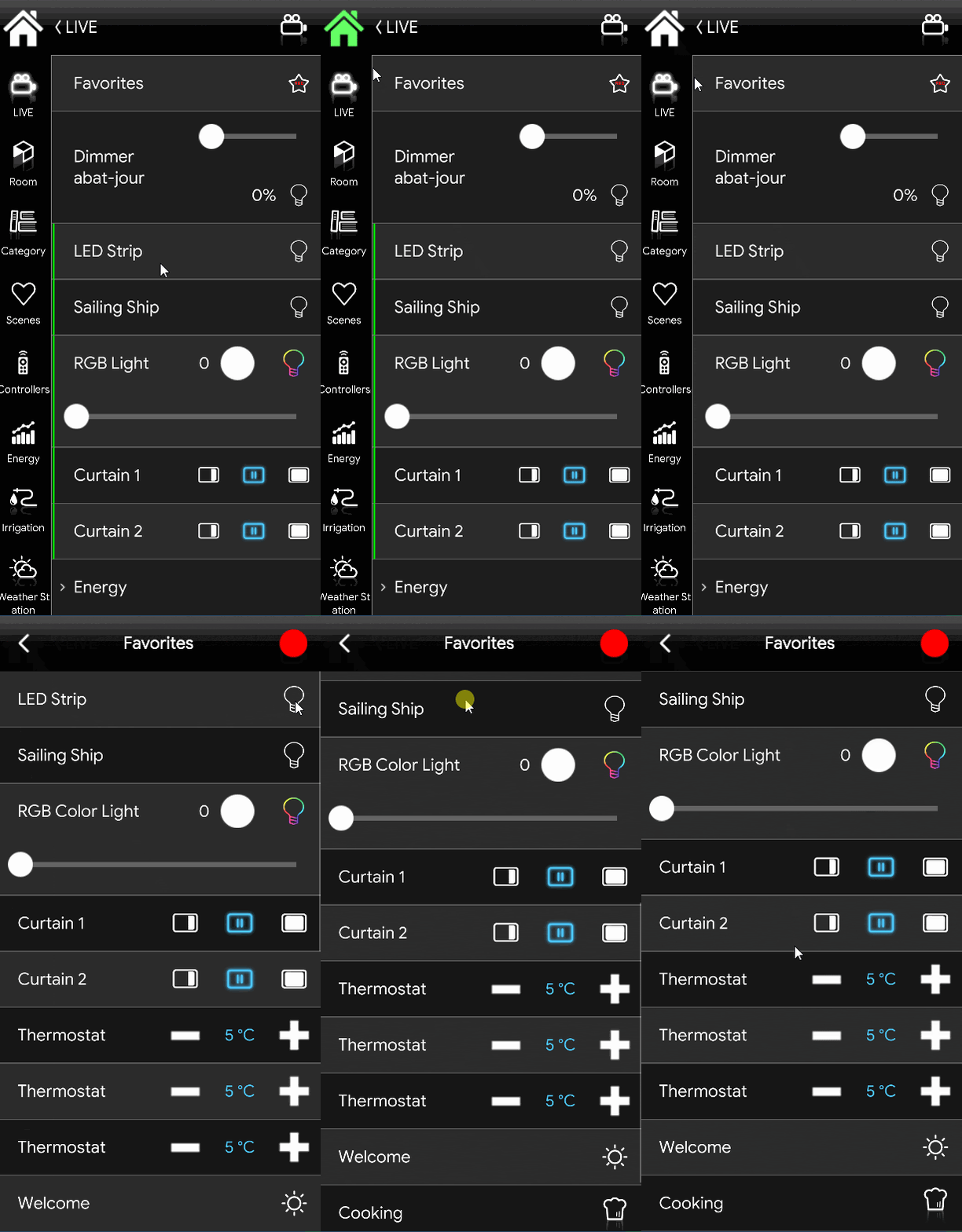
This is how the Favorites component is displayed in the Maps user interface.
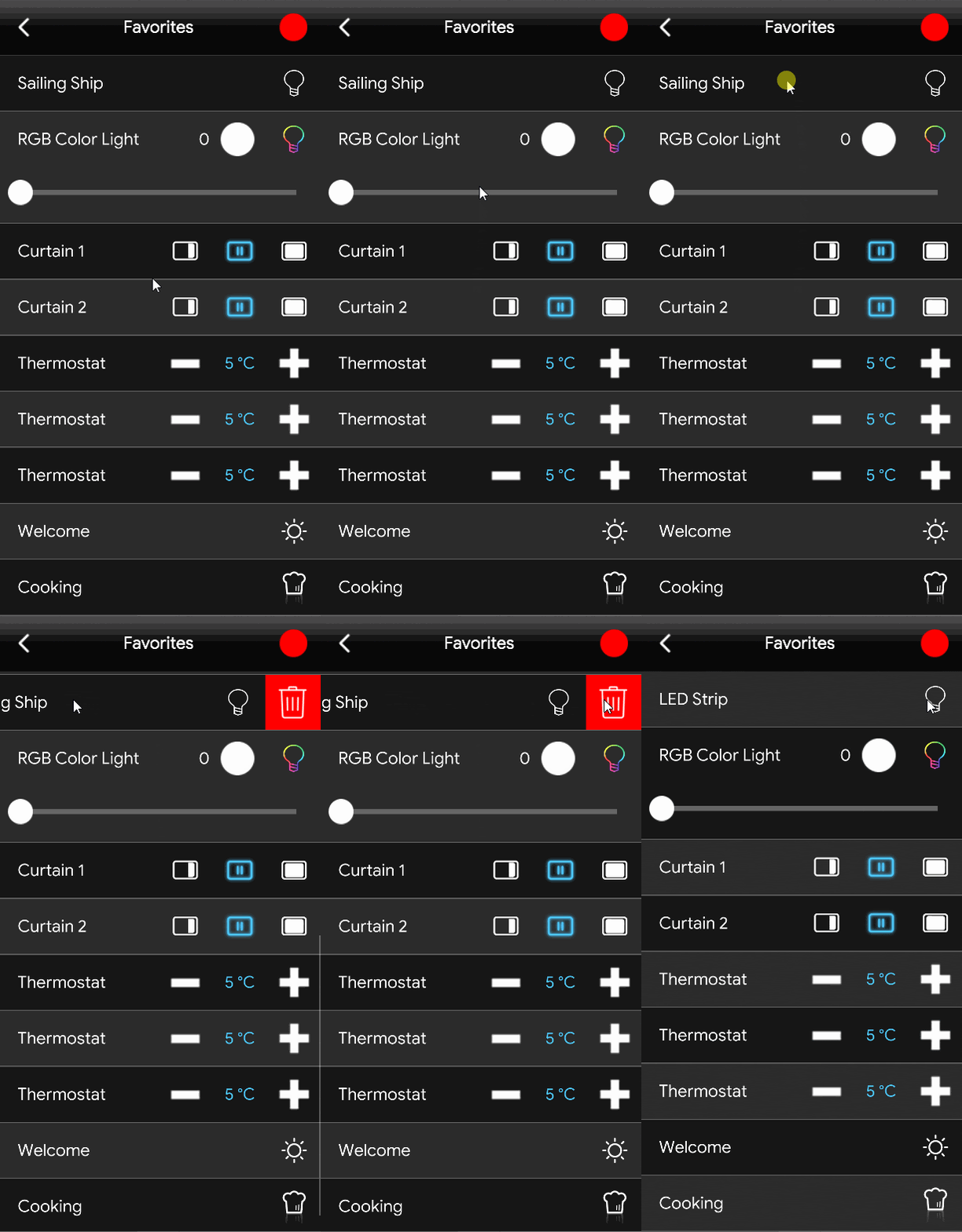
How to remove components from the favorites list
To remove a component from the list, click/tap the icon of the Favorites component: the list opens. Drag the component to remove from right to left, using the mouse or your finger: a new button appears on the right side of the component; by clicking it, the component is removed from the list.