Browse Component
The Browse component recalls two scenes from a single graphical component, for example to move to the previous or next track of a CD player.
Introduction
The Browse component is used to recall two scenes with a single graphical component, for example to move to the next or previous track of a CD player. The scene can be of any type: it can send different infrared commands or recall the track feedback of the Vivaldi protocol component.
Use cases
The Browse component is useful if you have a CD player and want to change track by simply pressing a button.
Component properties
GUI
This component was created through the Graphic UI gateway.
You can refer to the chapter “Gateway / protocols” for further information.
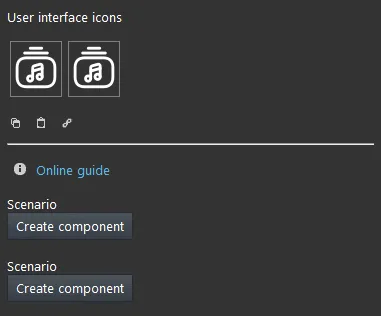
Scene: adds, from the “Components” section, the first scene;
Scene: adds, from the “Components” section, the second scene.
There are three display modes: “Classic”, “Modal” and “Hidden”. Further information on component display modes.
Classic display
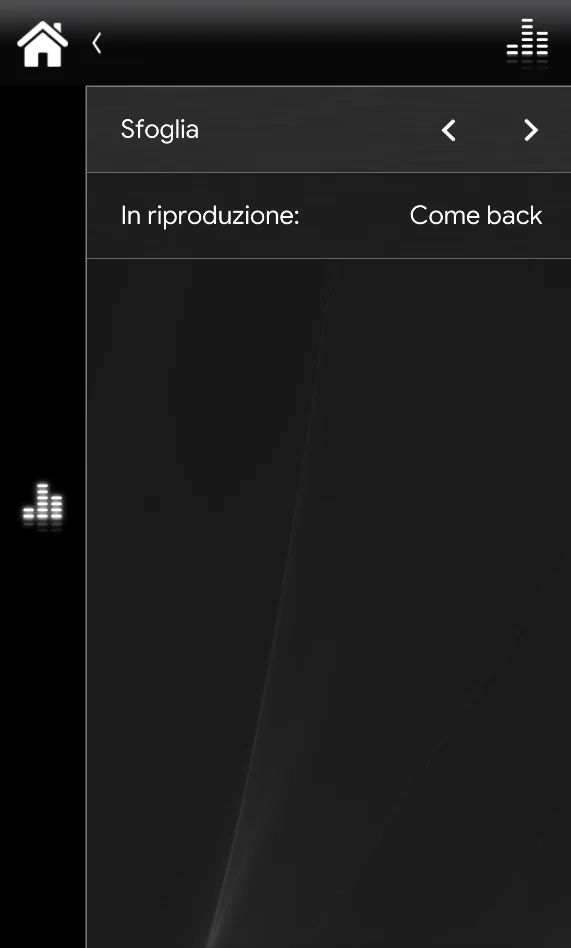
This is the result of the component in the Ilevia Control app (Classic style).
The Browse component is shown with the following screen:
Browse component icons in the Classic interface

First scene selection (editable icon, Figure 1)

Second scene selection (editable icon, Figure 2)
Figure 1
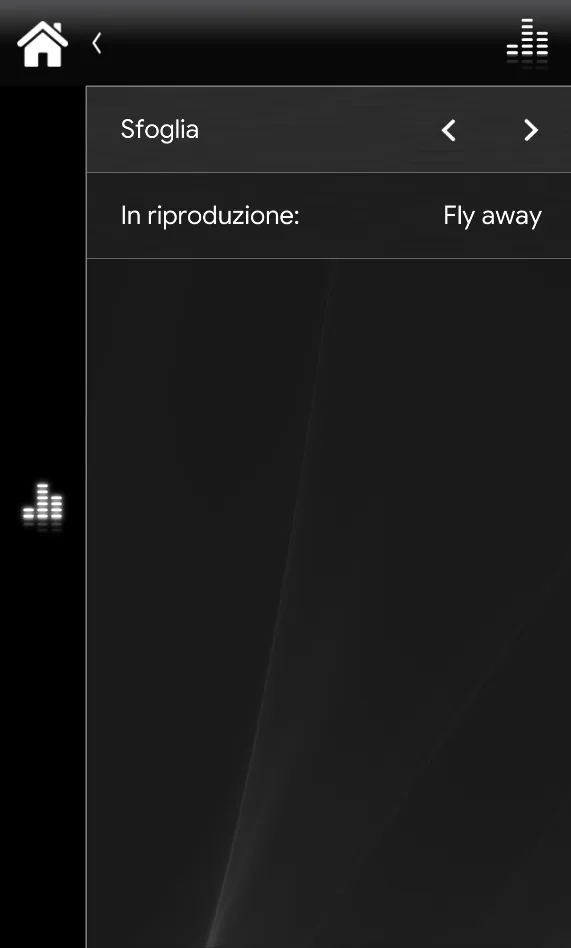
Figure 2
Map display
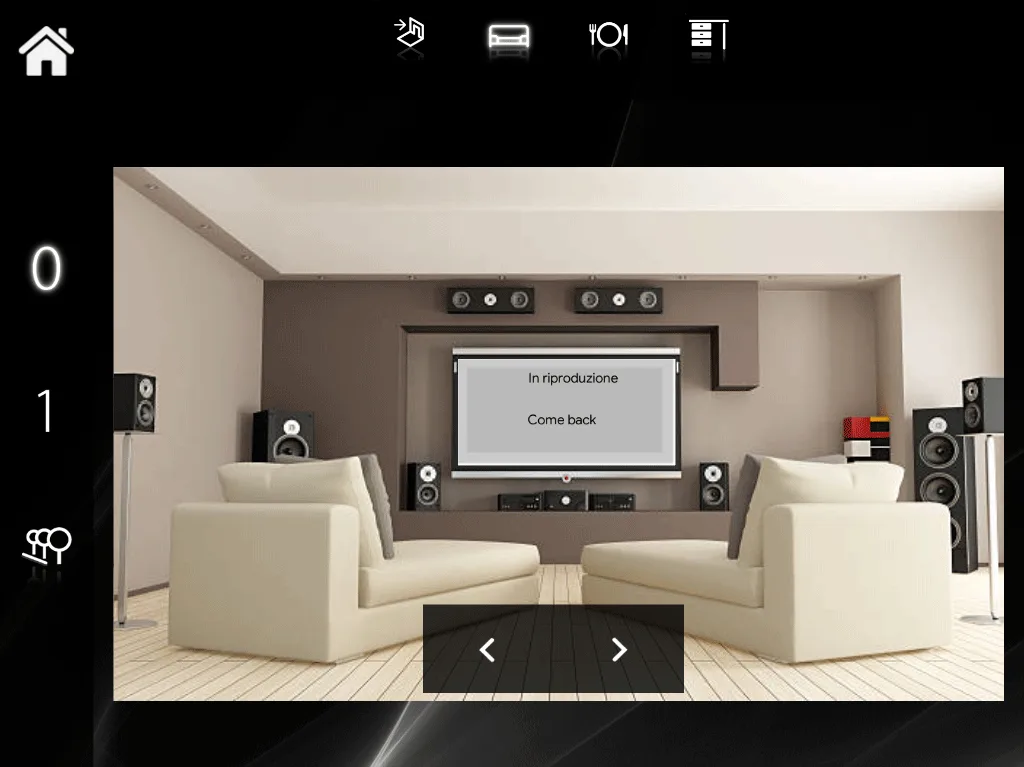
This is just one of the possible results of the component in Ilevia Control (Map style).
The icons can be customized to suit your needs, from the symbol to the color and size.
In this case we used the default icons:
Browse component icons in the Map interface

The first value in the list (editable icon, Figure 1).

First scene selection (editable icon, Figure 2).

Second scene selection (editable icon, Figure 2).
Figure 1
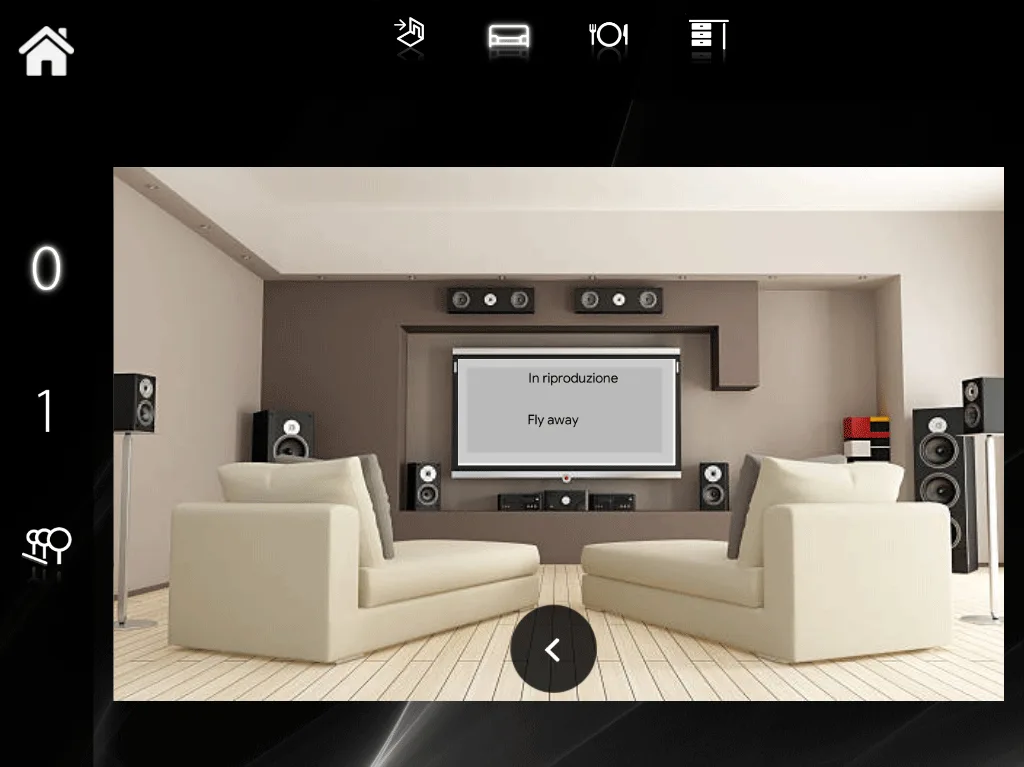
Figure 2