
If Then Component
How to configure the IF Then component within the Ilevia Manager configuration software.
Introduction
This component is widely used because it allows specific operations to be performed when certain conditions occur, for example when a component changes to a state or when a sensor value becomes greater than the user-defined value.
Component properties
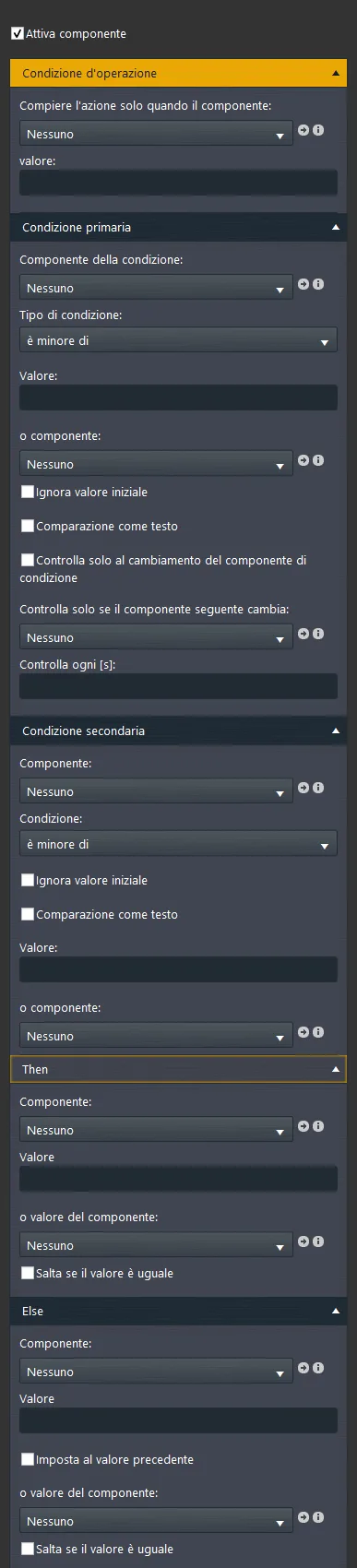
Title and icons can be modified. See the “Common properties” guide.
GUI
This component was created using the Graphic UI gateway.
You can refer to the chapter “Gateway / protocols” for more information.
Component enabled: Checkbox that defines whether the function is enabled or disabled in the system.
Operating condition (optional):
Perform action only when the component: A component that defines the condition under which the operation is performed;
The value is: The component value that defines the condition under which the operation is performed.
Primary condition:
Condition component: Component whose value defines when the operation is executed. It can be: Option list, Info, Colored info, Text info, Switch, Safe switch or Button.
Condition:
– Less than: The condition is evaluated only when the component value is less than…;
– Equal to: The condition is evaluated only when the component value is equal to…;
– Greater than: The condition is evaluated only when the component value is greater than…;
Value: The value specified in this parameter is the one the component must have for the primary condition to be met.
Or component: Component compared by the primary condition based on the current value of the Condition component. This parameter is also affected by the configuration of the parameter called Condition;
Ignore initial value: Allows the component value at system startup to be ignored;
Compare as text: This checkbox allows you to enter a word in the next text field Value; when enabled, once the specified text appears in the text field, the condition will be met;
Check only if the following component changes: Component that is checked by the operation after a time period specified in the Check every [s] parameter.
Check every [s]: Time in seconds that defines how often the component selected in the Check only if the following component changes parameter is checked.
Secondary condition:
Component: As in the primary condition, this parameter defines which component is taken into account by the Secondary condition.
Condition:
– Less than: The condition is evaluated only when the component value is less than…;
– Equal to: The condition is evaluated only when the component value is equal to…;
– Greater than: The condition is evaluated only when the component value is greater than…;
Ignore initial value: Allows the component value at system startup to be ignored;
Compare as text: This checkbox allows you to enter a word in the next text field Value; when enabled, once the specified text appears in the text field, the condition will be met;
Or component: The component that defines when the IF condition is evaluated;
Then:
THEN: Condition that occurs when only the first condition is true, or when both previous conditions are true.
Component: Option list, Info, Colored info, Text info, Switch, Safe switch or Button.
Value: The value to assign to the component when the logic is executed;
Or component value: Alternatively to the Value field, component whose current value is assigned to the Then component;
Skip if value is equal to: This checkbox compares the current value of the selected component with the value resulting from the triggering of the Then condition: if it is equal to the current value of the component, the operation is discarded.
Else:
ELSE: Condition that is met only if the Then condition is no longer met.
ELSE component: Option list, Info, Colored info, Text info, Switch, Safe switch or Button;
Value: The value to assign to the component when the logic is executed;
Set to previous value: Allows you to restore the original value of the component related to the Then condition.
Example: if you have a window open/close sensor that turns off heating when its value changes to 1 in the Primary condition, the “Set to previous value” checkbox restores the heating component to the value it had before the condition was executed.
Or component value: Alternatively to the Value field, component whose current value is assigned to the Else component;
Skip if value is equal to: This checkbox compares the current value of the selected component with the value resulting from the triggering of the Else condition: if it is equal to the current value of the component, the operation is discarded.
Click here to view the detailed page on the If Then component (sample project).
HELP
The Logic configuration can be carried out simply by using the component’s drag and drop function. By setting the component parameters, you can use the drop-down list, or add them from the “Components” section to the component selection field.
Reminder before continuing:
Download and install the Logic module to enable the plugins (link);
After uploading the Ilevia project to the server, wait a couple of minutes for the logic to start.