
Sample project: If Then
Guide on how to test the "If Then" component in the Ilevia Manager configuration software and on the Ilevia Remote Plus application.
INTRODUCTION
The purpose of this example is to show you how to use the “If Then” component with a real example.
Preparing and loading the project in Ilevia Manager:
unzip the file;
open Ilevia Manager, go to the top left, File – Open – press “Ok” on the message that appears and select the file just decompressed;
Start the virtual machine or the Raspberry;
Download and Install the Logic by following this guide.
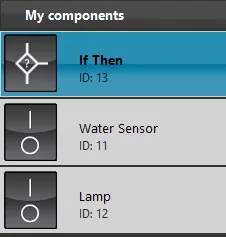
By accessing Ilevia Manager, after the project is uploaded, the components that are used to configure the project are visible in the “My Components” area:
The “Water Sensor” switch will simulate a water detector instead the “Lamp” switch will simulate a lamp.
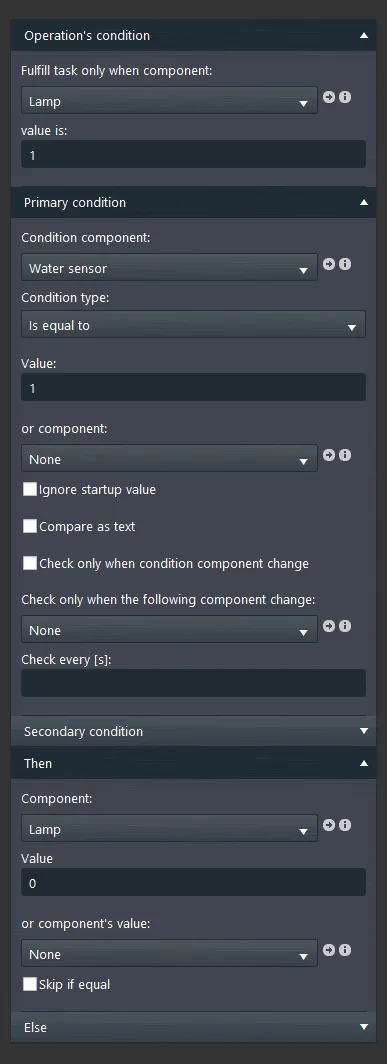
Access the If-Then component to see its configuration:
Our goal is to configure the “If Then” component so that when the water detector activates, the lamp turns off;
Operation’s condition: The lamp must be set with value equal to 1 (ON);
Primary condition: set the “Water Sensor” component with value 1;
Then: Set the “Lamp” component with the 0 value;
This configuration can be translated into simple words, If the water sensor is activated, then the lamp is switched off.”
Empty fields are these non-mandatory. For more information on the component configuration screen, we recommend that you read the guide that you find on the previous page.
The If-Then component not to be inserted in the user interface, in fact, you will find only the two switches.
After uploading the project to the server, clicking on the top of the Ilevia Manager on “Project” menu – Upload to server, here enter the IP address of the virtual machine or Raspberry, as the “admin” user and as password “password”, login to the Ilevia Remote Plus app.
LOGIN ACCOUNT
user: admin password: password
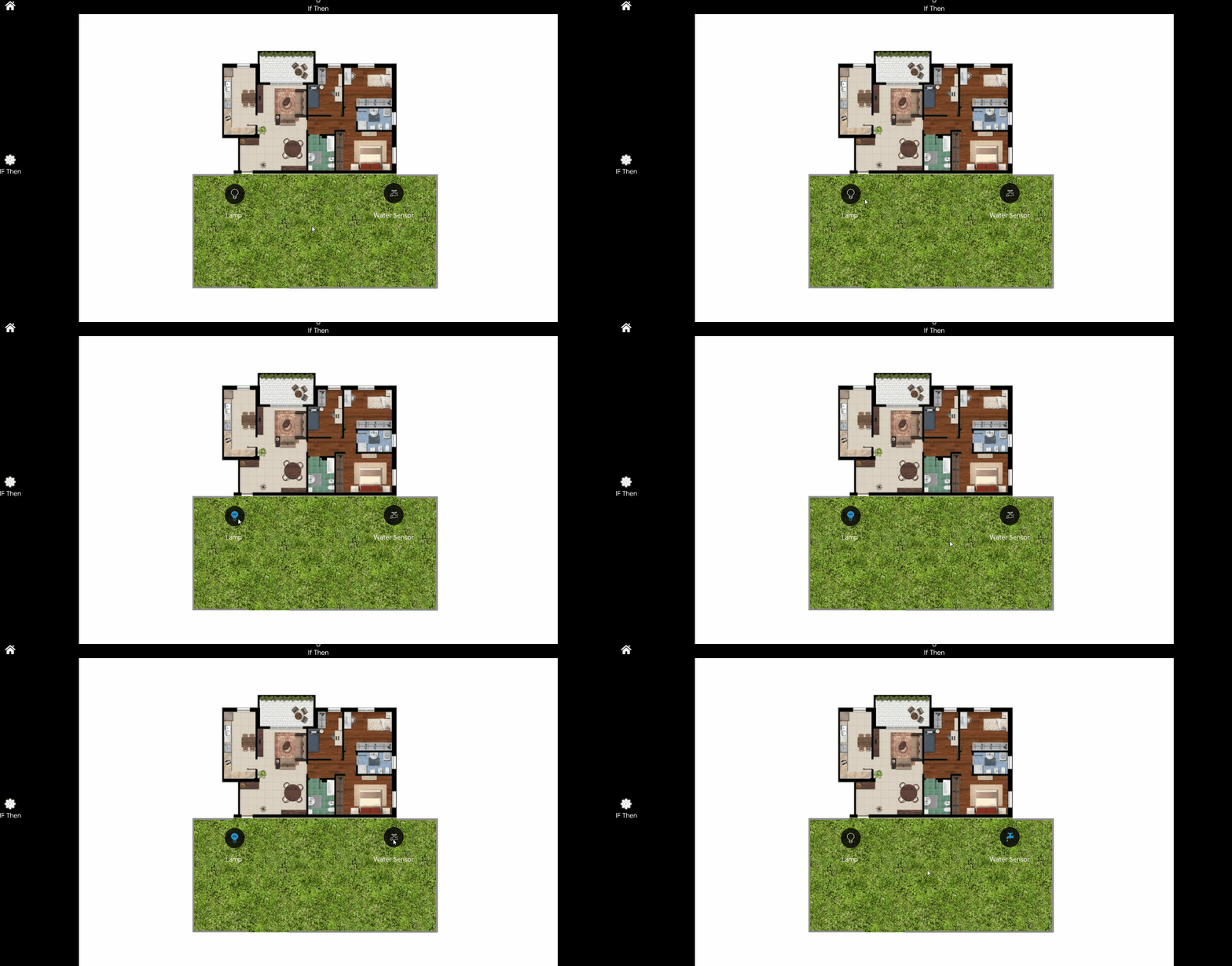
The interface shows a planimetry where the two elements Lamp and water sensor are placed, as you can see from the picture below, the once the the Water sensor change its state to ON the Lamp immediately turns OFF.
Click the link below to download the IF-Then component demo project and try it your self.