
Counter example project
Example project showing how to configure the Counter component in Ilevia Manager and how it works in the app, with project download.
Introduction
The purpose of this example is to show you how the Counter component works in a realistic environment.
Preparing and loading the project in Ilevia Manager:
Unzip the files;
Open Ilevia Manager and click File at the top left – Open – press “OK” in the message that appears and select the file with the .eve extension you have just unzipped;
Start your Ilevia server;
Update and install the Logic module (guide).
Project configuration
Step 1:
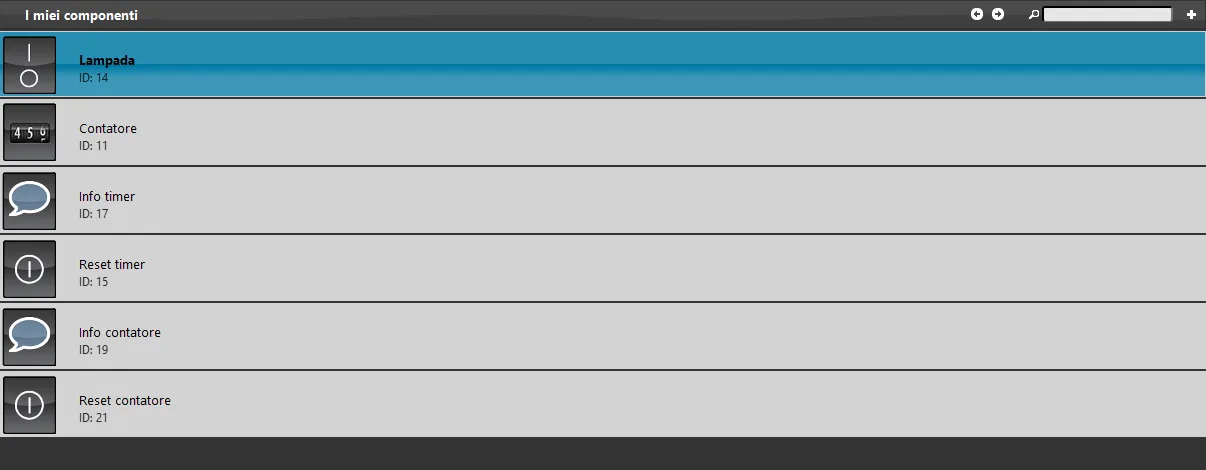
Open Ilevia Manager. Once the project is loaded, the components used to configure it are visible in the “My components” area, including the Counter component:
Step 2:
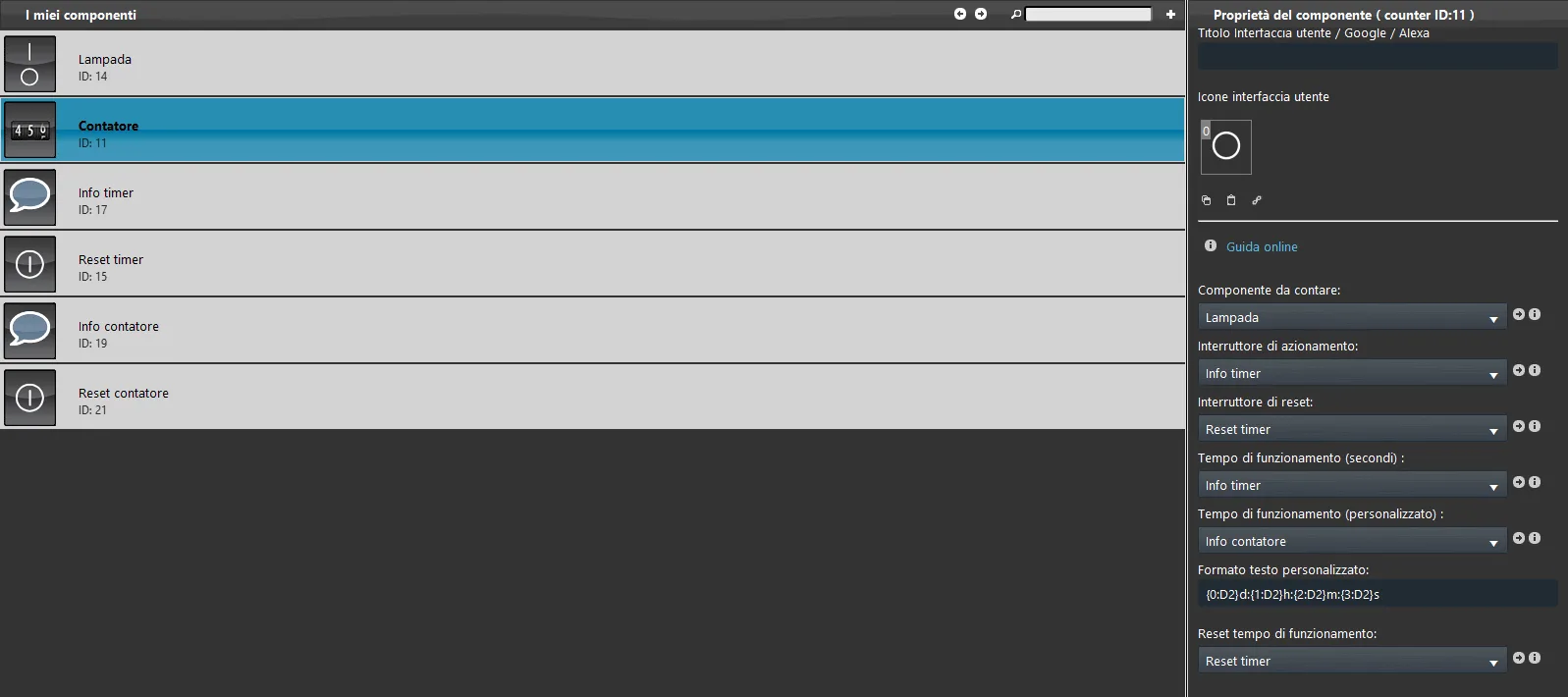
Open the settings of the Counter component:
Component to count: enter the component that will be counted, in our case Lamp switch;
Actuation switch: enter the Counter Info component, which shows how many times the lamp is switched on;
Reset switch: enter the Pushbutton component to reset the number of times the lamp has been switched on;
Operating time (seconds): in this case the field is left blank, because the time display is custom;
Operating time (custom): enter the Info Time component;
Custom text format: you can customize the time display format; in this case we removed the first value d, which measures days, and left hours (h), minutes (m) and seconds (s);
Reset operating time: enter the Pushbutton component to reset the lamp component operating-time counter.
Step 3:
Once the Counter component is configured, go to the User interface section, where we will place the components.
When the interface is complete, we can upload the project to the server by clicking “Project” in the top menu and then Upload: here you can enter the Ilevia server IP address. As user enter “admin” and as password “password”.
When the project upload is complete, log in with the “admin” and “password” credentials to the Ilevia Remote Plus application to view and use the configured project.
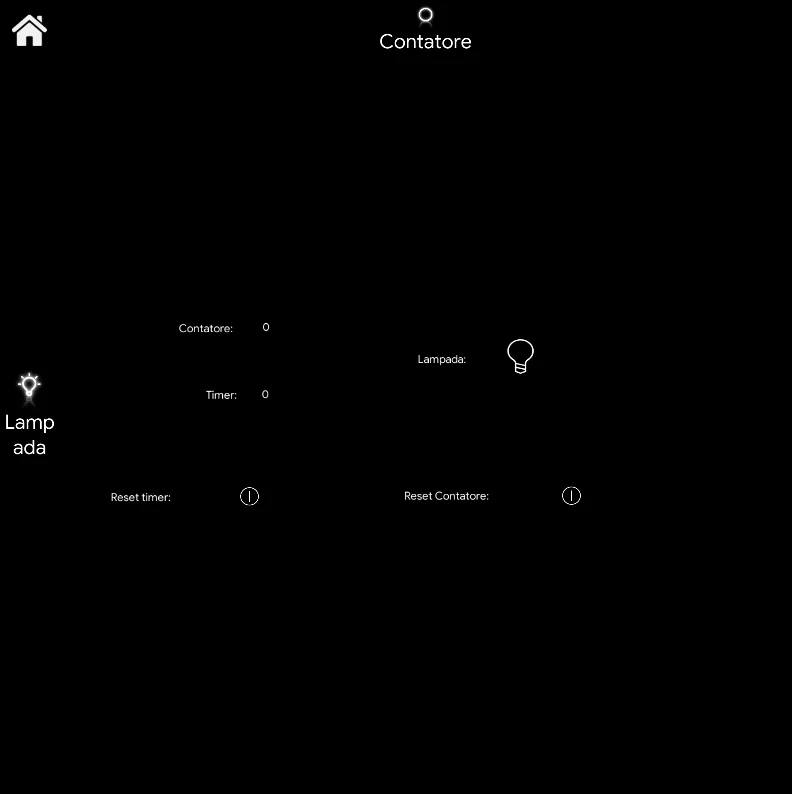
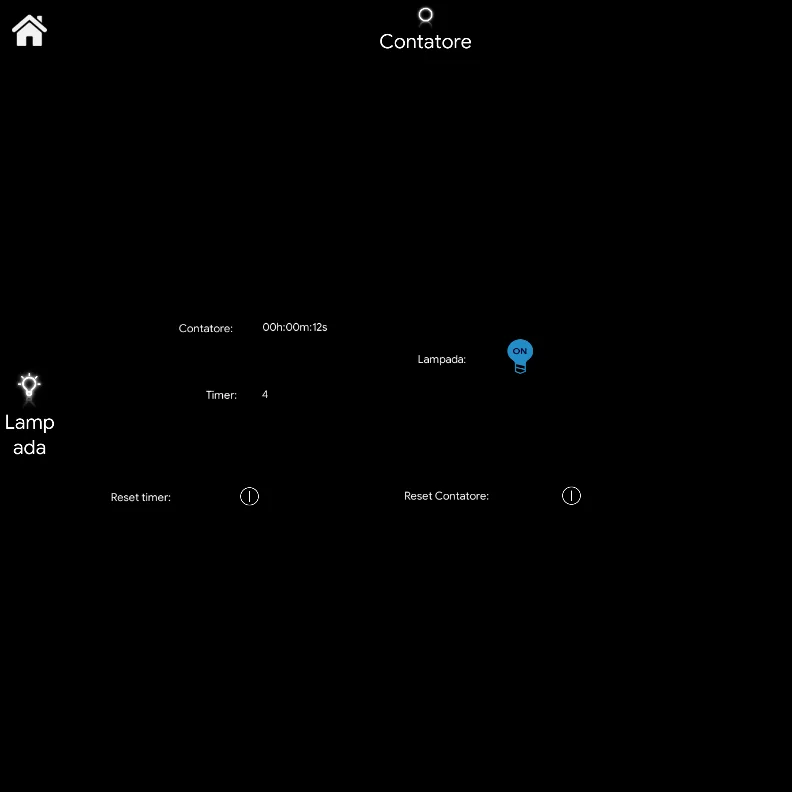
Click the link to download the Counter component example project and try it yourself.