Counter
How to set up the Counter component in Ilevia Manager to count activations and the operating time of a switch, and how it appears in Ilevia Control.
Introduction
This component lets you count how many times a switch component is activated and for how long it has remained active. The Counter component is used to perform preventive assessments of replacements or consumption.
Use cases
The user wants to know how many times a specific component has been activated;
The user wants to know how long a component has been activated, such as a light or a motor.
Component properties
GUI
This component was created using the Graphic UI gateway.
You can refer to the chapter “Gateway / protocols” for additional information.
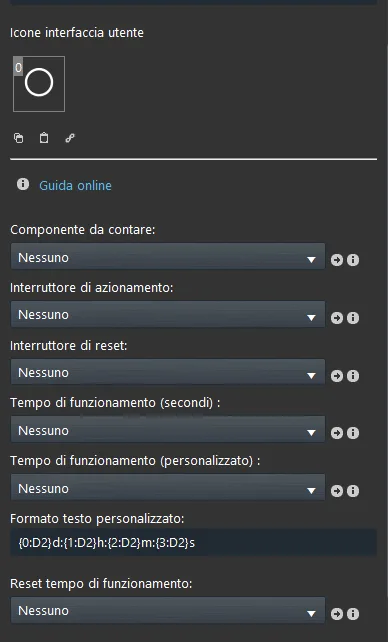
Component to count: The Switch component you want to link to the counter;
Actuation switch: The Info component where you want to display the Counter result;
Reset switch: The Button component that will reset the Counter parameters;
Operating time: The Info component where you want to display the counter result in seconds;
Operating time: The Info component where you want to display the activation time with a custom text format;
Custom text format: The editable text format for the counter/timer Info component (Days, Hours, Minutes, Seconds);
Operating time reset: The Button component used as the reset command.
Reminder before continuing:
Download and install the Ilevia Logic plugin to enable plugins (link);
After uploading the project to the Ilevia server, wait a couple of minutes for the logic to start.
Classic view
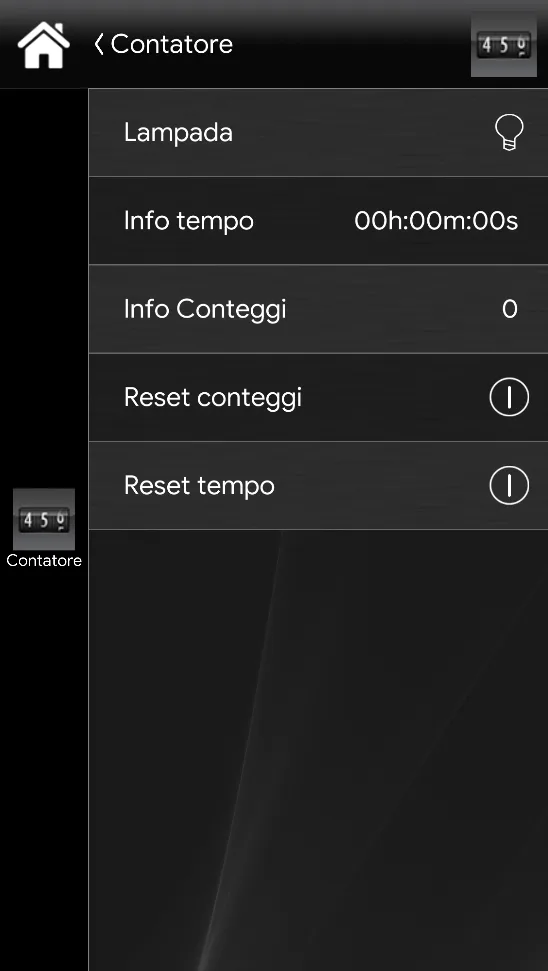
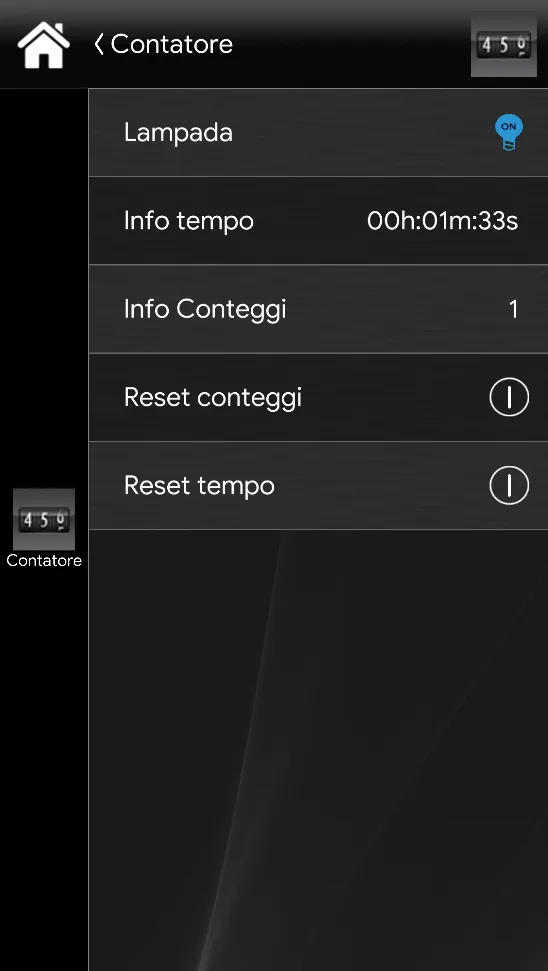
The example shown below is one of the possible component configurations within the Ilevia User interface ( Classic style).
In this example, a light has been created with a switch component; then two new Info components were added: the first shows the activation time and the second shows the activation count. Finally, 2 Button components were created: the first resets the activation time, the second resets the count.
Map view
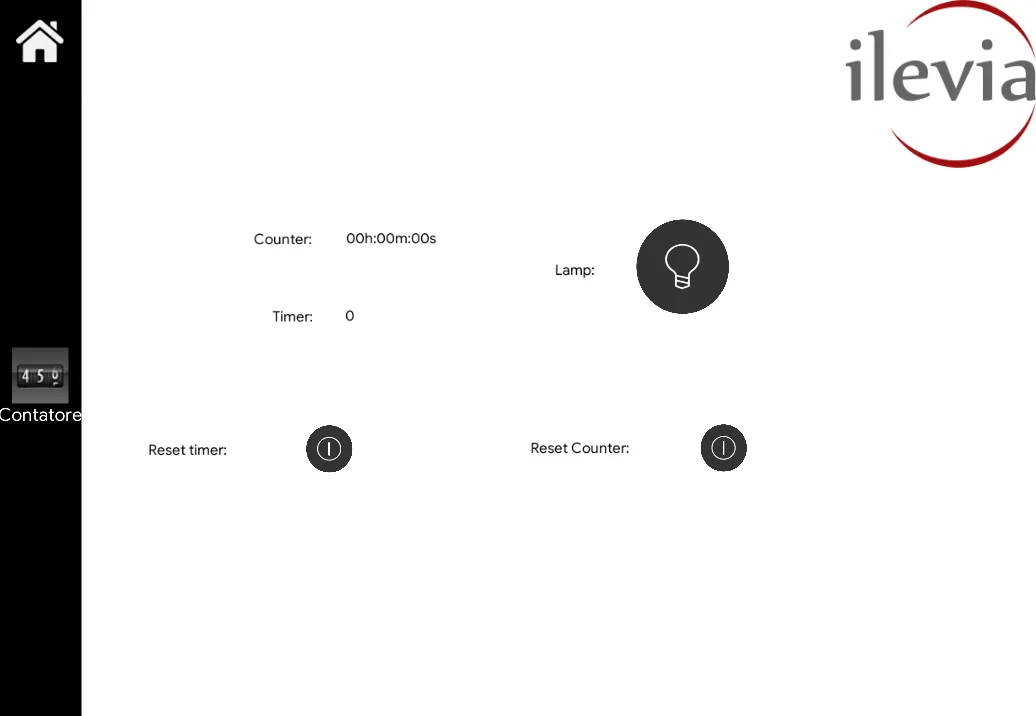
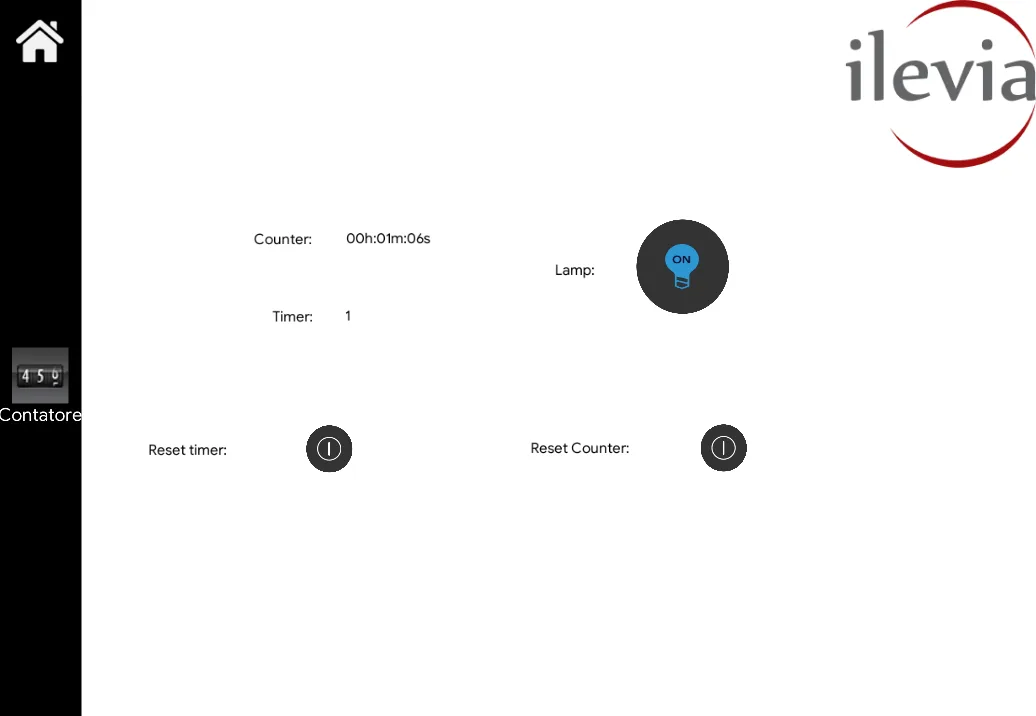
The following images show one of the possible configurations within the Ilevia user interface ( Map style).