
Ping
Complete guide to configuring the Ping component within the Ilevia Manager configuration software.
INTRODUCTION
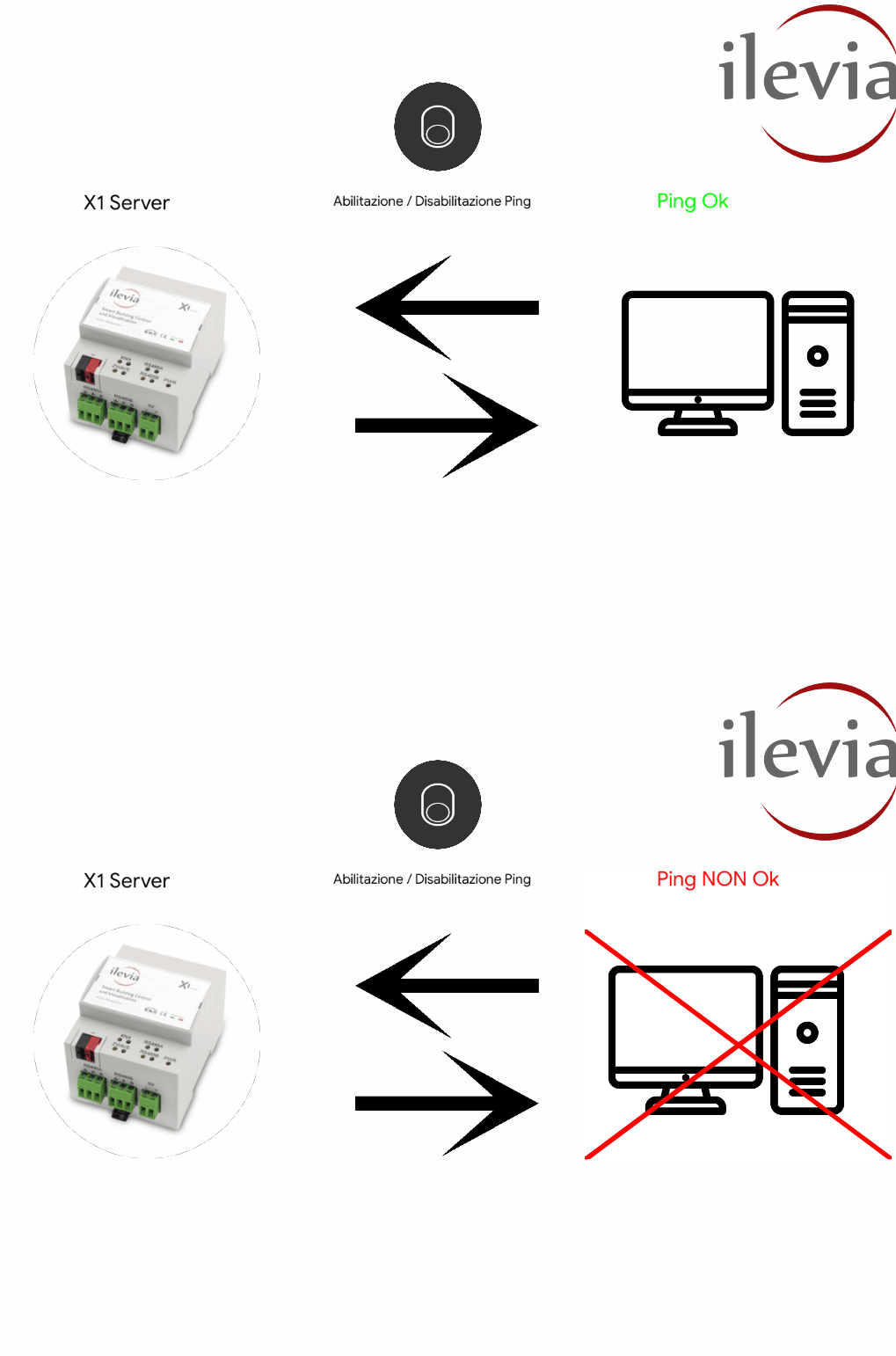
This component lets you send a ping to a specific IP address on the local network. If the ping does not return within the set time, the ping status component changes value.
USE CASES
If the device you are pinging disconnects from the network, the server sends an email.
COMPONENT PROPERTIES
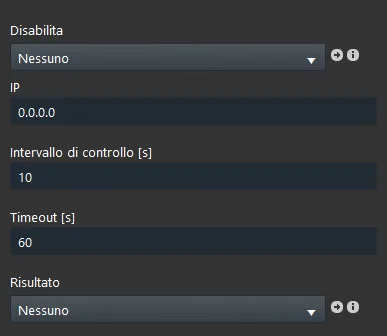
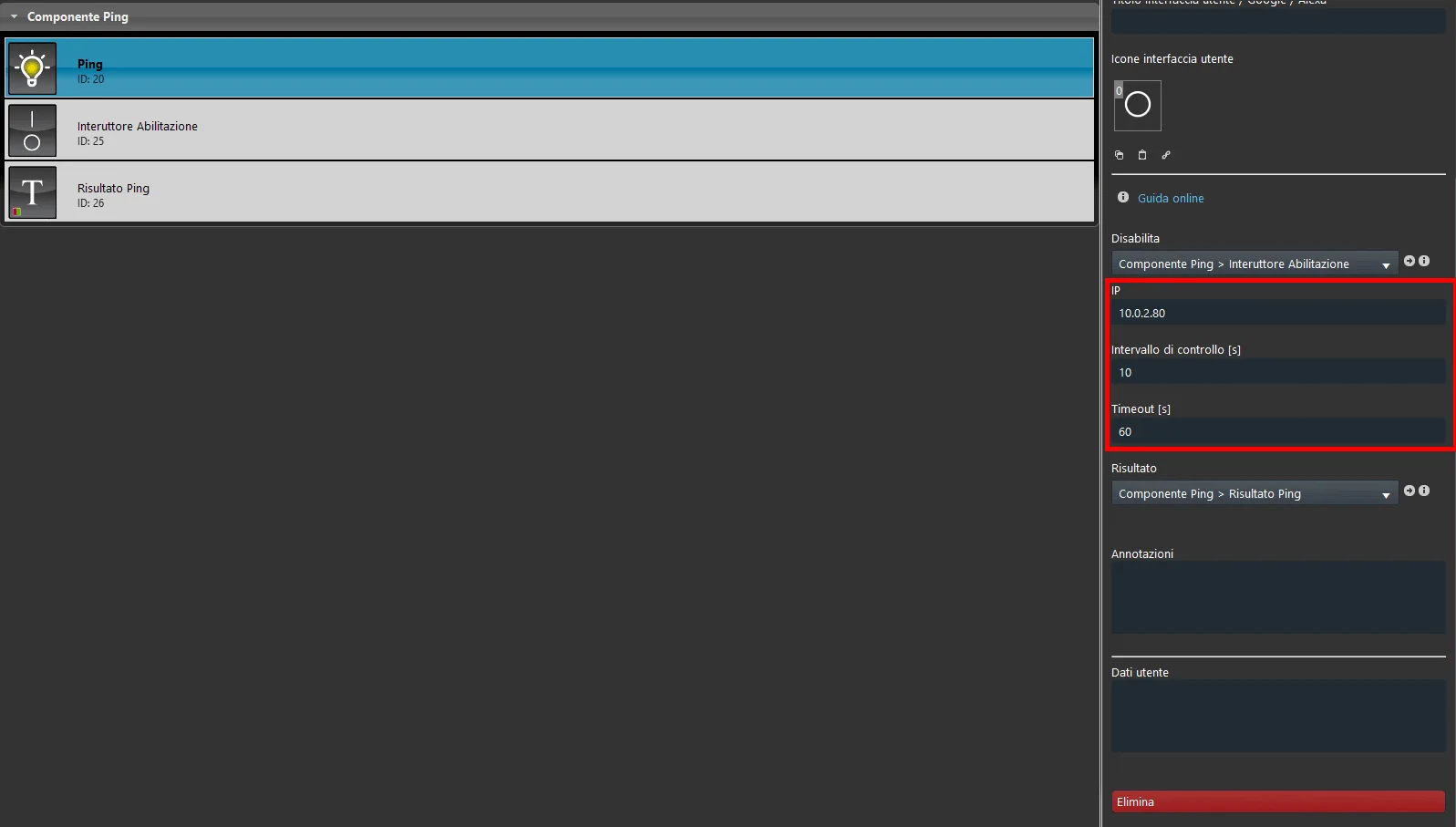
Disable: Connect an Switch component to enable or disable the ping;
IP: Enter the IP address of the device you want to ping;
Control interval [s]: This parameter indicates the wait time between pings;
Timeout [s]: Timeout period that is triggered when the ping fails;
Result: Connect a Switch component, Colored info or Text info that represents the ping status (ON if the ping is successful, OFF if it fails).
Component configuration
Step 1:
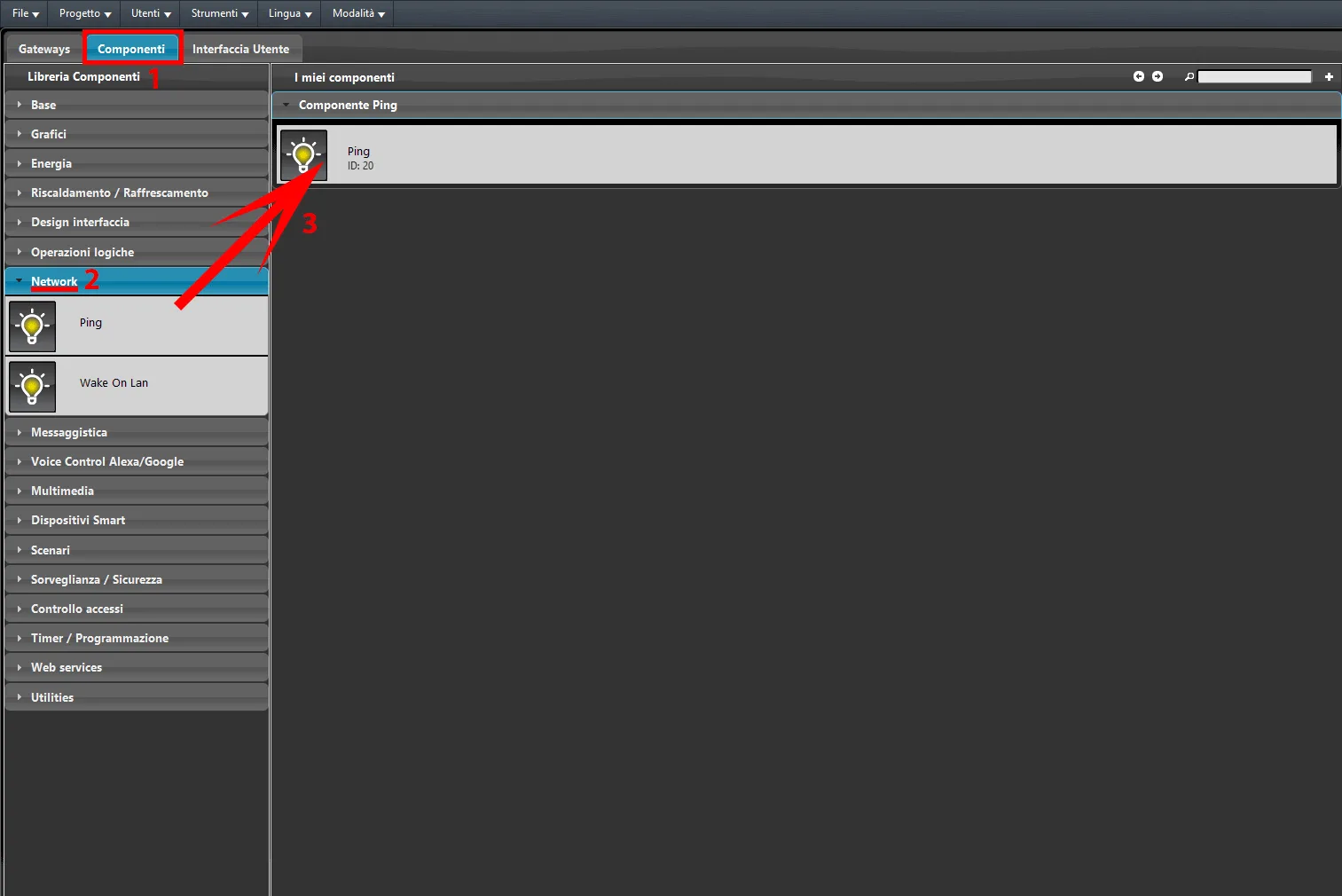
Open the Ilevia Manager configuration software. 1. Click the “Components” tab, 2. then open “Network” from the “Component library”, 3. Finally add the Ping component by dragging it into the “My components” section.
Step 2:
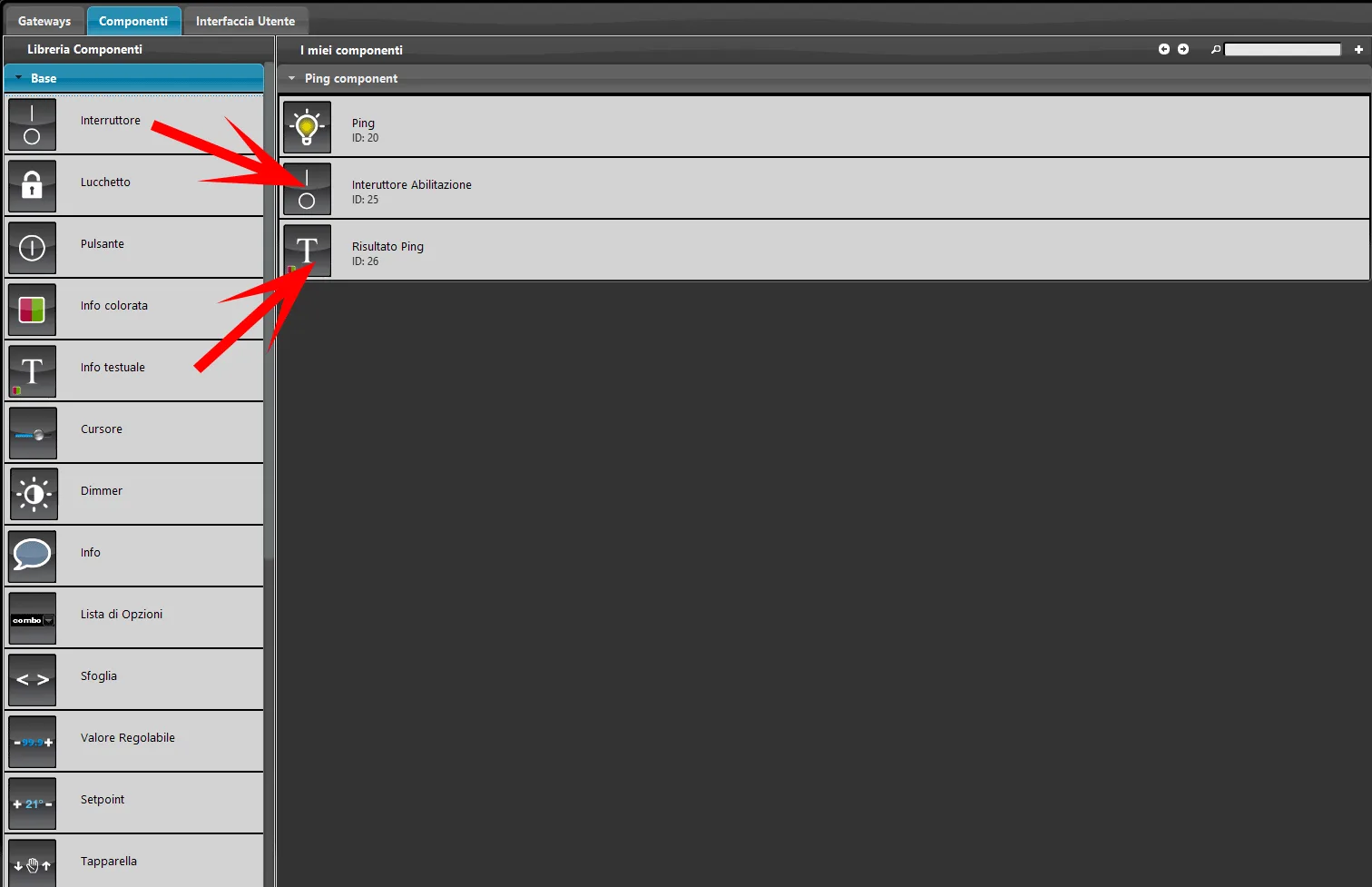
Add two Switch components to the project from the Basic section of the component library;
Step 3:
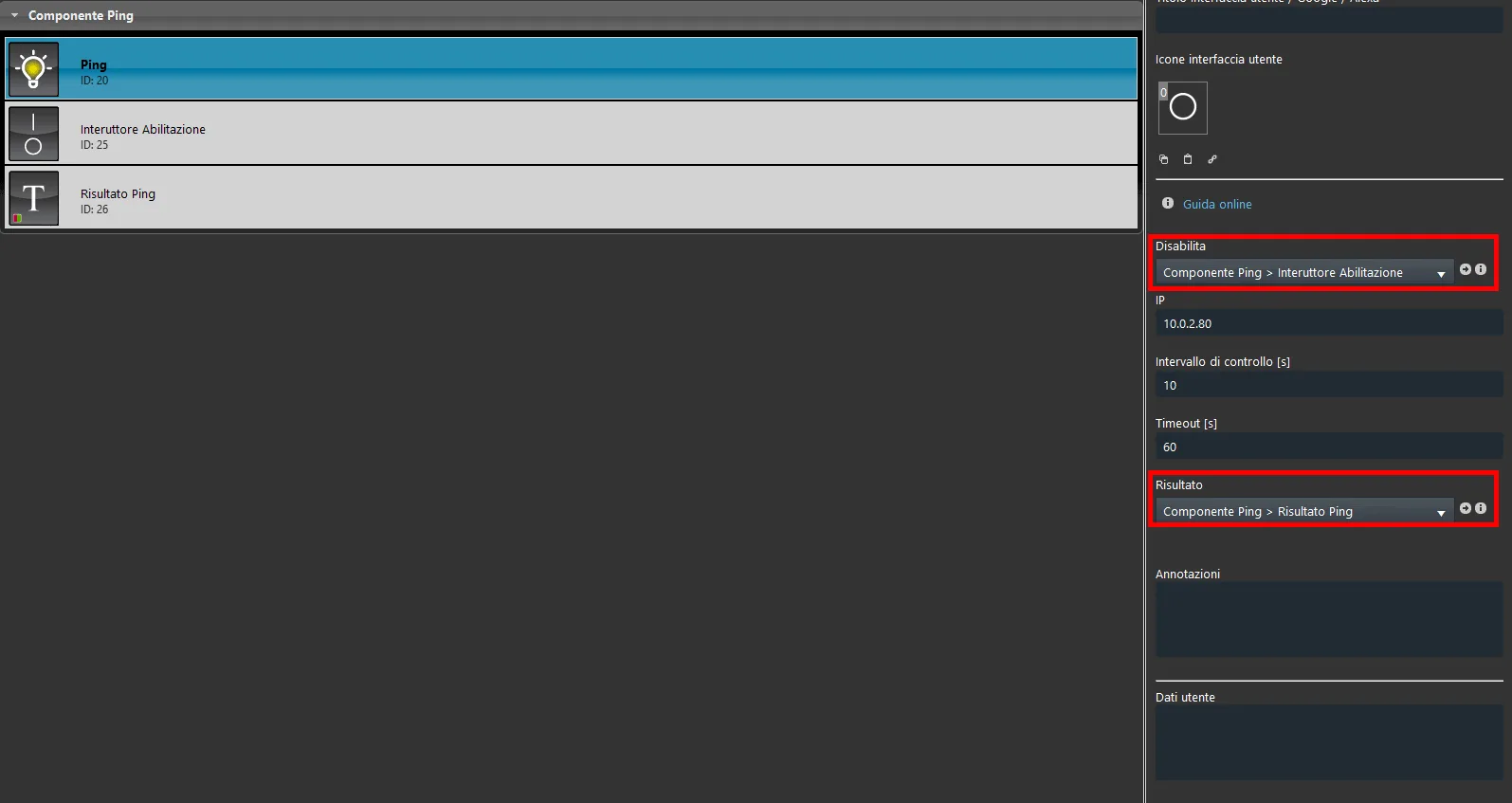
Connect the first Switch component to the Disable parameter and the second Switch component to the Result parameter, in the properties of the Ping component.
Step 4:
Enter the IP address of the device you want to ping in the IP parameter, then set the Control interval [s] and finally the timeout in the Timeout [s] parameter.
Step 5:
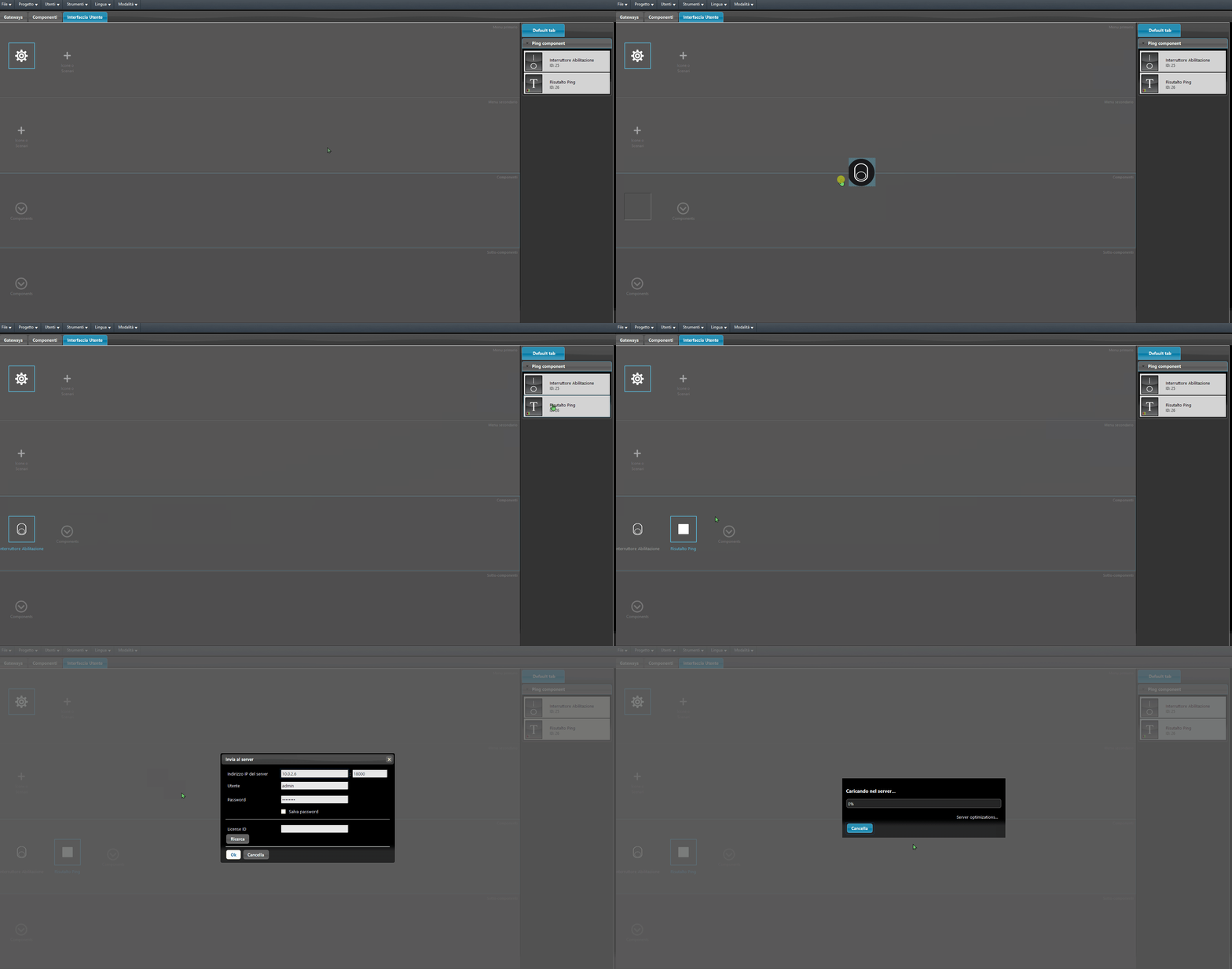
Add the components to the user interface and upload the project to the server.
FINAL RESULT
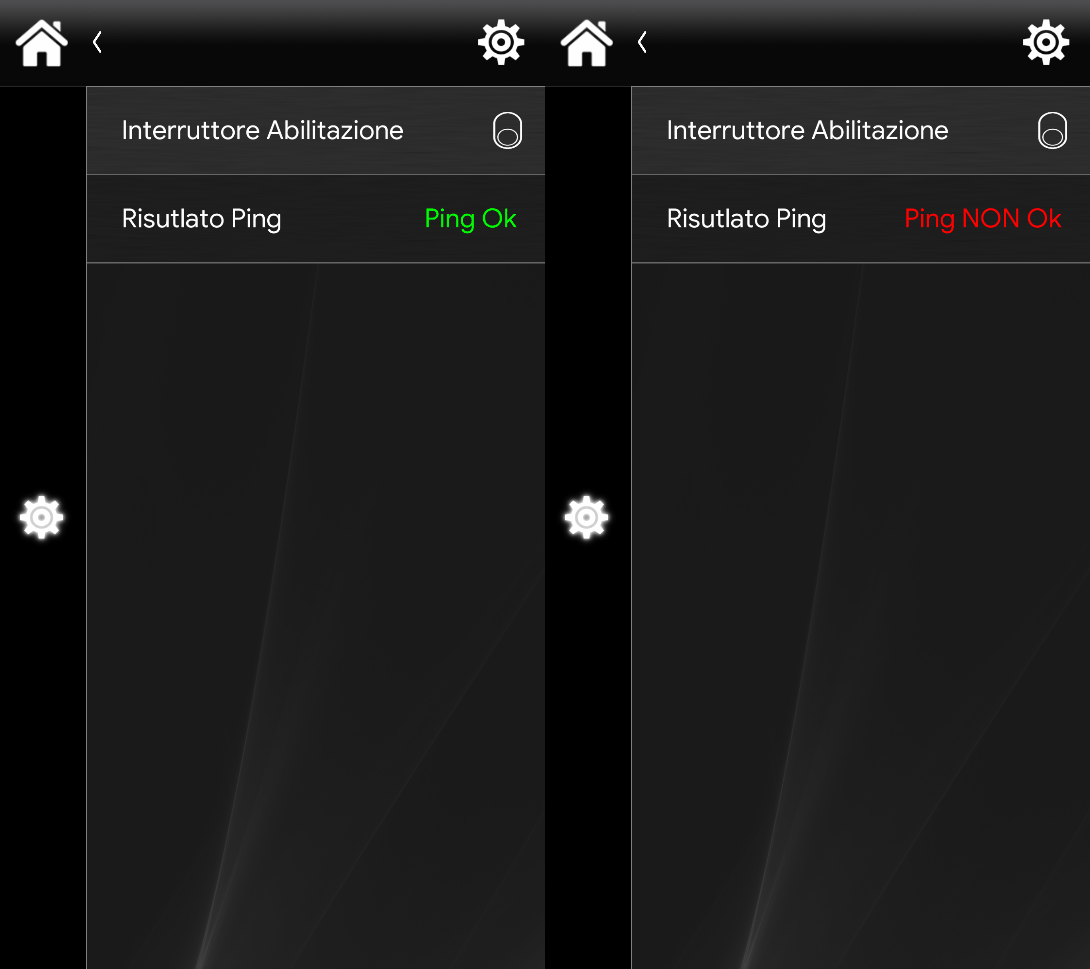
This is the result of the Ping component function within the user interface (Classic and Map).
Classic User Interface
Map User Interface
Click the link to download the sample project and try it out.