
Turn on a light with Siri through the Ilevia system
How to create a shortcut on iOS and link it to an IFTTT link from the Ilevia cloud to turn a light on and off with Siri.
Introduction
This guide explains how to integrate a Switch component with Apple's voice assistant, Siri. This allows you to turn a light on or off using Apple devices.
Creating the IFTTT component
Step 1:
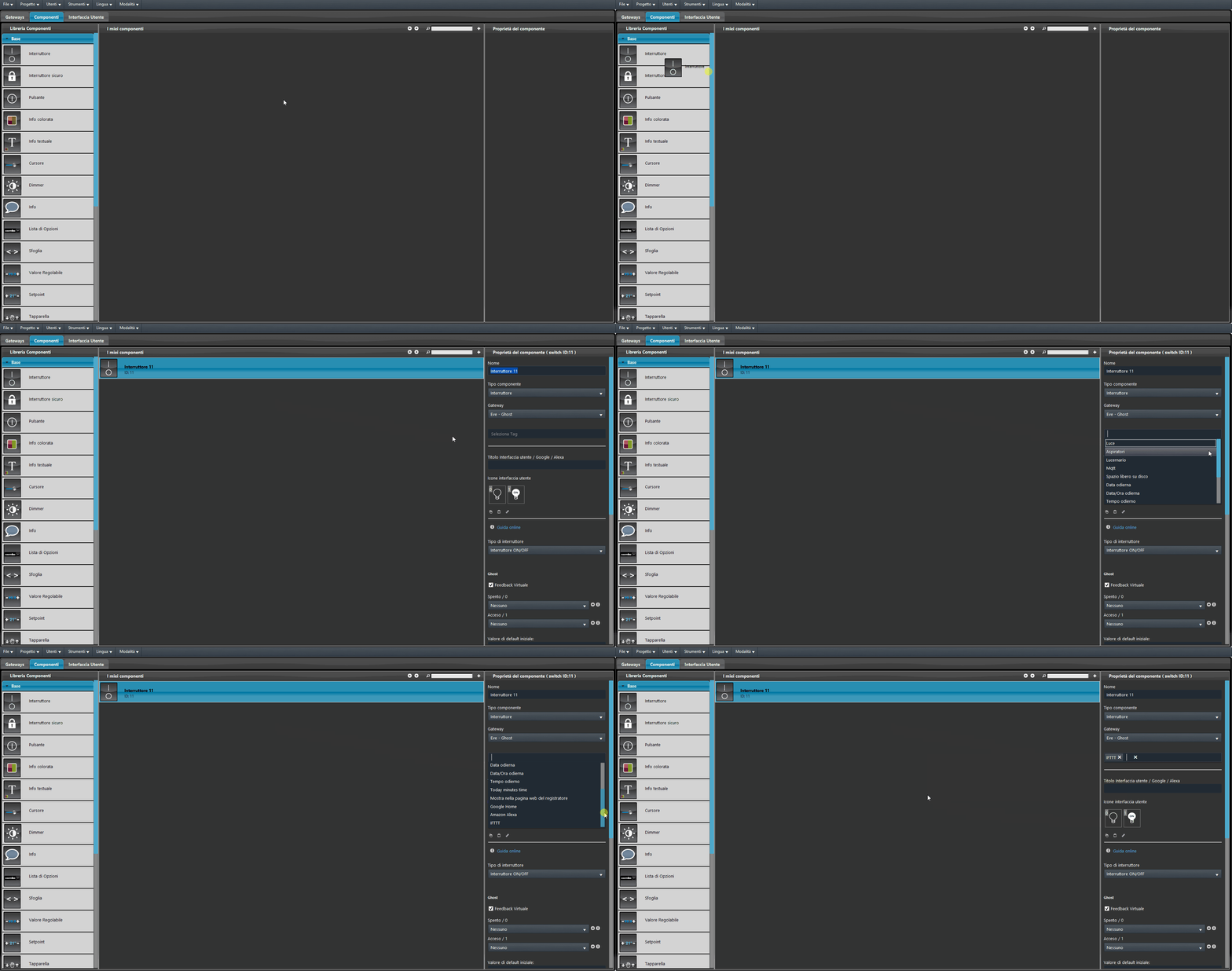
Open the Ilevia Manager configuration software and add a new Switch component to the project. Then apply the IFTTT tag to the component by selecting it from the Select tag menu.
Step 2:
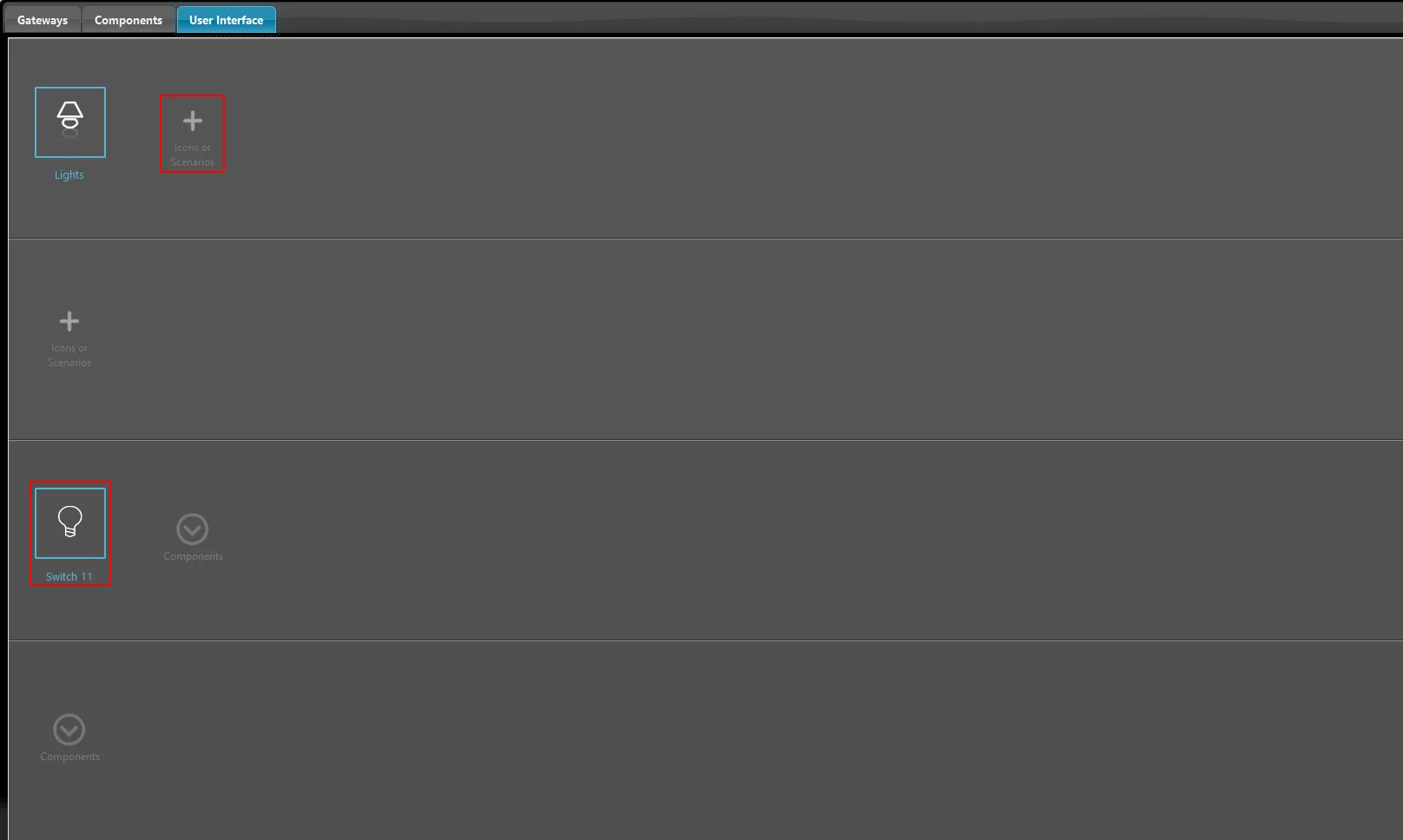
Once the tag has been applied to the component, add it to the User Interface: go to the User Interface section, add a new icon to the main menu by clicking the “+” sign and choosing an icon, then drag the Switch component into the third row “Components” of the editor.
Step 3:
Now upload the project to the server. Make sure the Logic module is active before proceeding to the next step.
Step 4:
Now log in or sign up at api.ilevia.com. For registration and linking the Ilevia server to the cloud, follow this guide.
Step 5:
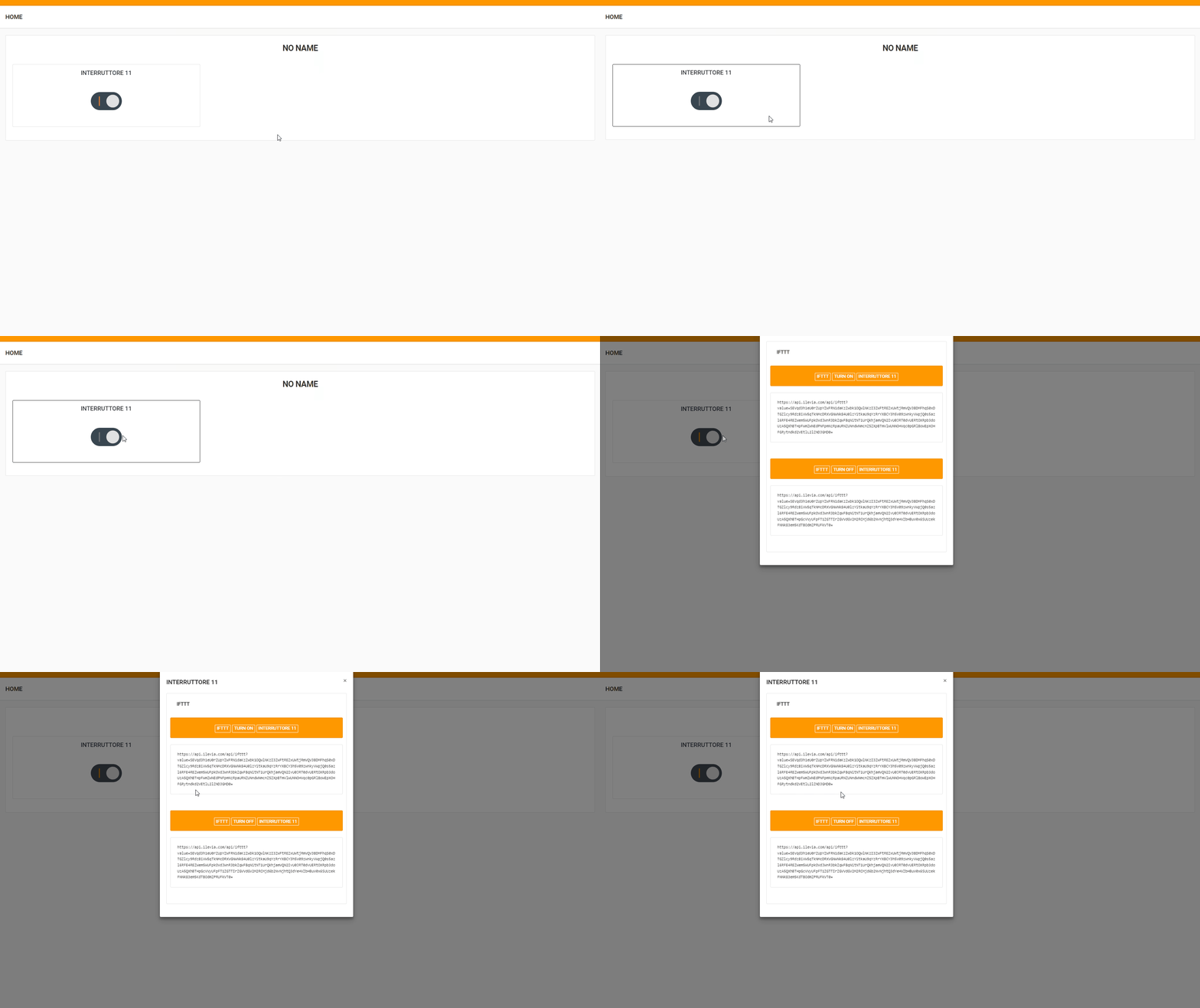
Once the server is linked to your cloud space, you can view the Switch in the Devices section, selectable from the left sidebar menu. Click the Switch object: a pop-up menu opens containing 2 IFTTT links; the first sets the component status to “ON” and the second to “OFF”. Finally, copy the link.
Creating the shortcut
Step 1.1:
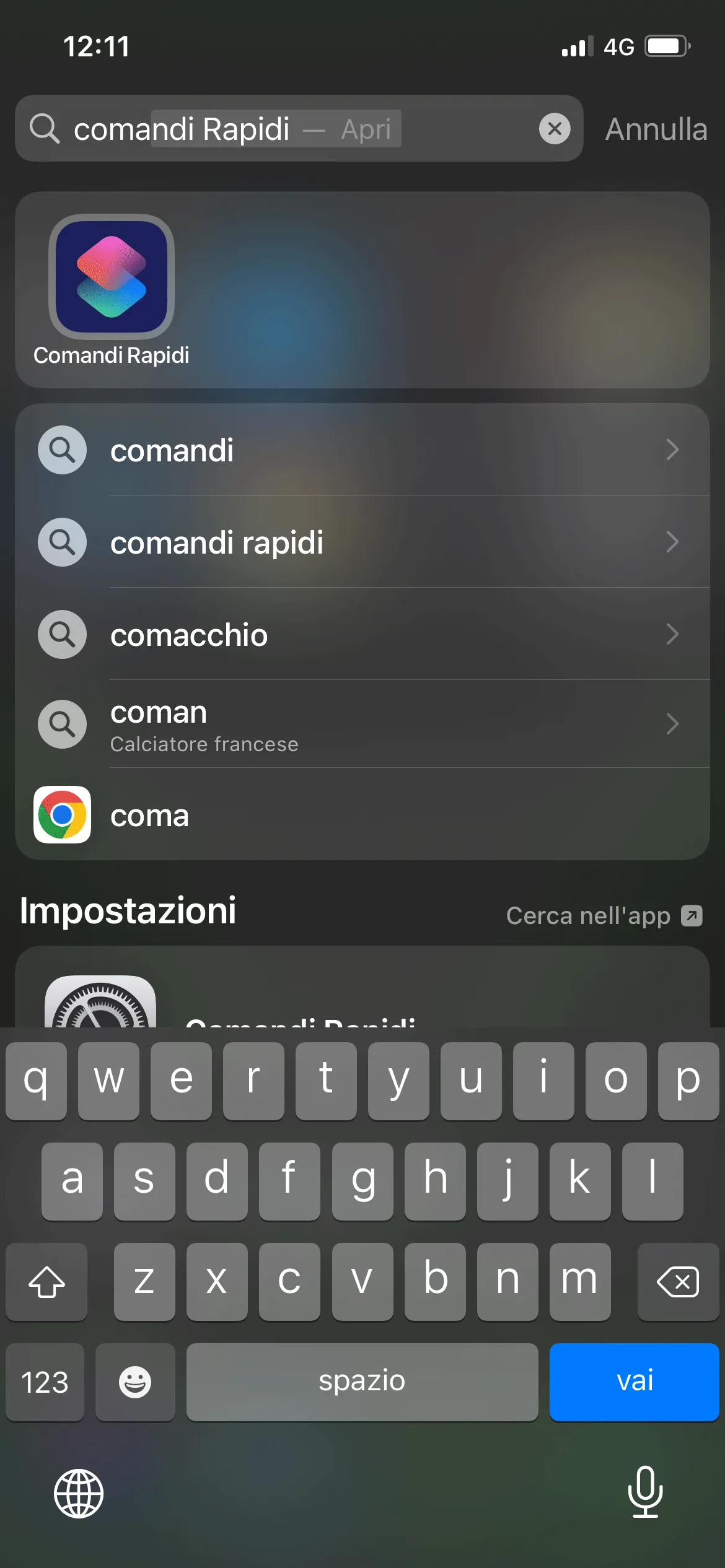
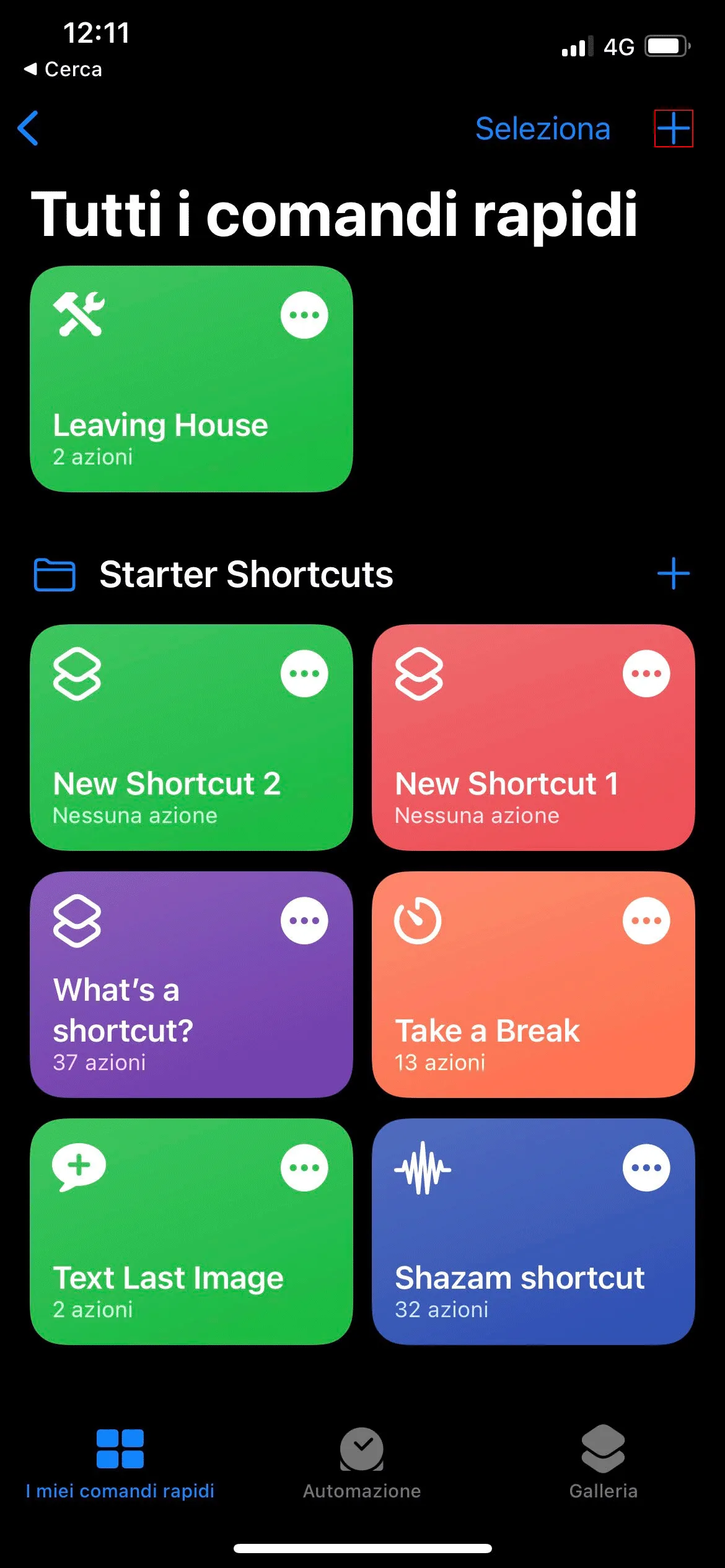
From your iOS device, search for “Shortcuts” (in English “Shortcuts”; on the device it may appear as “Scorciatoie”). Once the app is open, click the “+” sign at the top right of the screen.
Step 1.2:
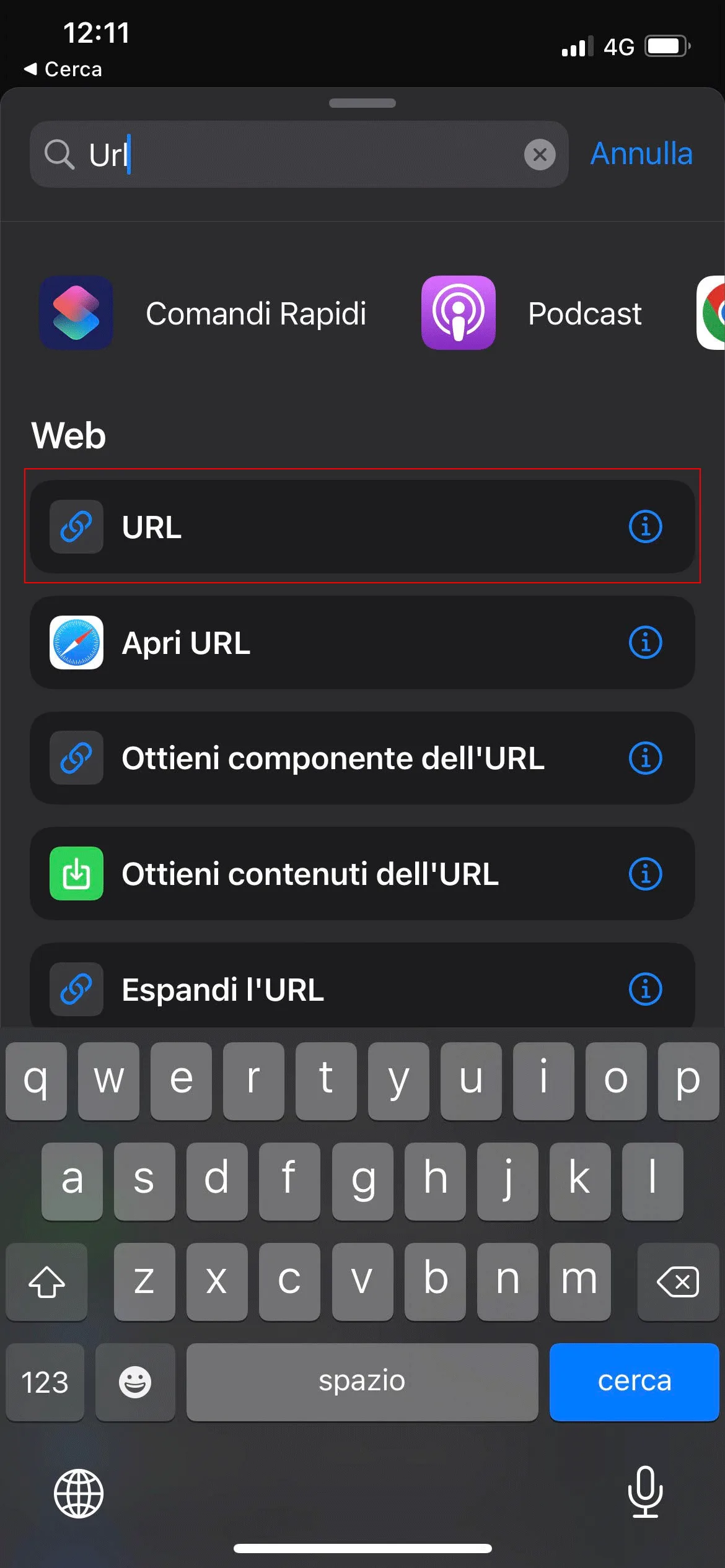
Search for the “URL” module using the search bar at the top of the screen and add it to the shortcut.
Step 1.3:
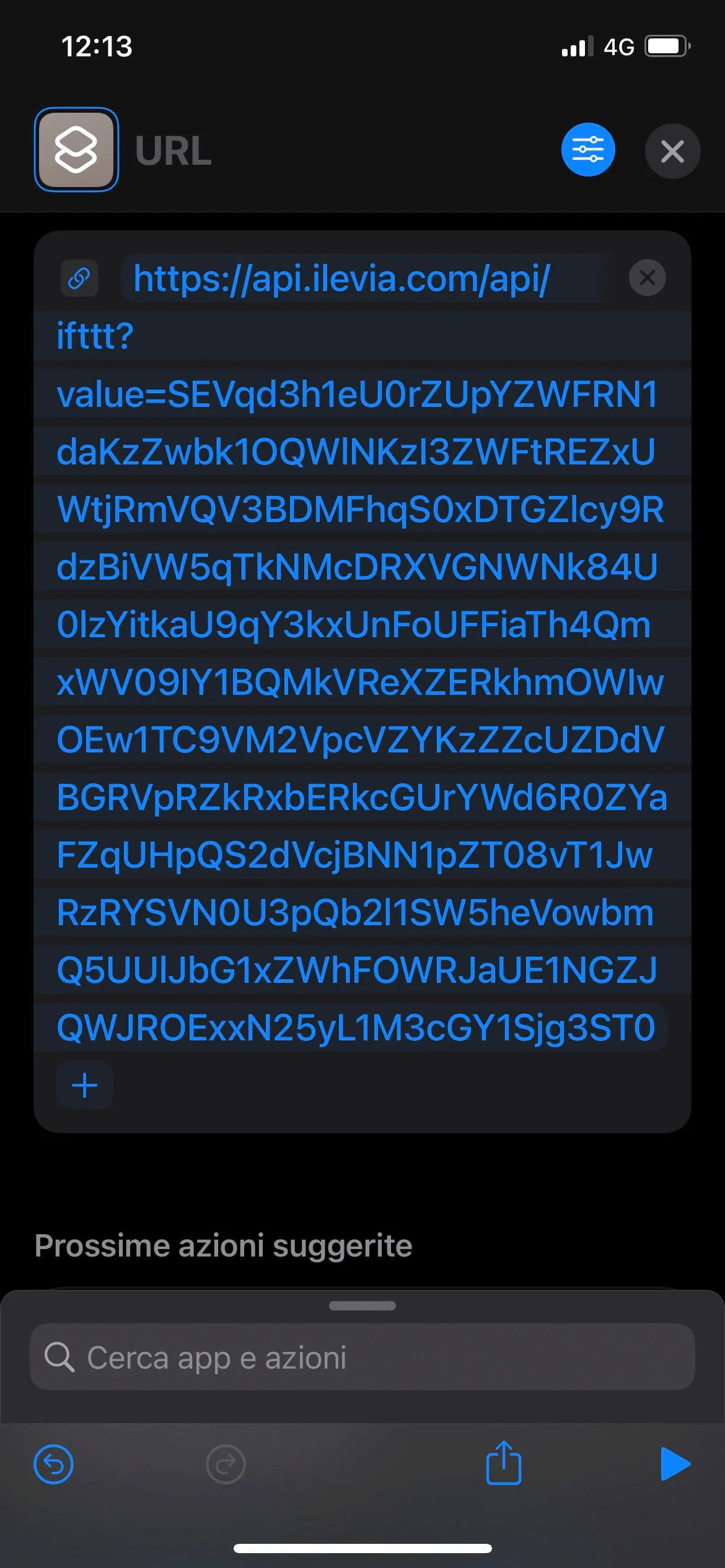
In the URL module just added, paste the link copied previously in Step 5 of the “Creating the IFTTT component” section.
Step 1.4:
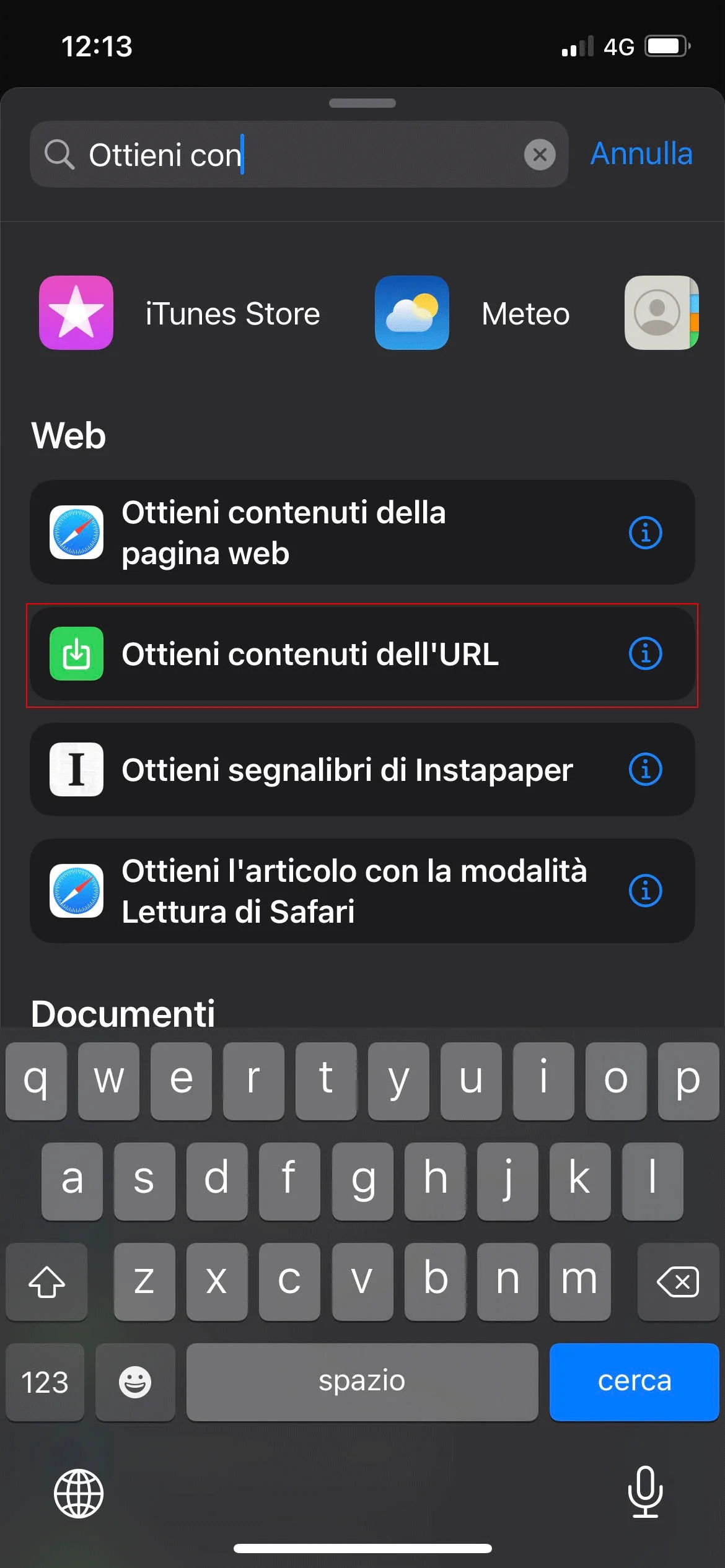
Add the last module required to run the shortcut: search for the “Get Contents of URL” module.
Step 1.5:
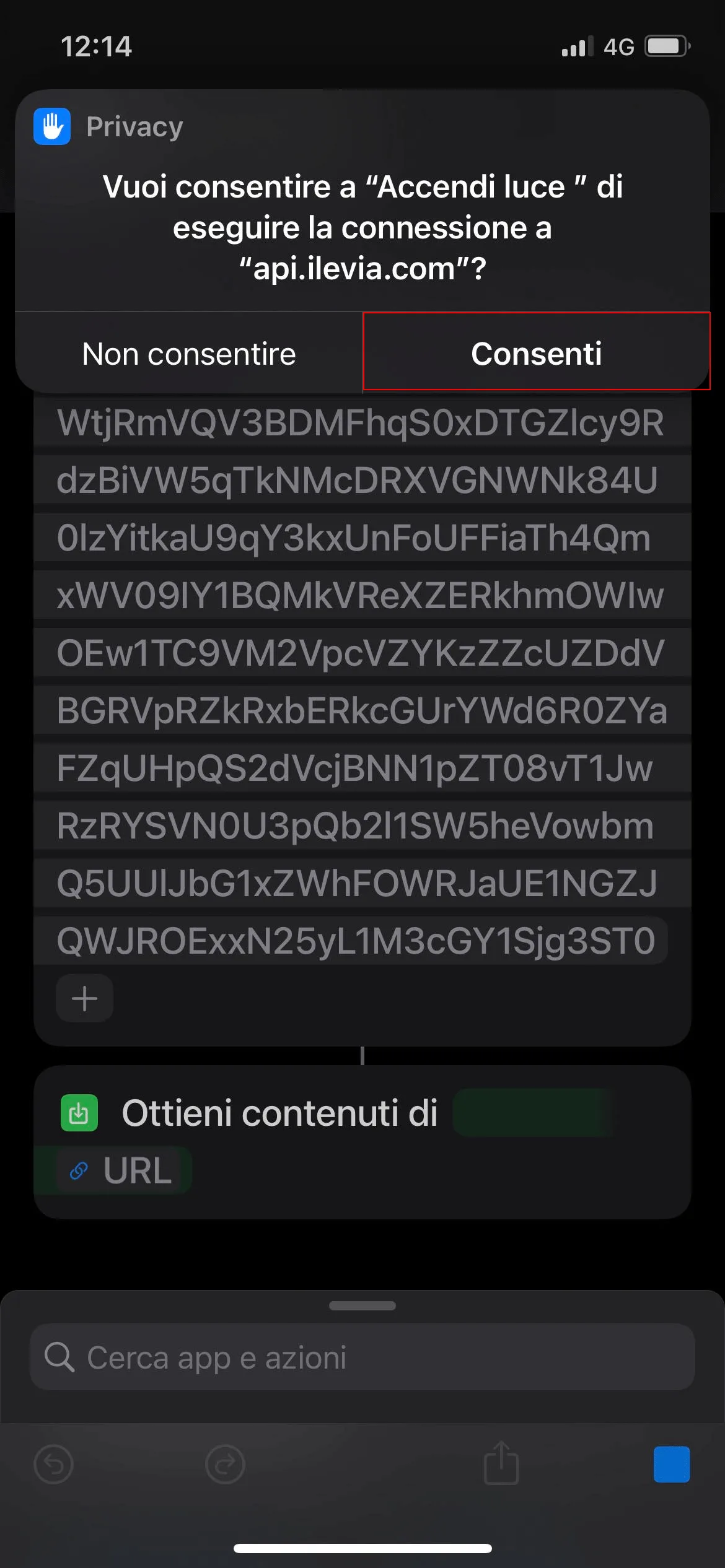
Test the new shortcut by clicking the button with the name of the previously assigned command. On first launch, a privacy message is displayed asking for permission to connect to the cloud: confirm by pressing Allow.
Voice command to run the shortcut with Siri
To run the shortcut with Siri, say the name of the shortcut: for example “Hey Siri, turn on the light”.
To turn the light off, repeat the creation of the shortcut and give it a different name (for example “turn off the light”), then enter the second link, indicated as the OFF command of the same Switch component.