
Media controller component (UPnP)
How to configure the Media controller component in Ilevia Manager to control UPnP devices, such as Sonos, and how it appears in Ilevia Control.
Introduction
Component that allows you to control any device that uses the UPnP protocol.
Use cases
The user wants to connect UPnP devices to the X1 server in order to change tracks remotely through a simple protocol.
The user wants to control their Sonos device through the Ilevia app: find out more here.
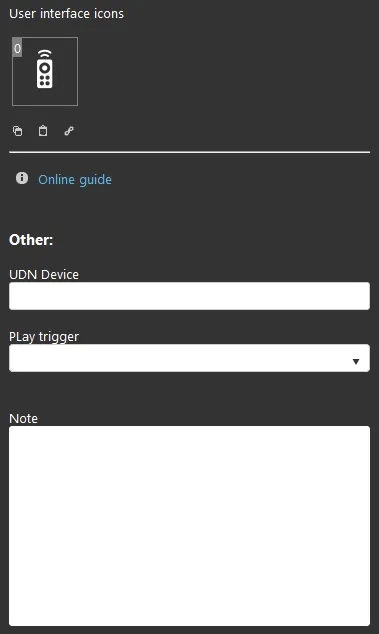
Component properties
GUI
This component was created using the Graphic UI gateway.
You can refer to the chapter “Gateway / protocols” for further information.
UDN device: the unique ID of the UPnP device.
Play Trigger: select the option list containing the switches that start the playlists created in the Ilevia Control app.
Note: text field for administrator notes.
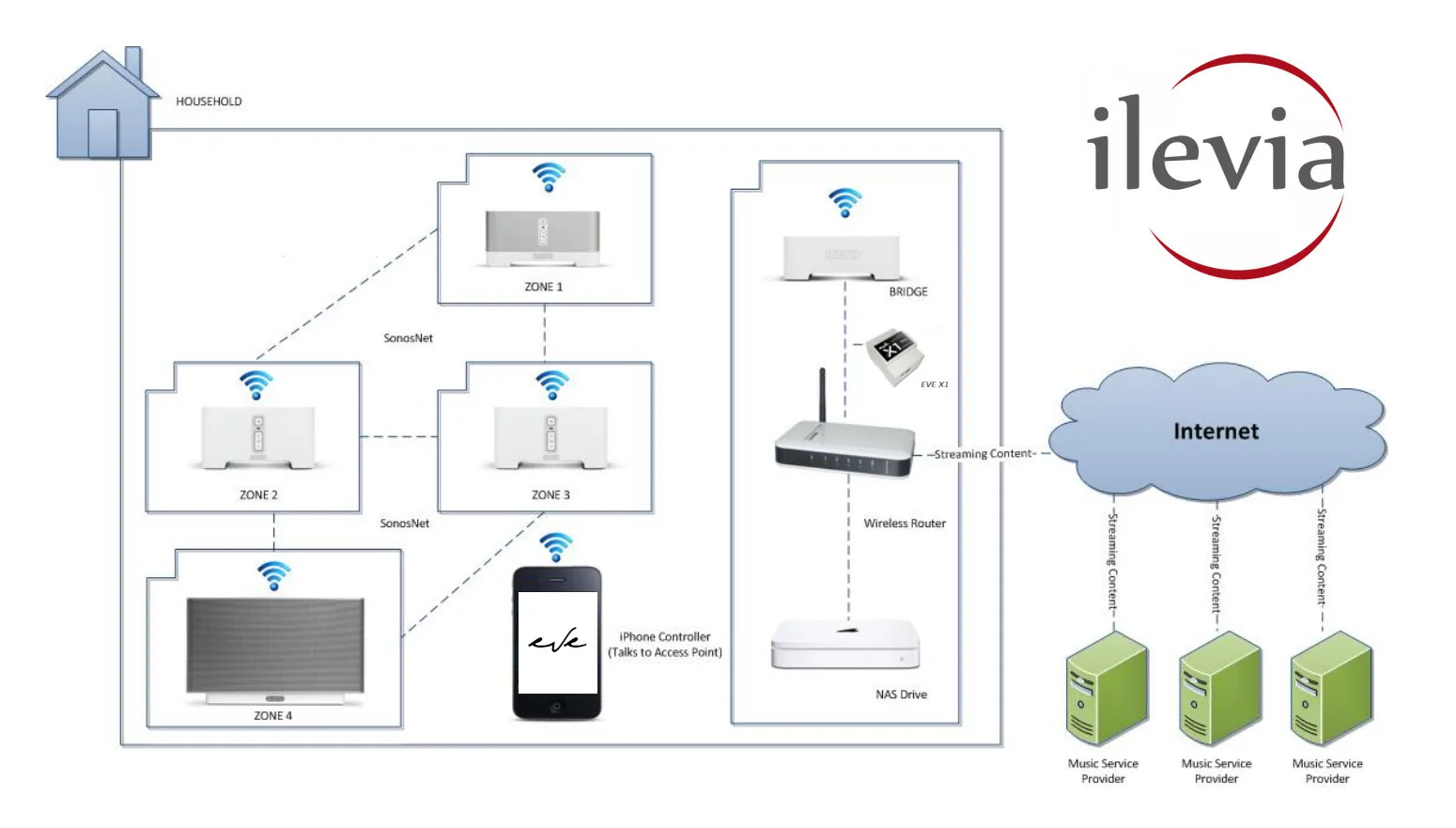
The UPnP protocol in the Ilevia system
Step-by-step guide
To automatically configure your UPnP device, follow these steps:
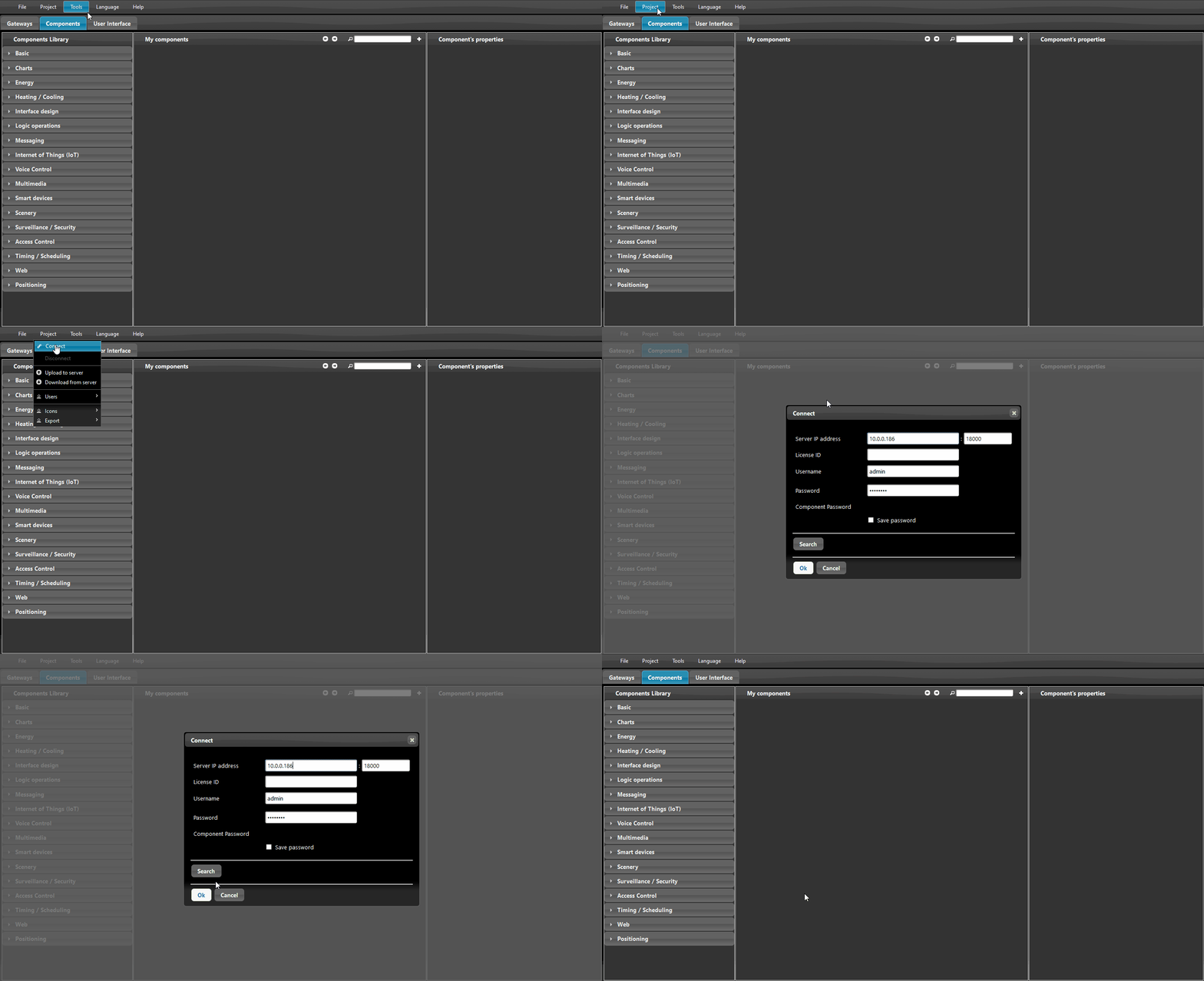
Step 1
Connect to the logic from the “Project” menu, select “Connect”, and enter the server IP address.
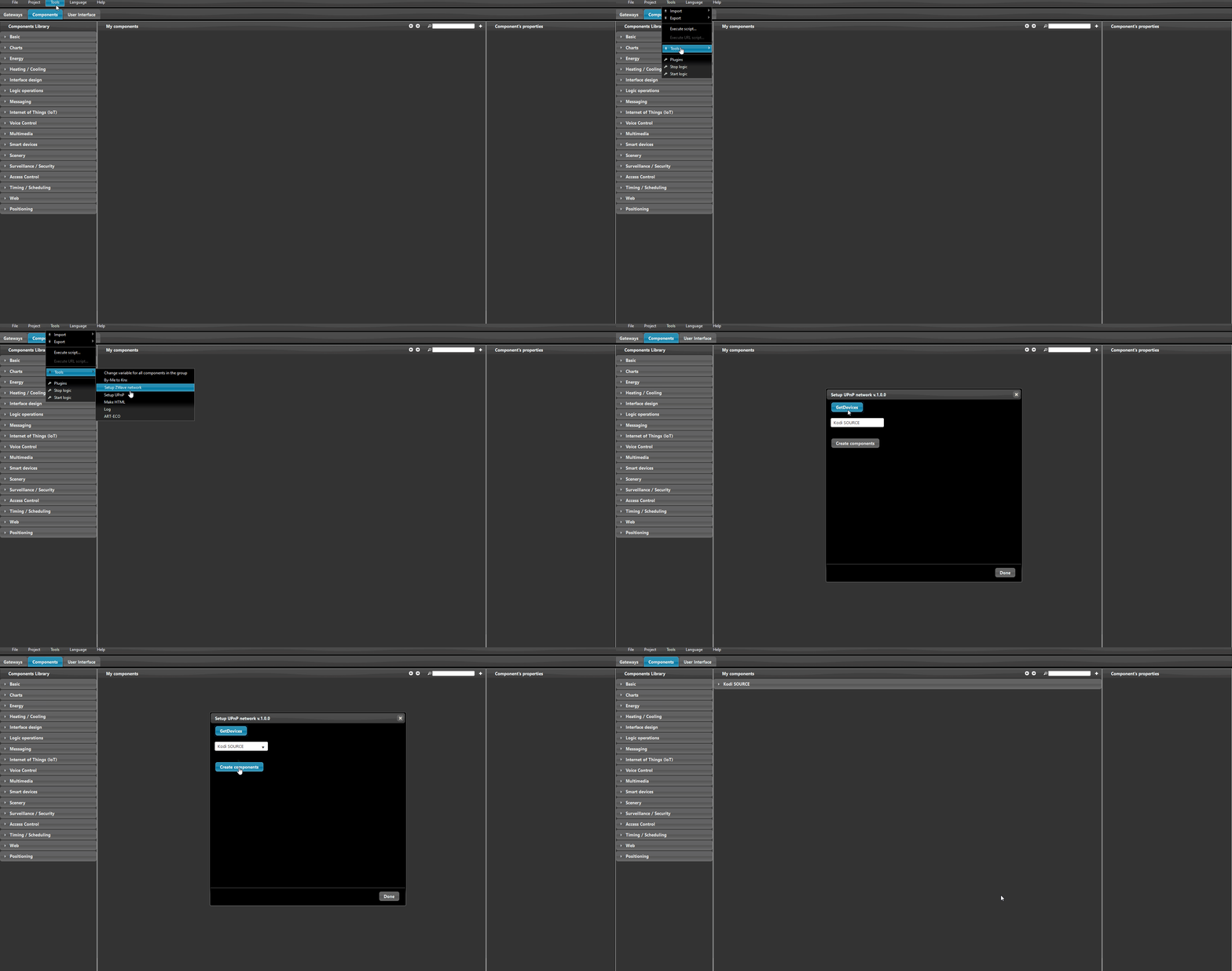
Step 2
From the top menu, select “Tools” and then “Set up UPnP”: the installation window opens. Click “Get devices” to populate the option list with all UPnP devices available on the network. Select the device you want to add and click “Create components”.
Reminder before continuing
Download and install the Ilevia Logic plugin to enable plugins (link);
After uploading the project to the Ilevia server, wait a couple of minutes for the logic to start.
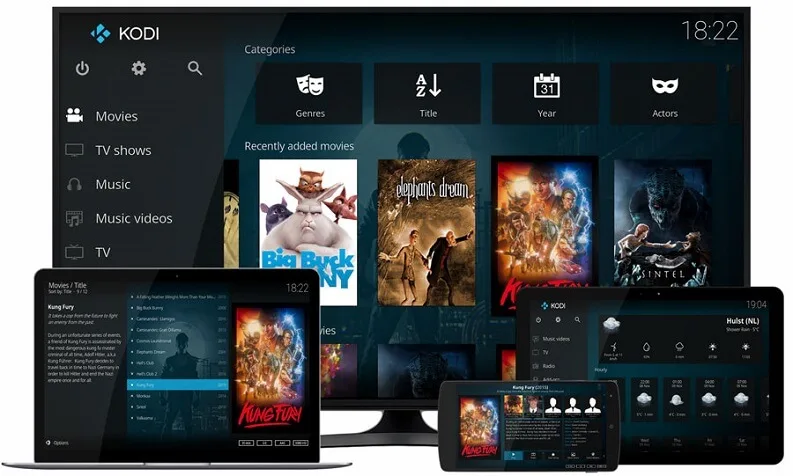
How to use Kodi as a media server
If you have lots of movies, TV series, and other videos on your computer, the Kodi media player is a convenient way to watch them. But what if you prefer to watch them on your TV or mobile phone?
This is where the UPnP function becomes very useful: by setting your PC as a UPnP server, Kodi can give the entire home network access to the movies stored on it.
We recommend following this guide (in English) to get the most out of Kodi.
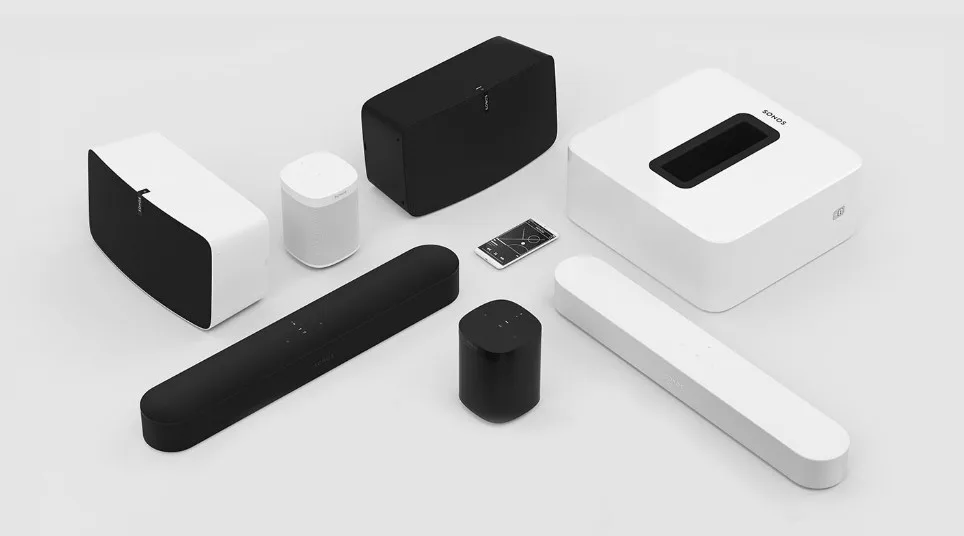
Sonos: wireless speakers and home audio systems
The Sonos Wireless HiFi system plays all the music you want in every room of the house, from the bedroom to the garden, and lets you control it from the palm of your hand. Sonos gives you instant access to millions of songs and radio stations, including thousands of free radio stations, and to music libraries saved on a computer or in the cloud.
With the procedures shown in the first part of the page, you can quickly integrate a Sonos device into Ilevia Manager and remotely control the devices in your home through the Ilevia Control app.
There are three possible display modes: “Classic”, “Modal”, and “Hidden”. For more information, see the “Common properties” guide.
Classic view
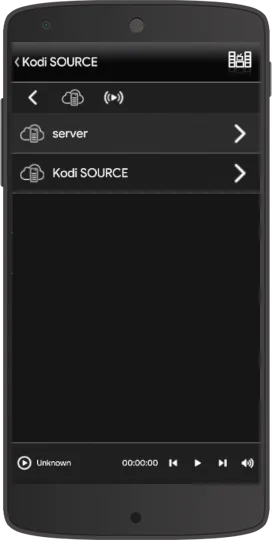
These are the UPnP servers present on the network, from which you select the files to play.
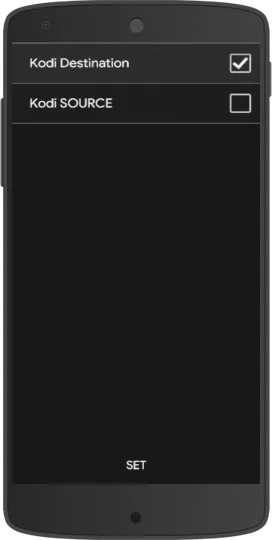
By clicking the icon, you access the playback device selection mode.
This function displays the list of music playback devices.
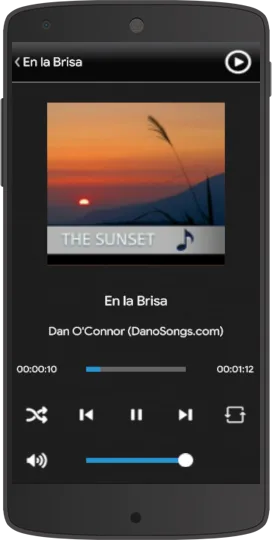
This is the main function screen for controlling media playback on the UPnP device.
Map view
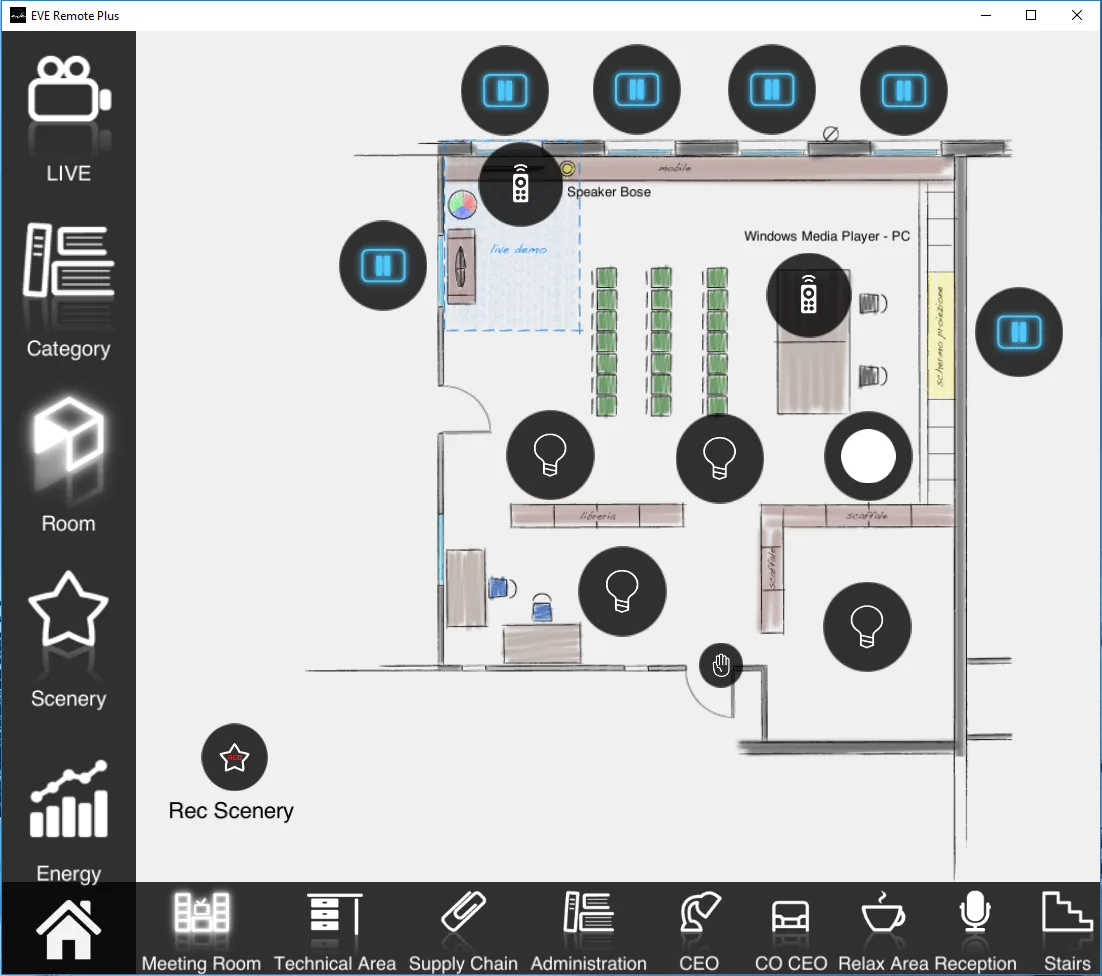
This is the visual result of the component in Ilevia Control (map style).
The functionality is the same as described in the Classic style section.
Icons can be customized as needed, from the symbol to the color and size.
In this case, we will use the default icon:
Media controller → Media controller icon

Default icon (customizable)