
Kumux Component
Complete guide to configuring the Kumux component within the Ilevia Ilevia Manager configuration software.
Introduction
Kumux is a dynamic lighting platform that improves personal well-being by adjusting lighting and color temperature throughout the day. By integrating it with the Ilevia automation system, it is possible to control ambient lighting according to the time of day.
With Kumux integration in Ilevia, you can automate adjustment based on the time of day, room occupancy, and user preferences, for a harmonious and energy-efficient environment.
Component properties
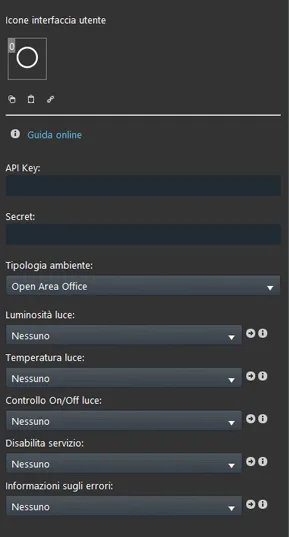
API Key: enter the API key generated by the Kumux online service.
Secret: enter the Secret parameter generated by the Kumux online service.
Environment type: select the type of environment that will be controlled by the Ilevia server through the Kumux service.
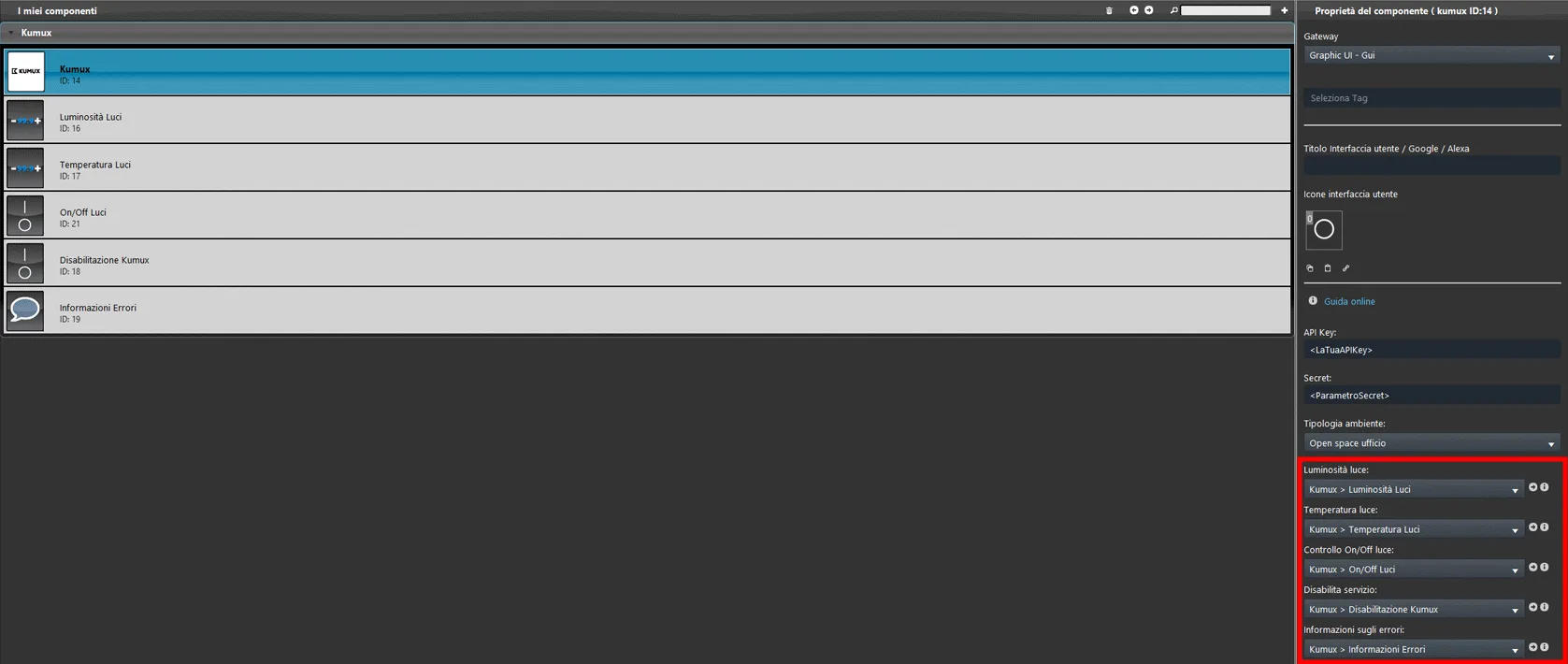
Light brightness: connect a Adjustable value component or a Slider component, which will be set with the optimal brightness value calculated by the Kumux service.
Light color temperature: connect an Adjustable value component or a Slider component, which will be set with the light color temperature value calculated by the Kumux service.
Light On/Off control: connect a Switch component to control turning the light on and off.
Disable service: connect a Switch component to disable the Kumux service.
Error information: connect an Info component for more information about errors.
Note: for more information about the Kumux service and how to start the integration, see the Kumux website.
Component configuration
Step 1:
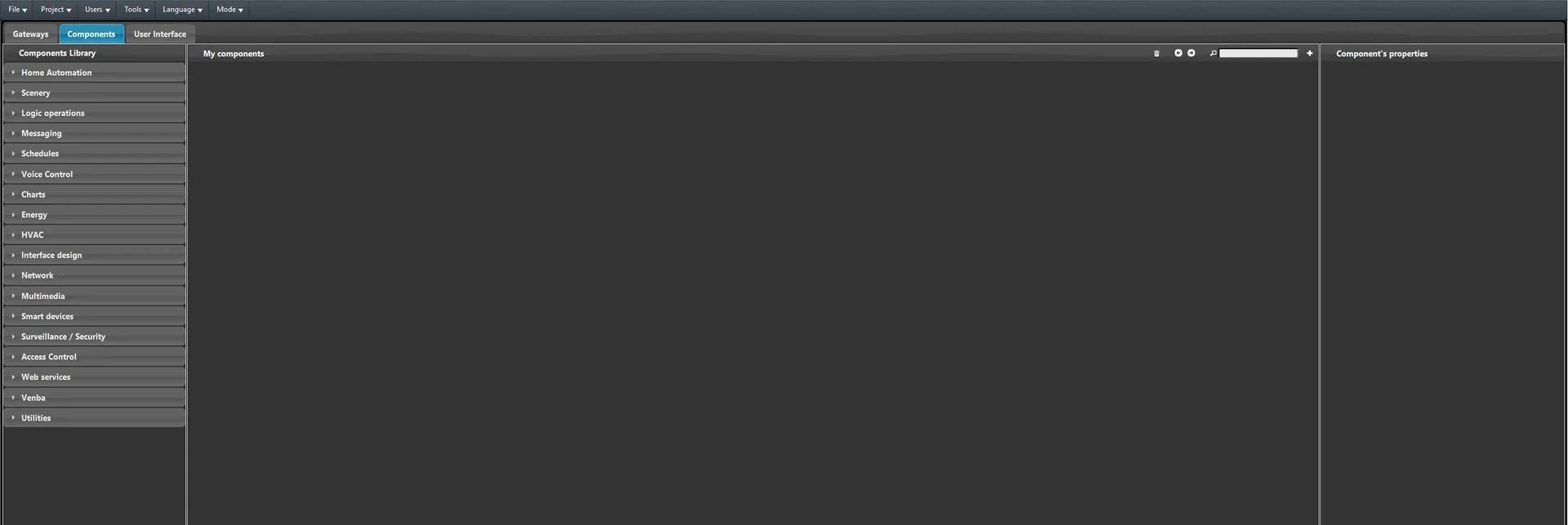
Open Ilevia Manager and go to the Components section.
Step 2:
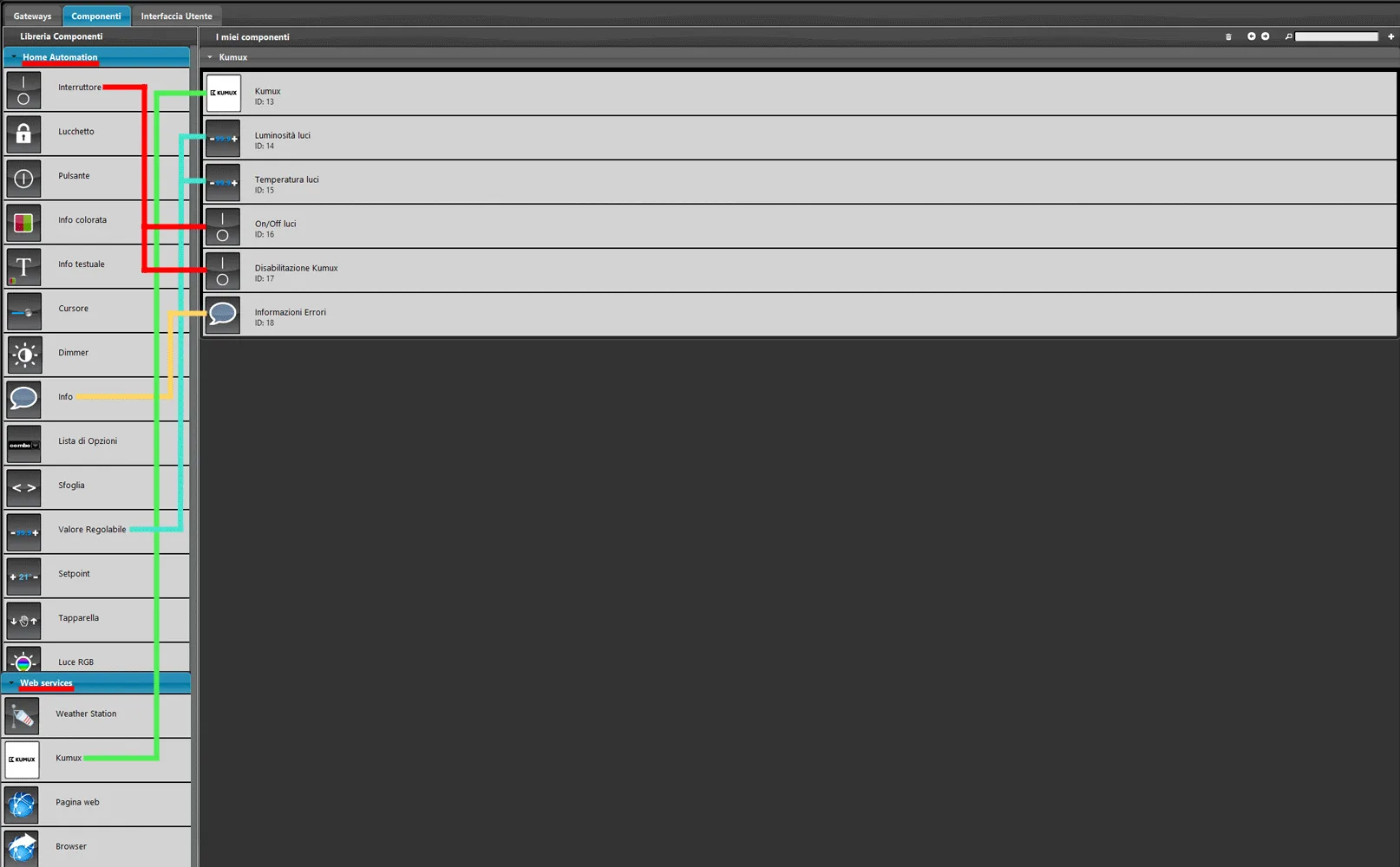
Add the following components in the My components section. Add the Kumux component from the Web services section of the Components library panel; then open the Home automation section and add two Adjustable value components, which will set the lighting brightness and temperature parameters; then add two Switch components and finally an Info component that represents errors.
Step 3:
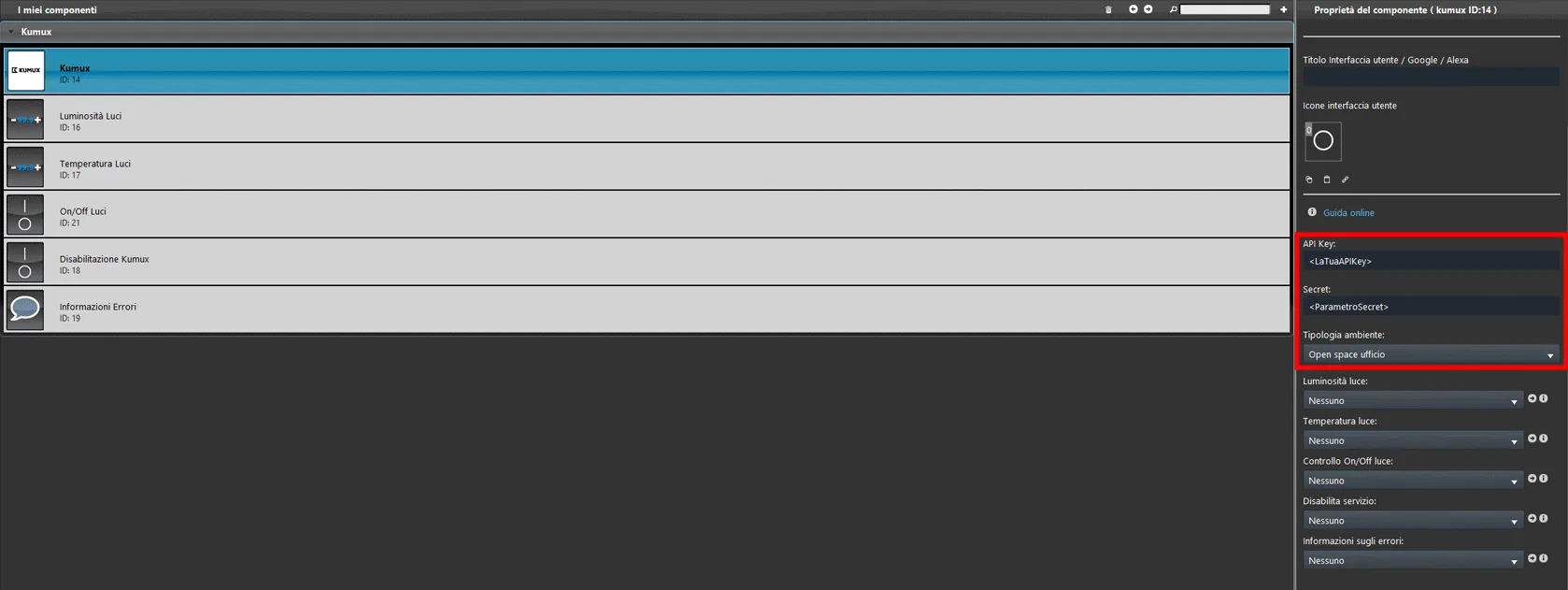
Enter the API key and the Secret parameter in the Kumux component parameters.
Step 4:
Connect the components to the Kumux component parameters as shown in the image below.
Step 5:
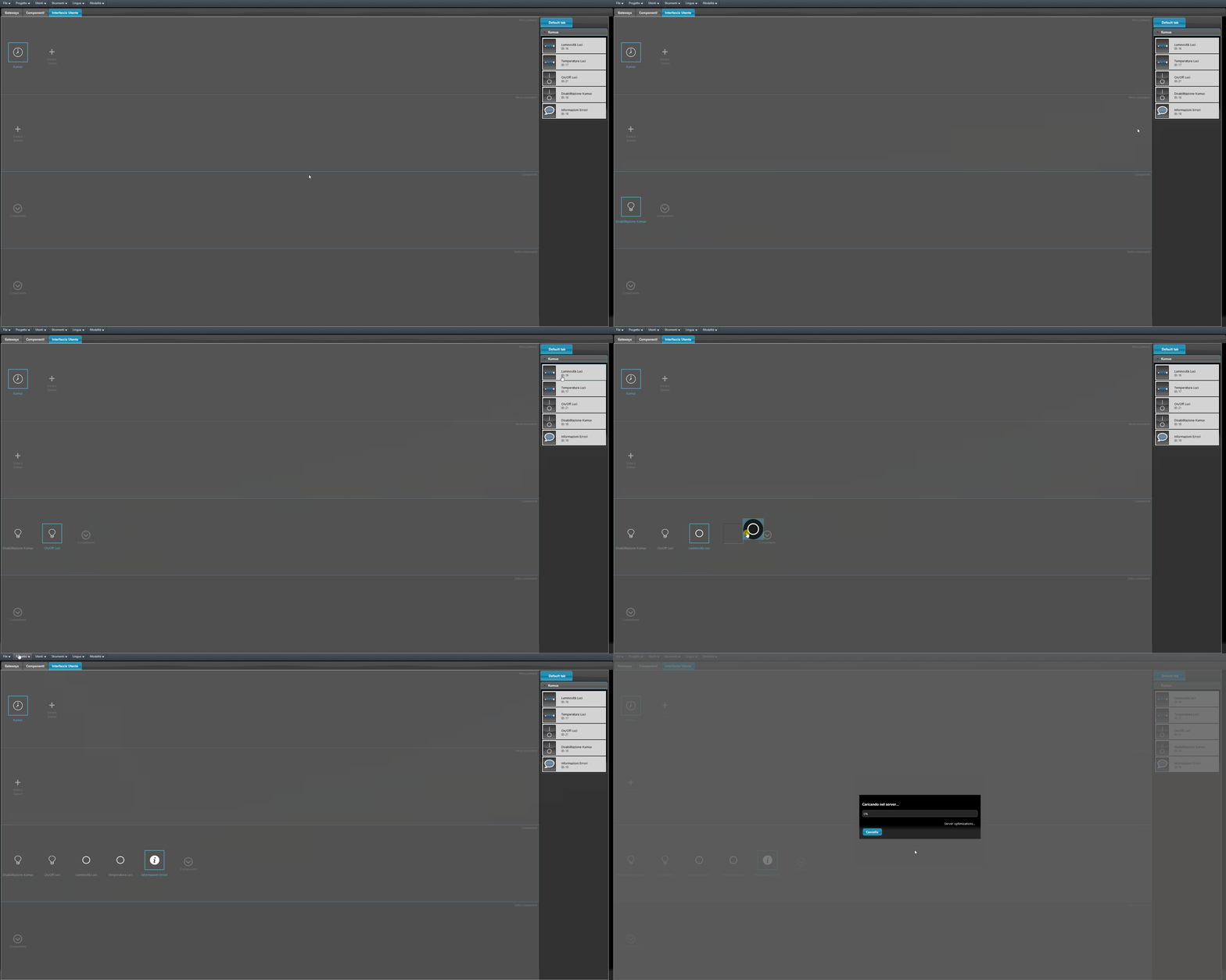
Add the components to the user interface, then upload the project to the server.
Sample project
Download the sample project to try it.