
Main menu of Ilevia Manager
Description of the items in the main menu of Ilevia Manager: File, Project, Users, Tools, Language, and Mode.
Introduction
The purpose of this guide is to explain all the functions available in the main menu of the Ilevia Manager configuration software. The main menu has six sections: File, Project, Users, Tools, Language, and Mode.
File
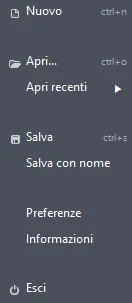
New: Allows you to create a new project.
Open: opens a window that lets you select a project from the local files on your device.
Open recent: opens a side menu with the list of all recently opened projects.
Save / Save as: clicking this button saves the project currently in use in Ilevia Manager.
Preferences: opens a window that lets you specify the time and file path for automatic saving.
Information: this window shows the project ID and the interface version.
Exit: closes the Ilevia Manager software.
Project
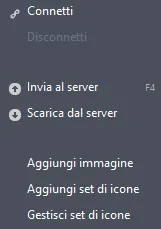
Connect: opens a window where you can enter the connection parameters of your Ilevia server.
Disconnect: Allows you to disconnect Ilevia Manager from the Ilevia server.
Upload to server: allows you to upload the project currently open in Ilevia Manager to the Ilevia server.
Download from server: allows you to download the project currently stored on the Ilevia server.
Add image: this window lets you add an image as an icon set.
Add icon set: Allows you to add a new icon set within Ilevia Manager. For more information on how to add a new icon set, see this guide.
Manage icon sets: Allows you to manage the icon sets added in Ilevia Manager. For more information on how to manage icon sets, see this guide.
Users
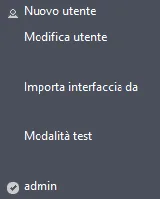
New user: allows you to add a new user to the Ilevia Manager project. For more information on user management, see this guide.
Edit user: opens the selected user's edit menu.
Import interface from: this option lets you import all interface types from one user to another, even if it has an interface style different from the one set for the selected user.
Test mode: this option enables the project test mode and creates a QR code for all users. It is useful when testing a project that is already active on another Ilevia server.
Import interface: allows you to import the user interface from a different user. The import also converts the interface from Classic to Maps and vice versa.
Tools
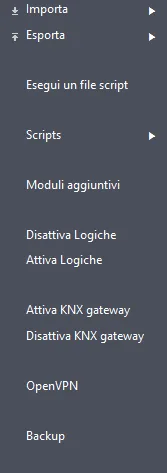
Import: all available import procedures in Ilevia Manager are listed here.
Export: this menu contains all available export procedures in Ilevia Manager.
Run a script file: allows you to run files containing external scripts, located in the local files on your device.
Additional modules: Clicking this item opens a new window that allows you to download and install the latest available version of the Logic module.
Stop / Start logic: these two buttons let you stop and start the Logic module.
Start / Stop KNX Gateway: these two buttons let you start or stop the KNX gateway mode of the Ilevia server. For more information, see this guide.
OpenVPN: this option lets you start setting up the VPN connection of the Ilevia server. See this guide for more information.
Backup: this procedure lets you create a backup of the project contained in the server you are connected to, or restore it, and also save it in the local files on your computer. For more information on backup, see this guide.
Language
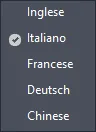
Here you can select the language to use in the Ilevia Manager interface.
Mode

This menu lets you filter the components in Ilevia Manager according to your Ilevia server license, between Pro and Lite. The Beta mode instead gives you access to early-access functions before their official release.