Remote Control
How to use the Remote Control component in Ilevia Manager to control TVs, players, set-top boxes and radios, with navigation pad, keypad and list.
Introduction
The Remote Control component lets you remotely control devices such as CD players, TVs, set-top boxes and radios.
Use cases
The user wants to control the TV using custom commands in the Ilevia Control app;
The user wants to turn on the Radio remotely, for example from another room in the house.
Component properties
GUI
This component was created using the Graphic UI gateway.
You can refer to the chapter “Gateway / protocols” for further information.
Note: the component icon is customizable.
Multimedia devices to control: list of multimedia devices to control.
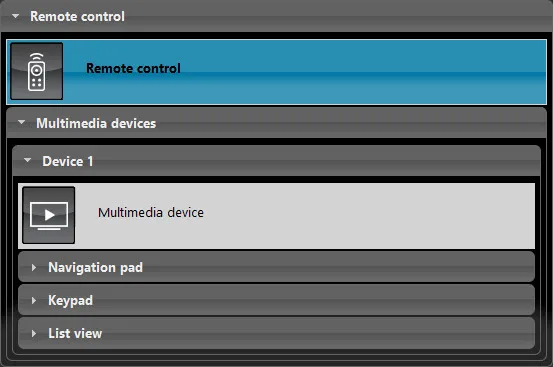
Thanks to the automatic configuration of the Remote Control component, this list is created automatically. With the same Remote Control you can still control multiple devices (TV, DVD, etc.). To add a second multimedia device, drag a new Multimedia device component (Device 2) into the “My components” section and then drag it into the Multimedia devices to control window, in the properties of the Remote Control component.
Automatic group creation
As always, you need to drag the component into the “My components” section. The special feature of this component is that it creates a Remote Control group in which all the components required for configuration are already added. In addition, all required buttons of the multimedia device are configured automatically, to simplify creation of the remote control.
Navigation pad
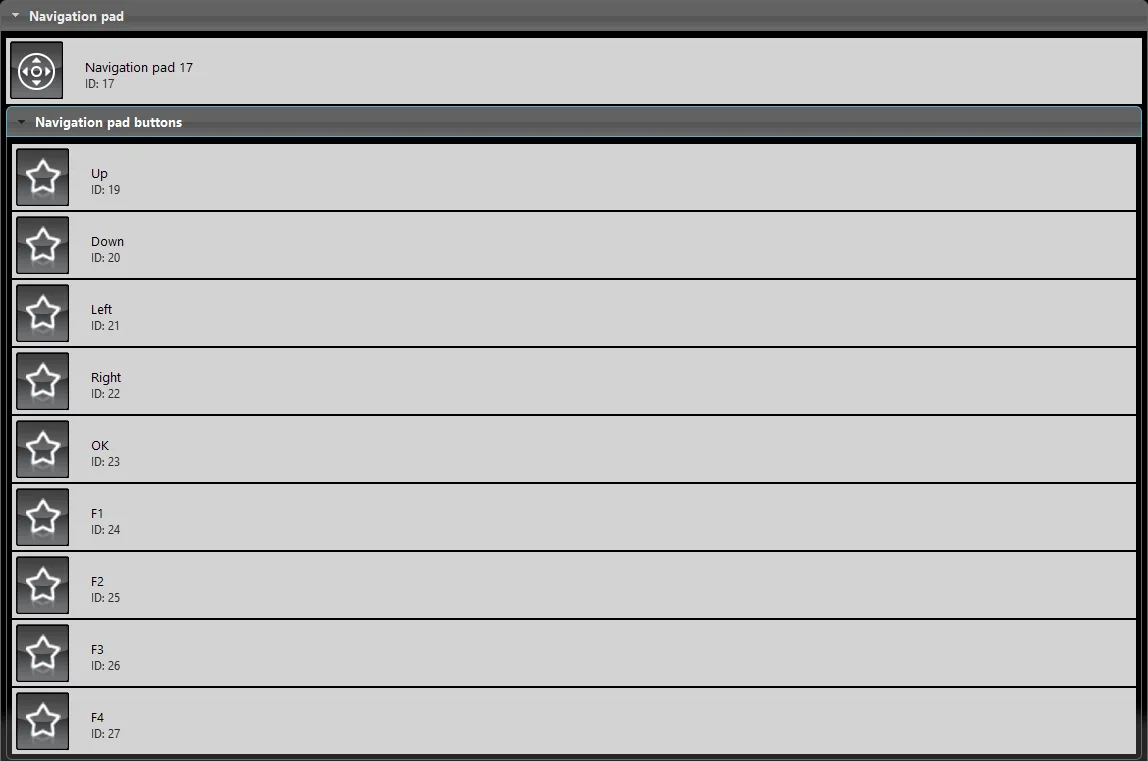
The navigation pad lets you assign the remote control buttons to control the TV directly from Ilevia Control.
Scenario configuration
In the example shown below, we used the Datagram gateway, changing the scenario gateway from the drop-down menu in the component properties. In the subcomponents group you can set a datagram command: as you can see in the figure below, the scenario has been set to change channel once activated.
The command shown was set up with the IRtrans software to work with the IRtrans device. For further information on the IRtrans device and datagram configurations in Ilevia, see this guide.
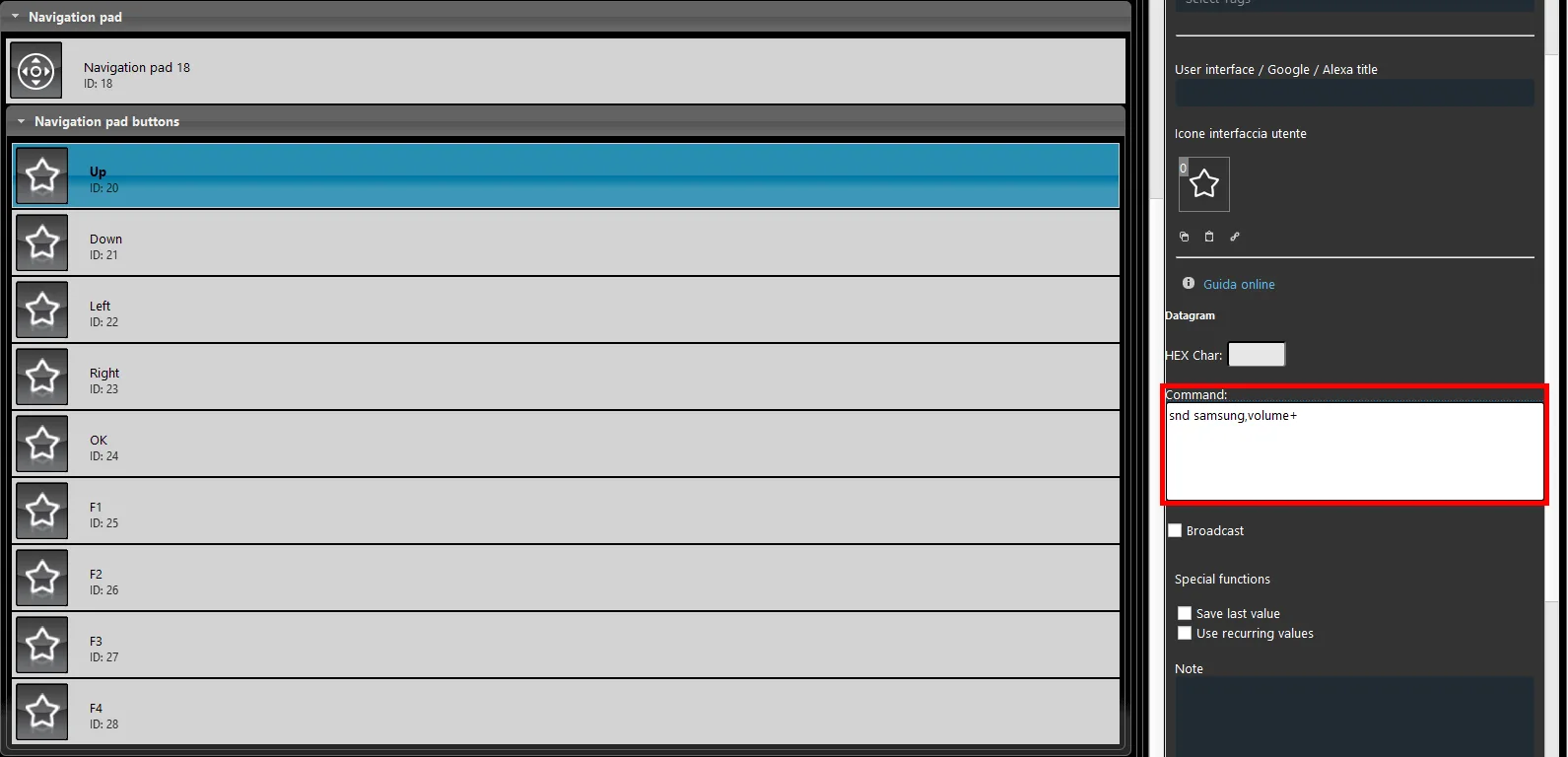
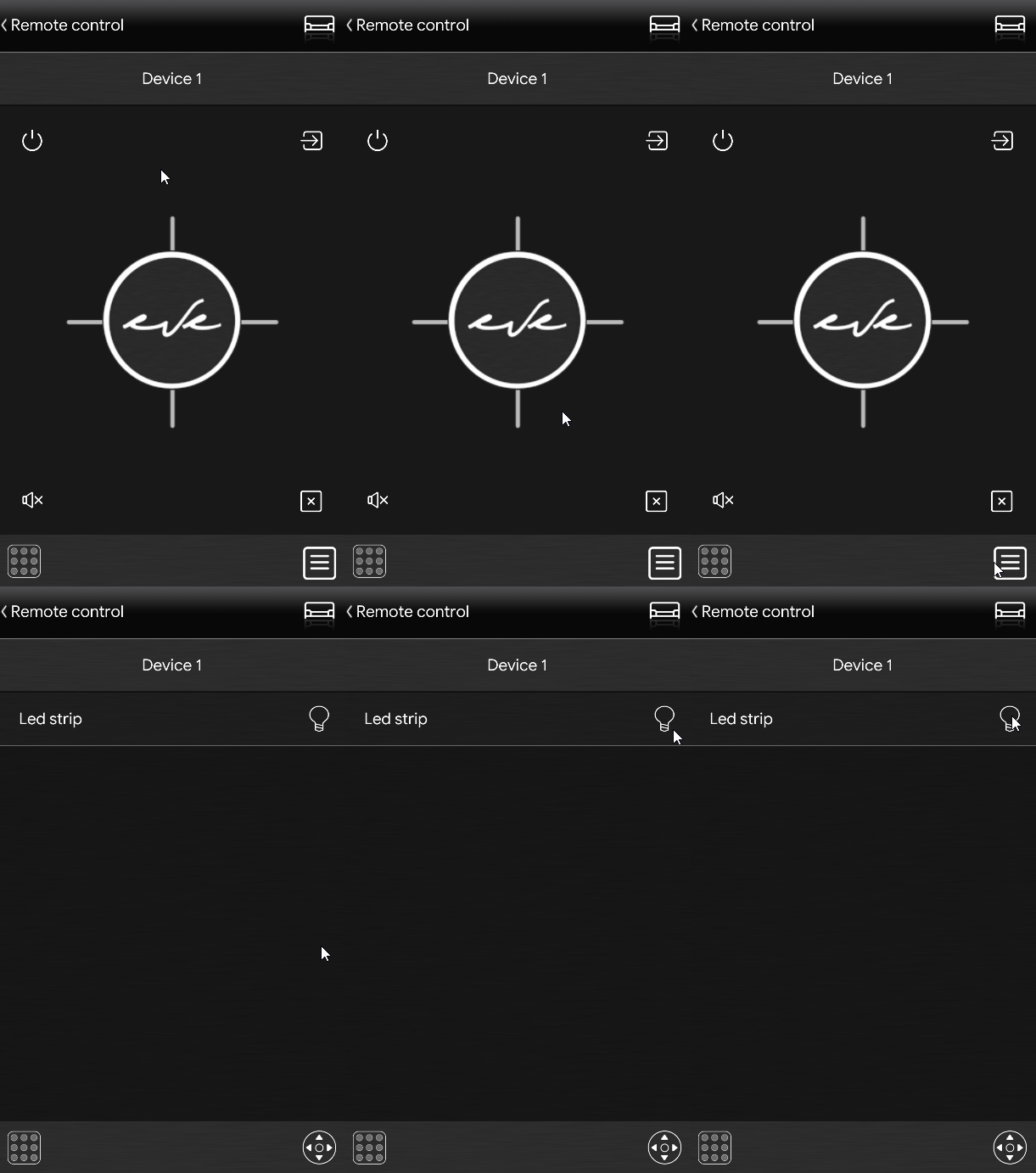
Visual result in the user interface
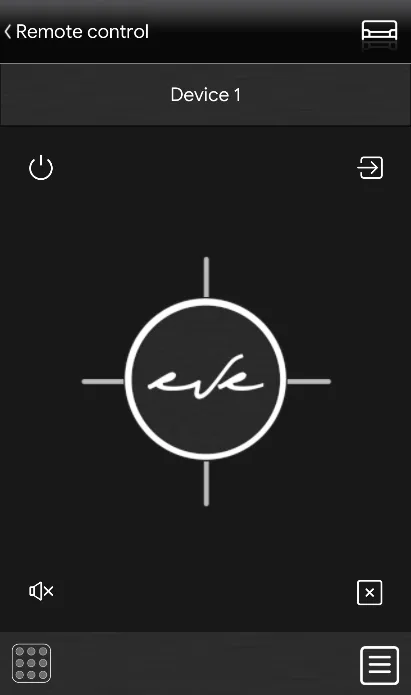
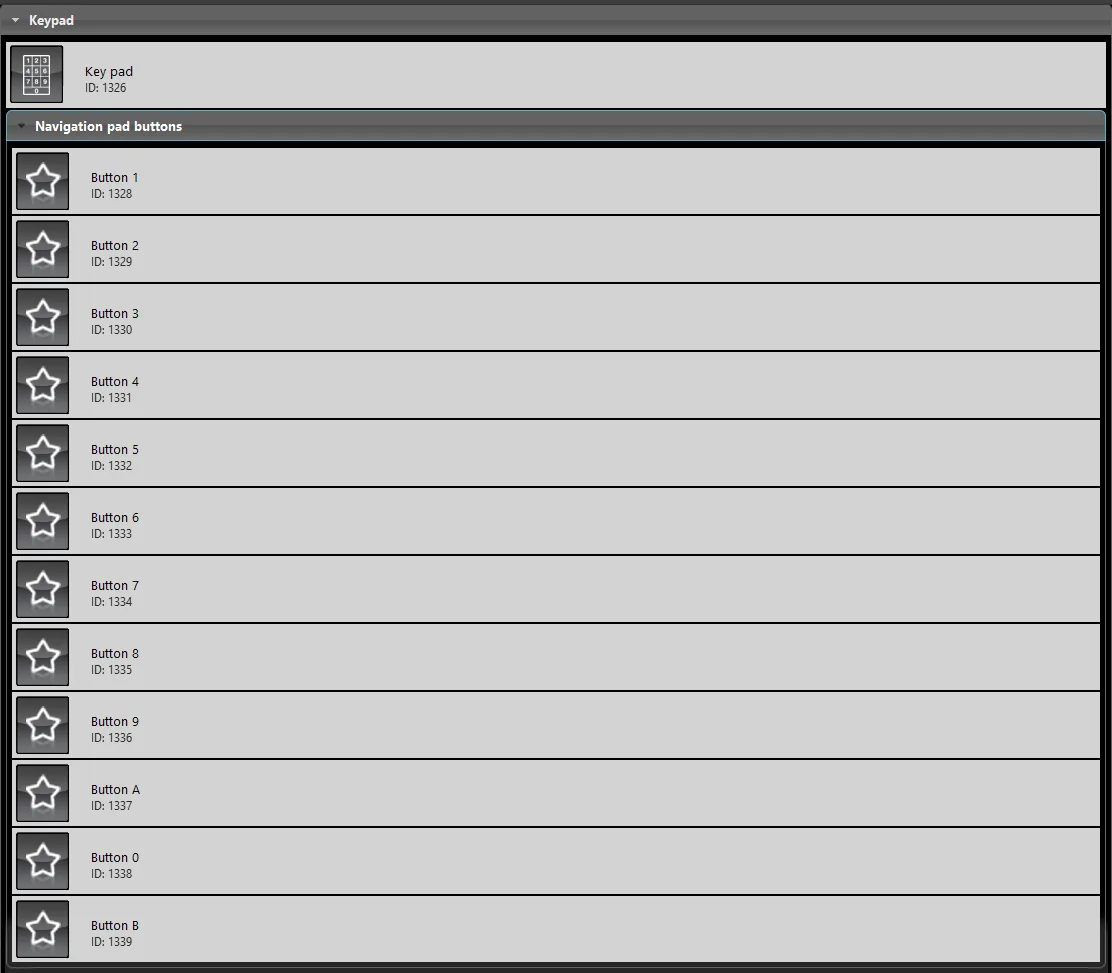
Keypad
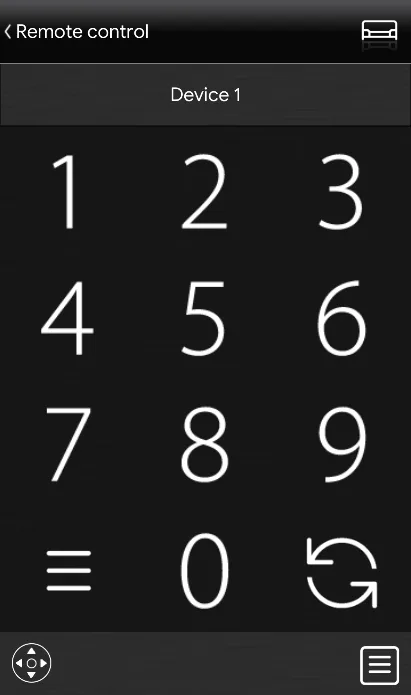
The keypad is used to set the numbers on the remote control, so that you can enter a single digit from the Remote Control component interface in the Ilevia Control app.
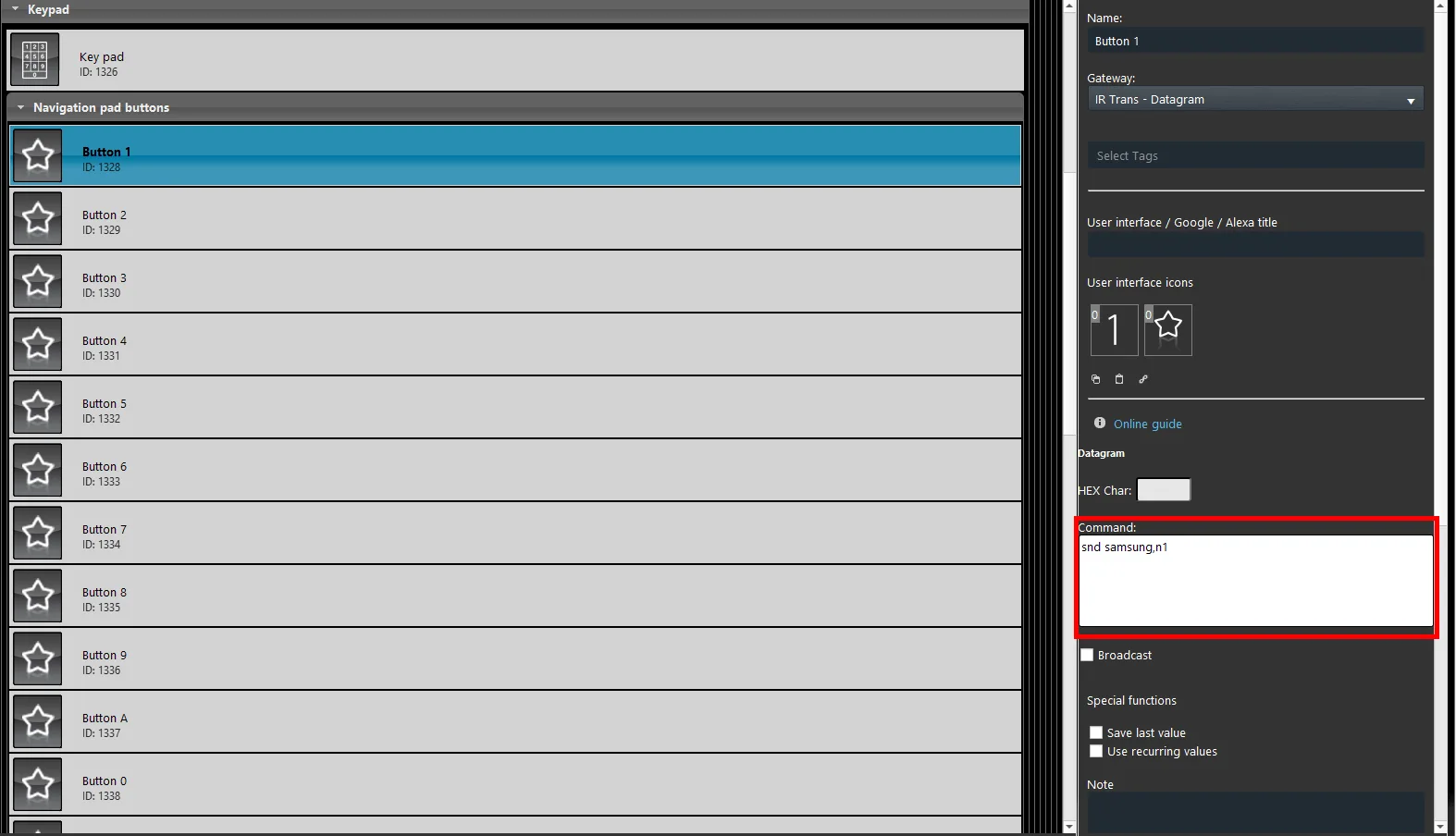
The commands are set up with the IRtrans software to work with the IRtrans device; for further information see this guide.
Scenario configuration
By changing the scenario gateway to Datagram in its parameters, you can set a specific Datagram command to perform an action on the target device, for example the TV. In this case the scenario is set to type the number 1 on the remote control numeric keypad when it is activated in the Ilevia Control app user interface.
Visual result in the user interface
List
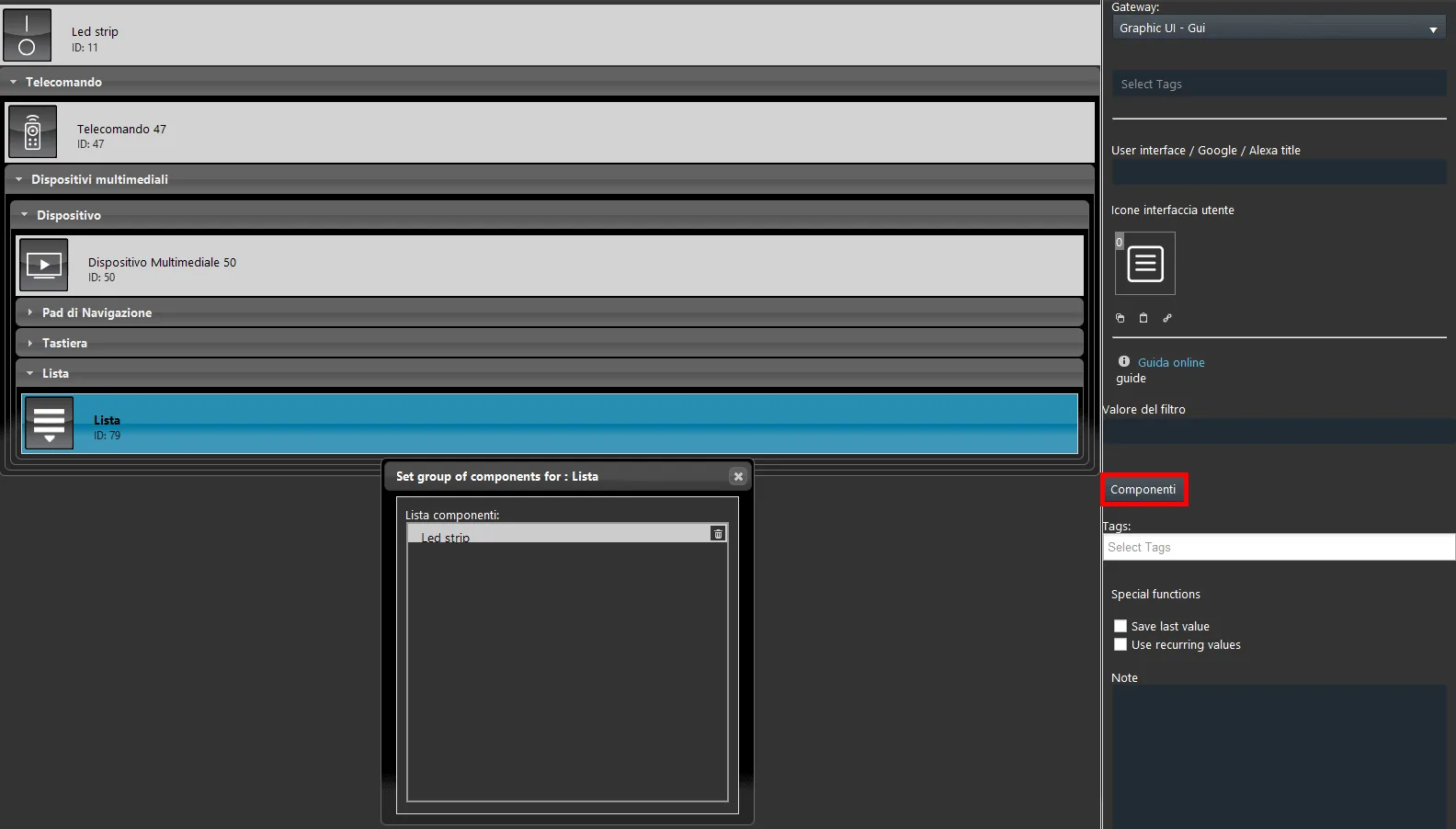
The List component (list view) lets you add components that you want to control without leaving the remote control interface. For example, if you have an LED strip behind the TV, you can turn it off from the list inside the remote control.
By clicking the “Components” button in the List component properties, a window opens where you can add the component you want to access easily. More information on the List component.
Visual result in the user interface