
Control infrared devices with IRTrans
How to control infrared devices with IRTrans via the Datagram gateway and the Scenario and Remote controller components in Ilevia Manager.
Through the Datagram gateway it is possible to communicate with IRTrans devices, which can be controlled with Scenario components or with the Remote controller component, to which the commands configured in the device can be added.
Step-by-step configuration guide
In this example, we will see how to quickly configure four buttons of a Samsung remote control in Ilevia Manager.
Step 1
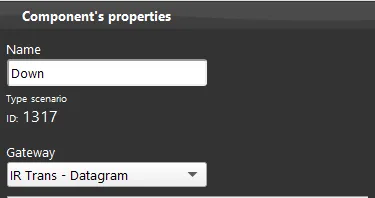
First, select the correct gateway (Datagram) in the properties of our Scenario component.
Step 2
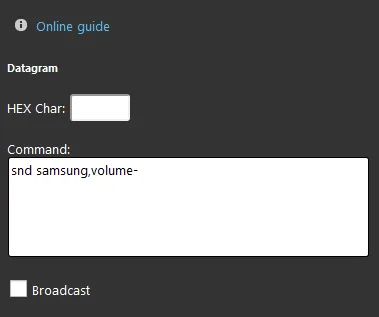
Continue in the “Command” section of the component.
The first thing to remember is the accuracy of what we write: what we enter after the keyword snd (which means “send”) is automatically taken from the IRTrans database, which we will cover in more detail later; for its specifications, refer to the documentation.
Project configuration
First, create a new Remote controller component by dragging it into the “My components” section.
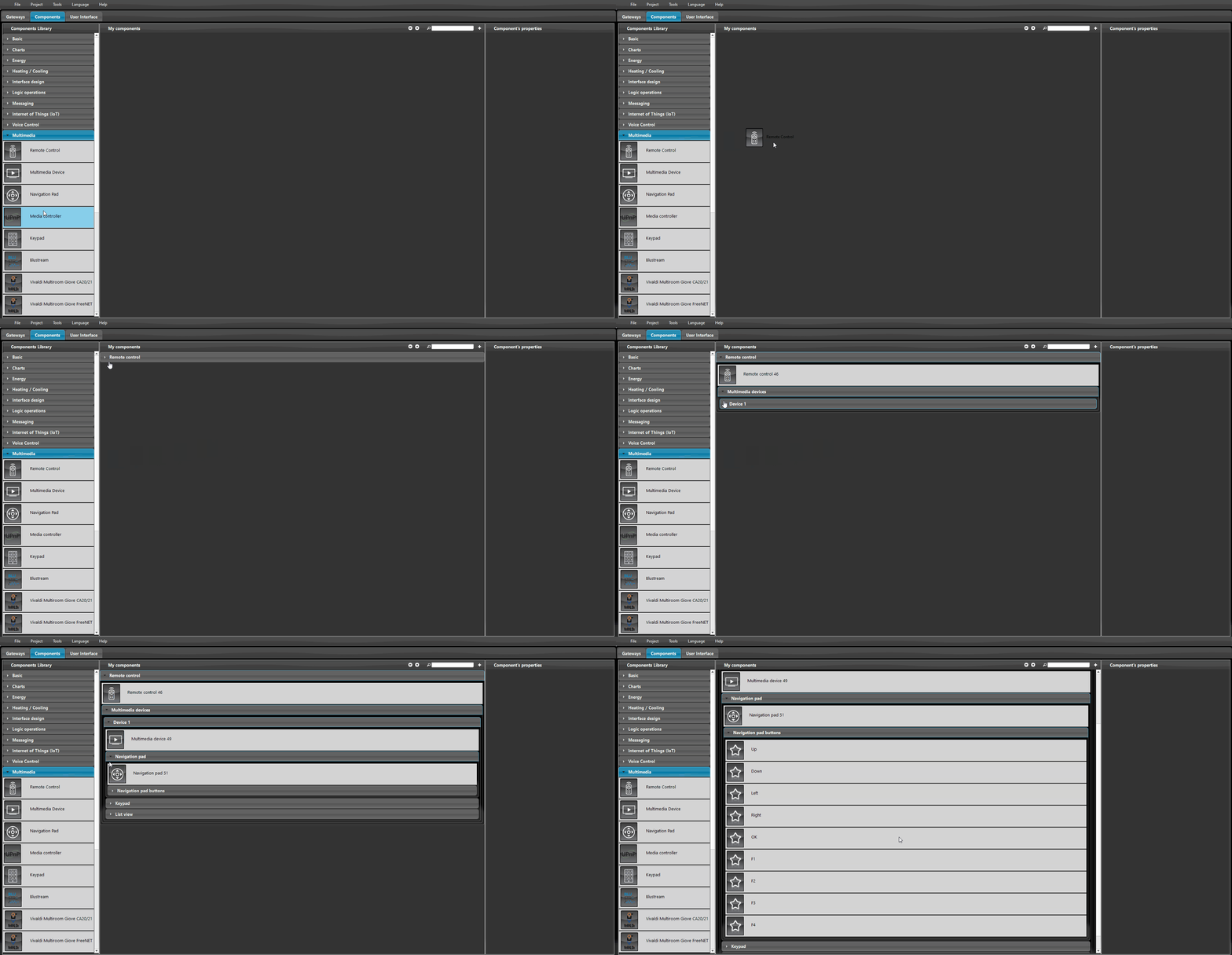
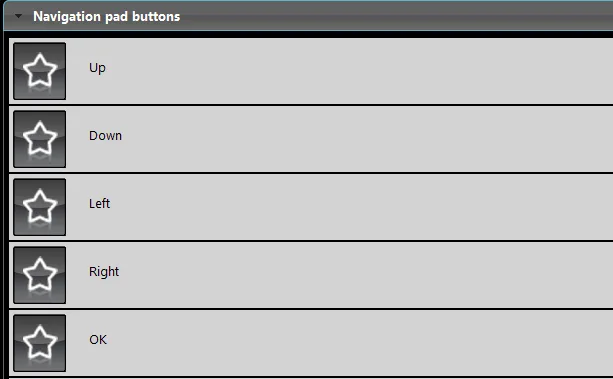
These are the Scenarios automatically created when the Remote controller component is added in the Components section of Ilevia Manager.
User interface
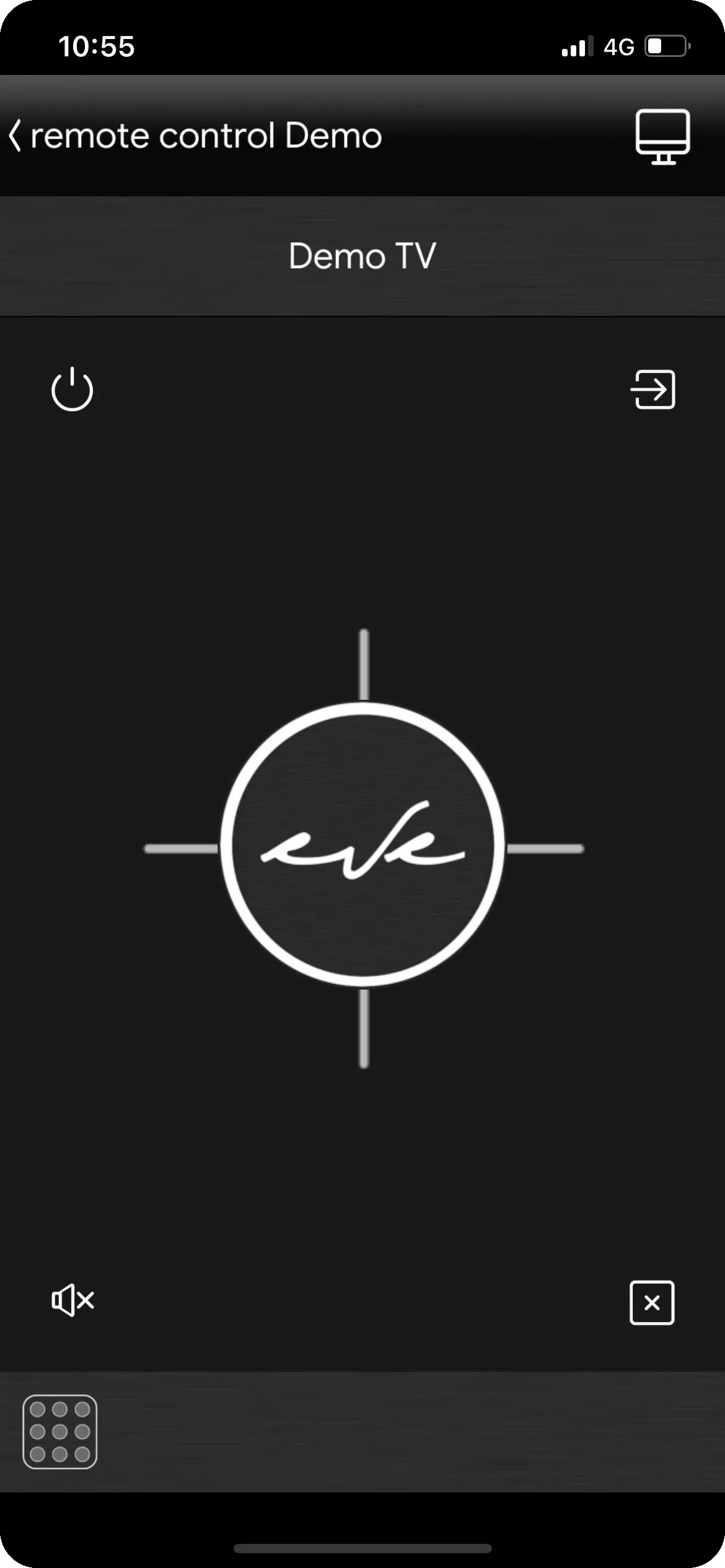
This is the final result of the Remote controller component in the user interface of the Ilevia Remote Plus application.
IRTrans device configuration
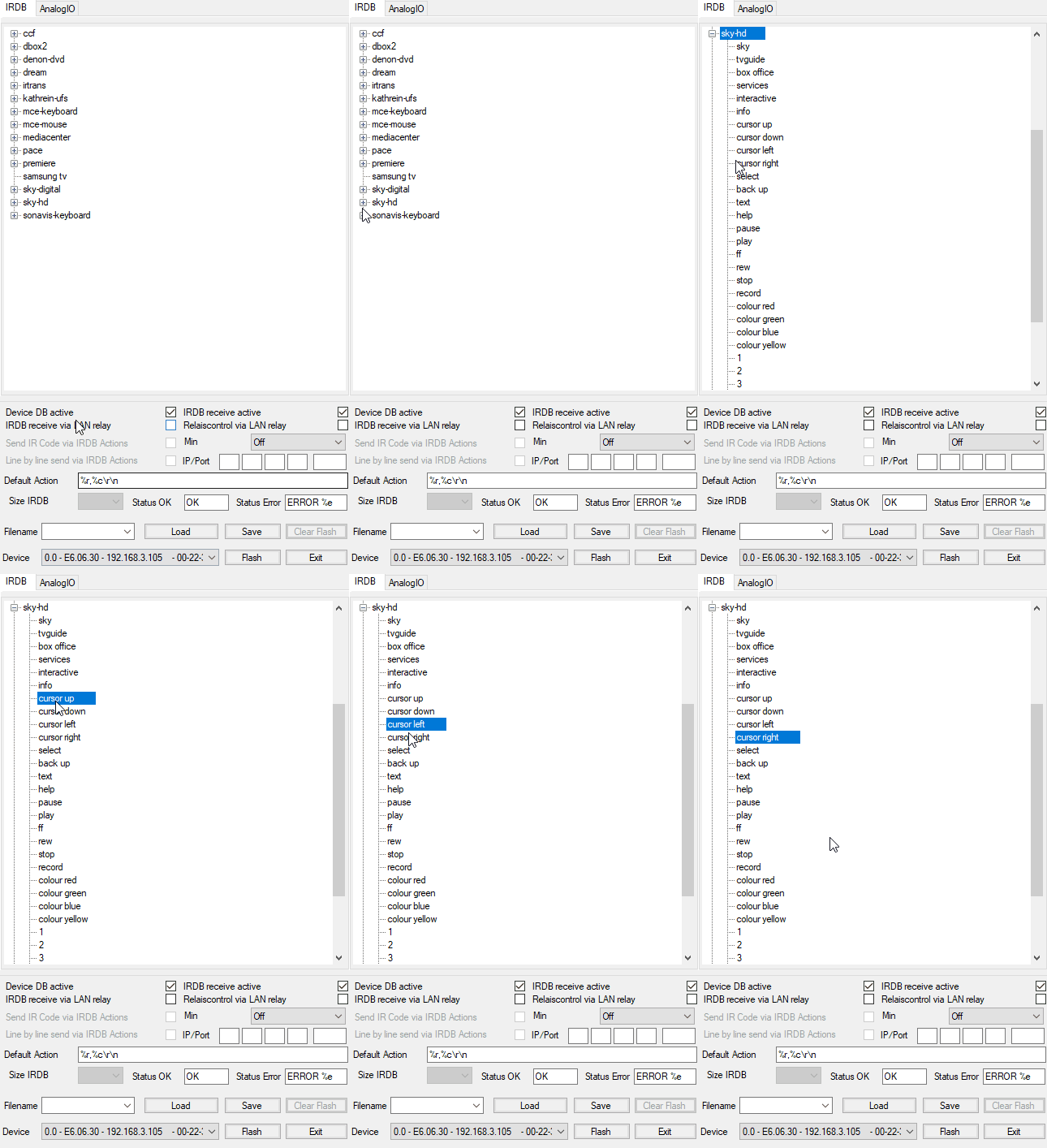
This is an example of how easy it is to look up IRTrans keywords. If your device is not in the list, you can create a custom one: refer to this documentation to learn how.
Final result
The following images show how we control our demo area through the Ilevia Remote Plus application with the Remote controller component.
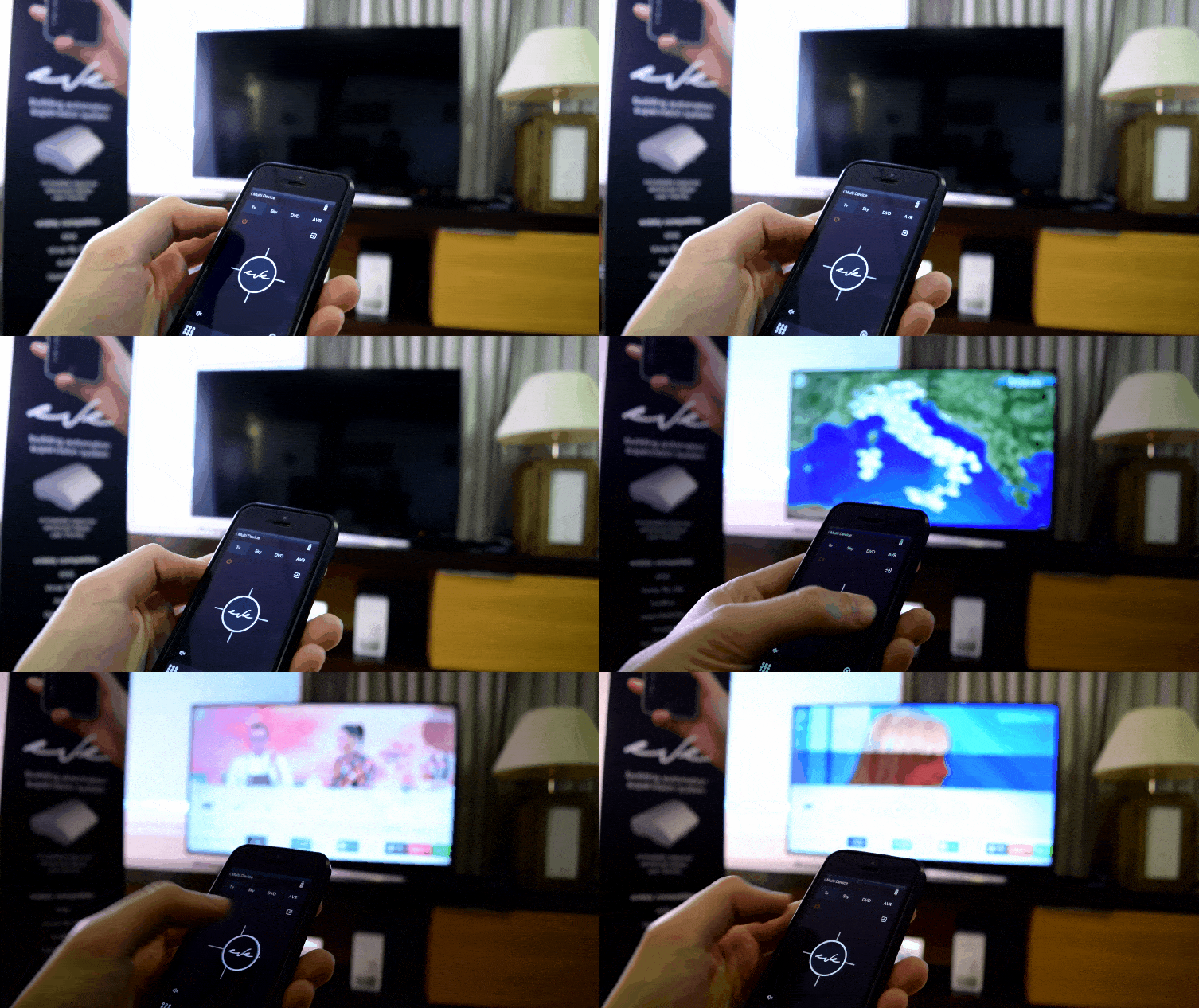
You can see an example of the Remote controller component with an IRTrans by downloading our project from this link.
After loading the project in Ilevia Manager, following the instructions at the link, go to the Components section and open the group named Live, then the group called Remote controller (New classic).
You can try the various functions by opening the Live room section in the Ilevia Remote Plus application.