
UDP Datagram gateway parameters
Datagram gateway parameters (UDP) of Ilevia Manager and examples of sending text and hexadecimal characters with the Scenario component, also for IRTrans.
INTRODUCTION
This gateway allows Ilevia to communicate with the IRTrans device by sending text or hexadecimal commands over UDP.
These devices can be controlled through the Scenario component, using the commands configured in the component itself.
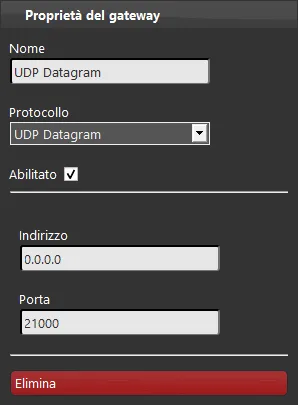
Common properties
Name: Enter the gateway title;
Protocol: Choose the protocol;
Enable: Enables / disables the selected gateway;
Address: The IP address of the Datagram gateway;
Port: Datagram gateway UDP port (default: 21000);
Practical examples
This example shows a typical configuration of a Scenario component with the Datagram gateway.
Sending text
Step 1:
Add the scenario component and make sure Datagram is selected as the gateway.
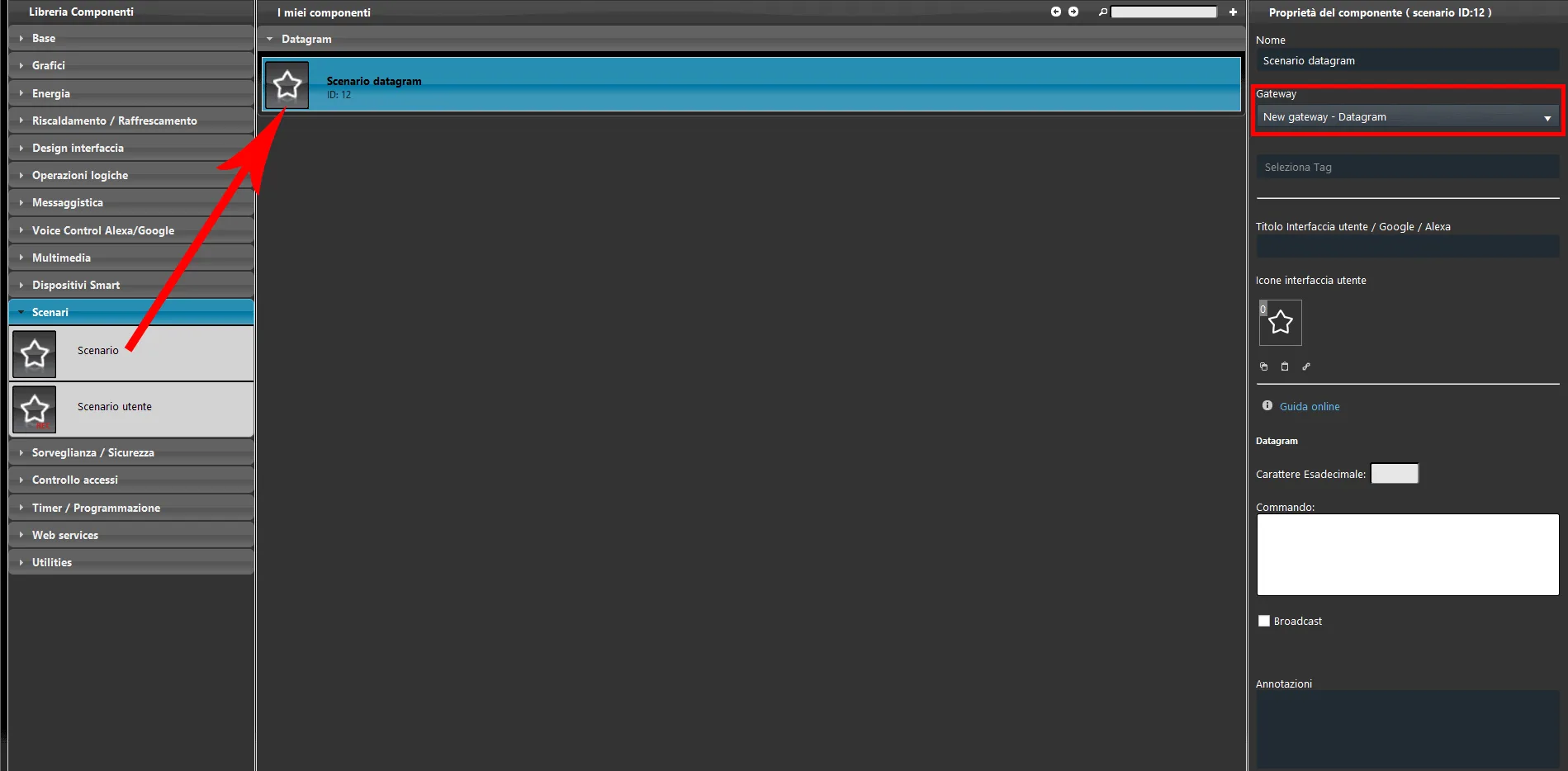
Step 2:
Type a simple text in the field called Command.
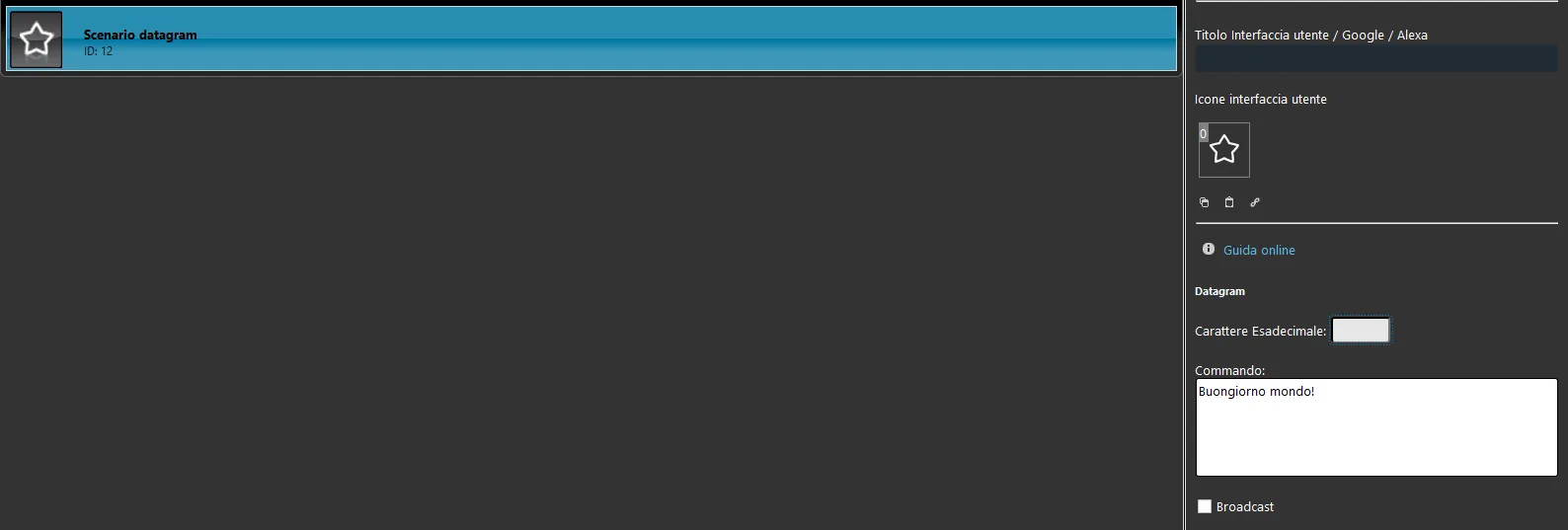
Step 3:
Finally add the component to the user interface and upload the project to the server.
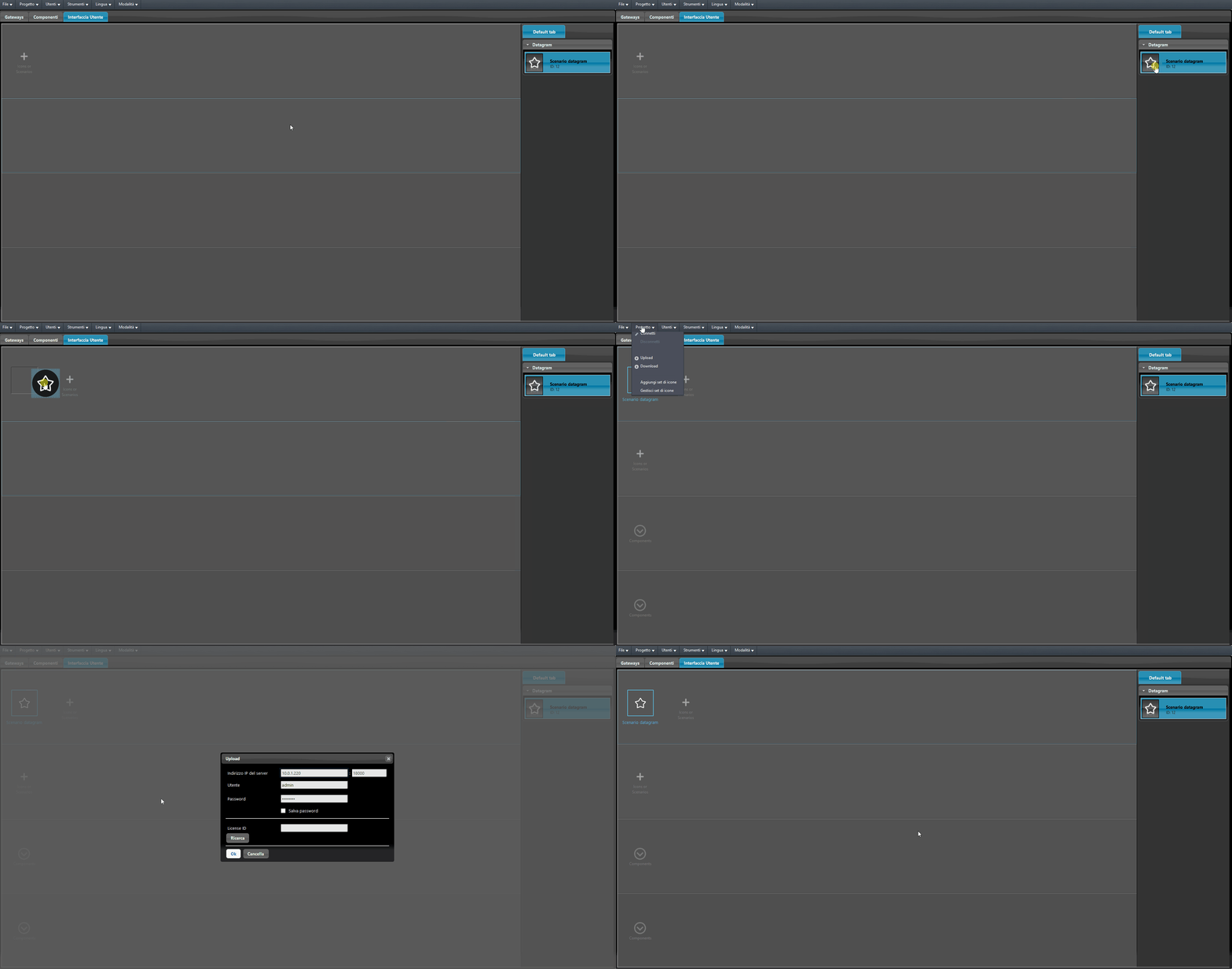
Sending Hexadecimal characters
Step 1:
Add the scenario component and make sure Datagram is selected as the gateway.
Step 2:
Enter the hexadecimal character in the appropriate text field.
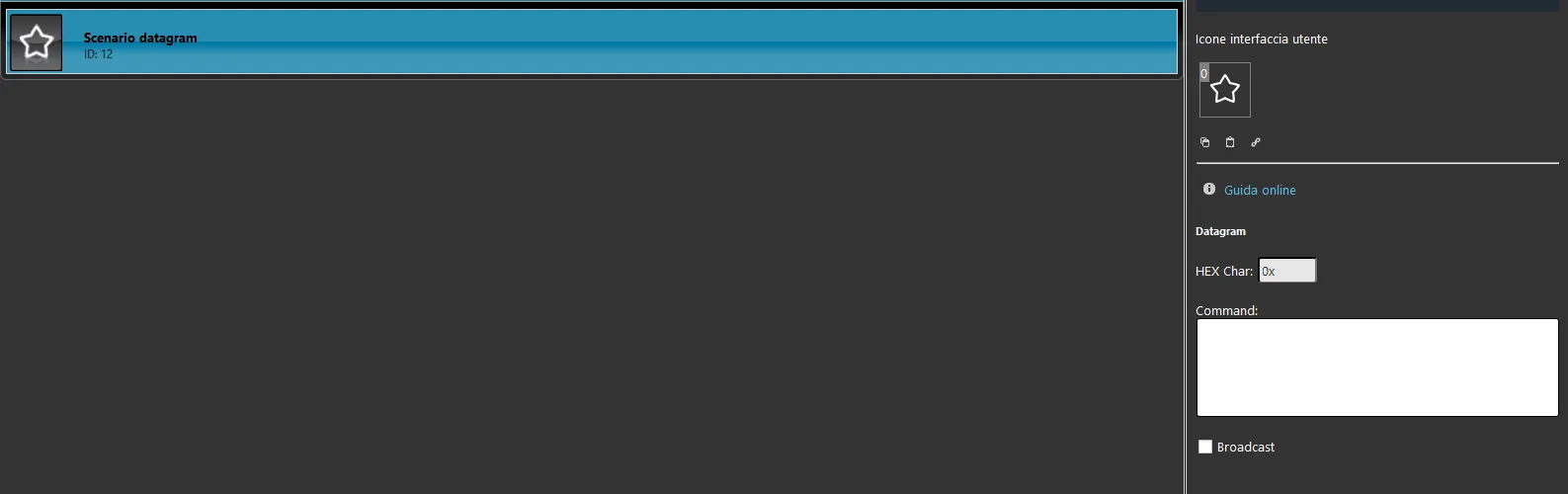
Step 3:
Now enter the parameters in the text field Command, in the properties of the Scenario component.
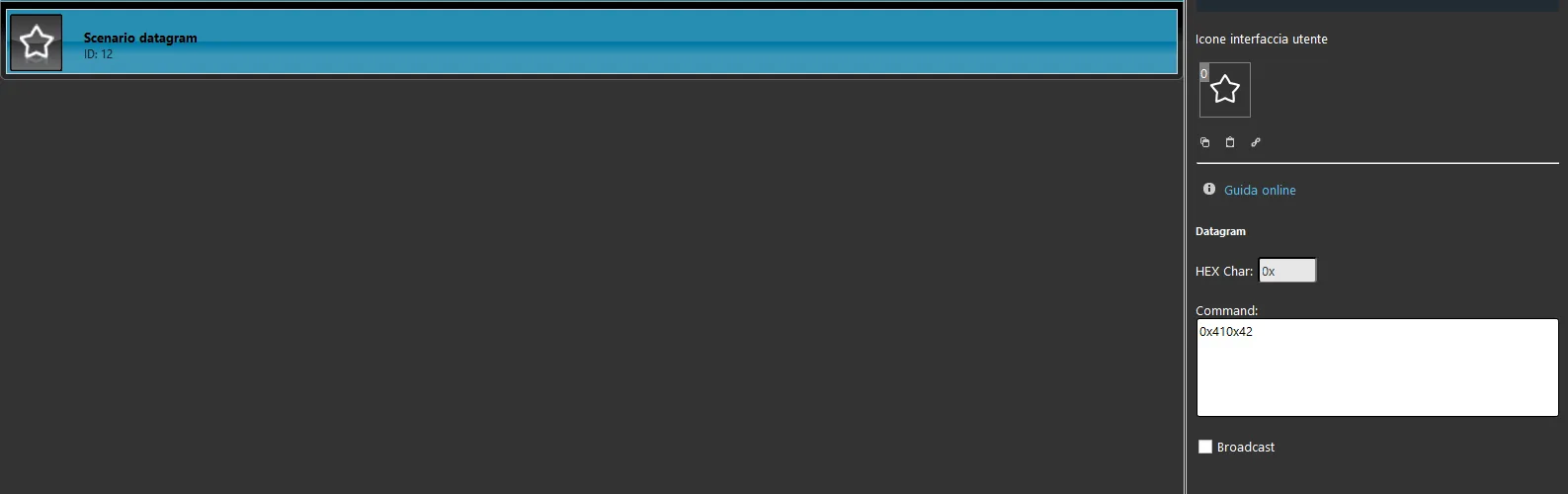
Step 4:
Finally add the component to the user interface and upload the project to the server.
Click the logos below to consult the documentation for the corresponding device.

You can view an example of configuring the Scenario component with IRTrans by downloading the example from this link.
After uploading the Ilevia Manager project to the server, go to the components section and open the group for the Remote control or Remote control component.
You can test the operation by opening the live section of the Ilevia Control app.