Wake on LAN with Ilevia
How to configure in Ilevia Manager a component that sends the Wake on LAN command to turn on a device from the Ilevia Control app.
Introduction
This function lets you turn on a device that supports Wake on LAN (WOL) with a simple command from the Ilevia Control app. This guide explains how to configure in Ilevia Manager the component that will send the WOL command.
Step-by-step configuration
Step 1:
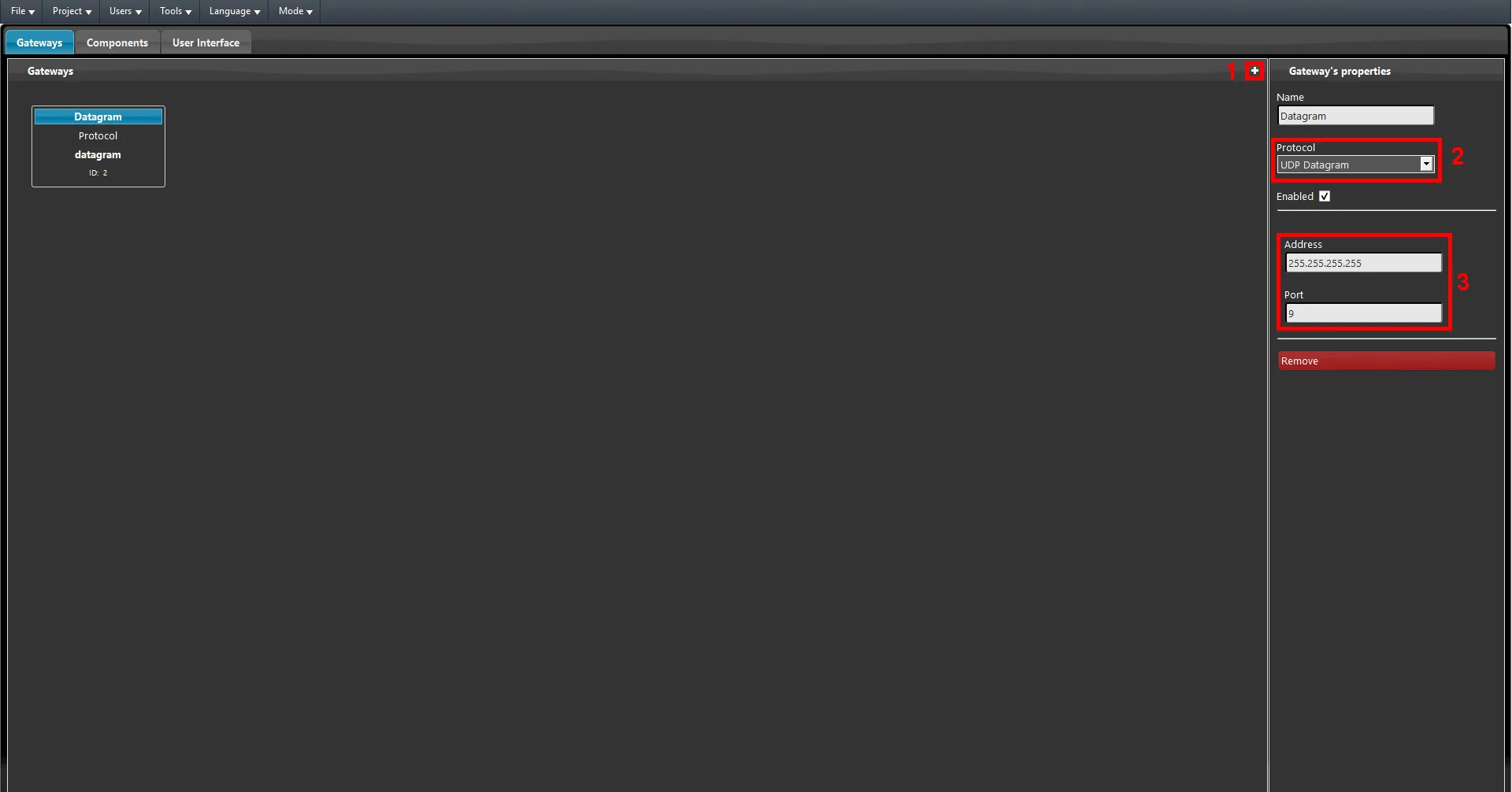
Go to the Gateway section of Ilevia Manager. 1. Add a new Gateway by clicking the + icon at the top of the section. 2. Select the UDP Datagram gateway. 3. Set the address 255.255.255.255 in the Address text field. Finally, change the default port to 9.
Step 2:
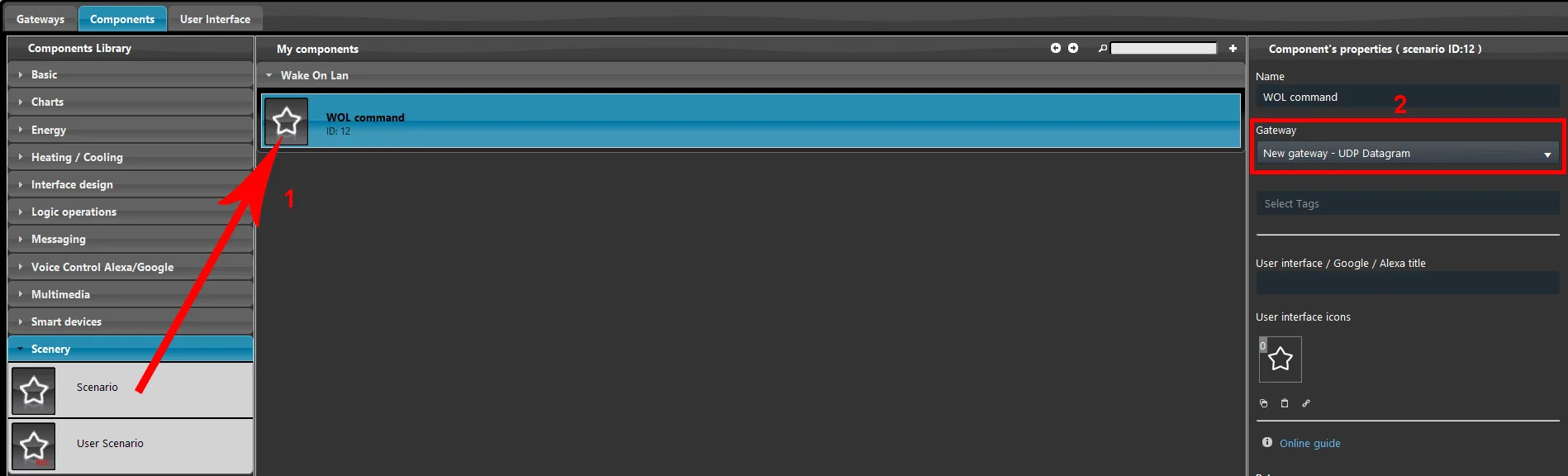
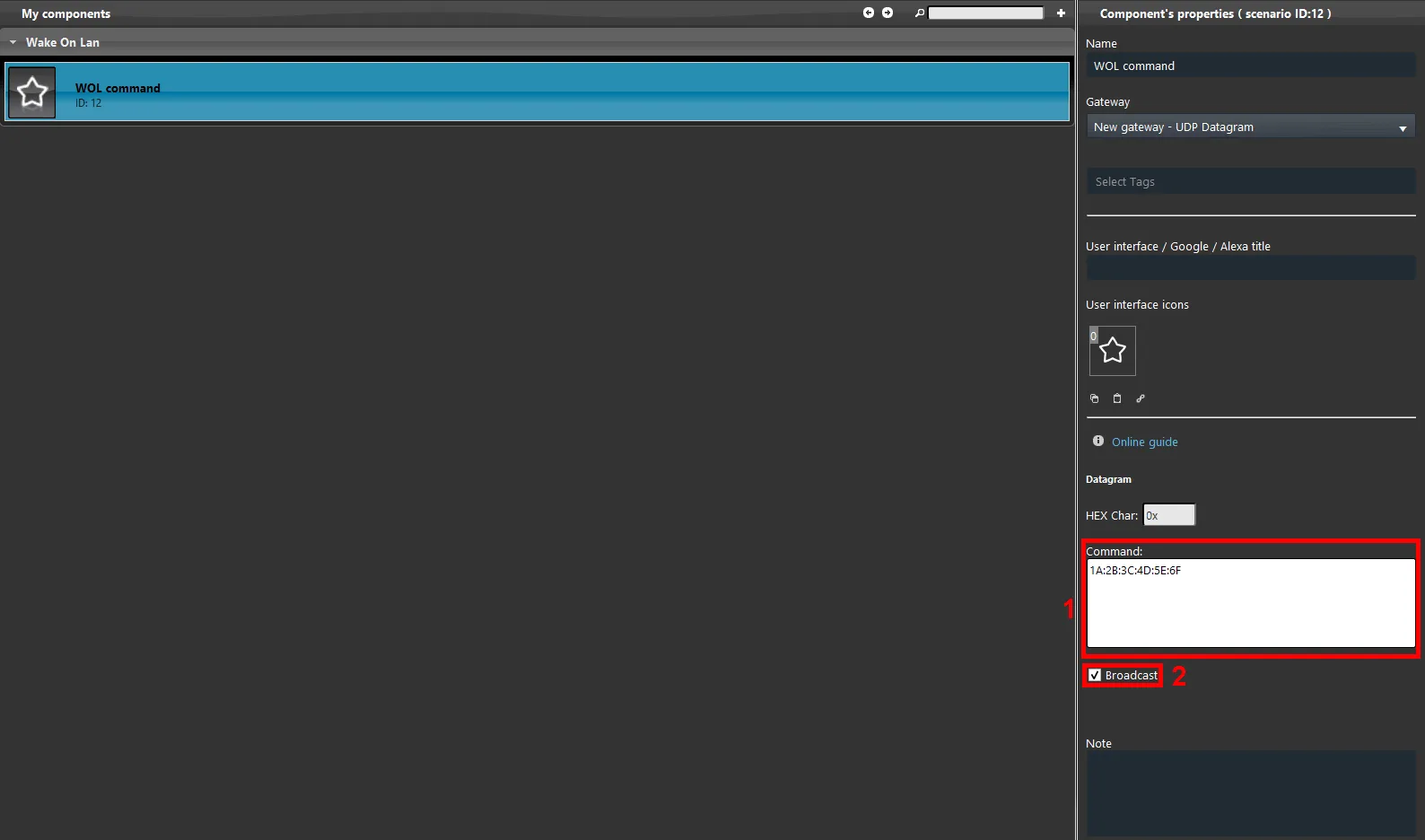
1. Go to the Components section and add a new scenario component. 2. Make sure UDP Datagram is selected as the gateway.
Step 3:
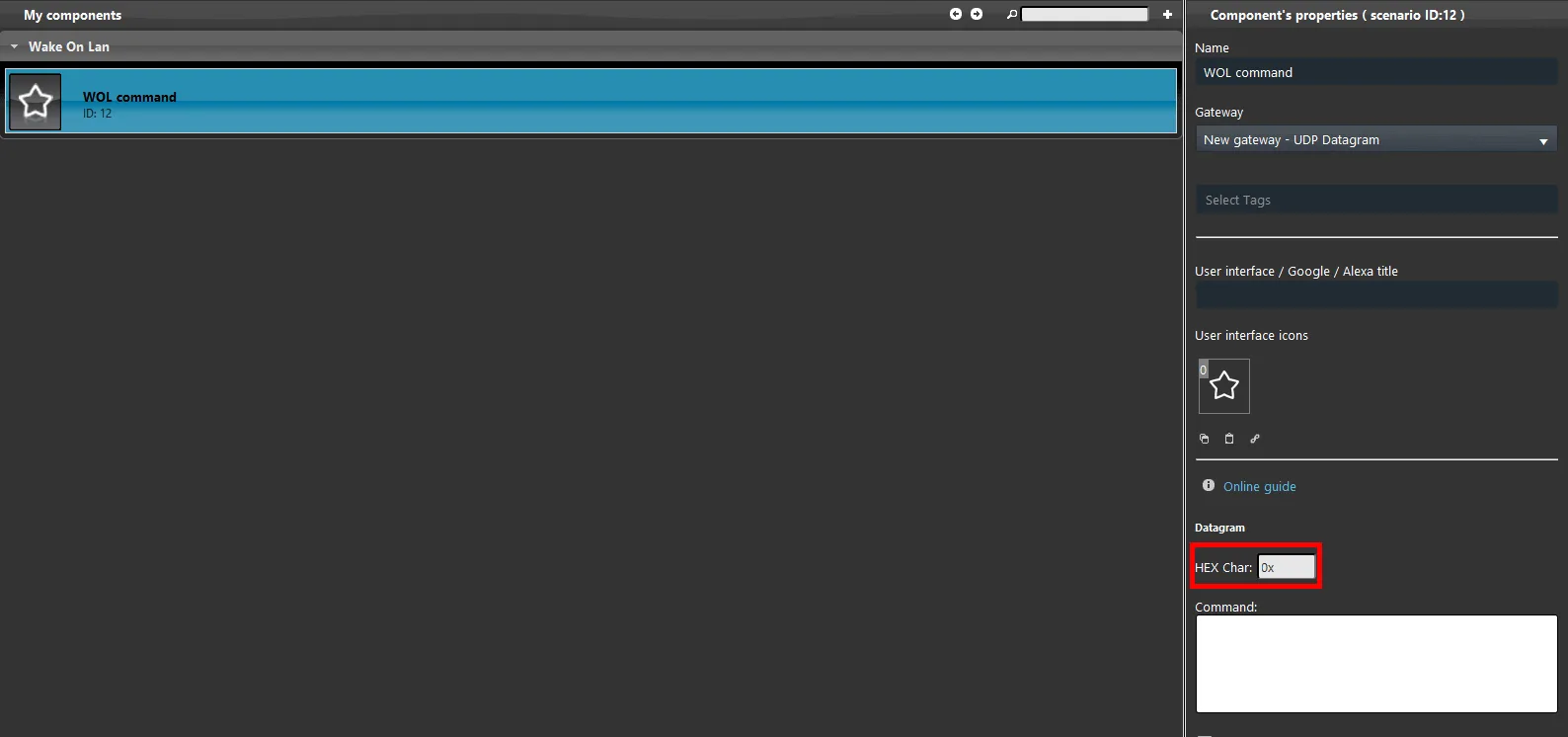
Enable the Hexadecimal option in the scenario component properties.
Step 4:
1. Copy the device MAC address of the network card and paste it into the Command text field, in the scenario component properties. 2. Make sure the Broadcast checkbox is enabled.
Step 5:
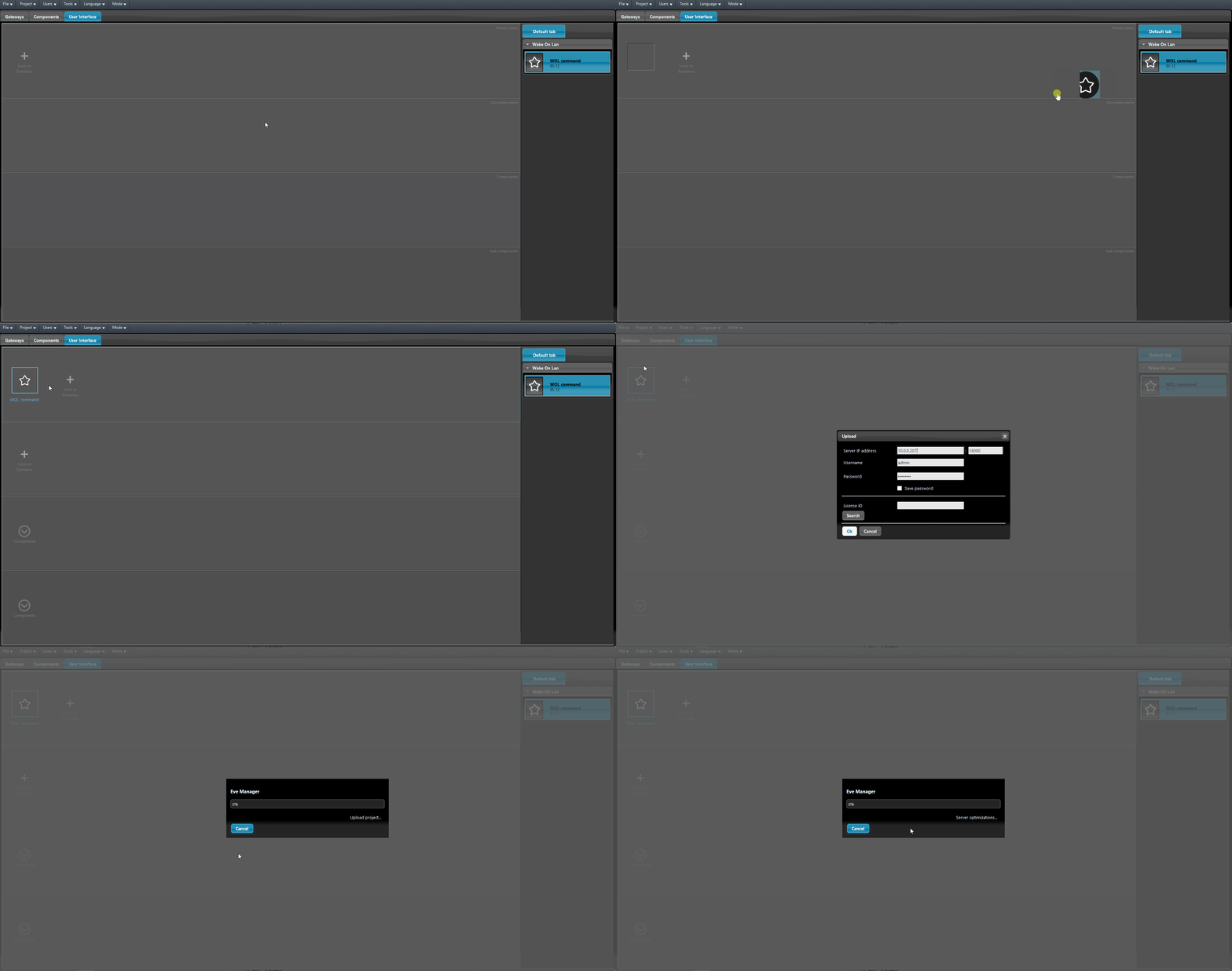
Add the component to the user interface and upload the project to the server.