
Copier example project
Configuration example of the Copier component in Ilevia Manager to turn on a lighting group, with downloadable project.
Introduction
This guide shows and explains an example of a possible configuration with the Copier component to turn on a lighting group.
Preparation and loading of the project in Ilevia Manager:
Extract the file;
Open Ilevia Manager, go to the top-left corner, click File – Open – click “Ok” in the message that appears and select the file just extracted;
Start the virtual machine or the Raspberry;
Download and install the latest logics following this guide.
Project configuration
Step 1:
Open Ilevia Manager, then add 8 Switch components.
Also add a Copier component from the corresponding sections within the Component library.
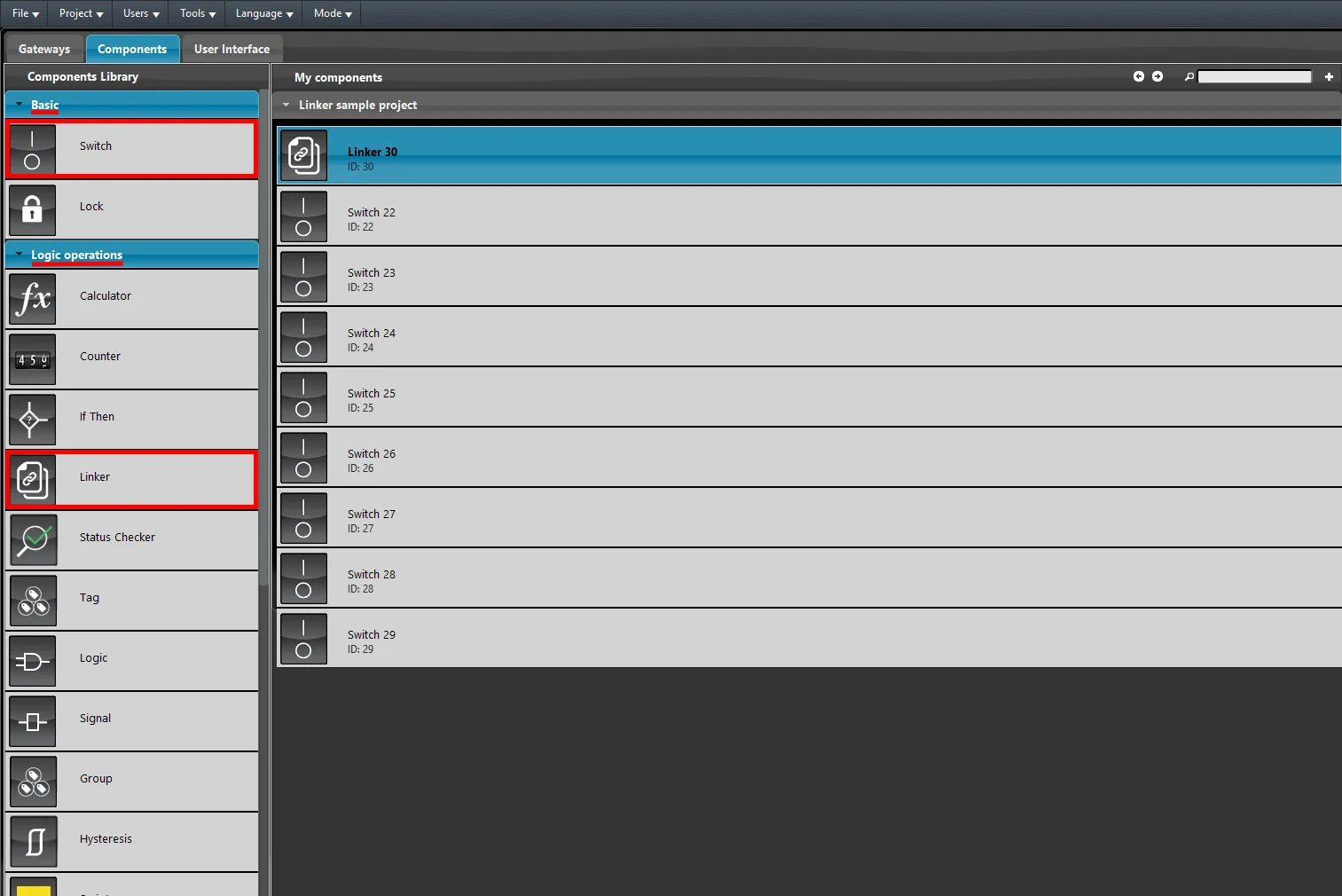
Step 2:
Access the properties of the Copier component. Add the source component Hallway light 1.
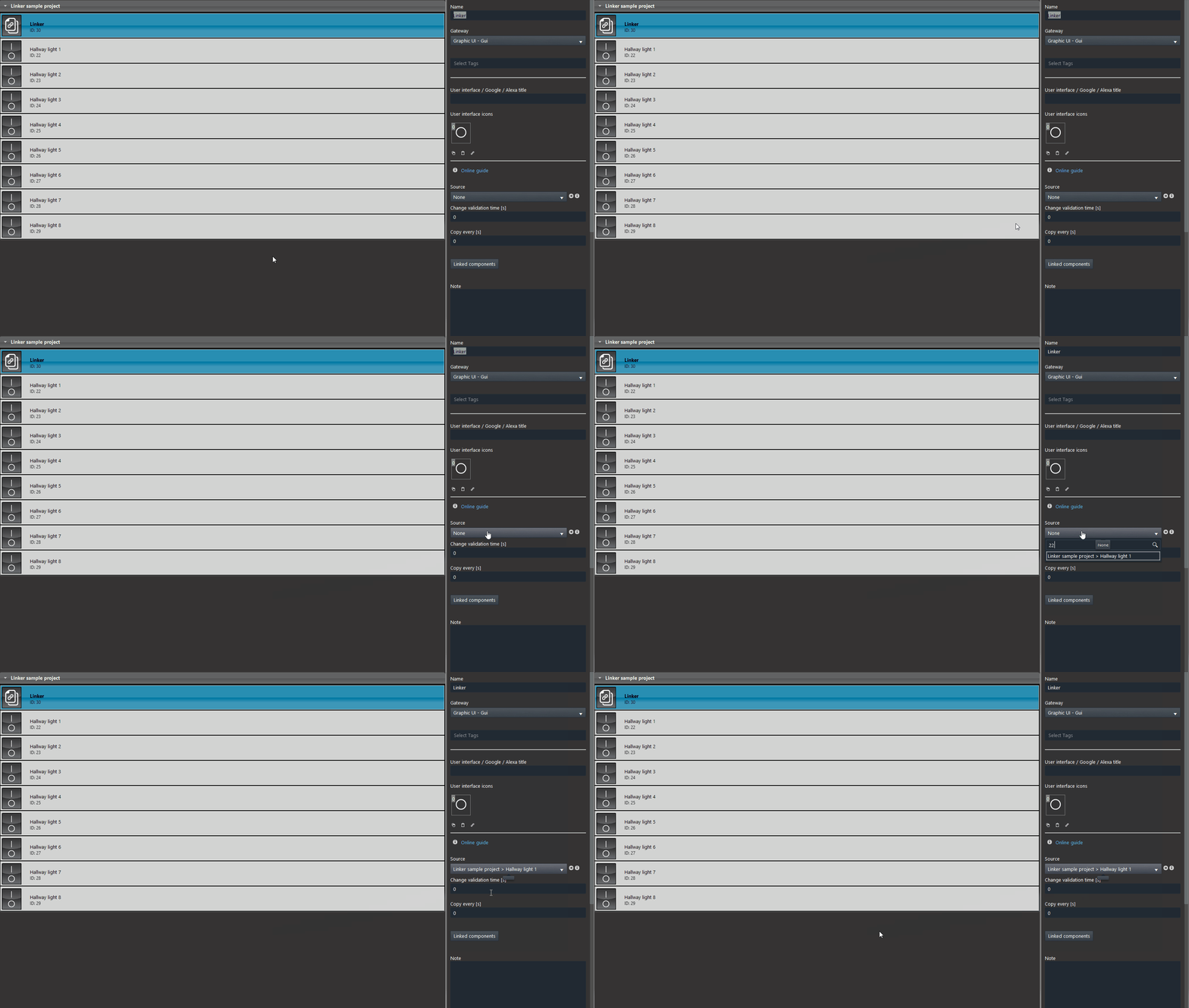
Step 3:
1. Click Components to copy within the Copier component properties, 2. then add the components to which the value will be copied by dragging them or by double-clicking the left mouse button on the component to add it to the list.
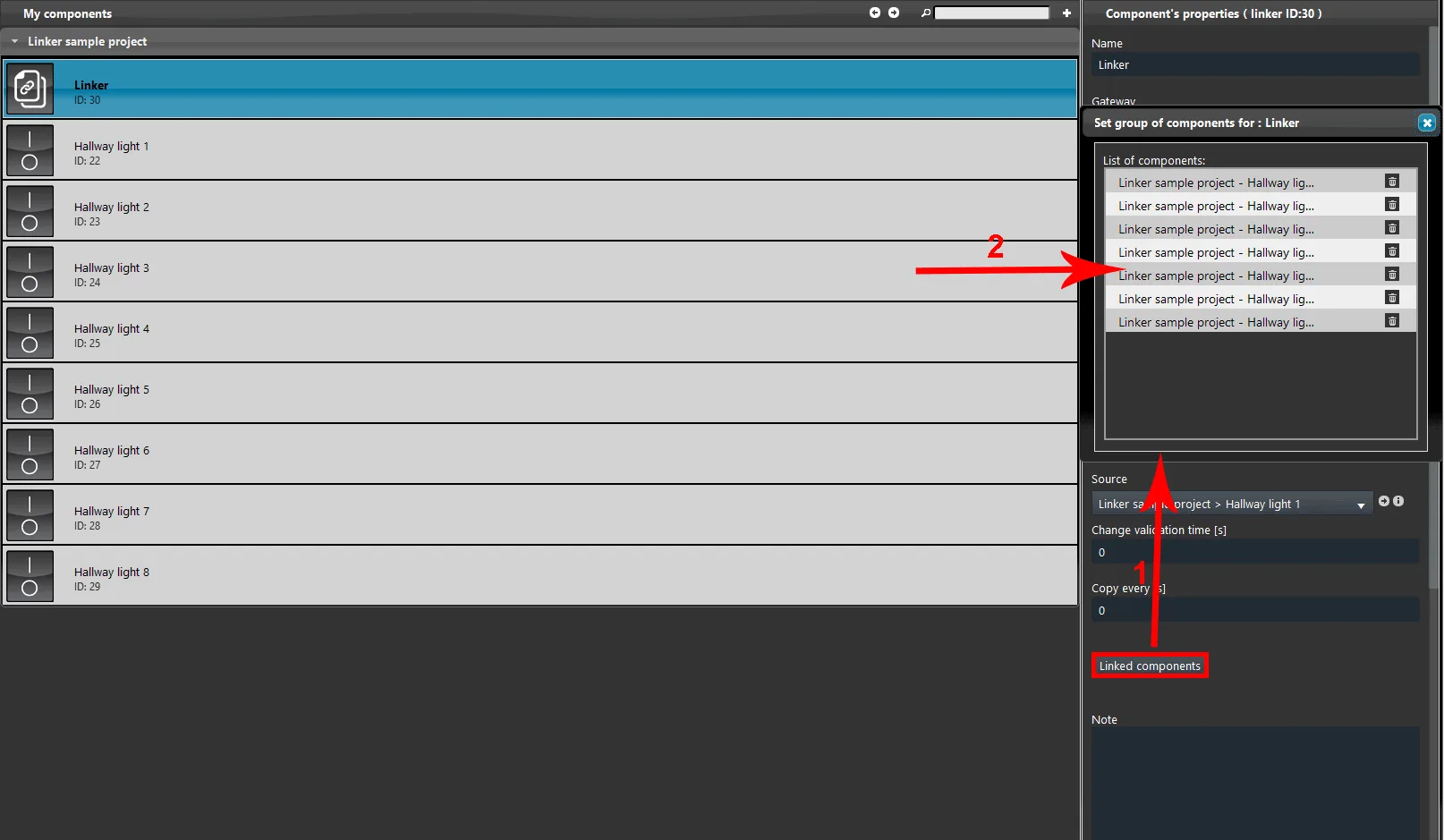
Step 4:
Finally, open the Ilevia Manager interface editor and add the components as shown in the image below. In this example, the Classic interface style was used.
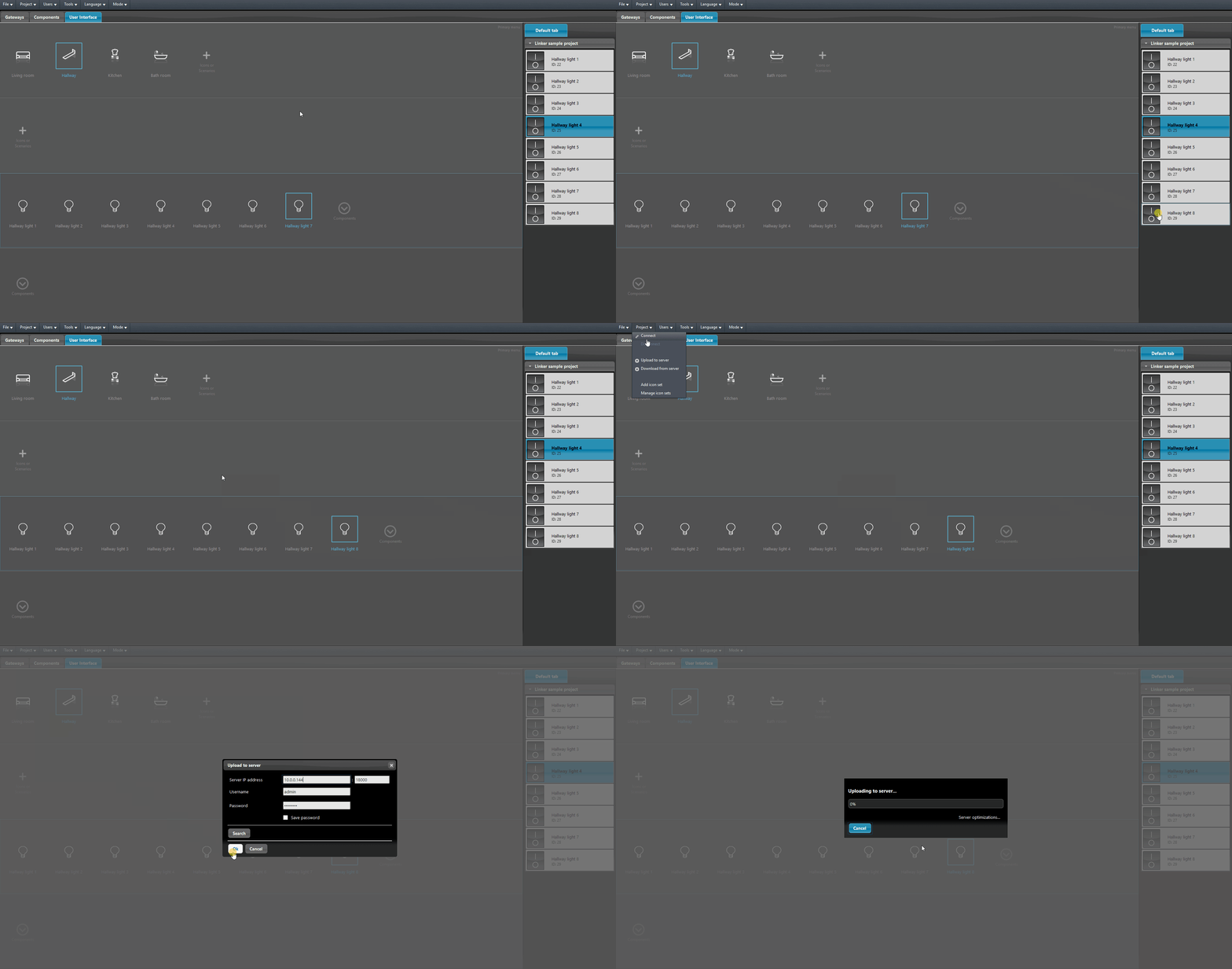
Step 5:
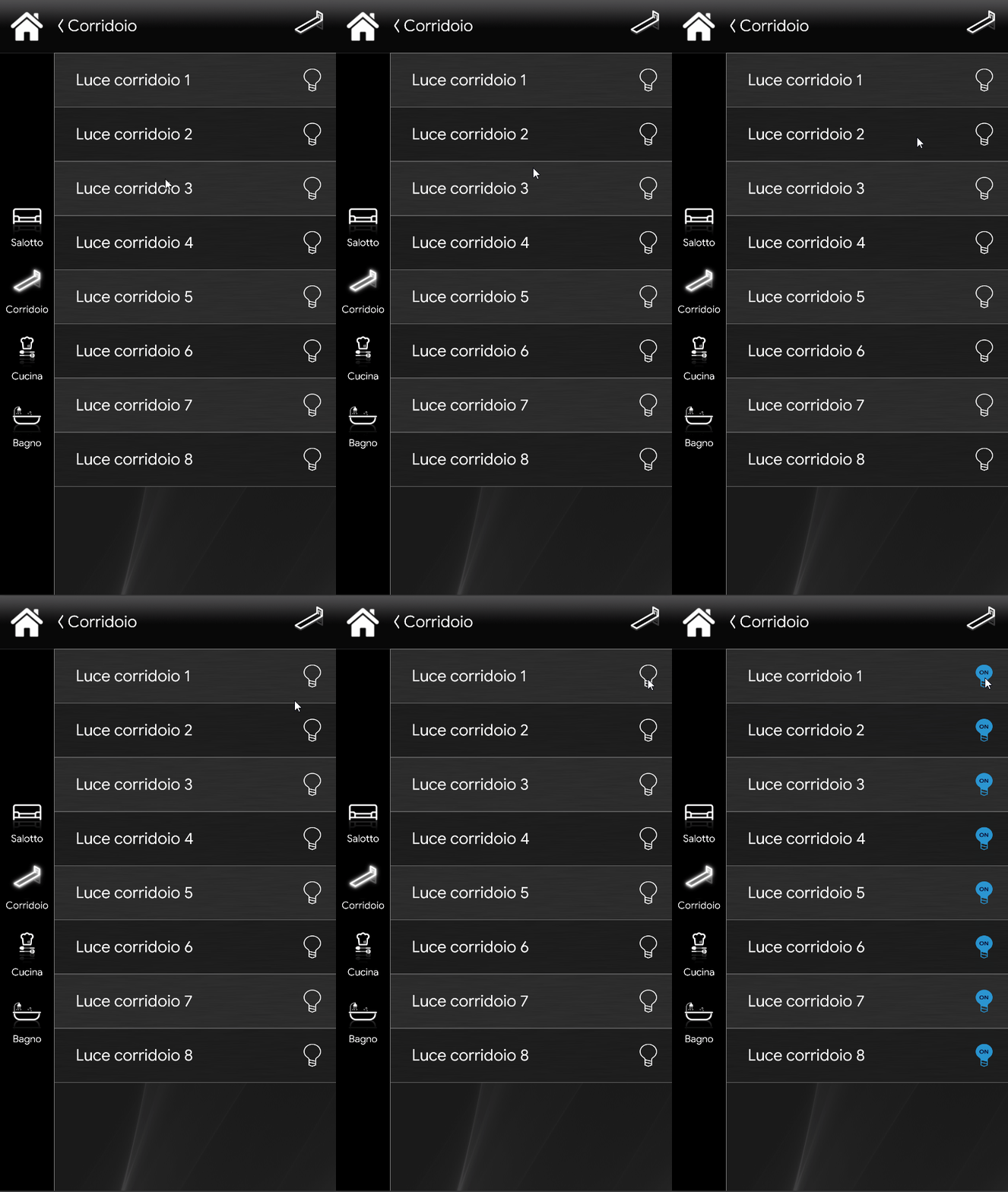
Below is the visual result of the components within the Ilevia user interface ( Classic style).
Click the link to download the example project and try it.