
Example project for the Events controller component
Practical example of configuring the Events controller component in Ilevia Manager to disable events during a garden party.
Introduction
This guide explains and shows how to configure the Events controller component in a real context within the configuration software Ilevia Manager. In this specific example, the scenario is as follows: a garden party has been organized, the user wants the lights to stay on, keep irrigation off, and disable the alarm so that it does not trigger while the party is in progress.
Project configuration
Step 1:
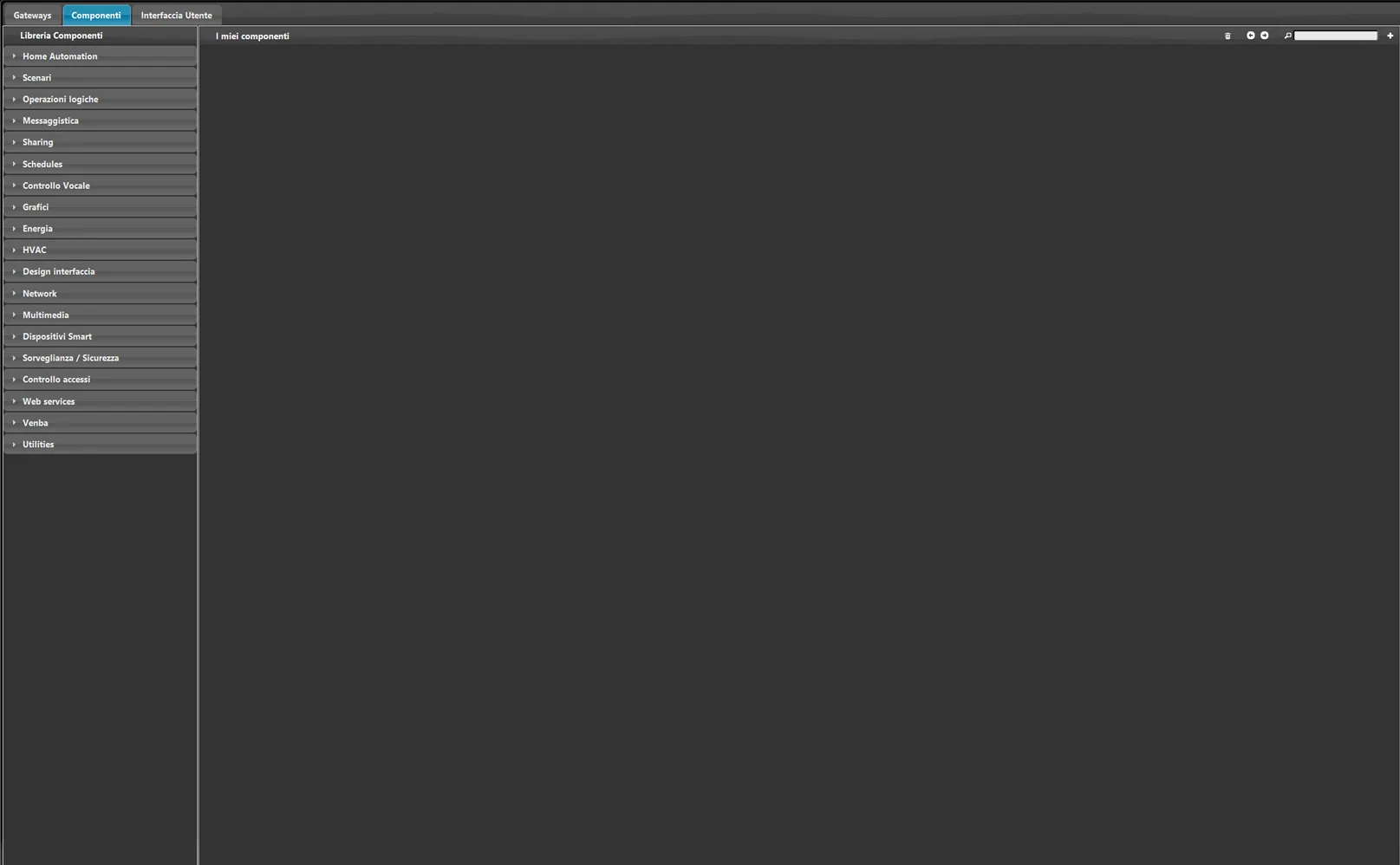
Open the Ilevia Manager software, then go to the Components section.
Step 2:
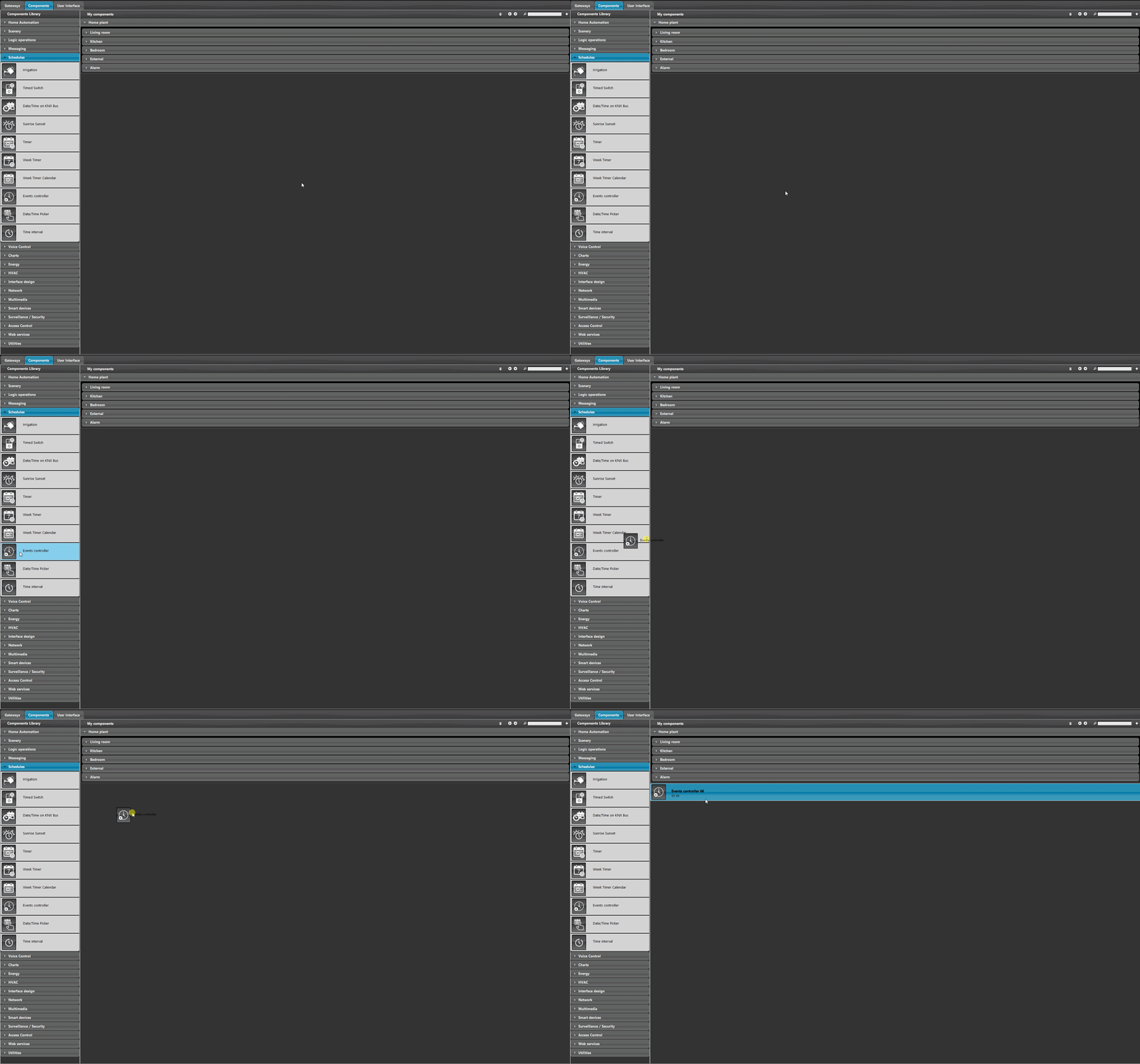
Add an Events controller component to the project; the component is in the Component library under the Schedule section.
Step 3:
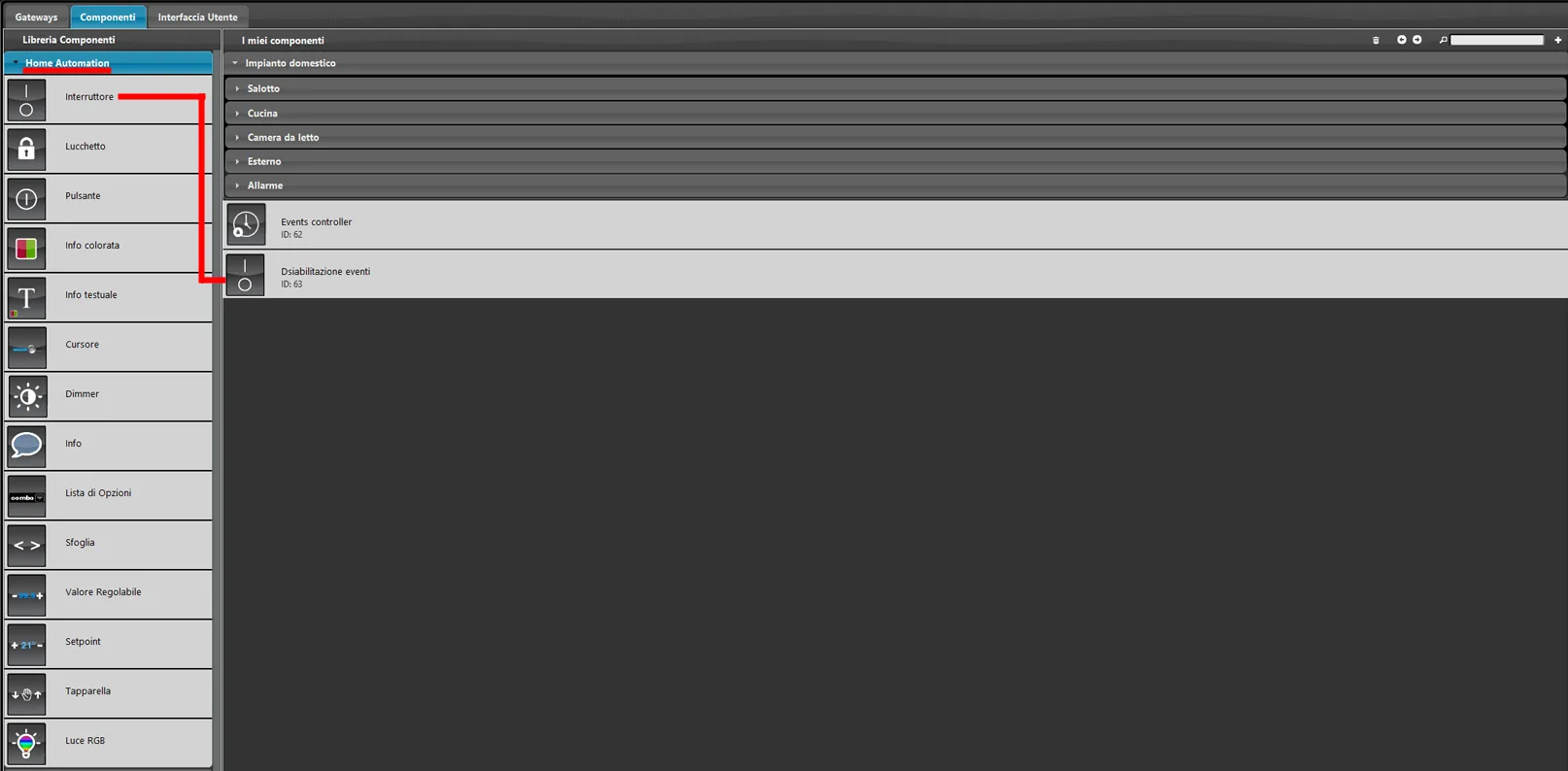
Add a new Switch component in the Components section from the Home automation menu; it will be used as the Event disable component.
Step 4:
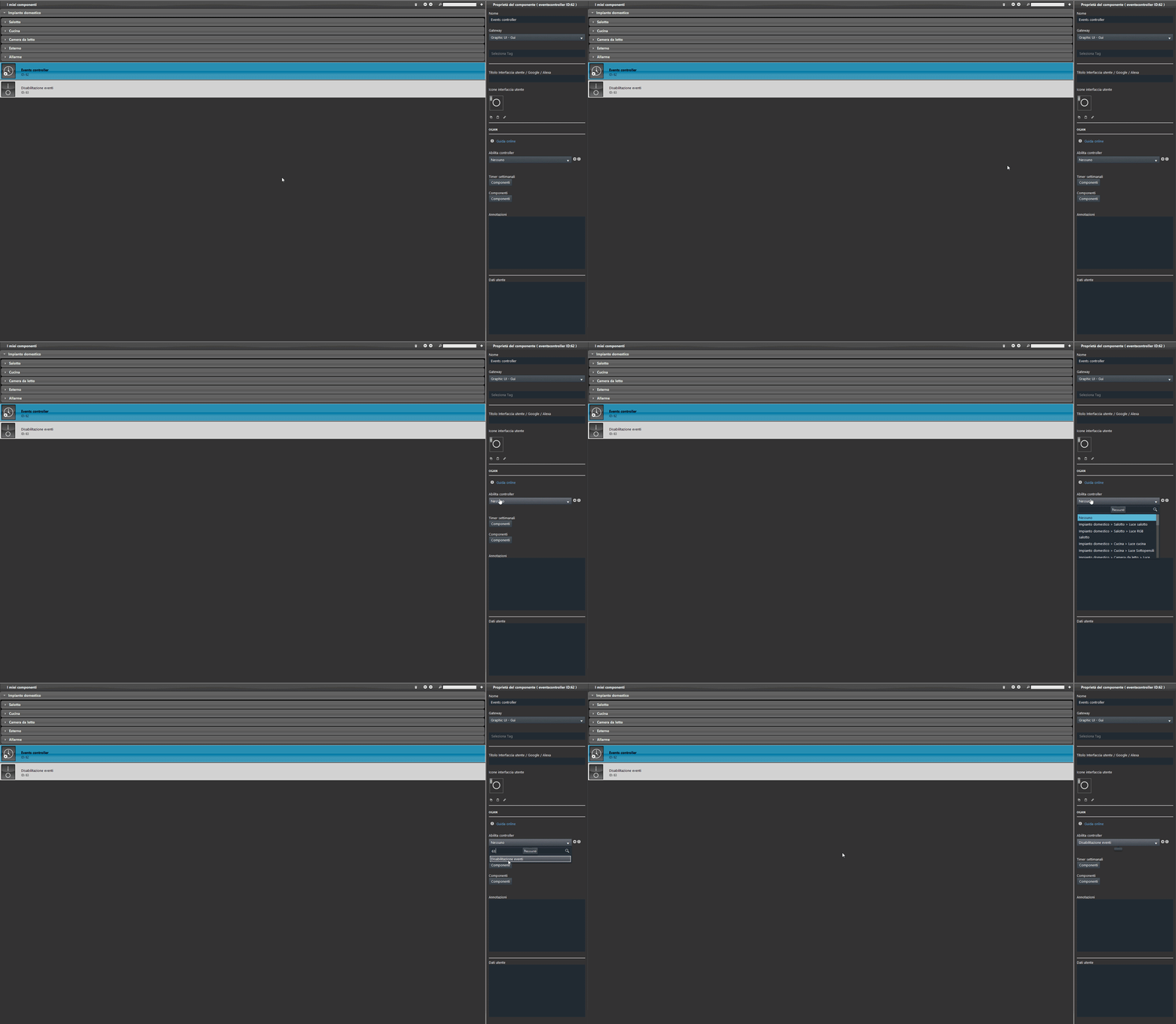
Connect the Switch component to the Events controller component.
Step 5:
Add the Weekly timer component to the Timer list in the Events Controller component properties.
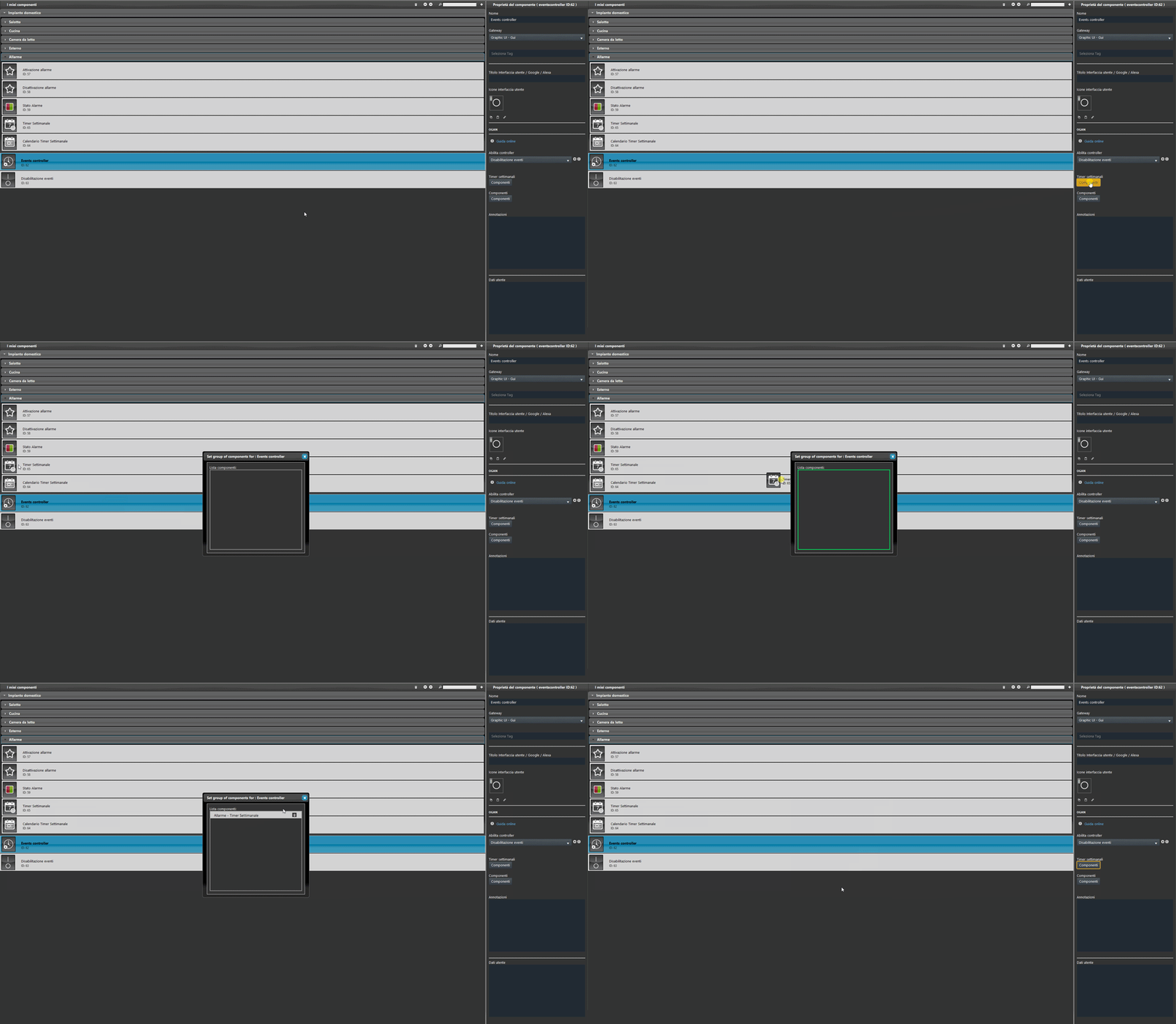
Step 6:
Add the outdoor lights, the command for alarm activation, and the Irrigation start command to the component list of the Events Controller component.
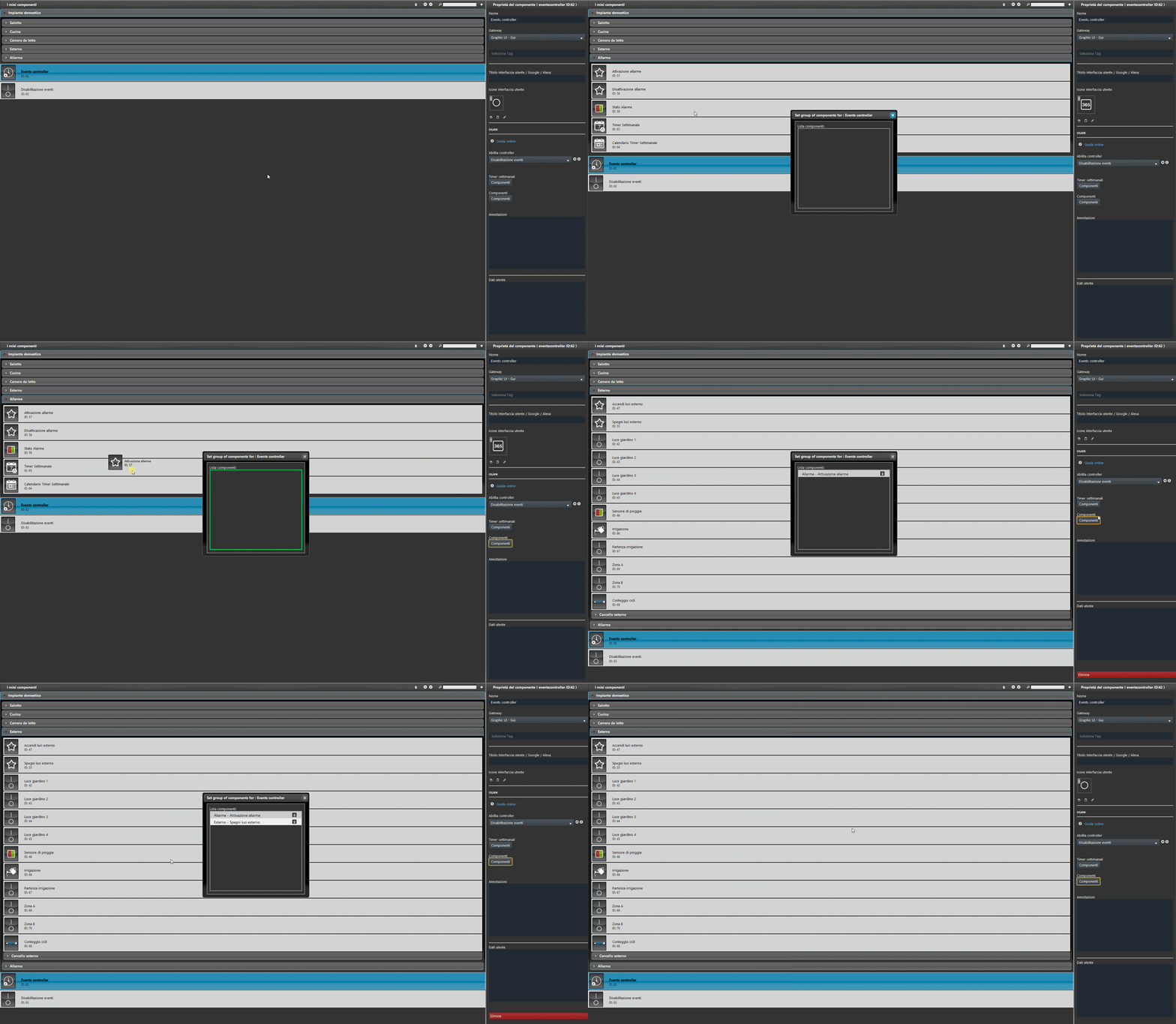
Step 7:
Add the Disable events component to the User interface and finally upload the project to the server.
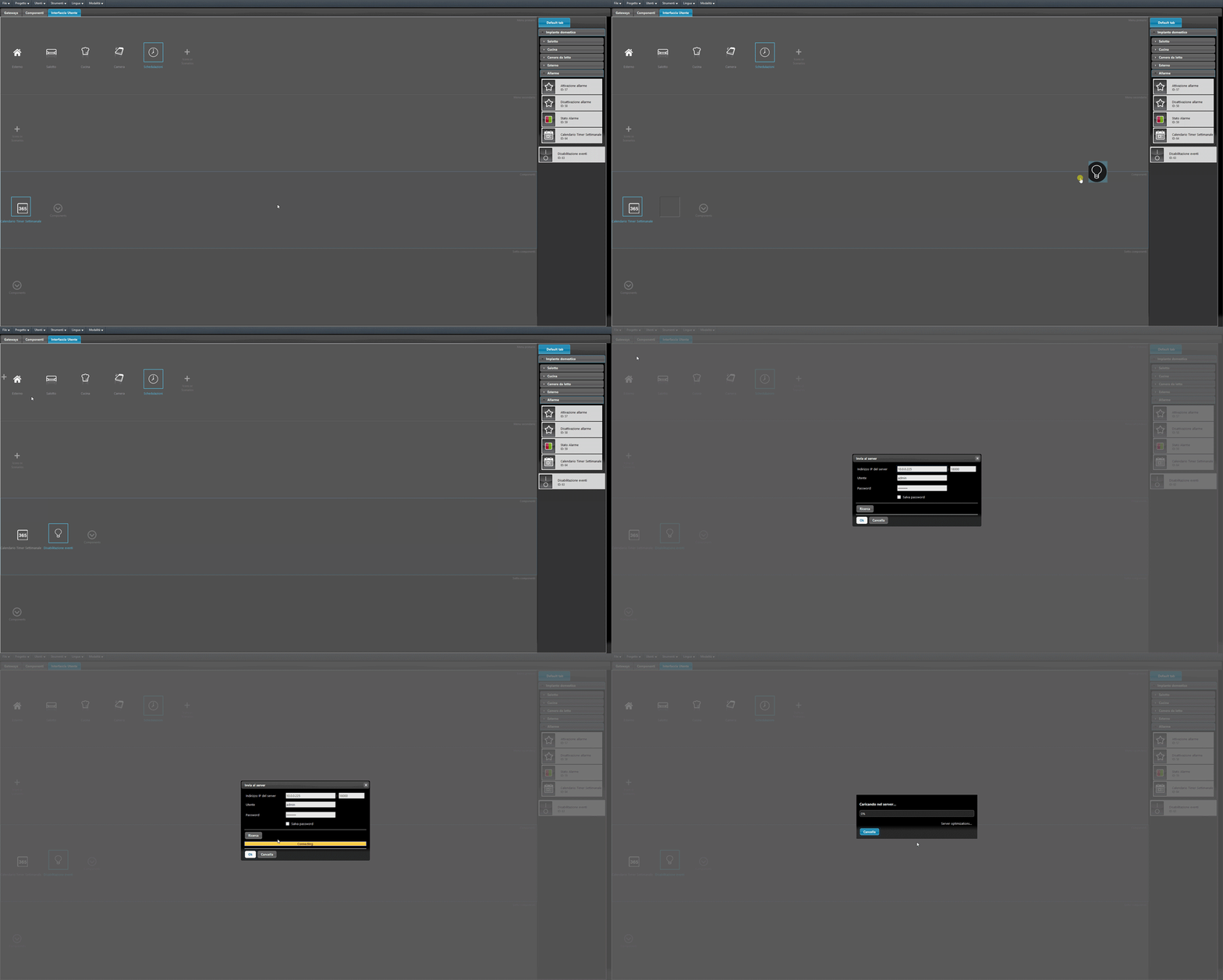
Conclusion
Once the Disable events component is activated, the components in the Components list of the Events controller that have active time schedules in the Weekly timer added to the Timer list will be disabled.
Click the link to download the example project and try it out.