Video verification
How to configure the Video verification component in Ilevia Manager to receive a notification with the camera replay in Ilevia Control when an event occurs.
Introduction
This component records a few frames, saved and displayed as replay based on the component configuration in the Ilevia Manager project. When the event occurs, the user receives a notification if the app is closed, or a pop-up window if they are already in the app; by clicking it, they access the Video verification component screen in the Ilevia Control app.
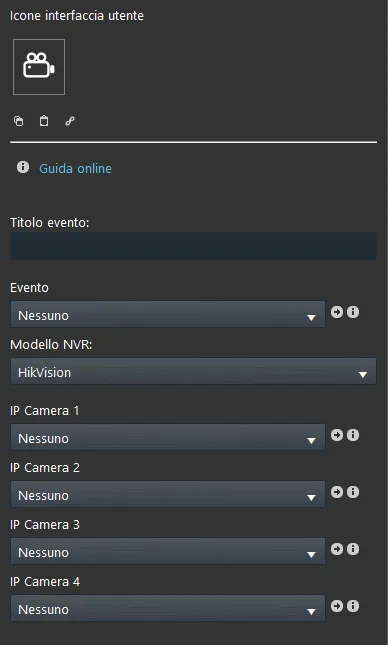
Event type: event title displayed when the notification is sent.
Event: link here the Switch component that will trigger the component.
NVR model: select the NVR model between HikVision and Dahua.
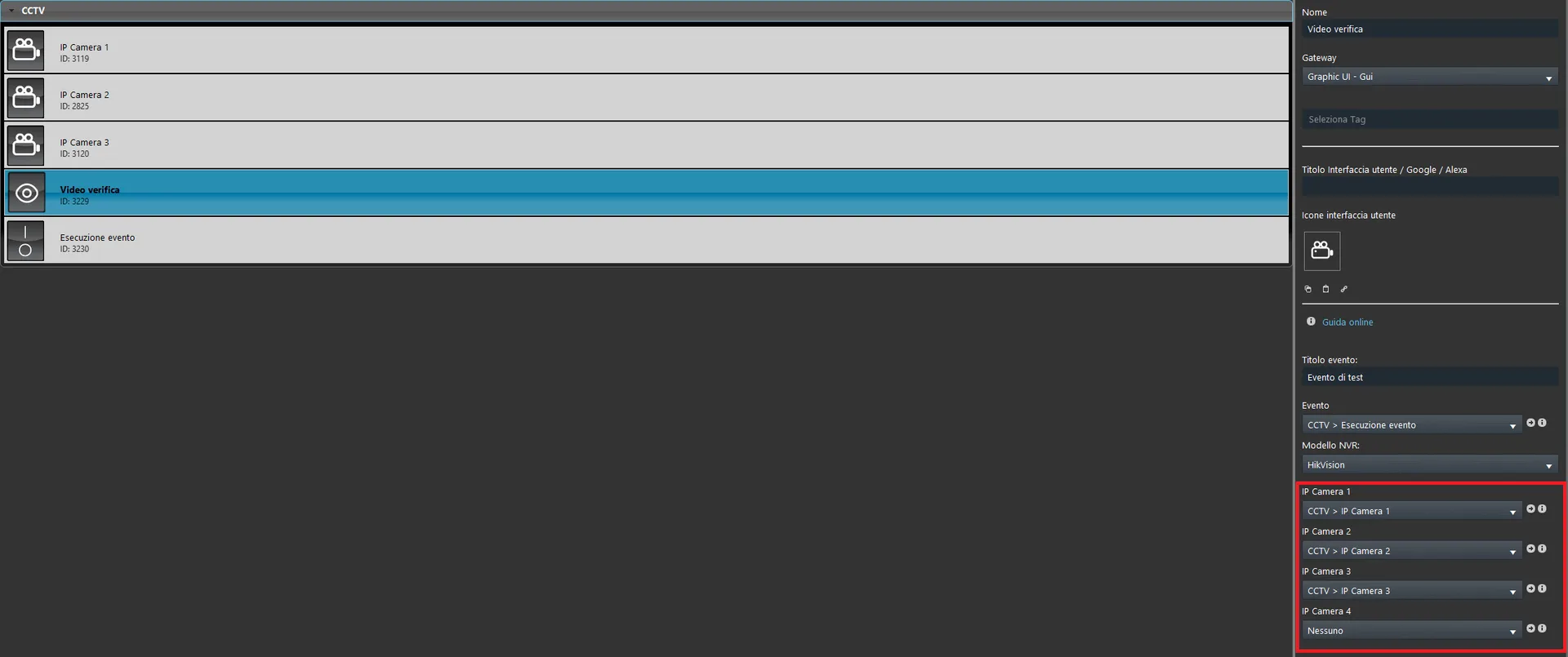
IP Camera 1, 2, 3, 4: add here all the IP camera components that will be taken into account when the Video verification component is executed.
Component configuration
Step 1
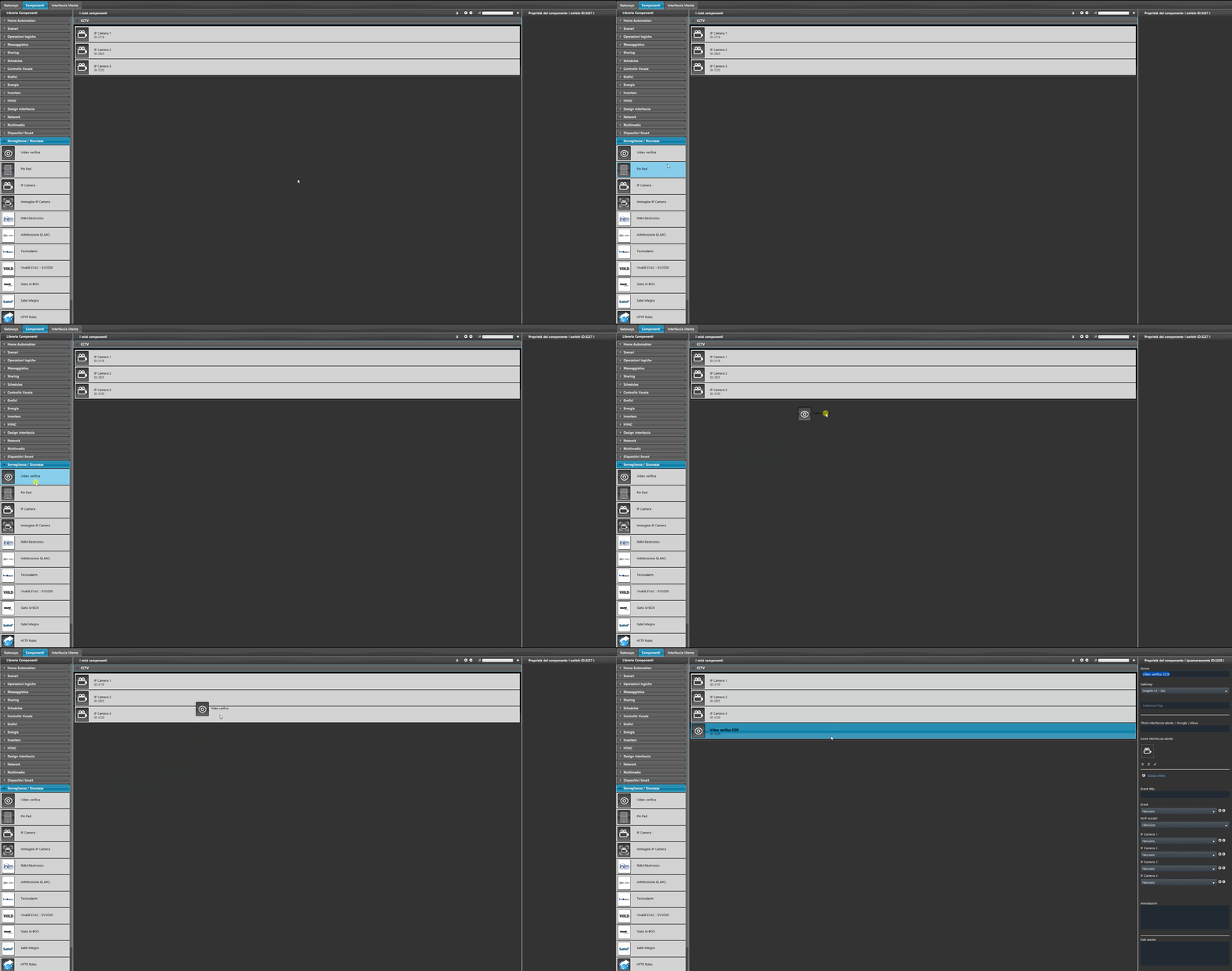
Add the Video verification component in the Surveillance / Security section.
Step 2
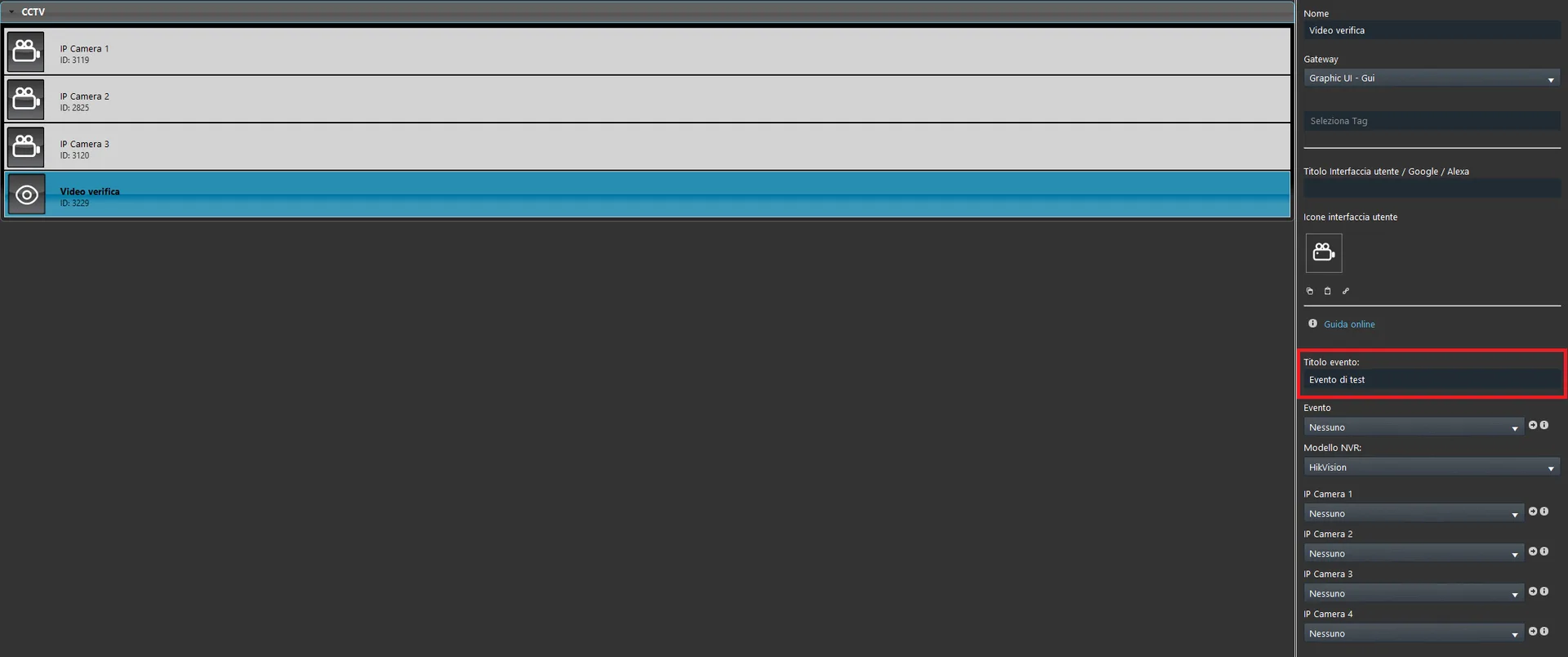
Set the Event type parameter of the Video verification component. This text will be displayed in the notification when the event is executed.
Step 3
Link the Switch component you chose to start the event, and therefore send the notification in the Ilevia Control app.
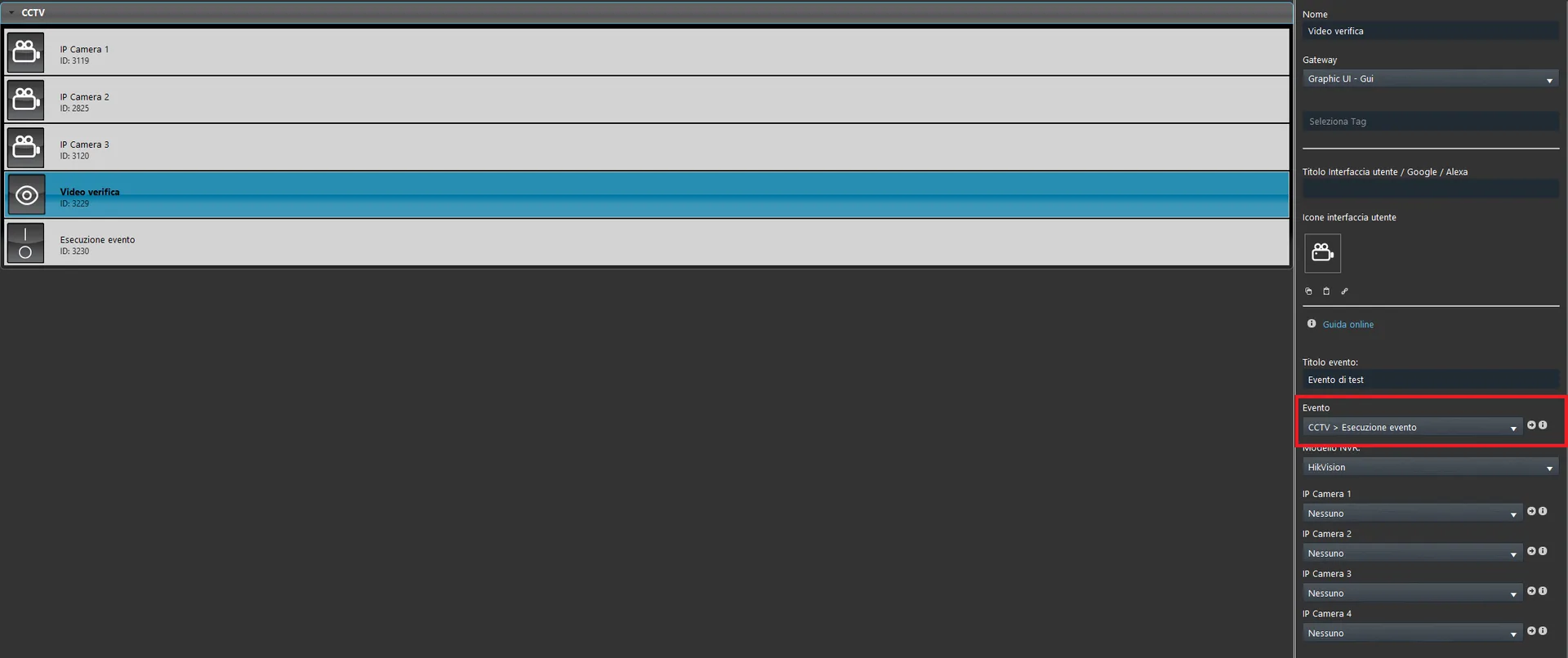
Step 4
Make sure the selected NVR model matches the one installed.
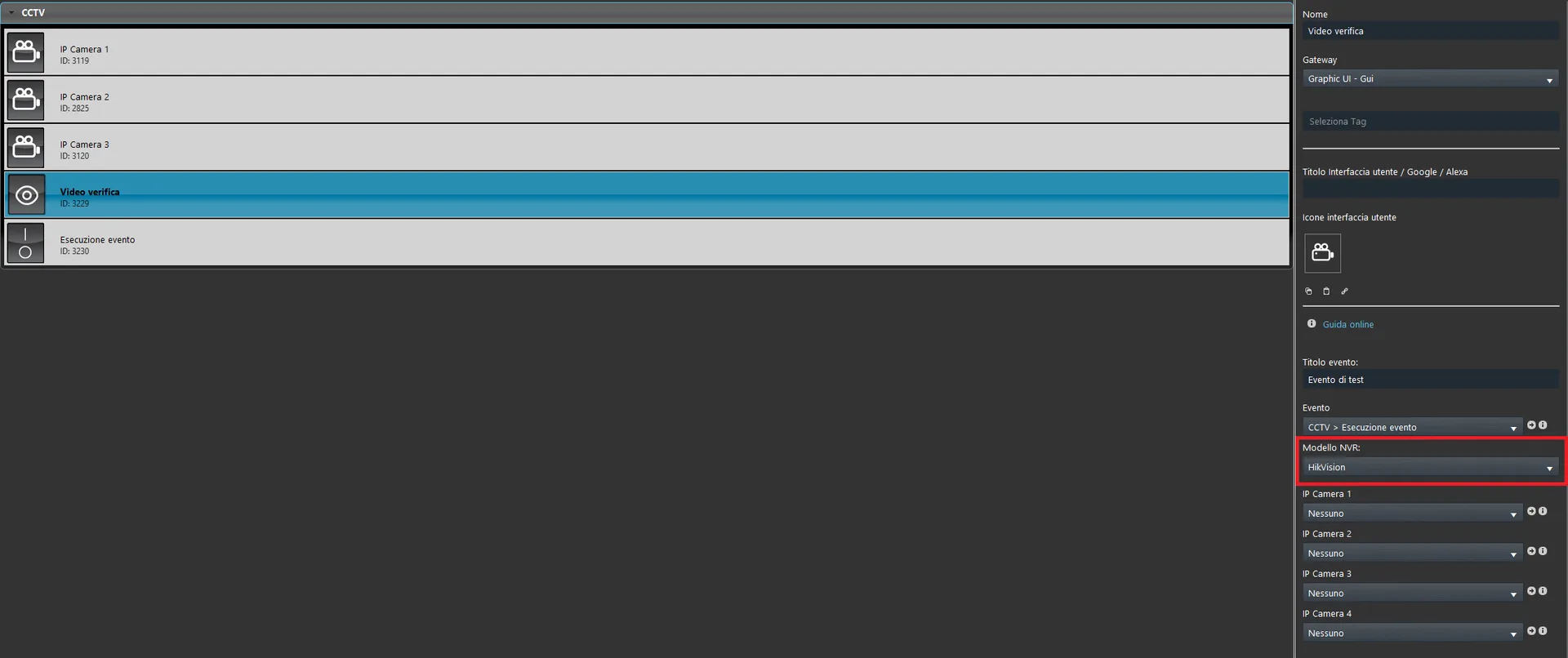
Step 5
Link the IP camera components that will be displayed when the user clicks the notification or clicks “Show event” from within the Ilevia Control app.
Live test
Below is the test of the Video verification component in the Classic user interface of the Ilevia Control app.
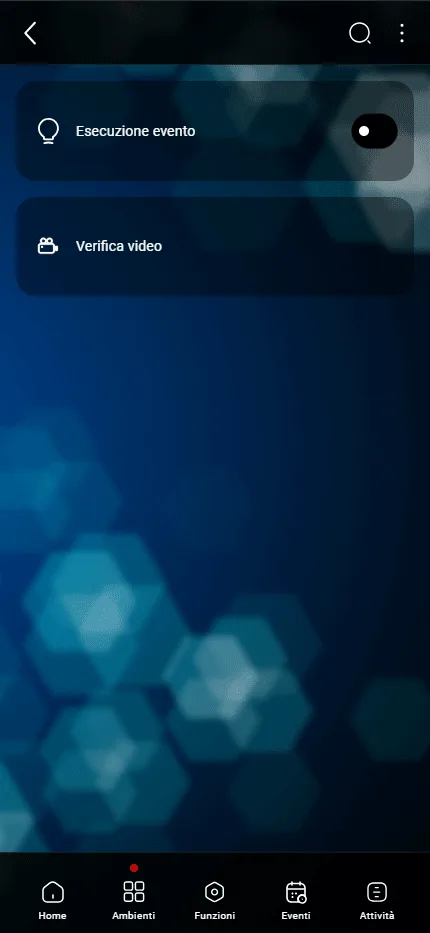
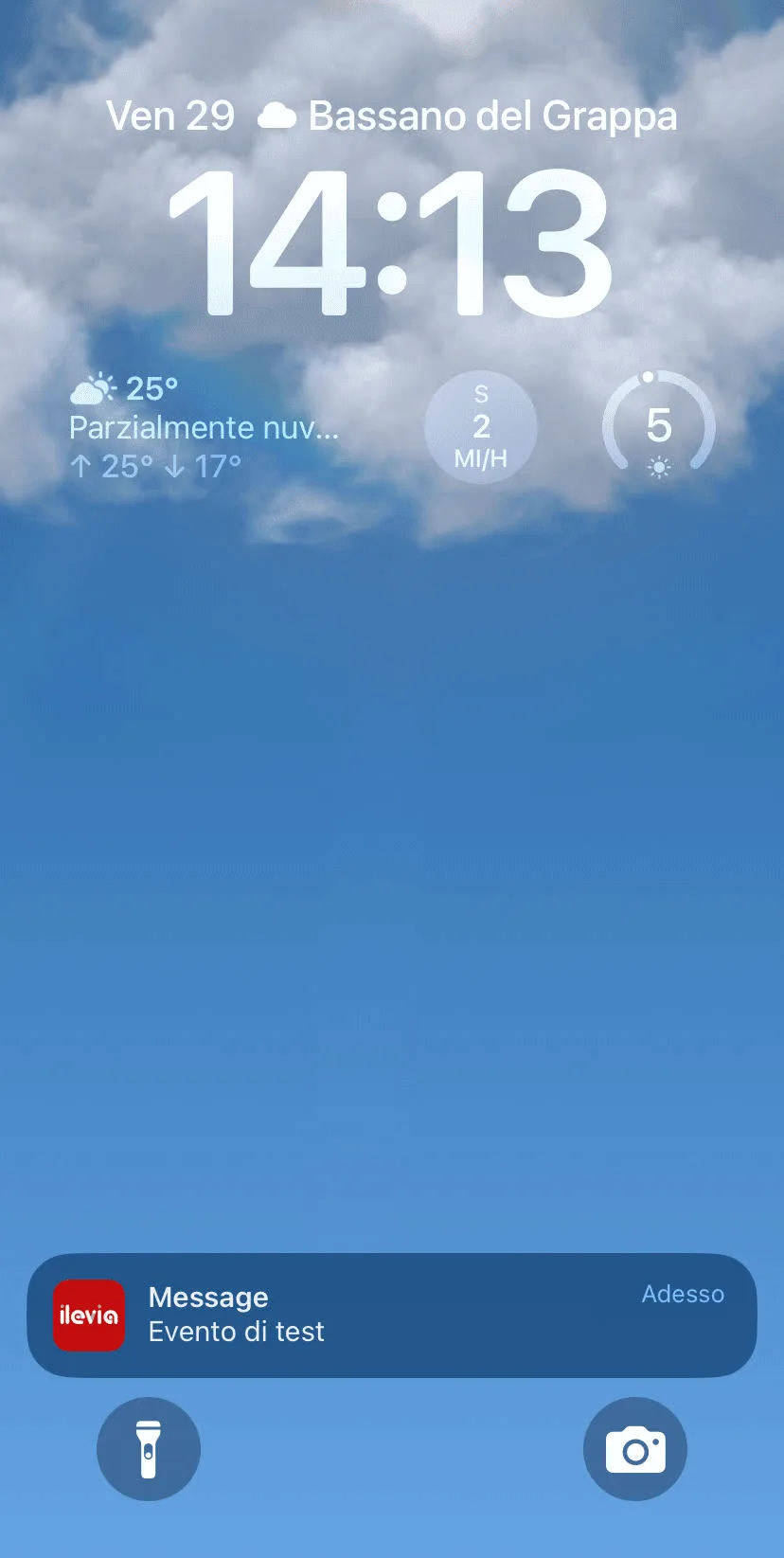
Once the event is started, if the Ilevia Control app is closed you will receive a push notification.
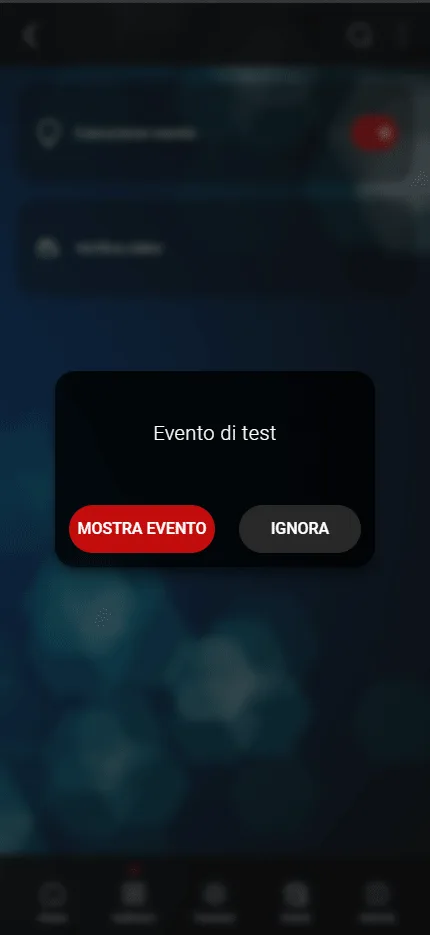
If the event is executed while you are already in the app, a pop-up window appears: you can choose to Ignore the event or view its replay by selecting “Show event”.
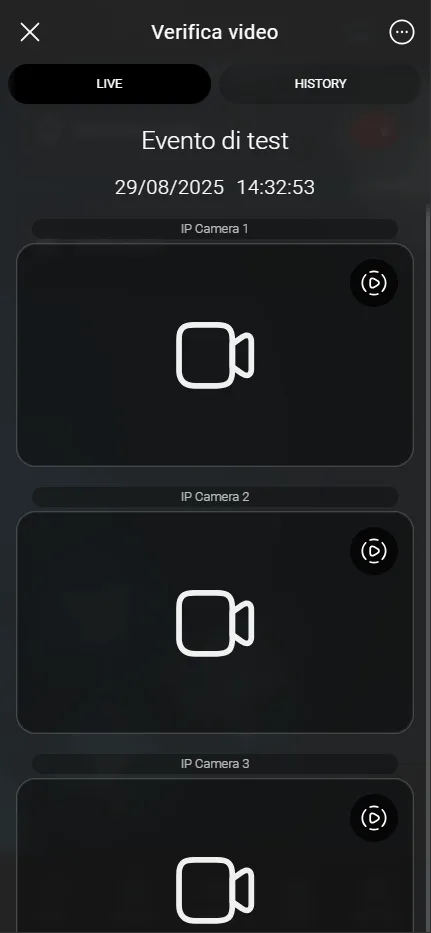
Below is the event display screen for video verification, where you can see a replay of a few seconds from the moment the event was started.