
Connect Google Home to Ilevia
How to connect Google Home and Google Assistant to the Ilevia server through the Ilevia Smart Home skill and control lights, shutters, and thermostats by voice.
This guide explains how to connect the Google Home app to the Ilevia server through the Ilevia Smart Home skill, to control the components configured in Voice Control Manager by voice.
How to control your home automation system using Google Home
Ilevia has made it possible to use Google Home with KNX, Vimar By-Me, My Home by BTicino, Z-Wave and other Ilevia System protocols.
Make sure you use the same Google account for the Google Home app, Google Assistant, and on all Google devices installed for voice recognition.
After installing our system, the user, without using any app, will be able to control the devices simply by using voice recognition of the Google Assistant or via Google Home devices.
In the following sections we will explain how to configure a KNX light through Ilevia Manager and the related configuration of the Google Assistant.
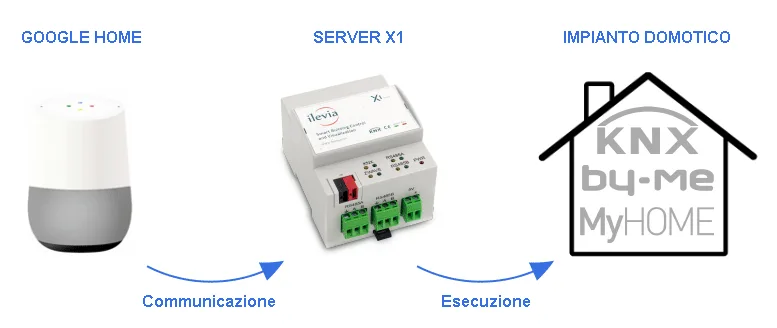
Google Home speakers allow users to speak voice commands to interact with services through Google’s intelligent personal assistant called Google Assistant. A large number of services, both internal and third-party, are integrated, allowing users to listen to music, control video or photo playback, or receive news updates entirely by voice. Google Home devices also have built-in support for home automation, allowing users to control smart appliances and KNX devices with their voice. Multiple Google Home devices can be placed in different rooms of a home to control devices in a specific room. In this guide, you will learn how to set up a KNX light in a living room and control it by voice.
Ask Google
The following is a list of sample voice commands accepted by Google Home to control your smart home through Ilevia:
Lights:
Voice command: | Say “Ok Google” or “Hey Google” followed by… |
To turn a light on / off | Turn on / off <light name> |
To dim a light | Dim <light name> |
To brighten a light | Brighten <light name> |
Set the light level | Set <light name> to 50% |
Dim / brighten to a specific percentage | Brighten / dim <light name> by 50% |
Change a light color | Set <light name> to green |
Turn on / off all lights in a room | Turn on / off <room name> |
Turn on / off all lights | Turn on / off all lights |
Scenes:
Voice command: | Say “Ok Google” or “Hey Google” followed by… |
Activate a scene | Activate <scene name> |
Switches, Sockets:
Voice command: | Say “Ok Google” or “Hey Google” followed by… |
Turn a switch or socket on / off | Turn on / off <switch, socket name> |
Valve:
Voice command: | Say “Ok Google” or “Hey Google” followed by… |
Open / close a valve | Open / close <valve name> |
Shutters, Blinds, Curtains:
Voice command: | Say “Ok Google” or “Hey Google” followed by… |
Open / close shutters, blinds, curtains | Open / close <shutters, blinds, curtains name> |
Set shutters, blinds, curtains to a specific percentage | Set <shutter, blind, curtain name> to 50% |
Lock
Voice command: | Say “Ok Google” or “Hey Google” followed by… |
Lock / unlock | Lock / unlock <lock name> |
Thermostat
Voice command: | Say “Ok Google” or “Hey Google” followed by… |
Set a thermostat to a specific temperature in degrees Celsius | Set <thermostat name> to 22 degrees Celsius |
Set the thermostat mode | Set <thermostat name> to heating |
Ask for the current temperature | What is the temperature of <thermostat name / room name where the thermostat was added> |
Ask to raise or lower the temperature, with the mode set accordingly | I’m hot / I’m cold |
A reminder before continuing:
You do not need to own a Google Home device; you can use Google Assistant on your smartphone/tablet.
Refer to this documentation to set up Google Home devices.
Install the updated Ilevia logic files to correctly enable the Google plug-in (follow this guide);
Update your server to the latest available firmware by following this guide.
Configuration guide
INTRODUCTION
This guide requires a basic knowledge of the Voice Control Manager component and explains how to configure an existing Ilevia Manager project.
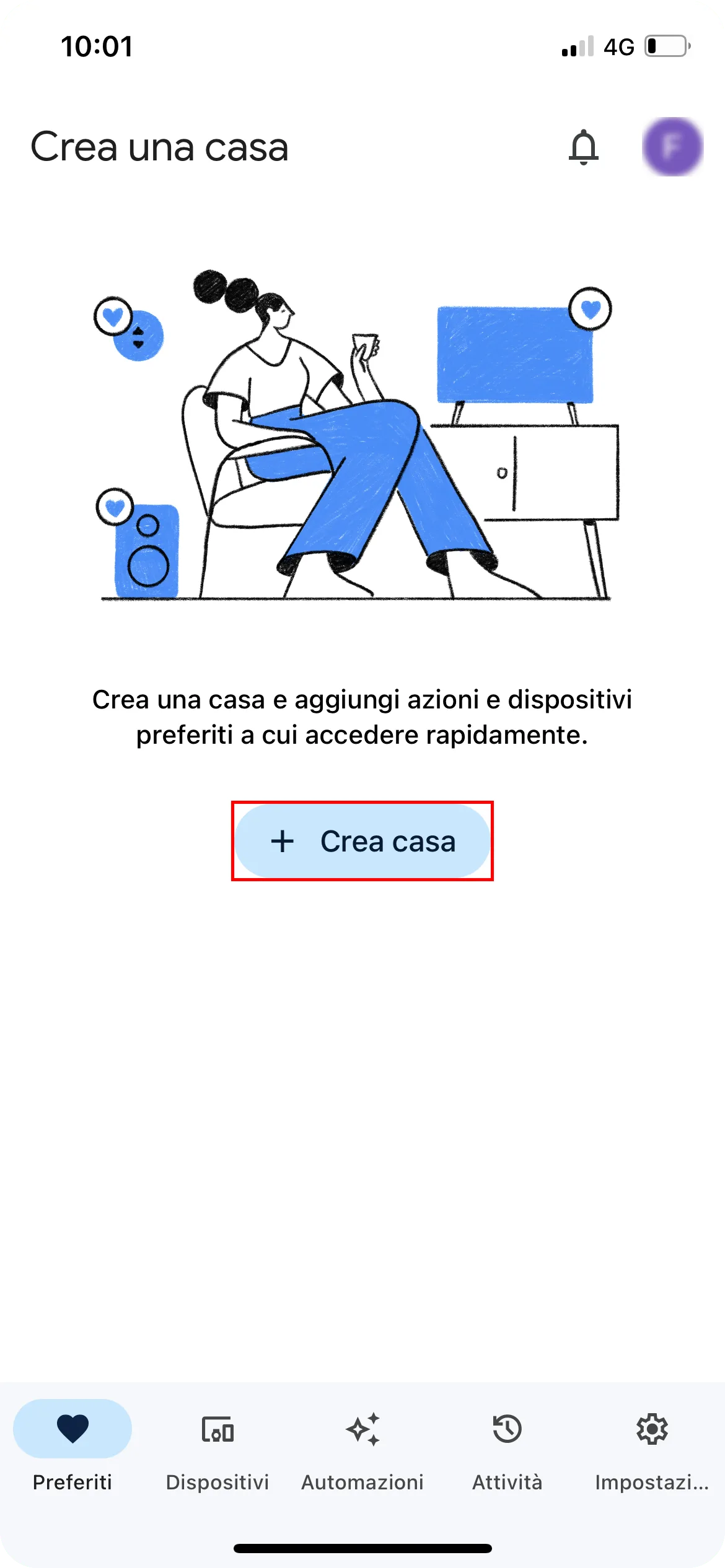
1.After installing the Google Home app, open it and this will be the first screen you see. Press “Create home”.
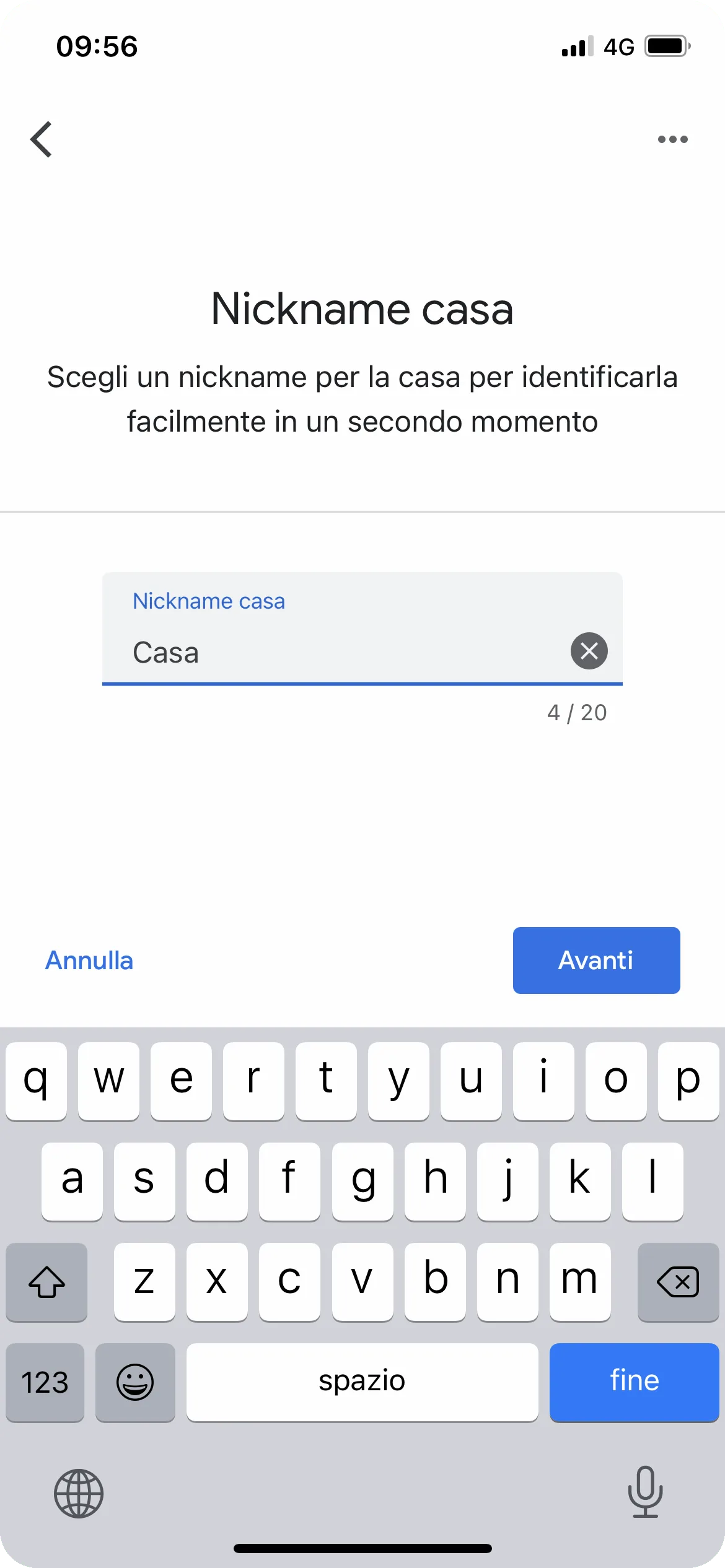
2. Enter a name for the home you are creating.
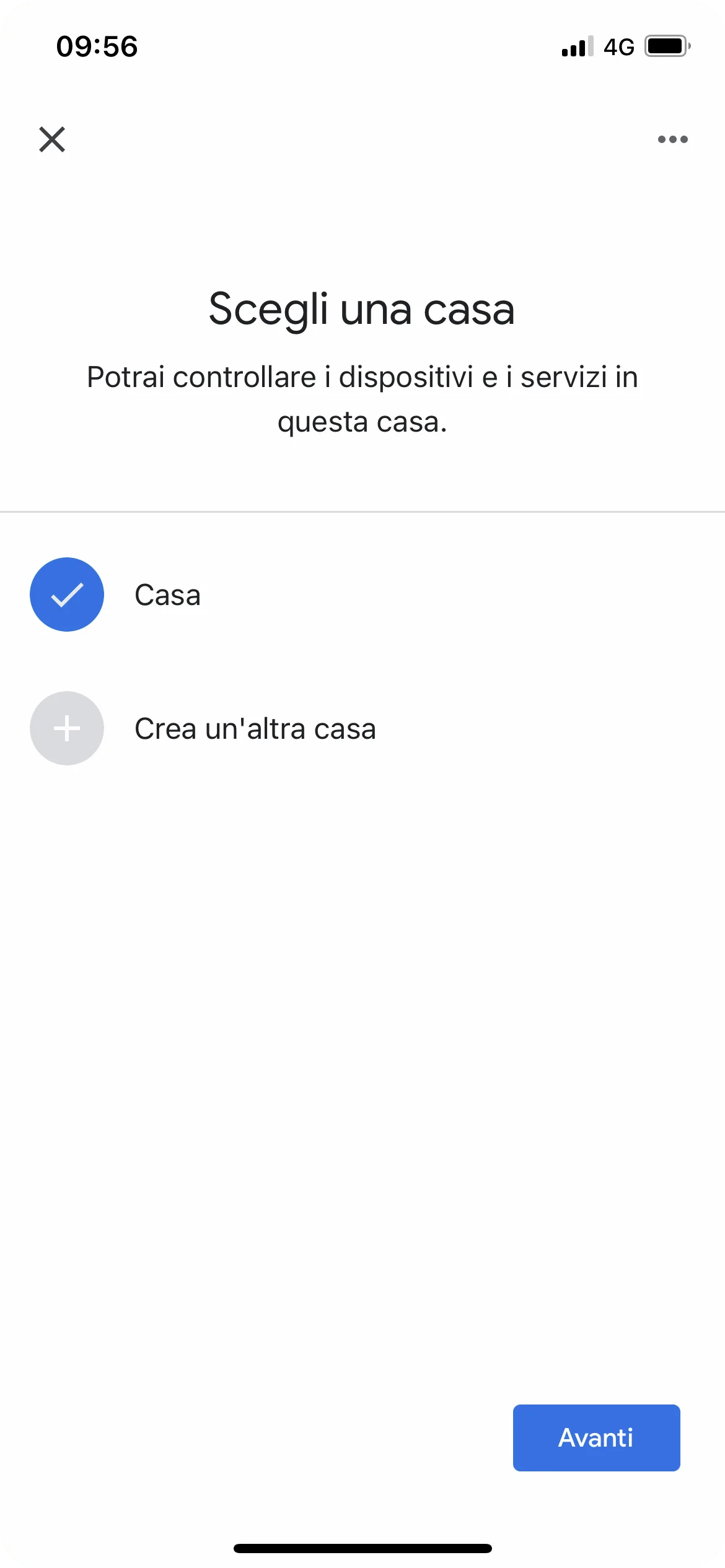
3. Press Home (or Create another home if you have devices in different homes); for this example we will use the Default Home.
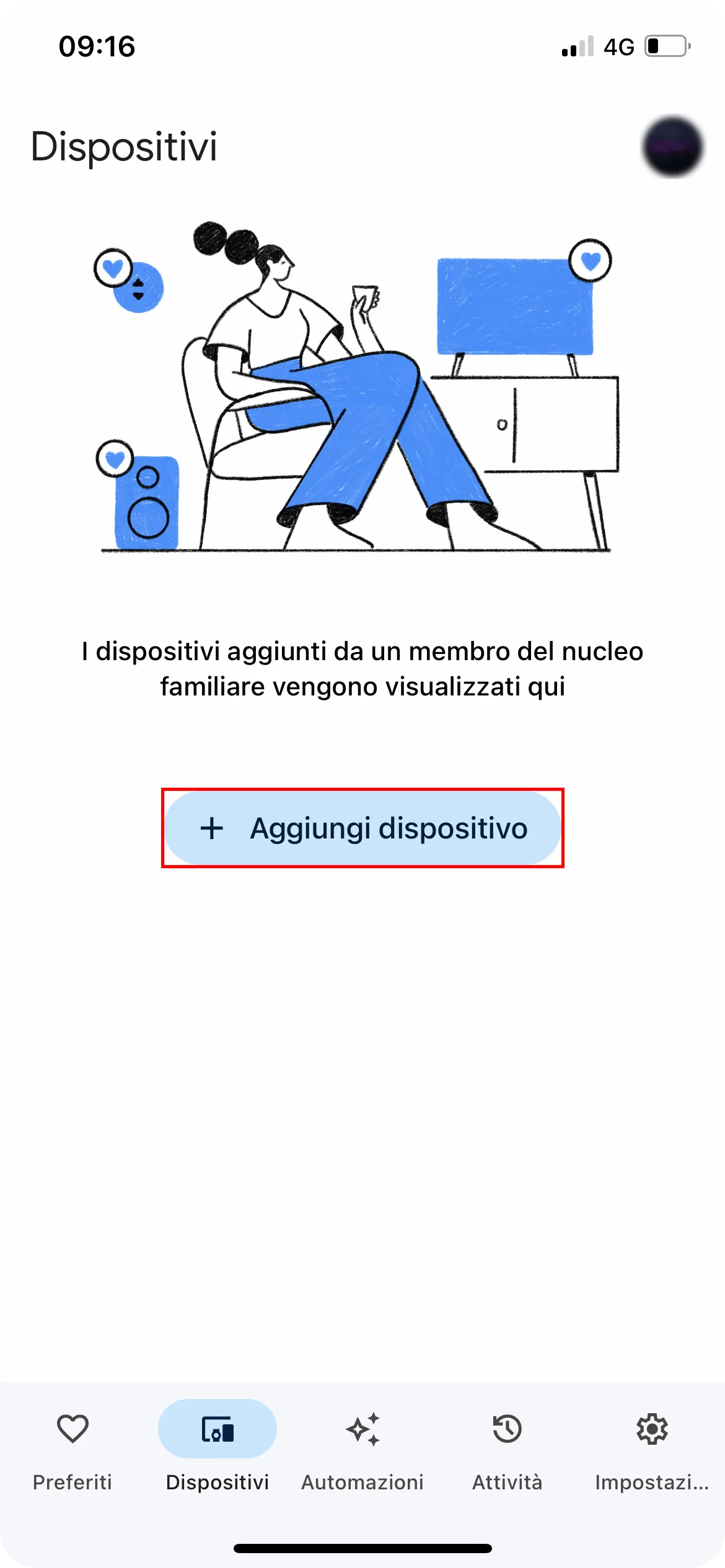
4. Press + Add device.
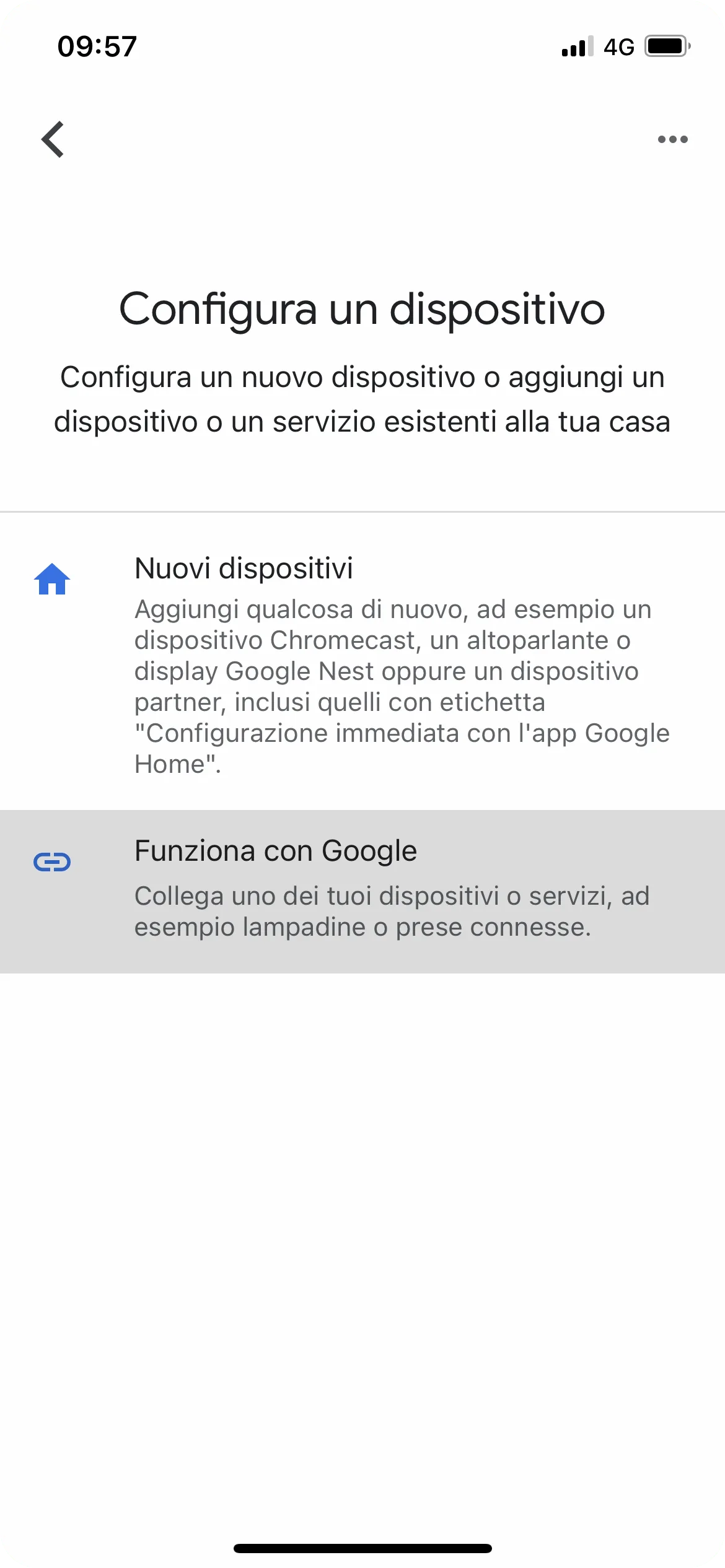
5. Tap Works with Google.
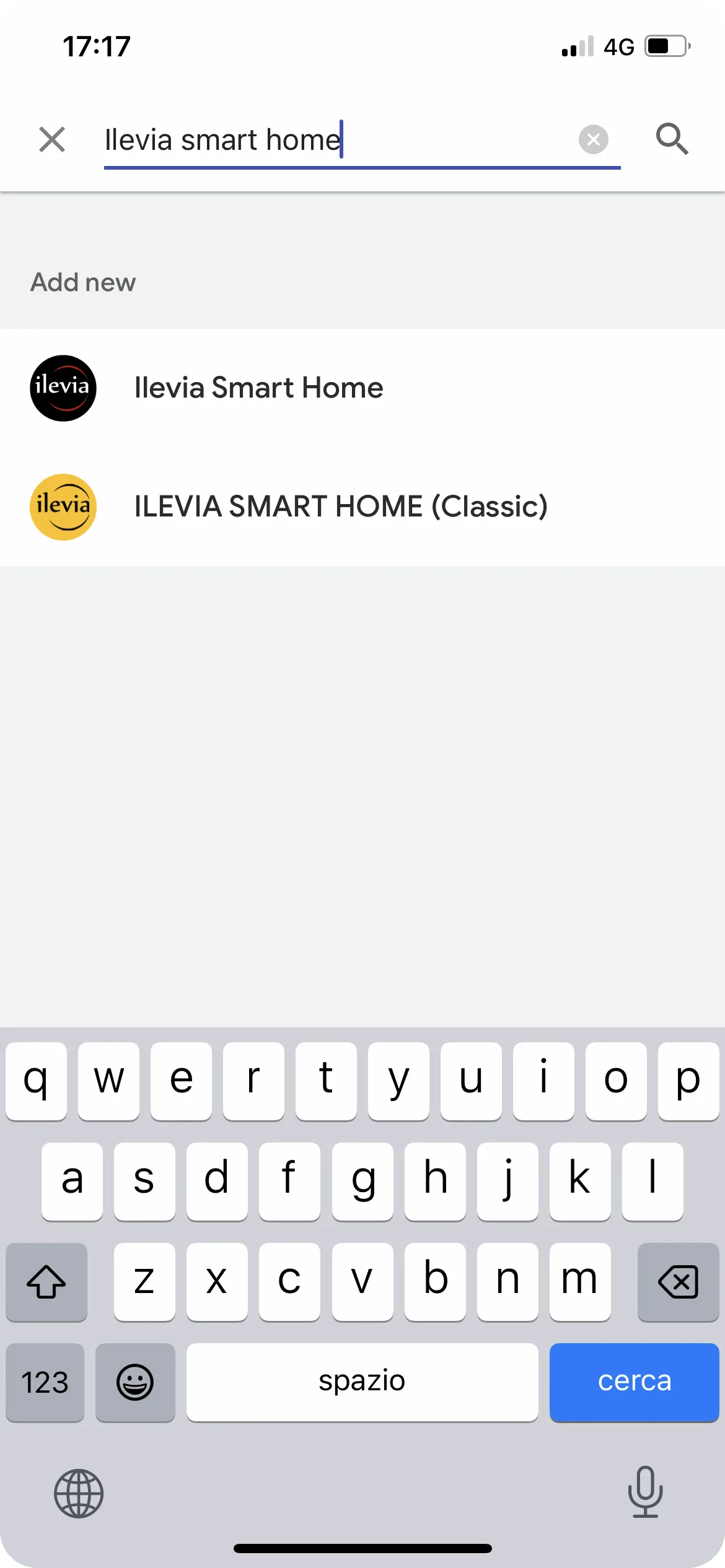
6. Click the magnifying glass icon and search for Ilevia Smart Home. The skill labeled “(classic)” is used for the previous procedure (deprecated).
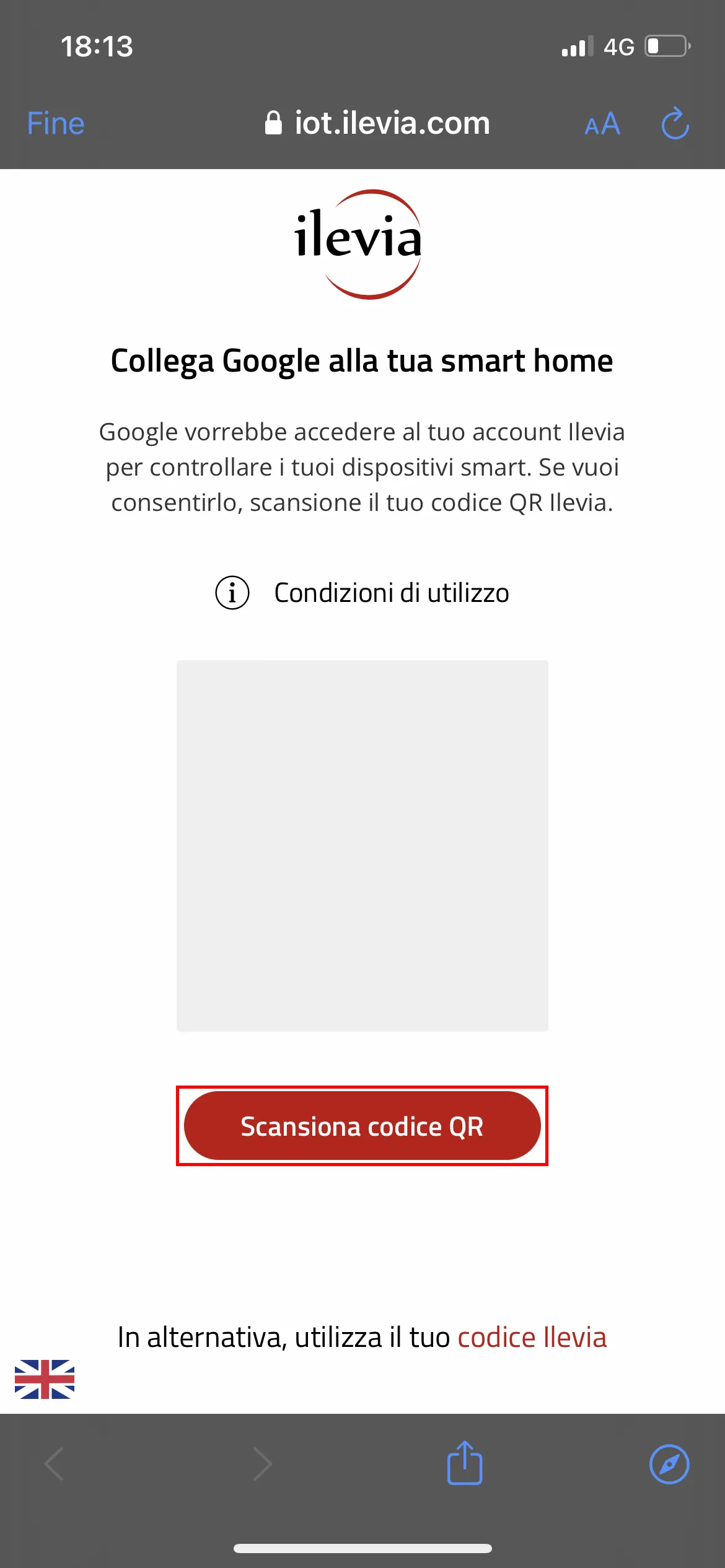
7. Now click Scan QR code.
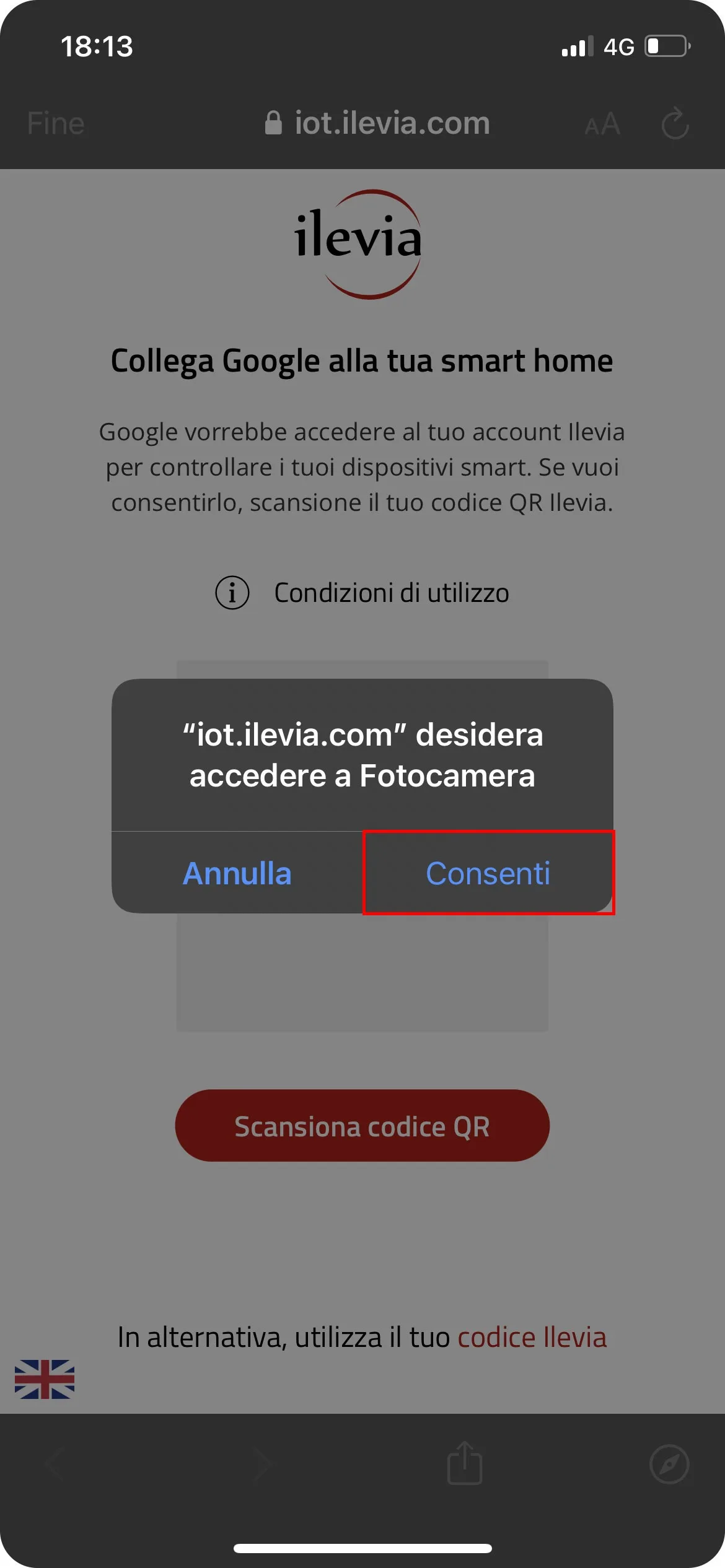
8. To allow the skill to access the smartphone camera, select Allow, then frame the QR code found in the Voice Control Manager component.
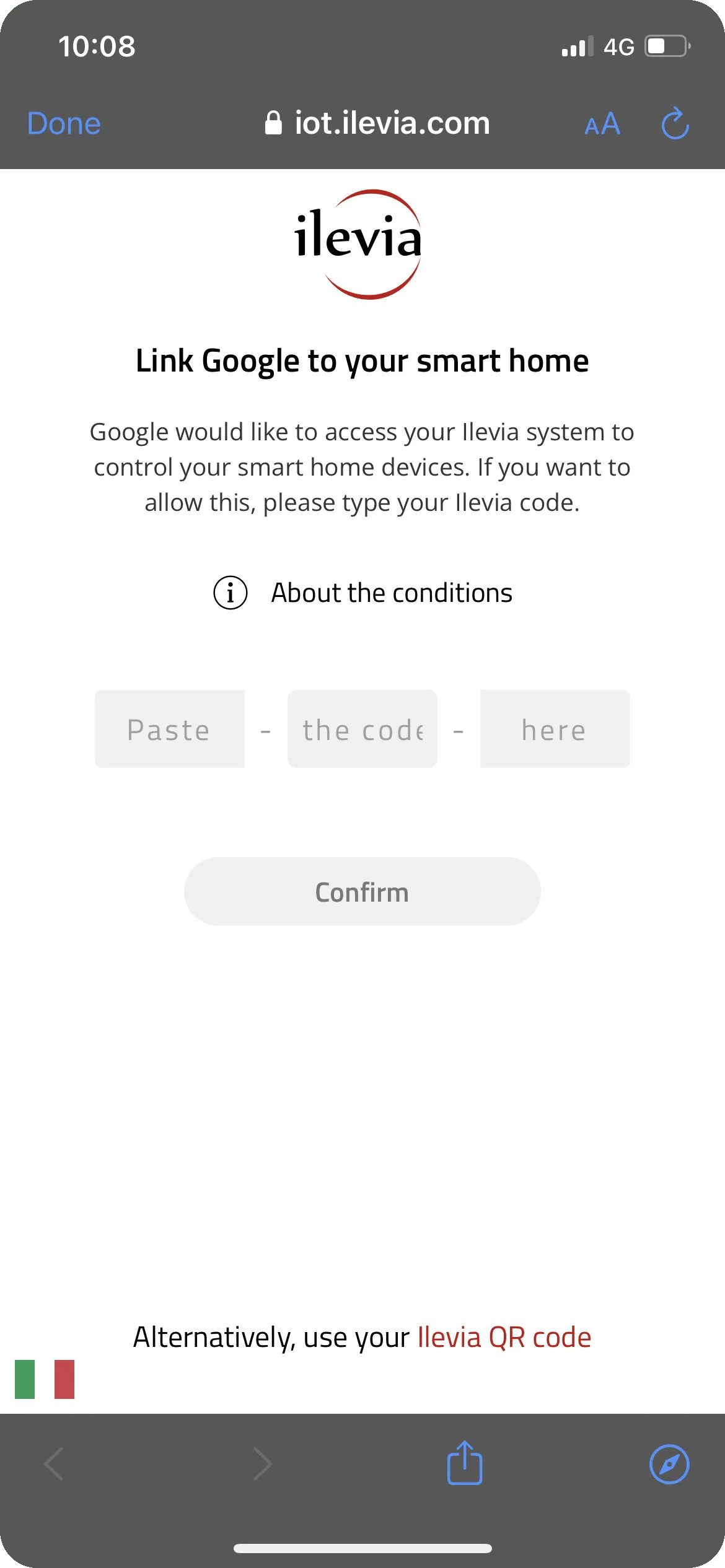
Alternatively, you can use the Ilevia code as a registration token. This code is found within the Voice Control Manager component.
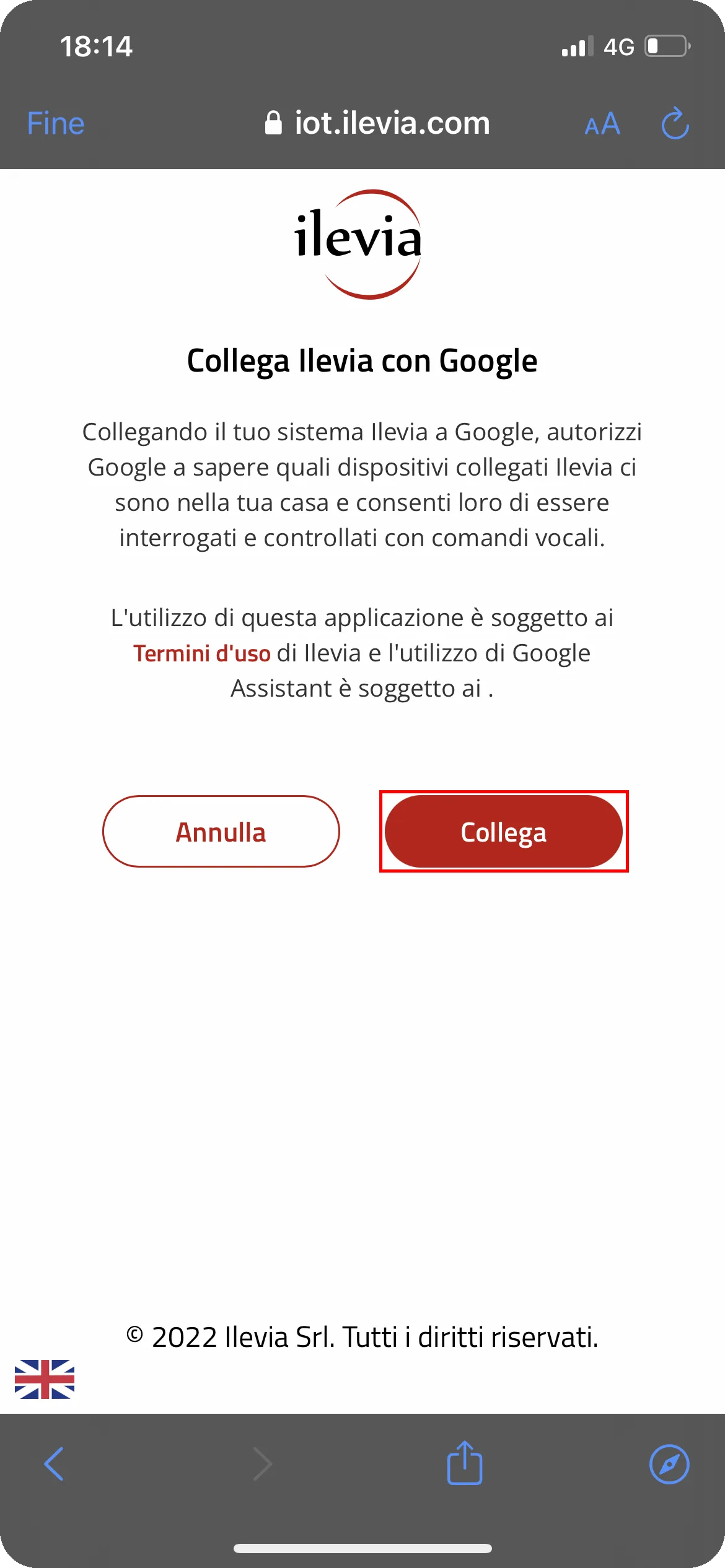
9. Click Connect to authorize Google to know the devices you own.
10. Once registration is complete, the configuration created in the Voice Control Manager component is downloaded.
HOW TO ADD NEW DEVICES
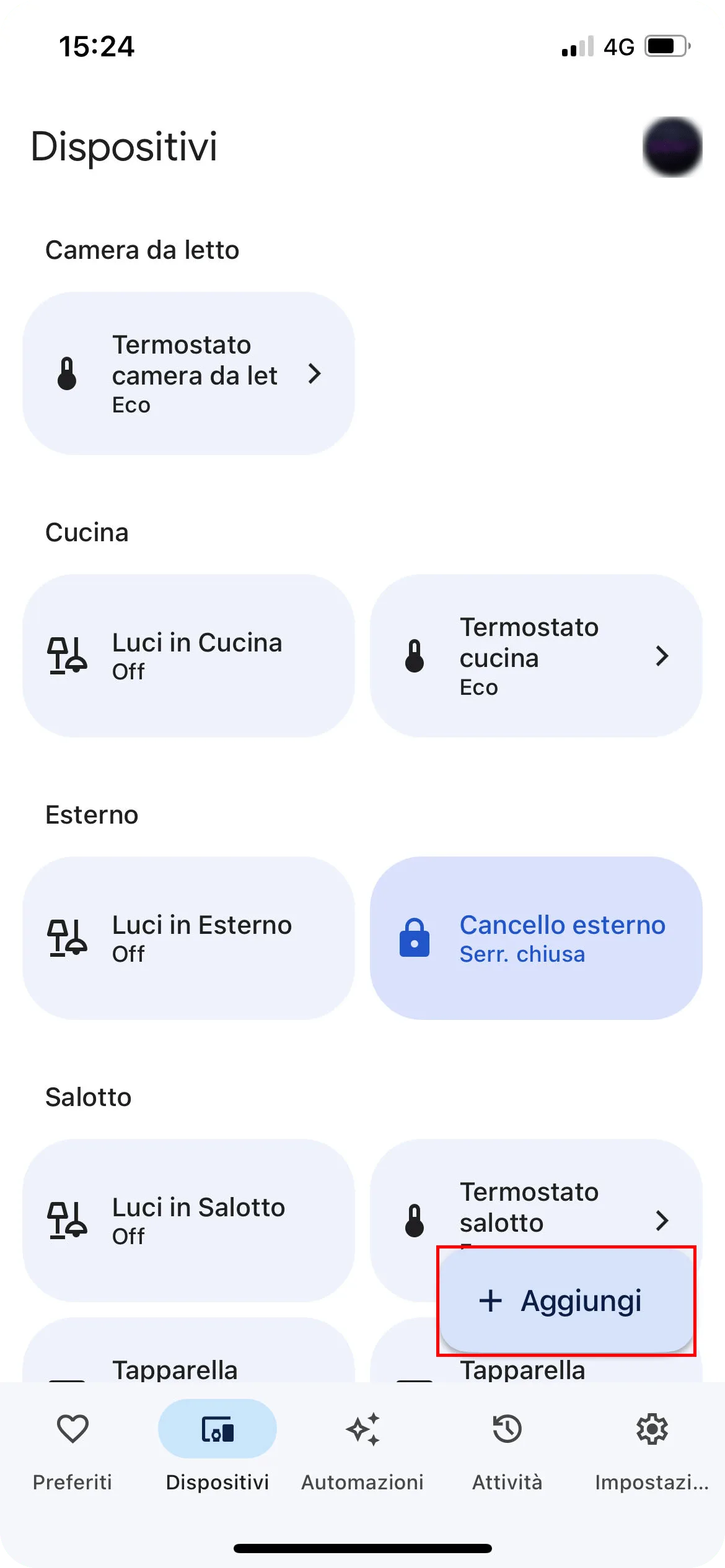
1. Go to the devices section and click + Add.
2. Tap Works with Google.
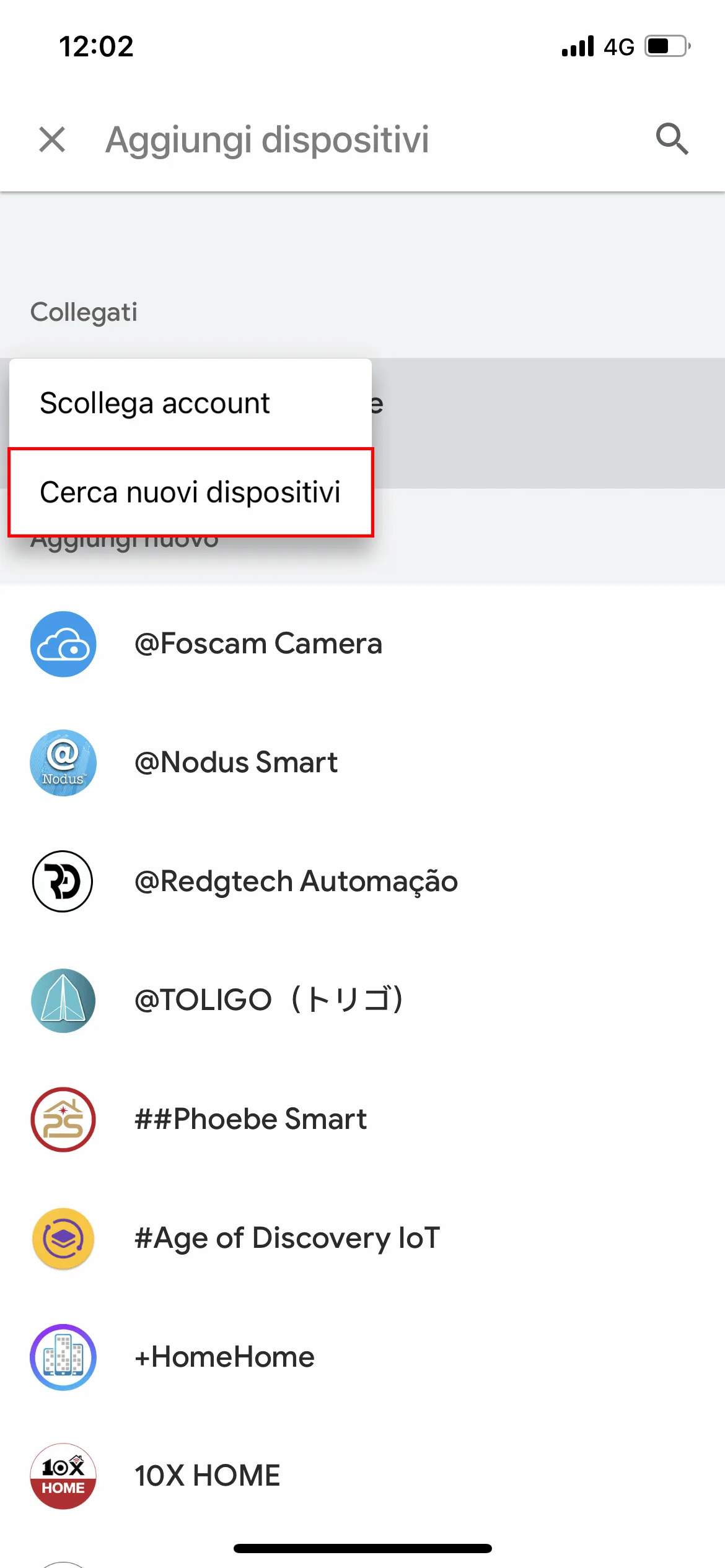
3. Tap Search for devices.
4. Now click Scan QR code.
5. To allow the skill to access the smartphone camera, select Allow, then frame the QR code found in the Voice Control Manager component.
Alternatively, you can use the Ilevia code as a registration token. This code is found within the Voice Control Manager component.
6. Click Connect to authorize Google to know the devices you own.
The Google app will now start searching for new devices. When finished, you can find them in the Devices section of the Google Home app.
Alternative: if later you add other components in Ilevia Manager to be controlled via Google Home, you can also say to the Google Home device or to Google Assistant “Ok Google, update devices”.