Voice Control Manager
How to use the Ilevia Manager Voice Control Manager component to configure the components to be controlled with Google Home and Amazon Alexa.
INTRODUCTION
The Voice Control Manager component allows you to create a configuration containing all the components you want to integrate with voice control. This structure is used by both voice assistants (Google Home and Amazon Alexa) within their respective applications.
COMPONENT PROPERTIES
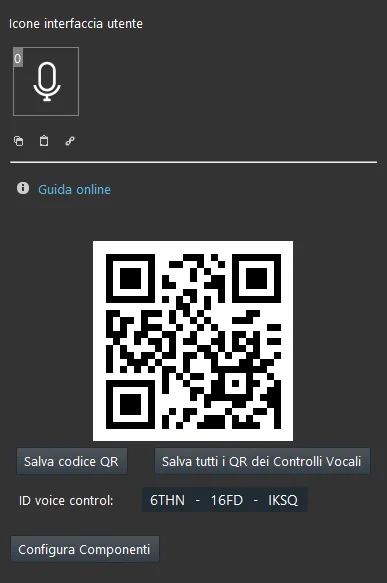
QR code: This QR code is generated when the Voice Control Manager component is added to the project. It is required during login to the skill with both voice assistants (Amazon Alexa, Google Home);
Save QR code: This button lets you save the QR code as a PNG image;
Save all QR codes for all voice controls: This button opens a web page containing all the QR codes created in the Ilevia Manager project;
Voice control ID: This ID code can be used instead of the QR code when logging in to the skill.
Configure Components: This button opens the Voice Control Manager component configurator, where you can create associations for the components present in the My components section of Ilevia Manager.
Voice Control Manager configurator
The Voice Control Manager configurator is made up of three sections. The first section, starting from the left, contains all the objects that can be added to the structure. The second section lets you add objects and create organized rooms. The third section is used to configure the devices added to the Voice Control Manager configuration.
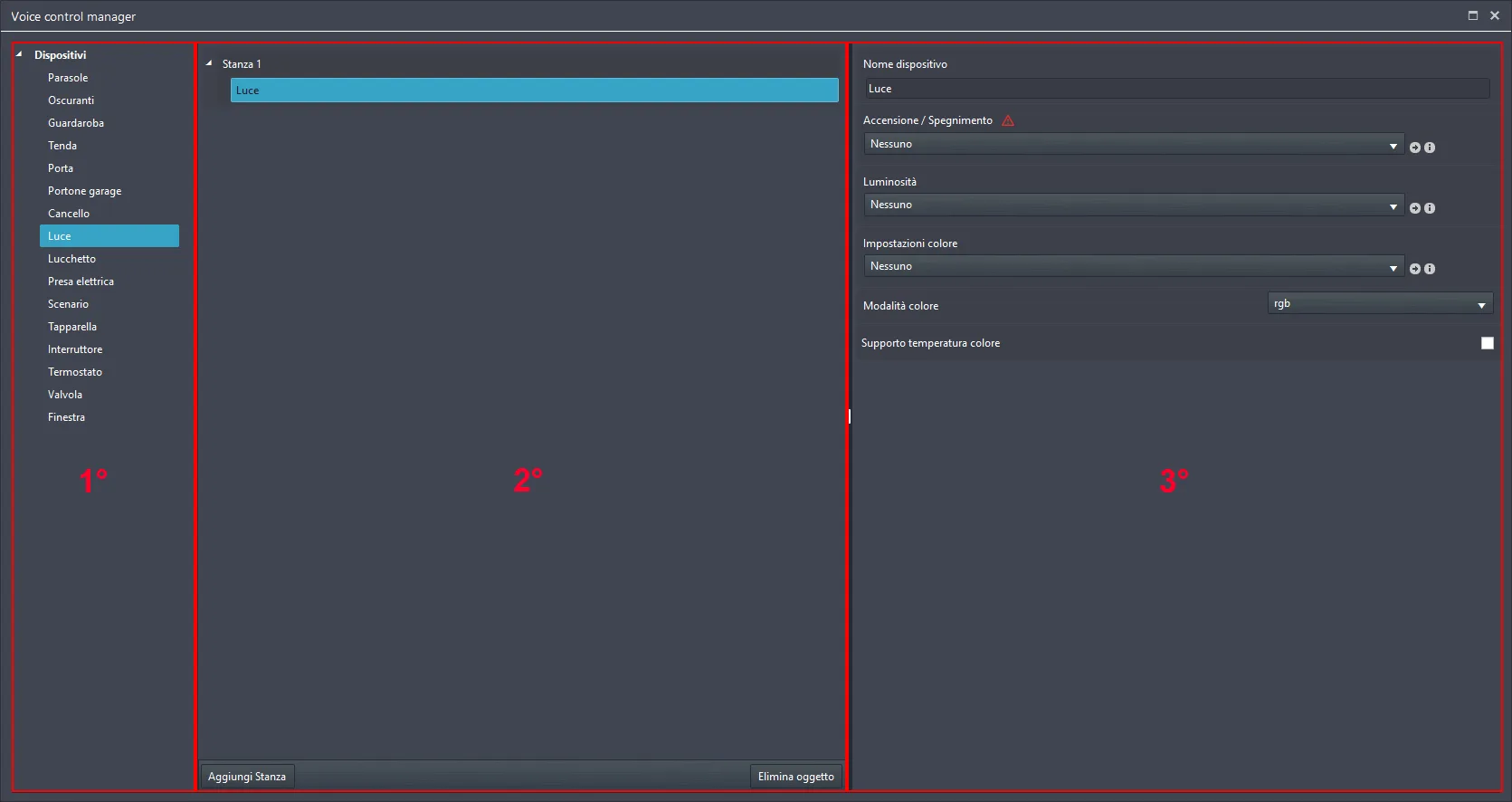
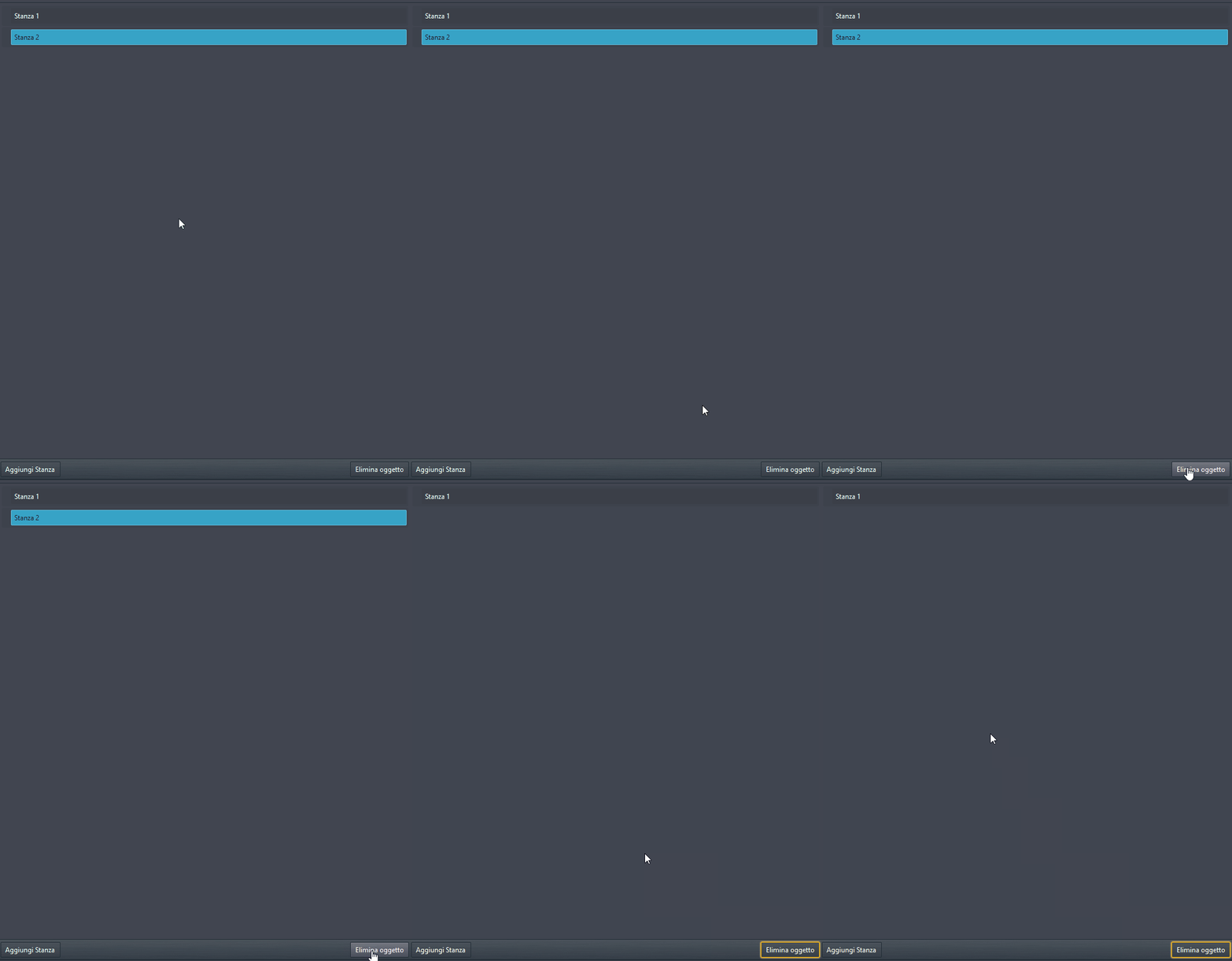
At the bottom of the second section there are two buttons that let you add and remove objects within the Voice Control Manager configurator.
Add room: This option lets you add rooms within the Voice Control Manager component configuration.

Delete object: This button lets you delete the selected object from the current configuration within the Voice Control Manager component.
DEVICE CONFIGURATION
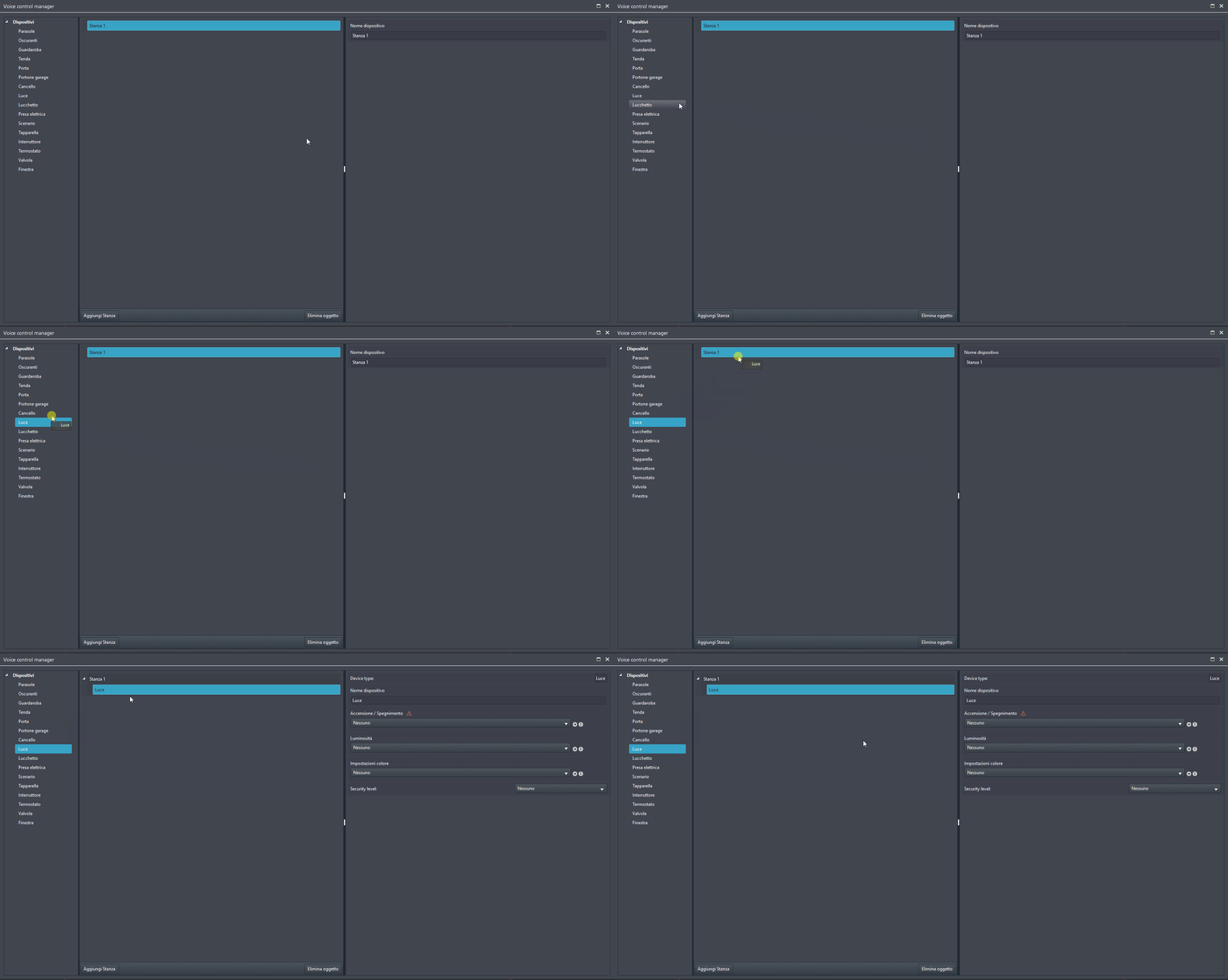
As described above, on the left side of the Voice Control Manager window there is a list of configurable devices. To add devices to the configuration, drag them from the devices section to the structure section.
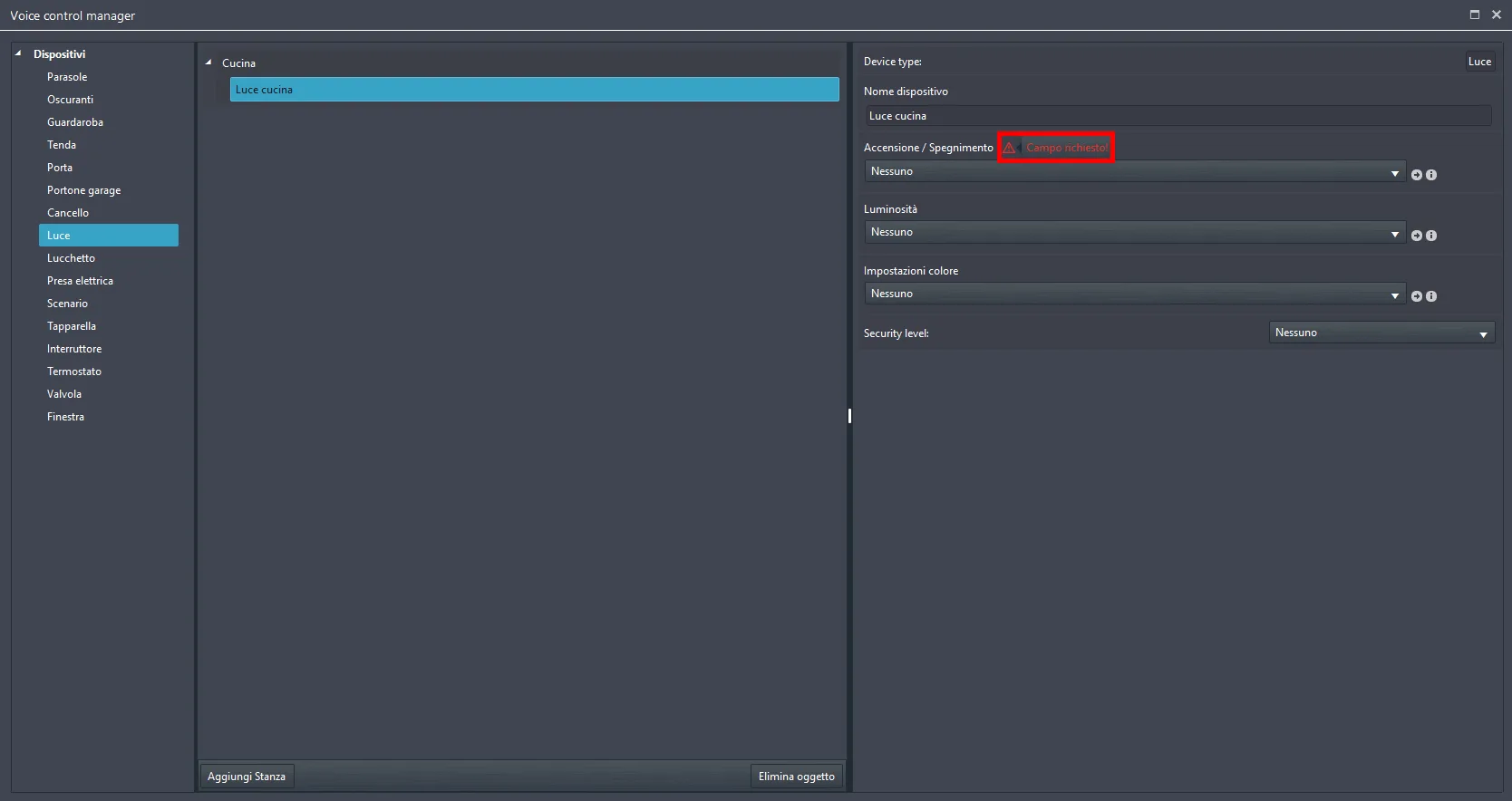
Complete the device parameters by linking the component you want this device to control. Each component has a red triangle next to the required parameters so it can be recognized and controlled by the voice assistant.
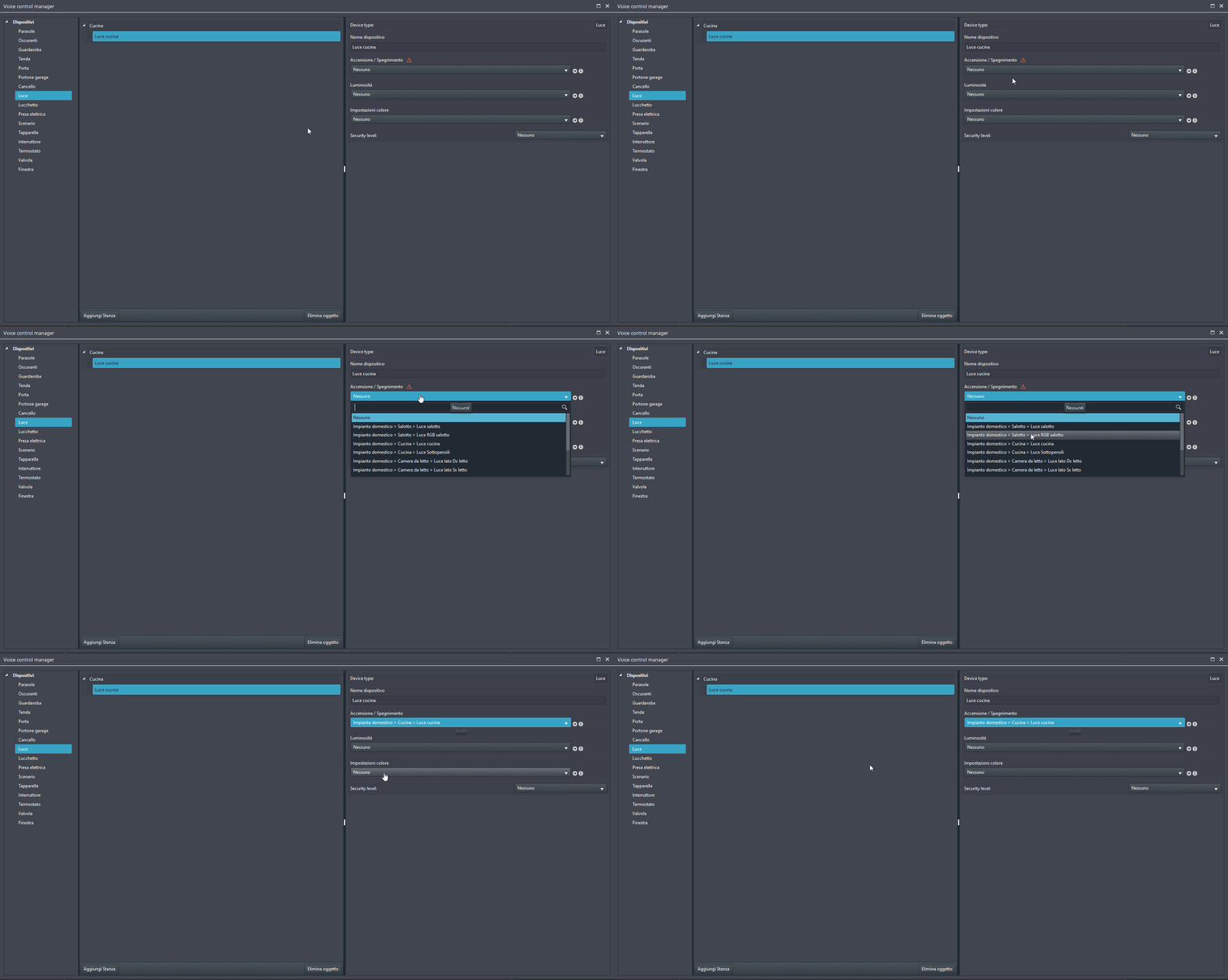
Link the component to the device in the device parameters present in the Voice Control Manager structure. Once the component is linked, exit Voice Control Manager and upload the project to the server.
Ilevia Manager tool for converting from the Classic to the New voice control integration
This tool makes it easier to switch from the classic voice control integration (using tags in the component properties) to the new integration, through the Voice Control Manager component configuration.
Step 1:
Open your Ilevia Manager project. Make sure the components have tags in their properties.
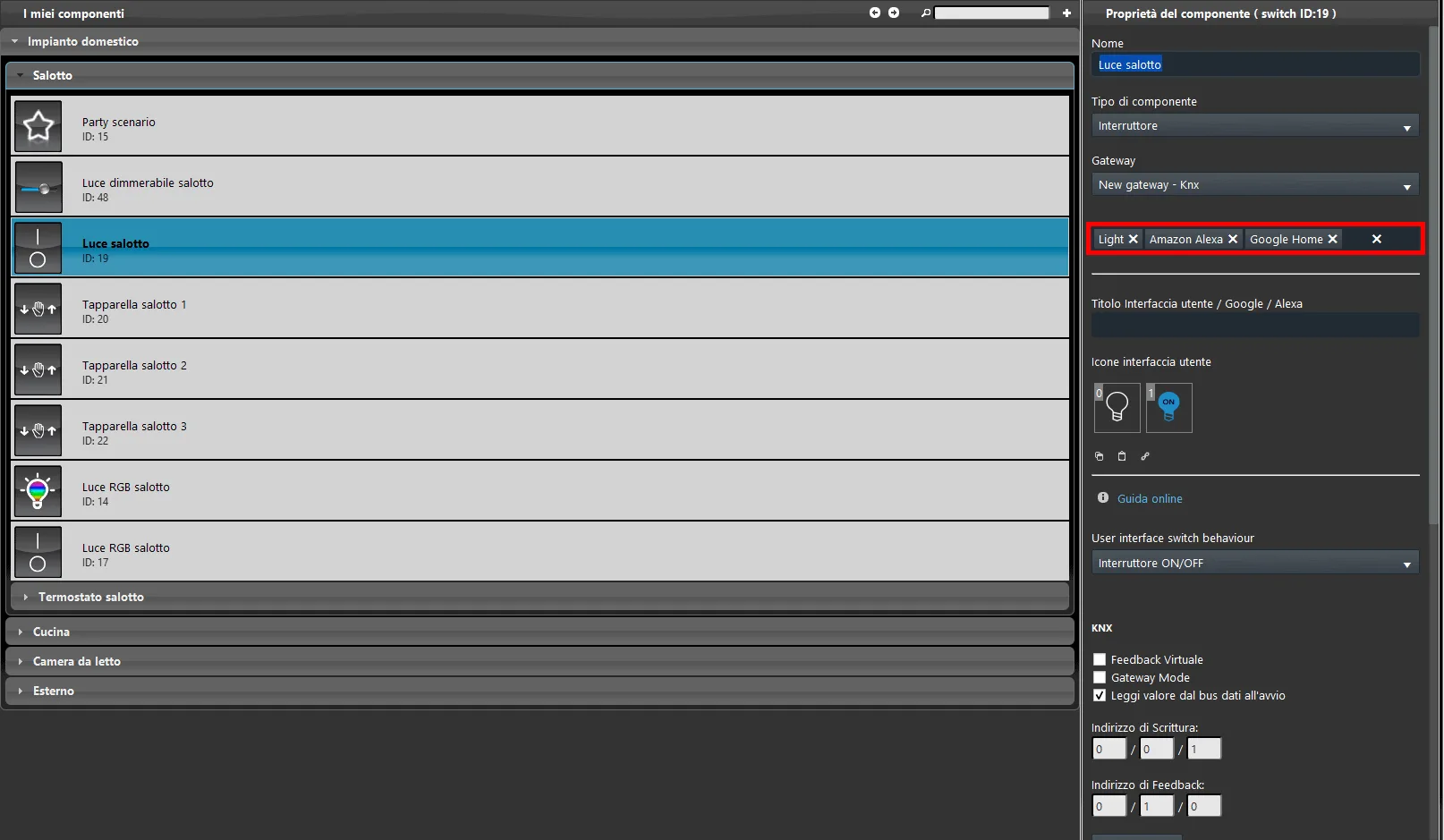
Step 2:
Open the Tools menu at the top of the screen, select Scripts, and then click Convert voice control.
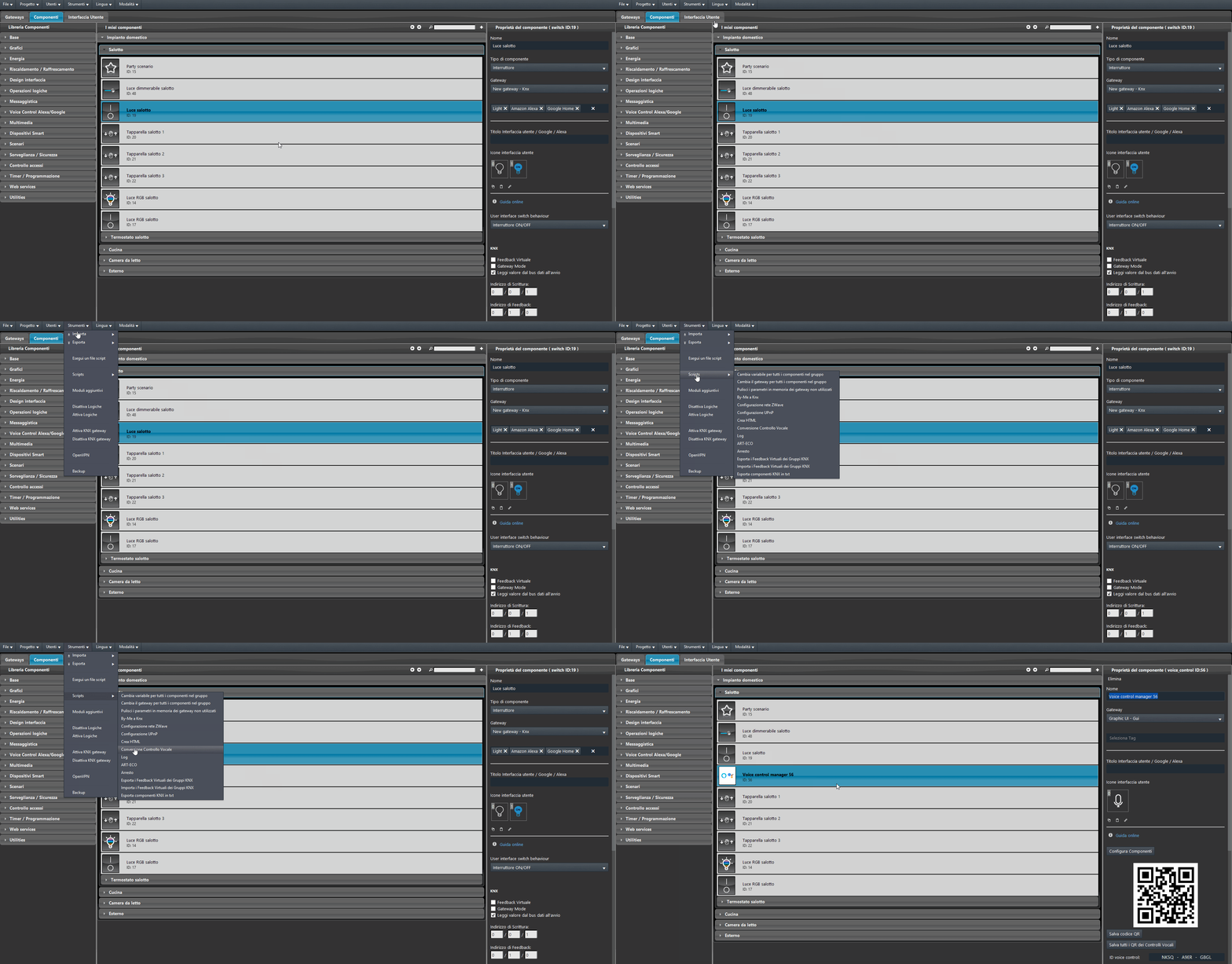
Step 3:
By opening the newly created Voice Control Manager component from the converter, you can see all the components that were set with tags in the project, already preconfigured and ready for Ilevia voice control integration.
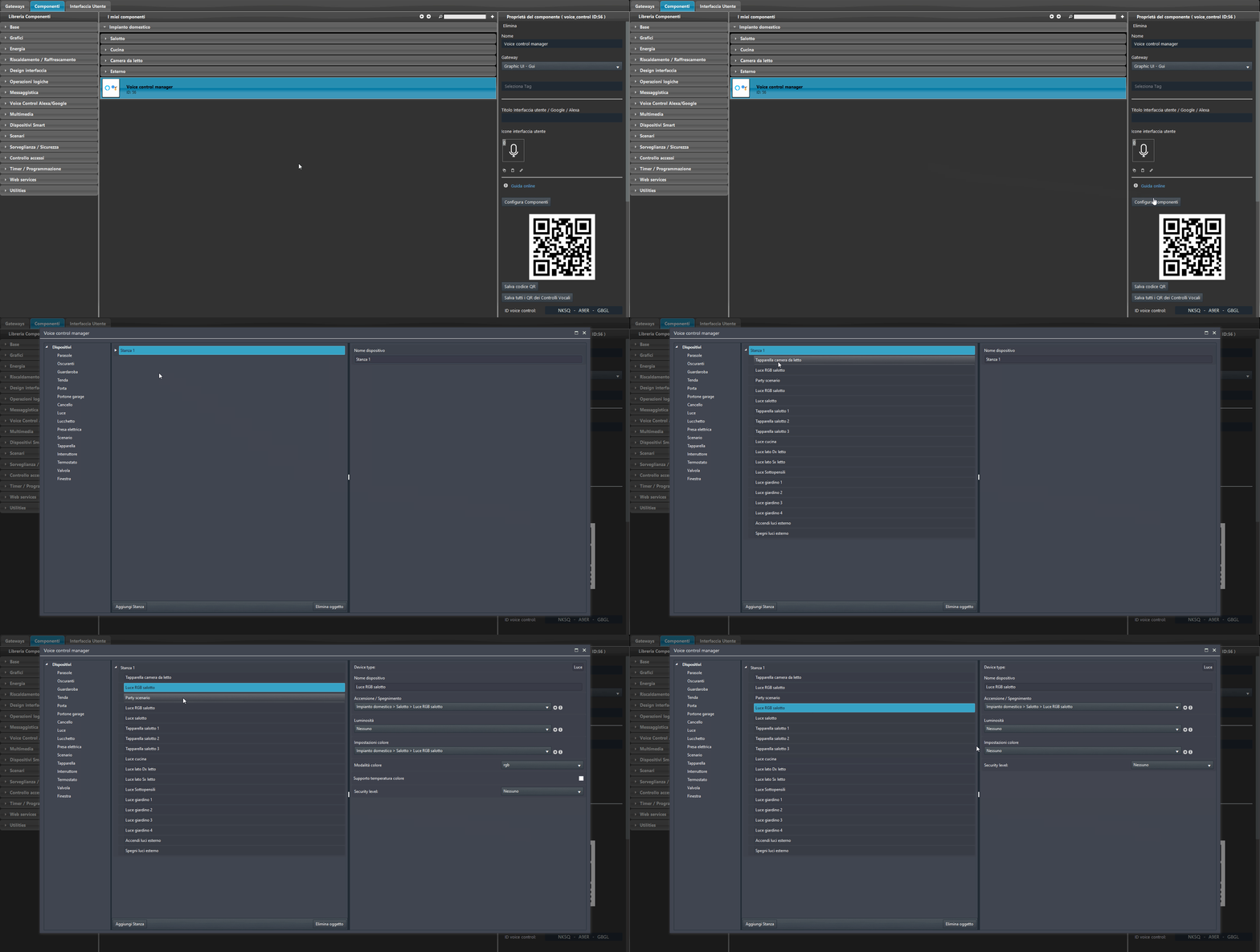
Step 4:
Finally, upload the project to the server to apply the changes made.
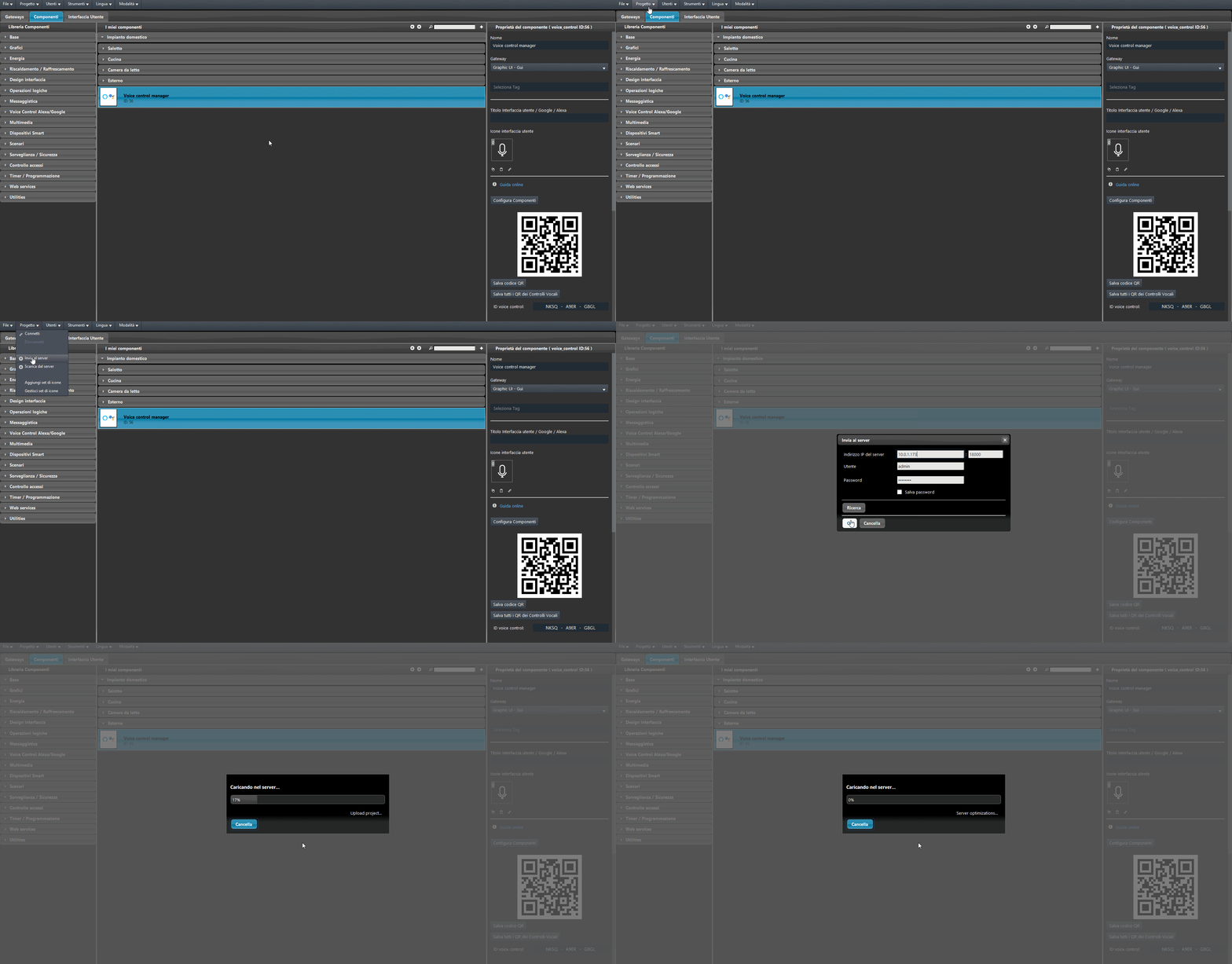
CONCLUSION
Once the configuration is complete, you can proceed with Voice Control integration.
Click the link below to download the demo project for the Voice Control Manager component.
Voice assistant configuration
To configure your voice assistant, refer to the Google Home guide or the Amazon Alexa guide.