KNX Template: creating component groups from ETS
How to use the KNX Template gateway to create, from ETS project import, groups of components ready to be added to the user interface.
Introduction
The KNX Template is a method for speeding up project configuration in Ilevia Manager. It allows you to create a group of components that, once identified by a keyword, are generated ready to be inserted into the user interface and used by the user in the Ilevia application.
Use cases
Use KNX Template to create custom groups of ready-to-use components, for example with the components for the thermostat function already ready to be inserted into the user interface.
KNX project setup
Step 1:
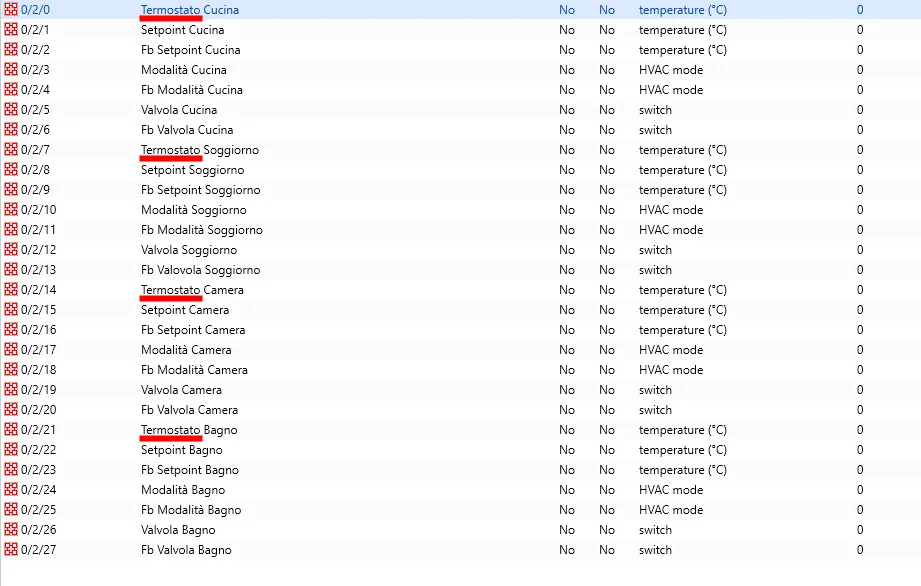
Open the ETS project. For Ilevia Manager’s ETS project importer to create the components based on the template, you must apply a keyword to the starting group address: the importer recognizes it and uses it to create the components at the end of the import.
In this case, the keyword is Thermostat, as shown in the image below.
Step 2:
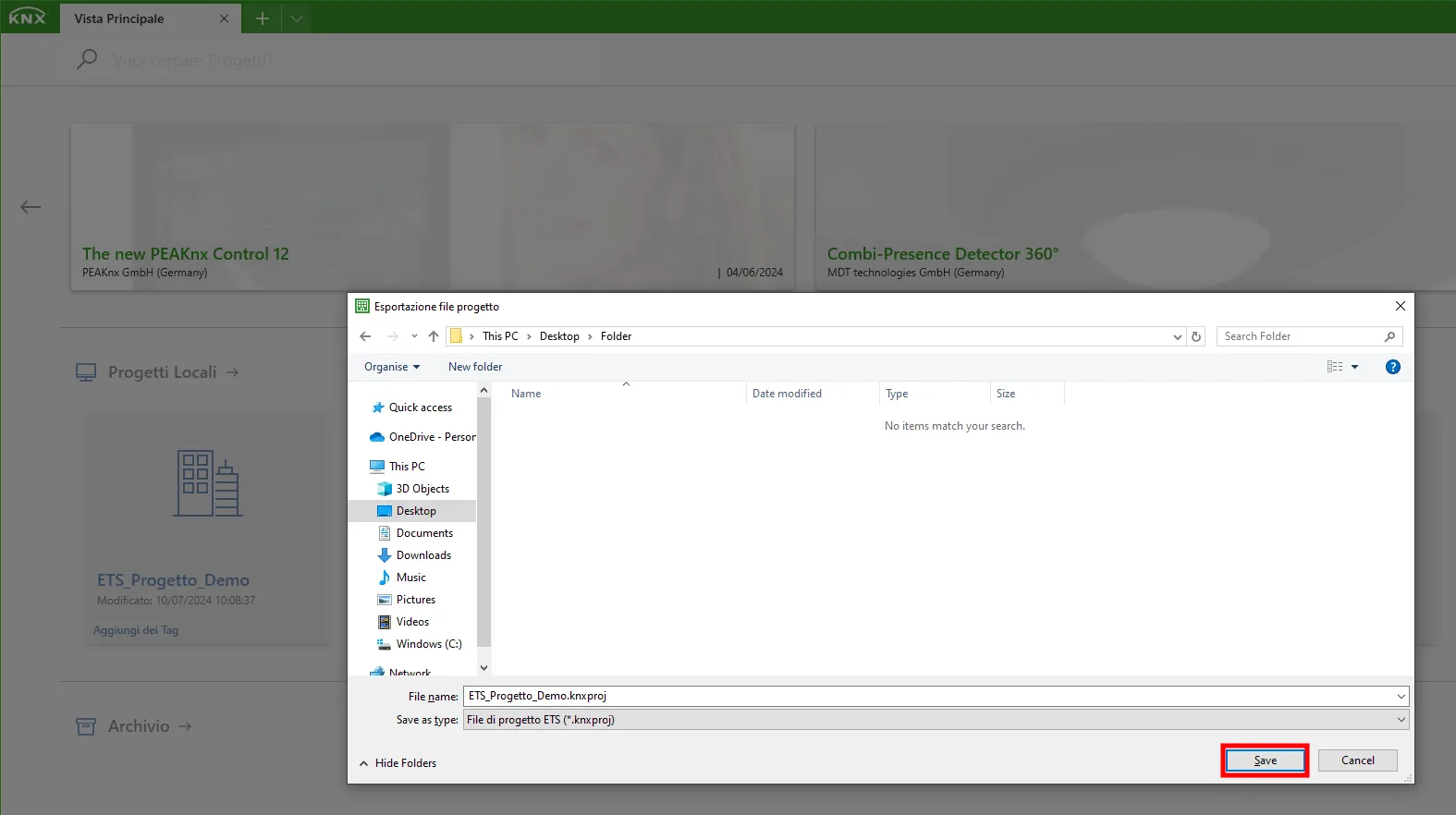
Export the ETS project and save it on the computer.
KNX Template configuration
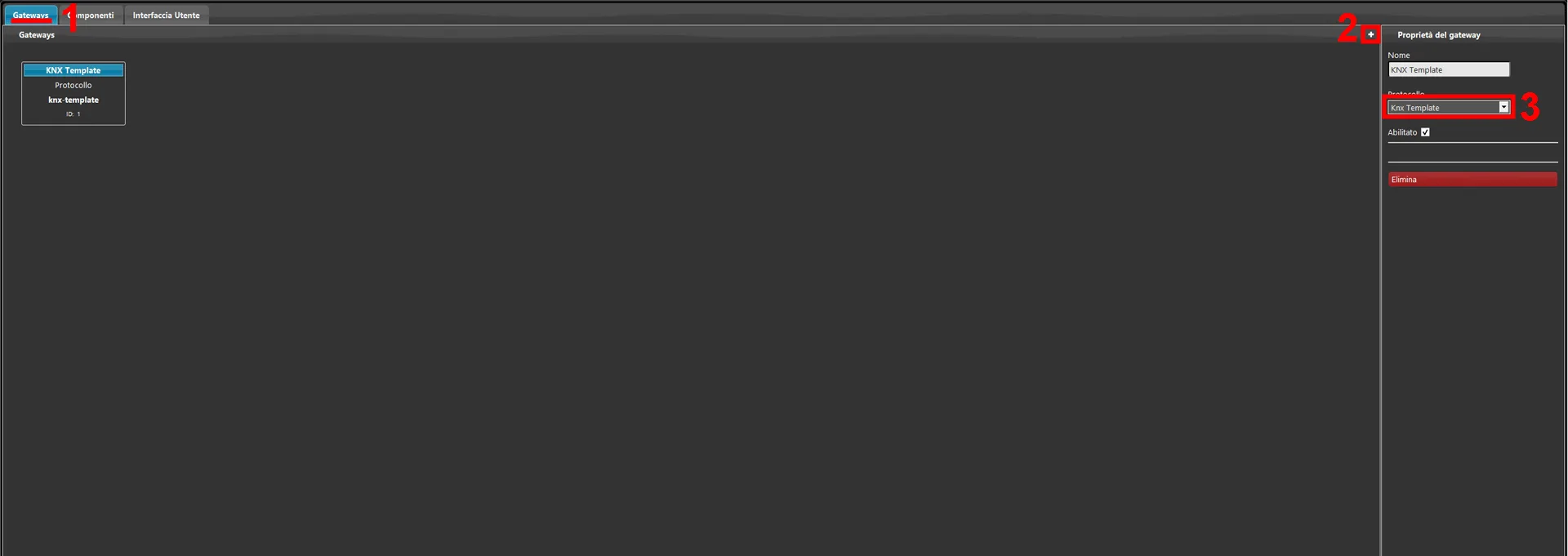
Step 1: open Ilevia Manager. 1. Go to the Gateway section. 2. Create a new gateway. 3. Select KNX Template as the gateway protocol.
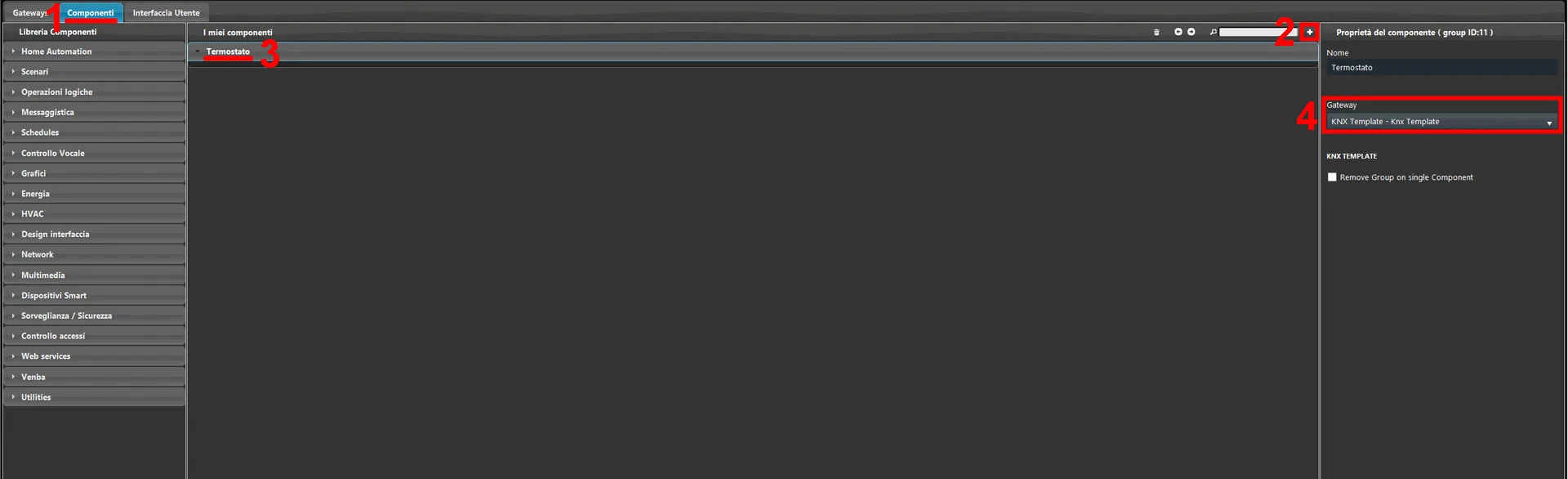
Step 2: 1. Open the Components section. 2. Create a new group by clicking the “+” icon in the upper-right corner of the My components screen. 3. Name the group with the keyword you entered in the name of the starting group address in the ETS project. 4. Select the group Gateway and set it to KNX Template.
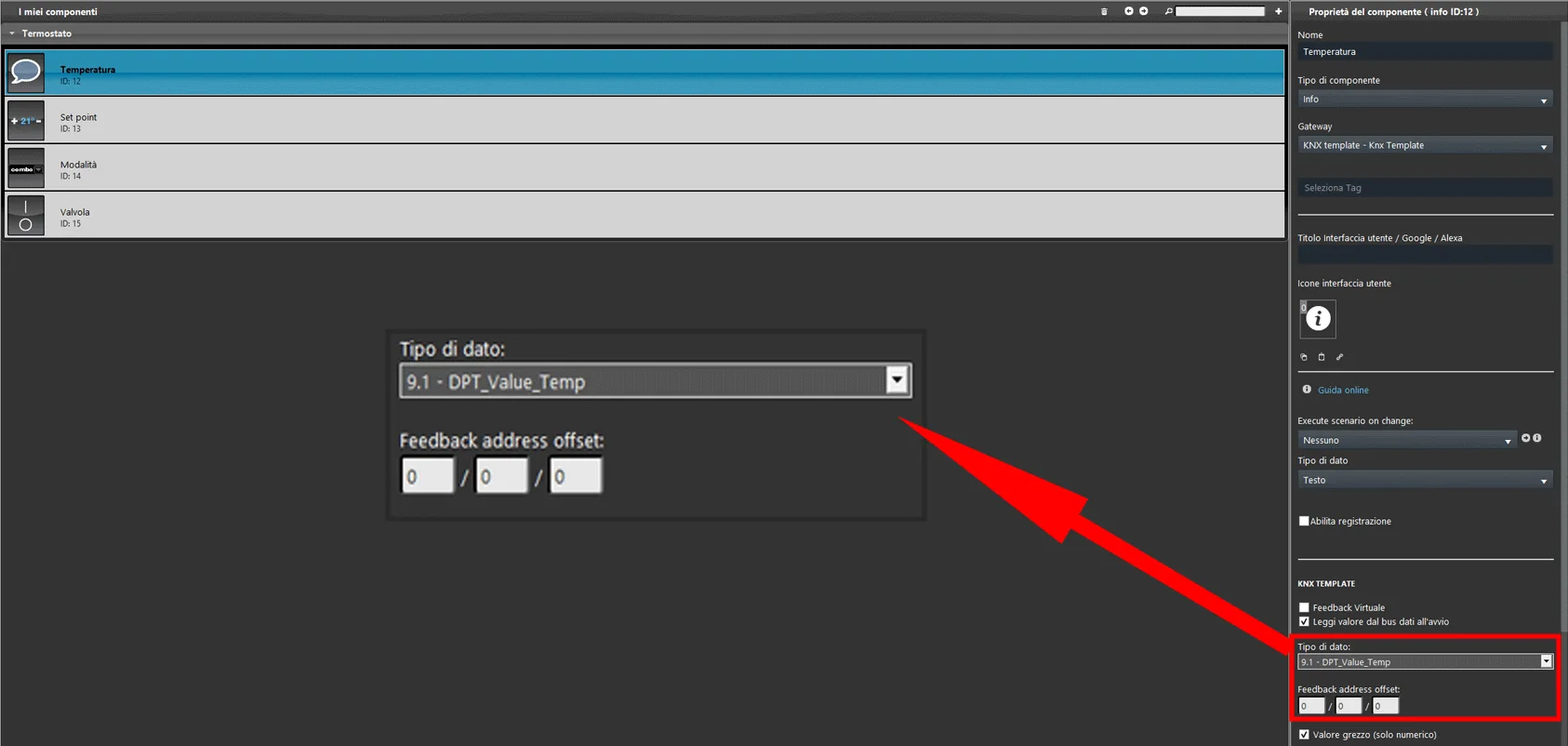
Step 3: add the first component to the group and set its gateway to KNX Template. Set the first component’s Write group address to 0/0/0. Then add the other components to the group according to the Data Type set in the group addresses in ETS. Group addresses and components must be configured starting from the first component added to the group, entering only the last digit of the group address in the component text field, as shown in the image below.
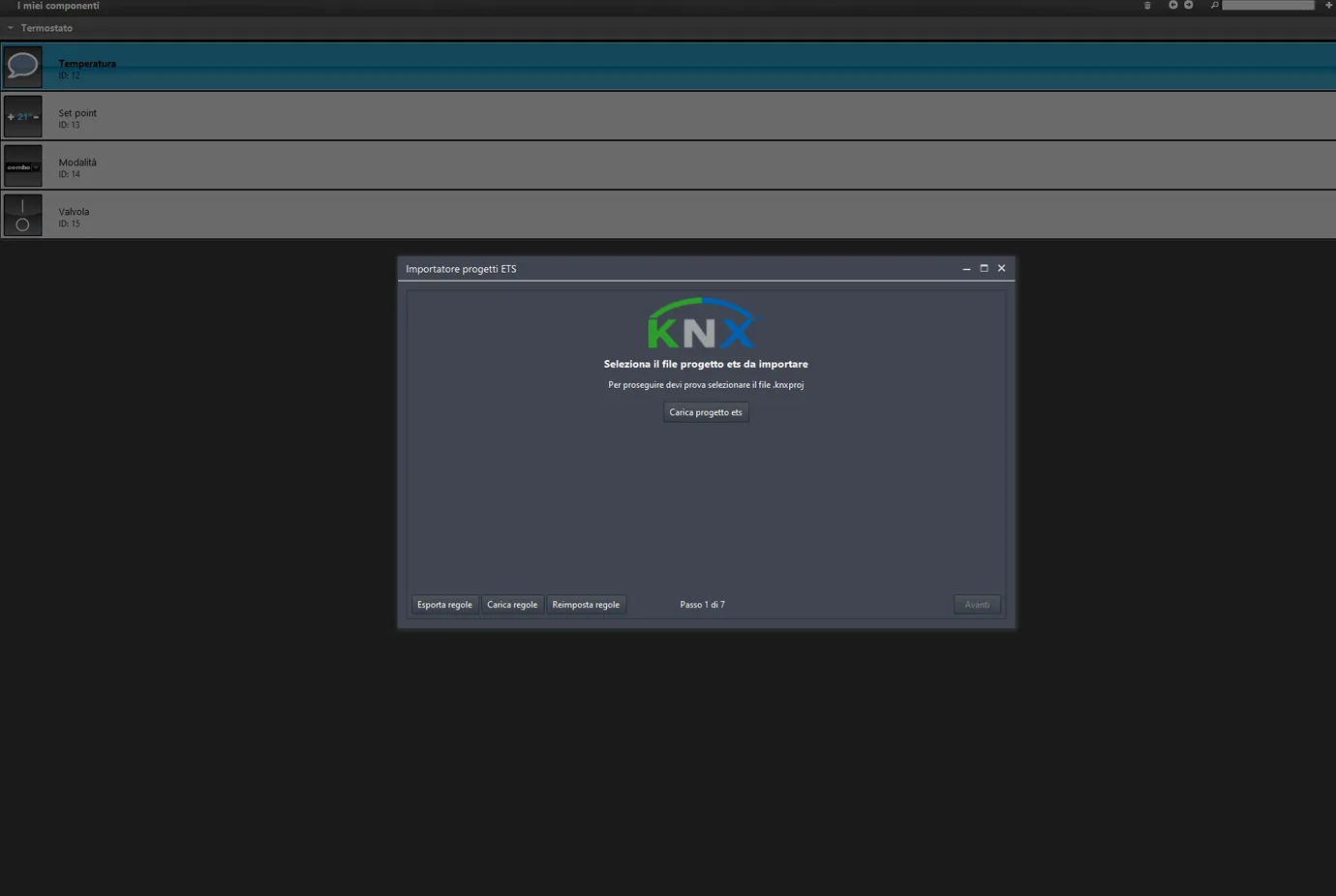
Step 4: import the ETS project with the ETS importer in Ilevia Manager. Refer to the guide for more information on how the importer works.
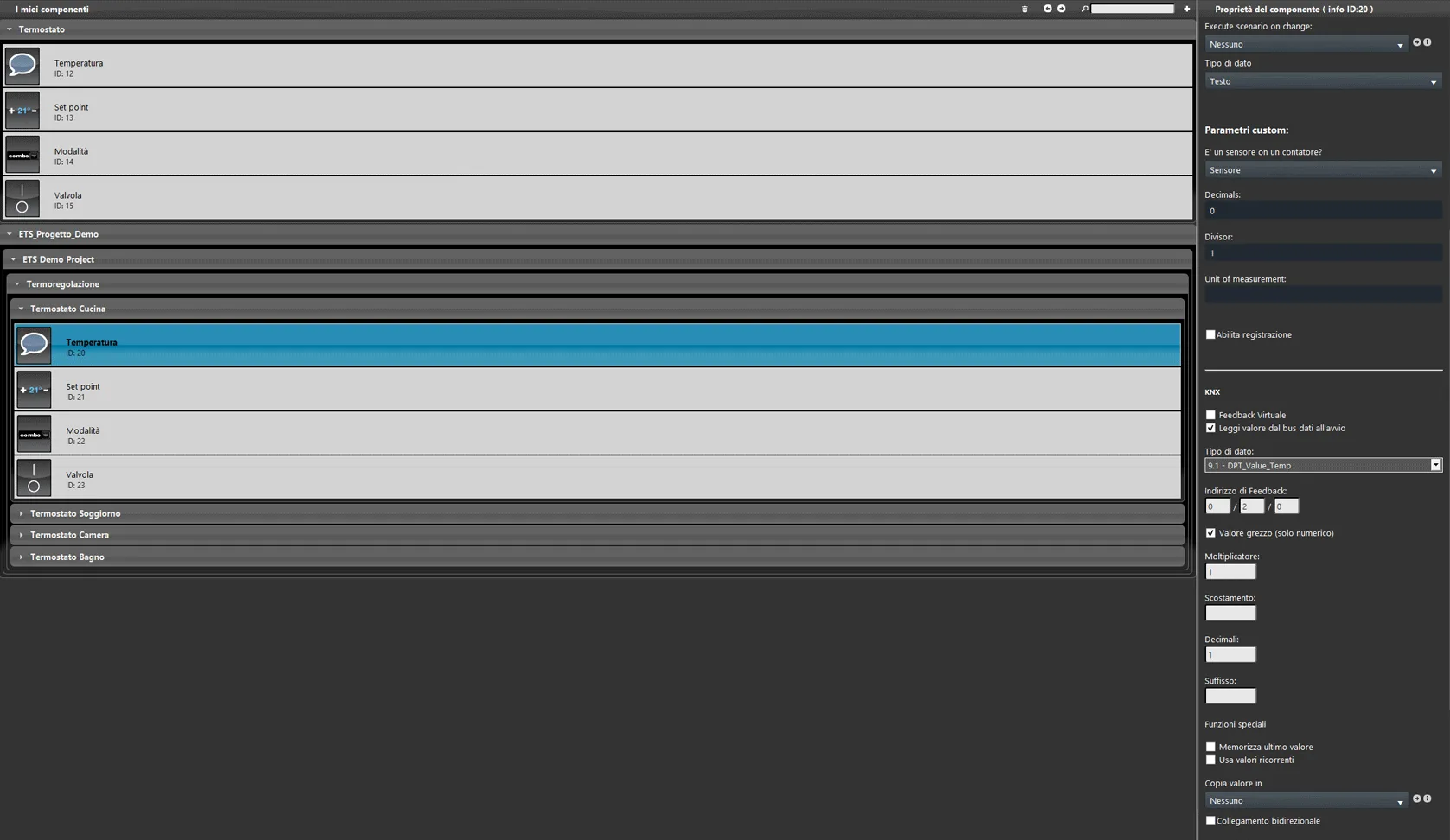
Final result
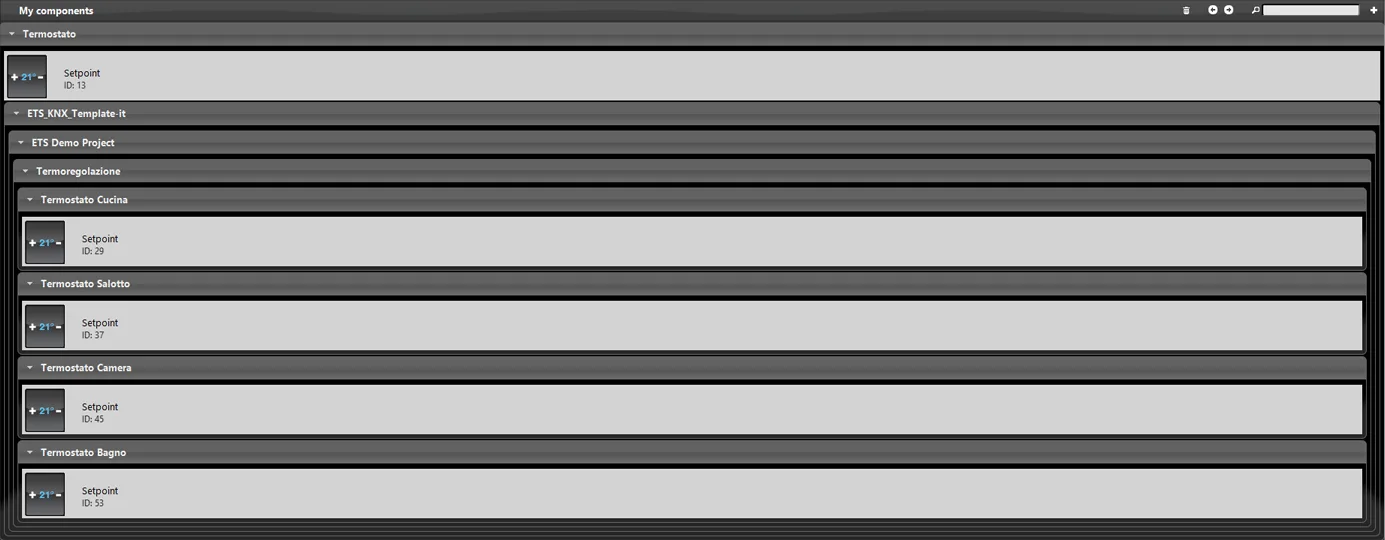
If the KNX Template has been configured correctly, component groups are created, containing components ready to be inserted into the user interface.
KNX Template group components filter
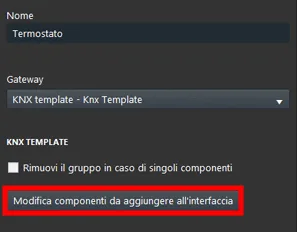
One feature of KNX Template is the ability to exclude specific components that you do not want to add to the user interface when dragging the group created through the ETS project import.
This “Filter” lets you add only some components to the user interface when you drag the group into the Ilevia Manager user interface editor. To use it, select the KNX Template group and click “Edit selection of components that can be added to the interface”.
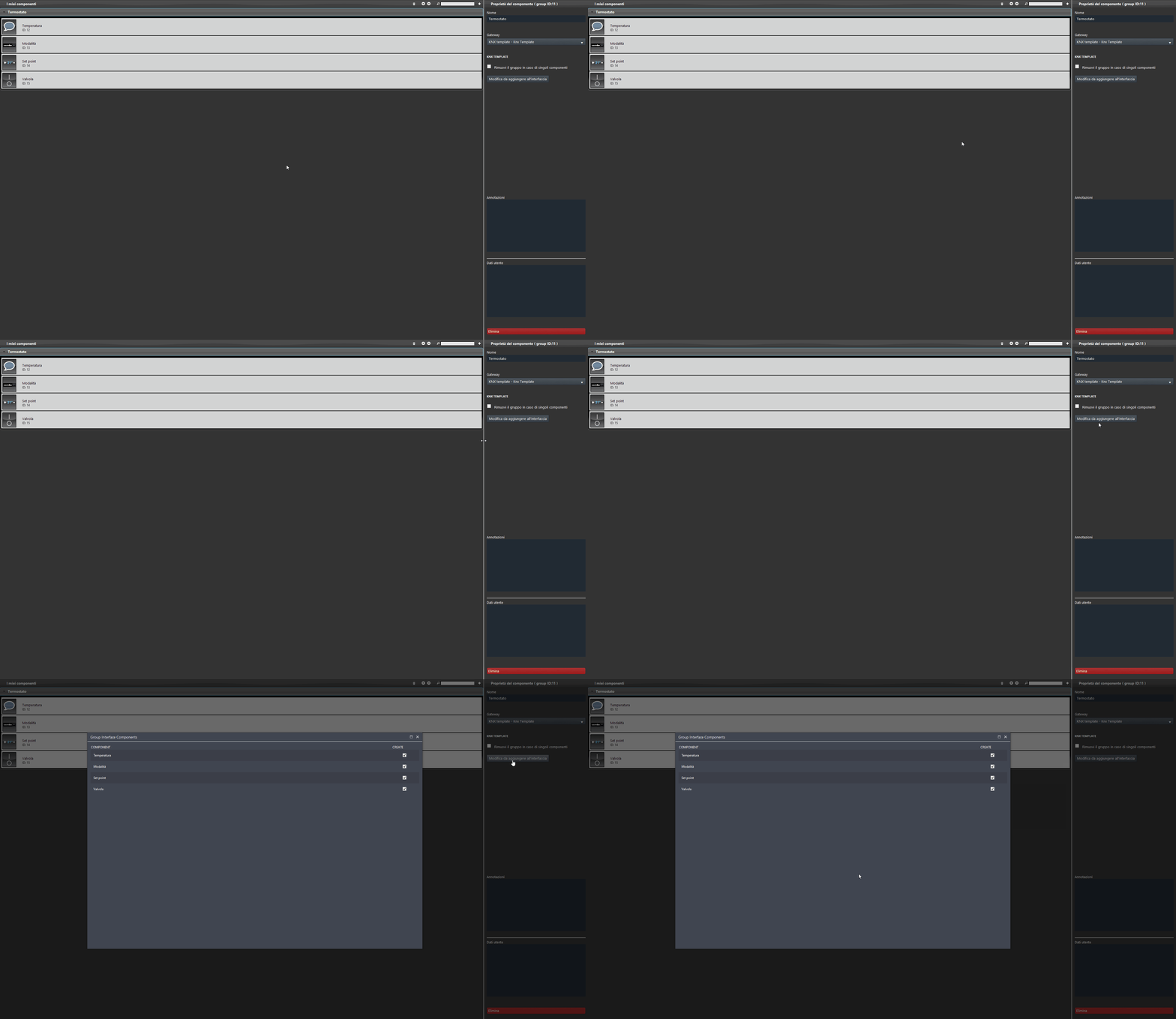
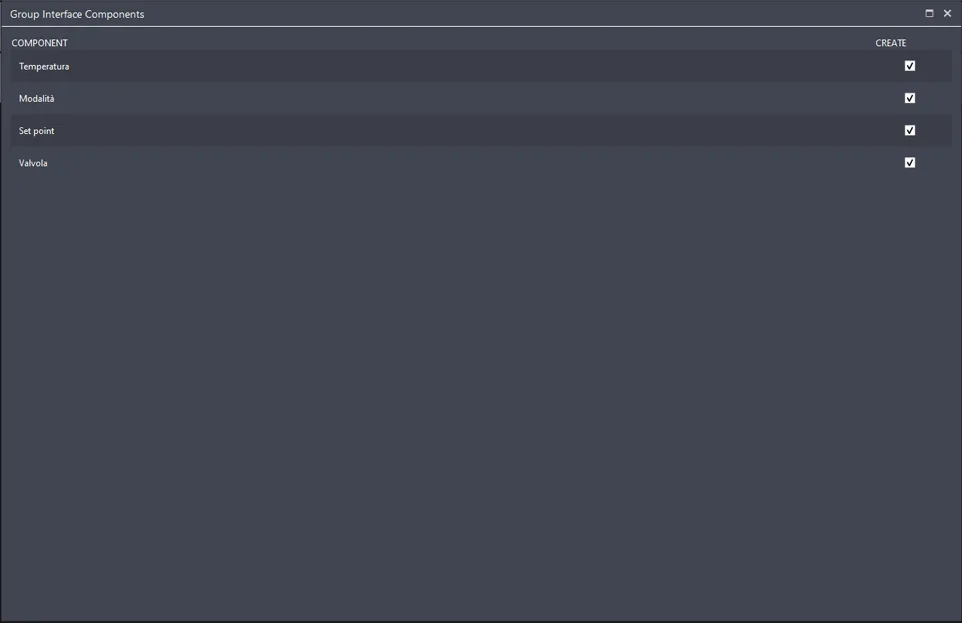
The Edit selection of components that can be added to the interface option lets you choose which components will be added to the user interface by dragging the group into the User interface section of Ilevia Manager.
As shown in the image below, you can filter the components by selecting or deselecting them with the checkbox on the left side of the screen.
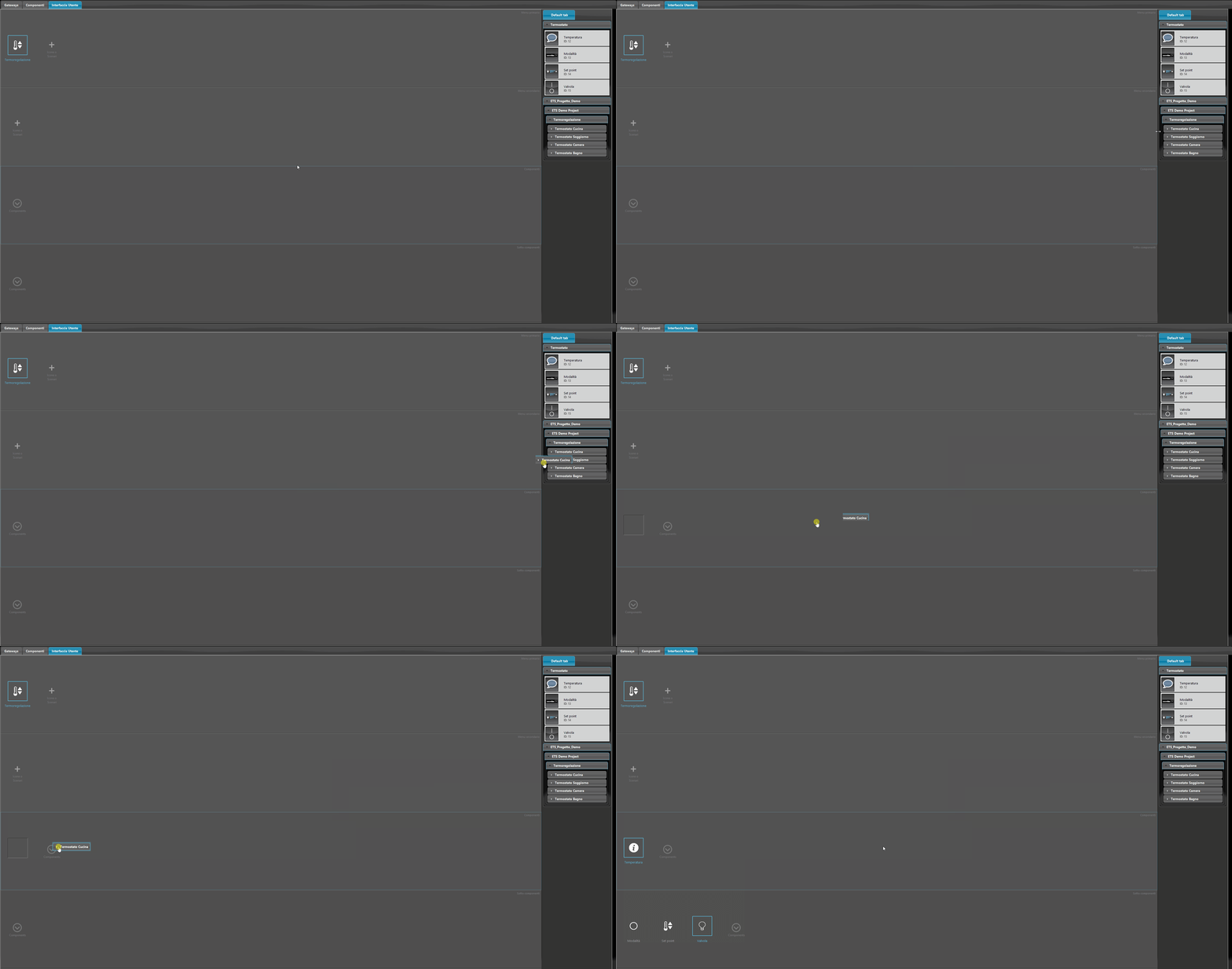
To add the group to the interface editor, go to the User interface section and drag the entire group from the components section on the right side of the screen.
Download the sample ETS project and try it yourself.
Download the Ilevia Manager KNX Template and try it yourself.
Remove group in case of single component
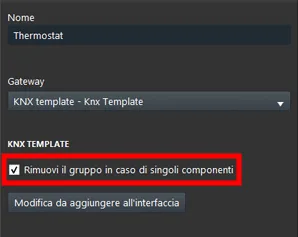
The Remove group in case of single component checkbox prevents separate groups from being created for each individual component created by the ETS project import: the individual components are grouped together rather than separated into groups.
Step 1:
Create the group with the KNX Template gateway selected, as explained in the “KNX Template configuration” chapter of this page.
Step 2:
Add a new component to the group, then fill in the component properties so that they match those set in ETS.
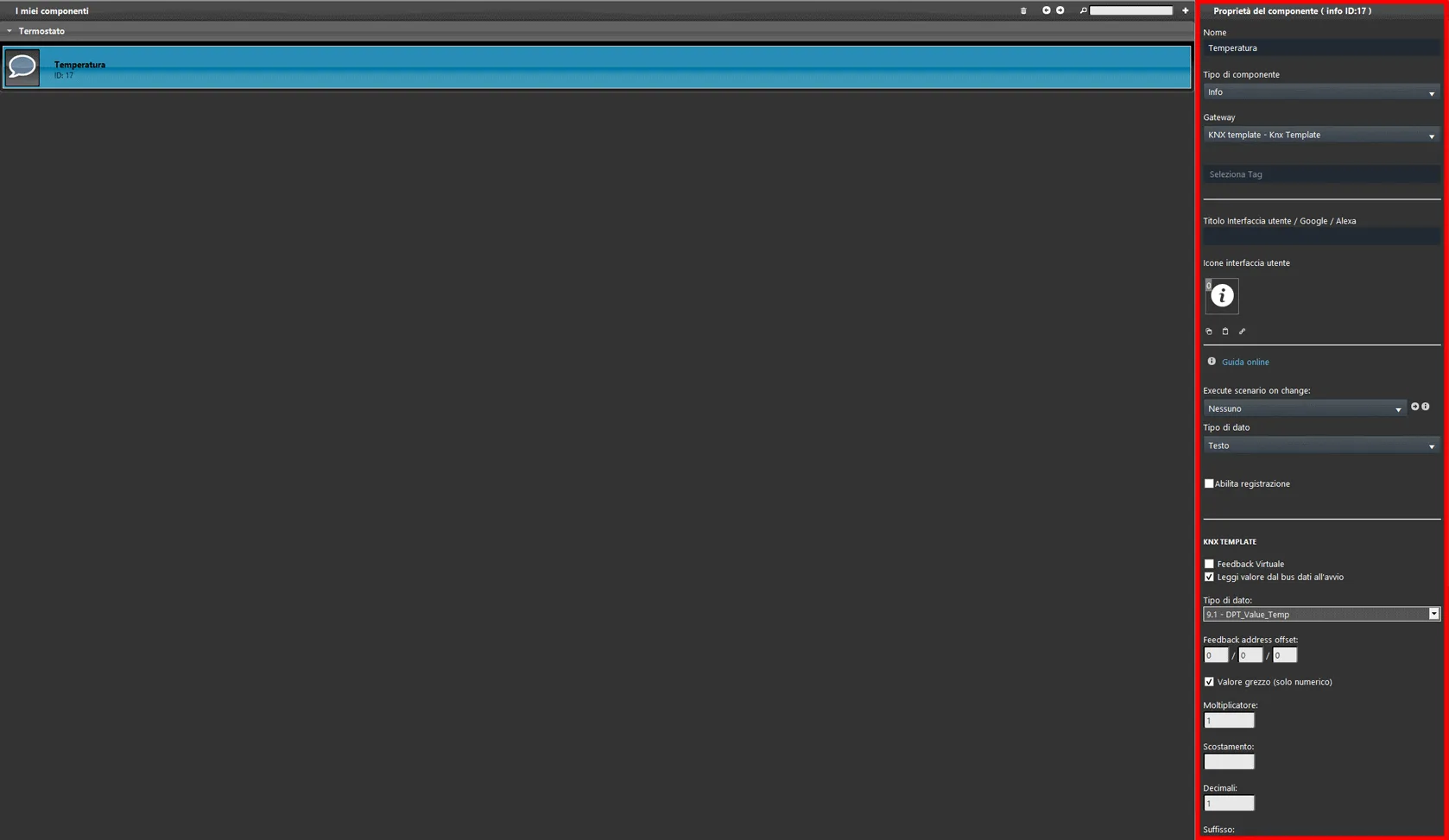
Step 3:
Make sure the “Remove group in case of single component” checkbox is enabled in the group properties.

Step 4:
Import the ETS project with Ilevia Manager’s ETS project importer.
Final result
As shown in the images below, once the ETS project has been imported into Ilevia Manager, the single component added to the project is not created in a separate group.
Remove group in case of single component: active
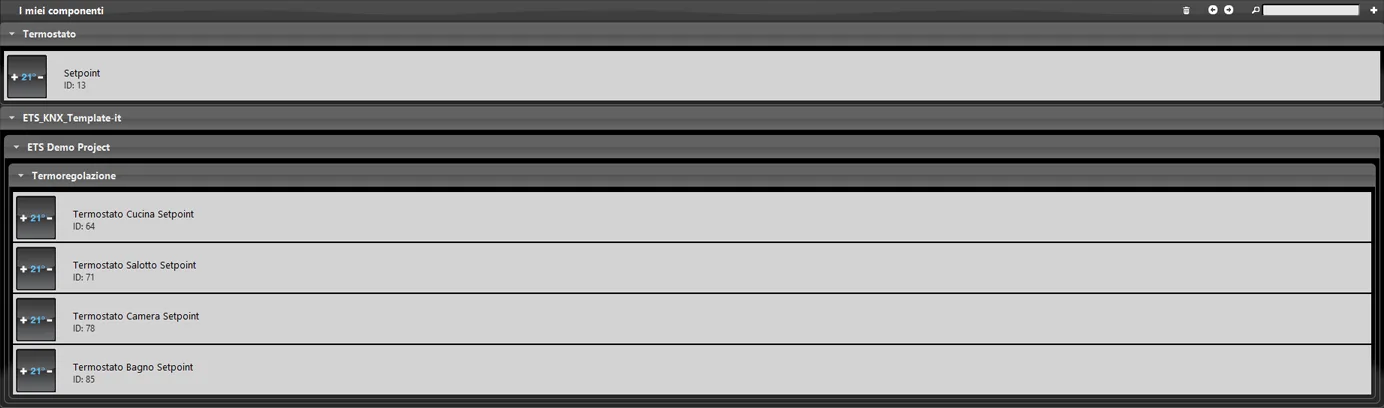
Remove group in case of single component: disabled