
Dahua IVS Gateway
How to configure the Dahua IVS gateway in Ilevia Manager to integrate the IVS rules of Dahua IP cameras, with a step-by-step example.
Introduction
This gateway allows integration of the IVS rules from multiple Dahua IP cameras with the Ilevia server. This means that once the Dahua IP Cameras have been added to the Ilevia configuration software project, you can manage some of the device functions.
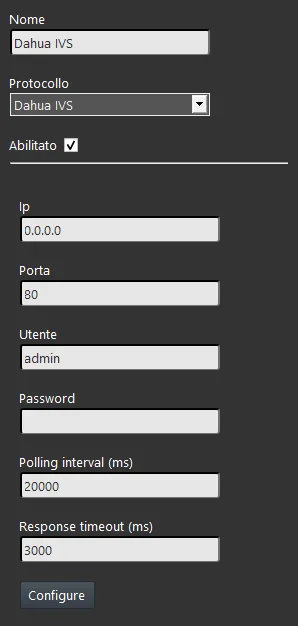
Gateway properties
IP: enter the Dahua device IP address;
Port: enter the port used for the connection to the device. Default port: 80;
Username: enter the username of the Dahua device Admin user;
Password: enter the administrator user password;
Polling interval (ms): waiting time observed by the device for sending the keep alive request;
Timeout response (ms): time in ms that the server waits for a response from the Dahua device;
Configure: once clicked, this button creates the components corresponding to the IVS rules created in the Dahua device in the “My components” section of Ilevia Manager.
Reminder before continuing:
Download and install the Ilevia Logic plugin to enable plugins (link);
After uploading the Ilevia project to the server, wait a couple of minutes for the logics to start.
Gateway configuration
Note: components in Ilevia Manager are created only if at least one rule is set in the IVS section of the Dahua device.
Step 1:
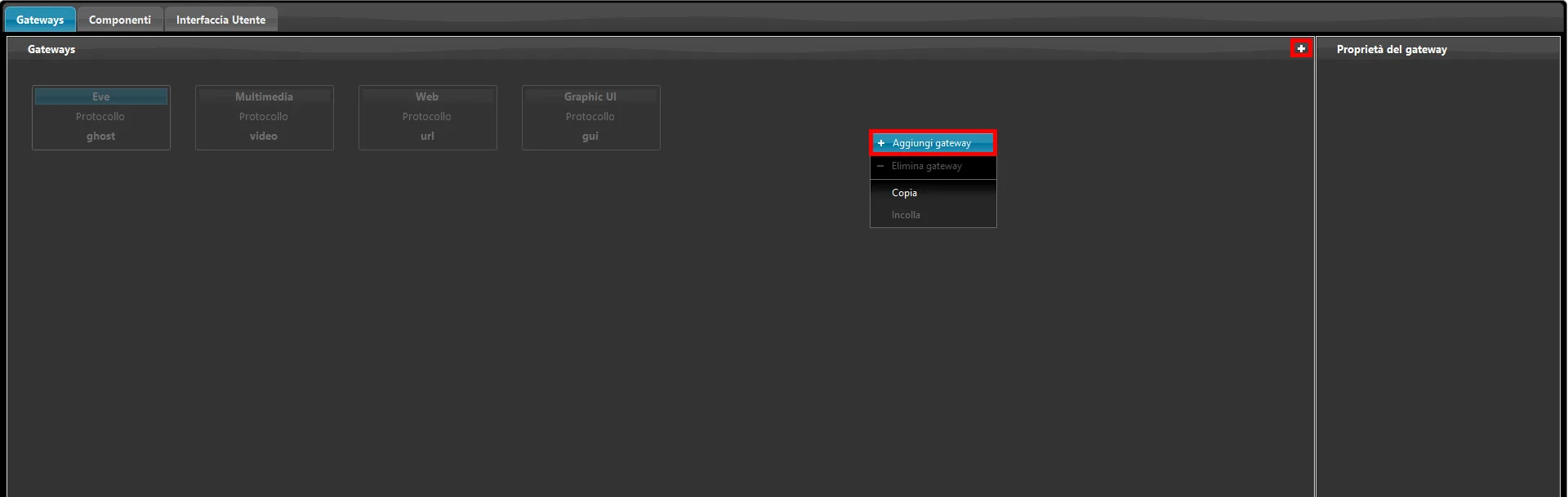
Open Ilevia Manager and go to the Gateway section. Then right-click -> Create Gateway or click the “+” icon on the right side of the screen.
Step 2:
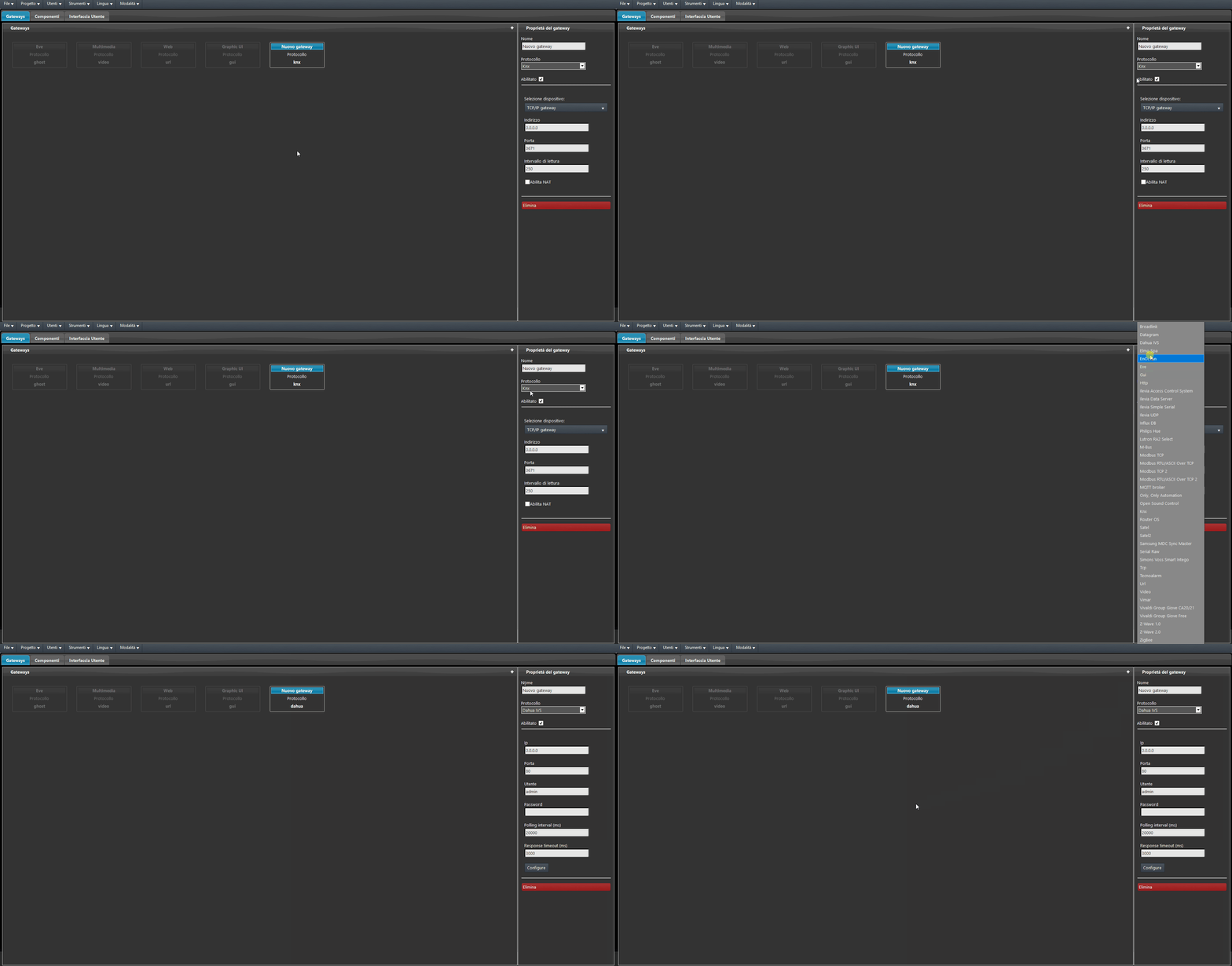
From the gateway properties, open the Protocols drop-down menu and select the Dahua IVS gateway.
Step 3:
Complete the gateway parameters with those related to the Dahua device. Then upload the project to the server.
Step 4:
Once the project has been uploaded to the server and the Logic software has started correctly, click the Configure button at the bottom of the gateway parameters.
If the procedure was completed successfully, you will see the components in the “My components” section.
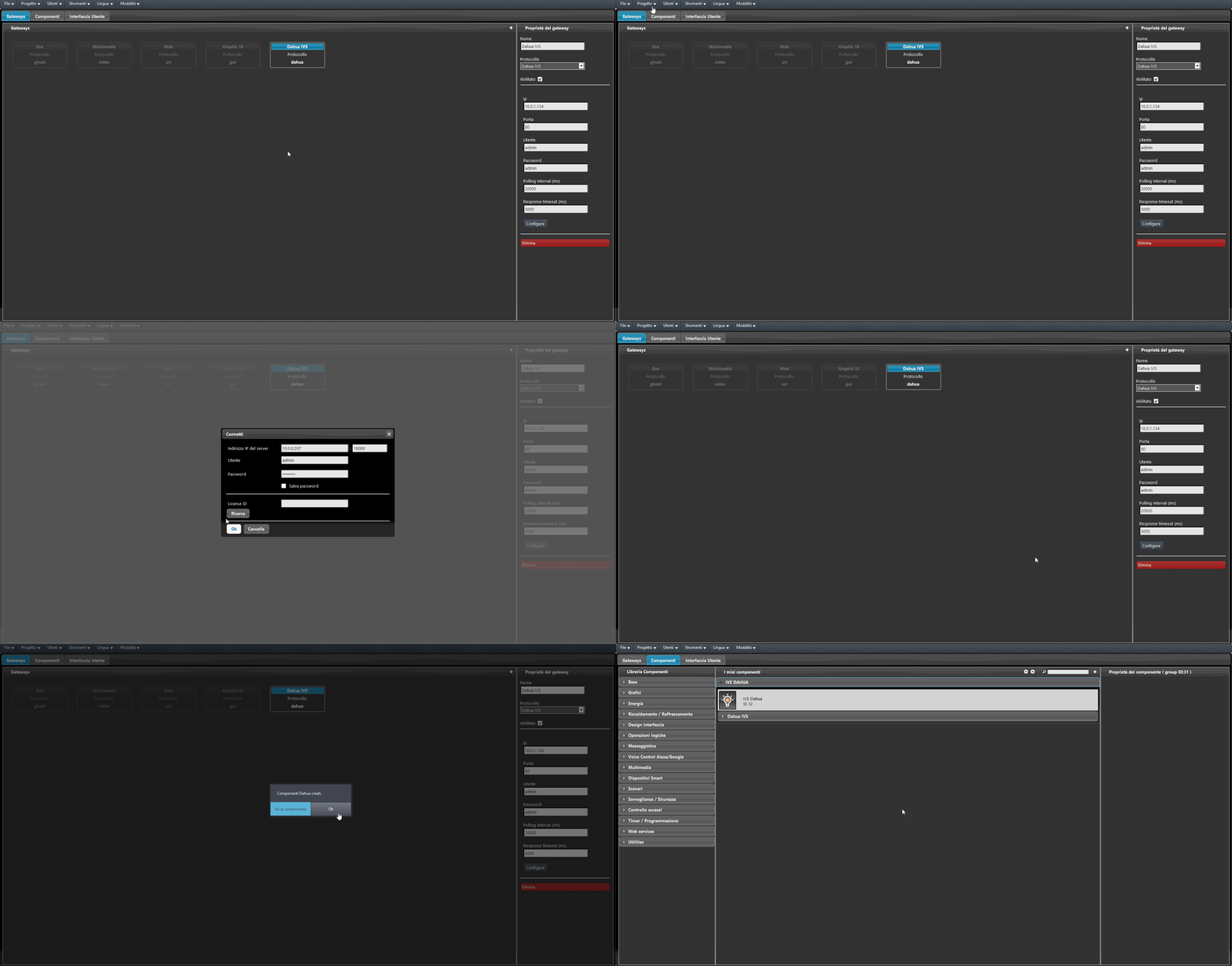
Imported component details
At the end of the import, multiple components appear: each represents a different IVS command. A new component called Dahua IVS is also created, which allows you to create logics between the devices in the Ilevia project and the IVS rules of the Dahua IP camera.
Dahua IVS
This component allows you to create integrated logics between devices within the Ilevia project.
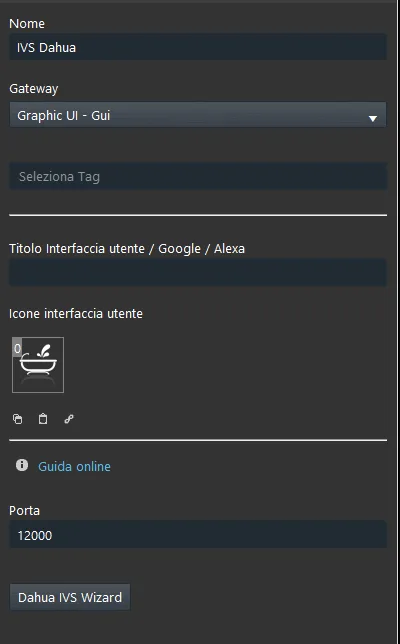
Port: customizable parameter; it represents the port used by the X1 server to receive IVS commands from the IP camera.
Dahua IVS Wizard: this wizard allows you to create logics between the devices in the Ilevia project and the Dahua IP camera. Click here to consult the wizard operation guide.
Imported groups
Group 1
The imported groups contain components that represent the general states and commands of the Dahua IP camera.
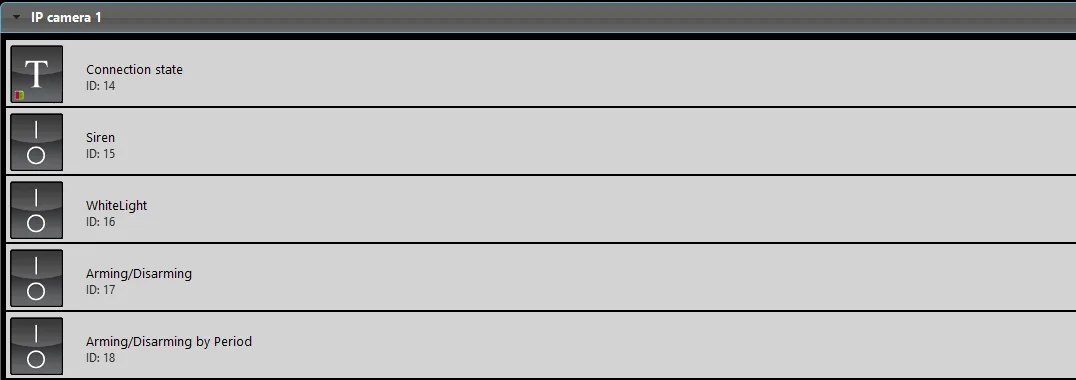
Connection status: This Info color component represents the connection status between the server and the Dahua IP camera.
Siren: this Switch component indicates whether the siren alarm is active or not.
Whitelight: this Switch component represents the white light of the Dahua IP camera and allows you to turn it on or off.
Arming/Disarming: this Switch component allows you to enable or disable the IP camera's internal alarm.
Arming/Disarming by period: this Switch component allows you to enable or disable the alarm based on a time period.
Group 2
This group contains the components that represent the Heat Map of the Dahua IP camera. The Heat Map is used to detect the level of movement of moving objects over a certain period of time: it supports population density statistics over that period and displays the space with different colors.
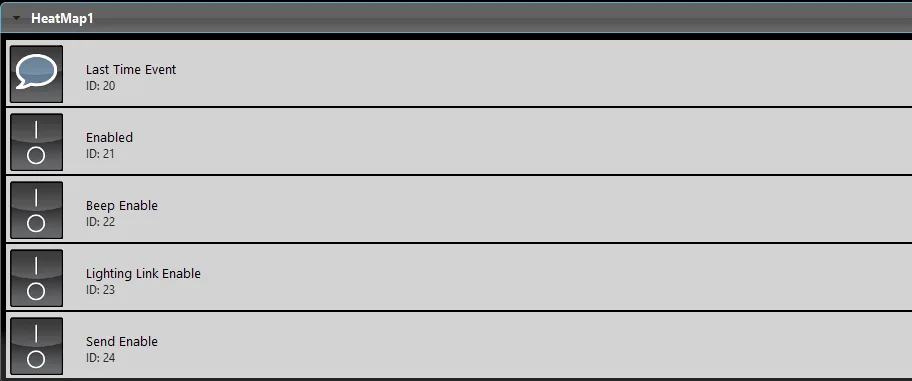
Last time event: This Info component shows the date and time of the last time the Heat Map event was executed.
Enabled: this Switch component allows you to enable or disable the Heat Map event.
Beep Enabled: This Switch component allows you to enable or disable the Beep sound once the Heat Map event is executed.
Lighting link enable: This Switch component allows you to enable or disable the link with the lighting on the Dahua IP camera.
Send Enable: This Switch component allows you to enable or disable sending the execution from the Ilevia server to the Dahua IP camera.
Group 3
This group contains the components that represent the FaceDetection event of the Dahua IP camera. Face recognition is used to detect the presence of human faces in the video and can trigger snapshots, recordings, and alarms.
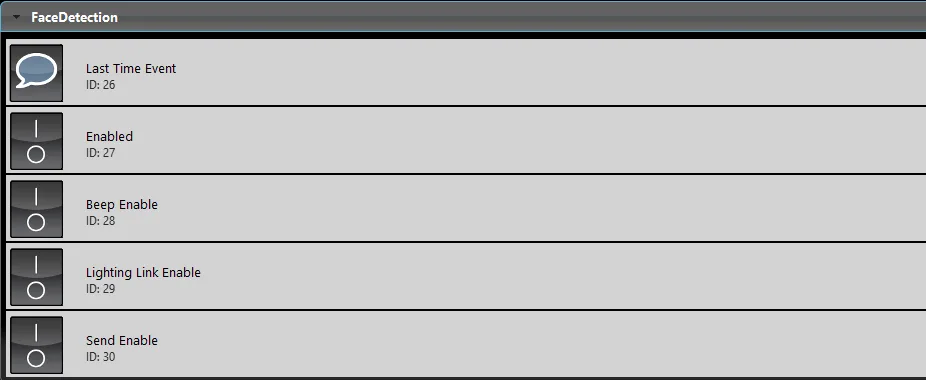
Last time event: This Info component shows the date and time of the last time the Face Detection event was executed.
Enabled: this Switch component allows you to enable or disable the Face Detection event.
Beep Enabled: This Switch component allows you to enable or disable the Beep sound once the Face Detection event is executed.
Lighting link enable: This Switch component allows you to enable or disable the connection with the lighting on the Dahua IP camera once the Face Detection event is started.
Send Enable: This Switch component allows you to enable or disable sending the execution from the Ilevia server to the Dahua IP camera.
Group 4
This group contains the components that represent the Number stats event. The Number stats function creates statistics on people entering and leaving a specific area of the image and returns the statistical data.
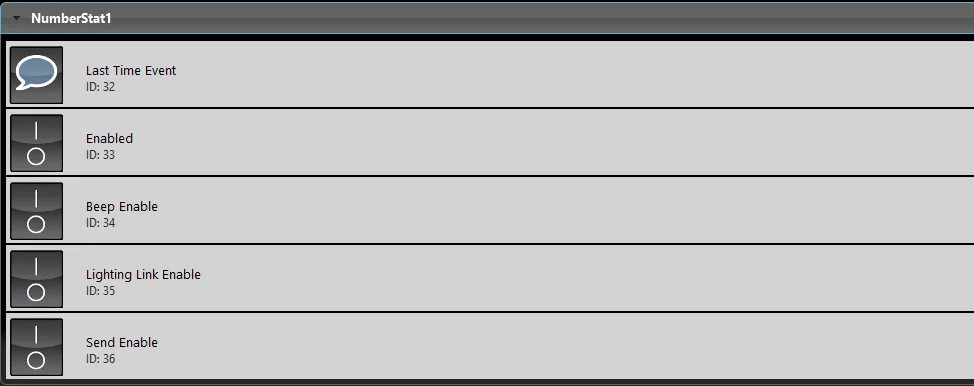
Last time event: This Info component shows the date and time of the last time the Number stat event was executed.
Enabled: this Switch component allows you to enable or disable the Number stat event.
Beep Enabled: This Switch component allows you to enable or disable the Beep sound once the Number stat event is executed.
Lighting link enable: This Switch component allows you to enable or disable the connection with the lighting on the Dahua IP camera once the Number stat event is started.
Send Enable: This Switch component allows you to enable or disable sending the execution from the Ilevia server to the Dahua IP camera.
Group 5
This group contains the components that represent the IVS rules created within the Dahua IP camera web interface.
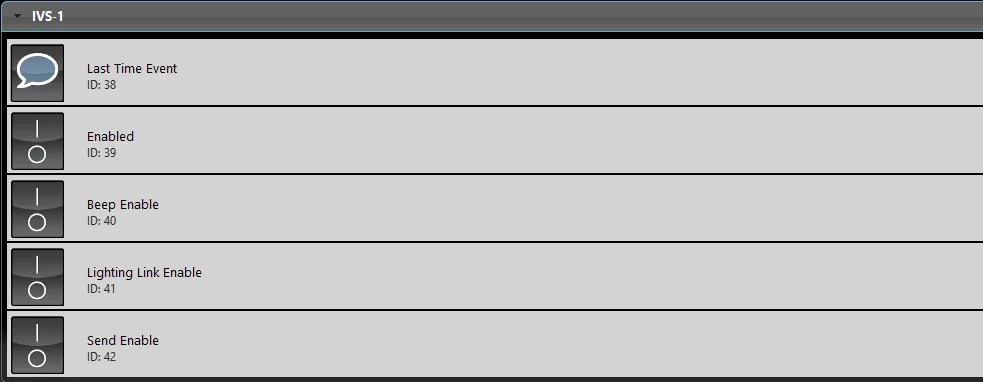
Last time event: This Info component shows the date and time of the last time the IVS event was executed.
Enabled: this Switch component allows you to enable or disable the IVS event.
Beep Enabled: This Switch component allows you to enable or disable the Beep sound once the IVS event is executed.
Lighting link enable: This Switch component allows you to enable or disable the connection with the lighting on the Dahua IP camera once the IVS event is started.
Send Enable: This Switch component allows you to enable or disable sending the execution from the Ilevia server to the Dahua IP camera.