
Script with sunrise and sunset times from an online API
How to create in Ilevia Manager a script that retrieves sunrise and sunset times from an online API and activates a Lock component based on the current time.
INTRODUCTION
The following guide explains in detail how to build the script and how it works. The script retrieves information online through HTTP requests to APIs, then processes it and activates the configured components.
Component configuration
Step 1:
Open the Ilevia Manager configuration software and go to the Components section. Open the Home automation menu and add the following components:
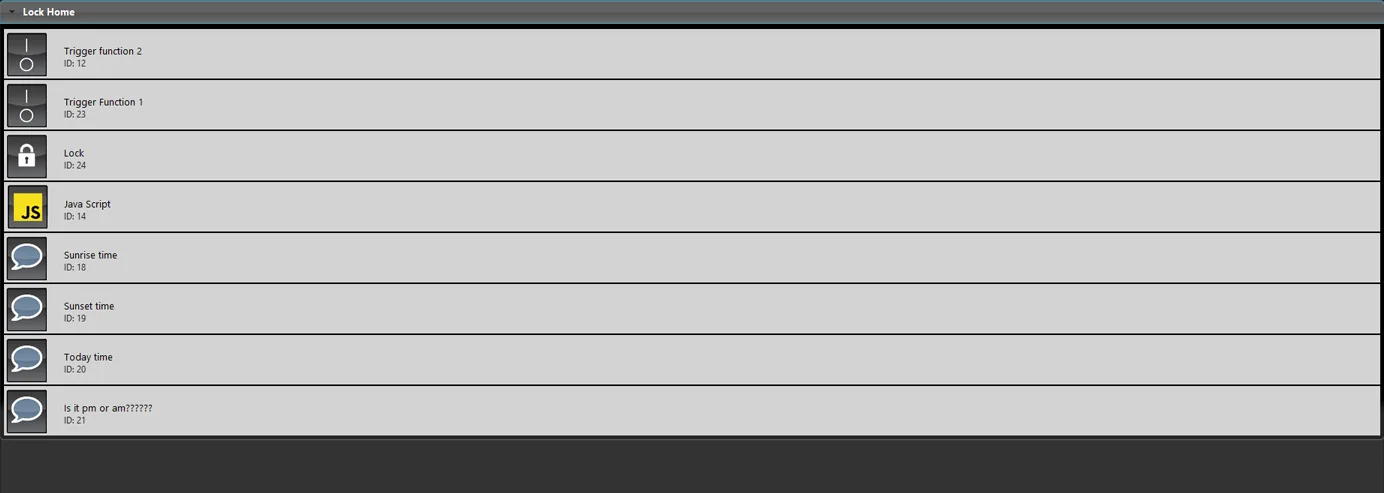
Step 2:
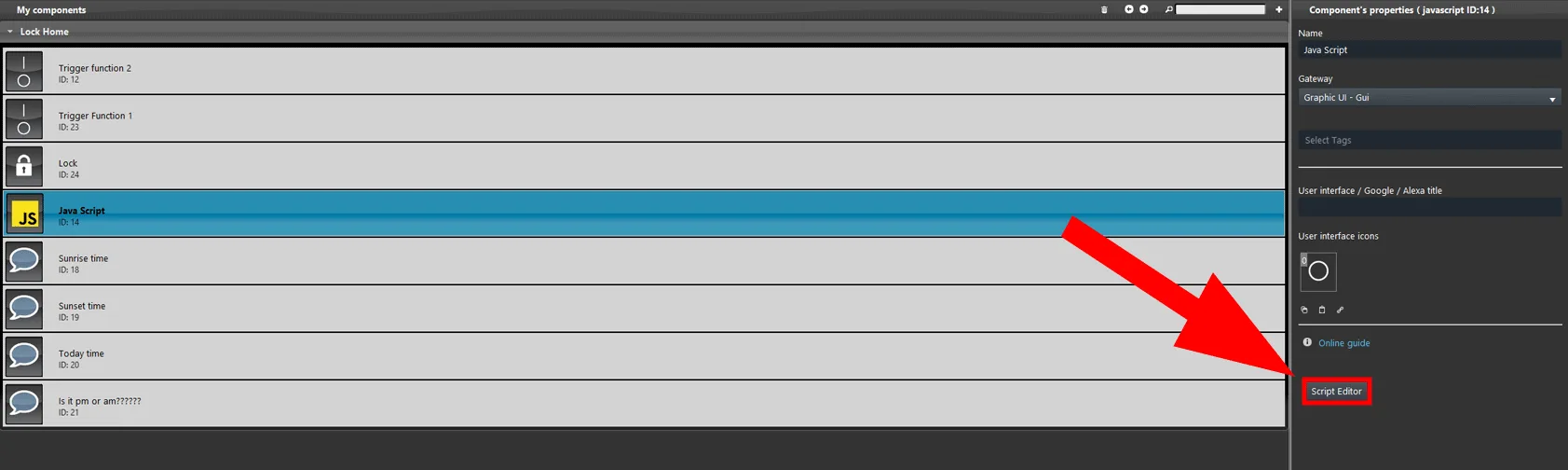
Open the Script component editor.
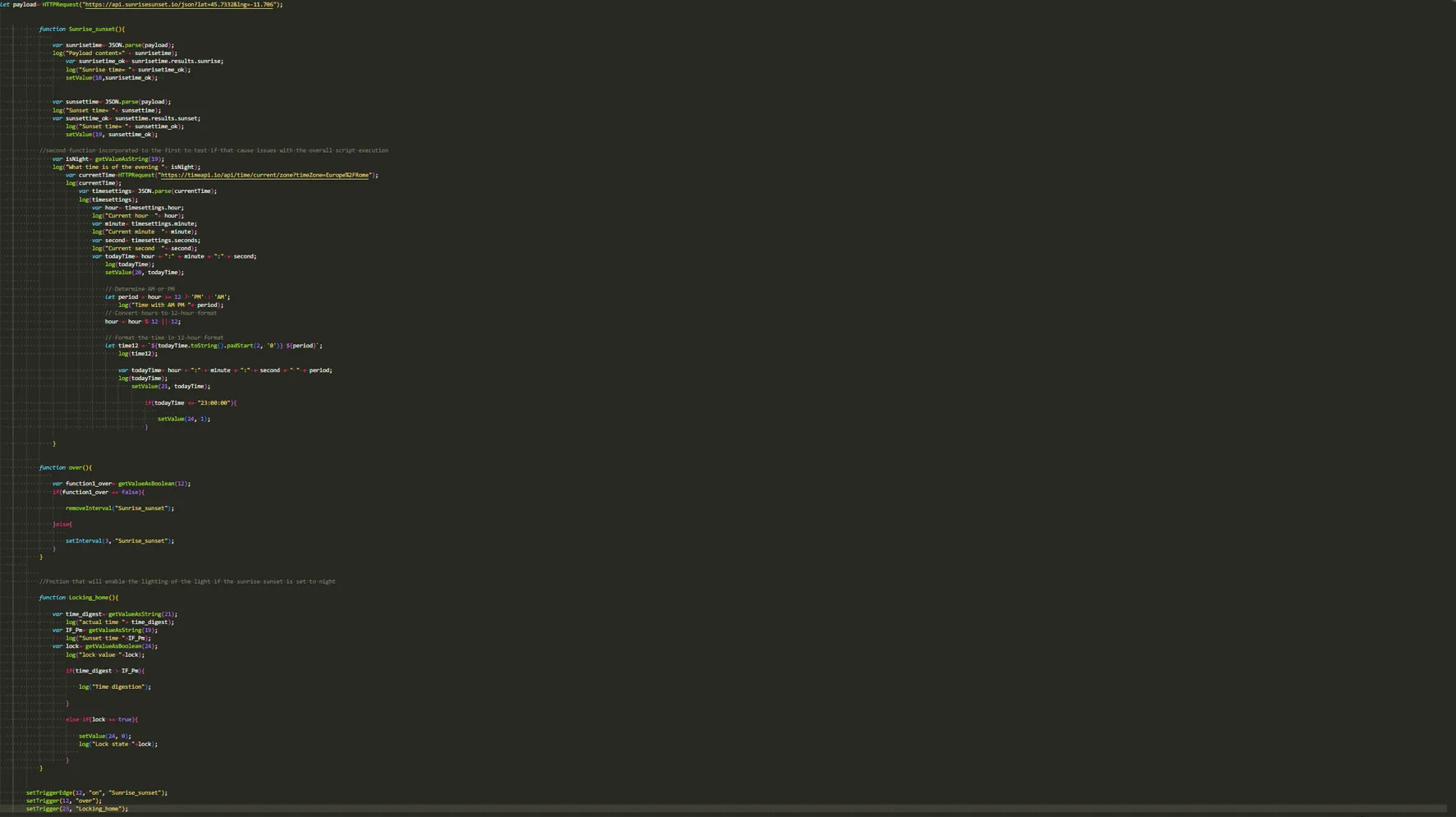
Script overview
Step 3:
Create the first variable, which contains the HTTP request for sunrise and sunset times.

Step 4:
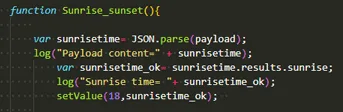
Add the first function, called Sunrise_sunset, which will Parse the payload, represented in this example by the “Payload” variable. Then create a variable called “Sunrisetime_ok”, which contains the parsed sunrise time from the HTTP request. Finally, write the value in component ID 18.
Step 5:
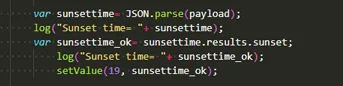
The same process is applied to the sunset time: the new variable called “sunsettime” will contain the parsed sunset time obtained from the HTTP request JSON, starting from the “Payload” variable. Finally, set the value in component ID 19.
Step 6:
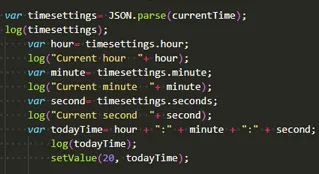
Create the “currenttime” variable, which will make an HTTP request to obtain the current time based on your time zone. Then create the “timesettings” variable, which will parse the JSON coming from the HTTP request and extract the current time from it.

Step 7:
The next step is to extract the hour, minute, and second values: three new variables are created, each taking part of the information from the JSON. Then these values are assembled into a single time value in the todayTime variable. Finally, the result is written to component ID 20.
Step 8:
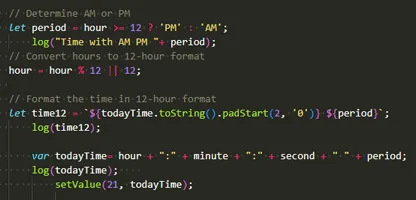
The next step determines whether the time is AM or PM. The new variable “period” is used to set the AM or PM label for the current time. Then the current time is converted from 24-hour format to 12-hour format. Finally, the current time is assembled and the value is written to component ID 21.
Step 9:
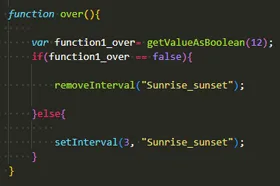
To update the Sunrise_sunset function periodically, create a new function called “Over”. This function sets an Interval on the main function, which will run it repeatedly.
Step 10:
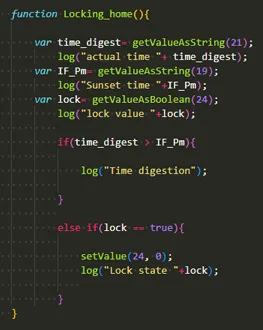
The last function in the script changes the value of a Lock component if the current time matches the sunset time. The first variable, “Time digest”, contains the current time; the second, “IF_Pm”, contains the sunset time; the last, “lock”, contains the value of the Lock component. Finally, the function is completed with an If Else logic that changes the state of the Lock component if the current time is before sunset time.
Step 11:
Finally, configure the setTriggers: they are required for the functions to run. The first setTrigger runs the “Sunrise_sunset” function only if component ID 12 changes its state to ON. The second setTrigger runs the “Over” function every time component ID 12 changes state. The last setTrigger runs the “Locking_home” function every time component ID 23 changes state.

Click the link below to download the demo project and try it out.