Google Calendar Component
This guide explains how to configure the Google Calendar component within Ilevia’s configuration software: Ilevia Manager.
Introduction
The Google Calendar component allows you to integrate events from a Google calendar with the X1 server. Through two scenarios, one at the start and one at the end of the event, it can manage, for example, a meeting room: switch on the thermostat, control light dimming and open the blinds.
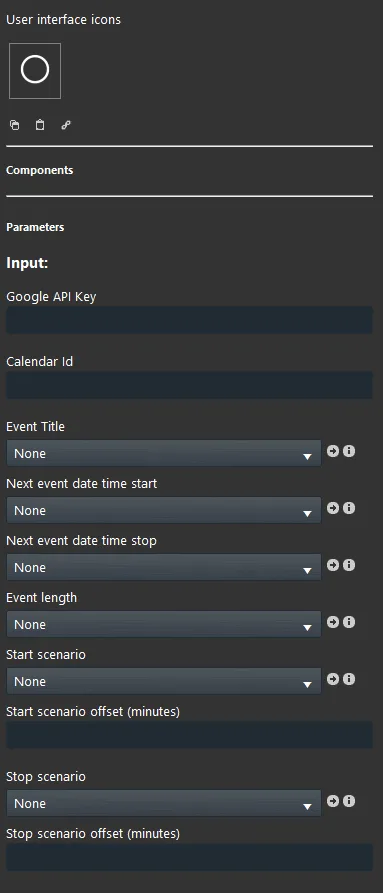
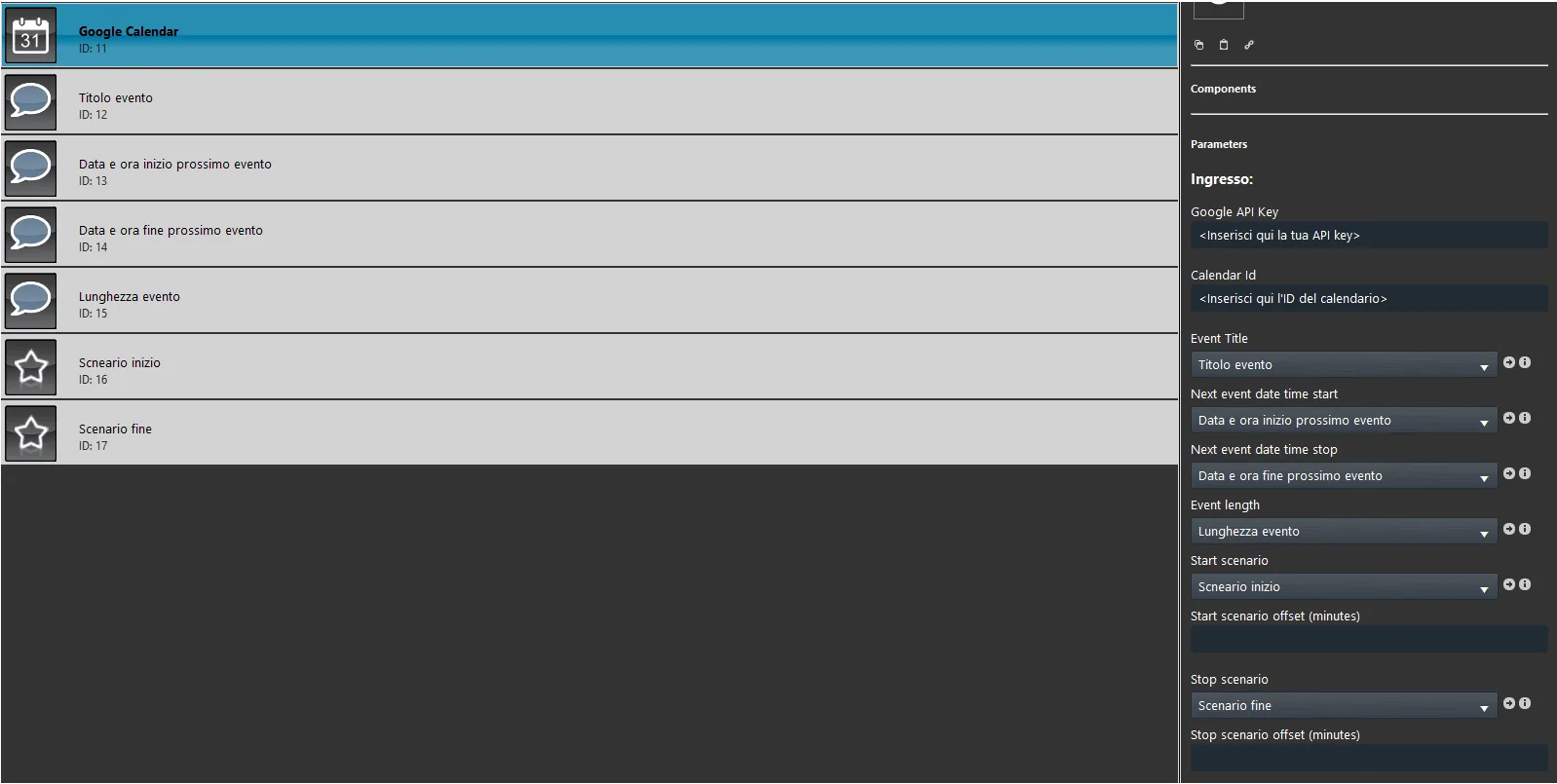
Google API Key: Enter the Google Calendar API key.
Calendar ID: enter the Calendar ID here, which identifies the calendar on the internet.
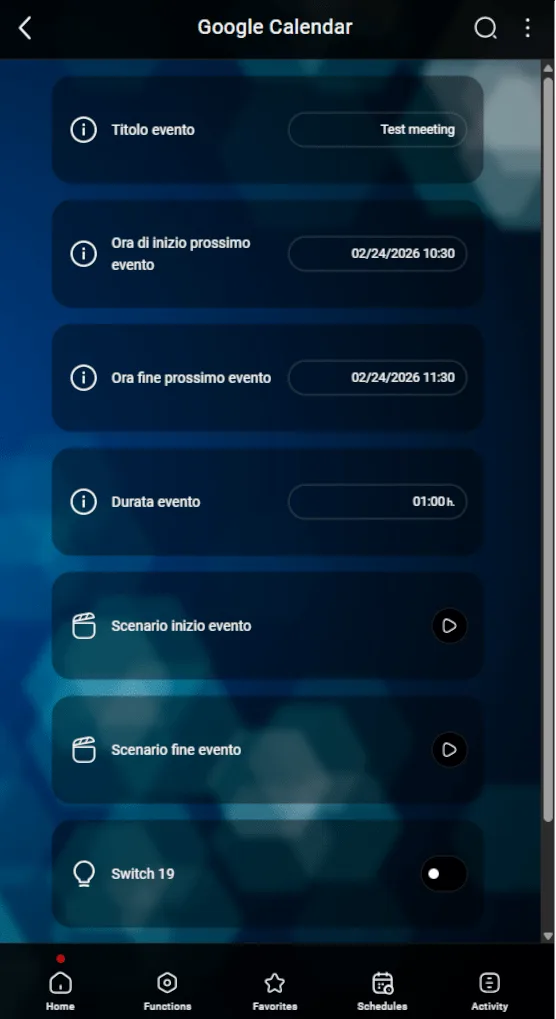
Event Title: this Info component displays the name of the event created in Google Calendar.
Next event start date: this Info component displays the start date of the next scheduled event.
Next event end date: this Info component displays the end date of the next scheduled event.
Event duration: this Info component displays the overall duration of the event.
Start scenario: this Scenario component is started at the beginning of the event.
Start scenario offset (minutes): this parameter lets you advance or delay the start of the Start scenario.
End scenario: This Scenario component is started at the end of the event.
End scenario offset (minutes): this parameter lets you advance or delay the start of the End scenario.
Component configuration
Open the browser and go to the Google Calendar page. You can choose an existing calendar or create a new one.
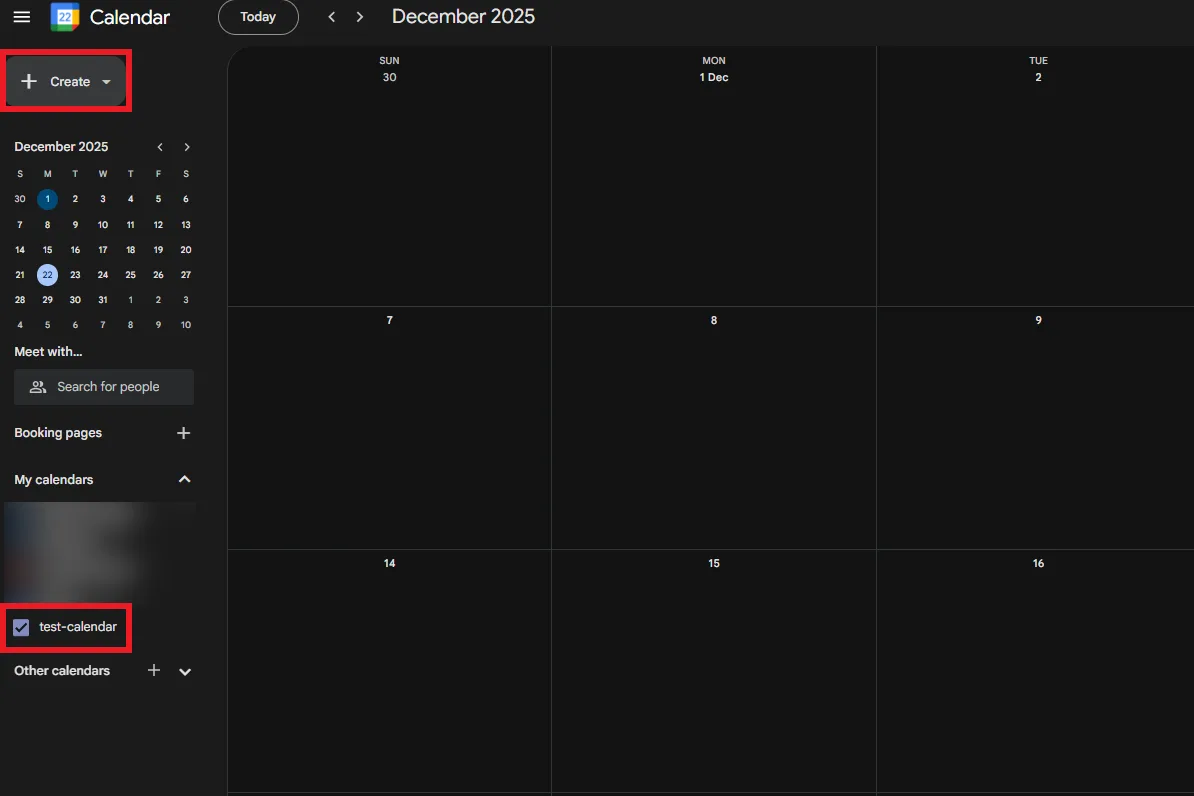
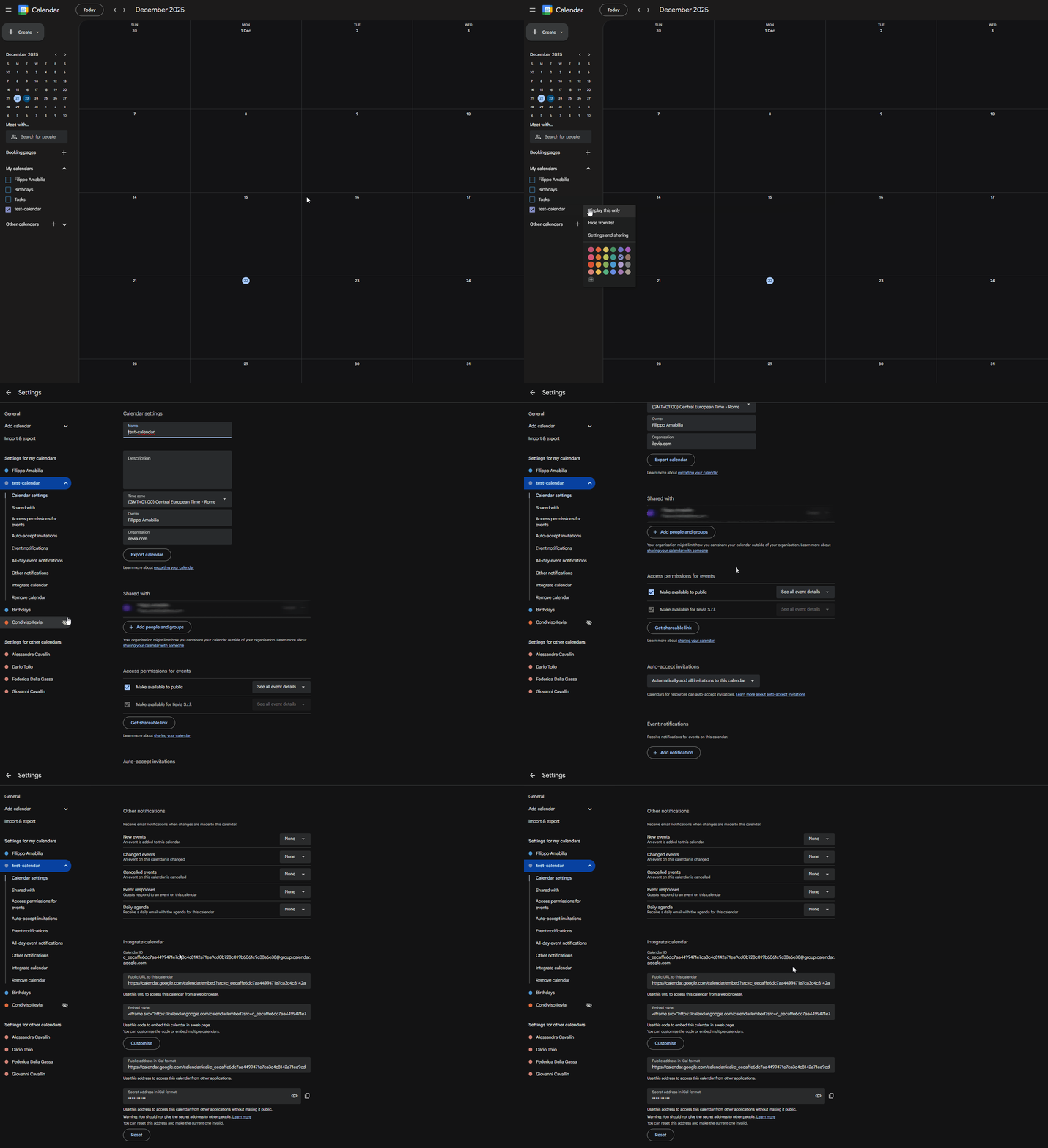
Open the “Sharing and settings” options for the selected calendar, then scroll down to “Integrate Calendar” and copy the Calendar ID. This setting is required to connect the Ilevia server to Google Calendar.
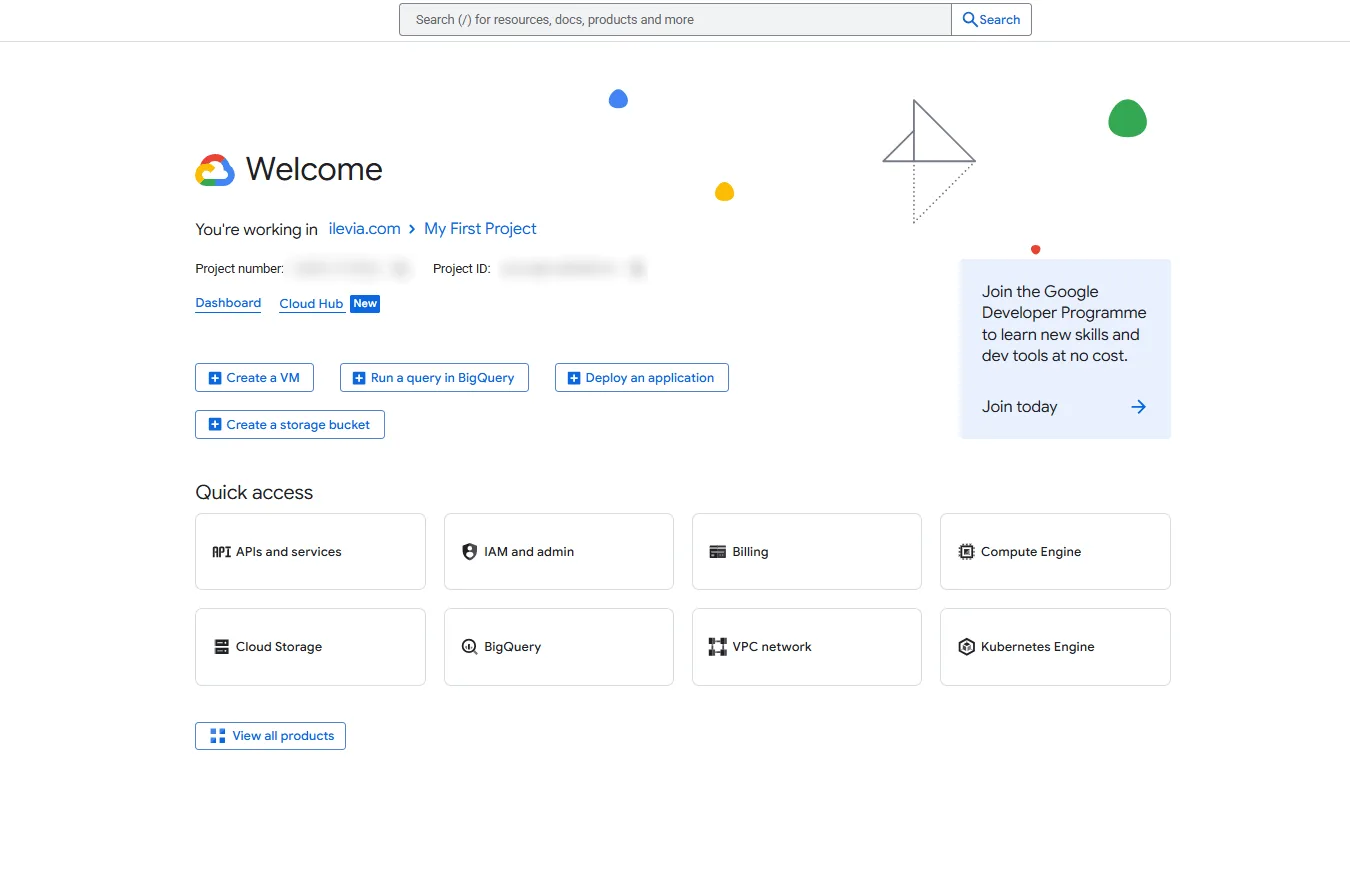
Connect to the Google Cloud Console to create the API Key that enables access to Google Calendar.
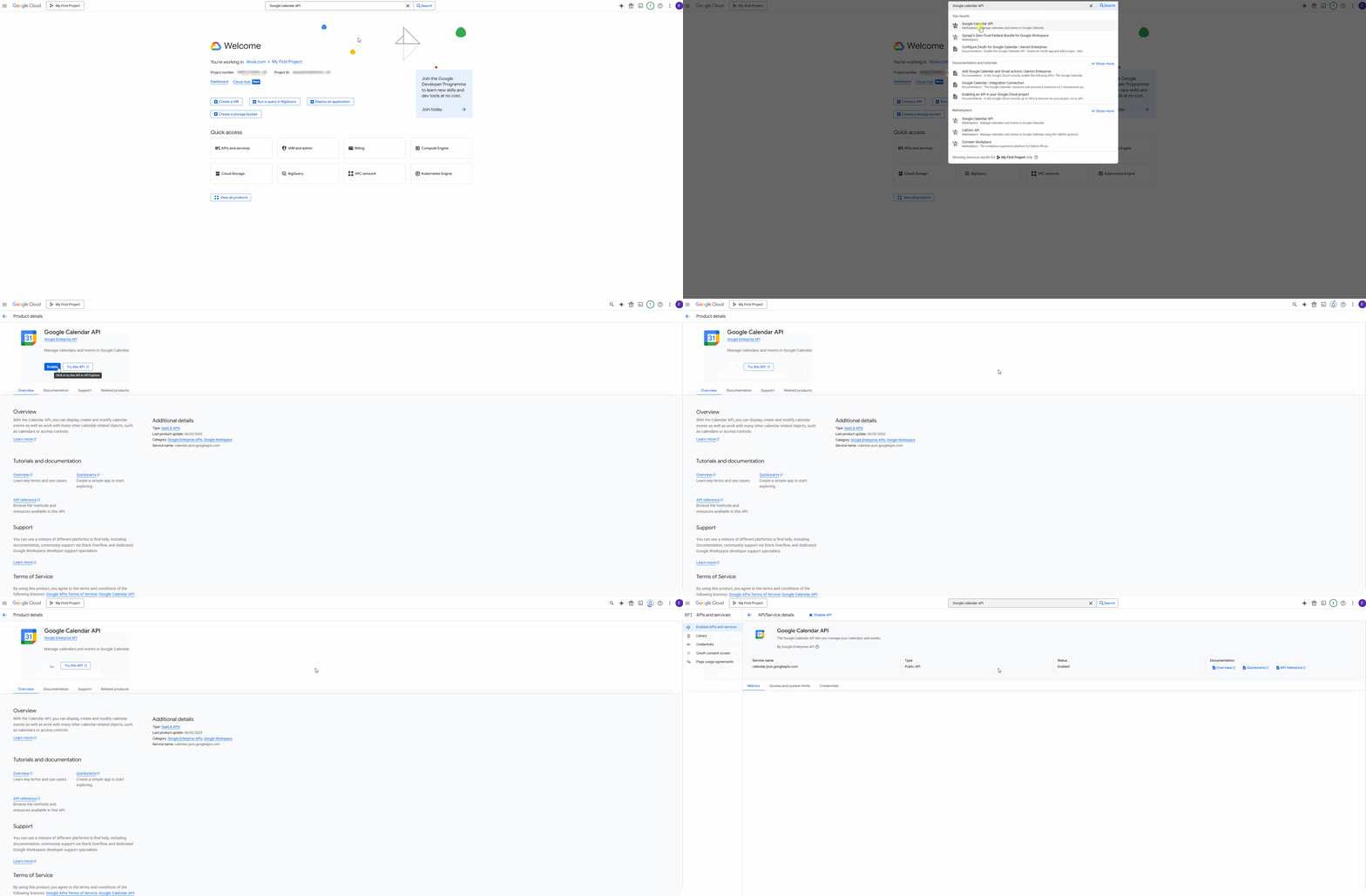
Search for “Google Calendar API”, click the first item in the list, then click Enable.
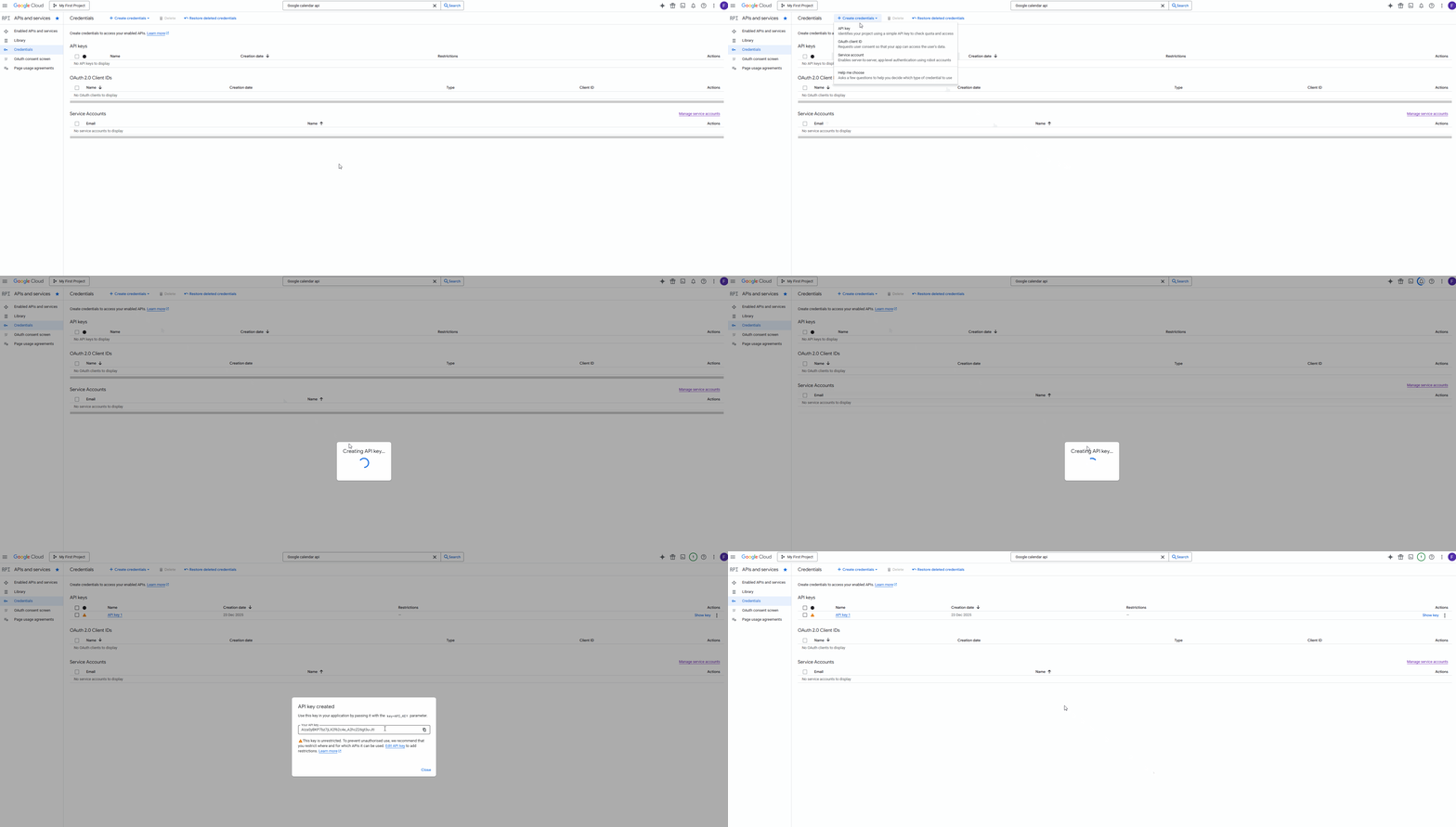
Click Credentials, then Create credentials, and finally select API Key. Copy the API Key and click Close.
Project configuration
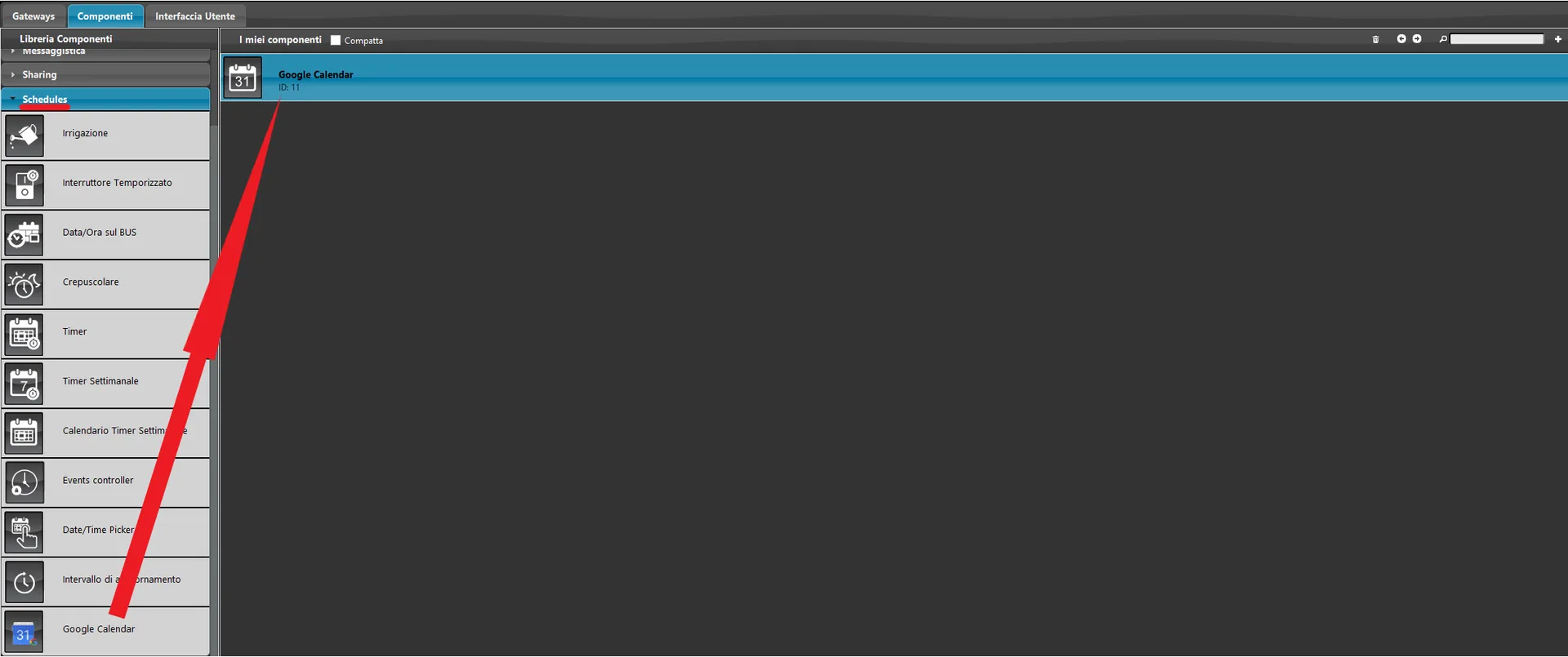
Open Ilevia Manager, then the Components section. Open the Schedule menu and add the Google Calendar component.
Enter the Calendar ID and the API Key in their respective parameters.
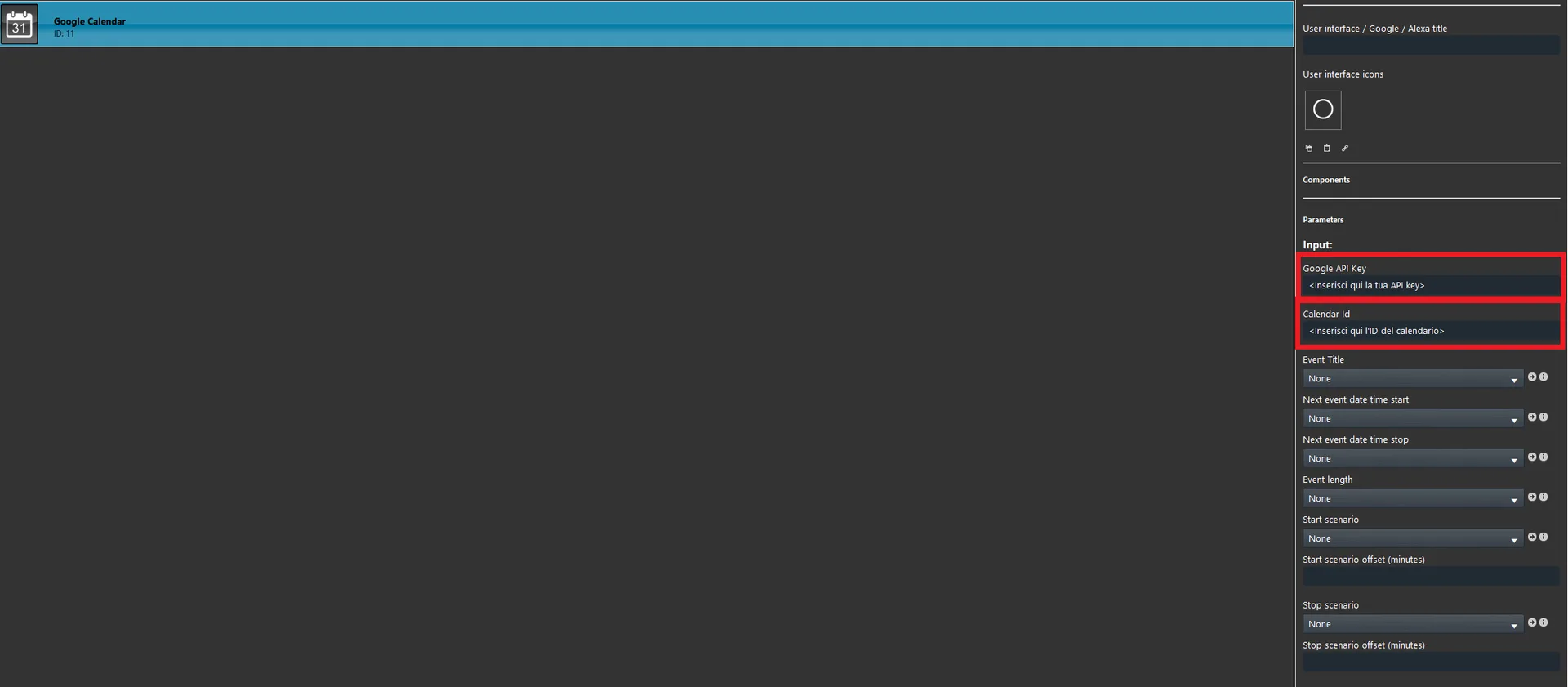
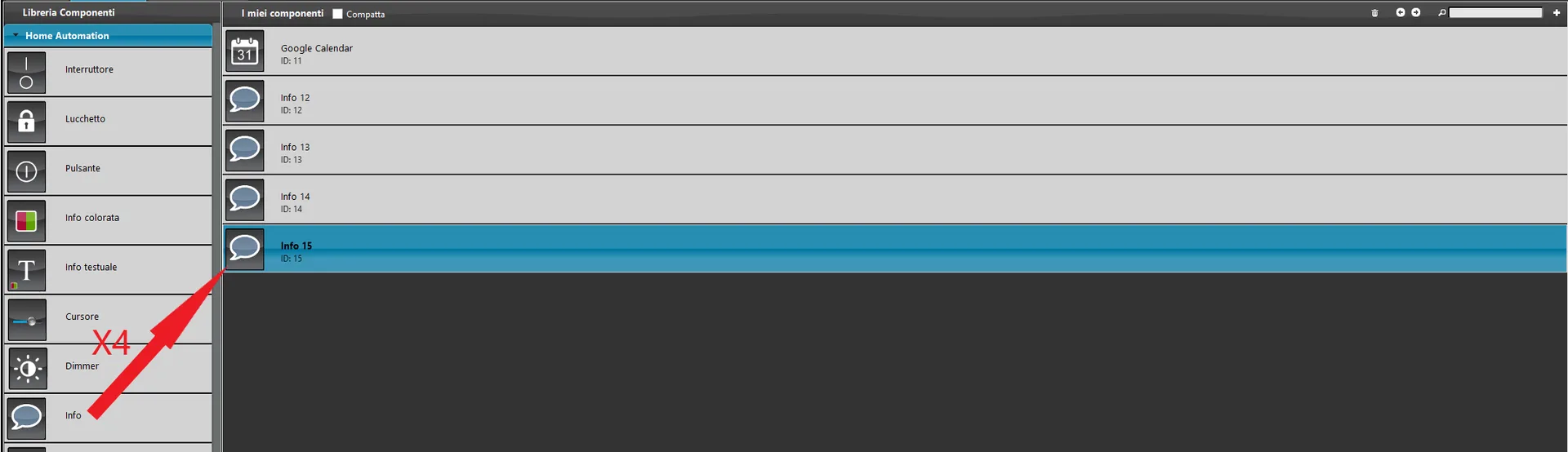
Create 4 Info components and connect them to the Google Calendar component as shown in the image (Event Title, Next event start date, Next event end date, Event duration parameters).
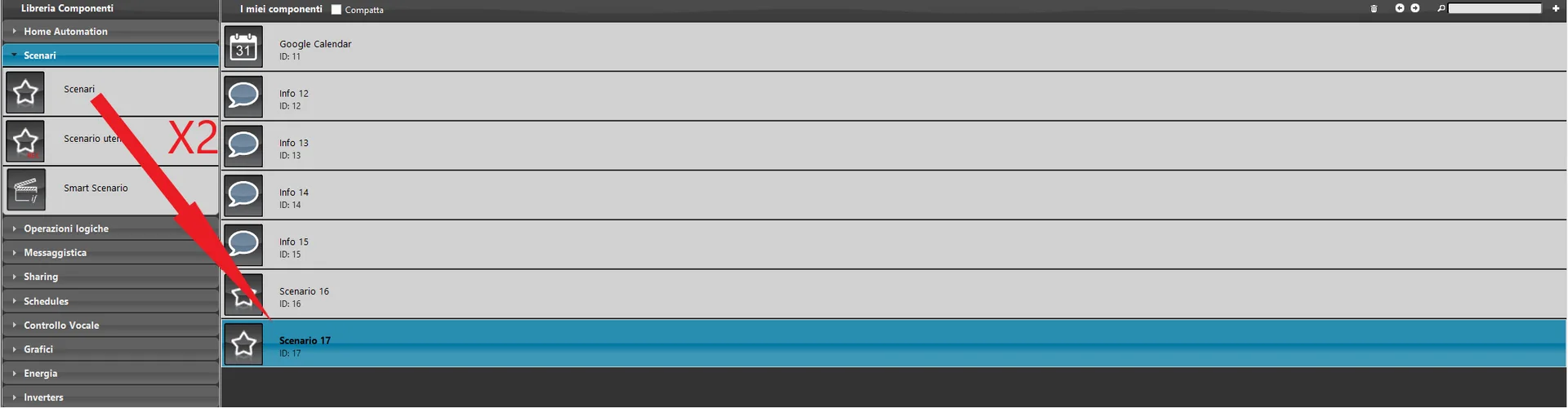
Add 2 Scenario components and connect them to the Start scenario and End scenario parameters.
Connect the created components to the Google Calendar component.
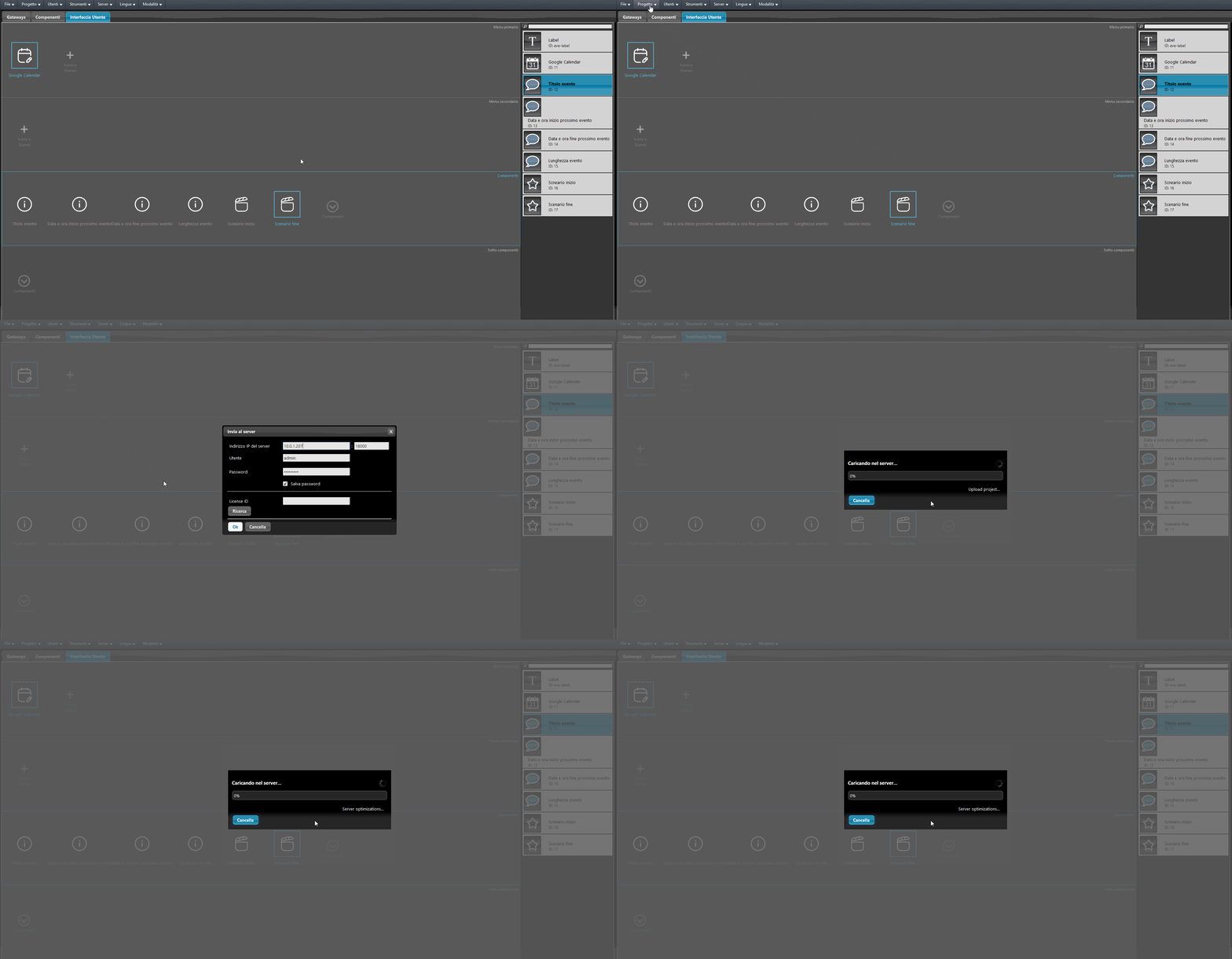
Finally, go to the User interface section and add the component to the interface, then upload the project to the server.
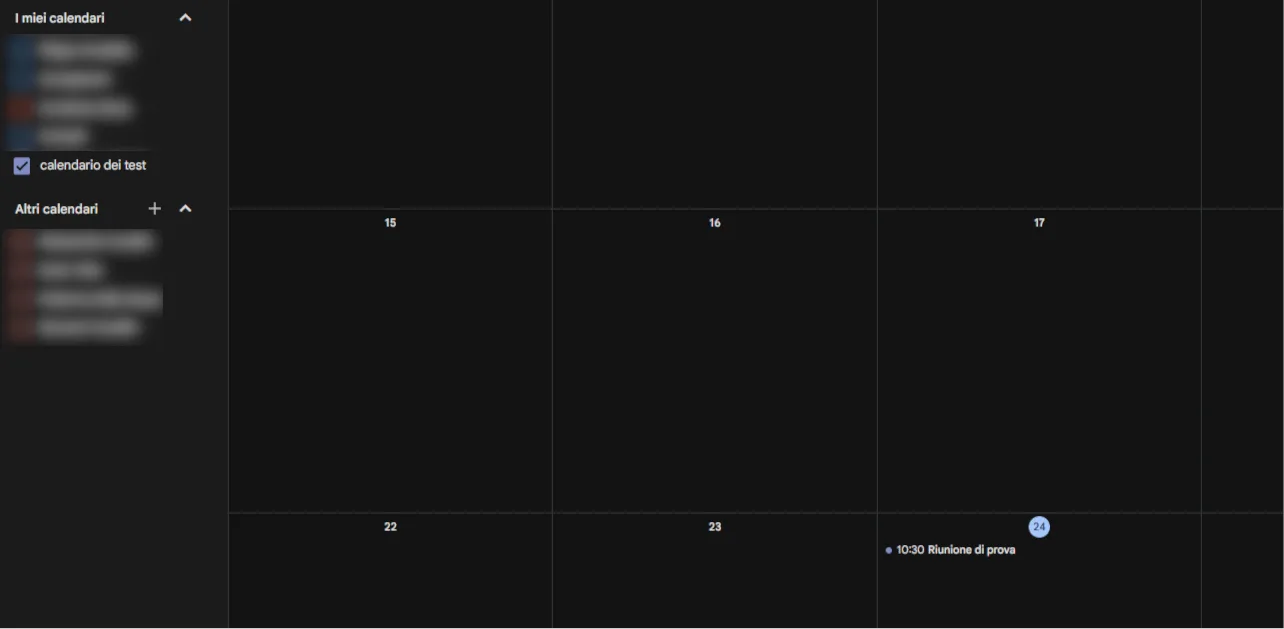
Create a new event on the Google Calendar web page, in the calendar with the calendar ID entered in the Ilevia project.
The Google Calendar component is shown below in the Ilevia Control application.