LG TV Integration
Guide explaining how to integrate LG TVs into the Ilevia system using the Ilevia Manager configuration software.
Introduction
This component allows integration of any LG smart TV with the Ilevia server. The available actions are many, for example: volume up/down, channel up/down, source change, and many others.
Use cases
The user wants to integrate their LG TV so it can be controlled through the Ilevia Control app.
Reminder before continuing:
Download and install the Logic module to enable plugins (link);
After uploading the Ilevia project to the server, wait a couple of minutes for the logics to start.
Component configuration
Step 1:
Open Ilevia Manager and go to the Components tab. Connect to the Ilevia server by clicking the Project menu and then Connect, complete the connection parameters, and finally click OK.
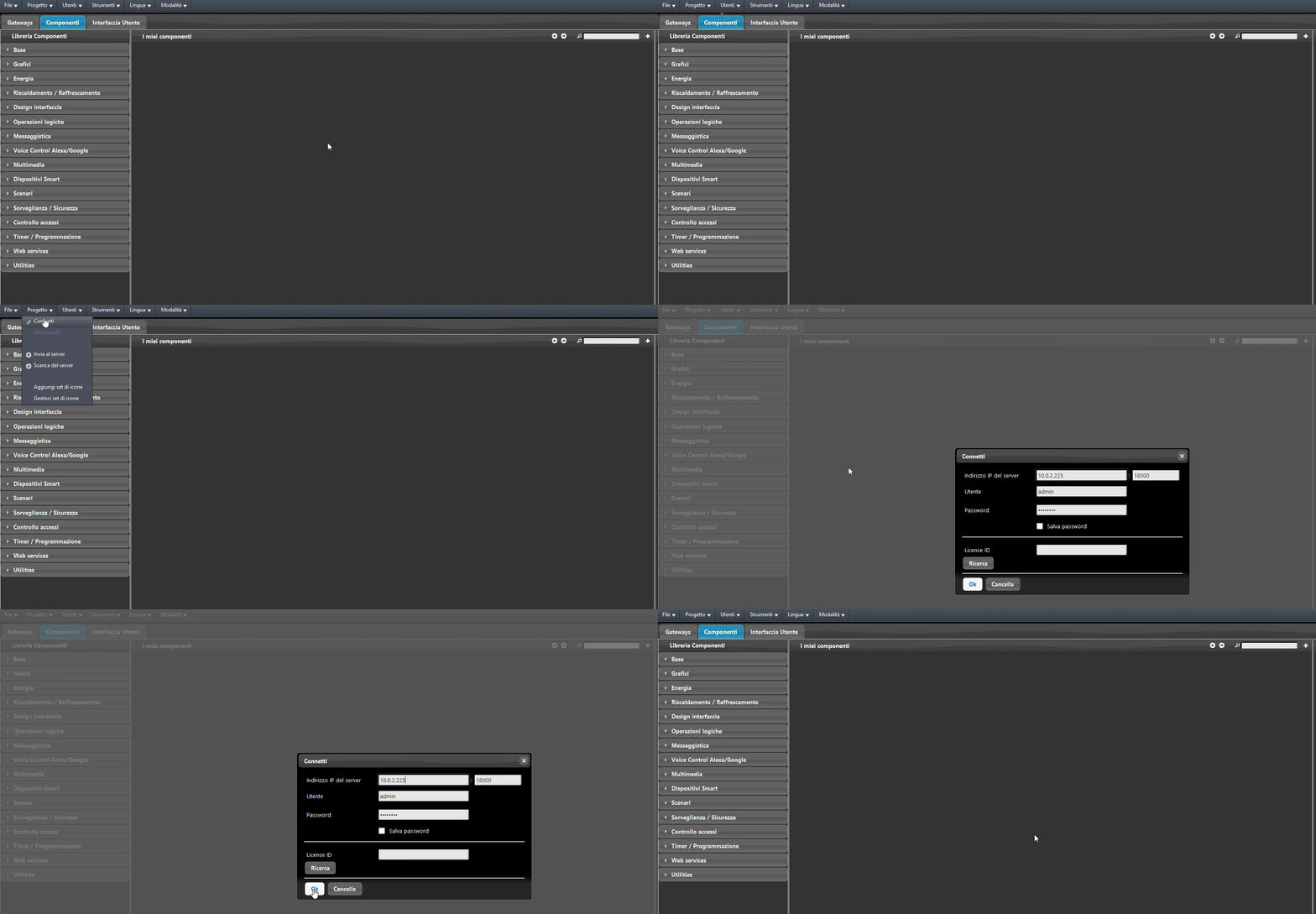
Step 2:
Open the Multimedia menu, found in the Component library, on the left side of the Components section of Ilevia Manager. Drag the LG TV component into the “My components” section.
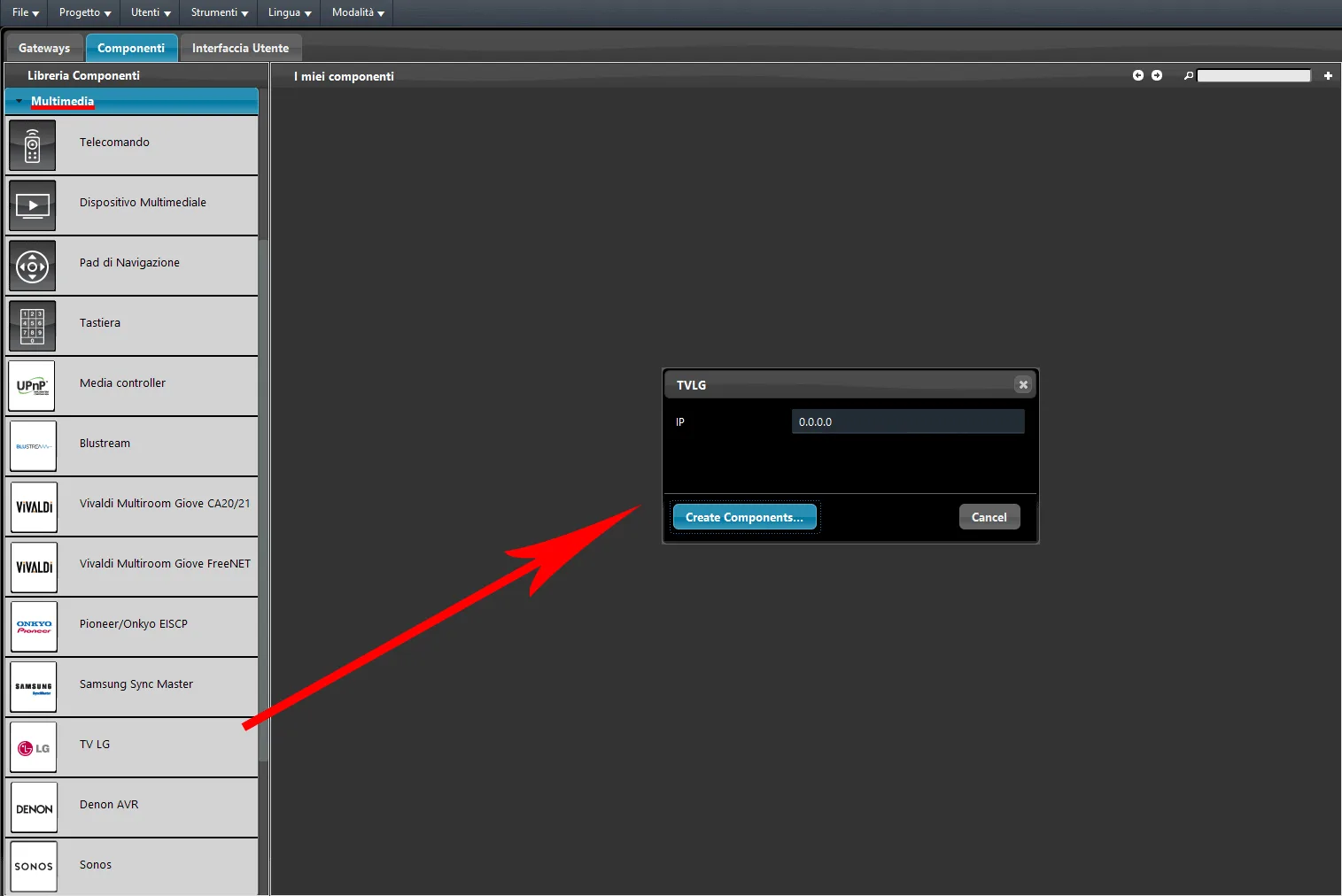
Step 3:
Enter your LG TV IP address in the component properties.
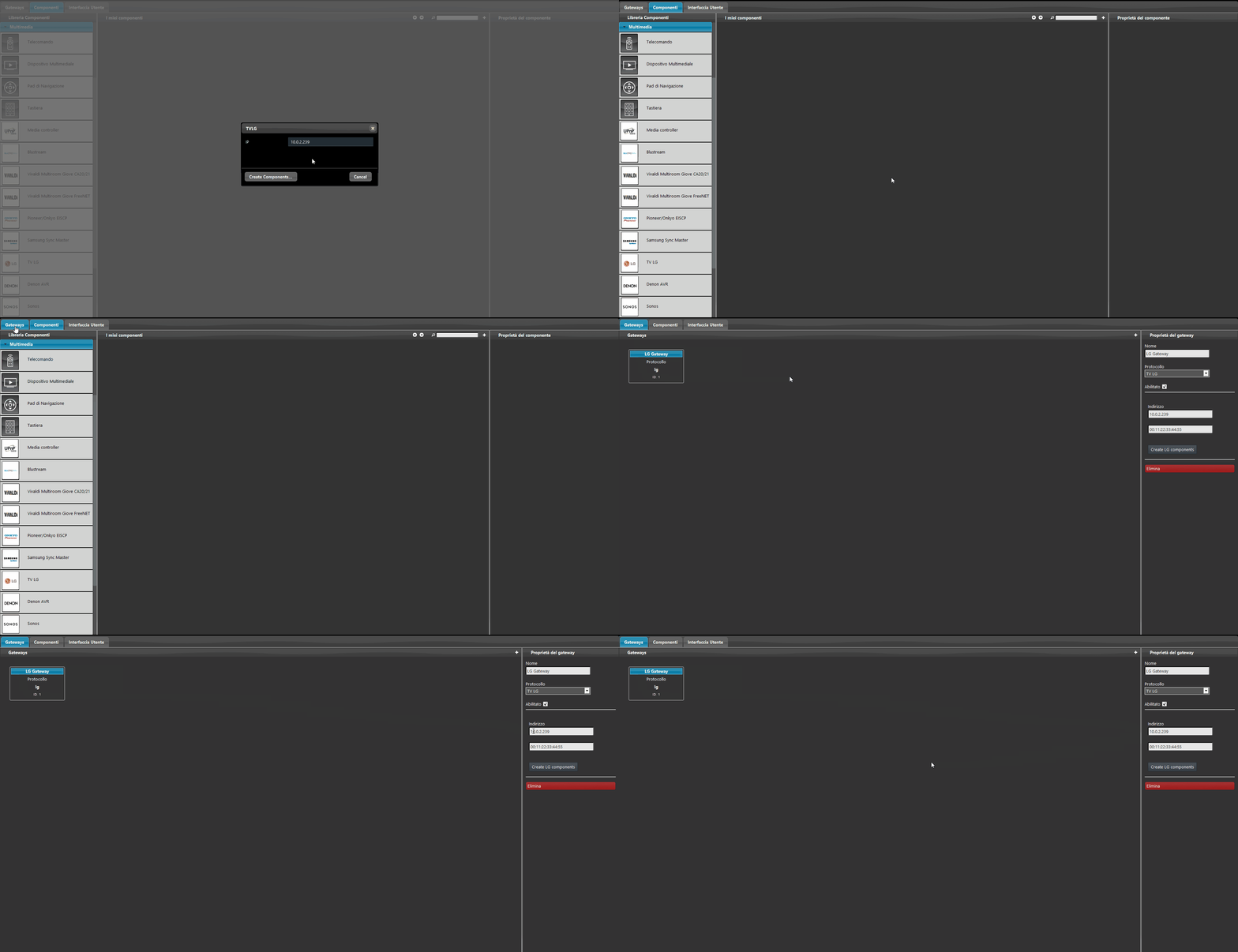
Step 4:
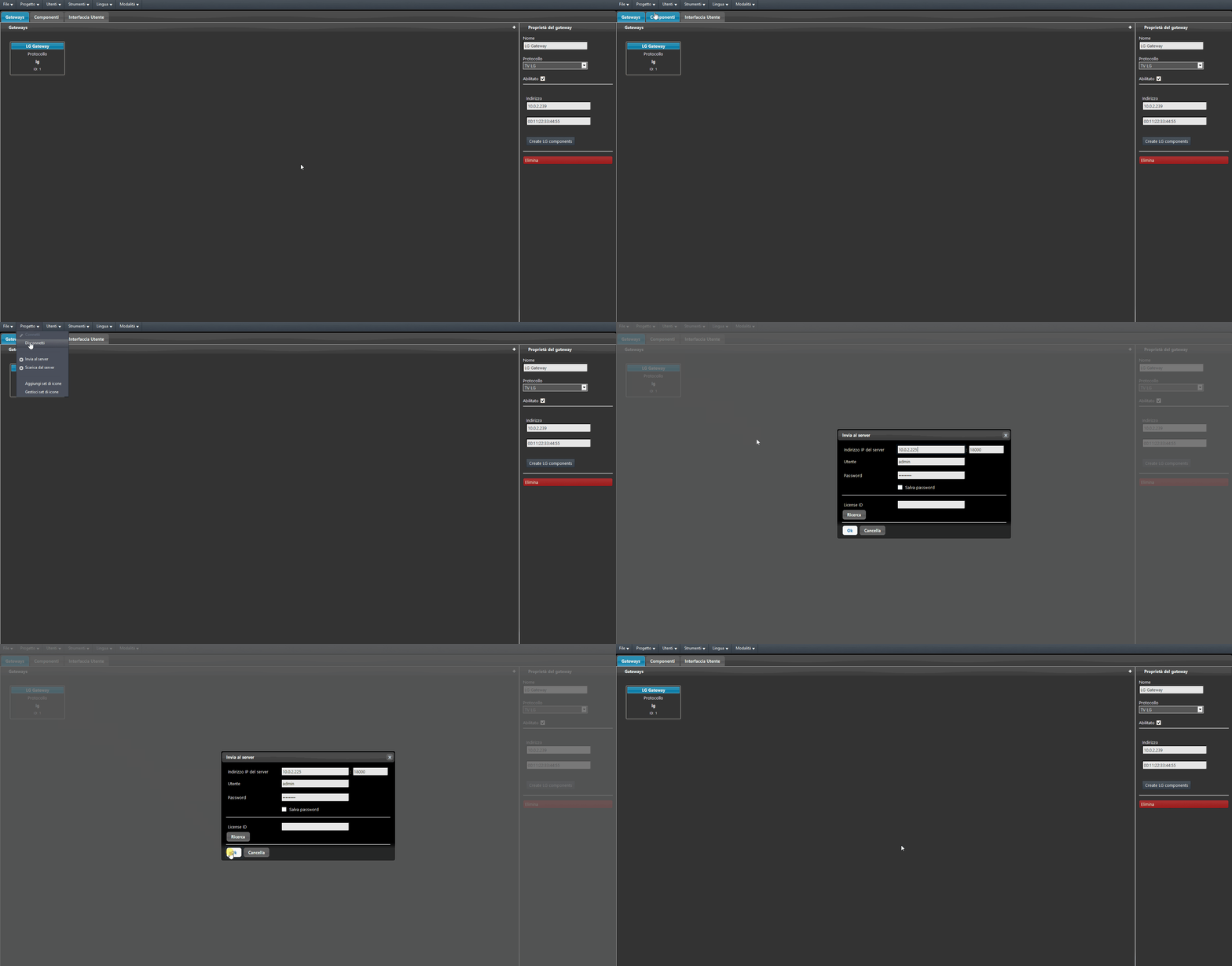
By opening the Gateway section, you will see that a new LG TV gateway has been created. Upload the project to the server.
Step 5:
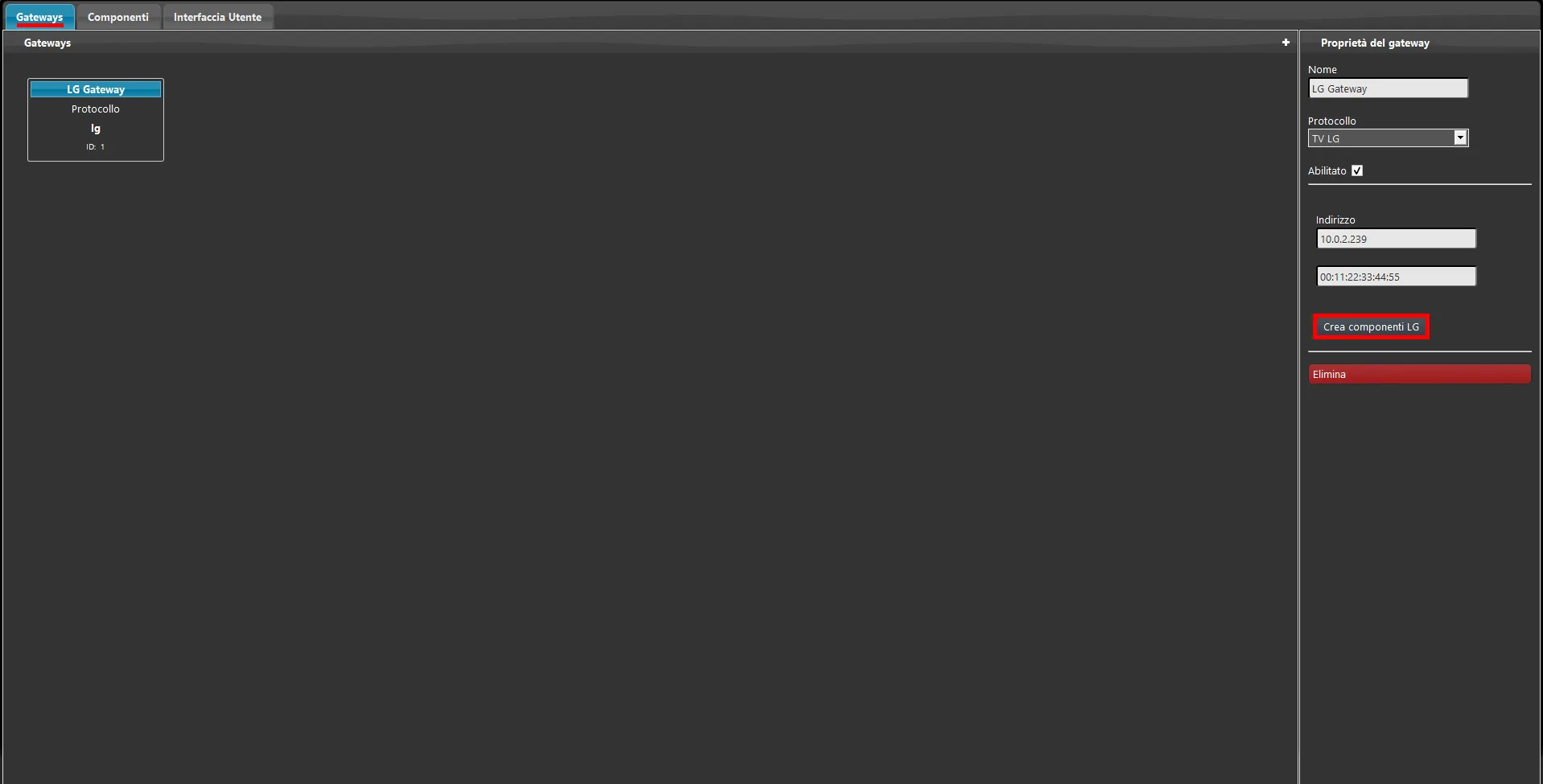
Once the upload is complete, click the Create components button inside the LG TV gateway. The components are created automatically in the My components section.
Step 6:
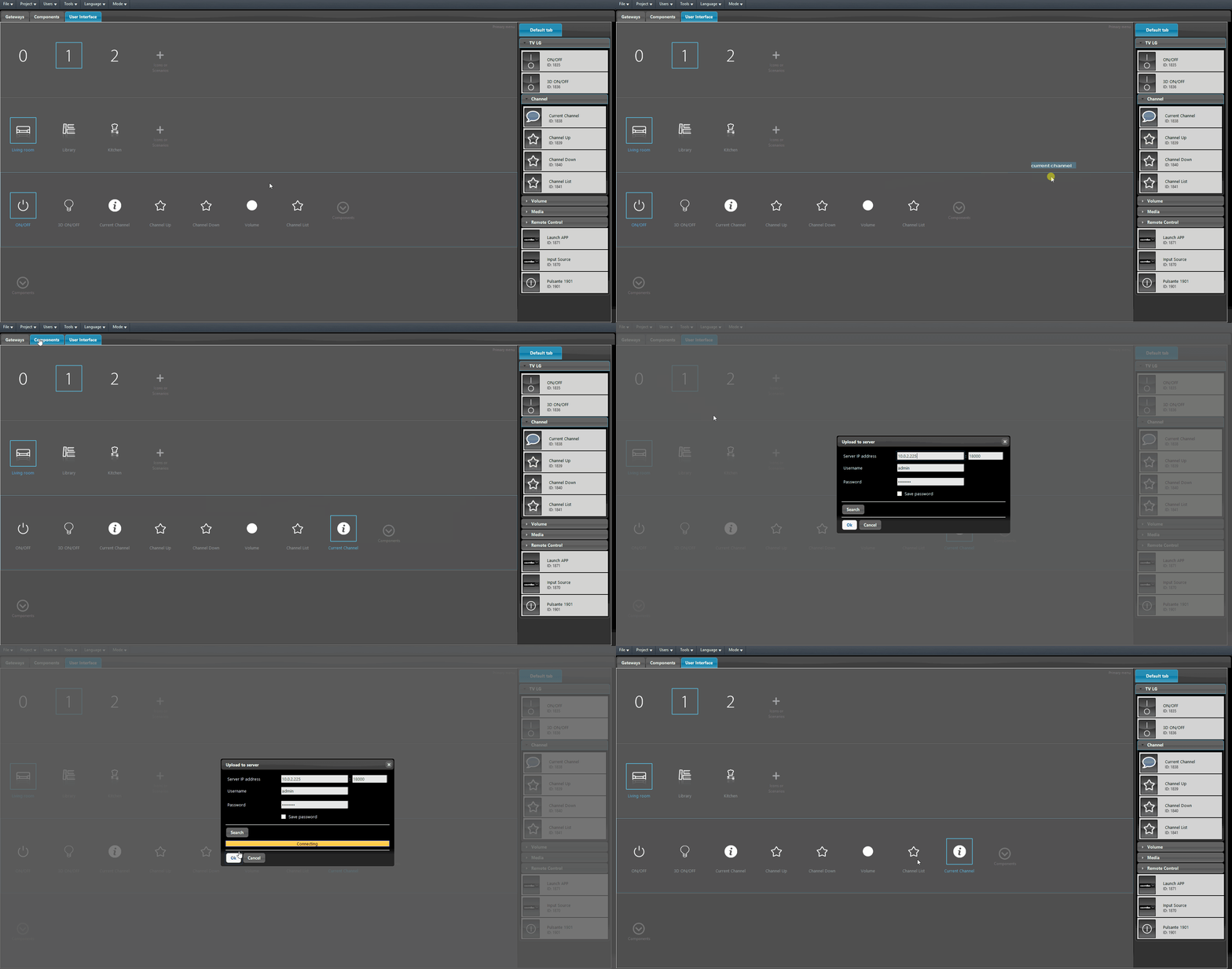
Add the components inside the user interface and upload the project to the server.
Result in the interface
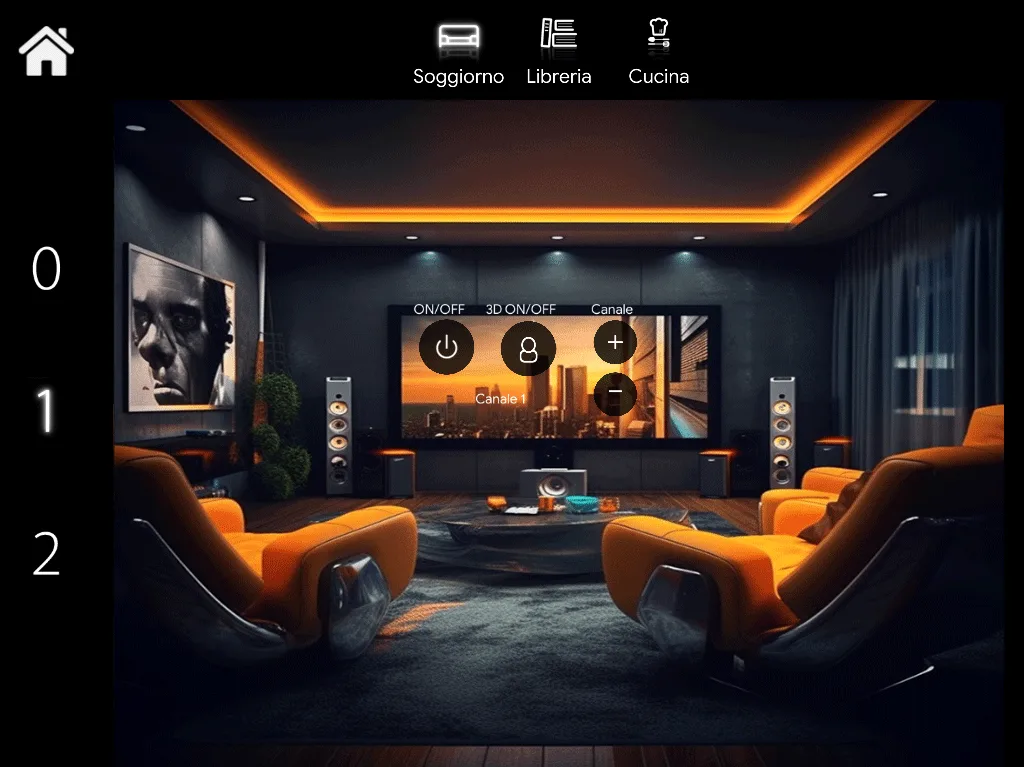
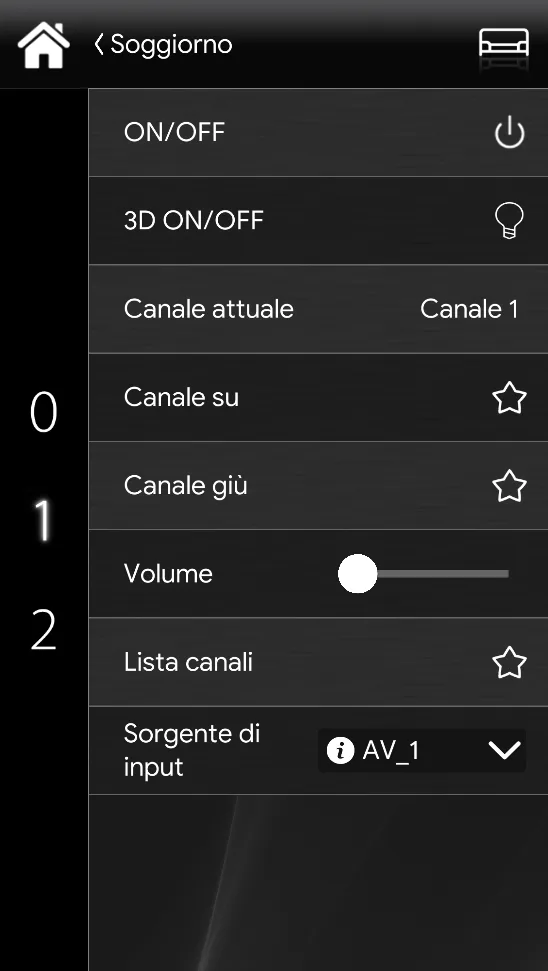
The final result of the LG TV component configuration in the Ilevia system is shown below, in the Classic and Maps interfaces.
Classic user interface
Maps user interface