
TIMER EDITOR SAMPLE PROJECT
Complete procedure on how to configure the Timer editor component within the Ilevia's configuration software Ilevia Manager.
INTRODUCTION
The Timer editor component allows the user to skip the action in order to enter within the Timer mode that allows to apply schedulements to a specific component. In this guide will be explained how to configure it. The Timer editor needs two other components to works properly, these other components are: Week timer and the Week timer calendar, we strongly recomend checking them out before proceeding with the guide.
Step 1:
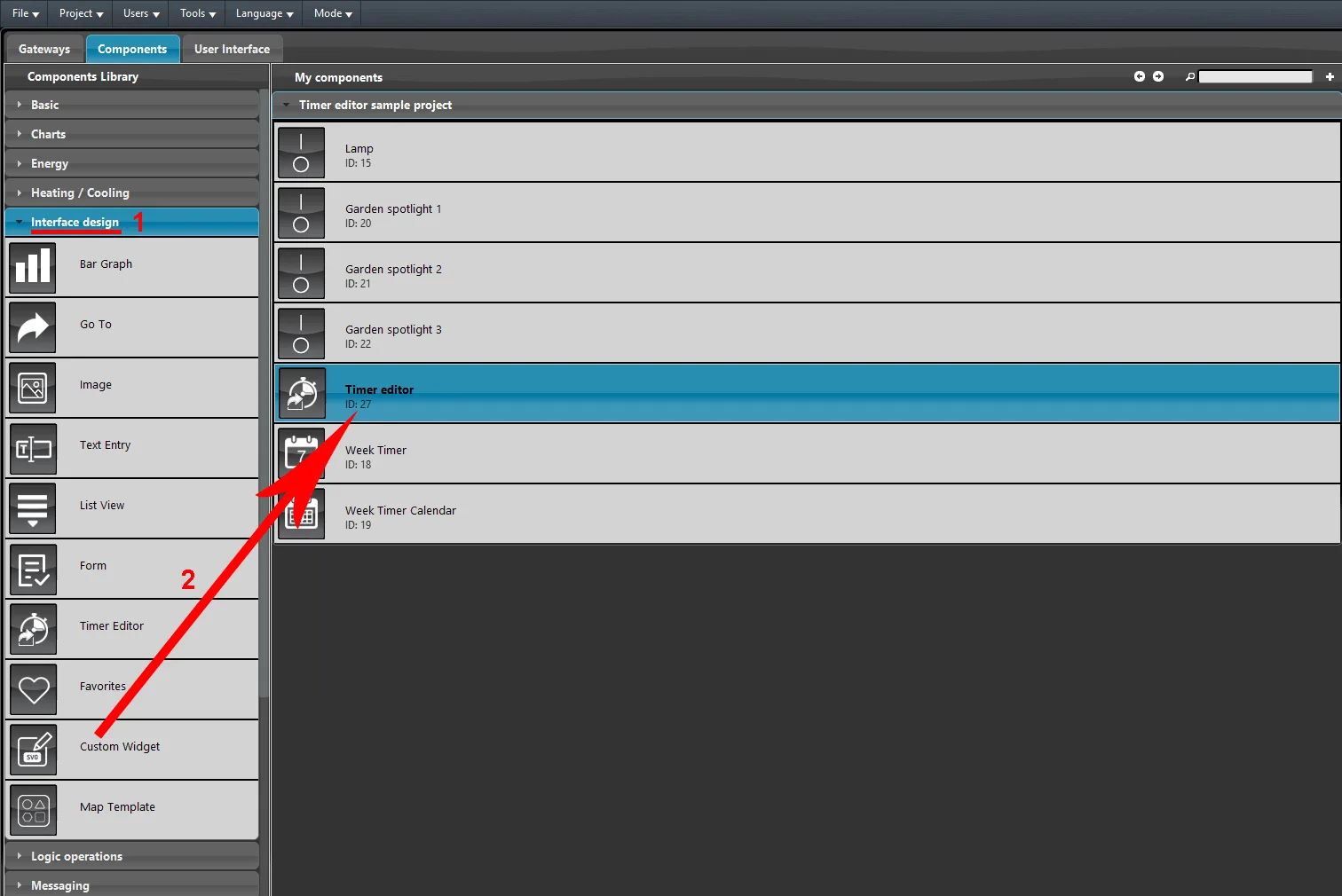
Open Ilevia Manager and access the components tab. Now open the Interface/Design drop down menu within the Components library and drag and drop the Timer editor within the My component area.
Step 2:
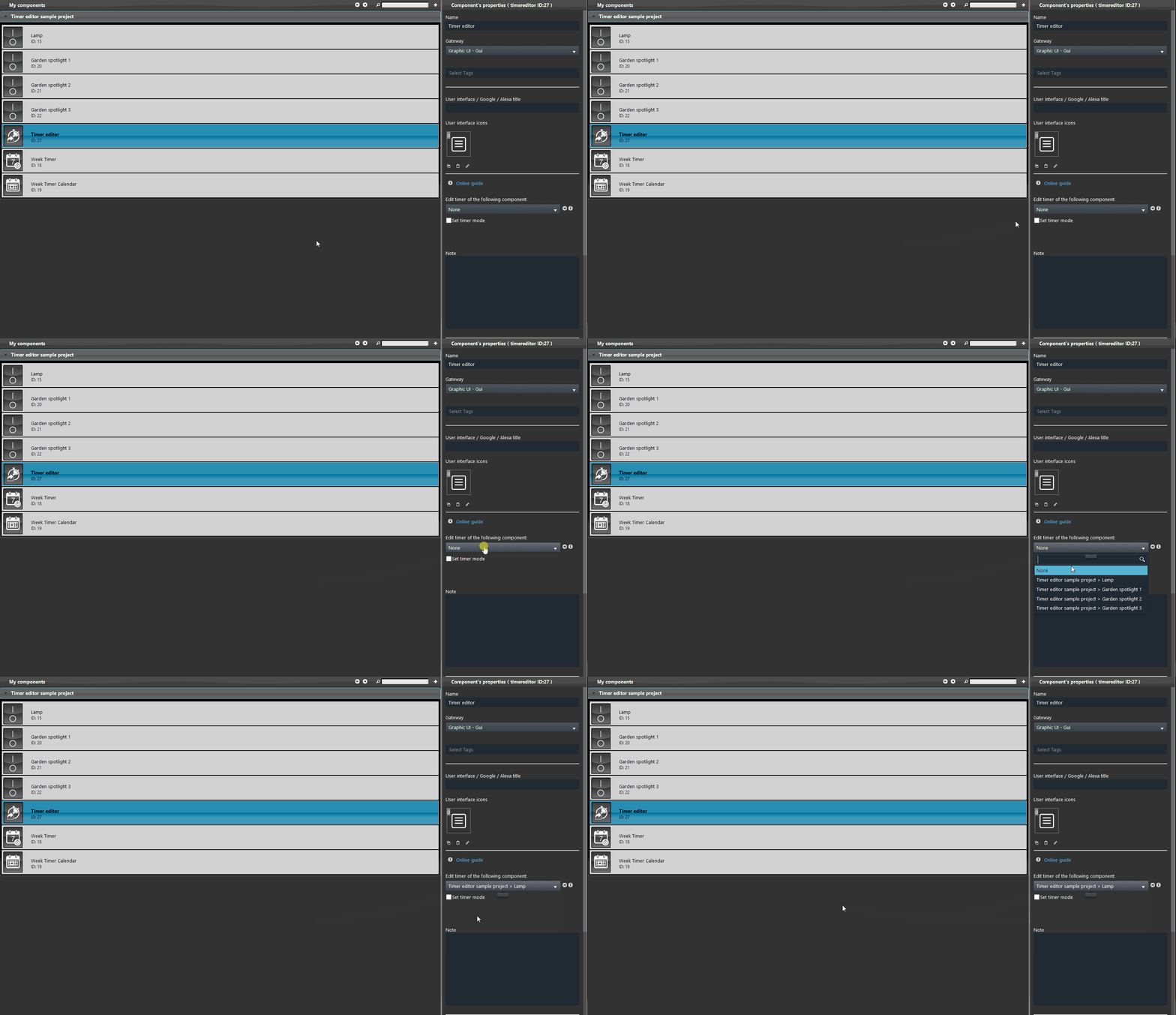
Select the component you want to link to the Timer editor by selecting it from the drop down “Edit the timer of the following component” within the component properties.
Step 3:
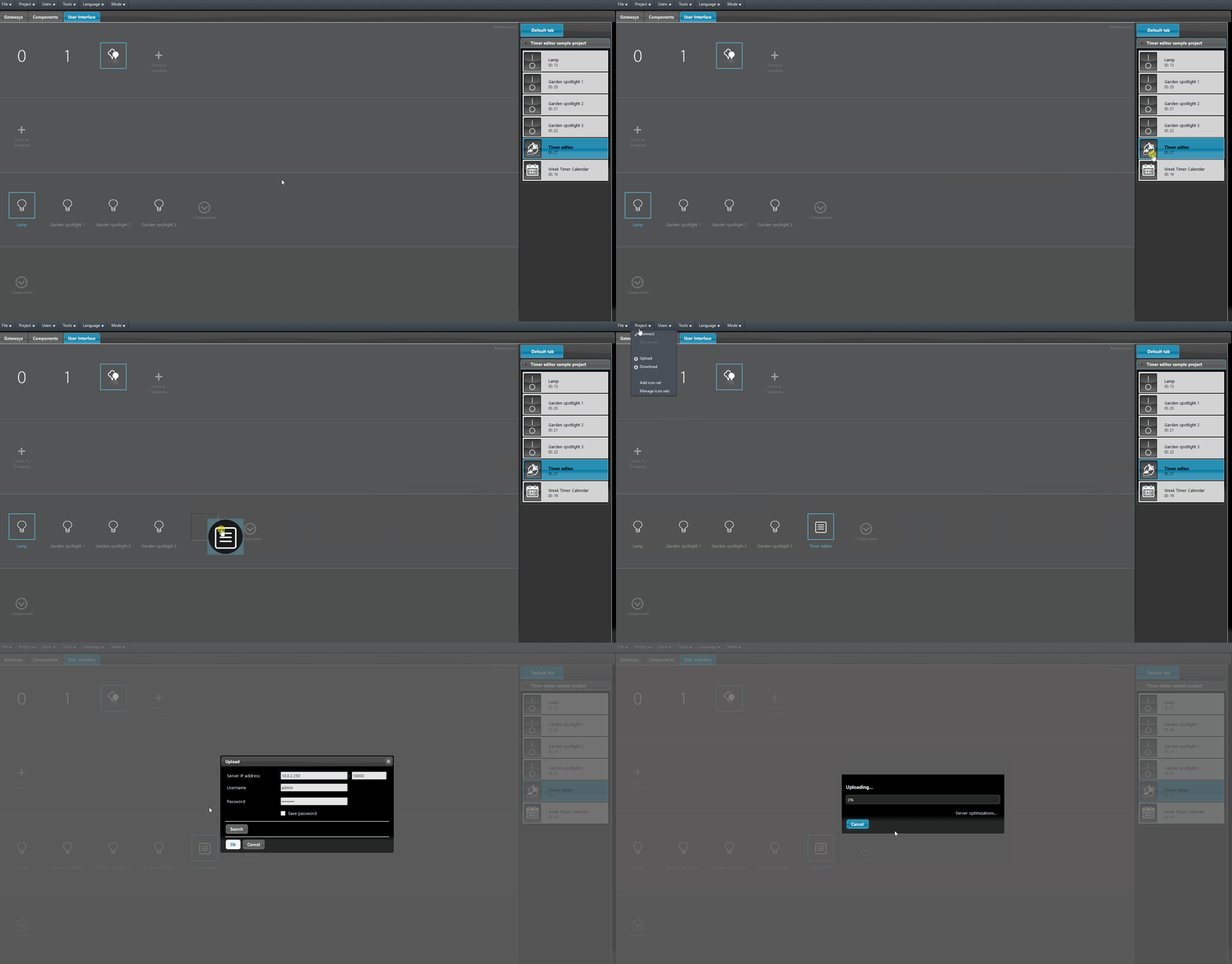
Add the timer editor within the User interface by entering the Interface Editor of Ilevia Manager. Then upload the project into the Ilevia server.
USER INTERFACE RESULT
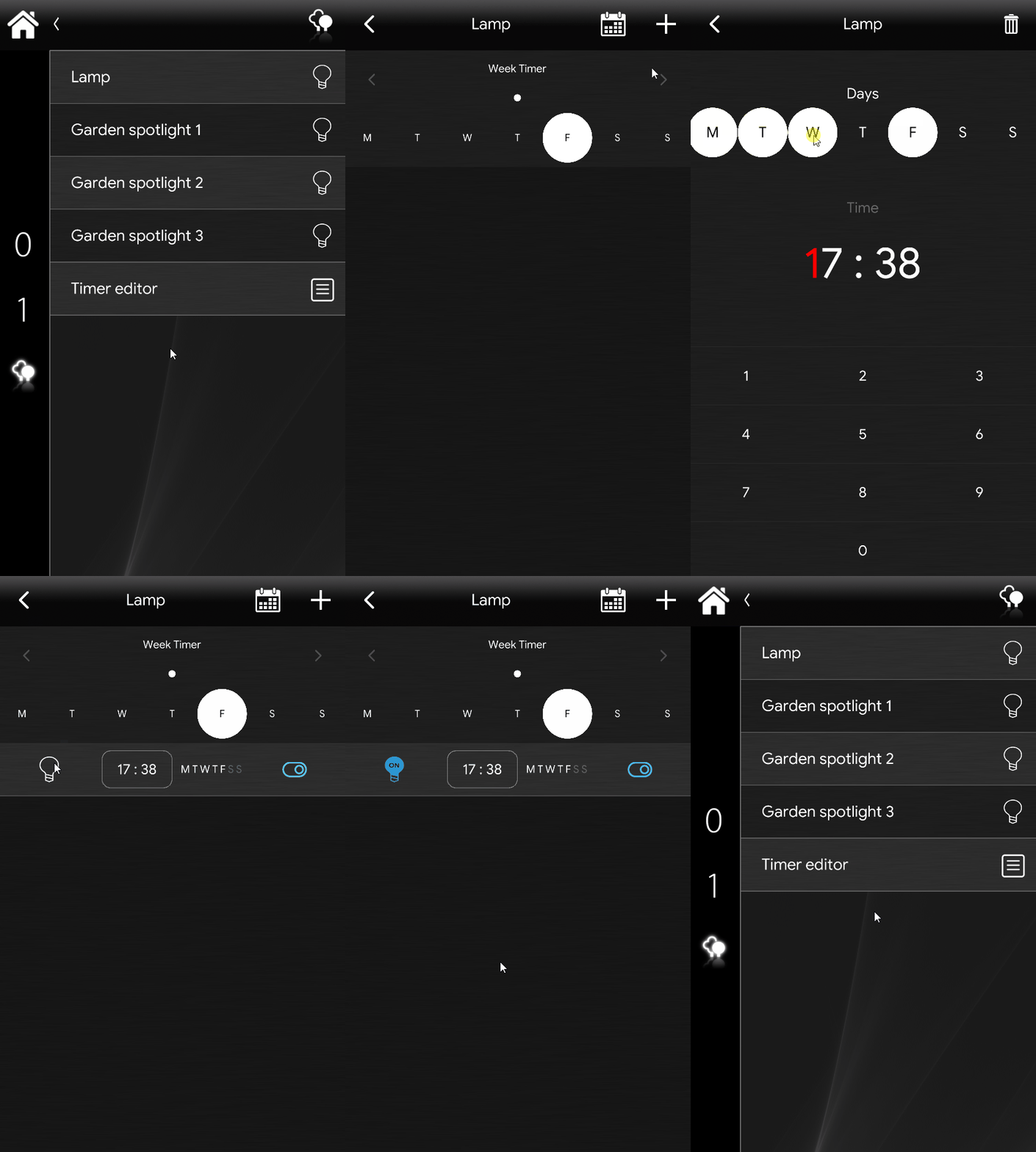
Here’s below the visual rappresentation of the Timer editor within the Ilevia’s App Ilevia Remote Plus.
SAMPLE PROJECT DOWNLOAD
Click here to donwload the project and test it your self!