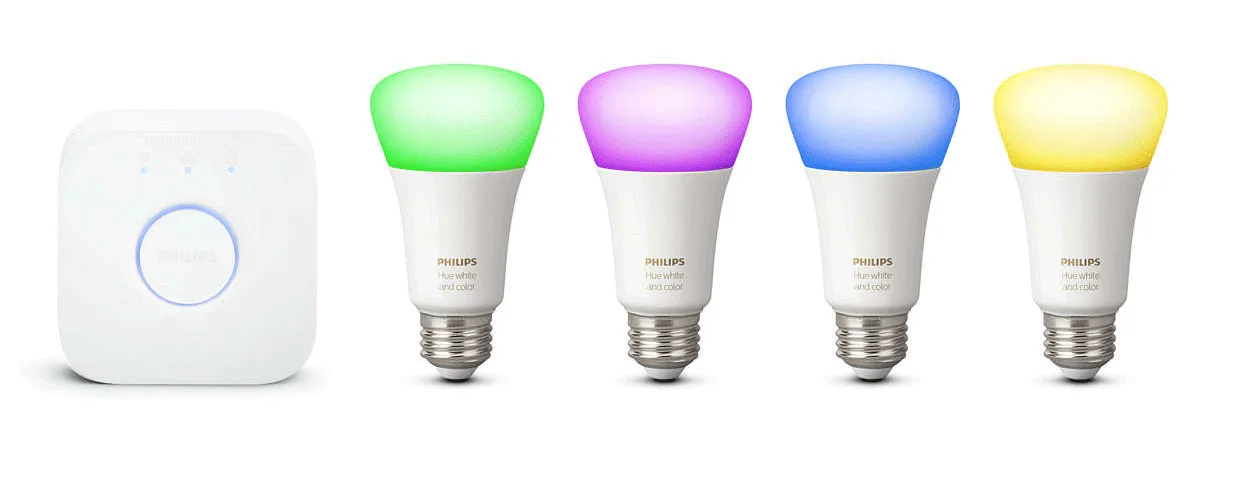
Philips Hue
How to connect Philips Hue devices to Ilevia Manager via the gateway and how they appear in Ilevia Control.
Introduction
Allows you to integrate and manage all your Philips HUE devices through your Ilevia server.
Use cases
The user wants to connect Philips HUE devices with the Ilevia system.
Automatic group creation
The special feature of these components is the automatic creation of component groups for “Philips HUE”: drag the “Philips HUE” icon and the configuration window will appear, allowing you to choose which component you want to use.
Reminder before continuing:
Remember to connect your server (virtual or physical) before starting the configuration.
Refer to this documentation to connect your Philips HUE device to its gateway.
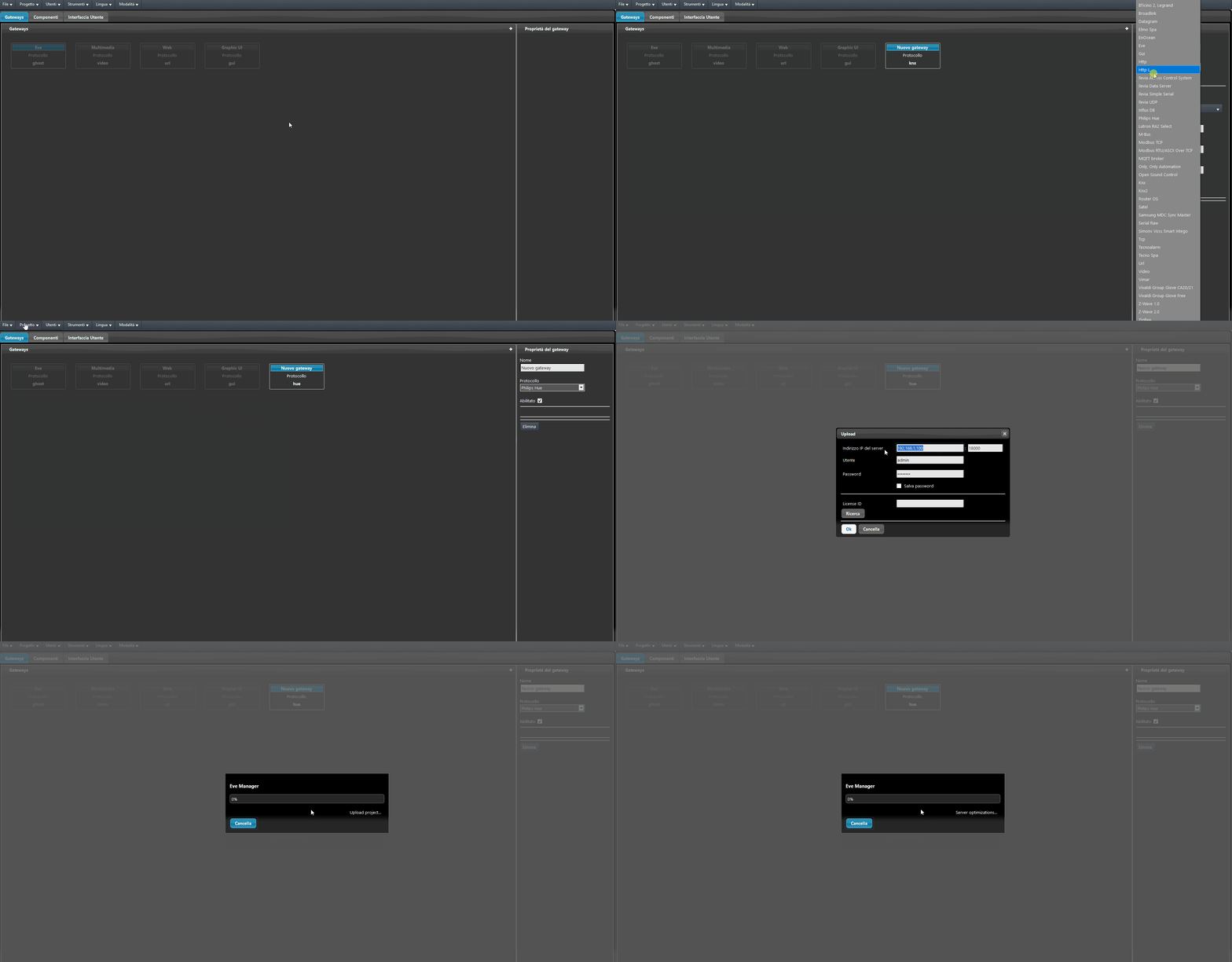
In the Gateway section, add a new “Philips HUE” gateway.
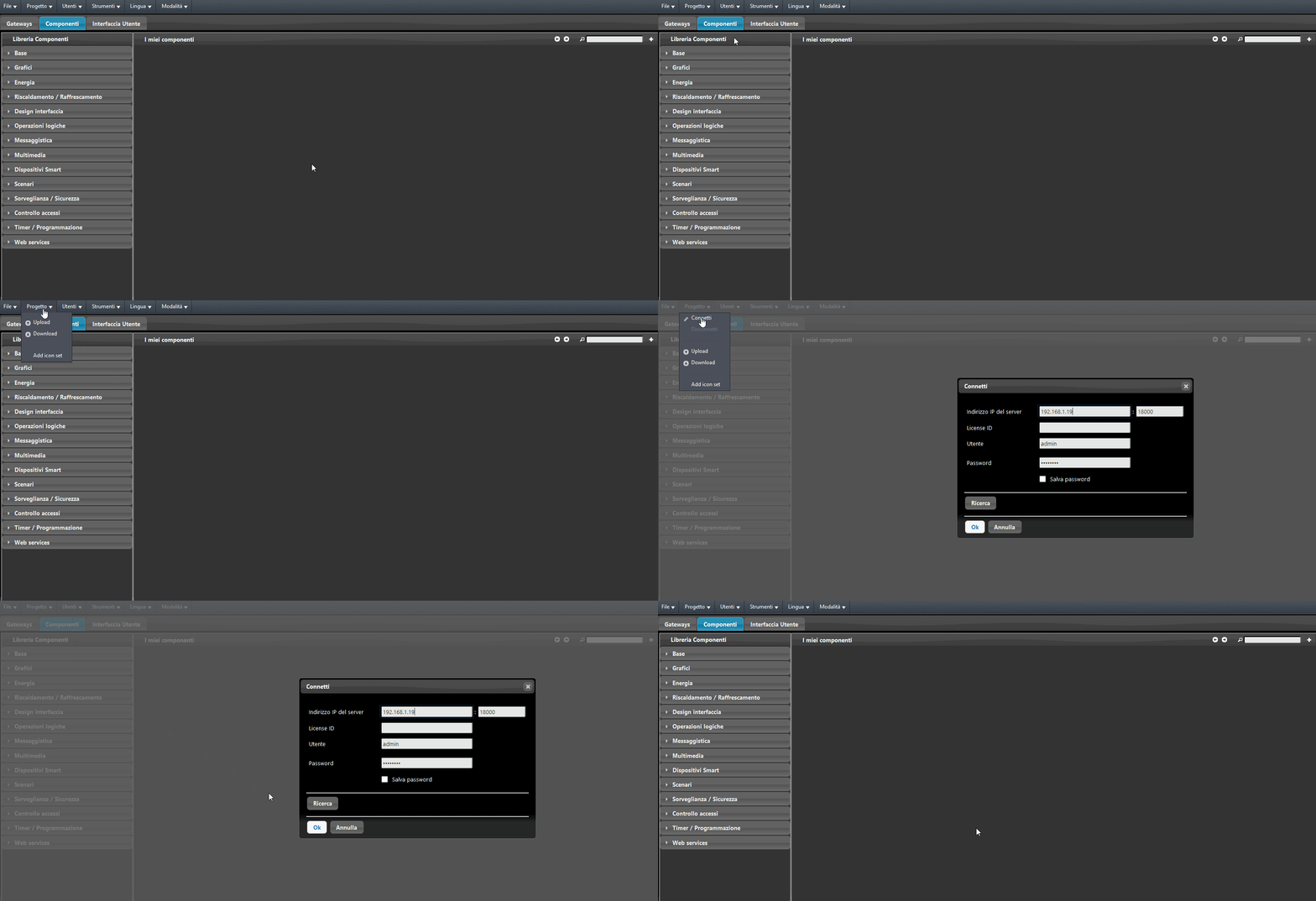
Connect to your Ilevia server: go to the project menu at the top, click the connect button, enter the IP address of your Ilevia server and click OK. Then upload the project to the server.
Then drag the “Philips HUE” component into the “My components” section: the dialog window will open.
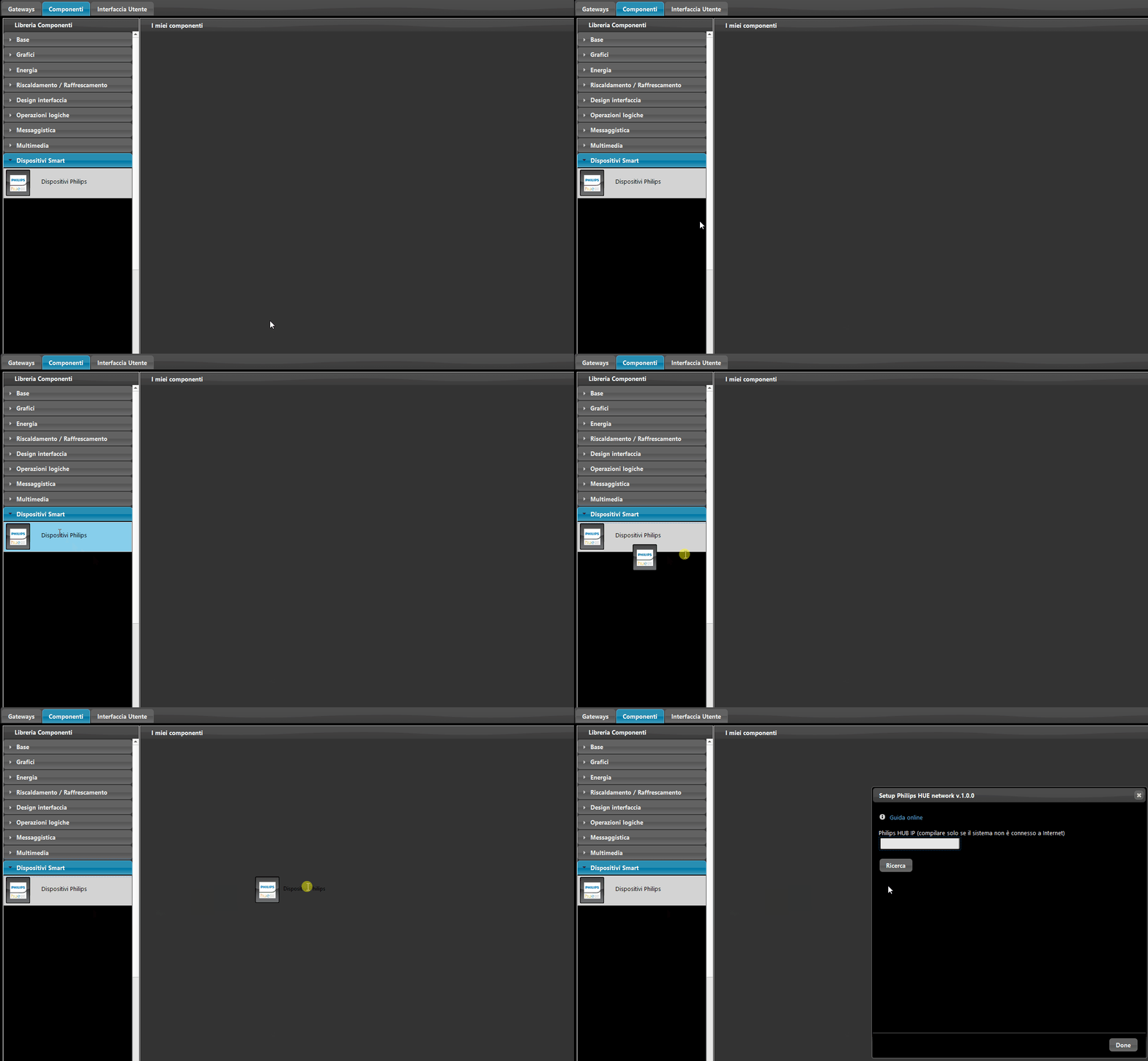
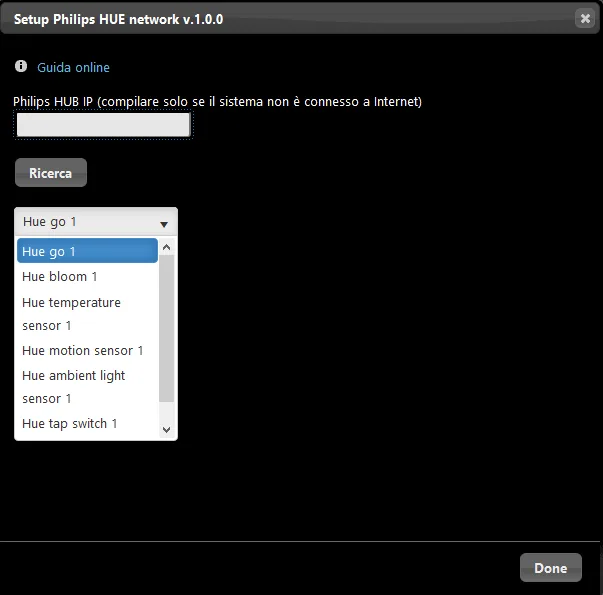
Before clicking the “Search” button to enable the options list, remember to press the round button on the Philips HUE Bridge. Then select the desired component and click “Create component” to add it automatically to the “Components” window of Ilevia Manager.
There are three possible display modes: “CLASSIC”, “MODAL” and “HIDDEN”. For more information, refer to the “Common properties” guide.
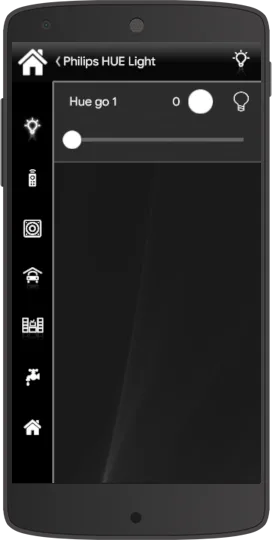
This is the visual result of the component within Ilevia Control (classic style).
Bulb ⇒ Turns the light on / off

Icon when the light is off.

Icon when the light is on.
Slider ⇒ Light intensity

Decrease intensity.

Increase intensity.
Keeping the colored circle pressed ⇒ Choose the RGB color

Keeping the colored circle pressed will allow you to enter color selection mode.
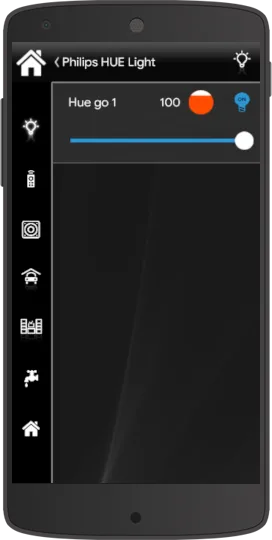
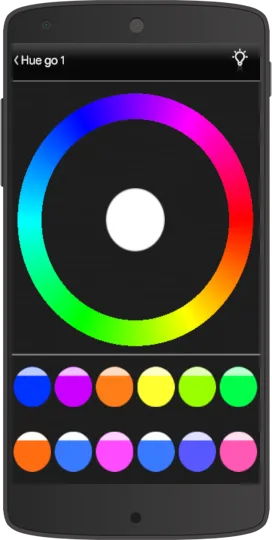
This is the visual result of the component within Ilevia Control (classic style).
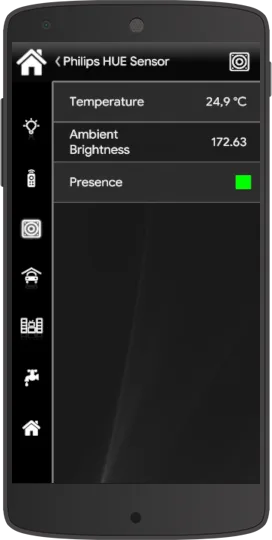
Temperature
Shows the current temperature of the installed sensor; you can choose between Fahrenheit and Celsius.
Ambient Light
Shows the current light level where the sensor was placed.
Presence

Internal presence sensor used to detect a person’s presence and automatically control the lights (red = motion detected).

Internal presence sensor used to detect a person’s presence and automatically control the lights (green = no motion detected).
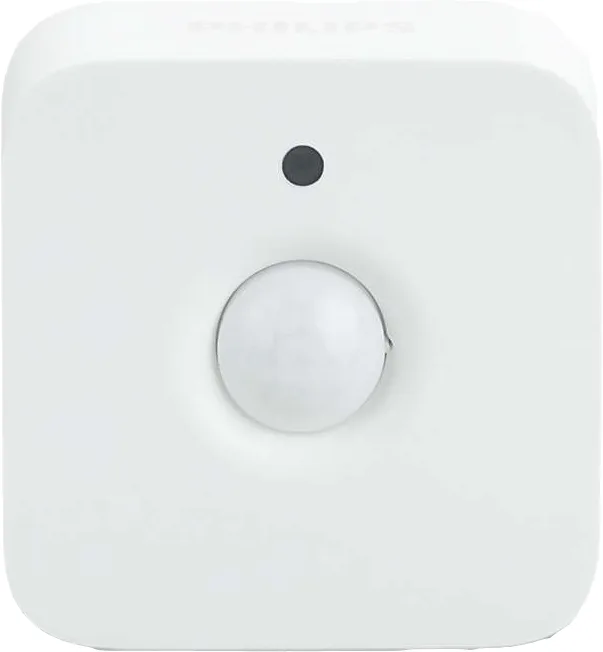
Philips HUE motion sensor
Ilevia Control
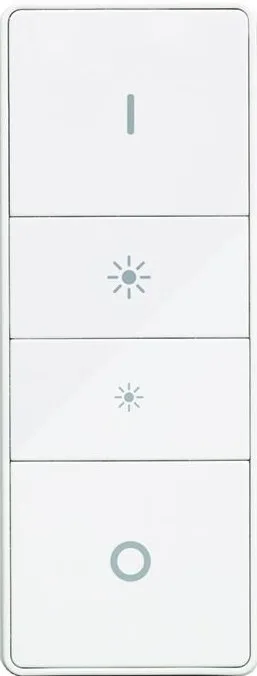
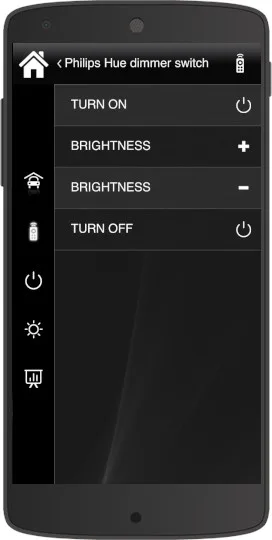
Philips HUE dimmer switch
This is the visual result of the component within Ilevia Control (classic style).
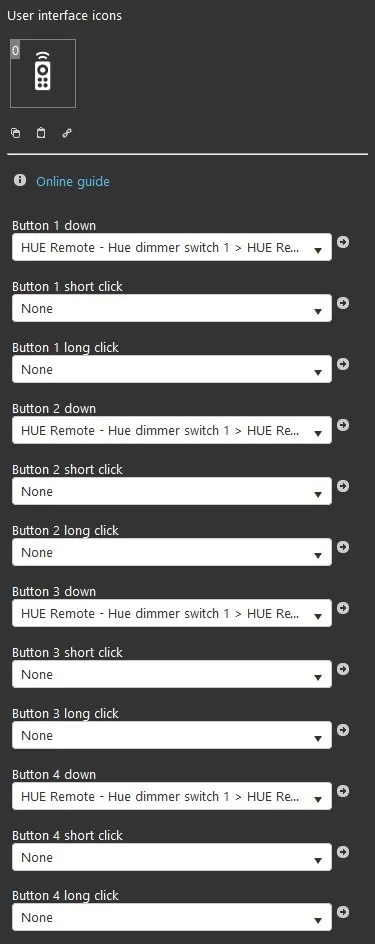
Component properties
Note: Customizable component icon.
Buttons:
Down: (instant command execution when pressed) choose a Philips HUE dimmer switch component from the options list to execute the down command;
Short click: choose a Philips HUE dimmer switch component from the options list to execute the short click command;
Long click: (hold to execute the command in less than 2 seconds) choose a Philips HUE dimmer switch component from the options list to execute the long click command;
Philips HUE Dimmer Switch
Ilevia Control
Ilevia Manager
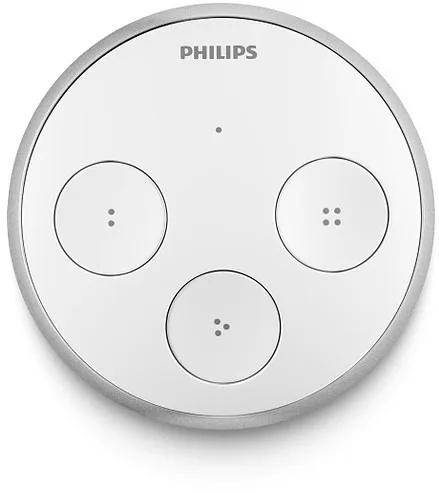
Philips HUE Tap Switch
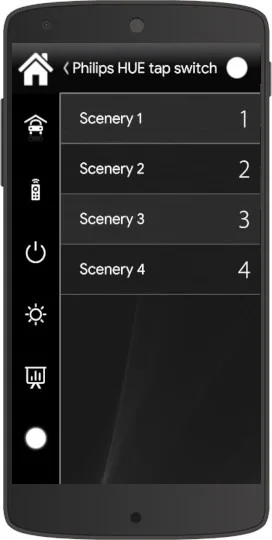
This is the visual result of the component within Ilevia Control (classic style).
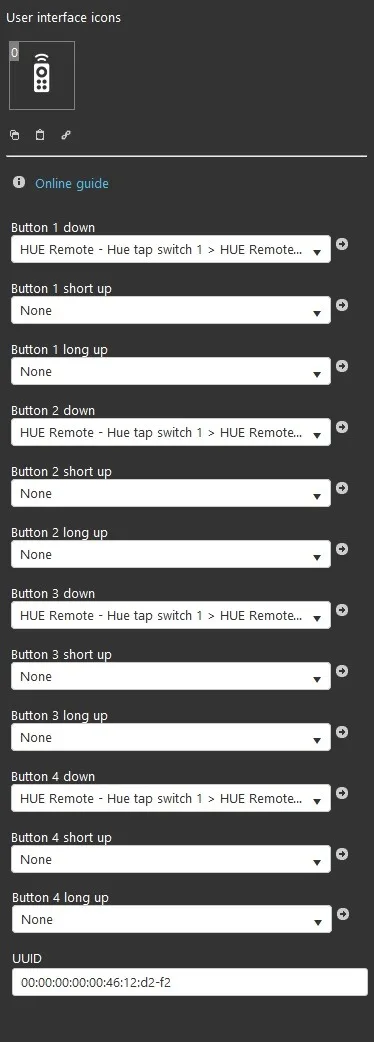
Component properties
Note: Customizable component icon.
Buttons:
Down: (instant command execution when pressed) choose a Philips HUE dimmer switch component from the options list to execute the down command;
Scenario
You can switch between 4 different scenarios.
Philips Tap Switch
Ilevia Control
Ilevia Manager