MQTT: how topics and payloads work
What MQTT topics (Read, Response, Write, Event) and the payload are, and how scripts in Ilevia Manager process them for the different component types.
The topics
The topics are: Read, Event, Write and Response. Each has different message types, which the broker uses to filter messages for each connected client. Topics are made up of levels separated by slashes.
Example: home/livingroom/light
These are the 4 topics we will subscribe to and use to exchange information at the end of the configuration:
Read topic: used to receive the device status;
Response topic: the device response to the automation server's Read request;
Write topic: used to set the value of a device parameter;
Event topic: used to report the device status when it changes.
Response topic
The Response topic is required for the response to the Read topic message sent by the device.
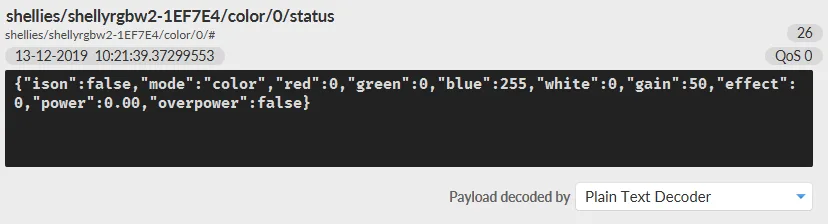
Example: message sent at first connection to retrieve the device status.
In this case the script processes a specific part of the JSON from the device, in our case “ison”.

By clicking this link you can view the script configuration.
Write topic
The “Write topic” sends the command when the component in the Ilevia system changes state.
Example: when the user changes the state of a switch in the Ilevia Control app.
Each device may require a different message type.
You can create the MQTT message payload with a short JavaScript script that starts from the component value in the Ilevia system and prepares the message in the format required by the device: text, JSON or other.
Sending data with the Write topic
The switch and other binary components use values 0 and 1 in the variable inside the payload.
You can use this script to create the message based on the value:
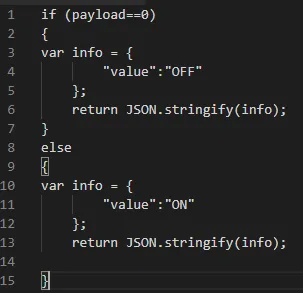
By clicking this link you can view the script configuration.
In the Ilevia system the percentage is processed as a value from 0 to 1 and published as a value from 0 to 100 through a conversion. The components that use this type of value are Slider and Adjustable value; they have this configuration in the Write topic.
You can use this script to create the MQTT message based on the value:
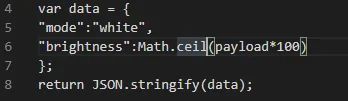
By clicking this link you can view the script configuration.
To send RGB information, the configuration is as follows: the RGB Light component is used to set the correct RGB MQTT configuration.
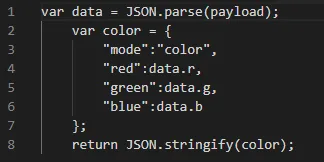
By clicking this link you can view the script configuration.
Event topic
The “Event topic” reports the device status.
Example: a power meter reports the power consumed every time the value changes.
In the case of temperature, power or energy, the component used to display the value is the Info component. As you can see in the image below, the script simply retrieves the payload from the device.
You can use this script to receive data from the device:

By clicking this link you can view the script configuration.
To report the state of a switch, the script must be structured as follows.
In this case the script takes the payload from the device and reports the current device state.

By clicking this link you can view the script configuration.
The payload
The payload is the content of the MQTT message. For each topic, a JavaScript function (script) is executed to process the payload.
For each topic a JavaScript function is executed to process the topic payload.
Example with JSON string:
var data = JSON.parse(payload); var color = {"mode":"color","red":data.r,"green":data.g,"blue":data.b}; return JSON.stringify(color);