
Integrating Shelly 1 / 1PM with MQTT in Ilevia
How to configure Shelly 1 and 1PM devices with the MQTT protocol and connect them to the Ilevia X1 server via Ilevia Manager.
Introduction
Shelly 1 and Shelly 1PM are devices from Shelly that allow you to switch lights on or off via remote commands. In our case, they are configured using the MQTT protocol.
Web interface configuration
Step 1:
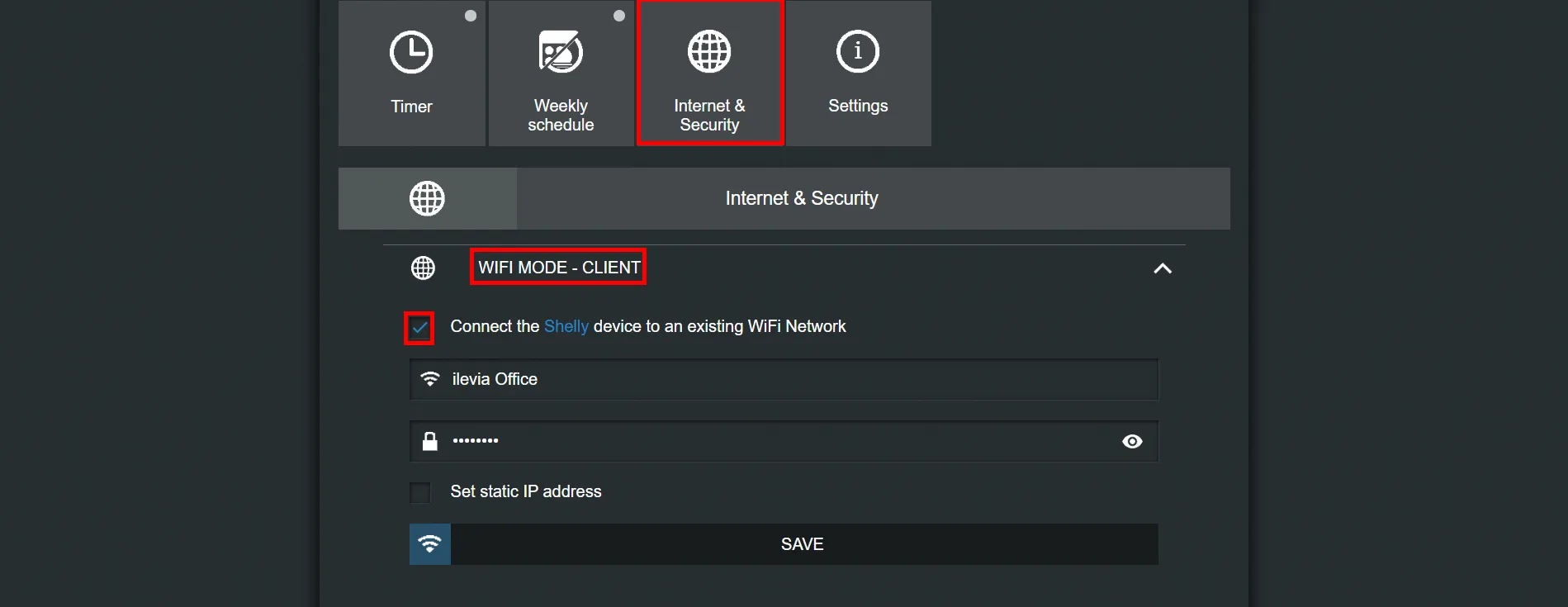
Connect to the device hotspot, go to the “internet and security” section, then “wifi client mode”, select the only checkbox and enter your Wi-Fi network credentials.
Step 2:
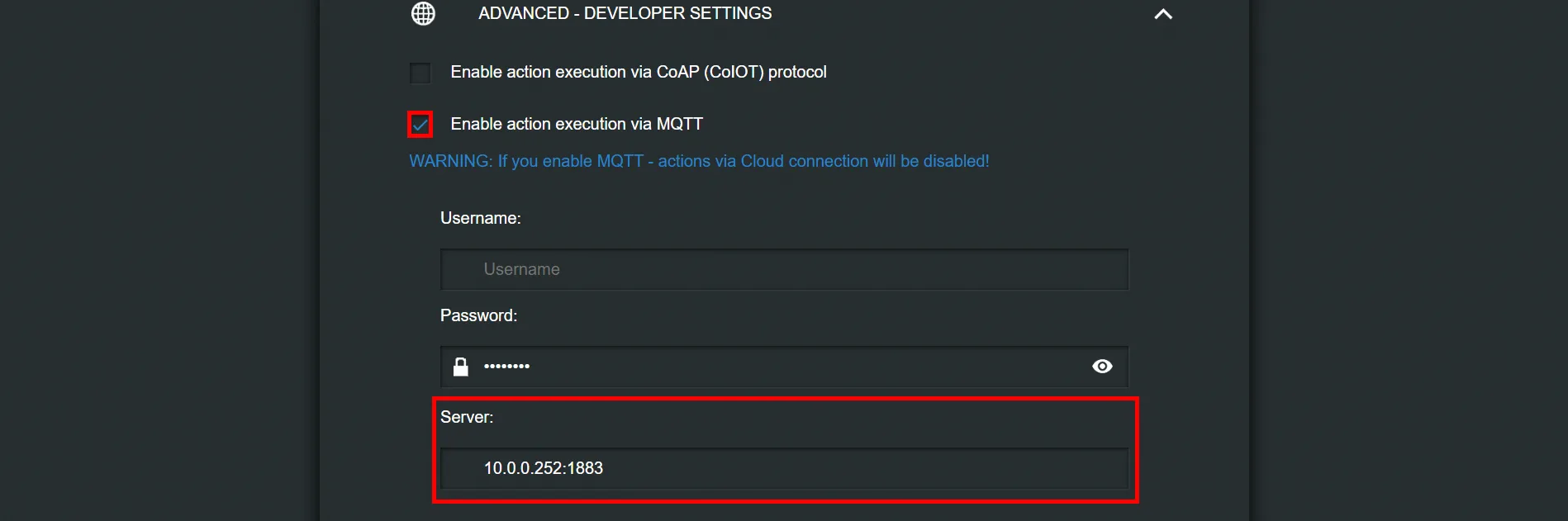
Enable MQTT and enter your X1 server IP in the appropriate section; then set QoS (Quality of Service) to 2.
Topic configuration
Step 3:
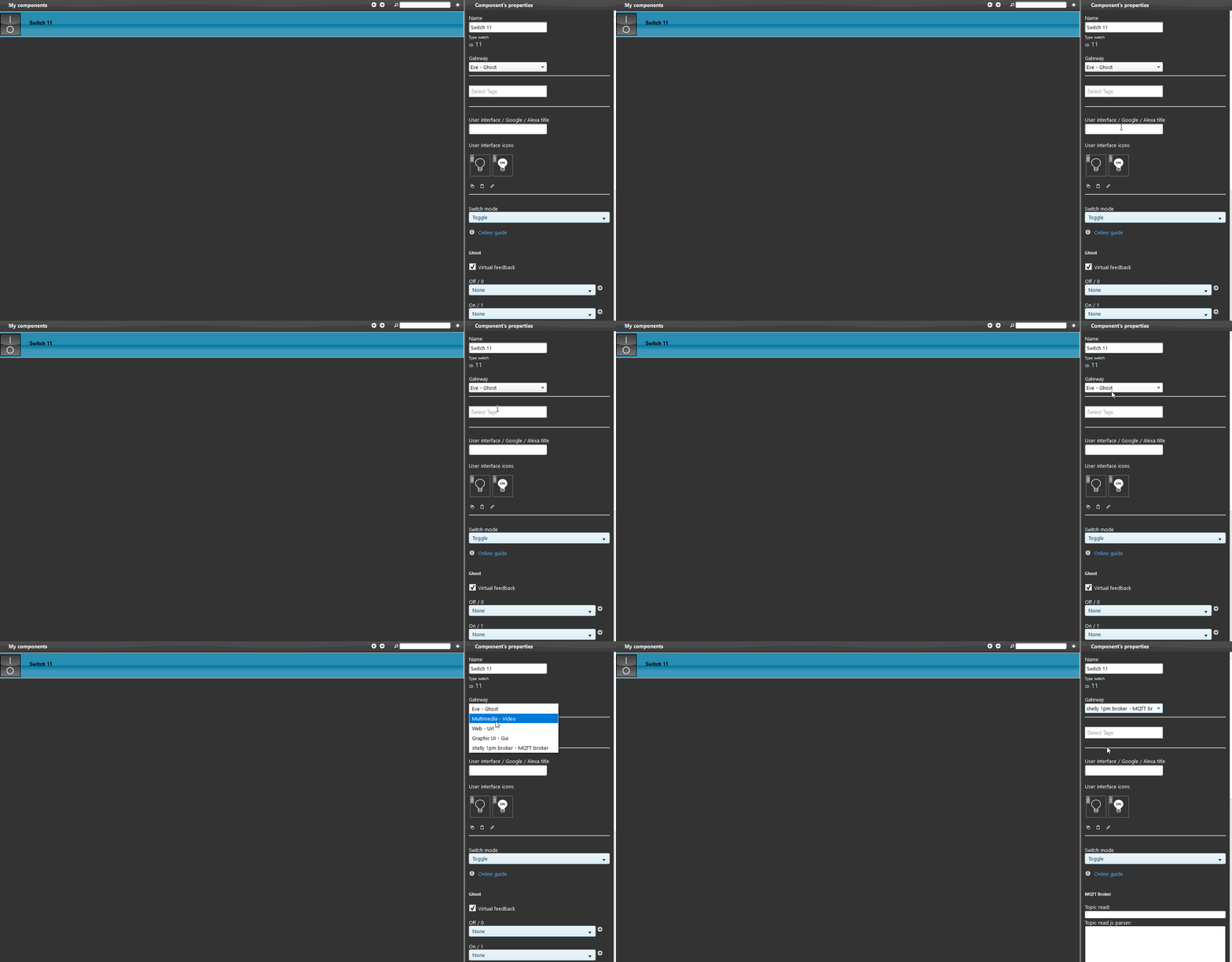
Once configuration is complete, proceed with MQTT protocol implementation: to learn how, consult the guide.
Note: to find out your device ID, consult this guide.
Step 4:
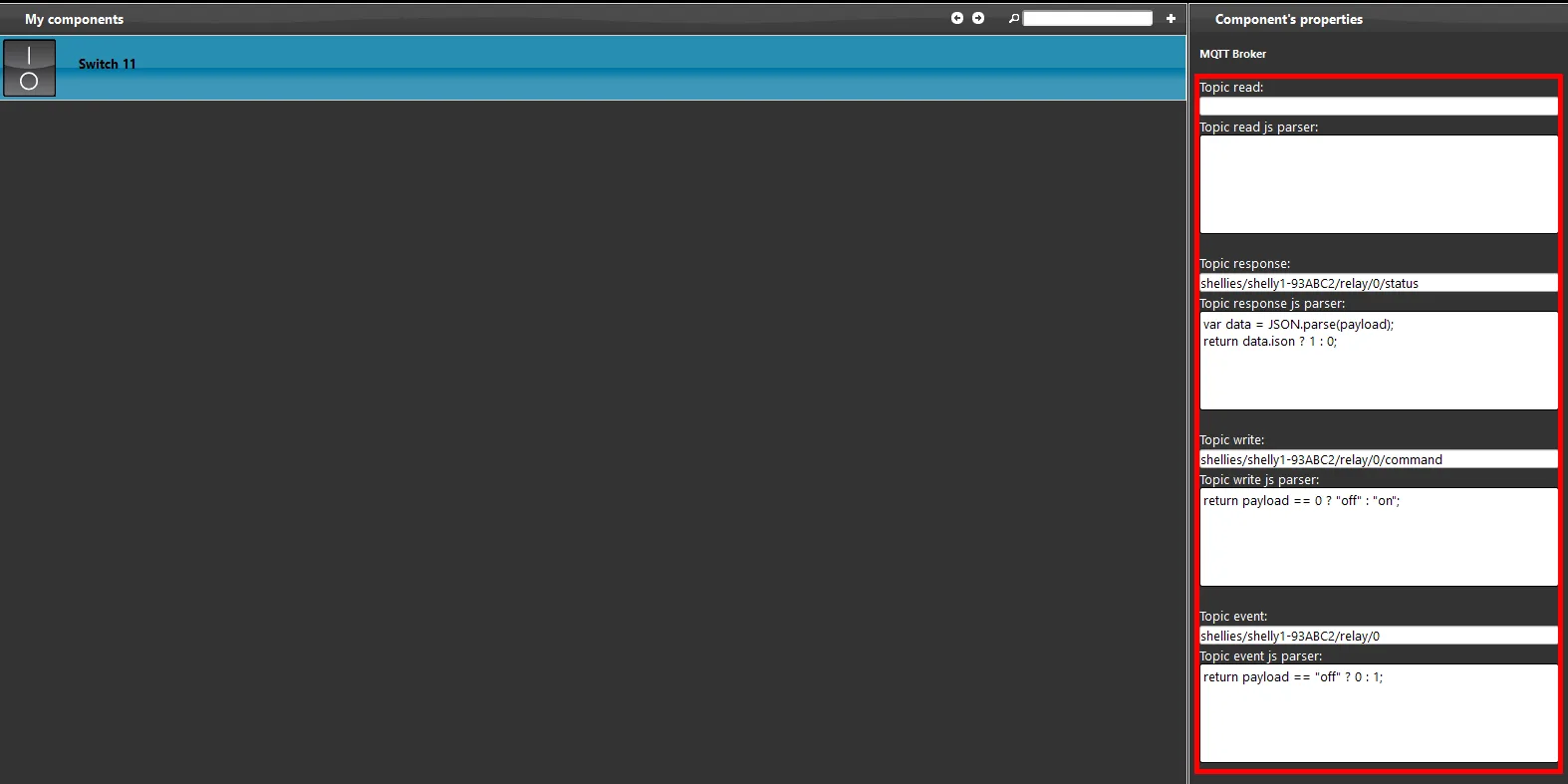
To learn the correct topic syntax, consult the Shelly page, as shown in the image below.
By clicking this link, you can view the topic configuration shown in the image below.
Step 5:
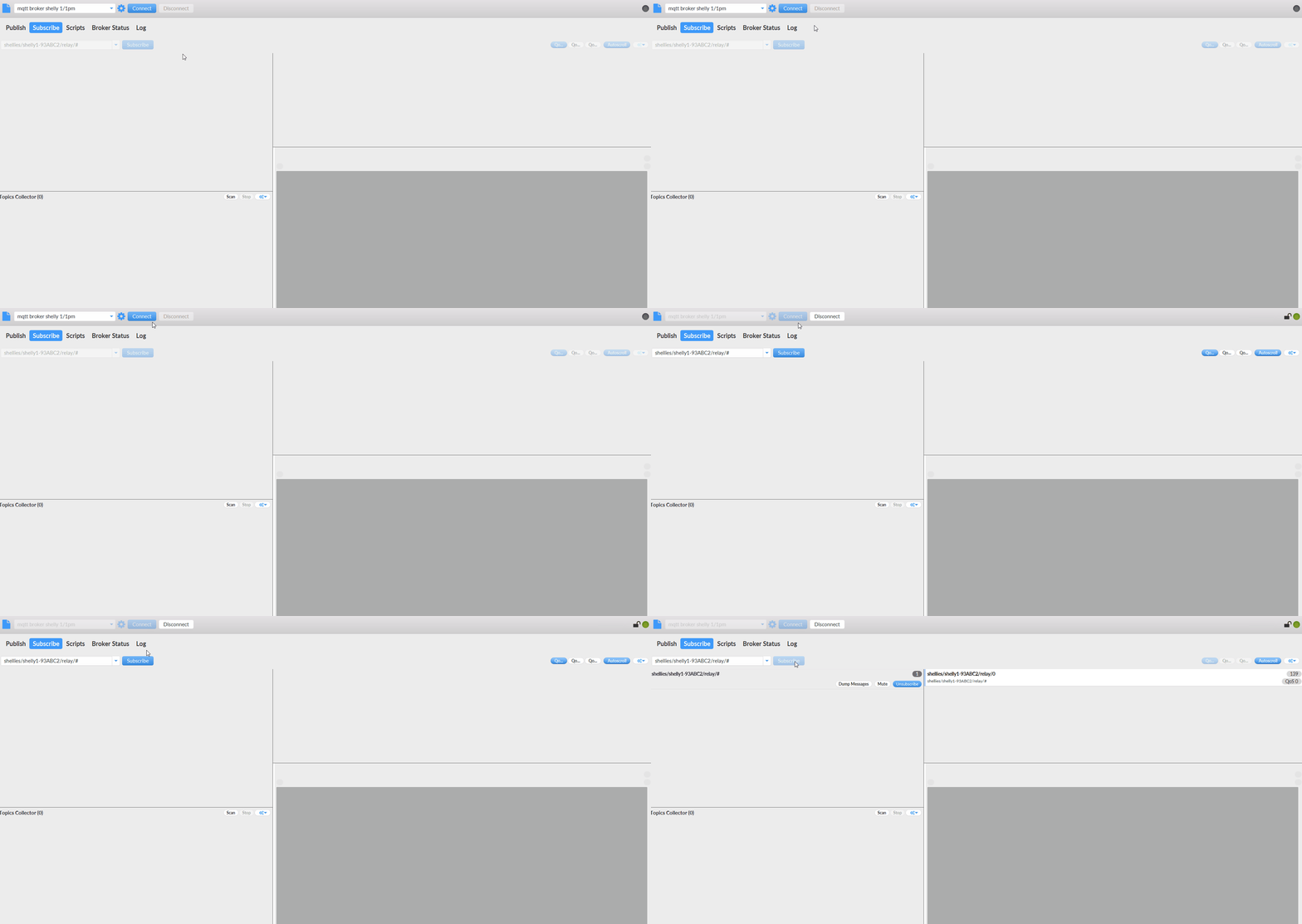
Now, to verify that the topics are working correctly, download the MQTT fx debugging software
and consult this guide to configure it correctly.
Step 6:
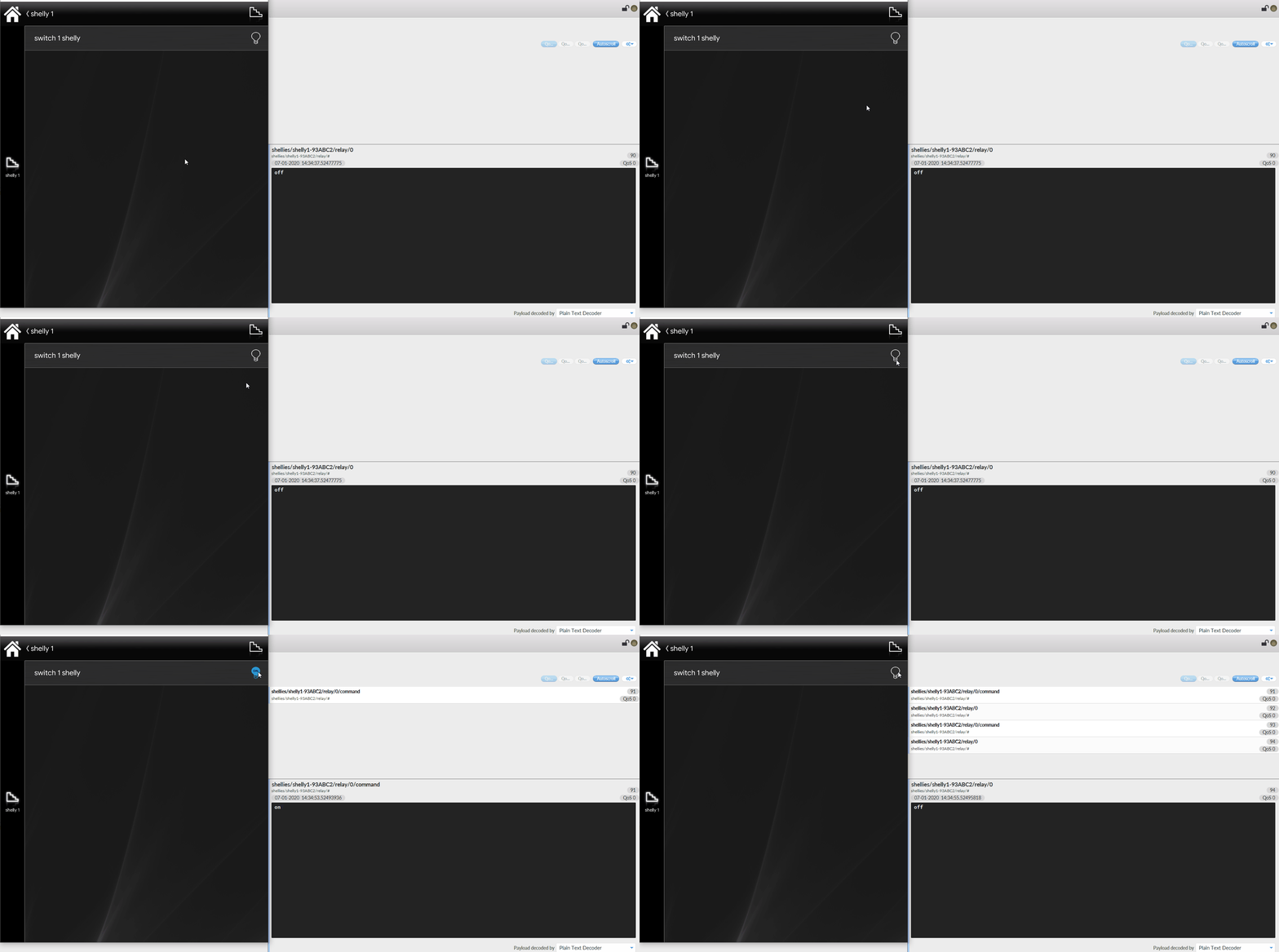
Now just subscribe to the topic shellies/shelly1-devicenid/#, which allows you to subscribe to all topics; then try turning the light on and off from the application and you will see that the topics work.
Troubleshooting
1. Make sure you have the latest available version of Ilevia Manager and the X1 server firmware.
2. Make sure the Shelly device is correctly connected to your network.
3. If you cannot connect to the broker, check that your X1 server is configured correctly.
Why does the yellow feedback bar not disappear when I click the icon in the application?
Why does the yellow Feedback bar not disappear when I click the icon in the application?
Check that the event topic has been configured correctly.