
Integrating Shelly H&T with MQTT in the Ilevia system
How to integrate the Shelly H&T sensor with the Ilevia server via MQTT to read temperature, humidity, and battery level.
Introduction
This Shelly device provides temperature, relative humidity, and battery level values in real time. This guide explains how to integrate it with the Ilevia server via MQTT and display the values in Ilevia Remote Plus.
Web interface configuration
Step 1:
Go to the Internet security setting menu and enter your home Wi-Fi credentials.

Step 2:
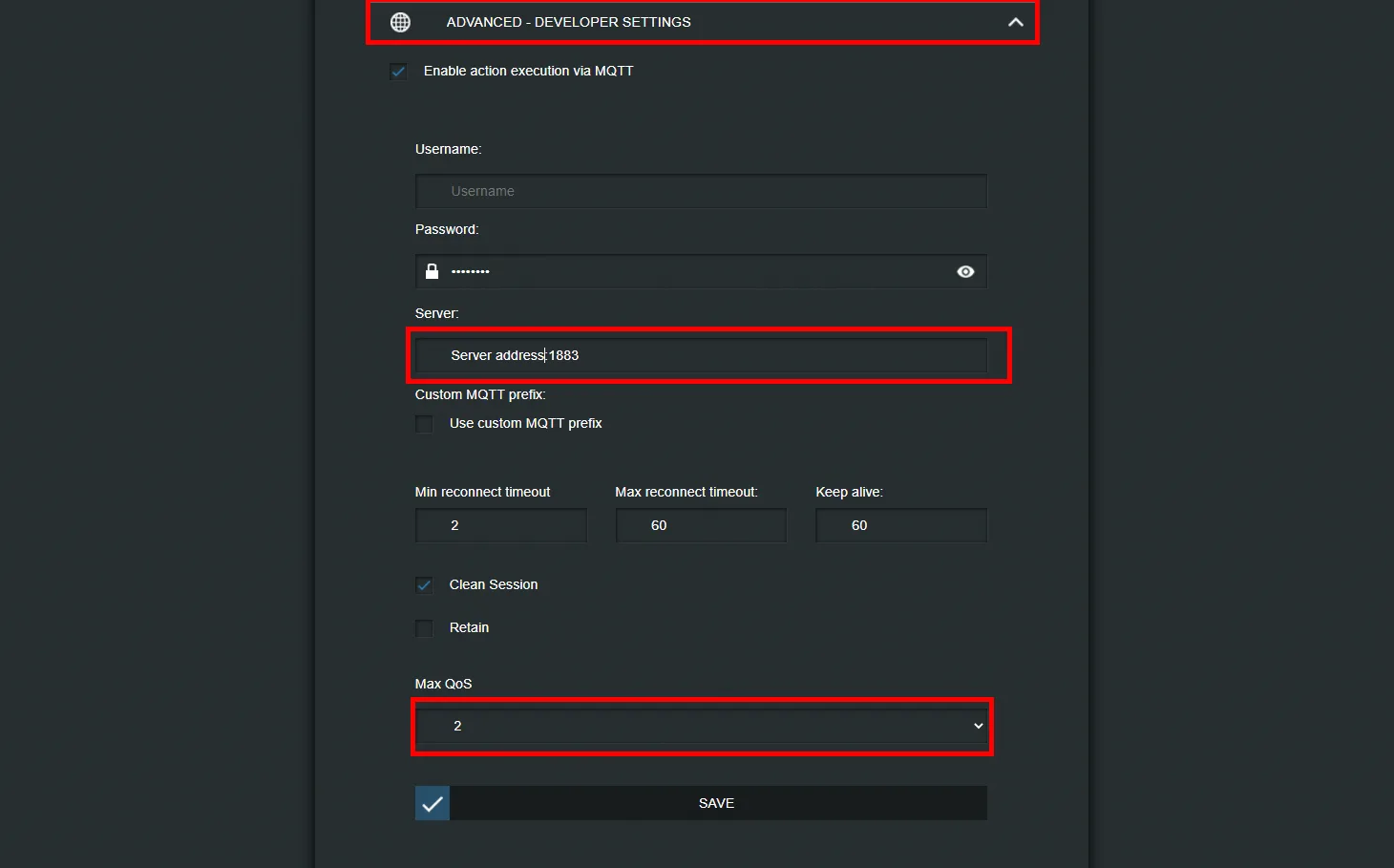
The next step is to enable actions via the MQTT protocol on the Shelly device: in the Internet & security settings menu, go to the Advanced developer settings section and check the Enable action execution via MQTT box. Then enter the IP address of your X1 server in the “Server” text field.
Topic configuration
Step 3:
The next step is to set up the MQTT gateway in Ilevia Manager. Click here to open the guide explaining how to configure this protocol.
Step 4:
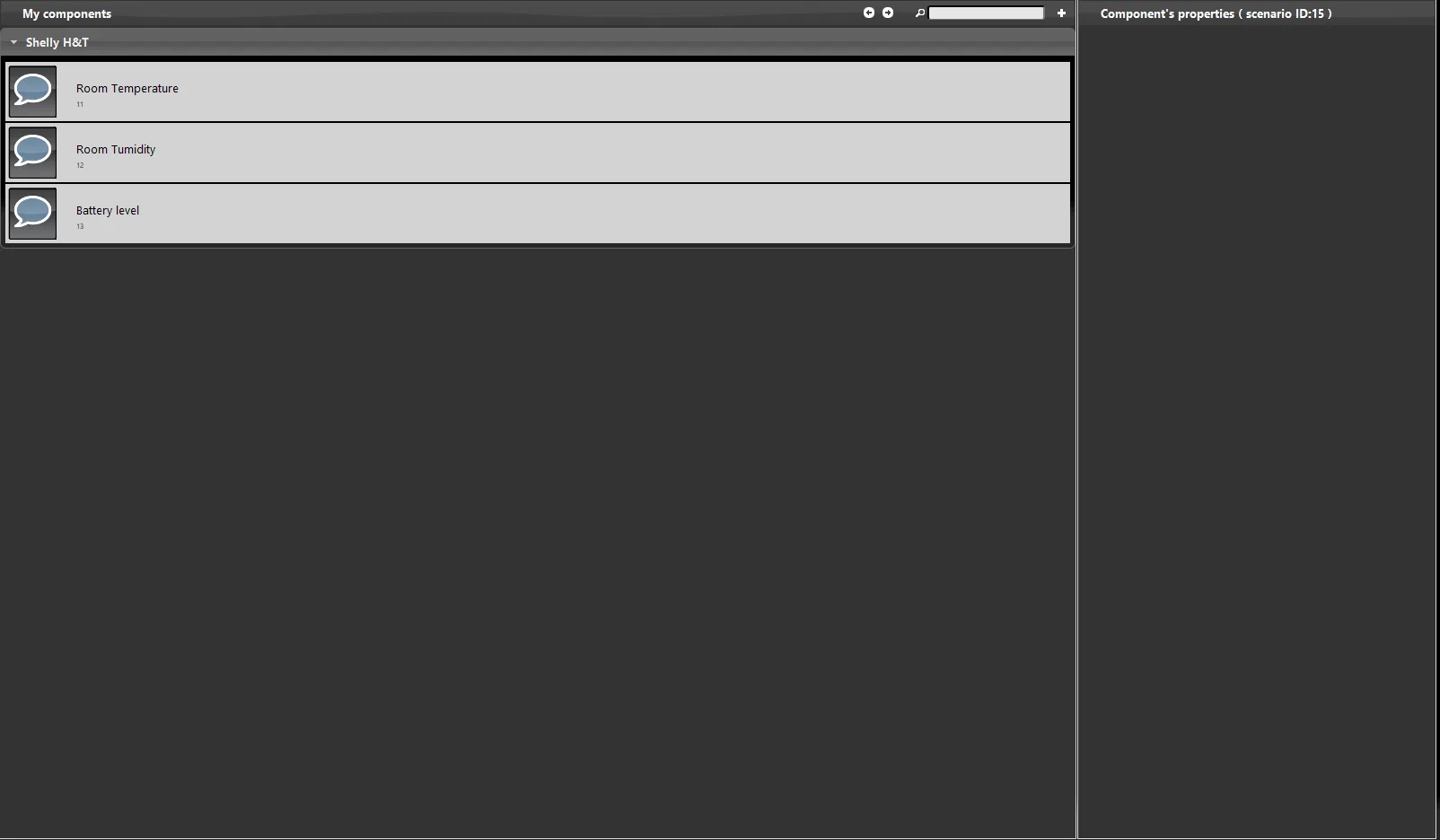
Now let’s set up the topics. In this case, only one topic is needed, because the device reports three types of values: ambient temperature, relative humidity, and battery level.
Step 5:
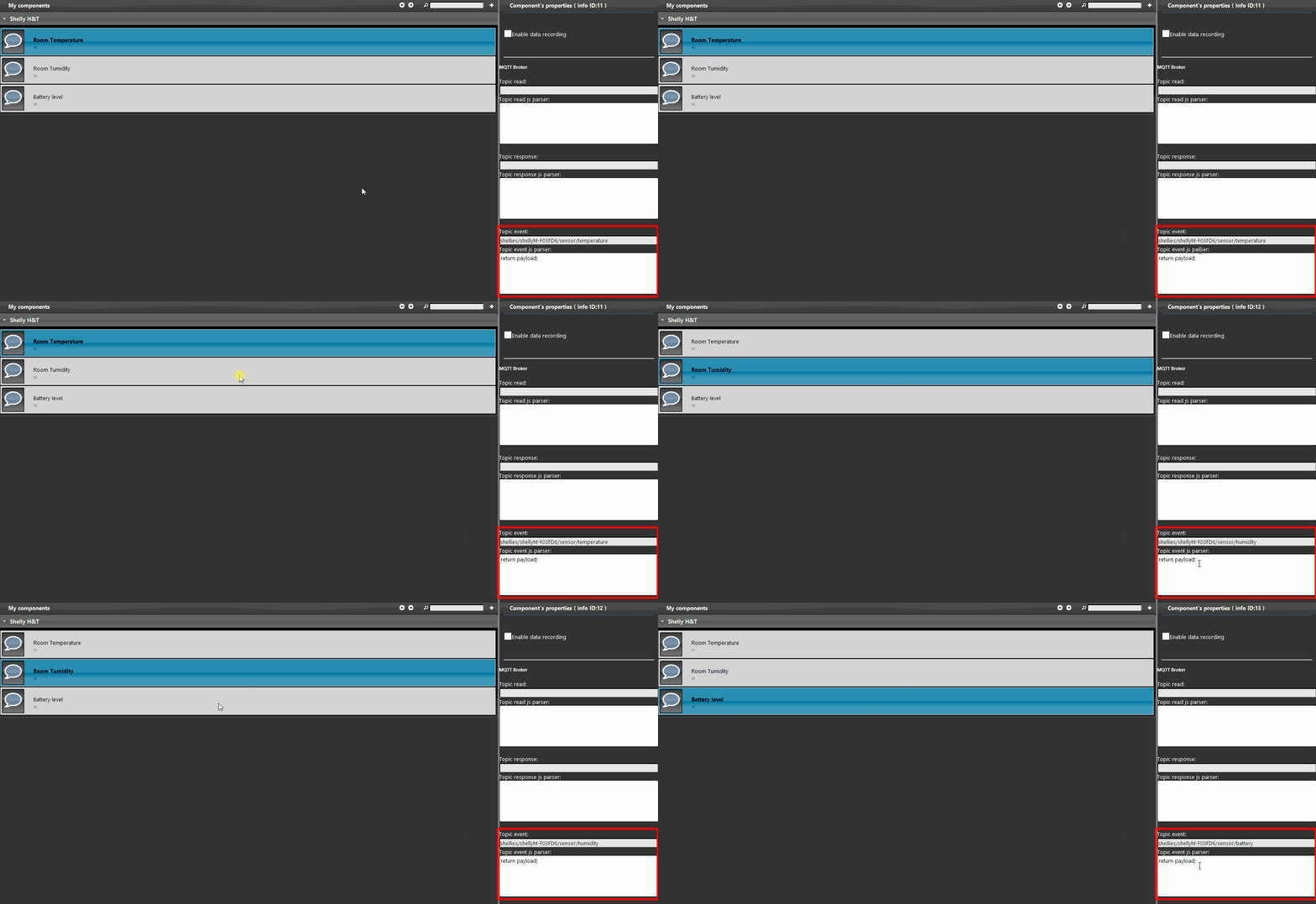
For each topic, the script set in the Topic Event is the same. The Shelly device sends the data when the value changes; the script retrieves the value corresponding to the specified topic.
Click this link to view the topic configuration.
Step 6:
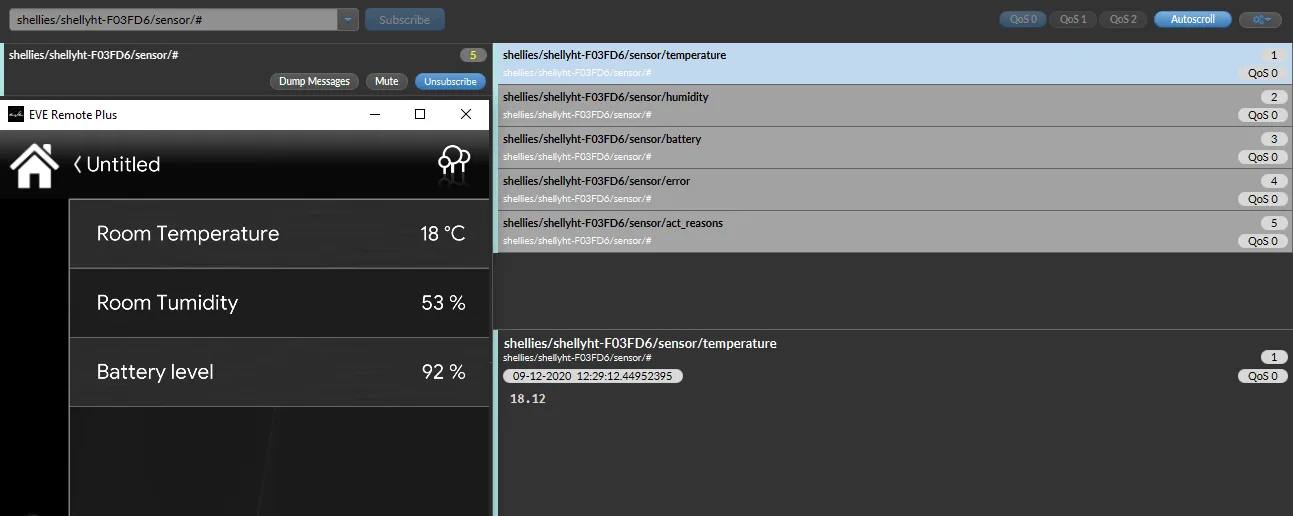
This is how the components are displayed in the user interface of the Ilevia Remote Plus home automation control application.
As you can see, the components we set up show the values published by the Shelly device.
Troubleshooting
1. Make sure you have the latest available version of Ilevia Manager and the X1 server firmware.
2. Make sure the Shelly device is correctly connected to your network.
3. If you cannot connect to the broker, check that your X1 server has been configured correctly.