SONOS Device Integration
Guide on how to integrate SONOS devices with the Ilevia server via the Ilevia Manager configuration software.
Introduction
With the integration of the Ilevia server with the SONOS system, your audio system becomes an integral part of the home automation ecosystem. Whether you are waking up, hosting friends, or relaxing, you can orchestrate the environment with a single tap. Thanks to this integration, the Ilevia Control app lets you: control speakers directly from your smart home user interface, play your favourite playlists without switching to another app, and automate playback within scenes and routines. This guide explains how to integrate the SONOS system with the Ilevia server.
Use cases
Start the day with lights, shutters, and your favourite playlist, all executed automatically through Ilevia and SONOS.
Play music, adjust the volume, and set the playlist in the various rooms directly from the Ilevia Control app while hosting friends or relaxing.
Set the mood with scenes such as “Relax” or “Workout”, which synchronize lighting and SONOS playback to suit your mood.
Component configuration
Step 1:
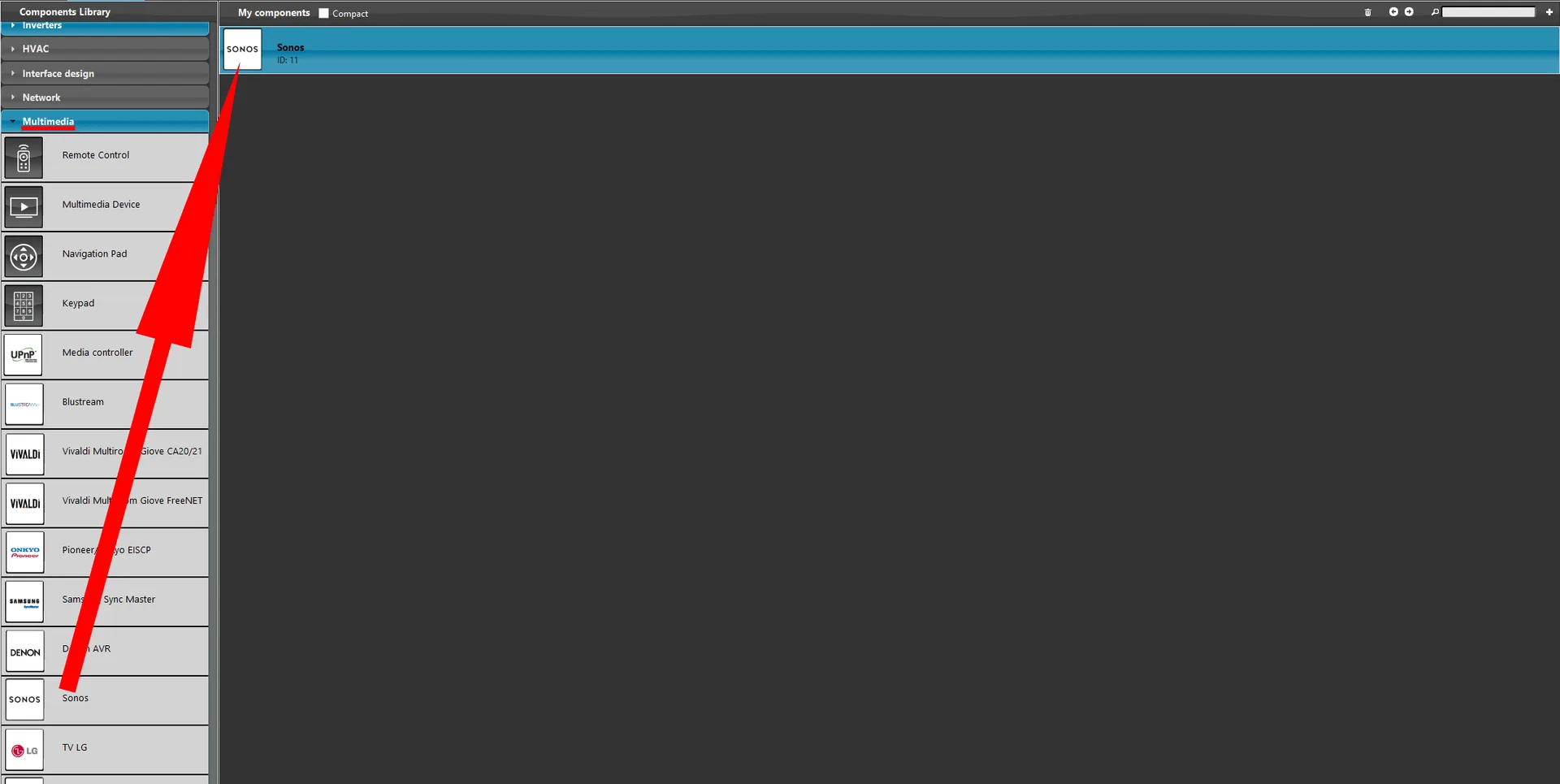
Open the Ilevia Manager software. Add a new SONOS component from the “Multimedia” section in the “Component library” menu.
Step 2:
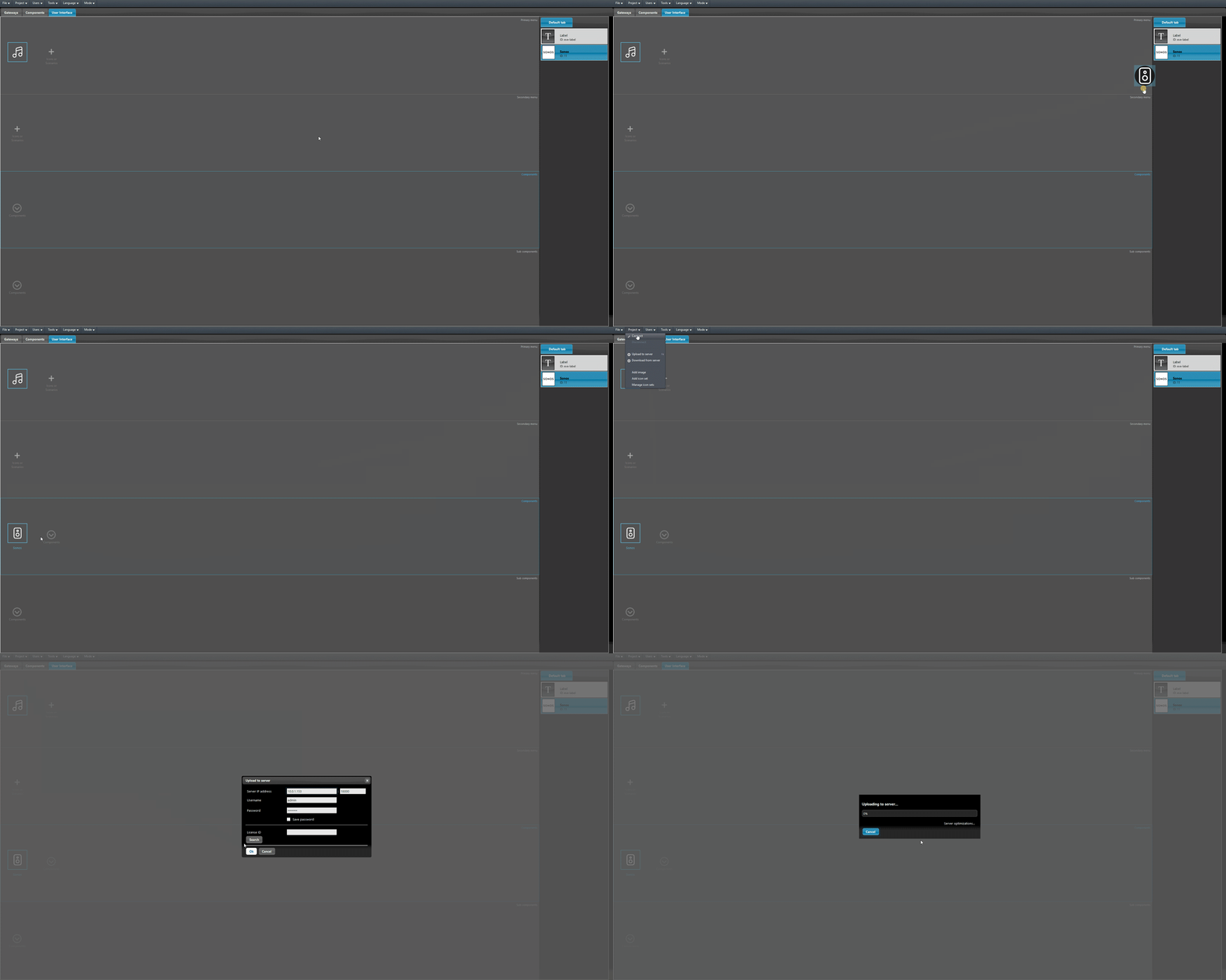
Add the SONOS component to the user interface: go to the User interface section and upload the project to the server.
Step 3:
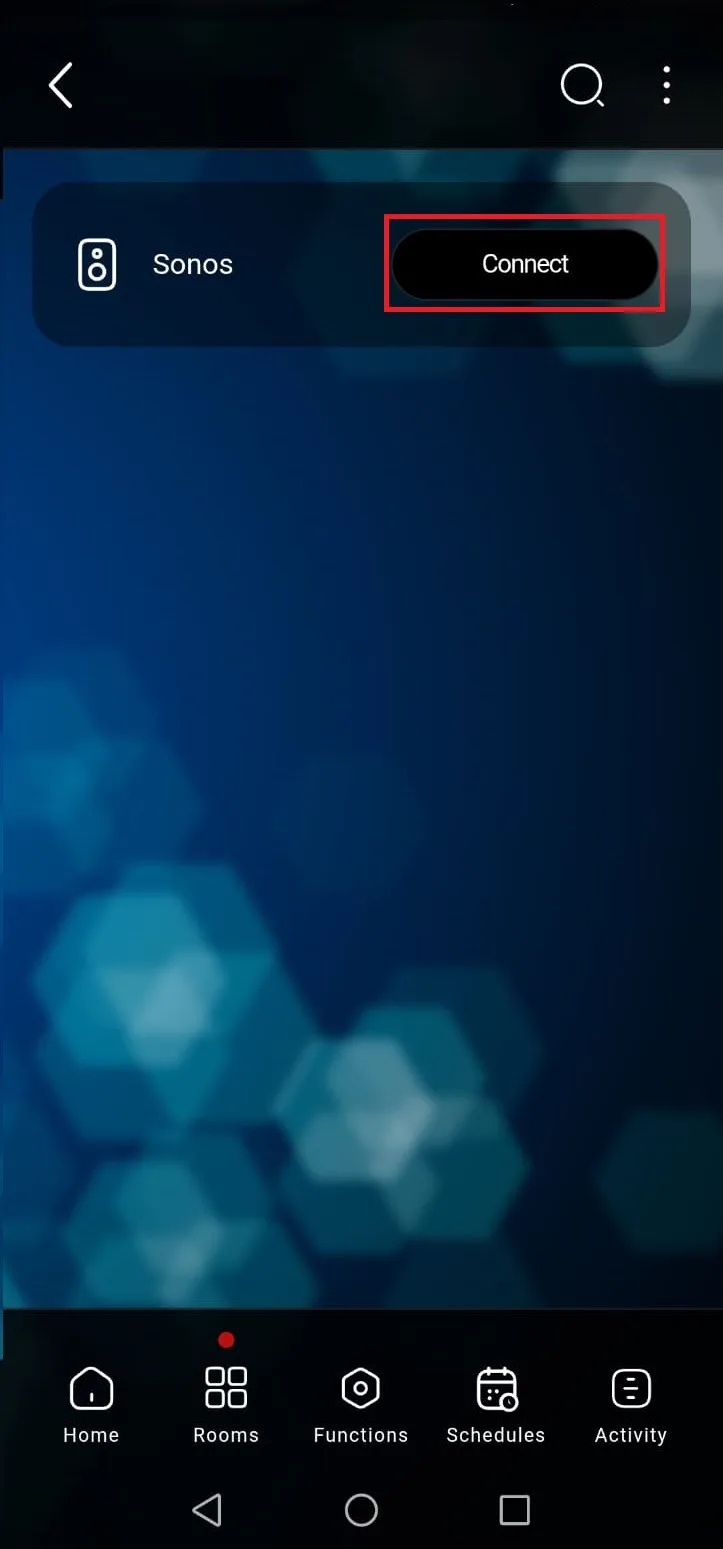
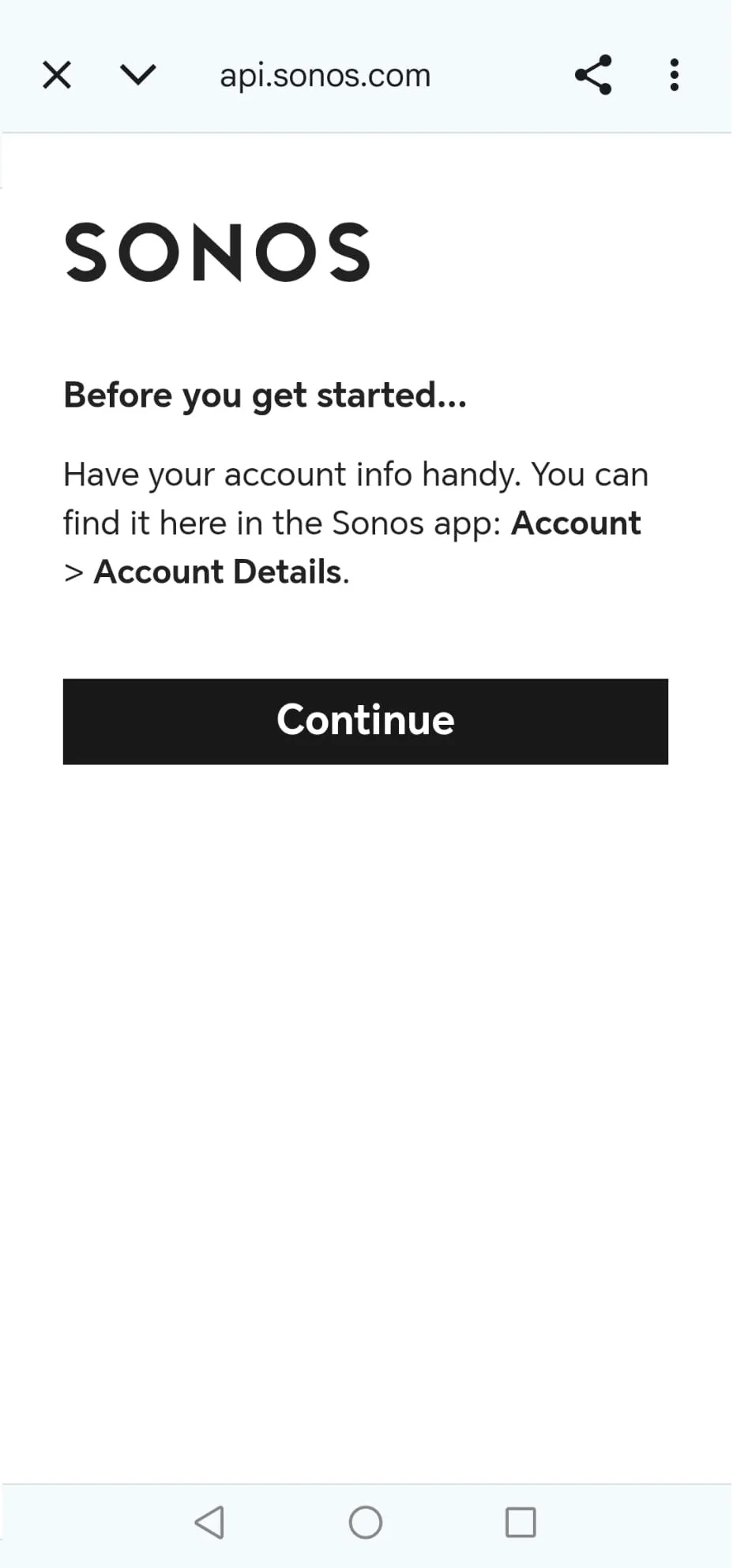
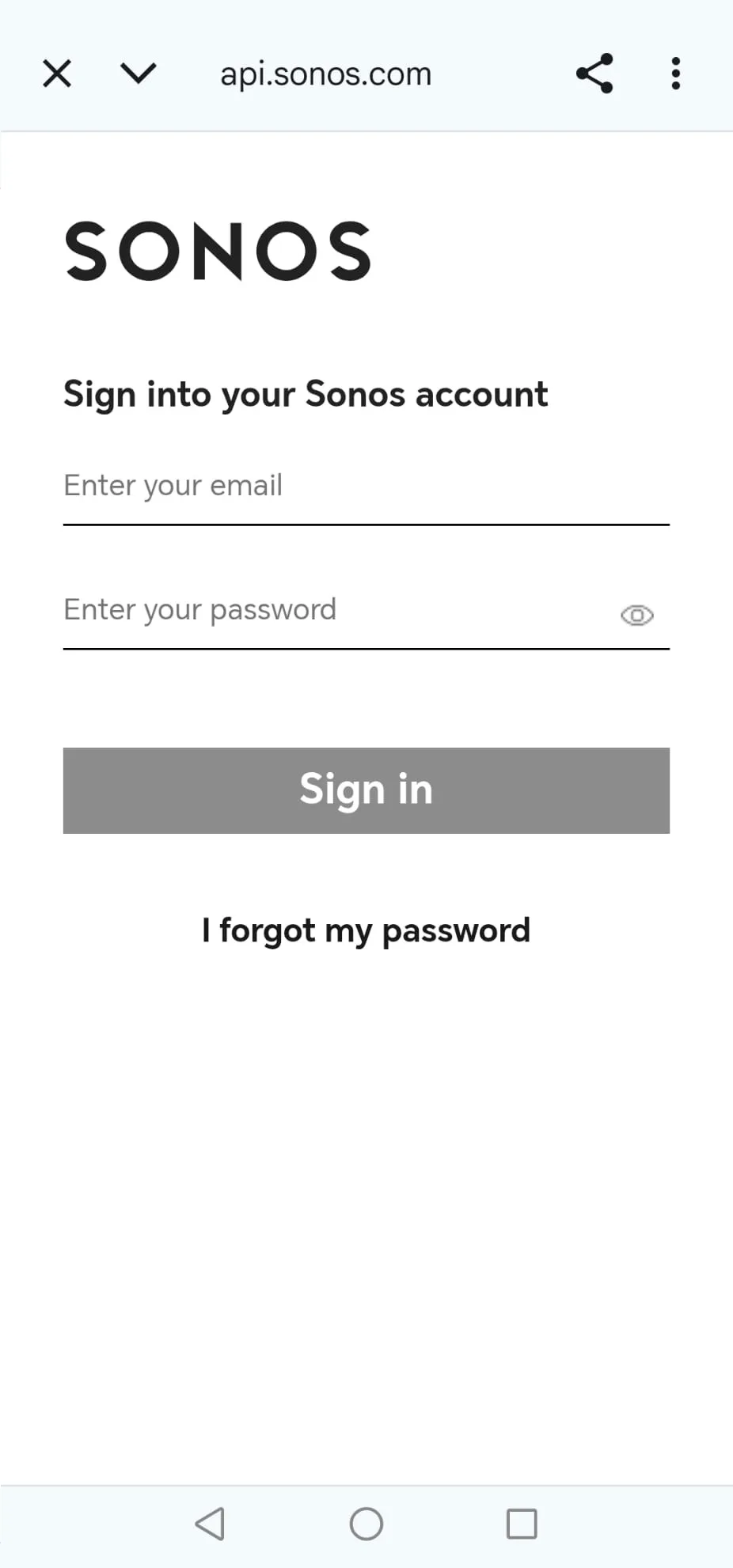
Log in to the Ilevia Control app (follow this guide for more information on signing in to the app), click “Connect”, and then sign in to your Sonos account.
Step 4:
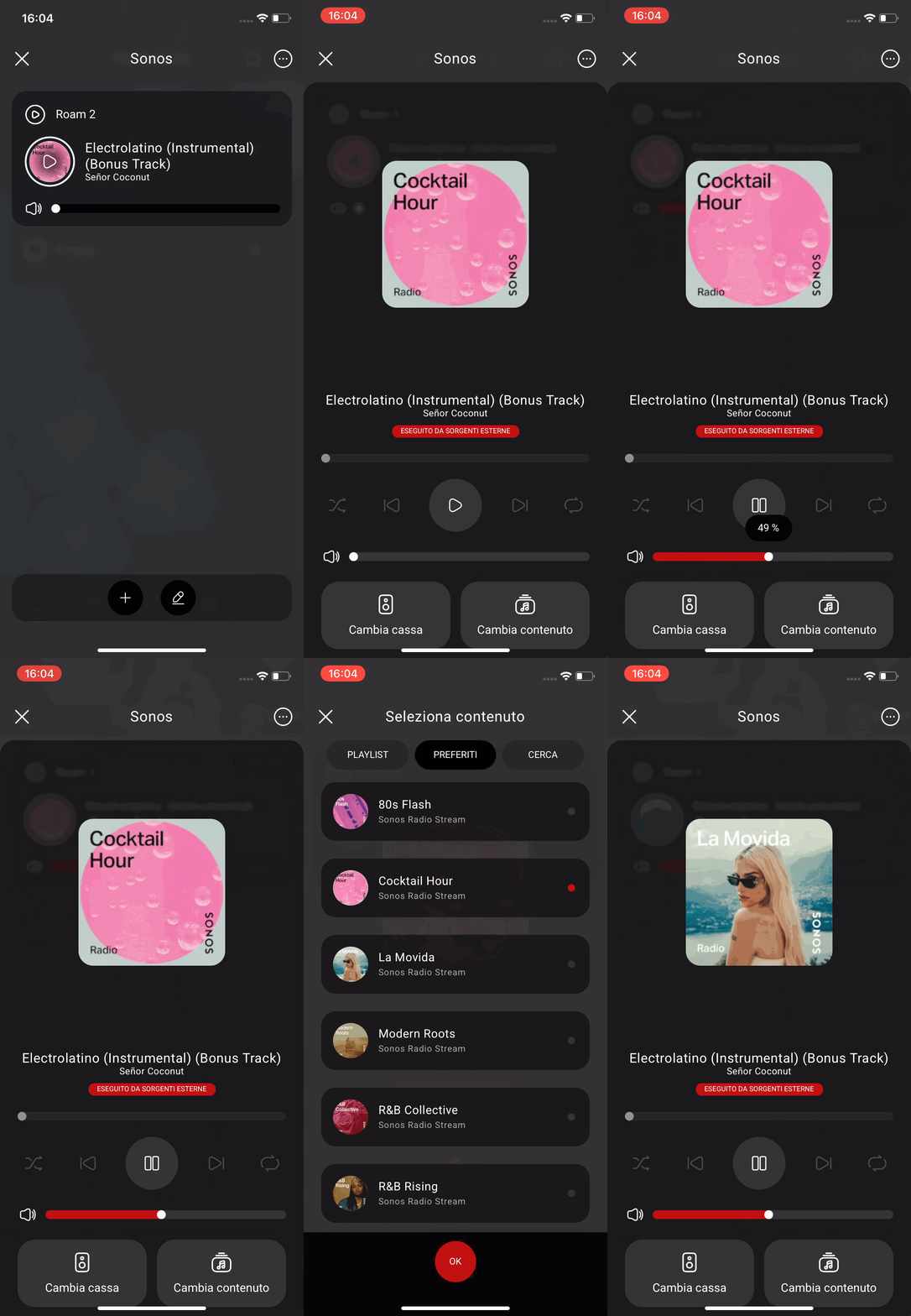
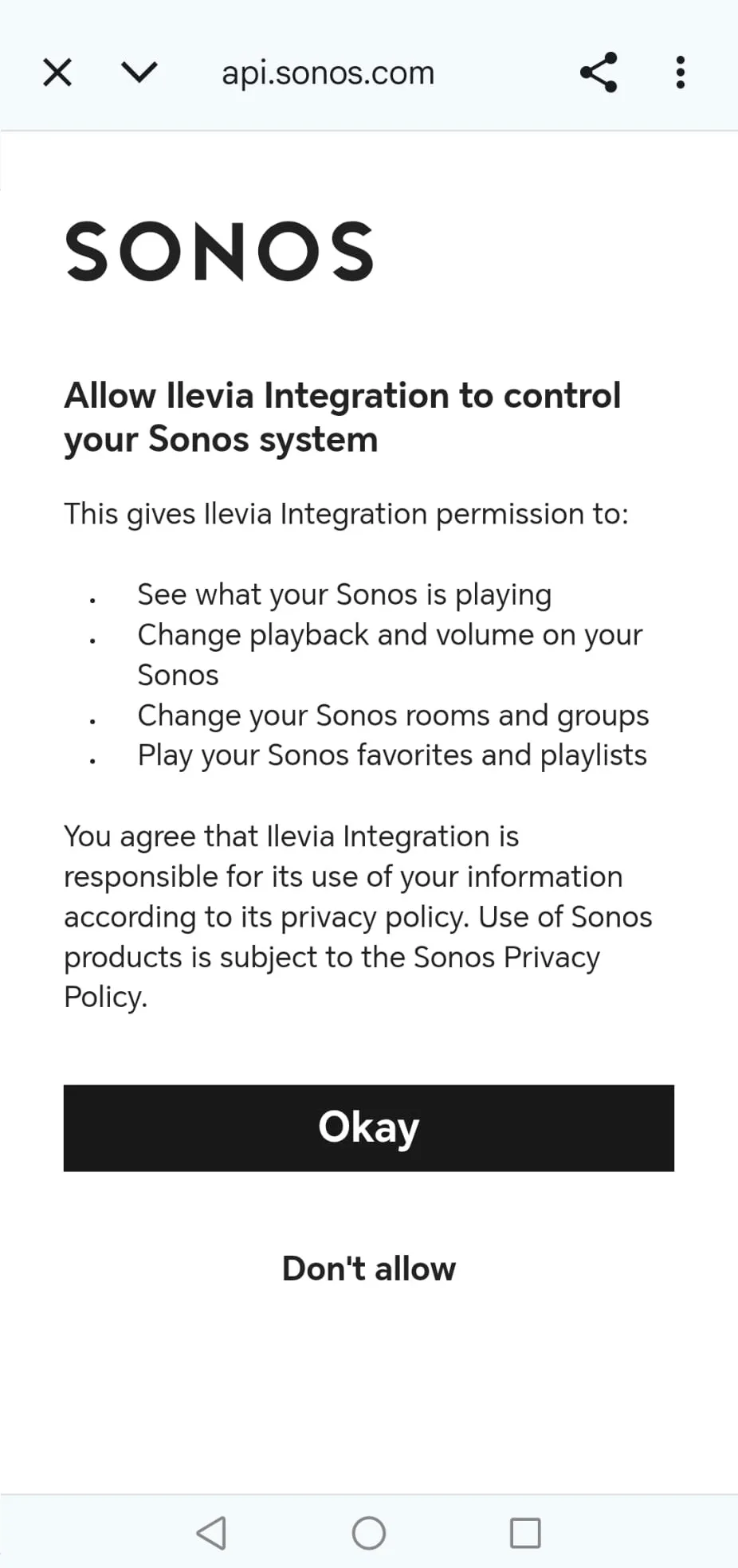
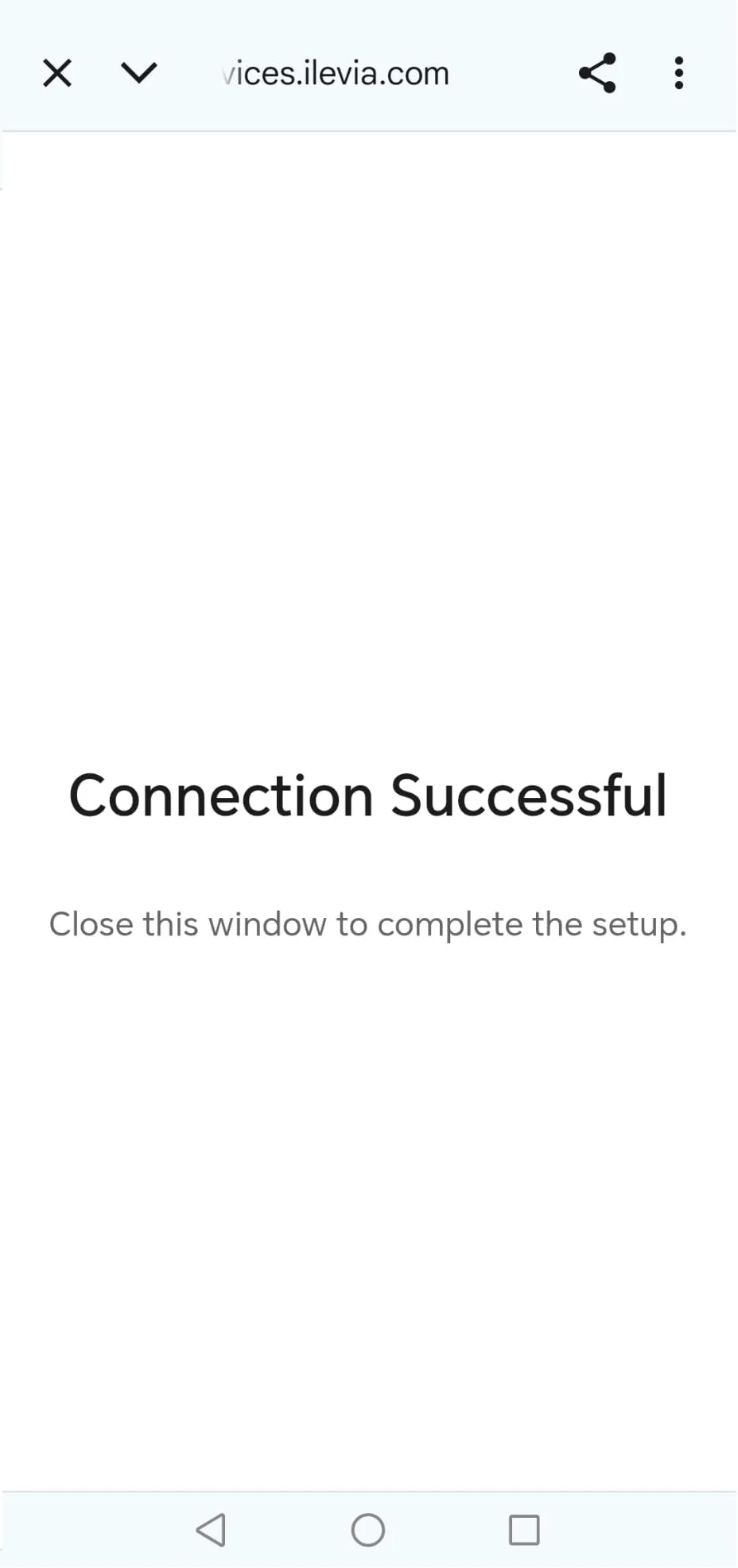
Sign in to the SONOS account: once done, the speakers linked to your SONOS account are displayed in the Ilevia Control app.
Step 5:
From the Ilevia Control app you can use play, stop, next track, previous track, and speaker selection.