OpenAI Integration
How to configure the OpenAI component in Ilevia Manager to give voice commands in natural language to the X1 server.
Introduction
The integration of OpenAI with the X1 server enhances Ilevia voice control integration and allows commands to be given in natural language, without rigid syntax. This guide explains the setup and configuration of the component.
Use cases
A user says “Set the house to evening mode” and OpenAI interprets the phrase to dim the lights, close the shutters and lower the thermostat, with a single natural phrase.
In a multilingual home, one person says “Turn on the lights in the kitchen” and another says it in English: OpenAI handles both languages, making voice control flexible.
A user says “We have guests for dinner tonight” and the system adjusts the lights to create the right atmosphere and sets the temperature for comfort: OpenAI allows the X1 server to interpret events and start multiple automations with a single phrase.
Component properties
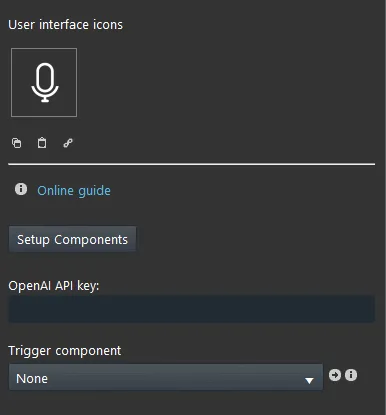
Setup Components: here you configure the components that will be managed by OpenAI.
OpenAI API Key: enter your OpenAI API Key here, which creates the connection between your OpenAI account and Ilevia.
Trigger component: this component allows voice recognition to be activated from an external device, such as wall buttons or external logic.
OpenAI wizard
The OpenAI wizard is made up of several sections. The first section, starting from the left side of the window, contains all the objects that can be added to the configuration. The second section allows you to organize the objects and create multiple areas, to obtain a tidy structure.
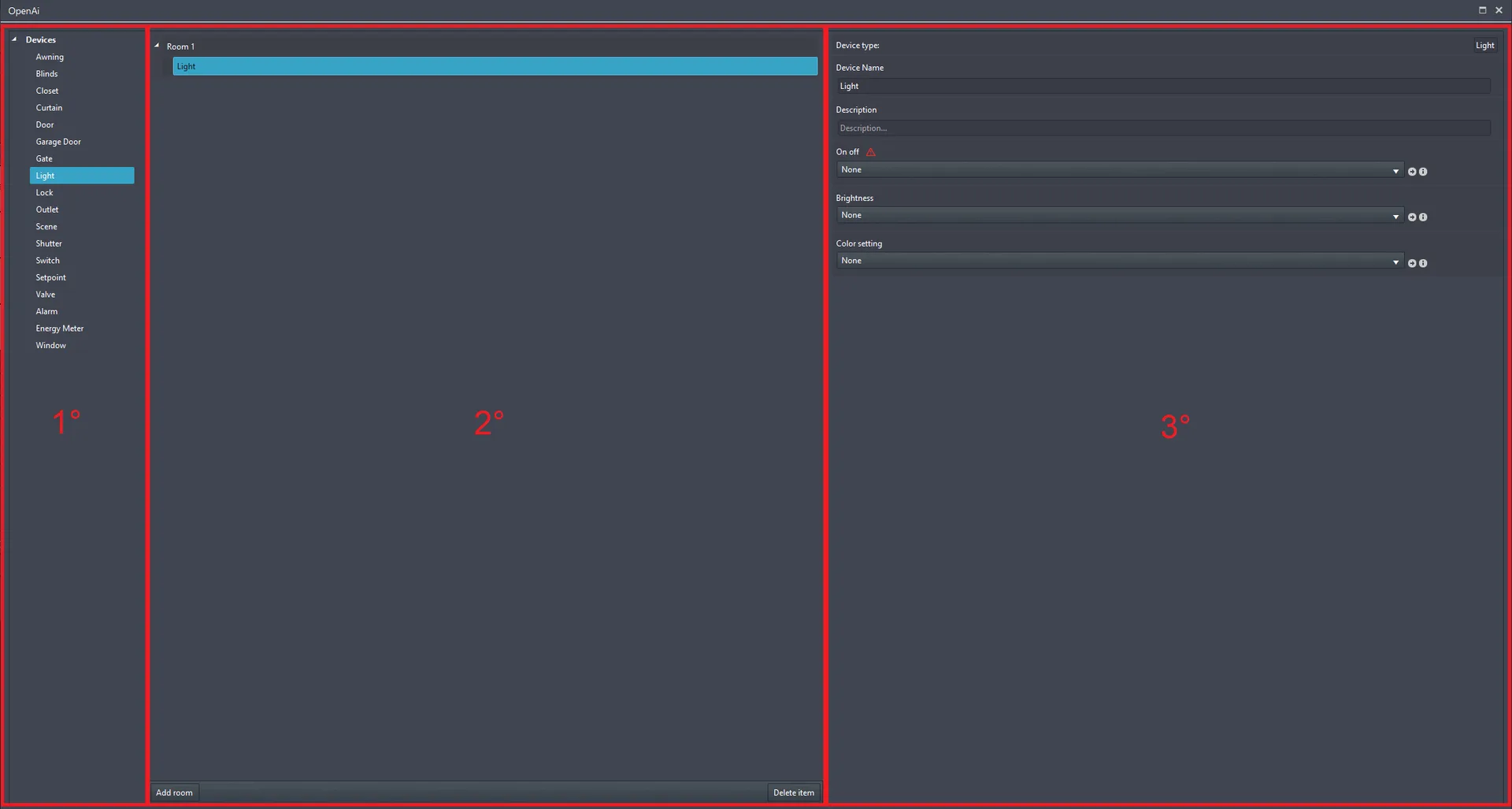
At the bottom of the second section of the OpenAI wizard there are two buttons, which allow you to add and remove objects from the structure.
Add room: this button allows you to add rooms to the OpenAI wizard structure.

Delete element: this button allows you to delete the object added to the OpenAI wizard structure.

Device configuration
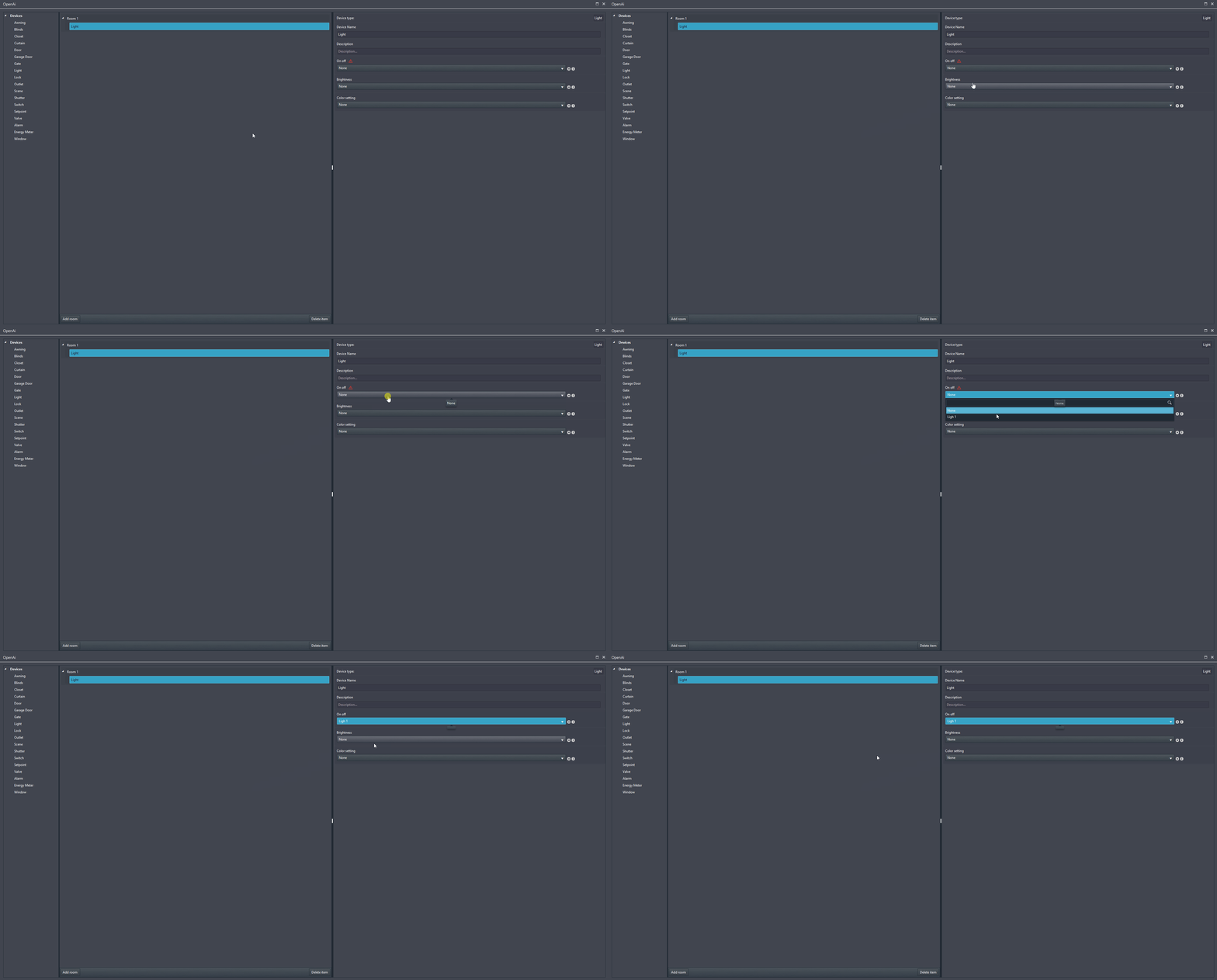
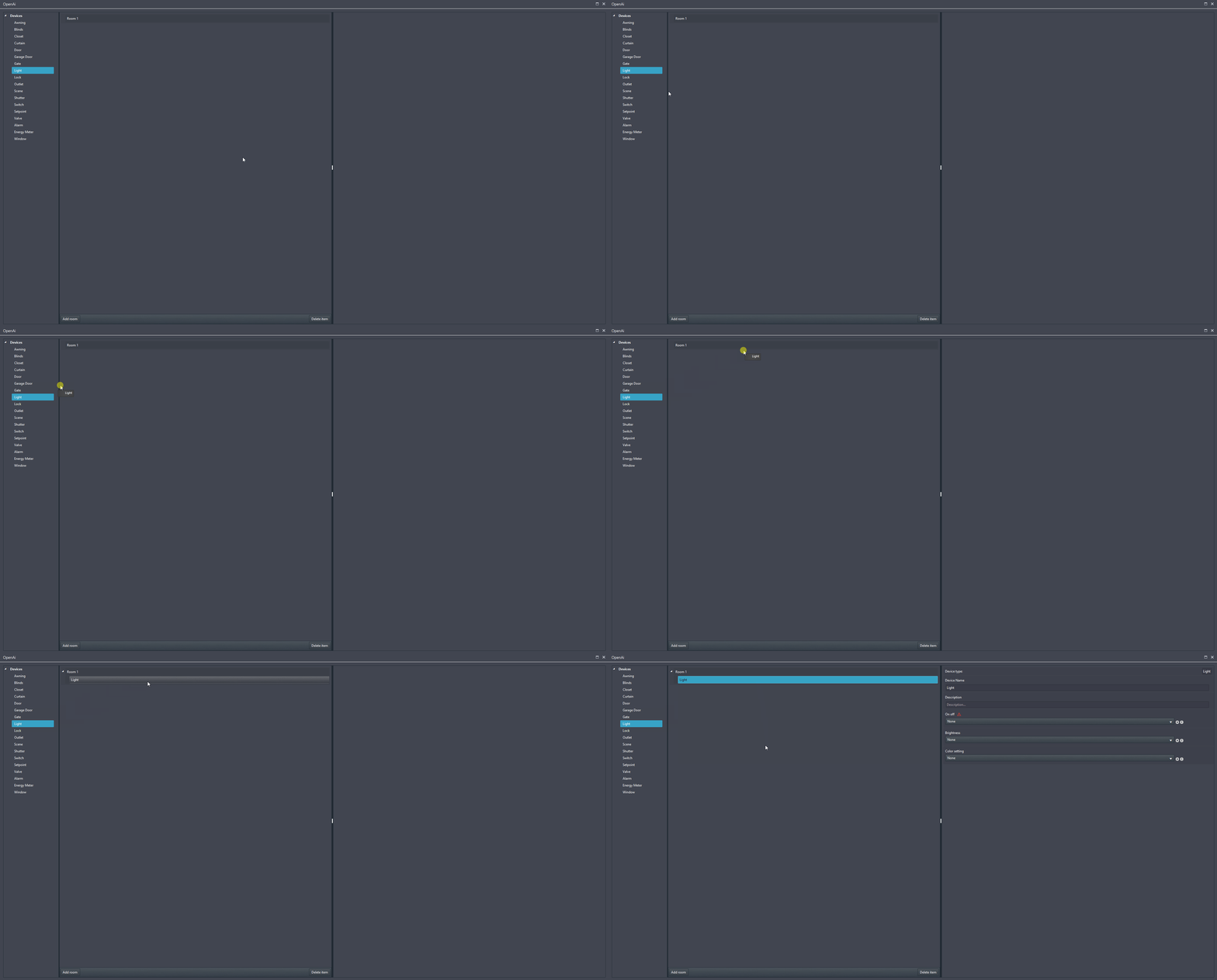
On the left side of the OpenAI wizard window there is a list of configurable devices. To add a device to the configuration, drag it from the Devices tab to the structure section.
Fill in the device parameters by linking the component you want that device to control when you speak with the voice assistant. Warning icons appear on the required parameters: they must be completed for the device to work with the voice assistant.
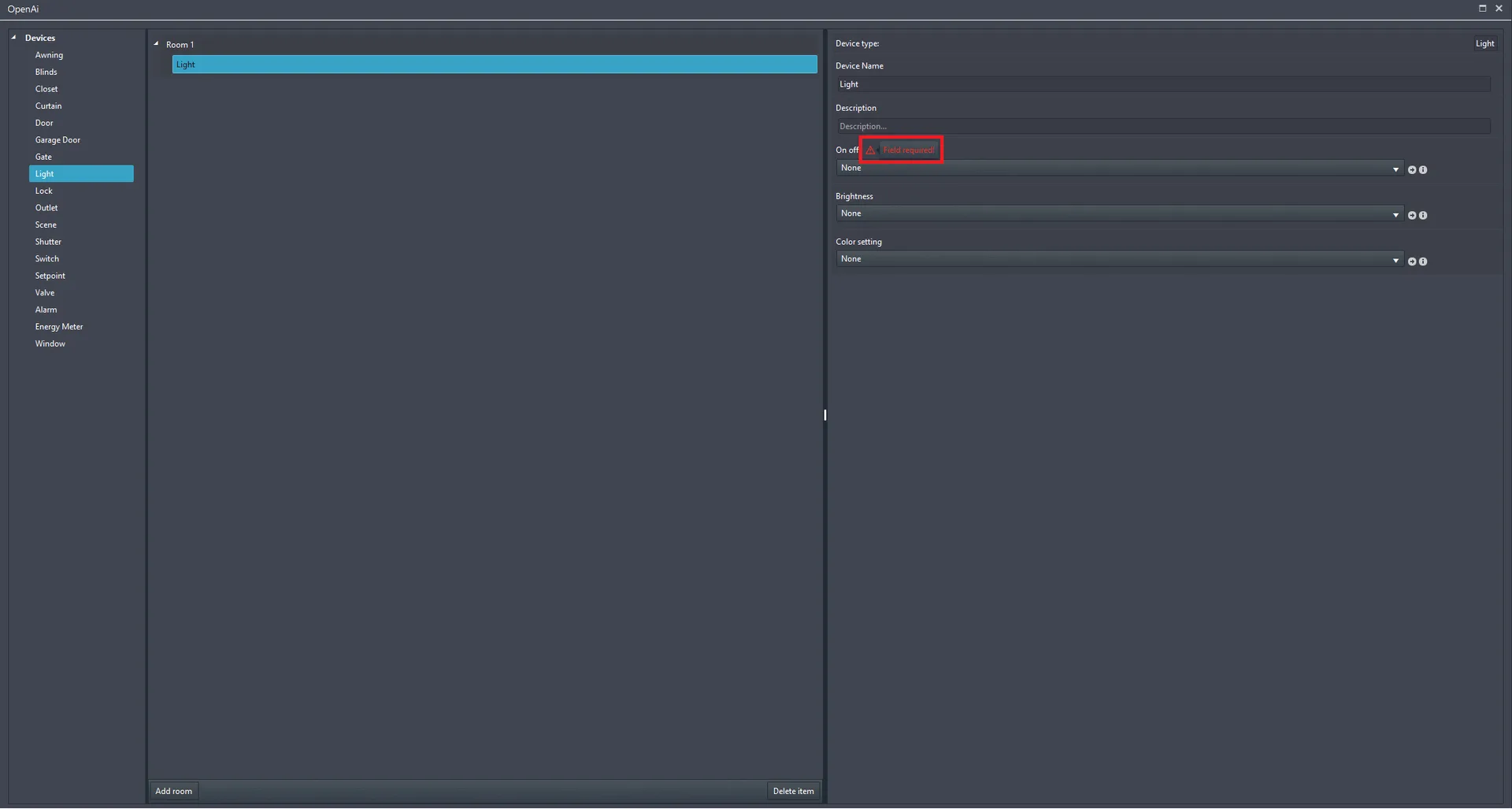
Link the component to the device from the drop-down menu in the OpenAI wizard. After linking, close the wizard and upload the project to the server.